Editor’s note: This release outlines how Amazon enters its fourth-quarter earnings period with improving investor sentiment, driven largely by stronger-than-expected performance from Amazon Web Services. Cloud growth and resilient demand have become central to the market narrative, alongside expectations that AI-related workloads will scale further in 2026. The commentary also highlights investor focus on valuation, operating margins, capital expenditure discipline, and the advertising business, while pointing to longer-term optionality from logistics automation, AI monetisation, satellite connectivity, and potential pricing changes across the Prime ecosystem.
Key points
AWS growth exceeded expectations, supporting confidence ahead of Q4 earnings.
Investor sentiment is closely tied to cloud capacity expansion and sustained demand.
AI-driven workloads are expected to be a major factor shaping AWS performance in 2026.
Amazon’s valuation is viewed as relatively modest compared with long-term earnings potential.
Profitability drivers include margin expansion, capex discipline, and advertising growth.
Why this matters
Amazon’s cloud performance is increasingly important for investors assessing earnings quality and long-term growth. AWS sits at the intersection of cloud infrastructure and AI adoption, making its trajectory relevant for enterprise customers, developers, and the broader digital economy. For markets, the balance between continued investment and margin improvement will be key in determining whether stronger cloud momentum can translate into sustained shareholder value.
What to watch next
Fourth-quarter earnings results and updated guidance for AWS growth.
Signals on AI workload scaling and related infrastructure investment.
Developments in operating margins, capital expenditure, and advertising revenue.
Disclosure: The content below is a press release provided by the company/PR representative. It is published for informational purposes.
Abu Dhabi, United Arab Emirates – February 05, 2026: Amazon (NASDAQ: AMZN) is entering its fourth-quarter earnings period with improving investor confidence, supported by a strong performance in the previous quarter and growing optimism around its cloud computing division, Amazon Web Services (AWS).
Cloud momentum has been a key driver of sentiment, with AWS growth coming in ahead of expectations and clear signs that demand remains resilient as capacity continues to expand.
Commenting on the outlook, Lale Akoner, Global Market Analyst, said: “Momentum in AWS has been a major positive for Amazon, with cloud growth exceeding expectations and demand remaining healthy as capacity scales. This has played an important role in strengthening investor confidence heading into the fourth quarter.”
Looking ahead, 2026 is expected to be a pivotal year for AWS, particularly as AI-related workloads continue to scale. Investors are increasingly focused on whether accelerating cloud growth can translate into stronger earnings momentum and support a higher valuation. At current levels, Amazon shares trade at a relatively modest multiple of long-term earnings, further contributing to the improving sentiment.
Advertisement
Beyond cloud, market attention is also centred on Amazon’s path to higher profitability. This includes potential operating margin expansion, continued discipline around capital expenditure, and sustained growth in the advertising business.
Over the longer term, additional upside could come from logistics automation, broader monetisation of AI across consumer products, new revenue streams such as satellite internet, and the potential for future Prime subscription price increases.
eToro is the trading and investing platform that empowers you to invest, share and learn. We were founded in 2007 with the vision of a world where everyone can trade and invest in a simple and transparent way. Today we have 40 million registered users from 75 countries. We believe there is power in shared knowledge and that we can become more successful by investing together. So we’ve created a collaborative investment community designed to provide you with the tools you need to grow your knowledge and wealth. On eToro, you can hold a range of traditional and innovative assets and choose how you invest: trade directly, invest in a portfolio, or copy other investors. You can visit our media centre here for our latest news.
Advertisement
Risk & affiliate notice: Crypto assets are volatile and capital is at risk. This article may contain affiliate links. Read full disclosure
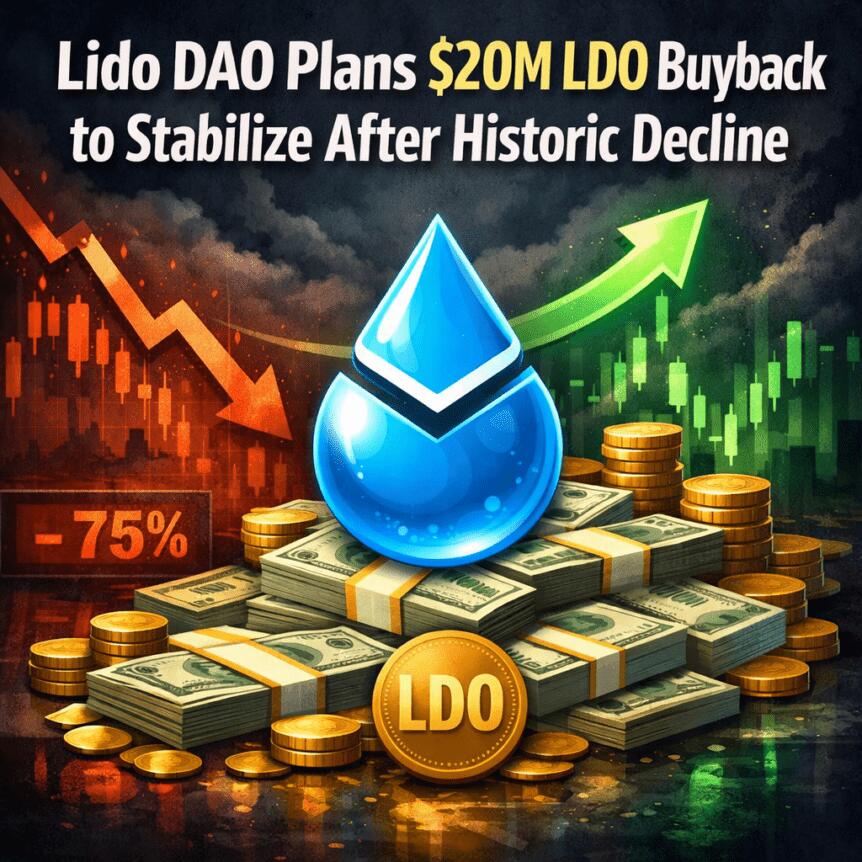
Lido DAO’s decentralized autonomous organization is weighing a one-off $20 million buyback of its governance token, LDO, in a bid to address a pronounced price dislocation relative to Ether. The plan would swap 10,000 stETH tokens from the treasury for LDO, with proponents arguing that the governance token is undervalued given the protocol’s fundamentals.
The proposal, submitted on Friday, outlines a staged approach: the treasury would acquire up to 10,000 stETH in smaller batches of 1,000 and swap each batch for LDO. Lido argues this move could restore alignment between LDO’s market price and the underlying health of the protocol, a gap it says has widened to historically large levels. As part of the process, each batch would require tokenholder approval, and results would be reported before the next tranche proceeds.
“This is not a routine fluctuation. It represents one of the most significant dislocations between LDO’s market price and its underlying protocol fundamentals in the token’s history.”
The time to act comes as LDO sits at an extended discount to Ether. Lido DAO notes LDO trades at about 0.00016 ETH, roughly 63% below its two-year median. At the same time, Lido remains the dominant force in Ethereum’s liquid staking market, holding about 23.2% of staked Ether, according to Dune Analytics data. That leadership has not come without controversy; previous assessments flagged the potential centralization risks tied to a single protocol’s dominance in securing a large share of the network’s staking.
Price and market metrics underscore the scale of the challenge. LDO is currently trading around $0.30, down about 95.9% from its peak near $7.30 in August 2021. Its market capitalization sits near $255 million, placing it around the 141st-largest token by value. The plan’s proponents argue that the proposed buyback could shore up sentiment by demonstrating active governance-driven capital allocation tied to the protocol’s real-world performance.
Advertisement
Key takeaways
The Lido DAO proposal would execute a one-off $20 million buyback by swapping up to 10,000 stETH from the treasury for LDO, in batches of 1,000 stETH each, using limit orders or dollar-cost averaging to manage volatility.
Approval for each batch would be required from tokenholders, and results would be disclosed after every tranche before proceeding.
LDO trades at a steep discount to ETH (approximately 0.00016 ETH per LDO, about 63% below the two-year median), despite Lido’s leadership in Ethereum’s liquid staking sector.
Lido’s dominance has been cited in the past as a potential centralization risk for the network, though the current governance move focuses on price alignment and treasury management.
Revenue and fee dynamics in 2025 show Lido’s take rate rising to 6.1% even as staking fees declined, with total staking revenue dipping amid a broader market retrenchment.
Mechanics, governance, and investor considerations
The proposed buyback plan hinges on a staged governance process. If approved, Lido would execute batches of 1,000 stETH each, swapping them for LDO until the 10,000-stETH target is reached. The strategy emphasizes price discipline: Lido intends to use limit orders or a dollar-cost averaging approach to smooth entry and avoid abrupt price moves. Each batch would require a new round of tokenholder approvals, and the DAO would report results after every step to maintain transparency and accountability.
The broader context includes a look at Lido’s earnings trajectory. In 2025, Lido’s revenue declined by about 23% to roughly $40.5 million, driven largely by a drop in staking fees to about $37.4 million. Despite the revenue dip, the protocol’s take rate—defined as the percentage of staked ETH rewards retained as fees—improved from about 5% to just over 6% in 2025. Lido argues that the core fundamentals remain robust even amid a wider market pullback and a 13% cost improvement in 2025 versus 2024.
The idea of a buyback is not entirely new within Lido’s ecosystem. In November, a member proposed an automated buyback mechanism to support LDO’s price, but that proposal has not been implemented. The current plan reframes the concept as a one-off, governance-driven initiative tied directly to the treasury’s assets and the DAO’s long-term interests.
Implications for holders and the broader ecosystem
If the proposal advances, the immediate effect could be a temporary lift in LDO’s trading dynamics, especially if the market interprets the buyback as a signal that the DAO is willing to put treasury-backed resources toward balancing token price with protocol fundamentals. For investors, the move highlights a visible attempt to align incentives between token economics and the platform’s operational strength, particularly given Lido’s entrenched position in Ethereum staking and its influence on validator economics.
However, the plan also introduces governance risk and execution risk. The need for multiple rounds of tokenholder approvals means outcomes will be contingent on community sentiment and turnout. Moreover, the market’s reaction will hinge on how the buyback intersects with broader SEC-like scrutiny, market liquidity conditions, and the pace at which LDO could absorb new supply without dampening demand for the token’s governance role.
Advertisement
Looking ahead, observers will be watching whether the DAO proceeds with the proposed schedule, how each batch performs relative to market conditions, and whether this approach invites further debates about token economics, centralization concerns, and the resilience of Ethereum’s staking architecture as it evolves post-merge.
Readers should monitor Lido DAO’s governance votes and the market’s reaction to any announced results from each tranche, as these steps will illuminate how the community weighs treasury-backed interventions against the need to maintain decentralization and protocol integrity in a challenging macro environment.
Risk & affiliate notice: Crypto assets are volatile and capital is at risk. This article may contain affiliate links. Read full disclosure
The war just got bigger. Bitcoin briefly got smaller.
Bitcoin dipped to $65,112 early Monday morning, its lowest level since the February crash, before recovering to $67,402 as Asian markets opened.
The 24-hour range of $65,112 to $67,389 reflects a market that sold hard on overnight escalation headlines and found buyers near $65,000, a level that hasn’t been tested since the war’s opening weekend five weeks ago.
Ethereum recovered 2% to $2,044, Solana gained 0.9% to $83.48, and XRP added 1.4% to $1.35. The 24-hour green across the board masks a rougher weekly picture though. BTC is still down 1% on the week, ETH 0.9%, XRP 1.9%, and SOL 3.7%. Tron is the one name sitting in green, up 2.6% in a day and 4.6% on the week, quietly outperforming the entire majors complex.
Advertisement
The escalation this time came from multiple directions simultaneously. Iran-backed Houthi forces entered the conflict, opening a new front beyond the direct U.S.-Israel-Iran theater. Additional U.S. troops arrived in the Middle East, fanning fears of a ground operation.
The Wall Street Journal reported Trump is weighing a military operation to extract uranium from Iran, though no decision has been made. And Iran attacked two aluminum production sites in the region, sending the metal up as much as 6% and extending the war’s economic damage beyond oil and into industrial commodities.
Brent crude rose 2.5% to around $115 a barrel, now up roughly 90% year-to-date. Asian equities fell sharply, with South Korea’s benchmark down 3.2% on a technology stock selloff and Japan’s Nikkei dropping 3.4%. S&P 500 futures pared losses and were trading roughly flat, suggesting some stabilization after the initial reaction.
The $65,112 low matters technically. That level is within range of the $64,000 low from Feb. 28, the day the war started. Bitcoin has spent five weeks building a pattern of higher lows on each escalation, from $64,000 to $66,000 to $68,000 to $69,400 to $70,596.
Advertisement
Monday’s dip below $66,000 is the first time in weeks the floor has moved lower rather than higher. Whether it recovers and re-establishes the uptrend or marks the beginning of a break below the range that has held since the war began is the question for the rest of the day.
Meanwhile, oil at $115 and aluminum spiking on direct attacks on production facilities means the inflationary impact is broadening beyond energy into industrial supply chains. That makes the Fed’s position even harder and the rate cut timeline even more distant.
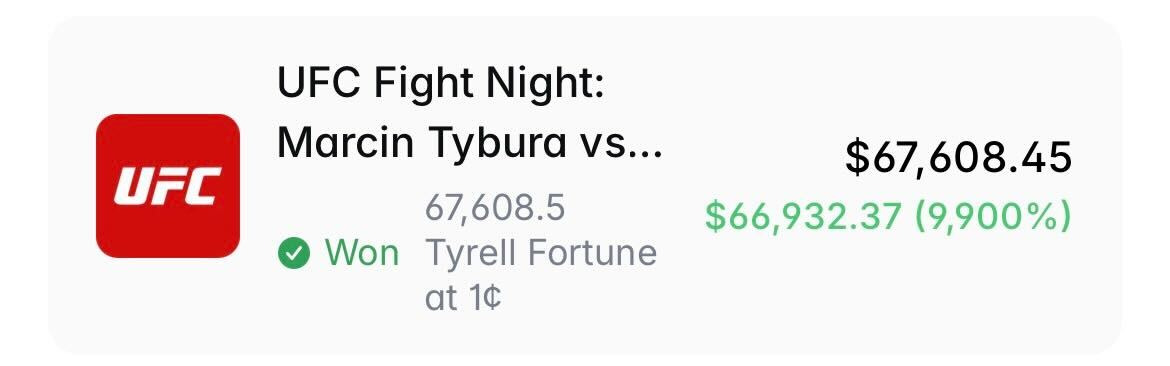
A Polymarket trader turned $676 into $67,608 on Saturday by capitalizing on a rare mistake during a UFC heavyweight bout, where the wrong fighter was initially announced as the winner.
The trader, known as LlamaEnjoyer on Polymarket and Verrissimus on X, watched the live fight between Tyrell Fortune and Marcin Tybura and suspected that a mistake may have been made when UFC presenter Bruce Buffer announced Tybura as the winner.
During that time, Polymarket shares for Fortune fell to one cent, and LlamaEnjoyer was able to place the $676 bet moments before Buffer corrected himself and declared Fortune the winner.
LlamaEnjoyer profited roughly $67,000 from the UFC’s brief blunder, allowing him to capture a near 100x return.
Advertisement
Receipt of the LlamaEnjoyer’s win on Polymarket. Source: Polymarket
The incident shows the speed at which odds on prediction markets can whipsaw during live events.
Speaking about the incident, the Polymarket trader said they almost put $100,000 on Tybura at 99 cents, presumably once the initial decision was made before realizing that something “was off.”
“Cancelled my order, scooped up 1c shares instead. the UFC corrected the winner seconds later. easiest 100x ever.”
The trader said they placed the trade before a UFC commentator said “We have a mistake,” meaning that they made the bet within 50 seconds of Tybura being incorrectly declared the winner.
“There’s no way Tybura won that fight,” LlamaEnjoyer said.
Advertisement
Prediction markets have become one of the hottest use cases in crypto, with trading volumes clocking more than $10.4 billion so far in March, marking a tenfold increase from March 2025.
Over 865,000 users have placed bets on prediction markets like Polymarket, Kalshi and Opinion so far in March, spanning a wide range of events, from sports and politics to financial results, culture and more.
Cointelegraph is committed to independent, transparent journalism. This news article is produced in accordance with Cointelegraph’s Editorial Policy and aims to provide accurate and timely information. Readers are encouraged to verify information independently. Read our Editorial Policy https://cointelegraph.com/editorial-policy
Lido’s decentralized autonomous organization has proposed a one-off buyback of its governance token to support price levels amid a prolonged downturn.
Summary
Lido DAO has proposed a one-off buyback of up to 10,000 stETH, about $20M, to accumulate LDO amid what it calls a significant valuation gap.
The token is trading roughly 63% below its two-year median against Ether and remains down 95.9% from its all-time high.
According to a governance proposal submitted by the Lido Ecosystem Operations team, the plan would allocate up to 10,000 stETH from the DAO’s treasury for Lido DAO to accumulate LDO (LDO). At current prices, the allocation is valued at nearly $20 million.
Framing the move as a response to mispricing, the DAO said it “represents one of the most significant dislocations between LDO’s market price and its underlying protocol fundamentals in the token’s history.”
Advertisement
If approved, the proposal would be executed in smaller batches of 1,000 stETH, up to a total of 10,000 stETH, with plans to use limit orders or adopt a dollar cost averaging strategy to avoid market volatility.
Token holders, however, have the right to review every tranche, as each batch would require separate approval before further execution.
Lido DAO also highlighted the LDO to ETH ratio, which it said was at “historically depressed levels,” trading at a steep discount to Ether, with its current ratio roughly 63% below its two year median.
Advertisement
Even though Lido remains in the top spot of the Ethereum liquid staking market with a market share of about 23%, according to Dune Analytics data, LDO price has fallen 95.9% from its $7.30 high.
In its latest update, the protocol reported a decline of 23% to $40.5 million in 2025, but the foundation argues that core performance remains strong despite the drop in revenue.
For instance, it noted that Lido’s rewards were down approximately 20% over the same period, while its costs improved 13% year over year. Its take rate has also increased from 5% to 6.11%.
“That dislocation is not justified by a proportional deterioration in protocol performance,” the DAO said.
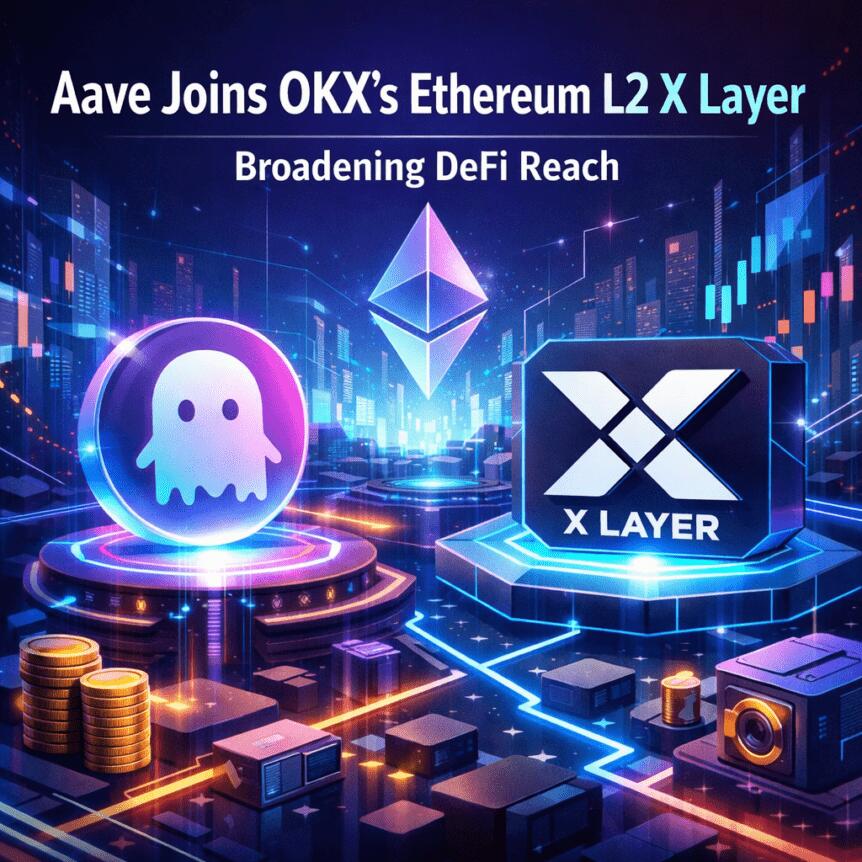
OKX’s Ethereum layer-2 network, X Layer, has welcomed Aave to its DeFi roster, marking the 21st chain integration for the largest decentralized lending protocol by cumulative lending volume. Aave’s milestone of surpassing $1 trillion in cumulative lending volume was reached in late February, a development widely noted in market coverage. On X Layer, Aave adds about $23.5 billion in total value locked (TVL) across its lending and borrowing activities. X Layer, which launched in May 2024, previously carried a modest TVL around $25 million, illustrating how high‑profile integrations can accelerate growth for Layer-2 ecosystems. The deployment enables OKX Wallet and X Layer users to lend, borrow and earn yield directly on the network, eliminating the need to bridge assets to other chains.
Aave’s entrance into X Layer comes as part of a broader push to diversify DeFi access on a scaling-focused platform. OKX officials described the integration as a versatile expansion of its DeFi ecosystem that should benefit the full spectrum of X Layer users, from retail to developers. X Layer’s emphasis on speed and cost efficiency positions it as a practical on‑ramp for DeFi activity, offering roughly $0.0005 per transaction and one‑second block times. This combination of cheap, rapid transactions aims to reduce a key obstacle in cross-chain DeFi usage: friction and latency.
Key takeaways
Aave expands to X Layer, marking its 21st chain integration and broadening DeFi access on OKX’s Layer-2 network.
Aave’s cumulative lending volume tops $1 trillion, reinforcing its leadership in decentralized lending and its cross-chain appeal.
X Layer’s on‑chain DeFi suite now includes major platforms such as Uniswap for swaps, Chainlink for oracles, and Stargate for cross‑chain transfers.
Aave reports about $23.5 billion in total value locked, with net deposits on the platform exceeding $40 billion, outpacing competitors like Morpho (roughly $10 billion).
The collaboration highlights ongoing cross‑chain DeFi expansion and the competitive dynamics among Layer-2 ecosystems as users seek cheaper, faster access to liquidity.
X Layer expands DeFi capabilities with Aave integration
The move integrates Aave’s lending and borrowing rails directly into X Layer, allowing users to deposit collateral, borrow against it, or earn interest on deposits without leaving the Layer-2 environment. For OKX Wallet holders and other X Layer participants, the integration reduces bridging costs and latency, delivering a more seamless DeFi experience on a network designed for high throughput and near-instant settlement. OKX emphasized that this integration broadens the DeFi toolkit available to its user base, potentially attracting both new users and existing DeFi participants seeking a more efficient on-chain experience.
X Layer launched amid a crowded Layer-2 market, positioning itself on scalability as a primary differentiator. Its stated proposition—low-cost transactions in a sub-second finality window—appears well-aligned with Aave’s need for fast, responsive liquidity access. By anchoring Aave to X Layer, the ecosystem gains a broader base of user activity that can tap into Aave’s treasury management, liquidity provisioning, and yield opportunities without the overhead of cross-chain messaging or bridges.
Aave’s historic milestone and cross-chain expansion
The Aave milestone of surpassing $1 trillion in cumulative lending volume underscores the protocol’s durable traction within DeFi. While the figure represents on-chain borrowing and lending activity rather than price or utilization metrics alone, it signals sustained engagement and capital allocation across the protocol’s markets. In parallel, Aave’s cross-chain footprint remains extensive; the protocol is deployed on more than 20 networks—including Ethereum, Arbitrum, and Base—continuing to monetize deposits and liquidity across multiple ecosystems.
Advertisement
Defi metrics reflect Aave’s market position as well. The protocol currently reports about $23.5 billion in TVL, a figure that positions it well ahead of near peers in the DeFi lending space. On a revenue and growth front, Aave has generated roughly $6.2 million in revenue over the last 30 days, a level that outpaces its closest competitor, Morpho, by a meaningful margin. These figures—TVL, net deposits, and revenue—highlight an established, profitable DeFi incumbent expanding its reach into Layer-2 networks like X Layer.
For context, Aave’s scale is complemented by a broad partnership network on X Layer. The platform joins other major DeFi players already integrated on the network, including Uniswap for swaps, Chainlink for price feeds and oracles, and Stargate for cross‑chain money transfers. The presence of these protocols signals a maturing liquidity fabric on X Layer, one that could attract more users who seek consolidated DeFi services on a single Layer‑2 chain.
The broader significance extends beyond a single deployment. As Layer-2 ecosystems compete to host robust DeFi primitives, expansions like Aave’s help validate the viability of on‑chain liquidity and lending on L2s. They also illustrate how leading protocols are differentiating themselves not just by features, but by the ease with which users can access and deploy liquidity in a multi-chain world.
Implications for investors, builders and users
For investors, the Aave–X Layer integration highlights the ongoing trend of cross‑chain DeFi maturation. The ability to access a leading lending market directly on an L2 reduces bridging costs and may spur higher utilization of capital across Layer-2 ecosystems. For builders and developers, the collaboration reinforces the importance of interoperability and modular DeFi stacks. As Uniswap, Chainlink, and Stargate join the mix on X Layer, developers gain a more cohesive environment to deploy and test new liquidity, pricing, and cross‑chain services without repeatedly migrating across chains.
Advertisement
As with all Layer‑2 expansions, observers will want to watch sustained user adoption, TVL trajectory, and the rate at which new DeFi services leverage Aave’s liquidity across X Layer. The balance between Layer‑2 efficiency gains and the continued demand for cross‑chain liquidity will shape how quickly X Layer moves from a niche option to a mainstream DeFi rail.
In the near term, the market will likely monitor whether X Layer can sustain its initial momentum as more users and protocols migrate to or experiment with Aave’s lending rails. The broader takeaway is that DeFi’s growth engine—efficient access to liquidity across networks—remains intact, with major protocols like Aave continuing to push the envelope on where and how users can borrow, lend, and earn yield.
Readers should keep an eye on subsequent updates from OKX and Aave regarding additional optimizations, expanded asset support, and any new DeFi partnerships on X Layer, which could further diversify the network’s liquidity and yield opportunities in the coming months.
Risk & affiliate notice: Crypto assets are volatile and capital is at risk. This article may contain affiliate links. Read full disclosure
Hyperliquid is decentralized, but geography still matters, as new research by Glassnode shows traders closer to its infrastructure have a clear speed advantage.
Trades from Tokyo-based users can reach the protocol’s validators in as little as 2 to 3 milliseconds. That’s far better latency than European users, who face delays exceeding 200 milliseconds.
That’s because Hyperliquid’s 24 validators are clustered in Tokyo, deployed across multiple availability zones in Amazon Web Services’ ap-northeast-1 region. The API layer routes through AWS CloudFront, but the validators sit in a single Japanese cloud region.
This shows that while decentralized platforms like Hyperliquid preserve core principles of open access, transparency, and the absence of centralized oversight to remove control asymmetries, speed and execution asymmetries still exist. So, while the market remains structurally fair and permissionless, traders with better proximity to infrastructure can still have an edge, highlighting an inherent tension between decentralization and equal participation in practice.
Advertisement
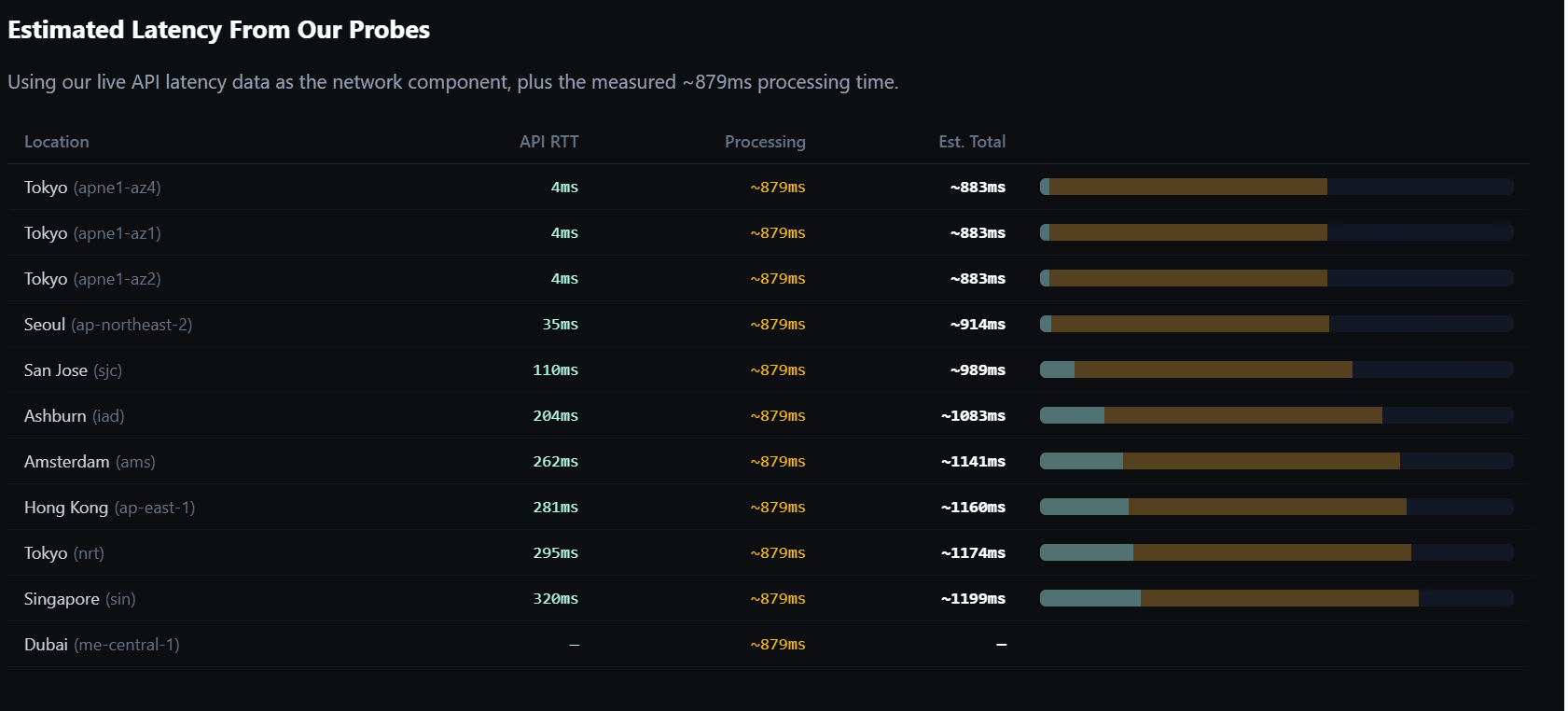
(Glassnode)
In a time-ordered system, geography determines queue priority. A trading desk in Tokyo can reach the matching layer hundreds of milliseconds ahead of competitors in Hong Kong, Singapore, or the U.S., securing a better position, tighter spreads, and higher fill probability.
Hyperlatency’s order-to-fill measurements put numbers on the gap. From AWS Tokyo, the median round-trip to place and confirm an order is 884 milliseconds, of which roughly 879 milliseconds is server-side processing and just 5 milliseconds is network transit.
From Ashburn, Virginia, the total rises to roughly 1,079 milliseconds. The edge is about 200 milliseconds on a one-second fill, a margin that compounds across an exchange regularly handling more than $4 billion in daily perpetuals volume.
This research, however, isn’t without its critics. One person on X pointed out that more complicated order instructions submitted from the Tokyo region can hit a roundtrip latency time of 400ms.
Tokyo’s role as crypto’s infrastructure capital is not new. Centralized exchanges have clustered deployments around the city’s AWS region for years, drawn first by proximity to Asian trading flow and then by a regulatory framework Japan built after the collapse of Mt. Gox.
Advertisement
At Token2049 in Singapore last year, crypto executives described Tokyo as the center of gravity for digital asset infrastructure in Asia.
“Japan had no regulation for a long time, don’t forget, that’s where crypto basically happened, and then it went super stringent, and nothing happened for a long time,” Konstantin Richter, the CEO of Blockdaemon, told CoinDesk during Token2049. “But people kept on chiming away, and now they actually have a regulatory infrastructure that’s institutionally scalable and about ready to pop.”
Richter said his company’s clients in Japan are willing to pay for institutional-grade infrastructure.
BitMEX CEO Stephan Lutz put it more directly. “We were in Ireland before … but it became more and more difficult because basically everyone except the U.S. players are in the Tokyo data centers,” he said.
Advertisement
The switch boosted liquidity by roughly 180% in BitMEX’s main contracts and up to 400% in some altcoin markets, gains Lutz attributed to the latency reduction from being in Tokyo, not market-maker recruitment.
AWS Tokyo: crypto’s Mahwah
Hyperliquid is not unique in this regard. Binance and KuCoin also run significant infrastructure on AWS ap-northeast-1.
An April 2025 AWS outage caused service degradation across multiple platforms, underscoring how much of crypto’s plumbing runs through a single cloud region and Amazon itself (data shows that around 36% of all Ethereum nodes are powered by AWS).
In traditional finance, exchanges neutralize this kind of geographic advantage by design.
Deutsche Börse normalizes cross-connects to within 2.5 nanoseconds. IEX routes every order through a 350-microsecond speed bump, 38 miles of coiled fiber, to eliminate proximity advantage.
Europe’s MiFID II mandates clock synchronization to 100 microseconds and externally audited cable-length equalization. Those safeguards took decades to develop. Nothing equivalent exists in decentralized markets.
For now, crypto traders appear comfortable with that asymmetry. Hyperliquid has seen sustained growth despite its centralized infrastructure concentration. But as processing times compress and institutional capital enters DeFi, the dynamics are clear: speed determines position, and position determines liquidity.
Advertisement
The latency arms race that reshaped Wall Street is arriving in decentralized finance. It runs through Tokyo.
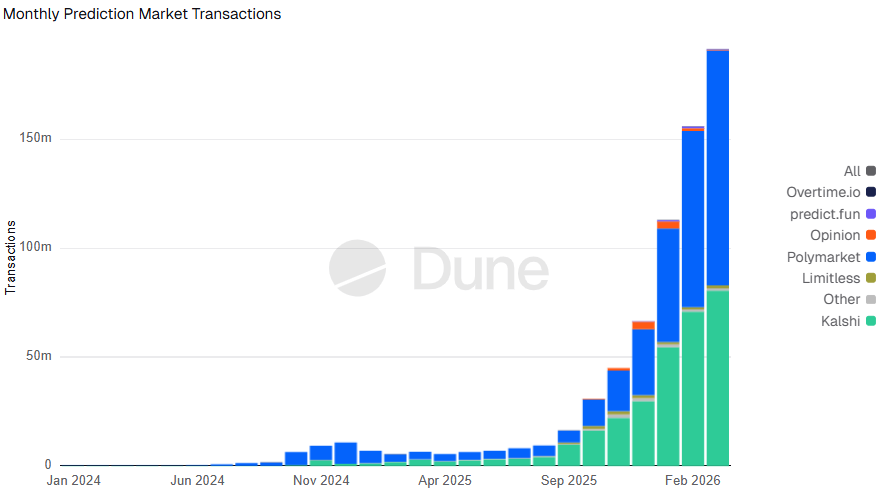
Prediction market transactions have hit record highs in March, amid growing interest in political and geopolitical event contracts, improved accessibility and positive regulatory developments for the industry.
According to prediction markets data tracked by Dune, the number of transactions for March is over 191 million so far, which is already a 2,838% increase compared to the same time last year.
Blockchain intelligence firm TRM Labs said in a report on Friday that the sector has grown significantly with Google Finance and mainstream media coverage of live odds.
“Prediction markets have scaled rapidly due to improved accessibility, regulatory developments, and integration with mainstream platforms. They are increasingly used as real-time indicators of geopolitical and macroeconomic events,” TRM Labs said.
Advertisement
A record number of transactions have taken place on prediction market platforms in March. Source: Dune
Prediction markets allow users to trade contracts on the outcome of future events. They are emerging as a significant real-world use case for blockchain, with some platforms relying on crypto rails and stablecoins for settlement and payments.
US politics, macro decisions attract most interest
Monthly notional trading volume for prediction markets reached roughly $23.9 billion in March so far, up sharply from $1.9 billion at the same time last year, according to Dune, though still 12% below January’s all-time high.
TRM Labs noted that crypto-native topics have taken a back seat as users flock to contracts tied to political and global events.
Monthly notional trading volume in prediction markets peaked in January. Source: Dune
“Geopolitical events, US politics, and macroeconomic decisions account for the majority of trading volume. Crypto-native topics, while prevalent, now represent a smaller share of overall activity,” the TRM Labs team said.
Polymarket data shows that the five highest-volume contracts as of Monday center on who the major US political parties will nominate for the 2028 presidential race and whether Israeli Prime Minister Benjamin Netanyahu will remain in office by year-end.
Addressing key challenges will decide if momentum continues
Going forward, TRM Labs said the continued growth of prediction markets will depend on how key challenges, such as market integrity and susceptibility to manipulation, are addressed.
“Looking ahead, prediction markets have the potential to evolve beyond speculative platforms into core infrastructure for real-time information aggregation and risk pricing,” TRM Labs said.
Advertisement
“As liquidity deepens and participation broadens, these markets could increasingly serve as forward-looking indicators for policy decisions, geopolitical developments, and macroeconomic trends—complementing, and in some cases competing with, traditional forecasting tools.”
Cointelegraph is committed to independent, transparent journalism. This news article is produced in accordance with Cointelegraph’s Editorial Policy and aims to provide accurate and timely information. Readers are encouraged to verify information independently. Read our Editorial Policy https://cointelegraph.com/editorial-policy
The Senate Banking Committee is reportedly planning to hold its hearing on the nomination of Kevin Warsh as Federal Reserve chair as soon as the week of April 13, according to a report from Punchbowl News citing two sources familiar with the matter.
In a report on Sunday, Punchbowl’s sources said the hearing date is “fluid” and that the final deadline depends on Warsh submitting all of his paperwork to the banking committee.
Current Fed Chair Jerome Powell’s term is set to end on May 15, but he has previously said he will remain chair until his successor is officially confirmed. A nomination hearing in mid-April helps chart a more visible path to Warsh’s successful confirmation.
Source: Brendan Pederson
Warsh to push for change at Fed
Warsh’s first stint at the Fed was between 2006 and 2011, when he served on the Board of Governors after being nominated by former President George W. Bush.
This time, Warsh is set for the top role, and the 55-year-old has said he would push for “regime change” in how the Fed conducts its policy on interest rates and balance sheet management.
“Their hesitancy to cut rates, I think, is actually … quite a mark against them,” Warsh told CNBC’s “Squawk Box” in July last year, adding:
“The specter of the miss they made on inflation, it has stuck with them. So one of the reasons why the president, I think, is right to be pushing the Fed publicly is we need regime change in the conduct of policy.”
However, Warsh’s nomination has faced political resistance. Senator Thom Tillis has vowed not to vote for any Fed nominees and will attempt to block the nomination until a Department of Justice (DOJ) probe into Powell is resolved.
In January, the DOJ opened an investigation into Powell over the expenses relating to a multi-year renovation project at Fed office buildings.
Advertisement
Trump’s pick for the Fed chair has also been met with pushback from Senator Elizabeth Warren, who sent a strong-worded letter to Warsh last Wednesday.
Senator Warren accused Warsh of having learned “nothing” from his “failures” during his previous stint at the Fed, which included the 2008 financial crisis and Great Recession.
Warren also said Warsh will ultimately serve as a “rubber stamp for President Trump’s Wall Street First Agenda.”
“Your eagerness to bail out Wall Street, including through taxpayer-assisted megamergers, was not surprising, given the seven years you spent as a Morgan Stanley mergers and acquisitions executive prior to joining the George W. Bush administration,” Warren said.
Cointelegraph is committed to independent, transparent journalism. This news article is produced in accordance with Cointelegraph’s Editorial Policy and aims to provide accurate and timely information. Readers are encouraged to verify information independently. Read our Editorial Policy https://cointelegraph.com/editorial-policy
OKX’s X Layer is the 21st blockchain to integrate Aave, which recently surpassed the $1 trillion mark in cumulative lending volume.
Aave, the largest decentralized lending protocol with $23.5 billion in total value locked, has launched on X Layer, an Ethereum layer-2 blockchain launched by crypto trading platform OKX.
It marks a significant milestone for X Layer, a blockchain with just $25 million in total value locked, which launched in 2024. The integration would allow OKX Wallet and X Layer users to lend, borrow and earn yield without needing to bridge out to another chain.
Advertisement
“This is a very versatile expansion of our DeFi ecosystem and as such should benefit the full range of customers we have on X Layer,” an OKX spokesperson told Cointelegraph.
X Layer launched in May 2024 in a highly crowded Ethereum-layer-2 market. Like many of its competitors, X Layer is focused on scalability, offering $0.0005 transactions on average at one-second block times.
The integration comes as Aave surpassed the $1 trillion mark in cumulative lending volume in late February, marking an industry first.
Advertisement
Aave secures $23.5 billion in total value locked, enabling users to earn interest on deposits and borrow instantly using crypto as collateral.
Aave is integrated on more than 20 chains, including Ethereum, Arbitrum and Base, and has over $40.4 billion worth of net deposits on the platform compared to Morpho’s $10 billion.
Cointelegraph is committed to independent, transparent journalism. This news article is produced in accordance with Cointelegraph’s Editorial Policy and aims to provide accurate and timely information. Readers are encouraged to verify information independently. Read our Editorial Policy https://cointelegraph.com/editorial-policy
Oil prices jumped more than 3% on Monday, pushing Brent crude above $116 a barrel. West Texas Intermediate (WTI), the US benchmark, climbed to roughly $102 per barrel.
The latest rise comes as the US-Israel war on Iran entered its fifth week with no signs of abating.
Oil Extends Its War-Fueled Rally
Several escalatory developments over the weekend fueled the surge. President Donald Trump told the Financial Times he could possibly seize Kharg Island, the terminal that handles roughly 90% of Iran’s crude exports.
BREAKING: President Trump tells the Financial Times he wants to “take the oil in Iran” and could seize the export hub of Kharg Island. “To be honest with you, my favorite thing is to take the oil in Iran but some stupid people back in the US say: ‘why are you doing that?’ But…
The US president struck a mixed tone on diplomacy with Iran, saying he was “pretty sure” of making a deal with Iran but conceding that talks could still collapse.
Meanwhile, Iran’s parliament speaker warned that Tehran would “set them on fire” when American forces arrived and promised consequences for US-allied nations in the region.
The oil price surge is far from over, according to market analysts, who warn that the prolonged closure of the Strait of Hormuz could drive crude even higher.
Advertisement
“A scenario in which the Strait remains closed for an additional month would be consistent with oil prices rising towards $150/bbl and constraints on industrial consumers of energy supply,” Bruce Kasman, global head of economics at JPMorgan, said.
The energy shock rippled across Asia. Google Finance data showed that Japan’s Nikkei 225 fell over 4.5%, while South Korea’s KOSPI dropped more than 4.3% as import-dependent economies repriced risk.
The volatility has spread to crypto markets, with asset prices dipping early in the morning before rebounding.
Advertisement
“The market briefly crashed just now — ETH dropped below $1,940 and BTC fell below $65,000,” Lookonchain reported.
BREAKING: Bitcoin dumped -$1,700 from $66,710 to $65,000 and liquidated over $185 million worth of longs in 60 MINUTES. But then it pumped +$1,400 from $65,000 to $66,400 in 15 MINUTES and liquidated nearly $14 million worth of shorts. All this happened in the last 75 minutes.… pic.twitter.com/z0AXslLHdK























 News Videos4 days ago
 Sports7 days ago
 Sports7 days ago
 NewsBeat2 days ago
 News Videos7 days ago
 Business3 days ago


 Tech6 days ago


 Business6 days ago
 Fashion6 days ago
 Fashion7 days ago
 Business6 days ago
 NewsBeat5 days ago
 Sports5 days ago
 Politics6 days ago
You must be logged in to post a comment Login