





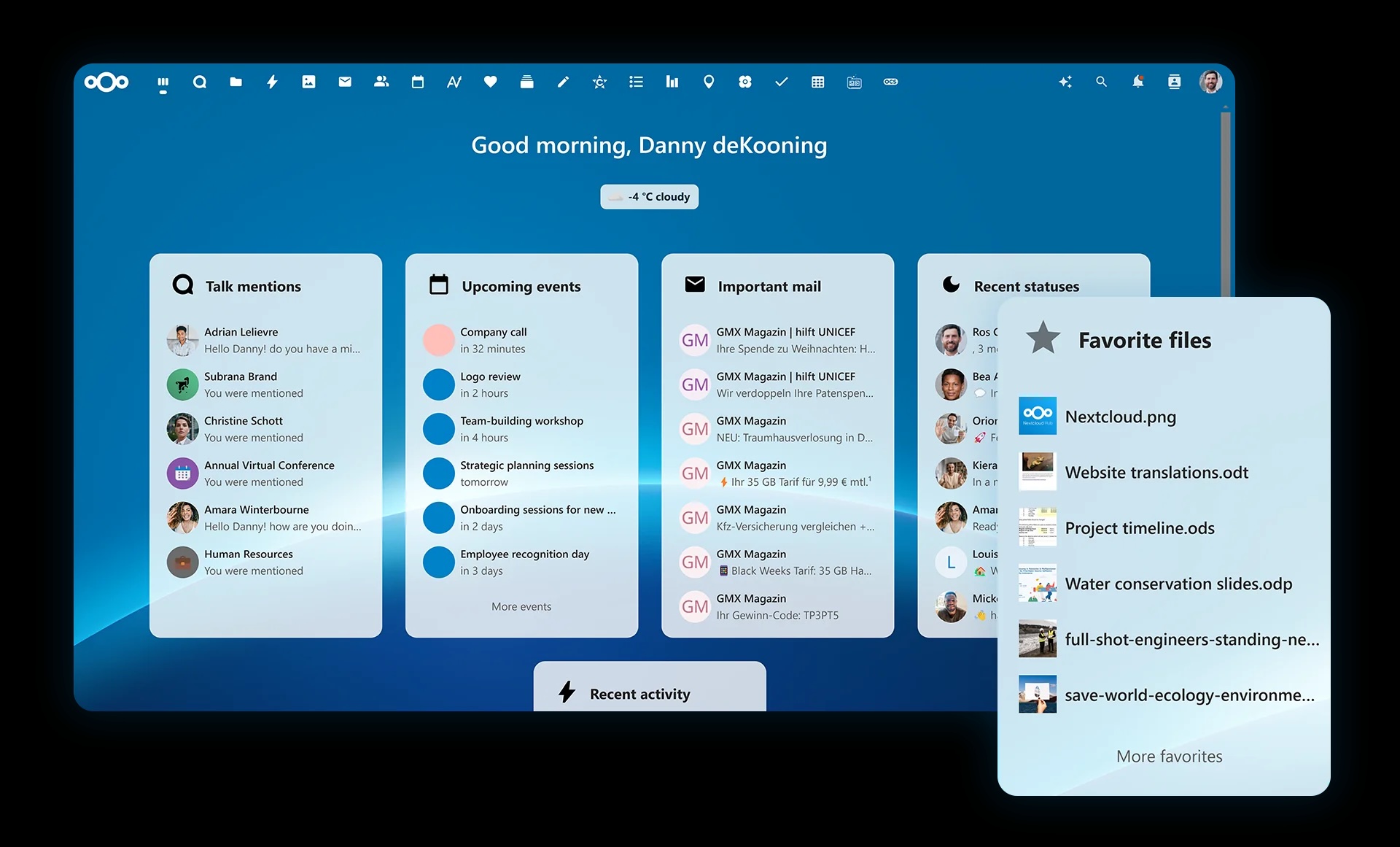
Online collaboration is an important tool for companies, big and small. Services like Slack and Microsoft Teams are perhaps the most successful, but their scope is limited primarily to real-time chatting between colleagues, regardless of platform. Another solution is Nextcloud Hub, an open-source, self-hosted content collaboration platform.
Admittedly, I knew little about Nextcloud Hub until recently. However, as a Hostinger client, I noticed the solution was easy to install on my website and recognized it could be a perfect solution for some of our readers.
Article continues below
What is Nextcloud Hub?

Nextcloud Hub is a self-hosted open-source content collaboration platform that transforms online collaboration. The platform delivers digital collaborative benefits without introducing the privacy and security vulnerabilities that third-party cloud services commonly present. Open-source status is the main advantage of Nextcloud Hub because it gives users complete control and ownership of their data.
The Talk solution in Nextcloud Hub goes beyond being a Slack alternative because it includes numerous additional features. Users can conduct private audio/video conferences and text chats through the Talk feature of Nextcloud Hub. The platform consists of all the necessary tools that make modern communication effective.
The system includes group chats and direct messaging, screen sharing and live reactions, breakout rooms, moderation tools for webinars, end-to-end encrypted calls, and Federated chatting to connect between different Nextcloud Talk instances.
The digital workspace functionality of Nextcloud Hub emerges from integrating multiple essential components.
Nextcloud Files is the core component that delivers self-hosted file storage with instant synchronization capabilities. The platform includes vital functions such as secure file sharing, password protection and expiration features, granular permission controls, and file versioning with commenting capabilities.
The suite Nextcloud Groupware integrates three essential productivity tools: calendar, Contacts, and Mail. The platform allows users to manage shared calendars while providing efficient scheduling tools. It also completes email administration with features for shared mailboxes and integrated task management capabilities.
Through LibreOffice power, Nextcloud Office delivers a full-featured online office suite that enables browser-based real-time collaborative document editing alongside spreadsheet and presentation creation. The platform supports major file formats, including .docx,.pptx, and .xlsx.

Nextcloud Assistant is an integrated AI assistant that utilizes AI tools throughout Nextcloud applications. The platform uses AI to produce content while providing data-related questions, email summaries, text translation capabilities, automatic message sending, and appointment creation functionality. These AI features’ self-hosting capability guarantees your data privacy and total control over your information.
The tools in Nextcloud Hub also provide automation features and data management solutions for workflow optimization.
The automation features allow users to set triggers and actions that optimize workflows and automate repetitive tasks through a simple interface. Meanwhile, Nextcloud Tables operates as a database-like application that provides users with powerful spreadsheet functionality for structured data management. Users can create and manage data structures while Nextcloud components enable enhanced automation through seamless integration.
The complete and customizable secure environment provided by Nextcloud Hub keeps your data under control.
What is Hostinger?
Hostinger is a major web hosting service that enables businesses and individuals to create an online presence. The company provides complete hosting solutions, including WordPress and VPS services.
Hostinger was established in 2004 to provide affordable hosting solutions backed by a 99.9% uptime guarantee and multiple management tools for website administration. The company’s hPanel control panel offers an easy-to-use interface for managing hosting accounts, websites, and associated services.
The Auto-Installer tool is Hostinger’s primary usability feature. It enables users to easily install popular web apps.
Further, this tool eliminates the need for manual database creation and file uploads through automated technical procedures. This benefits both new users and those who want fast setup processes. Users can choose their desired app from a list before providing it.
Installing Nextcloud Hub on your Hostinger account
Installing NextCloud on Hostinger typically involves two main approaches: using Hostinger’s Auto Installer or a manual installation process, which is the more common and reliable method given NextCloud’s open-source nature. For my use, I installed NextCloud using the Auto Installer feature.
To do so:
- Log in to your Hostinger account on the company website.
- Next, in the directory on the left, choose Websites.
- Choose Dashboard next to the name of your account.
- Once again in the directory on the left, choose Websites followed by Auto Install.
- Under Other, choose Select.
- In the pulldown menu, choose NextCloud.
- Choose Select.
The next steps involve setting up a database for NextCloud. I would suggest that you install NextCloud on a subdirectory of your website. As such:
Add a Website title, administrator email, administrator username, and administrator password on the pop-up menu.
Select Advanced.
Type in a name for your subdirectory in the Enter Subdirectory box.
Be sure to create a new database and assign it a password.
Once the database is installed, you can set up NextCloud by going to the main page of the NextCloud installation. This is the location at http://yourdomain)/(the subdirectory you created).
On that menu, you’ll need to add the username and password you chose above.
Final steps
After successfully installing Nextcloud Hub on your server, the immediate next steps involve completing the initial setup wizard, which guides you through creating your administrator account with a strong password, defining the data directory where Nextcloud will store user files, and configuring the database connection. The wizard may also offer to install recommended apps like Nextcloud Office or Talk, which you should generally enable for a complete experience.
Once this initial setup is finalized, it’s crucial to move onto post-installation configurations and hardening: this includes setting up background jobs via cron for efficient task handling, implementing memory caching (like Redis or APCu) to boost performance, and, most importantly, enabling HTTPS (SSL/TLS) encryption to secure all communication. Additionally, you’ll need to review PHP settings, properly secure your `config.php` file, add all valid access domains to trusted domains, and establish regular updates to Nextcloud and your server to ensure ongoing security and stability.
For more picks, we’ve tested and reviewed all the best web hosting services.

















































You must be logged in to post a comment Login