Connect with us

Tech

Track a Phone’s Location Safely: 6 Best Apps (2026)

Published

on

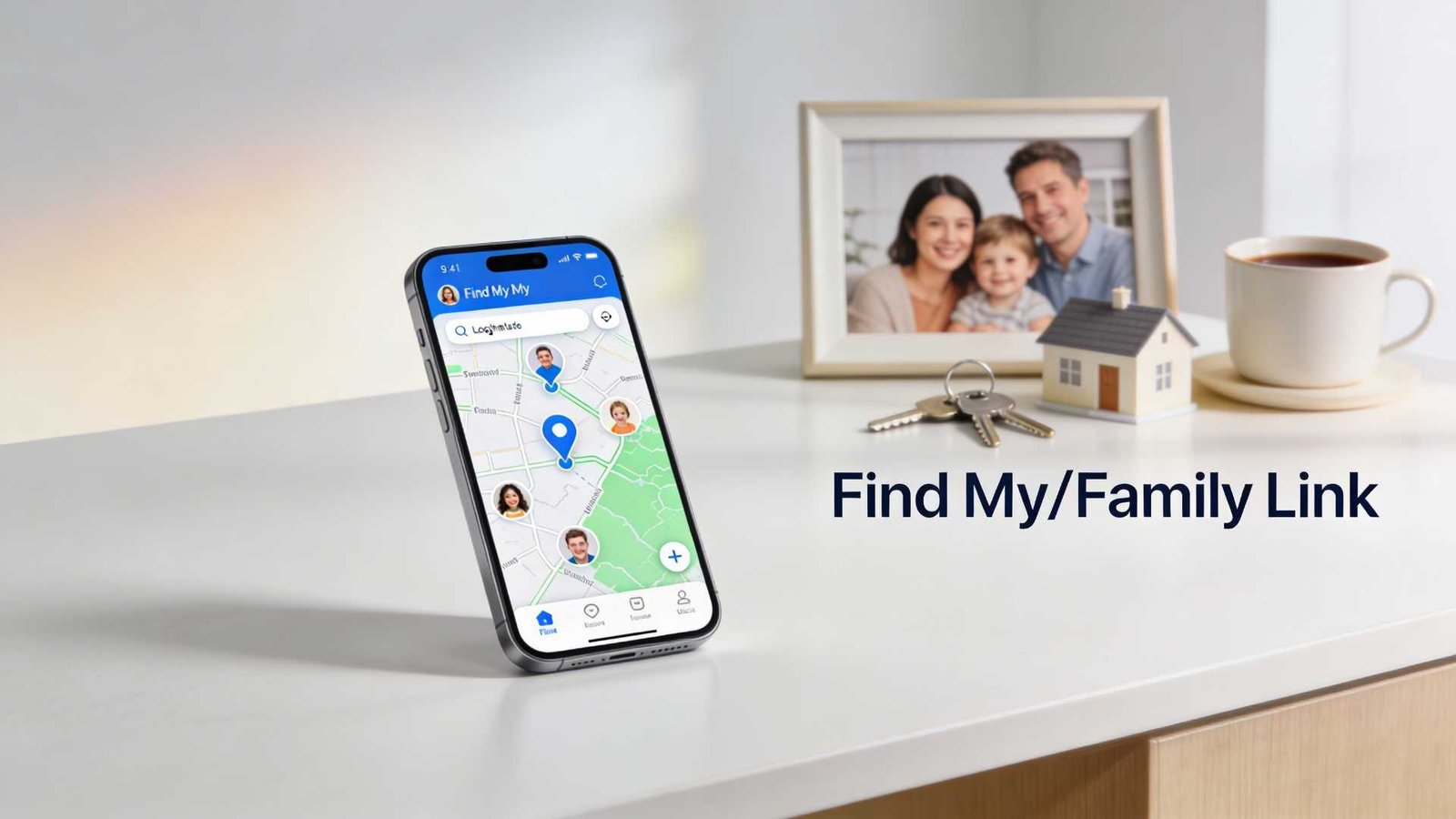
As of February 2026, the safest way to track a phone’s location is to use built-in location sharing (iPhone/Android) or a family safety app where everyone knows it’s enabled.

If you’re here because you want to track someone “without them knowing,” pause for a second: apps designed for secret monitoring are a common abuse vector, and regulators have taken action against “stalkerware” providers that enable covert surveillance.

Quick picks

  • Best for iPhone families: Apple Find My (location sharing + Family Sharing).
  • Best for finding a lost Android phone: Google Find Hub / Find My Device (android.com/find).
  • Best for supervised kids on Android: Google Family Link (parent view of child’s device location).
  • Best cross-platform family circles: Life360 (opt-in location sharing + place alerts).
  • Best for Samsung Galaxy households: SmartThings Find.
  • Also useful: Google Location Sharing controls (easy to stop/review who can see you).

Selection criteria (what we’re recommending and why)

  • Consent-first: The tools below are designed for opt-in location sharing, family supervision, or finding your own lost device.
  • Official support: We prioritize Apple/Google/Samsung documentation when the feature is built into the OS ecosystem.
  • Easy off switch: You should be able to stop sharing quickly (and know where that setting lives).

1) Apple Find My (iPhone): best for Apple families

Apple’s Find My can share your location with specific people and lets you manage sharing from the Find My app (People tab) once “Share My Location” is enabled.

You can also choose how long to share your location (for an hour, until end of day, or indefinitely), which is ideal for school runs and trips.

Advertisement

How to verify on your iPhone: Open Find My → Me (enable Share My Location) → People (share with a contact).

Tradeoffs: Everyone needs Apple devices/Apple IDs for the smoothest experience, and location accuracy still depends on signal, battery, and permissions.

2) Google Find Hub / Find My Device (Android): best for lost-phone recovery

Google’s help docs say you can locate an Android device on the web at android.com/find (and you’ll need the Google Account that’s on the device).

Google also positions “Find Hub” as the way to find supported Android devices, which is useful when a phone is misplaced or stolen (this is different from tracking a person day-to-day).

Advertisement

How to verify: Visit android.com/find on a computer, sign in, and see whether your device appears.

Tradeoffs: If the phone is offline, results depend on which find/offline settings were enabled beforehand.

Google’s Family Link help explains that parents can find a child’s Android (and compatible Fitbit) device location in the Family Link app once location sharing is turned on.

The documented setup path is Family Link → Location → Set up location (then choose the child and turn it on), and Google notes it may take time to show a location.

Advertisement

How to verify: In Family Link, open Location and confirm you can see the child’s device on the map after setup.

Tradeoffs: This is for supervised family use; it’s not a stealth tool, and that’s a good thing.

4) Life360: best for mixed iPhone + Android households (opt-in “circles”)

Life360’s Google Play listing describes real-time location sharing, place alerts, and location history as core features, plus an SOS option depending on plan/features.

Internet Matters (a UK-focused online safety org) describes Life360 as a location-sharing app for parents and notes that members can turn off live tracking.

Advertisement

How to verify: Before relying on it, check the app’s permissions (Location) and test a Place Alert (home/school) with a family member.

Tradeoffs: Features can vary by subscription tier and platform, so confirm what your plan includes inside the app store listing and in-app settings.

5) Samsung SmartThings Find: best for Galaxy users

Samsung’s UK support page says SmartThings Find can locate registered Galaxy phones, tablets, and wearables using Samsung accounts (and it replaced/absorbed “Find My Mobile”).

Samsung also describes additional features, such as location sharing and geofencing-style notifications, in its support documentation, which can be helpful in a Samsung-heavy household.

Advertisement

How to verify: Confirm the device is signed into a Samsung account and SmartThings Find is enabled in the relevant Samsung settings/app.

Tradeoffs: Best experience is inside the Samsung ecosystem, and setup must be done before you need it.

6) Google Location Sharing controls: best for “who can see me?” cleanup

If you’ve shared your location in Google’s ecosystem before, Google Help documents a way to review and stop sharing via your Google Account settings (myaccount.google.com → People & sharing → Location Sharing).

This is handy when you’re troubleshooting why someone can still see you, or you just want to revoke access quickly.

Advertisement

How to verify: Open Location Sharing in your Google Account and confirm the list of people you’re currently sharing with.

How to choose (quick decision guide)

  • If the goal is “find a lost phone,” start with Apple Find My (iPhone) or android.com/find (Android).
  • If the goal is “keep tabs on a kid’s device with supervision,” use Family Link (Android) or Find My family sharing on iPhone.
  • If your household mixes iPhone and Android, consider an opt-in family app like Life360, then test alerts before you rely on them.

FAQ

Can I track someone without them knowing?

For parents/guardians, the safer approach is to use built-in family features or a family safety app that lets you see and control location sharing, not “hidden.” it.

Regulators have taken action against providers accused of enabling covert surveillance (“stalkerware”), so “secret tracking” isn’t just a tech decision—it can be a legal and safety problem.

How do I stop sharing my location on iPhone?

Apple’s Personal Safety guidance says you can stop sharing with a specific person in Find My by selecting them under People and tapping “Stop Sharing My Location.”

How do I stop sharing my location with someone through Google?

Google Help documents stopping location sharing through your Google Account’s Location Sharing page by selecting the person and choosing Stop.

Advertisement

Why is the location inaccurate or delayed?

Even with the right app, location can lag due to permissions, battery saving, device connectivity, and whether the phone is currently online (Google notes offline behavior depends on settings).

What if I suspect my phone is being monitored?

TechCrunch outlines common Android settings abused by spyware/stalkerware (like Accessibility, Notification access, and device admin) and suggests reviewing unknown access and apps.

Be careful: removing monitoring software can alert whoever installed it, so think about personal safety before making changes.

Do I need to install anything on the other person’s phone?

With built-in tools (Find My, Find Hub/Find My Device, Family Link), the “other device” typically needs the feature enabled and the right account/family setup—there isn’t a legitimate shortcut that avoids that.

Advertisement

Source link

Continue Reading
Click to comment

Leave a Reply

Your email address will not be published. Required fields are marked *

Tech

NASA’s Perseverance Rover Can Now Pinpoint its Location on Mars

Published

on

NASA Perseverance Mars Global Localization GPS
NASA’s Perseverance rover has just reached a small but significant milestone on Mars. After five years of carefully traveling about the bottom of Jezero Crater, the rover now knows exactly where it is without having to rely on a crew on Earth. A new system called Mars Global Localization has made the task possible in less than two minutes, with accuracy to within ten inches.


Engineers at NASA’s Jet Propulsion Lab came up with the idea of allowing the rover to match what it sees on the ground to the super precise maps acquired from space. Perseverance begins by capturing a full 360-degree panorama with its cameras, similar to the vision you get when spinning around in a circle. It then stitches that together to provide a circular perspective from above, similar to a bird’s-eye view. The software then compares that to some ultra high-resolution topography maps taken by the Mars Reconnaissance Orbiter.


LEGO Technic NASA Mars Rover Perseverance Building Toys – STEM Model Kit for Boys & Girls, Ages 10+ Years…
  • Feed a passion for science and technology – Kids can learn more about the challenges of space exploration with this LEGO Technic NASA Mars Rover…
  • Conduct a test flight – This advanced building kit for kids ages 10 and up includes a buildable toy version of NASA’s Ingenuity helicopter, which…
  • AR brings the mission to life – The accompanying augmented reality app experience lets kids dive into the details of the rover and its mission

Matching up the features between the two is quick since the program just looks for similar rocks, ridges, and slopes in both the rover’s perspective on the ground and from space. And once it finds a match, the rover is quite accurate. The entire operation is powered by an outdated processor from the Ingenuity helicopter, which is far faster than the technology in the rover. That’s why it can all be done in two minutes.

NASA Perseverance Mars Global Localization GPS
Perseverance had previously become trapped as it drove larger distances. The visual odometry was attempting to follow how the rocks around it moved in the camera frames, but the wheel simply slipping on the soft soil was causing the position to shift over time. After a few hundred feet, the position could shift by more than a hundred feet. So the team would send it more photographs, and the specialists on Earth would manually align them with the images from space, which could take a full day or longer.

Mars Global Localization changes all of that because the rover can now determine its position immediately after a drive, make any necessary corrections, and simply keep going. With it linked with the existing AutoNav system, which can already handle obstructions, the rover can just keep going. The more ground it traverses per Martian day, the faster it will pass through Jezero Crater and beyond.

Advertisement


The technology underwent extensive testing prior to its debut. The engineers tested it on data from 264 previous rover pauses and found that it correctly identified every single one by comparing old photographs to space maps. Then it saw its first real use on February 2, 2026, and it worked again a few weeks later. One of the first times it was utilized was in a somewhat dull section of the crater rim known as Mala Mala, where there aren’t many fascinating landmarks to look at, but the system still managed to pinpoint the location within the target margin of error.

Source link

Advertisement
Continue Reading

Tech

NASA’s crewed Artemis II launch gets pushed back again, this time due to a helium issue

Published

on

It looks like a March launch is no longer in the cards for Artemis II, NASA’s first crewed trip to the moon’s vicinity since the final Apollo mission over 50 years ago. While preparations were underway at the Kennedy Space Center for a launch as soon as March 6, the space agency says it ran into an issue with the flow of helium to its SLS rocket’s upper stage this weekend and it now has to roll the rocket from the launch pad back to the Vehicle Assembly Building (VAB) to figure out what’s wrong and fix it. A media briefing is planned for sometime this week to discuss the problem and what’s next.

But in a post on X, NASA Administrator Jared Isaacman confirmed the rollback will “take the March launch window out of consideration.” NASA noted on its blog that the current effort “potentially preserves the April launch window, pending the outcome of data findings, repair efforts, and how the schedule comes to fruition in the coming days and weeks.” It’s a four-mile trip back to the VAB that will take hours to carefully transport the massive rocket and the Orion spacecraft. NASA says it’s eyeing February 24 for this trek.

The issue occurred overnight in the early hours of February 21, when NASA says it observed “interrupted flow of helium to the SLS (Space Launch System) rocket’s interim cryogenic propulsion stage.” The space agency explained:

The upper stage uses helium to maintain the proper environmental conditions for the stage’s engine and to pressurize liquid hydrogen and liquid oxygen propellant tanks. The systems worked during NASA’s Artemis II wet dress rehearsals, but teams were not able to properly flow helium during normal operations and reconfigurations following the wet dress rehearsal that concluded Feb. 19. Operators are using a backup method to maintain the environmental conditions for the upper stage engines and the rocket, which remains in a safe configuration.

The Artemis II crew — Commander Reid Wiseman, Pilot Victor Glover, Mission Specialist Christina Koch and Canadian Space Agency astronaut Jeremy Hansen, Mission Specialist — had just entered quarantine a day before the issue arose. NASA says the astronauts have since come out of quarantine.

Advertisement

At the start of this year, NASA announced an accelerated timeline for Artemis II, which was previously set for April 2026 after experiencing delays in 2024. For this 10-day mission, which will be the first crewed flight of the SLS rocket, the Artemis II astronauts will take a trip around the moon in the Orion spacecraft. While it initially targeted early February, the launch was pushed to March due to issues that popped up during the wet dress rehearsal. Now, we’re back to the beginning with a possible April launch, but that’ll depend on the fix being a quick one.

Source link

Continue Reading

Tech

Your AI-generated password looks unbreakable, but researchers say it could fall in hours on old computers

Published

on


  • AI-generated passwords follow patterns hackers can study
  • Surface complexity hides statistical predictability beneath
  • Entropy gaps in AI passwords expose structural weaknesses in AI logins

Large language models (LLMs) can produce passwords look complex, yet recent testing suggests those strings are far from random.

A study by Irregular examined password outputs from AI systems such as Claude, ChatGPT, and Gemini, asking each to generate 16-character passwords with symbols, numbers, and mixed-case letters.

Advertisement

Source link

Continue Reading

Tech

Crime blotter: Man accused of stealing 60 iPhones from Walmart

Published

on

A Best Buy employee is accused of a MacBook discount scam, a man is wanted in the theft of MacBooks, and a campaign report says an ex-Senator improperly spent on Apple products, all in this week’s Apple Crime Blotter

Close-up of a person's hands cuffed behind their back while another person's hands secure the metal handcuffs, suggesting an arrest or detention in an indoor setting
Man in handcuffs

The latest in an occasional AppleInsider, looking at the world of Apple-related crime.
Continue Reading on AppleInsider | Discuss on our Forums

Source link

Continue Reading

Tech

4 Ways To Check Apple Store Gift Card Balance (2026)

Published

on

Apple Store gift cards are a convenient gifting option for many people, since they allow a person to buy whatever they want. If you recently received an Apple Store gift card, but aren’t sure of its balance, there are plenty of ways to check it from different devices like your iPhone, MacBook, or even a Windows laptop. Here’s how.

1. Use Apple’s Website

The easiest way to check your Apple Store gift card balance is by heading to the official Apple website. To do this:

  1. Go to the Apple Support website.
  2. Sign in with your Apple ID.
  3. Enter the PIN of your gift card.
    Screenshot of the website used to check Apple Store gift card balance

That’s it. You should now see the remaining balance on your gift card.

2. Check Balance on iPhone & iPad

  1. Open the App Store on your iPhone.
  2. Click on the profile button on the top right.
  3. Your balance would be visible underneath your name.

3. Check Balance on MacBook

  1. Open the App Store on your Mac.
  2. Tap on your name located at the bottom left corner.
    Image to check apple store gift card balance from macbook
  3. Your balance should appear underneath the Apple ID.

4. Check Balance on Windows

If you’re using a Windows device and want to check your balance there, you can do so with the iTunes website.

  1. Head to the iTunes website and sign in with your account.
  2. Navigate to Account > View My Account.
  3. Look for your gift card balance.

Frequently Asked Questions (FAQs)

Is the Apple Card balance the same as the Apple gift card balance?

No, Apple Card balance is different, and can be checked by going to the Wallet app.

Advertisement
Where can I redeem an Apple gift card?

An Apple gift card can be used to purchase Apple products, such as hardware and accessories, at any Apple Store or through Apple’s online store in certain regions.

Advertisement

Source link

Continue Reading

Tech

Nvidia could launch its first laptops with its own processors later this year

Published

on

Nvidia is preparing to re-enter the consumer PC market with laptops powered by its own processors, potentially launching before the end of this year. The development, first reported by the Wall Street Journal, marks a significant expansion for the company, which currently dominates graphics chips and AI data-center hardware.

Nvidia’s shift toward full PC processors

Nvidia is developing Arm-based system-on-a-chip processors tailored for laptops. Unlike its traditional role of supplying discrete GPUs that work alongside CPUs from Intel or AMD, these new chips combine CPU, GPU, and dedicated AI acceleration into a single unit. According to the report, major PC manufacturers such as Dell and Lenovo are already working on laptop models that integrate Nvidia’s new processors.

The goal is to build lighter, more power-efficient laptops capable of delivering strong AI performance and competitive battery life. These systems are expected to directly challenge Apple’s MacBooks, which have set the benchmark for energy-efficient performance through Apple Silicon.

This move represents a major strategic shift for Nvidia

While the company has become the backbone of modern artificial intelligence, its presence inside everyday consumer computers has decreased over the last decade. By introducing complete laptop processors, Nvidia is positioning itself to compete directly with Intel, AMD, and Qualcomm as AI-powered computing becomes the new standard.

The broader industry is transitioning to architectures optimized for on-device AI tasks such as real-time language processing, image generation, and local inference. Nvidia’s entry into full laptop processors aligns with this shift and could significantly reshape the Windows PC landscape.

Advertisement

What users can expect

For consumers, Nvidia-powered laptops could mean thinner designs, longer battery life, and improved AI features integrated directly into Windows. While Nvidia’s graphics capabilities have always been a strength, the real advantage could come from cohesive hardware integration similar to what Apple achieved with its unified memory architecture.

However, early devices may face challenges, especially around software compatibility and balancing thermal efficiency with performance – common issues for first-generation platforms.

The first laptops featuring Nvidia’s processors are expected to arrive later this year, with broader availability in 2026. Analysts will be watching closely to see how Nvidia prices these systems and how they perform against established competitors. If successful, Nvidia could rapidly become a major force in consumer PCs once again, marking one of the most significant shifts in the PC processor market in more than a decade.

Source link

Advertisement
Continue Reading

Tech

Google is sunsetting the weather app on Android

Published

on

Google is quietly saying goodbye to one of Android’s most familiar mini-apps. The company is phasing out the long-standing Google Weather experience and replacing it with a redesigned weather interface inside Google Search, as reported by 9to5Google.

If you have ever tapped the sun-and-cloud shortcut on your home screen to quickly check the forecast, you have already used what many consider Android’s default weather app. Despite feeling like a standalone app, it was actually a full-screen weather experience built into the Google app. However, that shortcut is now being redirected to a new Search-based weather page, and the change appears to be rolling out widely after months of testing.

The original interface was simple and recognizable. It opened into a clean, full-screen feed with Google’s iconic “Froggy” background, showing current conditions, a 10-day forecast, and quick switching between saved cities. For many Android users, it became the fastest way to check the weather without installing a third-party app.

The replacement keeps most of the same information, but the experience is changing. Instead of a self-contained full-screen app, tapping the shortcut now opens a Google Search results page that includes the weather card alongside other search elements. The redesigned page still shows forecasts, air quality data, and detailed weather metrics. It also introduces an AI-generated summary alongside the usual hourly and 10-day forecasts. However, the experience now behaves like a typical web results page, complete with additional links and search content as you scroll.

Interestingly, Pixel phone owners are mostly unaffected. Those devices already ship with a dedicated Pixel Weather app, meaning the change primarily impacts non-Pixel Android users who relied on the shortcut as their main built-in weather tool. That said, for non-Pixel users, if you prefer quick, dedicated weather tools, this shift might nudge you toward third-party apps. Nonetheless, it is another sign that Google’s future on Android increasingly revolves around Search as the hub for everyday information.

Advertisement

Source link

Continue Reading

Tech

Reboot: Podcast haircuts, in-car Apple TV, and the real F1 on big screens

Published

on

In this week’s “Reboot” column, the unintended consequences of video on Apple Podcasts, Apple TV and AI on CarPlay, and Apple’s big F1 push beyond your iPhone screen.

Crowd watching Formula 1 cars race on a track, with large overlapping Apple Podcasts and Apple TV app icons prominently displayed in the foreground
This week, Apple Podcasts, CarPlay Apple TV, and the real F1, not the movie that appears here – Image Credit: Apple

Reboot is a new weekly column covering some of the lighter stories within the Apple reality distortion field from the past seven days. All to get the next week underway with a good first step.
After a week that saw new import tariffs replacing struck-down ones, Siri unexpectedly missing from Apple developer betas, and more legal wrangling, we can do with all the help we can get.
Continue Reading on AppleInsider | Discuss on our Forums

Source link

Continue Reading

Tech

7 Ways To Fix Apple Watch Battery Draining Fast (2026)

Published

on

Most Apple Watches last only a day or two at most. However, if yours is dying even faster, something could be draining your battery, such as background apps, Hey Siri, or other features. In this article, we’ll cover seven easy ways to fix the Apple Watch battery draining fast.

1. Dim the Screen and Wake Time

image to Dim Screen and Wake Time
Image: Payette Forward

A brighter screen and longer wake time can deplete your Apple Watch battery faster. Reducing the screen brightness and its wake duration not only saves power but also reduces eye strain. This small trick can make a big difference to the battery life of a day.

To do this, head to Settings > Display & Brightness on your Apple Watch. Reduce the brightness slider and reduce the wake duration to a shorter period. You can also disable Wake on Wrist Raise so the screen isn’t turned on unless you press the Digital Crown.

2. Turn Off Background Apps

Most installed apps continue to run in the background to update information. While most don’t affect the battery life, some might. Turning off background app refresh saves battery, and you can opt to do it for all apps or a selected few.

On your iPhone, navigate to the Apple Watch app > My Watch > General > Background App Refresh. Disable it entirely or disable it for specific apps you don’t want to be running in the background.

3. Modify Workout Settings

image to Modify Workout Settings

Workouts consume more battery life since your Apple Watch continuously monitors your heart rate, GPS, and other activity information. If you exercise often, this can noticeably shorten battery life. Thankfully, you can still track your workouts without draining too much power. Using Low Power Mode turns off certain features, like the Always-On display, while still logging your activity.

From your Apple Watch, go to Settings > Battery > Low Power Mode. Or you can proceed to your Workout settings and turn on Low Power Mode and Fewer GPS and Heart Rate Readings to conserve even more battery when you have extended workouts.

Advertisement

4. Turn Off “Hey Siri”

Your Apple Watch is constantly waiting for the “Hey Siri” phrase, which drains a little but an ongoing amount of battery time. If you don’t use Siri very often, disabling this feature will extend your watch’s battery life. You can still activate Siri by pressing and holding the Digital Crown when you need it.

On your Apple Watch, go to Settings > Siri and turn off Listen for ‘Hey Siri.’

5. Turn on Bluetooth

If you disable Bluetooth on your iPhone, your Apple Watch will continue to try to connect, draining your battery more quickly. Bluetooth on provides you with a consistent connection and allows your watch to consume less power to sync data.

On your iPhone, open Settings > Bluetooth and turn it on.

Advertisement

6. Update WatchOS

image to Keep watchOS updated

Software issues can sometimes cause battery drain, and Apple will typically fix those issues through updates. Getting your watchOS updated ensures you get the best updates, bug fixes, and optimized battery life.

Go to your iPhone > Watch app > General > Software Update. Charge your Apple Watch by putting it on the charger and making sure it has at least 50% battery life before you update.

7. Check Battery Health

image for the battery health of your Apple Watch

If the battery health of your Apple Watch is poor, it will not last long despite its power-saving capabilities. The battery capacity will simply decline with time, but knowing its current state can assist you in deciding whether it should be replaced.

On your Apple Watch, go to Settings > Battery > Battery Health. If the maximum capacity is under a certain level, a battery replacement through Apple’s repair service is recommended.

Source link

Advertisement
Continue Reading

Tech

Rocket reentries are leaving measurable lithium pollution in the upper atmosphere

Published

on


On February 19, 2025, a SpaceX Falcon 9 booster fell back toward Earth, its fiery descent slicing across Europe’s night sky. Researchers at the Leibniz Institute of Atmospheric Physics in Germany captured the event using their lidar system, running it during the predicted reentry window. A new study published in…
Read Entire Article
Source link

Continue Reading

Trending

Copyright © 2025