
Tech
8 classic Windows screensavers from the 1990s you can still use today

The 1990s were the heyday of Windows screensavers. Back then, Windows was teeming with brilliant screensavers that kept CRT monitors of the time in good working order. Today, screensavers are largely forgotten, but many classic ones still work on modern Windows PCs.
1
3D Text

The classic 3D Text screensaver debuted on Windows 95. Back then, it was a pretty cool demonstration of what the then-cutting-edge operating system was capable of. I first saw it (I think) a few years later on a friend’s PC, and it did look impressive. Especially because you could enter custom text for the screensaver to display, as well as adjust a plethora of extra options.
Aside from the modern settings menu and higher rendering resolution, the Windows 11 version of the 3D Text screensaver looks more or less the same as it did three decades ago (man, I’m old). It’s not as impressive as it was back then, but it’s still capable of activating nostalgia neurons.
2
Underwater (Marine Aquarium)

The original version of this screensaver, called Underwater, shipped with Windows 95. It looked okay back in the day, but it got old pretty quickly because of its simple visual presentation. You can download the original from the Gettysburg College’s Windows 95 and 98 screensaver repo (make sure to download both “Underwater” files, as well as “wildlb32.dll” and “wl32dll.dll”).
One man, Jim Sachs, really liked the idea but not the execution, and he would ultimately build a next-gen version of the wallpaper known as Marine Aquarium. You can still buy Marine Aquarium today, and it’s a far cry from the pretty but simplistic original version released in 2000.
If you want to learn more, check out LGR’s fantastic video on the history of the Marine Aquarium screensaver.
3
3D Pipes

After my first PC arrived, I immediately set 3D Pipes as my Windows screensaver because, even in 2005, those pipes were pretty cool. The original version of the wallpaper was part of Windows NT 3.5, showcasing the operating system’s advanced OpenGL 3D acceleration capabilities.
More than 30 years later, you can still use the original wallpaper version on Windows 11. Download the SCR file from the Screensavers Planet website, and unzip it. Next, right-click the SCR file, and click the “install” button. Don’t forget that you can add a custom pipe texture, perfect for creating Christmas-themed candy cane pipes! Also, set the joint style to “Mixed” to activate the teapot Easter egg, where a teapot is occasionally used as a joint.
4
Flying Through Space (Flying Windows)

The Flying Through Space wallpaper is as mesmerizing today as it was during the 1990s. There’s something special in its tranquil presentation that prevents you from turning your gaze away from the stars zipping past you at breakneck speeds.
You can download a modern recreation of the wallpaper from the Microsoft Store. If you want to relive the glorious simplicity of the original, you can download it from the Gettysburg College’s Windows 95 and 98 screensaver repo. The said repo also hosts the “Flying Windows” version of the screensaver that features the classic Microsoft Windows logo instead of stars.
5
3D Maze
The 3D Maze screensaver was released alongside 3D Pipes, just in time for the Wolfenstein 3D and Doom obsession during the early and mid-1990s. While it doesn’t have any ties to the famous games, it still evokes the feeling of getting lost in the corridors of those two 1990s cult classics.
You can download the original version of the screensaver from the Screensavers Planet website. If you want it to use across multiple monitors, there’s a mod that enables just that over on GitHub.
6
Mystery Screensaver
I still remember the first time I saw the Mystery screensaver. It was back in 1998; I visited a friend, and he told me about a cool new screensaver he had just discovered on his PC. He was right—the Mystery screensaver was the coolest screensaver I’d seen up to that point.
You had creepy sounds, photorealistic visuals (they were indiscernible from the real world for the 9-year-old me), and cool animations such as the moon moving over the pitch-black sky, the house’s front doors opening with a scary creaking noise, the bat flying around the screen, house windows occasionally lighting up, and stars appearing and disappearing! Back then, the Mystery screensaver featured better graphics than most contemporary 3D games.
You can download the original version of the screensaver from the Gettysburg College’s Windows 98 screensaver repo. Make sure to download the two “Mystery” files, along with “wildlb32.dll” and “wl32dll.dll”.
7
Mystify Your Mind
While the latter versions of the screensaver are known as “Mystify,” the original, which debuted with Windows 3.1, was called “Mystify Your Mind.” And boy, did it mystify my mind during the 1990s.
This is another example of the hypnotizing simplicity of many 1990s Windows wallpapers. They used plain objects and turned them into mesmerizing, evolving dances that millions of kids (and adults) around the world watched with awe.
Now, I didn’t manage to make the original version of the screensaver work, but I did find a modern recreation over on GitHub that comes with a ton of options and works great on Windows 11.
8
The Matrix Screensaver

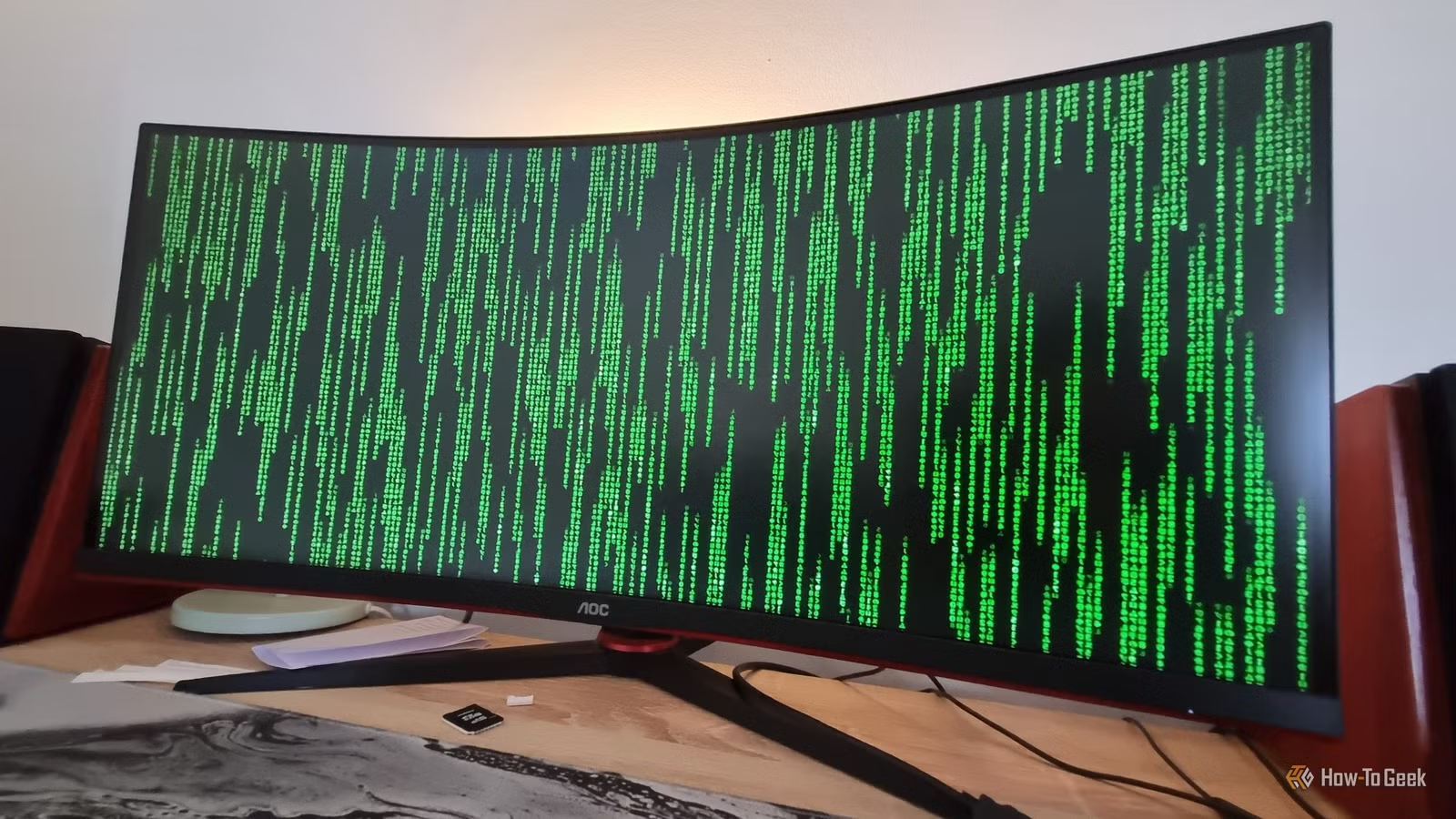
The Matrix screensaver is the only appropriate way to end this list. Right after one of the best sci-fi movies of all time came out in early 1999, we got a screensaver that could turn any Windows PC into a futuristic machine from The Matrix.
I didn’t have a PC of my own at the time, but you can bet that every friend with one rocked The Matrix screensaver. While I didn’t use this screensaver back when I got my first PC, I found it so cool while hunting down classic screensavers for this piece that—for the first time in about a decade and a half—I’m using a screensaver on my Windows PC, and it’s The Matrix.
You can download the screensaver from Screensavers Planet. Don’t forget to play with the options, since they allow you to dial the screensaver just the way you like it.
How to activate and install classic Windows screensavers in Windows 11
While it’s well hidden, Windows 11 includes a screensaver setting. You can access it by opening Windows settings, clicking the “Personalization” tab, and then accessing the “Lock Screen” menu. You can find the “Screen saver” button in the “Related Settings” menu.

Alternatively, type “screensaver” in the Windows search bar, and you’ll be offered the Windows screensaver tool.

To install a screensaver, you usually have to download one or more screensaver files, right-click the SCR file, and click the “Install” option.
Doing so will open the Windows screensaver interface, allowing you to select the screensaver you’ve just installed and adjust its settings.
Hungry for more 1990s nostalgia? Check out eight 90s technologies we still use today, find out which Windows apps from the 90s you can still use today, and rewatch 10 retro ’90s techno thrillers that predicted our digital future.



