
Tech
A 1440p webcam with too many compromises

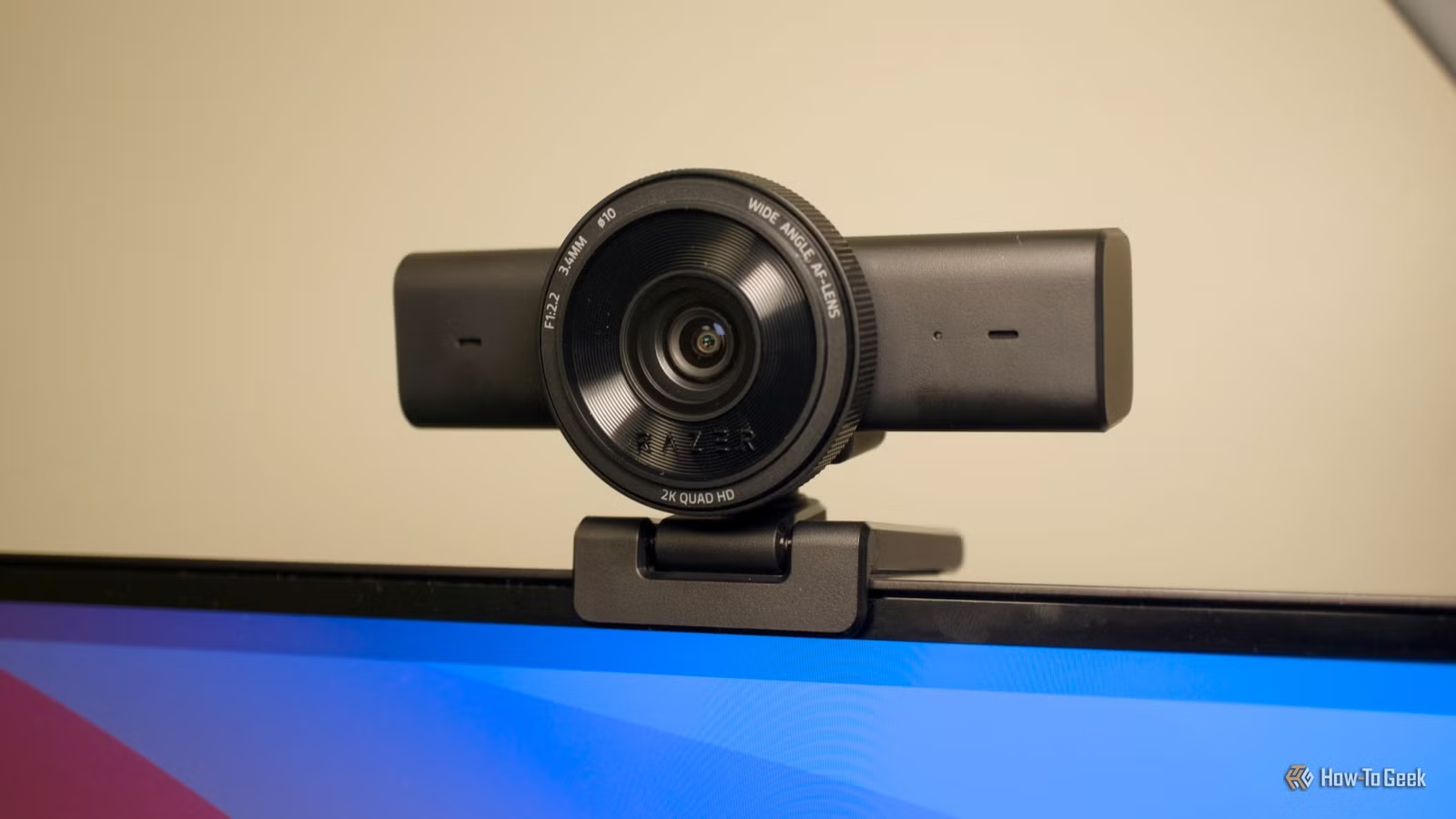
The Razer Kiyo V2 X is intended as a higher-end webcam, with 1440p 60 FPS support, a wide field of view, and advanced software features. However, it comes with some disappointing drawbacks, especially if you ever use it with a computer not running Windows.


6/10
- Resolution
-
Up to 1440p
- Frames per second
-
Up to 60 FPS
- Mounting
-
Adjustable mount with tripod support
- Compatibility
-
OBS and Xsplit
The Kiyo V2 X is the lower-cost version of Razer’s webcam line, with up to 1440p resolution, an 80-degree FOV, a built-in privacy screen, and plenty more.
- Decent video quality
- Has a built-in shutter
- Basic functionality works on Windows, Mac, and Linux
- Software settings only available on Windows
- Poor microphones and low-light performance
- No buillt-in ring light
Price and Availability
The Razer Kiyo V2 X normally has a $100 price tag, and you can get it from Razer’s online store, Amazon, Best Buy, and other retailers. It’s available in Black, White, and Quartz colors. Also, don’t get it confused with the similarly-named Razer Kiyo V2 (without the ‘X’), which has a higher 4K resolution instead of the 1440p and usually costs $150.
- Resolution
-
Up to 1440p
- Frames per second
-
Up to 60 FPS
- Mounting
-
Adjustable mount with tripod support
- Compatibility
-
OBS and Xsplit
- Size (WxDxH)
-
2.6 x 2.7 x 4.3 in
- Weight
-
160g
Sleek design, but missing a feature
The Kiyo V2 X camera looks like nearly every other webcam. It’s a black rectangle with a large camera lens in the middle, microphones on both sides, and a pivoting mount at the bottom. You can easily stick it on top of any monitor or laptop and adjust the angle as needed. Alternatively, there’s a standard ¼ inch thread on the bottom of the camera mount, so you can place it on most camera tripods.
There’s also a physical privacy shutter, which is always appreciated. When you turn the dial around the camera lens in a counter-clockwise direction, the shutter closes, and turning it in a clockwise direction opens the cover again. However, there’s no physical shut-off switch for the microphones.
Unfortunately, there’s no integrated light on this webcam, even though that was the main selling point of the original Razer Kiyo. The more expensive Kiyo V2 model doesn’t have one, either. The product listing mentions a brightness slider, but that’s only in software and can’t fully replace a real light.

The webcam uses a USB Type-A connection, so if you have a laptop or other device with only USB Type-C ports, you’ll need a hub or adapter to use the Kiyo V2 X. The side of the USB cable going into the webcam is also permanently attached. If the cable becomes frayed or otherwise damaged, the camera won’t work anymore.
Razer claims the webcam works on Windows 10 64-bit or higher and macOS 14 or higher, and it worked on my Windows 11 PC and MacBook Pro running macOS Sequoia 15.7. Ubuntu 24.04 LTS could also detect the camera and show all resolution and framerate options in OBS Studio, so it should work in other desktop Linux distributions as well.
Decent image and sound quality
The Razer Kiyo V2 X has a 3.7 MP sensor with an 80-degree field of view (FoV), a 3.4 mm focal length (25 mm for full-frame equivalent), and a resolution up to 1440p. In real-world testing, it worked about as well as any other webcam. There’s a decent amount of detail, and the field of view is larger than the ancient Logitech C920 that I have been using.

The only significant problem I noticed is the aggressive auto-focus, which kicks in almost any time I move at all. The autofocus usually only takes a second, but it’s probably distracting for anyone watching your video feed. You can avoid this by setting a manual focus length with Razer Synapse, but right now that’s only an option for Windows PCs.
Low-light performance is acceptable on the Kiyo V2 X webcam. If you aren’t bright enough with your current webcam, or background light is causing you to appear too dark, the Kiyo V2 X will not fix that problem—you still need to get a light. Again, I wish Razer had kept the built-in ring light from the previous Kiyo camera.
There are three main recording modes: 1440p at 60FPS, 1080p at 60/30/24 FPS, or 720p at 60/30 FPS. Some software allows you to pick the mode, like OBS Studio, while other apps will switch modes depending on bandwidth and other factors.
Finally, the built-in microphone is passable, but not great. My voice came across loud enough in test recordings, but it also picked up nearly all background noise. You’ll need to use the noise cancelling features in Google Meet, Zoom, macOS, NVIDIA Broadcast, or other software to get a more clean recording.
Razer Synapse integration
The Razer Synapse desktop application is required for changing the Kiyo’s software settings, including the zoom level, auto and manual focus toggle, color balance, and exposure. It’s a free download, but it asks you to create an account to synchronize your settings —just click the ‘Continue as Guest’ button to skip that.

Sadly, the Kiyo’s software customization through Synapse only works on Windows PCs. If you connect the webcam to a Mac or Linux computer, you can’t change any of the camera settings. There is a version of Razer Synapse available for macOS, but as of November 2025, it’s not compatible with any of Razer’s webcams.
The Synapse software covers all the basics, and for more advanced features like custom backgrounds and automatic framing, Razer prompts you to download and install a custom version of Camo. Some of these features are built into macOS and Windows 11 on Copilot+ PCs, though. If you have a Windows PC with a recent NVIDIA graphics card, check out NVIDIA Broadcast.
Should you buy the Razer Kiyo V2 X?
The Razer Kiyo V2 X is a capable webcam, but if you already have a decent camera, it’s not going to be much of an upgrade. The large field of view and 1440p resolution is helpful in recordings and livestreaming, but there’s no built-in light, the microphones aren’t great, and you need a Windows PC for full software customization. At least many of Logitech’s cameras can be configured on both Mac and Windows.
For most video calls and teleconferences, the Kiyo V2 X isn’t going to be drastically different than the $30 720p or 1080p webcam you bought five years ago. The bottlenecks to webcam quality are usually poor lighting and bad microphone quality, and the Kiyo V2 X doesn’t solve either of those problems on its own. The built-in microphone is not great, and the ring light from the original Kiyo is not present.
If you specifically need a higher-resolution camera, the Kiyo V2 could be a good choice. You should probably still wait for a sale, though.
6/10
- Resolution
-
Up to 1440p
- Frames per second
-
Up to 60 FPS
- Mounting
-
Adjustable mount with tripod support
- Compatibility
-
OBS and Xsplit
The Kiyo V2 X is the lower-cost version of Razer’s webcam line, with up to 1440p resolution, an 80-degree FOV, a built-in privacy screen, and plenty more.



