Tech
These Chromebook features make reading and writing easier with AI

Did you know that your Chromebook has both reading and writing help built-in? Help me read and Help me write are two AI-based functions that come baked into Google’s Chromebook Plus lineup.
Designed to help summarize articles and blog posts, Help me read is a great tool that I think everyone can benefit from. Help me write is equally useful, working as a great companion to help jumpstart ideas when you get writer’s block.

- Operating System
-
ChromeOS
- CPU
-
Intel i3-N305
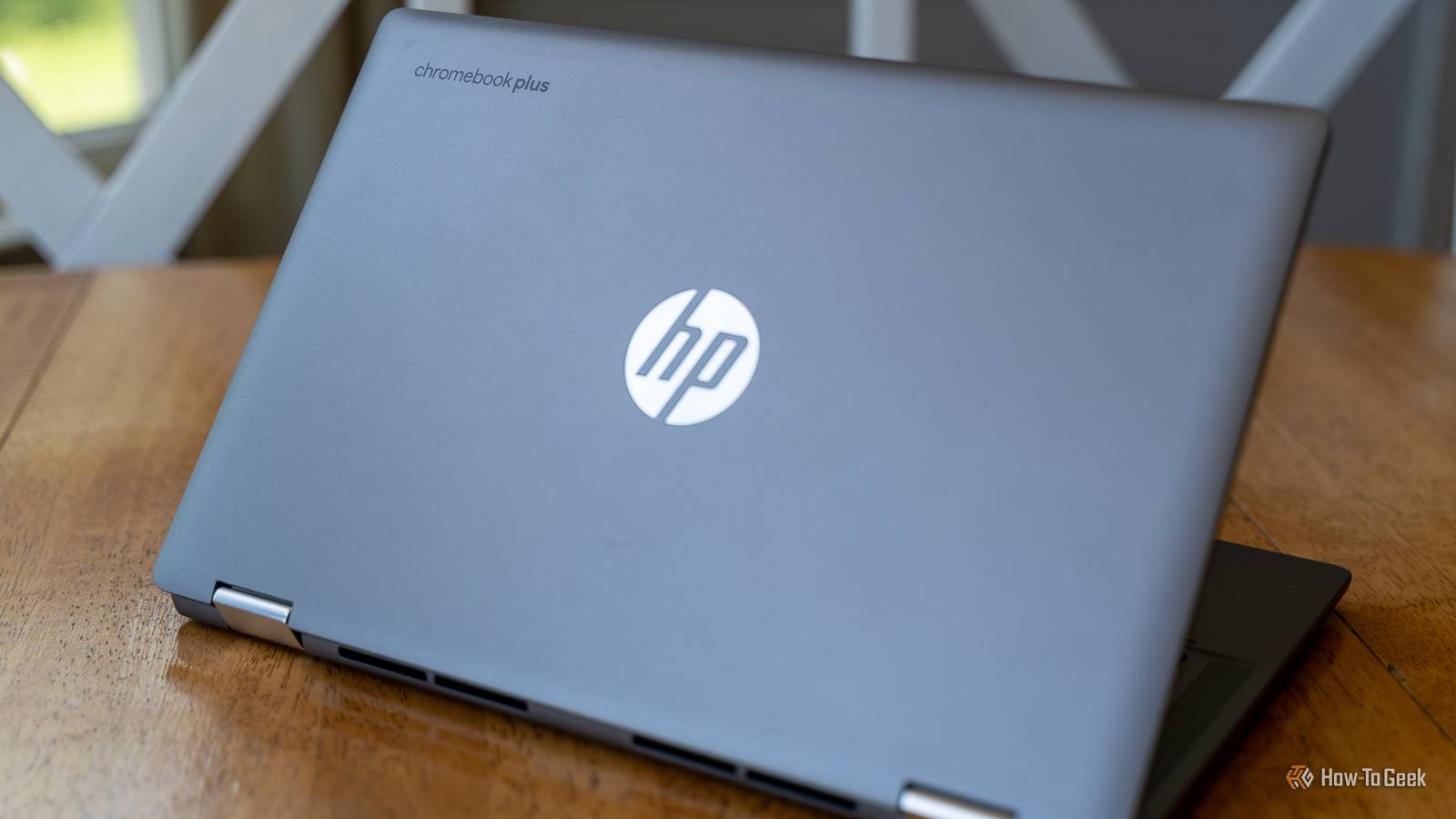
The HP Chromebook x360 14b delivers an Intel i3-N305 8-core processor, 8GB of LPDDR5 memory, and 128GB of UFS storage to pack a solid punch as a portable computer. Flanked by a 14-inch 1080p touchscreen and a 360-degree hinge, this Chromebook is ready for whatever you want to throw at it.
What are Help me read and Help me write?
If you’ve not heard of Help me read or Help me write on your Chromebook, it’s essentially a baked-in AI feature that can either help summarize text or write for you. The two functions require at least a Chromebook Plus to work, so if you’re on an older Chromebook or a base model, then this won’t be available for you, sadly.
Help me read is designed to give you a summary of a webpage and even answer questions about the content. I tried it out on several blog posts here at How-To Geek, and I was pleasantly surprised with the output. With it, I was able to get a quick overview summary of the articles in question. I asked follow-up questions and the AI helper did answer my questions properly using the context of the article.
Help me write works similarly, but from a writing standpoint. I used it a handful of times to have it write some blog posts on various topics. Although I wouldn’t publish the posts it generated, it did work decently and gave a pretty solid output.
I can see more uses for Help me read than the Help me write function, but both work well enough. I would offer a word of caution, though. Both of the blog posts that Help me write generated were decent, but they definitely weren’t flawless. Had I wanted to use the content from either, I would have had to do a good bit of editing. This isn’t necessarily a flaw in Help me write, but just a cautionary tale with AI in general. Having AI write for you sounds great, but you’ll definitely want to read over the output, as there are often glaring flaws that a computer might not pick up on, but humans definitely will.
How to use Help me read
Using Help me read is actually pretty straightforward. It works on just about any website or text on your Chromebook, and is accessed with a simple right click on the content. Once you right-click on what you want Help me read to work on, there’s a pop-up where you can either ask a question or just click on the “summarize” button to get the summary. Be careful though, once a summary is generated, that’s it. I’ve not found a way to re-generate a summary.
One article I tried to summarize with Help me read had a pop-up come up, and that’s what Help me read summarized. Once I dismissed the pop-up, I couldn’t get it to re-summarize the page at all. I navigated away from the page, did a hard refresh and tried several other things, but the summary of the pop-up was the only thing that Help me read showed for that page.
The summaries that Help me read generated were pretty accurate. I had it summarize articles that I had written in the past, and it got everything right. However, the articles were pretty straightforward and well-written (if I do say so myself). For more complicated or complex topics, it might be good to use the summarize tool to get a gist of what the article says, but then fact check it yourself without the AI.
How to use Help me write
Help me write works in a very similar way. Simply right click inside any text box and the Help me write prompt will be available. Once you access the prompt, simply give it the criteria for what you want it to write. Be as descriptive as you can here, as the AI is only as good as the prompt that you give it. If you only say a few words, it’ll still write, but it might not be as accurate as if you gave it several sentences with some bullet point guidance.
As I mentioned earlier, even with good prompting, the output of Google’s AI with Help me write was only okay. There were multiple things that I would change had I been using it to actually write for me. Some of the changes that I’d make were on the grammar and flow side of things, and other parts were just outright wrong. Where I see the help me write feature of Chromebooks coming in handy is with idea generation. If you’re stuck on a topic and can’t come up with ideas for it, just use help me write to get your thoughts flowing. The output of Help me write is good enough to kicks start ideation, and that’s where I think this will shine.
Once you master using Help me read and Help me write, there are so many other Chromebook power user tips and tricks to check out. From more complex tasks like enabling Linux to using virtual desks to gain more screen space, Chromebooks are full of power-user functions once you learn how to use them.