This spring, my wife and I moved from the Denver suburbs into the Colorado Rockies. The high-altitude retreat presented a welcome reprieve from our otherwise tech-dominated lives. As remote workers, however, we faced certain challenges, and technology was the only reason our move was possible in the first place.
Prior to my time at El Reg, I, among other things, breathlessly covered a subset of the networking industry, which as it happens had become big business following the COVID-19 outbreak and the pandemic that followed. I’m speaking, of course, about software defined wide-area-networking (SD-WAN).
Little did I know, a mere six years later, this technology would become essential to my wife and me.
Had it not been for 5G and Starlink, the move might as well have been time travel. To put it into perspective just how far into the foothills we’d ventured, the fastest wired connection at our disposal was DSL. CenturyLink promised, but notably did not guarantee, up to 20 Mbps down and a staggering 1.5 Mbps up.
Advertisement
Compared to the symmetrical gigabit fiber line we’d enjoyed in the Denver suburbs for the past six years, relying on DSL alone felt positively medieval. To those, including many of my neighbors, living this reality, you have my sympathies.
Thankfully, DSL wasn’t our only option. For better or worse, 5G and Starlink are helping to close the digital divide in a meaningful way — but individually they’re still far from perfect.
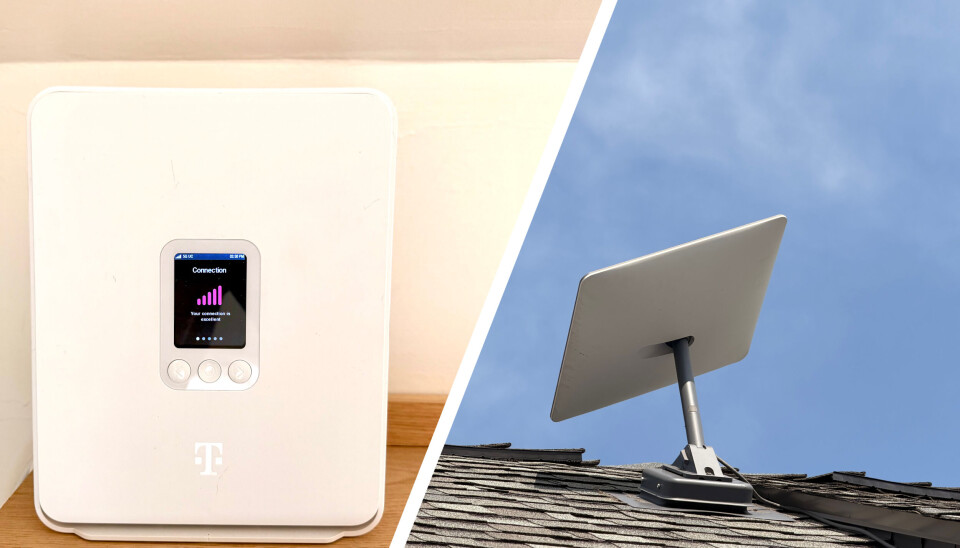
Left, a T-Mobile 5G home internet combo modem/router — Right, a second-gen Starlink dishy that we don’t actually use, but is positioned in a far more photogenic spot on our roof than the V4 dish we actually do connect to.Tobias Mann
Where we live, T-Mobile’s 5G internet service delivers near-gigabit download speeds and uplink speeds ranging from 30–40 Mbps. Meanwhile, Starlink promised between 100 and 400 Mbps downlink depending on the plan, with uplinks that, at least for us, capped out at around 30 Mbps.
Either would be fast enough for our needs, but reliable? Turns out there’s still some room for improvement. In the past two months we’ve experienced no fewer than a dozen dropped connections lasting anywhere from a minute all the way to five. Making matters worse, the majority of these drops took place during working hours.
Advertisement
With a relatively clear view of the sky, we’ve found Starlink to be more reliable, but even SpaceX isn’t immune to the occasional outage. That’s not to mention the threat of space junk kicking off a Kessler syndrome-like event.
SD-WAN to the rescue
The easy way to approach multi-WAN would have been to set up two networks, each with its own SSID. In the event one went down, we’d switch to the other.
While simple, it’s far from perfect, and does nothing to mitigate disruptions to the voice and video calls on which my wife and I spend a considerable amount of our week. With two WiFi access points, we’d also have to contend with interference from overlapping channels.
Wrangling multiple LANs, wireless SSIDs, and firewall rules isn’t exactly ideal. Thankfully, there’s a better way, and we just so happened to have all the equipment we needed.
Advertisement
SD-WAN was developed in the early 2010s to solve a very specific problem: as SaaS apps like Office 365, Salesforce, and Google Apps took off, more and more enterprise traffic was going out to the internet.
This was a problem for a lot of enterprise WANs, which often relied on expensive MPLS links designed to connect satellite offices to servers running back at headquarters or regional datacenters. In many cases, these WANs were built to prioritize reliability over bandwidth, and due to their topology required backhauling traffic tens or hundreds of miles just to access the internet.
SD-WAN gateways offered an alternative. These devices could route internal traffic over the private WAN while SaaS and other internet-bound traffic could be piped over whatever local ISP served businesses in that area.
SD-WAN is an entire can of worms in itself, but for my purposes two key capabilities stood out: multi-WAN and policy-based routing support. Our router, a Ubiquiti UniFi Dream Machine SE (UDM-SE), already supported both.
Advertisement
The hardware
Ubiquiti’s UDM-SE (the lower of the two silver boxes) isn’t the most feature rich of SD-WAN gateways, but it doesn’t require a license and it supports the features I actually need, multi-WAN failover, load balancing and policy-based routing.Tobias Mann
The UDM-SE is not Ubiquiti’s newest nor even its most capable gateway. Introduced in 2022, the all-in-one appliance combines a 3.5 Gbps router (with IPS/IDS enabled) with an 8-port gigabit PoE switch, an integrated network video recorder, and critically two WAN ports, one good for 2.5 Gbps and another capable of 10 Gbps.
Ubiquiti’s SD-WAN implementation is somewhat basic compared to gateways from HPE, Cisco, or Extreme. However, of the bevy of networking and security features SD-WAN encompasses, we only really needed a handful – multi-WAN and policy-based routing were the main ones – and Ubiquiti is kind enough not to gate this functionality behind an enterprise license.
The setup itself was about as simple as it gets: plug each ISP-provided gateway into one of UDM-SE’s WAN ports and tell it whether you want to load-balance traffic across the two, or failover in the event of an outage or dropped connection.
In practice there were a few extra steps, including disabling the 5G and Starlink gateways’ onboard routing and WiFi functionality. Starlink supports a bypass mode, but the T-Mobile modem+router combo didn’t. We were able to disable the onboard WiFi, but only using an onboard utility.
Advertisement
Putting it to the test
With everything connected, we opted to configure the UDM-SE for WAN failover with T-Mobile as the primary and Starlink as the backup, rather than load-balancing traffic across the two, in part because the 5G link was so much faster.
The first few days after setting everything up, my wife and I were questioning whether we even needed Starlink. But then we saw the notification: “Internet connection WAN1 (T-Mobile USA) on port 9 is down and WAN2 (Starlink) is now active,” and then a few minutes later, “Internet connection WAN1 (T-Mobile USA) on port 9 is restored after failing over to WAN2 (Starlink).”
Both notifications were dated two hours earlier. We just hadn’t noticed. In fact, despite at least a dozen dropped connections over the past two months, the UDM-SE failed over fast enough that it was never an issue. No dropped calls, no buffering video, no timed-out web pages.
Perhaps the most surprising discovery was that while Starlink didn’t offer the fastest or lowest-latency connectivity, it was remarkably reliable. Despite less than perfect alignment and view of the sky, the logs show just two dropped connections in the past month, one of which happened in the middle of the night when no one was awake to notice.
Advertisement
While not an everyday occurrence, dropped connections still happen far more often and for longer than I’d like.Tobias Mann
While WAN failover kept us online, it didn’t do anything to guard against network congestion. The UDM-SE offers a preconfigured quality-of-service (QoS) policy that in theory should detect Zoom or MS Teams traffic and prioritize it over something like Windows Update or YouTube.
But since we had two WANs, we could go one better and take advantage of another SD-WAN favorite: policy-based routing. This allowed us to force certain devices or services to prioritize one ISP over the other. For example, because Starlink had proven to be the more reliable of the two links, I wrote a policy to route traffic from my wife’s work laptop over the satellite link first and fail over to T-Mobile in the event of an outage. This also had the benefit of ensuring that if I happened to kick off a large game or AI model download while she was in the middle of a meeting, I wouldn’t get myself in trouble for turning her Zoom call into a pixelated mess.
The digital divide is narrowing, not closed
In the more rural parts of the US where wired connectivity isn’t a given, cellular home internet and low-Earth orbit (LEO) satellite communications, like Starlink, have gone a long way toward closing the digital divide — particularly for those working from home.
However, individually they’re still far from perfect. Dropped connections weren’t a daily occurrence, but they still occurred more frequently and for longer than we would have liked. Five minutes is a long time to wait wondering whether the person on the other end of the Zoom call will be there when you eventually get back online.
Advertisement
Technologies like SD-WAN can help to mitigate the problem by allowing multi-WAN failover, load balancing, and policy based routing, but to take advantage of them also requires paying for two ISPs and hundreds of dollars of equipment, which may or may not require monthly subscriptions or annual licenses.
We were fortunate that the hardware we already owned supported these features and didn’t lock them behind a pricy enterprise license. Even still, we’re paying more for internet than we’d like. Between T-Mobile and Starlink, we’re spending around $125 a month to get online.
Along with the higher price, network latency is also a lot higher than we’d like. Compared to our old fiber line, which routinely achieved latencies under 5 ms, T-Mobile and Starlink ranged from 15 ms at best to as much as 80 ms at worst.
The only online game I play regularly is a real-time strategy that’s old enough to drink. I’m not playing CS:GO or whatever twitch shooter is popular these days, so the higher latency wasn’t that big of a deal, but if you’re a competitive gamer, a wired connection is still a must.
Advertisement
The good news is T-Mobile and Starlink may not be our only options for high-speed internet for much longer. There are numerous ongoing efforts across the US and other nations to improve access to fiber connectivity, including one slowly working its way down the highway in our general direction.
On a personal note, while it’s neat to experience a technology firsthand that I dedicated years of my life to writing about, the moment fiber-to-the-home comes, both our Starlink and 5G home internet subscriptions are getting the boot. ®
“The Lofree Flow 2 types beautifully, but its awkward extras lack the same polish.”
Pros
Excellent typing experience
Premium aluminum construction
Smooth, refined Surfer switches
Hot-swappable design
Wired and wireless connectivity
Cons
Touch strip activates accidentally
Awkward side-mounted USB-C port
No storage for the wireless receiver
VIA setup is needlessly difficult
“Why you can trust Digital Trends – We have a 20-year history of testing, reviewing, and rating products, services and apps to help you make a sound buying decision. Find out more about how we test and score products.“
The Lofree Flow 2 made an excellent first impression. Its aluminum body feels reassuringly solid, its minimalist design looks expensive without screaming for attention, and once I started typing, my fingers felt strangely lithe.
That isn’t a word I normally associate with fingers, but it fits. Moving between keys required less effort without giving me the shallow, slightly dead sensation I usually get from laptop keyboards. I even felt like I was typing faster.
For once, the numbers supported the new-product placebo. I normally average between 90 and 95 words per minute on Monkeytype, but I regularly crossed 100 words per minute with the Flow 2. That hardly qualifies me for competitive typing, assuming such a terrifying sport exists, but the difference was consistent enough to notice.
Advertisement
Paulo Vargas / Digital Trends
Living with the Flow 2 also revealed several decisions that aren’t nearly as polished as the keyboard itself. None made me want to stop using it, but they suggest Lofree spent more time perfecting what happens under your fingers than considering everything your hands might do around it.
Price and configuration
I tested the latest 84-key Mac version, which costs $159 and comes with Lofree’s Surfer linear switches. These belong to the newer Cloud Series developed for the Flow 2, replacing the Ghost and Phantom switches offered with the original Flow.
Lofree also sells the keyboard with quieter Void linear switches and tactile Pulse switches, so the exact typing experience will depend on the configuration.
At this price, the Flow 2 competes with premium low-profile keyboards from Keychron, NuPhy and Logitech. That makes its smaller frustrations harder to dismiss. A less expensive keyboard can get away with asking its owner to improvise. A premium one should have already thought through where the dongle goes.
Specification
Lofree Flow 2 tested
Layout
75%, 84 keys
Switches
Surfer linear
Other switch options
Void silent linear, Pulse tactile
Connectivity
USB-C, Bluetooth 5.3, 2.4GHz
Battery
3,000mAh
Rated battery life
Up to 120 hours without backlighting
Backlighting
White
Switch replacement
Hot-swappable
Remapping
VIA
MSRP
$159
The Flow 2 offers an excellent typing experience
The Flow 2 sits somewhere between a traditional mechanical keyboard and a laptop keyboard without feeling like a compromised version of either.
Advertisement
Its keys have enough travel to make each press feel deliberate, while the low-profile design keeps movements short. Each press lands softly without becoming mushy, the Surfer switches are smooth and consistent, and the wider keycaps give my fingers a comfortable target.
My regular mechanical keyboard feels heavier by comparison. I encounter less resistance while moving through a sentence, which probably explains those higher Monkeytype results. That’s especially pleasant during long stretches of writing, when a heavier keyboard can gradually make every key feel like a tiny administrative task.
The aluminum construction completes the effect. The board doesn’t noticeably flex, and it stays planted on my desk. Its restrained design also avoids the usual gamer aesthetic. You get white backlighting, but no rainbow running beneath the keys like a tiny nightclub.
My space bar has a faint springiness if I listen for it, although it’s negligible during normal typing. I didn’t encounter the prominent metallic resonance reported in some other reviews. Whether that comes down to the Surfer switches, production differences or plain unit-to-unit variation is difficult to say.
Advertisement
Paulo Vargas / Digital Trends
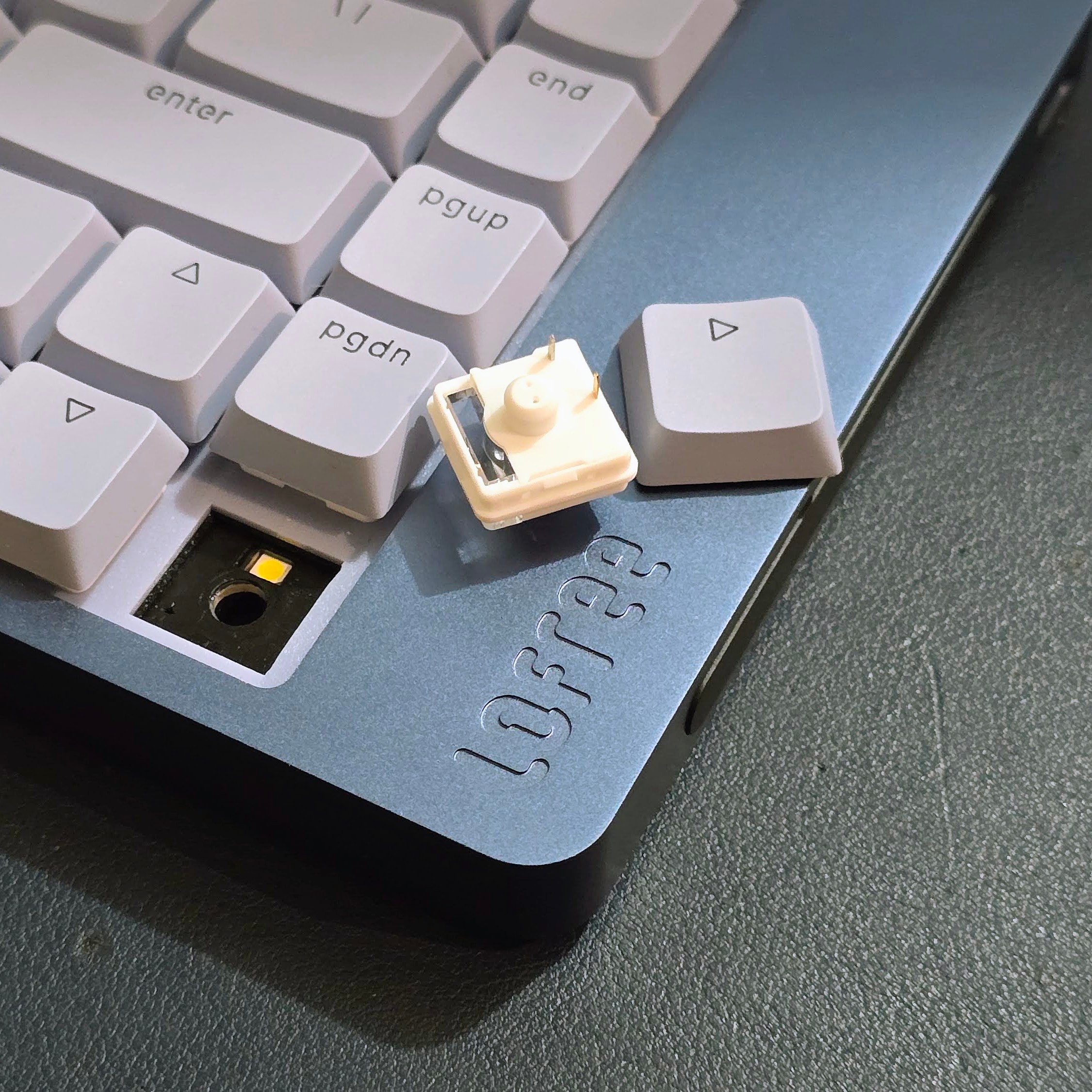
The Flow 2 is hot-swappable, so you can replace its switches without soldering. That gives enthusiasts some room to alter the typing experience and means one failed switch doesn’t condemn the entire keyboard.
I’d still approach that feature cautiously. The plastic clips on low-profile switches seem more delicate than their chunky full-height equivalents, and compatibility is narrower than it is in the standard MX-style market. Hot-swappable doesn’t mean every mechanical switch you find online will fit.
Fortunately, I haven’t wanted to replace the stock switches. People who normally open a new keyboard and immediately start adding foam and tape in pursuit of the perfect “thock” may be surprised by how refined this one already sounds and feels.
The touch strip creates some daily frustration
The touch-sensitive strip on the right side is the Flow 2’s most conspicuous experiment. It controls volume and can adjust screen brightness. When I remember it exists, sliding a finger across it feels more elegant than repeatedly tapping a function key.
Paulo Vargas / Digital Trends
The trouble is remembering it at the right time while somehow forgetting it whenever I touch the keyboard’s edge.
Even after getting used to the Flow 2, I still trigger the strip by accident. My hand occasionally brushes against it, particularly when I’m repositioning the keyboard. Physical buttons or a dial would have been less novel, but they would also have been easier to use deliberately.
Advertisement
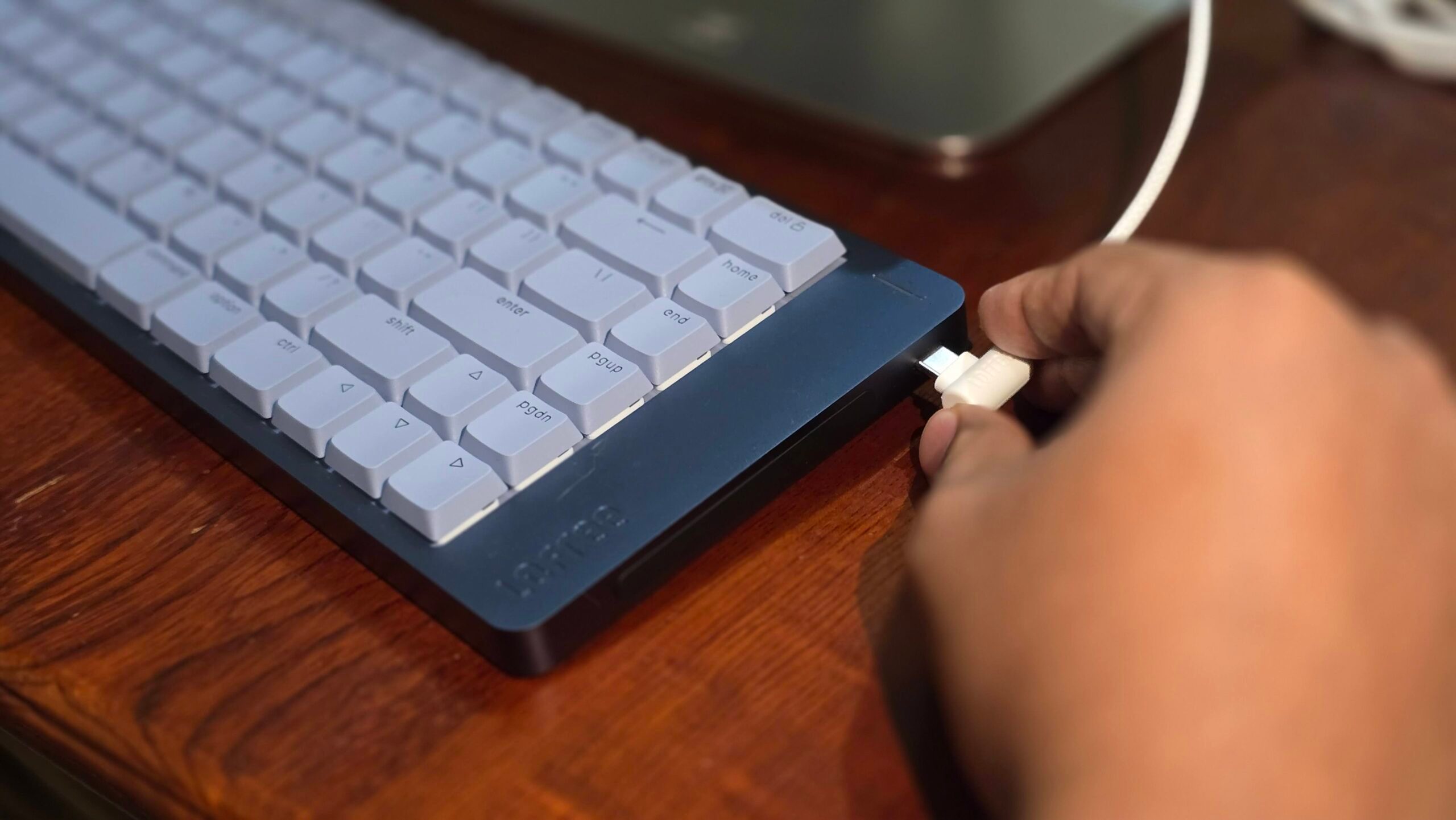
The USB-C port occupies that same side. Depending on how your desk is arranged, the cable can stretch toward the mouse area instead of disappearing neatly behind the keyboard. It works perfectly well, but its position seems better suited to the keyboard’s internal layout than anyone’s actual desk.
The 2.4GHz receiver, meanwhile, has nowhere to live. I keep mine in the box because I know exactly how this story ends otherwise. It’ll sit loose on my desk, migrate into a drawer and eventually disappear into the same dimension that collects missing socks and single wireless earbuds.
That omission feels especially strange on a compact wireless keyboard. The Flow 2 is small enough to carry between desks, yet its smallest and easiest component to lose has no home inside it.
Paulo Vargas / Digital Trends
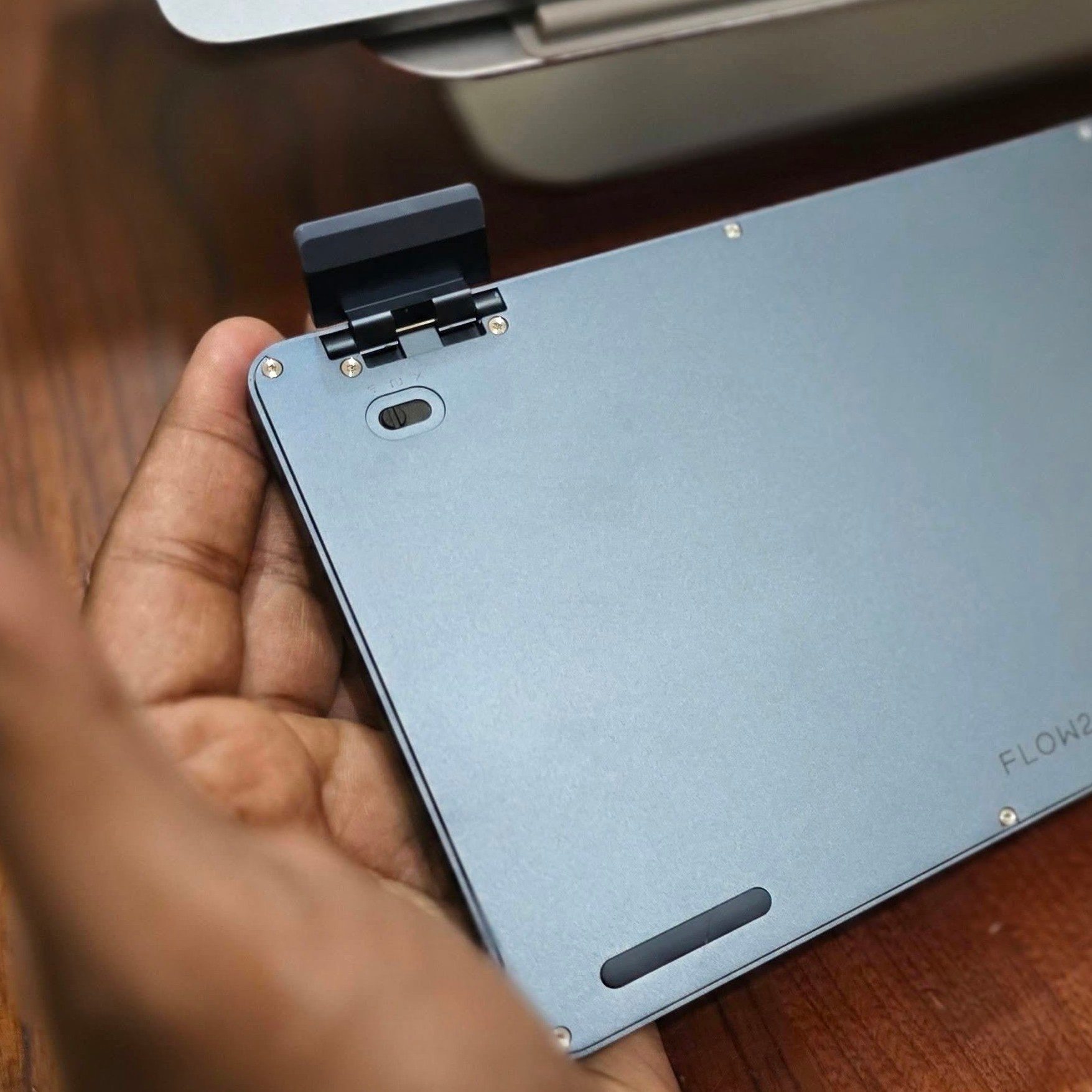
My most personal complaint involves the mode selector underneath the keyboard, which switches between wired, wireless and off. Hiding it there prevents accidental changes and would normally make sense, except I also have cats.
When one jumps onto my desk and decides the Flow 2 is a perfectly acceptable walking surface, I can’t quickly disable it without lifting the entire keyboard. A side-mounted control would make those little hostile takeovers easier to manage. This may be a specific complaint, but pet owners understand that every exposed surface eventually becomes a collaborative feature.
Advertisement
The 84-key model has a 3,000mAh battery rated for up to 120 hours with the backlight switched off. That’s competitive for this category, although maximum-brightness backlighting cuts the advertised figure substantially. Since the Flow 2 spent most of its time on my desk, battery life never became the central issue that its other design choices did.
Paulo Vargas / Digital Trends
VIA customization is harder than it should be
The Flow 2 supports VIA, which lets you remap keys and configure different layers through a browser interface. It should be one of the keyboard’s most useful features, especially for anyone who regularly moves between operating systems.
Actually getting it working was far harder than necessary.
During my testing, I couldn’t find the correct JSON configuration file on Lofree’s main website, download center or support pages. VIA wouldn’t properly recognize the keyboard without it, so I spent the better part of a day searching before contacting Lofree. The company eventually sent me the file directly.
Lofree now provides some Flow 2 configurator resources through individual regional and product pages, but they remain surprisingly difficult to locate through its central download page. A keyboard advertised as supporting VIA shouldn’t require buyers to know which obscure corner of the manufacturer’s website contains the missing ingredient.
Advertisement
VIA works well enough once configured, although the Fn key still can’t be customized. I wanted to reconfigure it while using the Flow 2 with Windows, but that limitation made switching layouts less flexible than expected.
I eventually kept the keyboard connected mostly to my Mac, where the native layout made sense and I could concentrate on writing instead of managing the thing I was writing with.
Should you buy the Lofree Flow 2?
The Flow 2 is worth buying if typing quality, construction and appearance matter more to you than seamless customization. It feels refined immediately, so enthusiasts may be surprised by how little they want to modify. More casual buyers can get an excellent mechanical typing experience without surrendering a weekend to foam, tape and switch research.
It’s less convincing if you frequently switch operating systems, expect VIA to work without a scavenger hunt or regularly carry the receiver between desks. Mac users who intend to leave it in one place will encounter fewer of its rough edges.
Advertisement
Anyone indifferent to the precise woodland noise made by a space bar may simply see an attractive aluminum keyboard that pairs nicely with the MacBook Neo colors.
I still occasionally trigger the touch strip, and the receiver remains in protective custody inside the box. Yet I keep returning to the Flow 2. I thought it merely made me feel faster, but Monkeytype says otherwise. Apparently, the keyboard tested my patience and improved my typing speed at the same time.
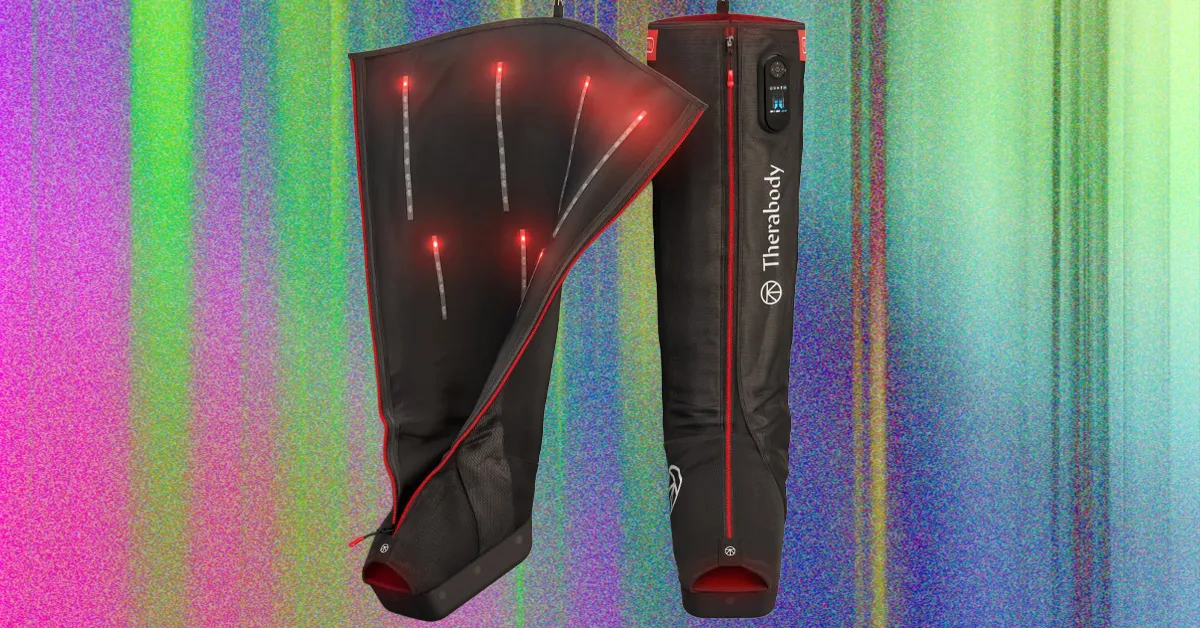
Why WIRED recommends: The compression and vibrating pairing is therapeutic, to say the least; it consistently left my legs feeling less stiff after workouts. Everything is controlled from an LCD screen built into the lead boot, so there’s no separate controller to keep track of. You can tailor every session to your preference, with durations ranging from 10 to 60 minutes in five-minute increments and manual controls to adjust both pressure—measured in millimeters of mercury (mmHg)—and vibration intensity. You can also choose from four compression modes and eight preset routines.
The trade-offs: Therabody doesn’t publish key specs about the LEDs, and I didn’t notice a significant difference in my post-workout recovery that I could attribute to the infrared light therapy. The boots also don’t connect to the Therabody app, which may disappoint some users, but I didn’t find it necessary. At $1,150, these are also among the priciest compression boots on the market.
Buy if: You want the most premium, customizable recovery system available and don’t mind the splurge. They’re especially suited for athletes and anyone who exercises regularly, or for people managing conditions like lymphedema, deep vein thrombosis (DVT), or chronic venous insufficiency (CVI).
Best Entry-Level Compression Boots
If all you want is effective pneumatic compression, the Therabody JetBoots Prime delivers the essentials at a more affordable price point.
Advertisement
Why WIRED recommends: For half the cost of the JetBoots Pro Plus, the Prime skips the vibration and infrared LED therapies but still offers four compression levels (25, 50, 75, and 100 mmHg) and three session lengths (20, 40, or 60 minutes), all controlled from a built-in panel on the boot. They’re wireless compression boots, offer up to three hours of battery life, and can even be used while charging. Weighing about 6 pounds, they’re surprisingly portable and fold down into the included drawstring backpack.
Framework, a company best known for producing modular, highly repairable and customizable PCs and laptops, has suffered a large data breach, which has compromised customer information, according to multiple media outlets and an email from the company that has been shared online. The stolen information includes customer names, email addresses, phone numbers, login IPs and physical addresses. In the emails some customers have received, the company says that order and payment information wasn’t accessed in the breach.
A Framework representative didn’t immediately respond to a request for comment.
According to TechCrunch, Framework spokesperson Eric Schumacher said that all customers were affected, without specifying an exact number.
(great news to wake up to) There was a major security issue in Metabase, the open-source analytics software. Framework was using it, and an attacker managed to access a significant amount of information. Metabase has partially addressed the vulnerability. Exercise extreme… https://t.co/YBl37jnAXcpic.twitter.com/3dgfzAtPf1
The breach appears to have been caused by a Metabase Cloud vulnerability using a zero-day exploit, a previously unknown security flaw in the software. In a blog post, Metabase says the vulnerability has already been patched but warns that those self-hosting may still be vulnerable and should upgrade to the latest point release.
These types of breaches aren’t uncommon, even for large companies, and they hit across the industry. CNET reporting has shown that data breaches are becoming increasingly widespread and severe, while companies are often providing less transparency about the scope of the compromised information and the methods attackers use to gain access.
If you’ve been affected by the Framework data breach, there are some measures you can take to minimize the damage. Change any exposed and reused passwords, enable two-factor authentication if you haven’t already, keep a close eye on any payment cards linked to that account, and revoke access to services you no longer need.
Framework doesn’t sell as many laptops as the big names, but the data breach impacts hundreds of thousands of customers, according to estimates.Lori Grunin/CNET
Framework has been hit hard by the ongoing memory shortage and has raised prices twice this year. The cost increase for the memory modules was so significant that it actually pared down the RAM loadout on the Framework Laptop 13 Pro, despite the product already being offered for preorder. The latest breach may further challenge consumer confidence at a time when the company is already navigating pricing pressures and supply chain challenges.
Ajay has worked in tech journalism for over a decade as a reporter, analyst, product reviewer, and editor. He got his start in consumer tech, breaking Android news at Newsweek before going to PCMag, where he reviewed hundreds of smartphones, battery packs, and chargers as a Mobile Analyst. He also worked at Lifewire, a Dotdash Meredith brand, as a Tech Commerce Editor, putting together tested best-of lists and assigning product reviews across categories including smart home, uninterruptible power supplies, generators, and automotive tech.
Most recently, he was Section Editor, Mobile at Digital Trends, spearheading his team’s coverage of breaking news, features, reviews, roundups, deals, and more across a variety of mobile products, including phones, wearables, VR headsets, batteries, and chargers. If you want Ajay’s advice about anything tech, especially solar panels, UPS, batteries, EVs, and charging technology, you can reach him at ajkumar@cnet.com.
See full bio
I use ChatGPT pretty much every day, but somewhere along the way, I’ve also developed a habit of poking around and looking for features I haven’t tried yet. Some discoveries are genuinely useful, while others are the kind I’ll probably remember once every six months.
Every once in a while, though, I stumble across something that actually changes how I use ChatGPT. That happened recently with three features I’d somehow been overlooking. I’ve started using all three regularly now, and if you spend a lot of time in ChatGPT too, I think you’re missing out by not giving them a shot.
I let ChatGPT figure out my mornings
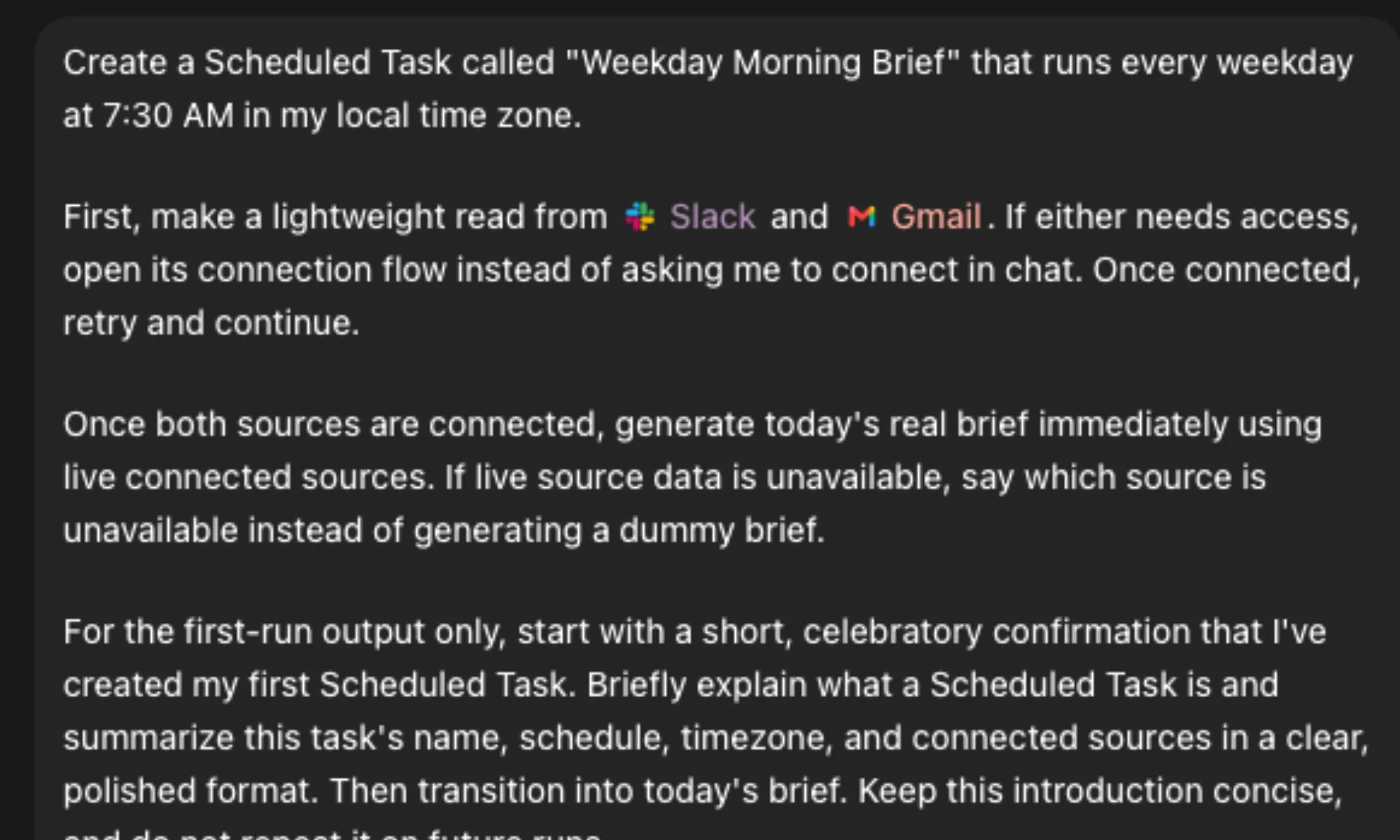
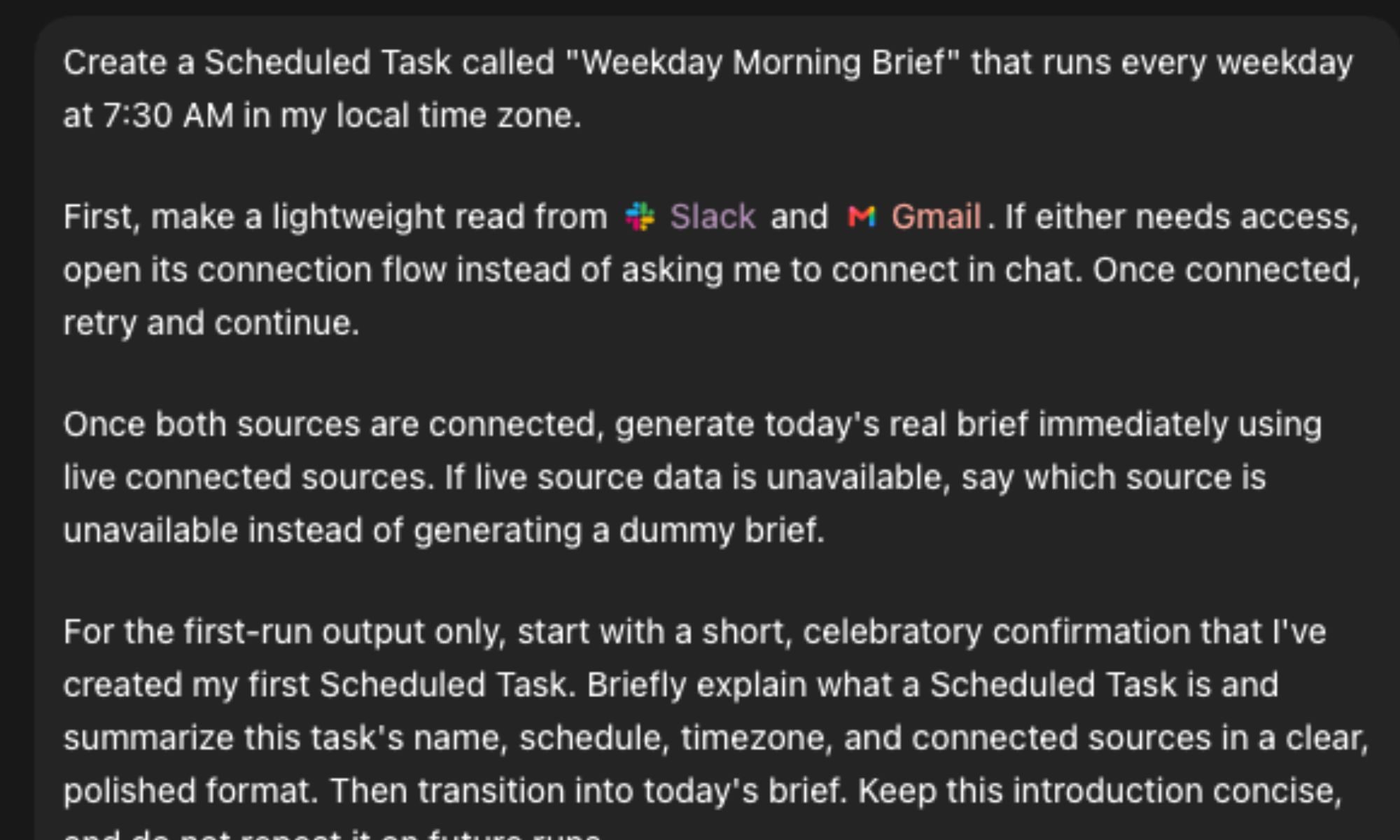
One feature I’ve started relying on a lot is scheduled tasks. ChatGPT can now run these for me automatically every day in my local time zone, which means I don’t have to remember to come back and ask it the same thing every morning. I’ve set mine up as a daily work brief. Since a lot of my work happens across Slack and Gmail, I connected both and asked ChatGPT to pull together the things that actually deserve my attention. Once everything is connected, it can read across those sources and immediately build a brief using what’s happening there right now. And this is where it becomes genuinely useful for me. Every morning, I get a short list of around three to five things that are most likely to need my attention that day. ChatGPT tells me what each one is about, why it matters, how urgent it seems, and what I should probably do next, along with a link or citation so I can jump straight to the original message.
Shimul Sood / Digital Trends
Instead of opening Slack, then Gmail, and slowly figuring out what needs to happen first, I already have a pretty good idea of how my day looks. I can tackle anything urgent first and plan everything else around it. I’ve even asked ChatGPT to send the brief when absolutely nothing important is waiting for me. On those glorious mornings, all I get is a simple, “No urgent items found.” Quite frankly, that might be my favorite version of the brief. ChatGPT uses Codex to help set this workflow up, so you’ll need a Pro subscription to use it this way. Pro comes with plenty of other perks as well, and considering how much I use ChatGPT throughout my workday, I’ve found the subscription easy to justify. The whole idea reminds me quite a bit of the Daily Brief experience you can get with Gemini. The result isn’t dramatically different: both are trying to save you from manually digging through everything before your day has even properly started. But ChatGPT has become the AI tool I naturally reach for first, so having my morning brief live here fits my workflow better.
I moved in without unpacking everything again
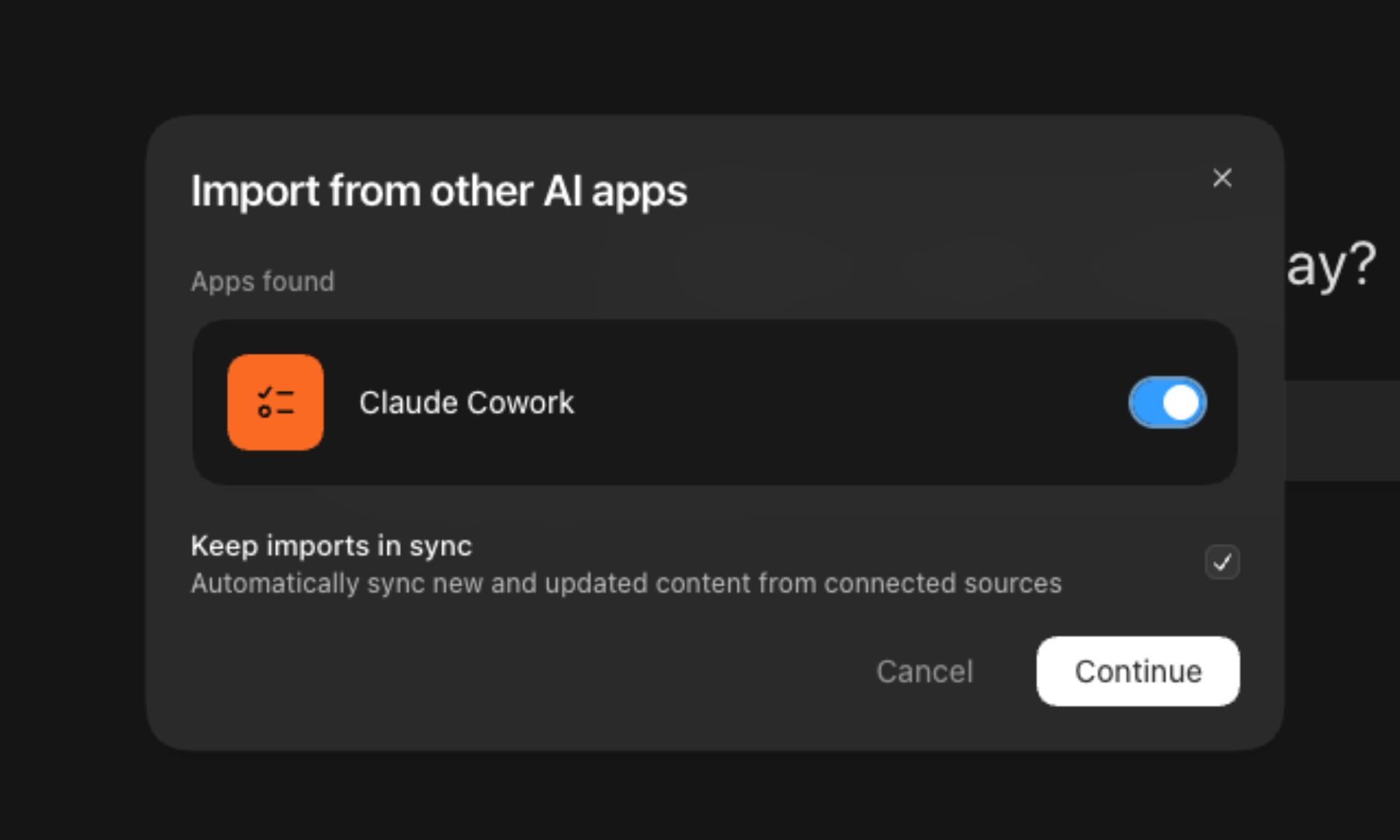
I’d be lying if I said I’ve always been a ChatGPT person. Before making the switch, I relied pretty heavily on Claude, and for a long time, it simply fit the way I worked better. Naturally, that also meant Claude knew quite a bit about me and how I liked to get things done. That was actually my biggest hesitation when I decided to move over to ChatGPT. I wasn’t worried about learning a new interface or figuring out where everything lived. I was worried about starting from scratch. Thankfully, ChatGPT now has an Import from Claude feature, and it made that switch a lot less painful for me. Instead of manually rebuilding all that context conversation by conversation, I could bring my existing Claude data over and give ChatGPT a much better starting point.
Advertisement
Shimul Sood / Digital Trends
For example, if Claude already knew how I preferred my research to be like, the kind of work I regularly do, or other details I’d previously asked it to remember, I didn’t have to sit down and feed all of that information to ChatGPT again. It might sound like a small convenience, but if you’ve spent months building up context with another AI assistant, you’ll know just how annoying starting with a completely blank slate can be. ChatGPT can also keep connected sources up to date by syncing new or changed content, so the information it can work with doesn’t necessarily stay frozen at the moment you connect it. For me, it meant switching AI tools without having to introduce myself all over again.
I can finally take my work with me
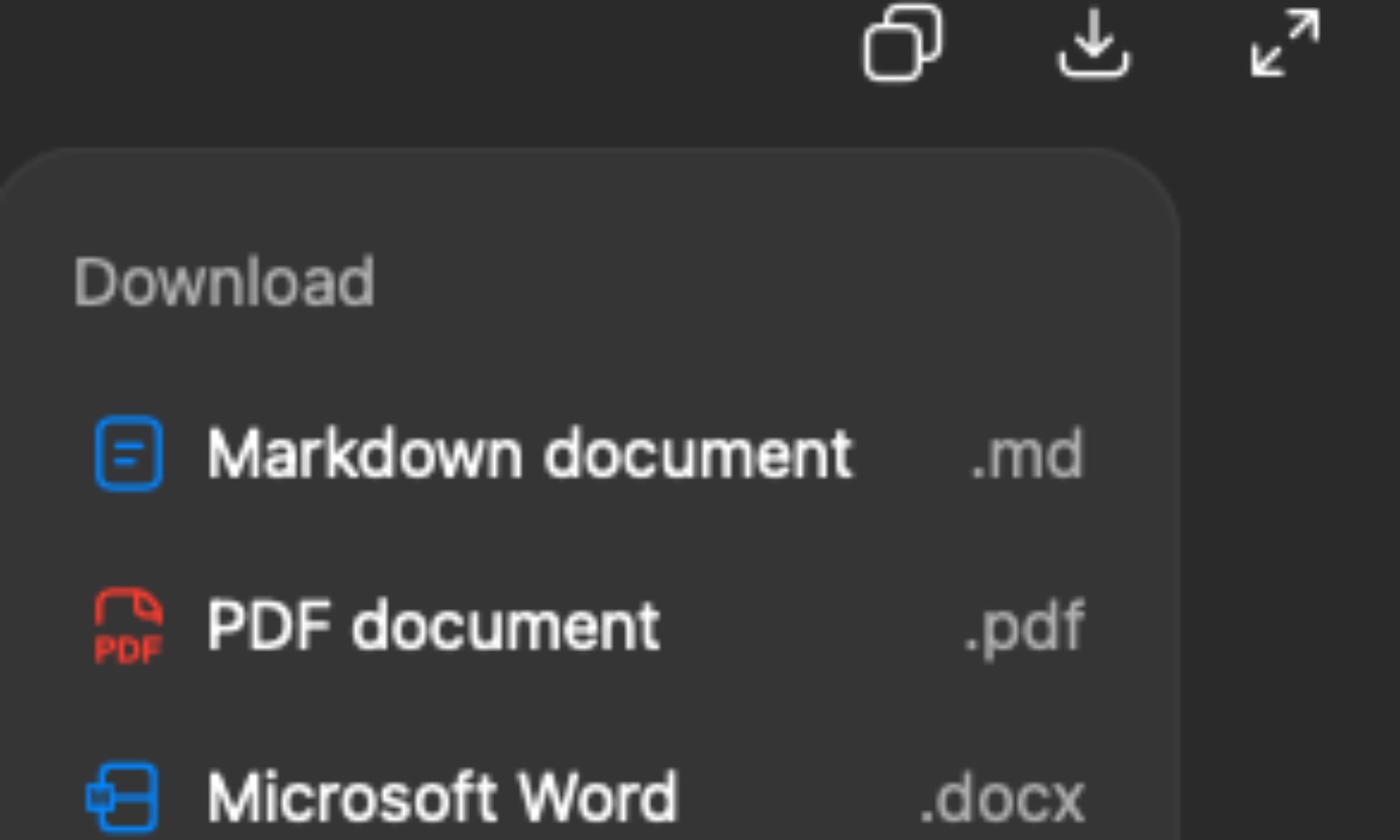
It gets even better from here because ChatGPT also lets me download the work I create inside it. This sounds like such a basic feature until you actually need to move something out of ChatGPT, and then you realize how useful it is. I run into this quite often with my study projects. If I’m working on something for my psychology thesis, for example, I might spend a long time inside ChatGPT brainstorming ideas, organizing my research, cleaning up notes, or turning a messy collection of thoughts into something I can actually work with. Once I’m happy with it, I can download the finished work as a Markdown file, PDF, or Microsoft Word document and continue working on it wherever I want.
Shimul Sood / Digital Trends
That’s a much nicer experience than what I was doing before. I’d finish something in ChatGPT, open Word or another app, copy everything over, fix the formatting that inevitably went wonky somewhere along the way, and then continue working. It wasn’t difficult, but doing it repeatedly got very boring and time-consuming. Now, I can keep ChatGPT as the place where I brainstorm and build something, then simply download the result when I’m ready to take it elsewhere.
Your turn to give them a try
If you use ChatGPT regularly, I’d definitely recommend giving these features a try. I’ve been having a genuinely good time discovering new ways to use ChatGPT, and clearly, I have no intention of stopping anytime soon. So, if I stumble across another feature that makes my day a little easier, you can bet I’ll be back to tell you about it. Until then, give these three a shot. Your ChatGPT routine might just get a little better.
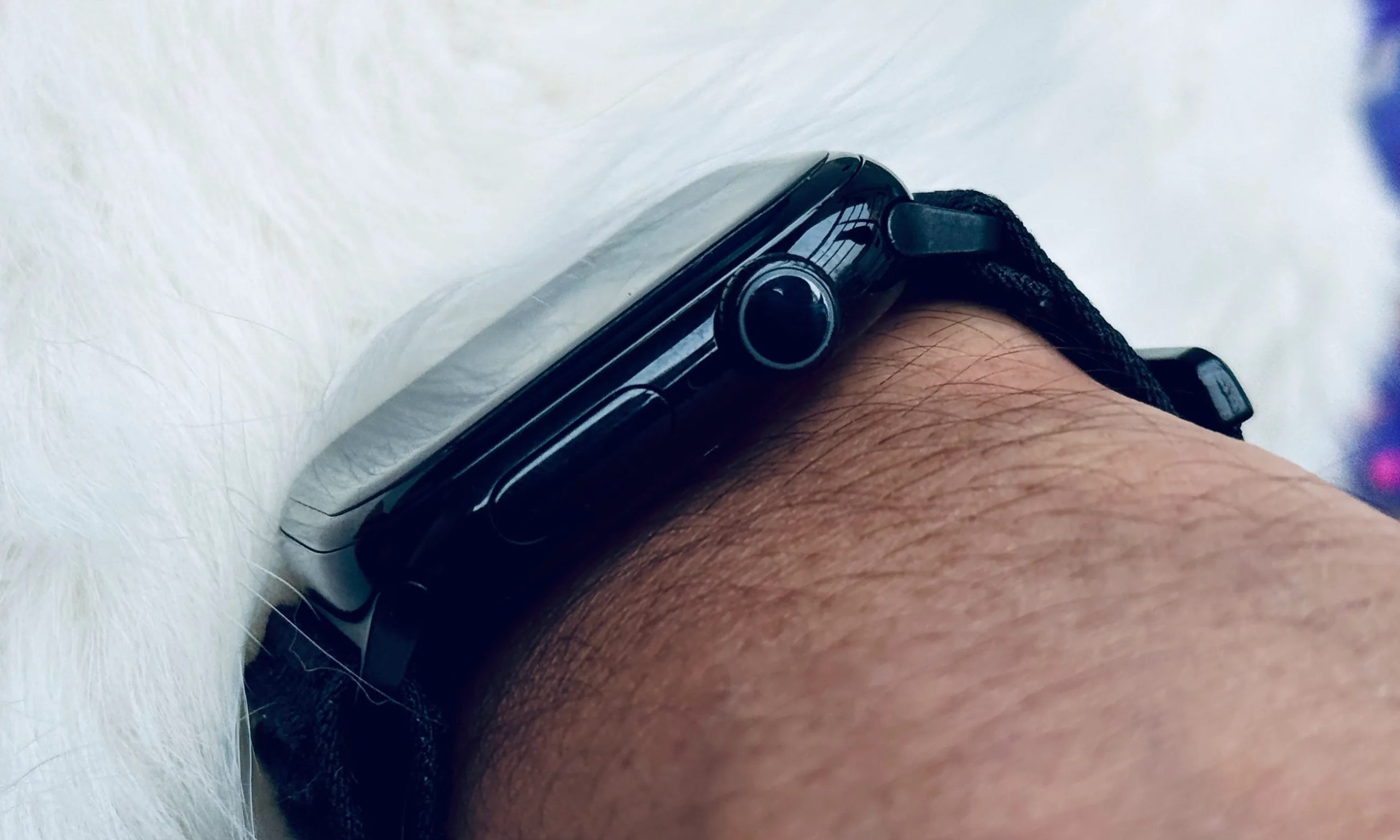
Apple quietly killed the ceramic Apple Watch in 2020, and for the fans of the fancy material, it has been an inexplicable absence ever since. For those catching up, ceramic was the lineup’s most premium material option.
It was smooth to touch, scratch-resistant, and had that distinct non-metallic appearance, a characteristic of all titanium and aluminum frames. Now, according to Bloomberg’s Mark Gurman, Apple is actively planning its return.
Nadeem Sarwar / Digital Trends
Why does the ceramic case’s return actually matter?
While it isn’t mentioned clearly in the report, Apple could re-introduce a ceramic version of the Apple Watch with either the Series 12 in September or in 2027. “It will also offer new colors and bands, and a series of new health and fitness-related upgrades,” the report mentions.
For those catching up, ceramic is harder than stainless steel and retains its polish far longer. Basically, it’s the perfect blend of a luxury and a sporty finish. It’s the kind of materials upgrade that could serve as a major marketing campaign for the lineup without changing a single feature.
What else is Apple changing with the Series 12 and Ultra 4?
Bringing back ceramic is a smart way to restock the premium end of the Apple Watch lineup, but in my opinion, it will buy the company some time to figure out what the smartwatch will look like over the next decade: Apple’s yearning for a major Watch overhaul.
Quite a bit, actually. Beyond the ceramic case option, both the Series 12 and the Ultra 4 are getting their first meaningful performance bump in years. The performance upgrade could be accompanied by new colors, updated band options, and a bunch of new health and fitness-related features.
Together, the performance upgrade on the Series 12 and Ultra 4 and the potential arrival of a ceramic case version suggest Apple wants to ship a comprehensive Watch lineup this year.
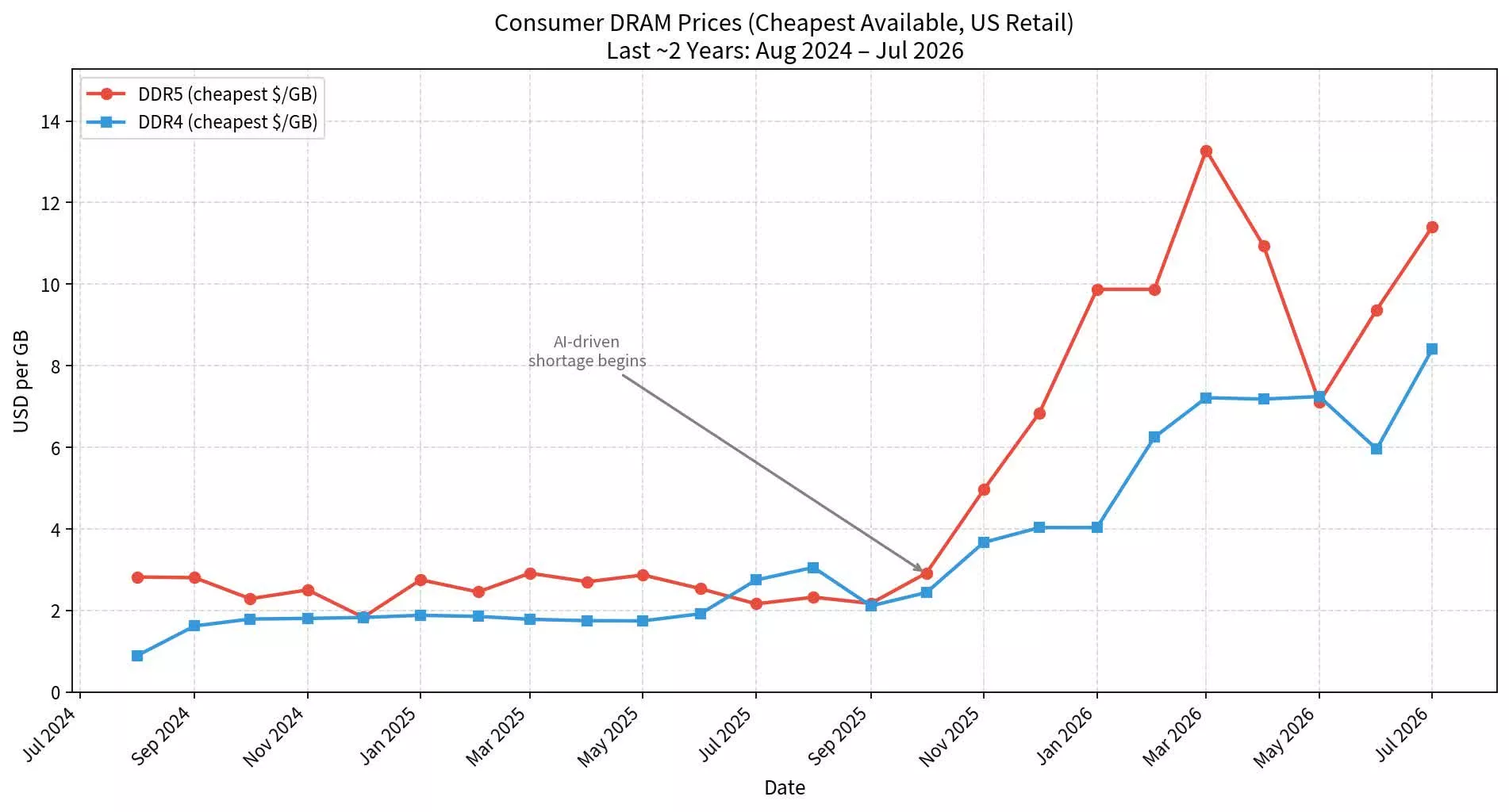
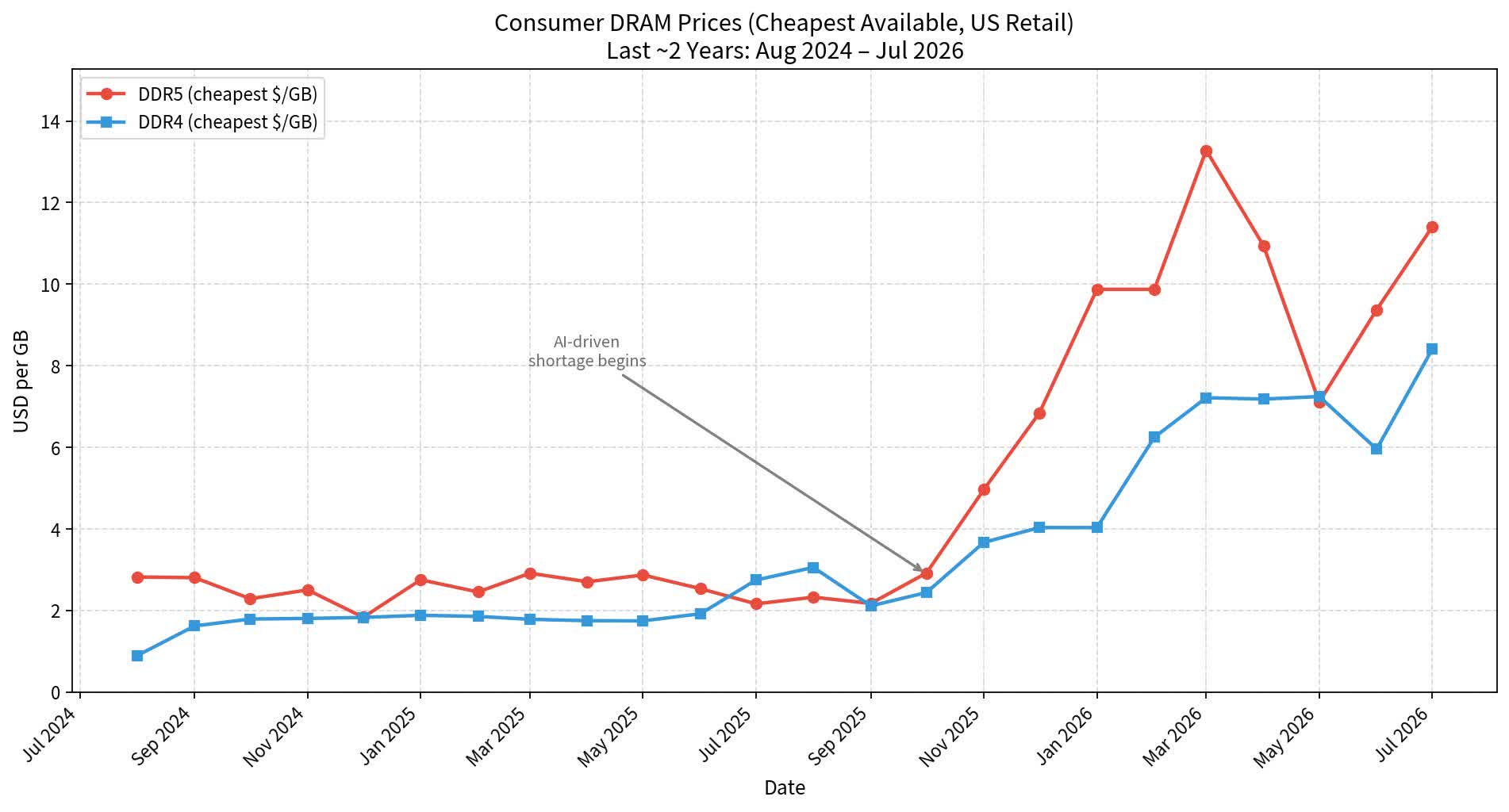
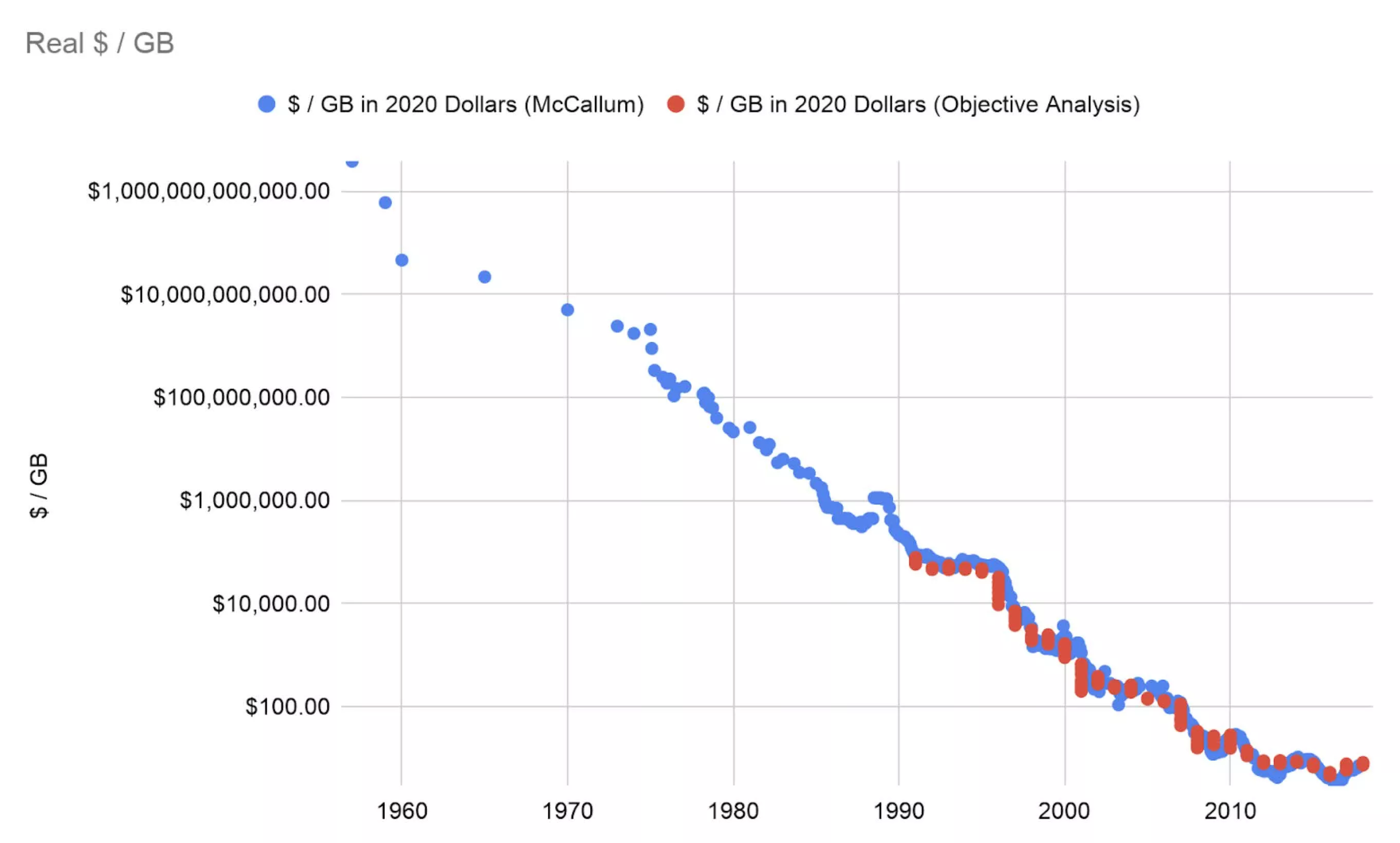
The takeaway: Memory prices have been trending upward for more than a year, with many analysts predicting further increases in the near future. A prominent GitHub developer has now published a series of graphs and charts showing just how quickly prices have surged to 2007 levels on a per-unit basis, effectively undoing two decades of progress in making PC hardware more affordable for consumers.
According to computer science researcher and software performance expert Daniel Lemire, skyrocketing memory prices are a “historical anomaly,” with the unprecedented increases effectively erasing decades of steady, exponential cost reductions.
He believes that for prices to normalize, either software developers will have to find ways to build AI systems that require less memory, or the hardware industry will need to increase production capacity.
Driven largely by rising demand from the AI sector, global memory prices have surged dramatically over the last two years, with a recent J.P. Morgan report estimating an increase of more than 400% since the start of 2024. Unfortunately for consumers, the surge isn’t limited to DRAM chips, as an acute manufacturing shortage in flash memory has also pushed up prices for SSDs, flash drives, memory cards, and external storage.
According to industry reports, contract and retail prices for NAND flash have risen between 50% and 100% since the start of the crisis, triggering price increases across a broad spectrum of consumer electronics, including laptops, desktops, graphics cards, smartphones, and video game consoles. While brands such as HP, Dell, and Apple have raised prices for their laptops and MacBooks, Sony and Nintendo have also raised prices for the PS5 and Switch 2, respectively.
Ominously for consumers, South Korean semiconductor giant SK Hynix has predicted that the global memory crisis is far from over. According to CEO Kwak Noh-Jung, 2027 will be the worst year ever for the industry, with demand continuing to outstrip supply even beyond 2030.
However, whether these predictions materialize will depend in part on the health of the AI industry, amid growing fears that speculative investment in the sector is creating a bubble that could burst at any time.
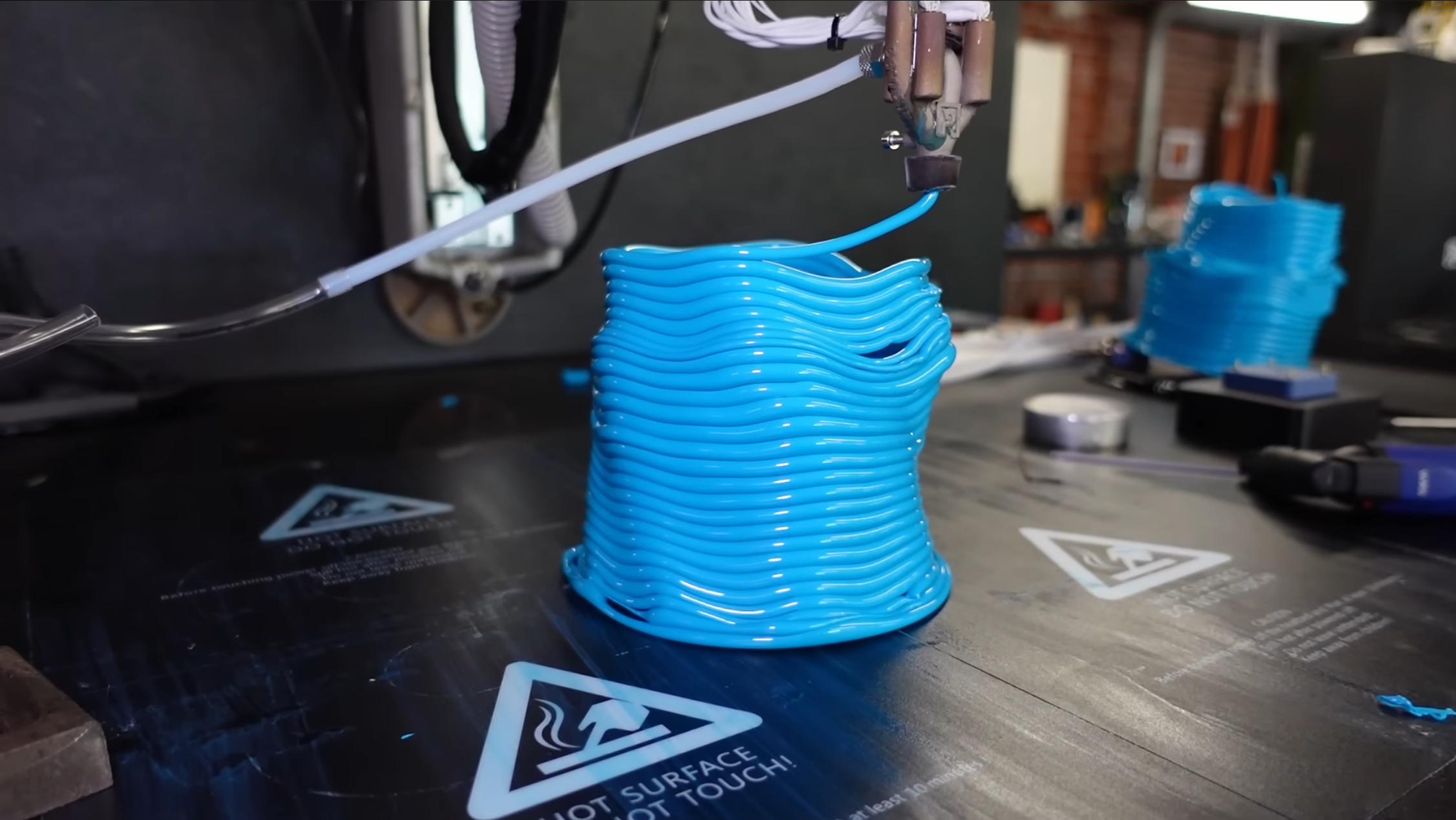
[Jan] of [Roetz 4.0] has a unique approach to multi-material 3D printing: he’s designed an extruder which takes two different materials and extrudes one as a shell around the other. This opens up some interesting possibilities, such as a conductive filament surrounded by an insulating shell; [Jan], however, didn’t have an immediate use for the process, so he moved on to a related technique: extruding plastic tubes with a compressed-air core.
The extruder he used for this was a variation on the dual-material extruder; it takes in two strands of filament, melts them, and extrudes them as a shell around the outlet of a compressed-air line, which was controlled by a high-precision pressure regulator. During testing with PLA, it seemed capable of extruding airtight tubes of filament, though it had a tendency to blow bubbles and form tubes with inconsistent diameters. The low thermal conductivity of the stainless steel extruder also proved problematic; coupled with the cooling effect of the compressed air, filament sometimes solidified inside the extruder.
[Jan] found it almost impossible to get consistent results using only pressure-based control; as the layer of molten plastic around the air gets thinner, it provides less resistance to further ballooning, leading to continuous expansion until the bubble bursts. Controlling the volume of air extruded provided much more consistent results, and in a second video, he built a peristaltic pump to do just that. He also switched to using TPU filament, which greatly improved layer adhesion. When inflated with compressed air, the finished TPU structures expanded slightly, though there were still air leaks. The results look promising, and TU Darmstadt has already carried out some research in this area.
In a separate research project, we’ve seen a similar multi-material co-extrusion approach used to print pneumatic channels. For more on the history of [Jan]’s multi-filament extruder, check out his Minuteman printer.
There are a few different ways to keep apps under the radar.
Andranik Hakobyan/Getty Images
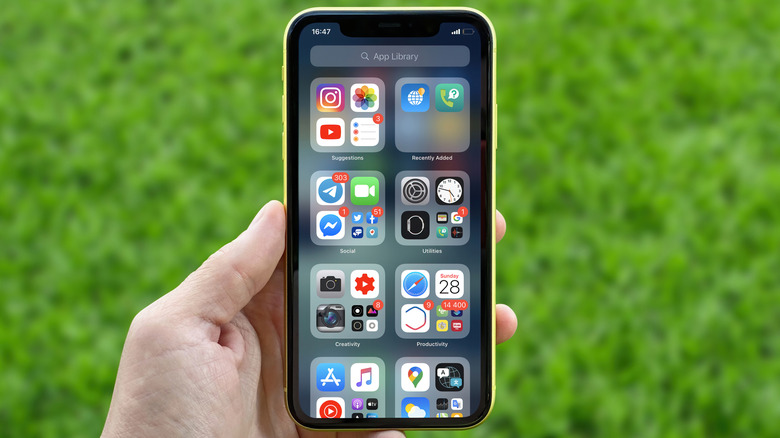
Sometimes, you don’t want your iPhone or iPad to display all installed apps right on the Home screen. The simplest method is long-pressing an icon, tapping the – (minus) icon next to it and choosing Remove from Home Screen. This banishes it to the App Library, but you can go further.
Maybe you want to declutter your iPhone and keep the list tidy, keep getting distracted by social media or don’t want others seeing what you have installed. In these cases, iOS and iPadOS give you several ways to hide apps to keep them out of your (and others’) view. While these methods aren’t secret agent-level tricks that hide in plain sight, they’re suitable for keeping icons out of view and locking anything that needs extra security. In case a full lock and hide isn’t right for you, you can still remove apps from your screen or suppress their content around your phone.
We focus on iPhone and Face ID for brevity, but this works the same way on iPad and models that have Touch ID.
Advertisement
The primary method for hiding iPhone apps
Mr.Mikla/Shutterstock
Prior to iOS 18, there was no official way to hide apps on iPhone or iPad; you had to stick one inside a folder to keep it out of view. Now, there’s a better method. To hide an app, long-press it on your device’s Home screen and choose Require Face ID. Doing so shows a new prompt that explains what happens upon locking. You have to authenticate with Face ID or your passcode to open it, notifications won’t contain any details and its content won’t show up in places like Spotlight searches or CarPlay.
It’s a smart idea to lock financial tools for a second layer of security. You’ll find lots of stories online of people being scammed by strangers who asked to use their phone in an “emergency.” Once they have your phone in hand, it only takes seconds to transfer money to themselves using Venmo or similar. Even though you shouldn’t hand your phone to a stranger in the first place, requiring re-authentication for the app prevents schemes like this.
Choosing Require Face ID keeps the icon where it is while requiring authentication every time you open it. Alternatively, pick Hide and Require Face ID to remove it from your Home screen and searches. After hiding an app, you’ll get no notifications from it. You can’t lock most default apps; this is limited to ones you’ve installed. And the status of what you’ve hidden doesn’t sync to your other Apple devices.
Advertisement
Hidden apps live in a special folder, aptly called Hidden, at the bottom of the App Library. Swipe all the way to the rightmost page to see this. That Hidden folder appears blank no matter how many apps you have hidden (including zero). Tapping it requires you to authenticate before you can see what apps are inside, and then you’ll need to verify again when opening one. To unhide something later, long-press on it in the Hidden folder, choose Don’t Require Face ID, and the app will return to the top of the list after it verifies you. You can then search for it using Spotlight and drag it back to wherever you’d like.
Hidden apps aren’t totally invisible
Cheng Xin/Getty Images
While this process greatly reduces an app’s visual presence on your device, it doesn’t erase all traces. Anyone with your passcode can browse the Hidden folder, as well as the same list under Settings > Apps > Hidden apps.
But there are other places where “hidden” apps can appear: Settings > Screen Time > See All App & Website Activity and Settings > Battery > View All Battery Usage. These show how long you’ve used each and how much battery it’s consumed on your phone, respectively. Even if it’s hidden, it will still show up in these spots if there’s data to report.
Advertisement
Apps you download also show up in your App Store purchase history (even free ones, despite the name). To hide these, open the App Store, then tap your profile icon at the top right and choose Apps & Purchase History. If you’re in a family group, tap Your Apps. Everything you’ve downloaded, including any not on your iPhone anymore, appears here. Swipe from right to left and choose Hide to remove an item from this list. If you change your mind later, go back to the top-level App Store menu, touch your name at the top, and choose Hidden Purchases. There, you can Unhide any to put them back in the list.
This method is more for decluttering than any form of privacy. You don’t need to authenticate to view the Hidden Purchases list, plus your transaction history is also kept under Purchase History in the Apps & Purchase History menu. Hiding purchases prevents anyone in your family group from redownloading them, but it won’t hide the apps themselves.
Advertisement
Other methods to keep apps under control
Tada Images/Shutterstock
Hiding apps isn’t the only method of controlling what appears on your phone. As we’ve seen, it’s a good way to spend less time on addictive software, since it adds additional steps for access and hides all notifications. But you can add more restrictions for these.
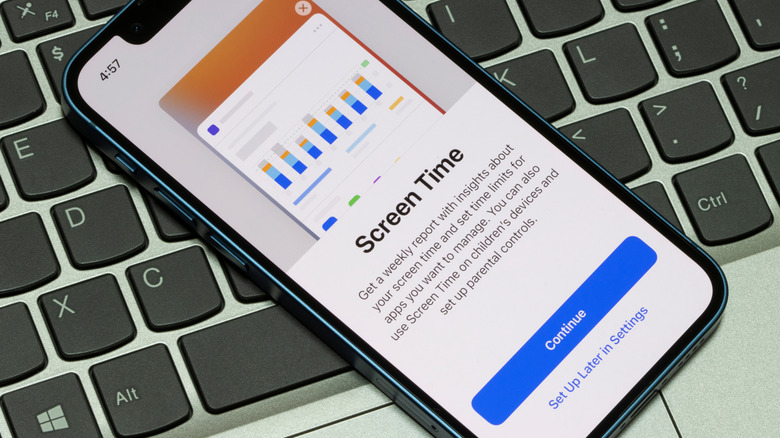
Head to Settings > Screen Time to set a daily time limit for chosen apps (App Limits) or set hours when you can’t access them (Downtime). Also in this menu under Content & Privacy Restrictions > Allowed Apps & Features, you can disable access to some built-in tools (like FaceTime and Mail), which removes them from the Home screen. While many of these options are great for controlling a child’s iPad, anyone can take advantage of them.
If an app is bothering you too much, go to Settings > Notifications, select the offender, and fine-tune its notifications so you aren’t nagged. To make your iPhone stop suggesting an app, visit Settings > Apple Intelligence & Siri > Apps, choose one, then disable the sliders to stop your phone from suggesting it. And to remove an app from search, visit Settings > Search, select it and disable both sliders. Hiding an app does all of these, but you can take these actions without hiding if you want to keep it visible.
Hiding apps isn’t 100 percent foolproof, but it adds more steps for people to see what you’d rather them not. Maybe you don’t want others snooping around your phone when you hand it to them, or you want to add additional protection against someone trying to use your phone for nefarious purposes. For more protection, consider enabling Stolen Device Protection on your iPhone.
The Apple Watch will see a revamp in the coming years, as Apple is reportedly in the middle of a shake up its wearables formula to meet an ever-changing market.
The Apple Watch has retained the same core design of a square display on a watch band, but it has evolved over time. While it has become thinner, larger, and more rugged in the Apple Watch Ultra, it can potentially do more.
In Sunday’s “Power On” newsletter for Bloomberg, Mark Gurman writes that the Apple Watch is ready to get overhauled into something new. The company’s industrial design team has been rethinking smartwatches in general over the last year, and it’s considering new directions to go in.
The team hasn’t quite decided what to actually do with the Apple Watch yet, but it is mulling the problem over.
Advertisement
These changes apparently include switching the square display for a circular version of various sizes. There’s also the possibility of removing the display altogether, to match the growing market for wearables without screens.
Smart rings are also seeing a rise in adoption, which gives Apple another wearable avenue to explore. It has repeatedly filed patents in the field, but an Apple Ring release continues to elude the company.
Sooner changes
Whatever new direction the Apple Watch takes, it won’t be anytime soon. The expected Apple Watch Series 12 and Apple Watch Ultra 4 will be largely performance-based updates.
Health and fitness changes are said to be included. Despite previous rumors, there are no major design changes in 2026 for the main Apple Watch body.
Advertisement
There is, however, a rumor that Apple will be introducing a new band attachment method for the 2026 model. If correct, it’s a change that will probably make earlier Apple Watch bands incompatible with the new model.
That said, it’s a rumor that we have heard on and off since 2022. It may happen, but it could be better suited as part of a larger overhaul.
I was fourteen or so when I went to the Gadget Show Live (once a big tech event in the UK which showed off the latest technology) in 2016 as a punter and overheard someone on a stand I’d visited mention they’d spent £1,000 on a custom gaming PC.
A thousand pounds. On a computer. I remember turning that figure over in my head (it’s roughly $1,400) and not quite being able to make sense of it, not necessarily because I couldn’t fathom how much money that was, but because at the time, it seemed like a lot of money to spend on a PC without any frame of reference as to what that price got you.
As it turned out, £1,000 would have bought you an upper mid-range system back then, and speccing a top-end system of the time would have added an awful lot more to my ‘dream budget’. A properly specced 3XS system built around Intel‘s then-flagship Kaby Lake processor, the Core i7-7700K, and an Nvidia GeForce GTX 1080, would set you back around £1,700 including VAT.
Advertisement
Latest Videos FromTechRadar
Nvidia went one further with the venerable GTX 1080 Ti, which arrived in March 2017. It immediately became the card every serious PC gamer wanted, and pushed that high price even higher. Nonetheless, you still got an entire top-of-the-range PC for that price.
(Image credit: Future)
Here’s what’s strange about that number in 2026: it’s roughly what you’d pay for a flagship graphics card alone. Nvidia’s RTX 5090 should retail for roughly in line with what this entire PC cost, although the Asus ROG RTX 5090 Astral I’ve got for testing is over double the RRP of this PC, even taking inflation into account.
Intriguingly, the GPU that was the ceiling of consumer ambition in 2017 is now, in isolation, cheaper than a mid-range graphics card in 2026. Nvidia’s GTX 1080 Ti launched at £699 / $699 (about AU$930); the RTX 5090 launched at £1,799, at least for the Founder’s Edition card.
That’s not a like-for-like comparison — flagship GPU pricing has always been a law unto itself — but it does tell you something about the economic difference between these two moments in PC gaming history.
Sign up for breaking news, reviews, opinion, top tech deals, and more.
Now, Scan has sent me that exact system, and I’ve plonked the GTX 1080 Ti Founder’s Edition inside, and I’ve been running it alongside my own high-spec rig, with an RTX 5090 added for good measure, to see how the decade-old dream holds up.
Advertisement
What £1,700 bought you nearly a decade ago
Here’s the entire spec sheet of the 3XS PC that Scan sent my way with the GPU swapped out:
CPU: Intel Core i7-7700K
Cooler: Corsair 240mm AIO
GPU: Nvidia GTX 1080 Ti Founder’s Edition
RAM: Corsair Vengeance LED 16GB DDR4-3000
SSD: Samsung 960 Evo 250GB SSD (supplemented with a further 1TB SSD for game storage in my case)
Motherboard: Asus ROG Strix Z270F Gaming
PSU: Corsair RM750x 750W White
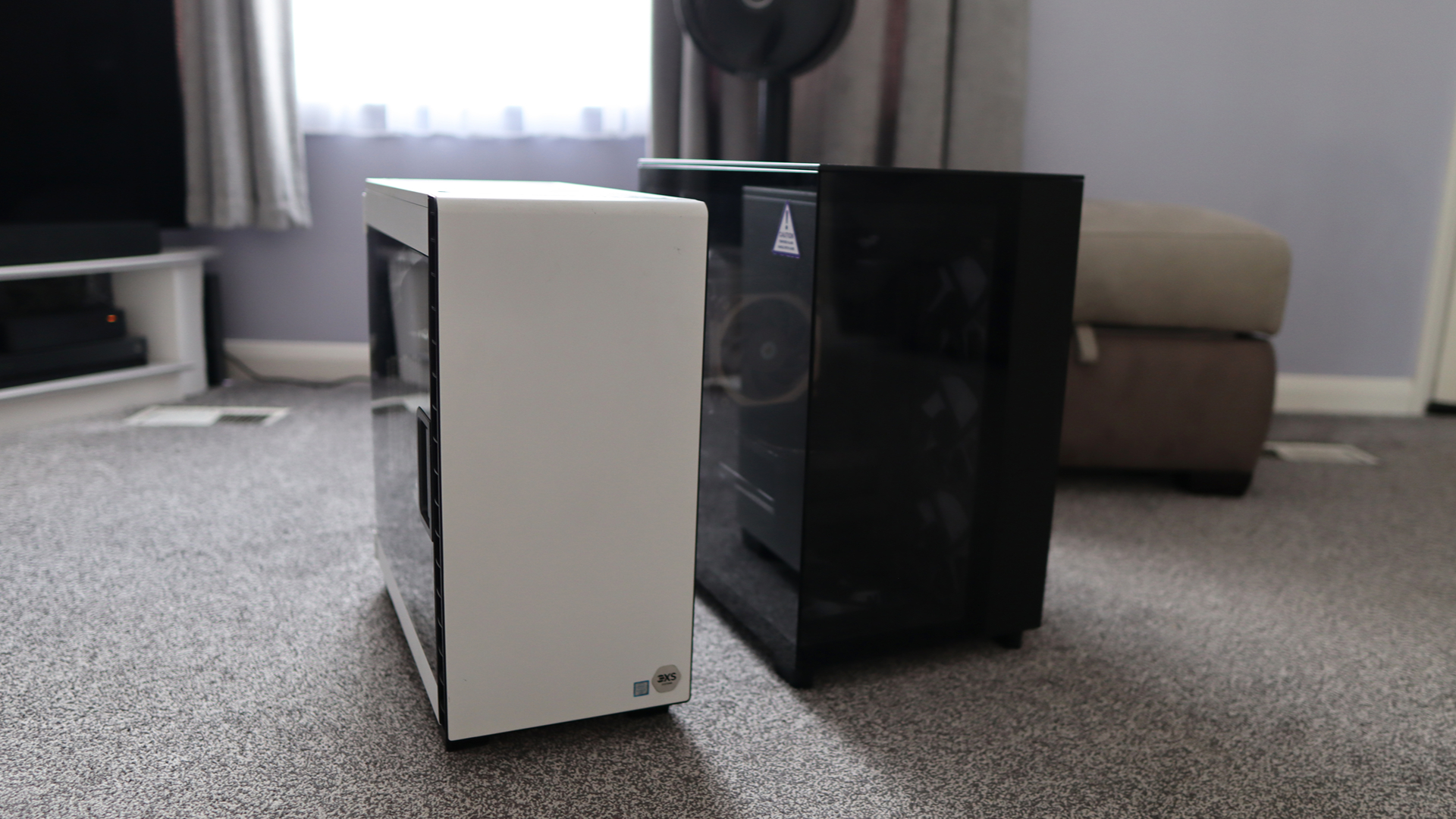
Case: Corsair Carbide 400C in white
On first impressions, I’m a fan of the Corsair Carbide 400C case, feeling it to be a quieter and more considered choice than a lot of the RGB-laden alternatives that were becoming increasingly common at the time. Coming in white adds a bit of style to proceedings, and it seems roomy enough for the build on offer here. The hinged door with glass window is a nice touch, too.
Inside, the Asus ROG Strix Z270F Gaming motherboard is decently feature-rich and adds a smattering of RGB in the top corner to sit alongside the white LEDs of the RAM and the stock case fan inside. The Samsung 960 Evo SSD would have been top spec at the time, but is the one component that feels particularly outdated. It’s a fast, capable boot drive, but is easily filled up with a modern Windows 11 installation and a game or two. Back in 2017, you’d have definitely wanted a hard drive installed as well.
Advertisement
(Image credit: Future)
Then there’s the GTX 1080 Ti Founder’s Edition. Nvidia’s reference cooler on the Ti was a meaningful step up from the blower-style designs of previous generations, with an open dual-fan layout that kept temperatures in check. It’s a handsome card even by today’s standards and feels more restrained than the AIB partner designs that surrounded it. Holding it in 2026 feels like handling something from a very specific and rather significant chapter in GPU history, given its legendary status.
The 1080 Ti has a reputation that outlasted the hardware cycle it was supposed to belong to. When Nvidia’s RTX 2080 Ti arrived in 2018, it brought ray tracing and a steeper price — and offered only a slight bump in rasterisation performance that most 1080 Ti owners looked at the cost of upgrading and decided against it. Even now, folks are asking how good this card is today, which is testament to its performance – and indeed its reputation.
A modern point of reference
Of course, benchmark numbers are no good in isolation, so for comparison’s sake, I’m putting the Scan system against my own personal gaming rig, with the added boost of the RTX 5090. Usually it’d be an RTX 4080 Super, but for a ‘dream PC’ angle, I needed to go with the modern dream. Here it is in terms of specs:
That isn’t too bad of a PC if I do say so myself, and yes, I could use faster RAM or a beefier AMD processor if I wanted to eke out as much performance as possible, but I haven’t seen fit to upgrade just yet.
(Image credit: Future)
Benchmarking methodology
To see how this 2017-era PC performs in the big 2026, I thought it might be fun to run it through a range of games – both ones that are contemporaries of the system and some slightly more modern titles that might push it quite hard. I’ve also put it through a range of modern benchmark tests to gauge performance against the newer hardware.
To Scan’s credit, the machine came running the latest version of Windows 11 25H2 and Nvidia’s latest driver release for GTX 10-series desktop cards, driver 582.66, which was a security update released in June 2026.
I’ve also elected to run games hooked up to my 4K QD-OLED monitor to see how far we can really push this Scan system, running at 1080p, 1440p and 4K to give you a full picture. The RTX 5090 system has also been put through the same tests, as close as possible, to give some comparable results and a frame of reference.
Advertisement
Testing 2017-era games
Firstly, I thought it was correct to run the Scan system through some games that would be period-correct for the time this PC was released to give an idea of a baseline. All four titles were run at their maximum settings, for reference.
Far Cry 5 seemed an ideal first candidate, being from 2018, and at the Ultra preset with HD textures enabled, it managed a 113fps average at 1080p. Going up to 1440p pushed things to 95fps, proving some surprisingly playable results. It was only when I got up to 4K that things dipped immensely, with a 50fps average. For reference, the RTX 5090 system hit 186fps at 4K, which tells you something about how much the goalposts have moved.
I followed this up with the original Dirt Rally, a game that relies on a strong CPU to help alongside the 1080 Ti, so the Core i7-7700K has to do a fair bit of heavy lifting. At the Ultra preset, the 1080 Ti managed 127fps at 1080p and 126fps at 1440p — results so close together that the GPU clearly isn’t the bottleneck at either resolution; the 7700K is setting the ceiling, and it’s holding it pretty well. At 4K, the GPU gets more of a say, and results come in at a still-reasonable 79fps.
Advertisement
(Image credit: Ubisoft)
However, this revealed one of the bigger gulfs between the older system and my more modern option. The RTX 5090 system managed 304fps at 1080p, 267fps at 1440p, and 225fps at 4K — numbers so high they serve as a reminder of how differently the two machines interpret the same game.
The original Hitman, which uses DirectX 12 at maximum settings, returned 128fps at 1080p, 106fps at 1440p, and 59.5fps at 4K. The RTX 5090 system managed 203fps at 1080p, 191fps at 1440p, and 186fps at 4K — again, the gap narrowing considerably at lower resolutions before opening up at 4K.
I’d argue Rise of the Tomb Raider is the 1080 Ti’s finest hour in this period-correct lineup. Running at the Very High preset in DirectX 12, it returned 144fps at 1080p and 110fps at 1440p. These are numbers that would have felt sky-high at the time and still feel impressive today. Even at 4K, the 59.7fps result is the most modern-feeling 4K figure of the four period titles, suggesting this is a game the 1080 Ti was particularly well-matched for, and a near-60fps average provides some very playable results even today.
(Image credit: Future)
That is, until you get the RTX 5090 involved – it posted 316fps, 302fps, and 281fps across the three resolutions in Rise of the Tomb Raider.
Advertisement
Trying newer games
The older game results paint a flattering picture of the 1080 Ti. However, modern titles are much less kind, as you might expect.
My first port of call was Cyberpunk 2077, perhaps this generation’s Crysis equivalent, as it can be quite a demanding title for a range of systems. For the 1080 Ti, at the Ultra preset without any upscaling, it managed 52fps at 1080p — passable, if not quite the experience the game deserves — while 1440p dropped to 32fps, and 4K delivered a deeply unimpressive 13.9fps. Enabling FSR 2.1 Quality improved things to 62fps, 41fps, and 20.5fps across the three resolutions respectively, which at least makes 1080p feel workable.
Beyond that, it’s a significant compromise. Ray tracing isn’t an option here at all — the 1080 Ti simply has not got the hardware for it, and that means for 2026’s most demanding titles, including Indiana Jones & The Great Circle that require hardware-based ray-tracing to even run, you won’t be able to play them at all.
Advertisement
(Image credit: CD Projekt Red)
The RTX 5090, by contrast, ran the Ultra preset at 173fps, 148fps, and 116fps natively. Plus, a more modern card supplements its raw power with Nvidia’s DLSS upscaler and fully-fledged RT performance. With DLSS Transformer enabled, those numbers climbed to 183fps, 170fps, and 167fps. With a combination of Cyberpunk 2077 at its RT: Ultra preset with DLSS Transformer enabled, it managed 130fps, 129fps, and 125fps at 1080p, 1440p, and 4K respectively. The gap between these two machines in Cyberpunk 2077 is the widest in my entire test suite, and the most instructive.
This is especially true when you take the multi-frame-gen tech Nvidia has put into these new Blackwell cards, acting as a multiplier for ‘fake frames’ for a smoother feeling experience, as long as you’re starting with a solid enough base frame rate so too much latency isn’t introduced. With the RT: Ultra preset, and the MFG multiplier set to 4x, the RTX 5090 system managed 511fps at 1080p, 452fps at 1440p and 355fps at 4K, widening the gulf even further.
Returnal tells a similar story for this matchup. The Epic preset returned 57fps at 1080p, 45fps at 1440p, and 27fps at 4K — the 1080p result is playable, but Returnal’s fast-paced action makes anything below 60fps feel like a handicap, and 27fps at 4K is below any reasonable threshold. The RTX 5090 managed 231fps, 207fps, and 147fps at the same resolutions. In a game built around sharp reactions and split-second timing, that headroom matters more than in most.
(Image credit: Future)
Moving over to Rainbow Six Extraction, I had higher hopes for a more modern eSports-type title. The default Ultra preset includes a Dynamic resolution of 25-100% of the selected one, which is how I left it, revealing 126fps at 1080p, 85fps at 1440p, and a genuinely solid 66fps at 4K. It’s the most comfortable the 1080 Ti looks across this entire modern test suite, and a reminder that there are modern titles that aren’t particularly demanding, which are still playable on older hardware.
Advertisement
Meanwhile the RTX 5090-equipped modern PC scored 461fps at 1080p, 405fps at 1440p, and 272fps at 4K, and prove the benefit of the bevvy of high refresh rate OLED screens we’ve begun to see in recent years when paired with such powerful hardware.
For one final test, I thought it’d be interesting to try a super up-to-date Unreal Engine 5-based title in Black Myth Wukong, as one of the few titles that doesn’t need any hardware-based ray-tracing, unlike a lot of its contemporaries.
I elected to step down to the Very High preset, with FSR enabled (with a resolution scale of 33 for 4K, 49 for 1440p and 66 for 1080p) and frame-gen on. The result was 46fps at 1080p, 44fps at 1440p, and 40fps at 4K, which make for some remarkably consistent numbers across different resolutions that make it clear that frame-gen is doing some form of heavy lifting to keep the output FPS so stable. The RTX 5090 managed 120fps, 122fps, and 119fps with the same settings.
Advertisement
Synthetic benchmark time!
The synthetic benchmarks tell a predictable story. The 7700K holds up reasonably well in single-core workloads — the gap to the 7800X3D is meaningful but not embarrassing, and is somewhere in the region of 50% depending on which test you trust.
Multi-threaded performance is a different matter, though, where nearly a decade of core count increases and architectural progress make the comparison increasingly one-sided.
On the GPU side, the picture is more interesting. In 3DMark Fire Strike — a DirectX 11 test that’s broadly representative of the conditions the 1080 Ti was designed around — the RTX 5090 leads by roughly three time. Push to Fire Strike Ultra at 4K, and that becomes nearly five times, and the Time Spy results, which move into DirectX 12 territory, tell the same story: a 4x gap at 1440p becoming 4.6x at the Extreme variant.
The 1080 Ti doesn’t just lose ground to newer hardware — it loses it disproportionately as resolution and API demands increase, which is worth keeping in mind as we come to a judgement on this entire system.
Advertisement
Swipe to scroll horizontally
Header Cell – Column 0
Intel Core i7-7700K + Nvidia GTX 1080 Ti FE
AMD Ryzen 7 7800X3D + Nvidia RTX 5090
Geekbench 6
1,643 (Single) 5,484 (Multi)
Advertisement
2,691 (Single) 14,911 (Multi)
Cinebench R23
1,204 (Single) 6,038 (Multi)
1,763 (Single) 17,541 (Multi)
Advertisement
3DMark Fire Strike
19,076
55,465
3DMark Fire Strike Ultra
Advertisement
6,241
30,553
3DMark Steel Nomad
1,982
Advertisement
N/A
3DMark Time Spy
7,785
31,075
Advertisement
3DMark Time Spy Extreme
3,627
16,828
Advertisement
Summing up
The comparisons made here make for a fascinating reminder of just how much the PC gaming landscape has changed over the past decade.
In 2017, £1,700 bought you an entire dream machine built around the best consumer graphics hardware money could buy. In 2026, that same sort of money barely gets you through the door for a flagship GPU alone. The economics are strange, but the performance gulf is telling: the RTX 5090 system is several times faster in many of the tests here, especially as resolutions rise and modern rendering technologies come into play.
However, the old Scan system isn’t the write-off those numbers might suggest when you drill down. The GTX 1080 Ti and Core i7-7700K remain a remarkably capable pairing in the games they were designed around, with high-refresh-rate 1080p and 1440p gaming still very much within reach for those older titles. Even some newer titles remain playable with sensible settings, although the lack of dedicated ray-tracing hardware and modern AI-assisted upscaling means there are increasingly firm limits to what the system can do.
That perhaps says more about how well balanced the original machine was than anything else. The 1080 Ti earned its legendary reputation because it wasn’t merely fast for its time, but rather remained relevant for years afterwards, and even now it can still provide a decent experience in the right games. There are still folks talking about how well it does today, which is a testament to its legacy.
Advertisement
(Image credit: Future)
Admittedly, the rest of the system has aged more unevenly, with the 16GB of DDR4 memory and tiny 250GB boot drive feeling particularly constrained in 2026, but there is still something satisfying about using a PC that once represented the absolute pinnacle of enthusiast gaming so far removed from the original situation.
The modern machine is undeniably better in almost every measurable sense. It’s dramatically faster, more capable at 4K, and supported by technologies that simply didn’t exist when the GTX 1080 Ti launched. Features such as DLSS, frame generation and hardware-accelerated ray tracing have changed what we expect from a high-end graphics card, while high-refresh-rate OLED displays, such as the one both systems have been hooked up to from Philips, give all that extra performance somewhere meaningful to go.
Still, there is a certain charm to the 2017 system in my book. It represents a point when a top-end gaming PC felt aspirational but not entirely unattainable — when spending £1,700 could buy the whole dream, rather than just the graphics card. The hardware may no longer be cutting-edge, but it hasn’t become entirely obsolete either. If anything, testing it against a 2026 flagship proves just how exceptional the GTX 1080 Ti was, and how long a genuinely well-specced gaming PC can remain enjoyable.
The goalposts have moved enormously, but the old dream still has plenty of game left in it.


























![CRITICAL: It’s Slowly Slipping Away For Bitcoin Bulls! [Downside Target]](https://wordupnews.com/wp-content/uploads/2026/08/1786294276_maxresdefault-80x80.jpg)





































You must be logged in to post a comment Login