Fashion
How Street-Style Editors Rescue Grainy Night-Out Phone Photos

Introduction
Ever taken a great night-out photo, only to find it looks like a grainy mess? Same story. Dim lighting, blinding streetlights, and wobbly hands can ruin an even-good photo.
That does not mean you should automatically scrap the pic!
Here’s how the editors do street-style night shoots and salvage dull night images. From easily adjusting the lighting to sharpening a grainy pic, getting ready to make all those night photos look a lot better, naturally. Let’s start with the guide!
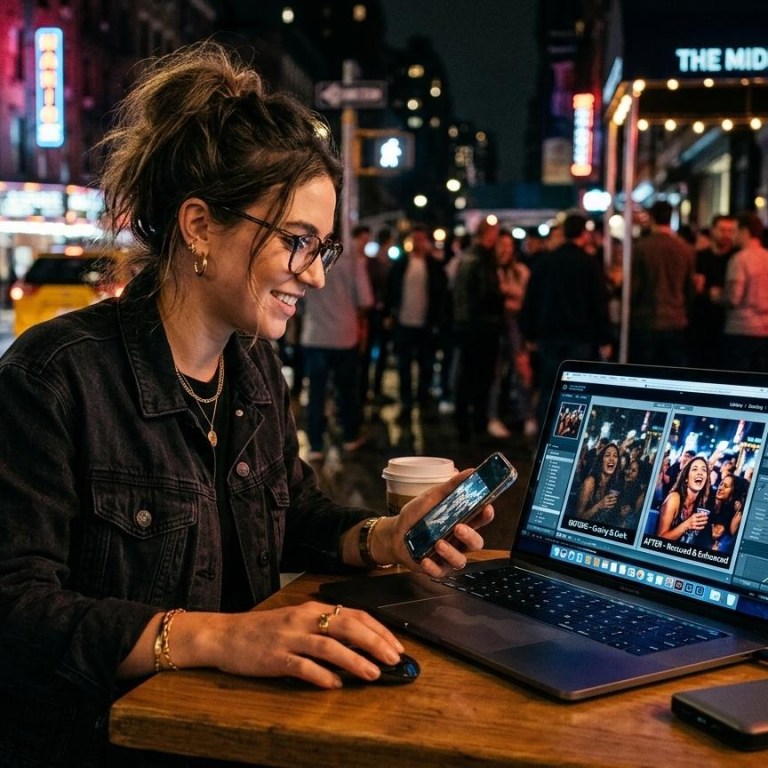

Why Night-Out Photos Come Out Grainy in the First Place
Low light forces high ISO
Taken a photo at night and zoomed in only to notice a whole lot of grain?
Normally, it happens because of low light, where your phone ramps up the ISO to make the photograph appear brighter, which unfortunately results in more grain.
Mixed, chaotic lighting sources
When there are neon signs, streetlights, and camera flashes, all in one photo, it looks fun in real life, doesn’t it? However, it can really make skin colors look blue or orange or create unnatural colored surroundings.
Motion blur
If you’re dancing, walking, or just have slightly unsteady hands… it can really spoil your night shot.
It just takes longer for your phone to snap the picture in dark places, so even a little wobble can make everything from faces to features go fuzzy and lose their definition.
Compression on top of it all
Your photo might look totally fine. But as soon as you screenshot it, send it in a DM, or download it to repost, you’re going to lose a tiny bit of quality. The grain gets amplified, and the details become a little less crisp.

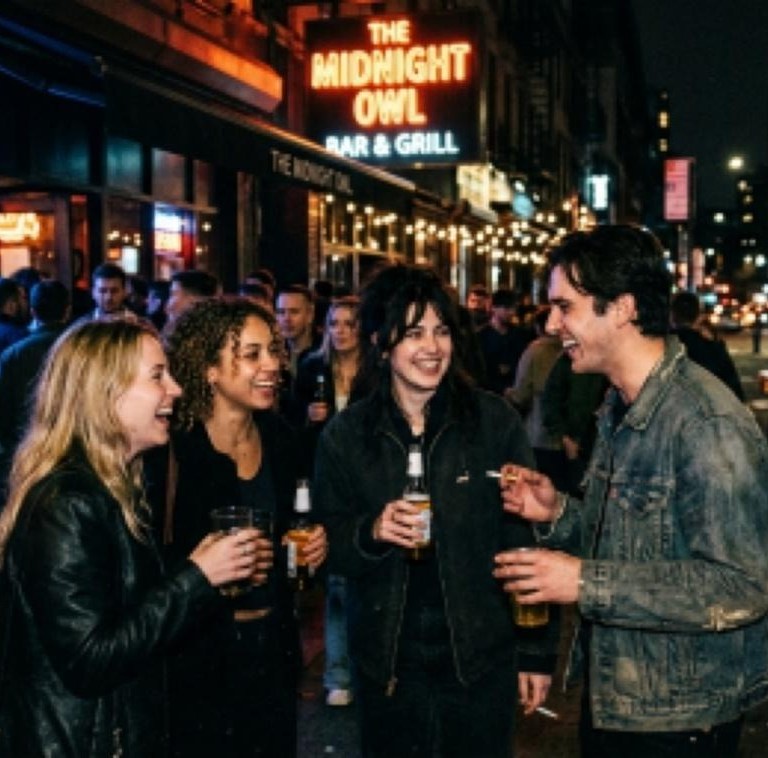
What Street-Style Editors Actually Look For in a “Salvageable” Shot
Before editing, editors check one thing: Is the photo still worth saving?
- The outfit is clear, even if the background is dark.
- The face and main details aren’t too blurry. Grain can be fixed. Heavy blur usually can’t be fixed.
- There’s still enough quality to edit. A screenshot of a screenshot is much harder to save than the original photo.
The Fix —How To Enhance Night-Out Phone Photos
So, how do editors clean up a rough night-out photo? They fix the biggest problems first. Wink puts several of these fixes in one image enhancer.
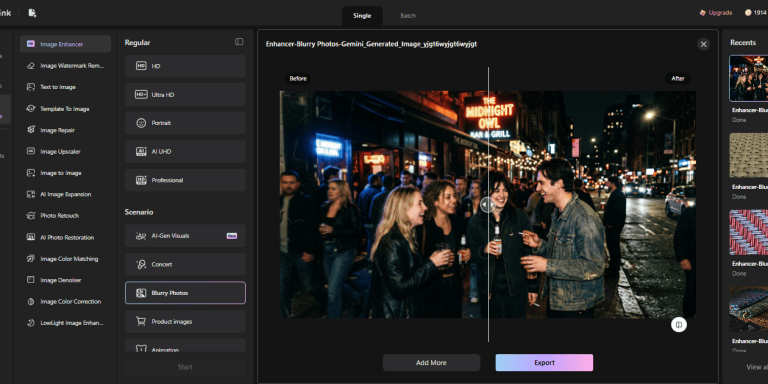

Noise and grain — Not enough grain or too much grain?
Wink has Noise reduction that will fix those grain issues for you, making sure that the details of the outfit remain crisp. That means details of fabrics, hair and more will remain in the photograph without appearing that it has been smoothed out.
Uneven lighting — Certain neon lights do strange things to an image.
For example, some areas will seem pure blue… while others would glow an intense orange. Wink’s color enhancement fixes these abnormal colors in your picture while bringing natural skin tones back in.
Dim, chaotic night shots specifically — Night shots can be tricky.
Wink’s Night Scene Enhancement is designed for night shots, helping to clarify dark regions in your photos and balancing shadows and highlights, so the whole photo looks sharper without sacrificing any of its nocturnal splendor.
Low resolution after reposting — Photo looks soft after sharing? Upscale it
Shared the photo a couple of times already? Resharing and taking screenshots will make it dull and soft. Let Wink enhance resolution for a higher quality image suitable for a lookbook and/or a social post.
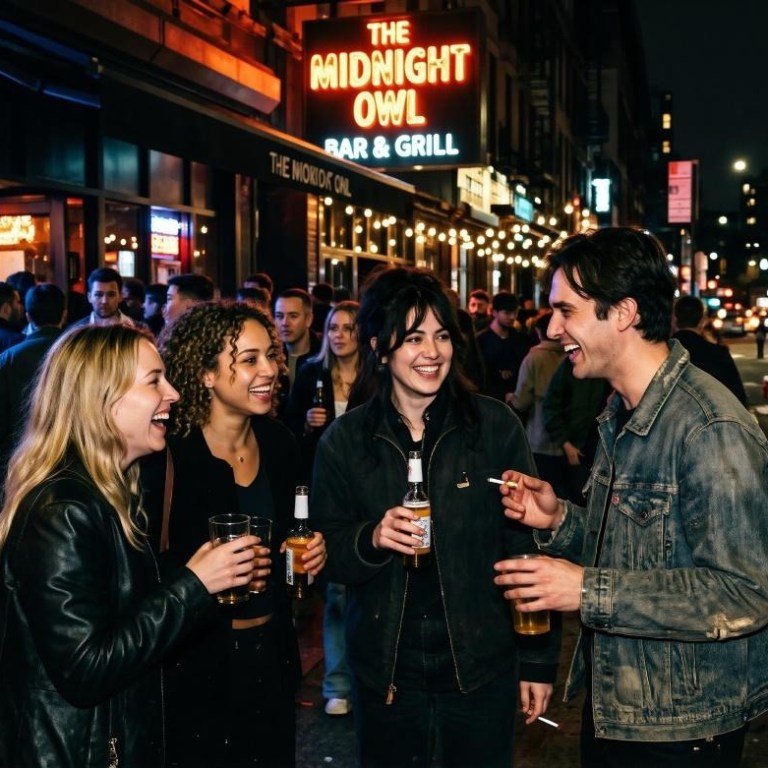
The Other Problem No One Talks About — Watermarks from Reposting
And then there’s the watermark problem.
Most night out pics we save come from Instagram Stories, via repost apps or by screen recording and … of course, there’s a username or logo to deal with.
While it’s tiny, it instantly ruins an otherwise perfectly good street style shot. Cropping out is usually an option, but it disrupts the composition, and blurring it will leave a big white patch on the photograph.
The Wink AI Image Watermark Remover is here to rescue us all.
It will automatically recognize and remove any text, logos, or other watermarks and will also perfectly refill the void space.
Quick Tips for Better Night-Out Shots Before You Even Edit
- Utilize available light. Instead of the flash on your phone, consider moving closer to a shop window, a neon sign or any source of ambient light.
- Higher quality is better. Make sure you save images in your phone’s highest photo quality. This will be helpful when you edit.
- Lighten up on zoom. Too much digital zoom will emphasize any grain and blurring.
- Multiple shots. Don’t take just one. Shoot two or three similar versions, and you’ll be likely to have at least one successful one to work with later.
- Keep your hands steady. Even a small tremble can produce soft images, particularly in darker images, so ensure you are holding your phone as still as possible when taking a shot.
Why Fast Photo Fixes Matter for Street-Style Content
Street style photography is fast!
There isn’t much opportunity to set up lighting or camera correctly… You just take photographs while walking; it is what it is. Editors also tend to have deadlines and so cannot spend two hours trying to clear grain in Photoshop; this AI workaround allows more rough night-out pictures to become something useful without requiring a professional photographer there all the time.
Conclusion
That blurry photo from last night doesn’t have to be lost forever. Yes… You heard it!
If the graininess in your night-out snaps is killing your vibes, not all is lost! It’s all in the software. There are tools to restore some detail, boost the colors, de-grain the image and clean it up-just about all without completely wiping the overall nighttime vibe.
Wink is one such software that has built-in noise reduction, color boosters, night mode editing tools and image upscaling capability. So, before you give up on that rough-looking photo, give it a quick edit. It might be more usable than you think.
You must be logged in to post a comment Login