Tech
Android Factory Reset Guide: Settings & Recovery Mode

A factory reset erases everything on your Android phone and returns it to its out-of-box state. If your phone works normally, do it through Settings. If it’s frozen or won’t respond, use the hardware button method instead.
People factory reset a phone before selling it, before donating it, or to fix software problems that won’t go away any other way. It’s also common after buying a secondhand phone that still has old data or account locks on it.
Whatever the reason, two things matter more than the reset itself: backing up what you want to keep, and removing your Google Account first so you don’t lock yourself out. If you’re resetting a phone because you’re switching to a new one, switching carriers to save money is often part of that same move, and worth checking before you finish setting up the new phone.
Quick Take
Two things can go wrong, and both are avoidable. You can lose data you meant to keep, and you can lock yourself out of your own phone if you don’t remove your Google Account first. One more thing worth knowing upfront: “erased” doesn’t always mean completely unrecoverable. On a modern encrypted phone, a factory reset genuinely destroys your data. On an older or unencrypted device, some of it can still be recovered. The troubleshooting section below explains the difference.
Prerequisites
Do these before you touch the reset button, not after.
- Back up what you want to keep: Google’s own guidance is to make sure your photos, contacts, and important data are saved to your Google Account before you reset, since apps and their local data get uninstalled during the process. A full Android backup walkthrough covers this step by step if you haven’t done it before.
- Know your Google Account password and screen lock: You’ll need both to get back into the phone afterward. Write them down somewhere safe if you’re not confident you remember them.
- Charge the phone to at least 70%: A factory reset can take up to an hour, and you don’t want it dying halfway through.
- Stay connected to wifi or mobile data: Some of the verification steps happen online.
- Remove or note down your SIM and eSIM details if you’re switching phones: A factory reset doesn’t automatically transfer an eSIM profile to a new device, so handle that separately if it applies to you.
- Don’t reset right after changing your Google Account password: If you changed or reset that password recently, wait at least 72 hours before using it to reset a phone, or Google may lock the account down entirely and require support to sort it out.
Which Path Applies to You
Once you’ve done the prerequisites above, check which situation you’re in.
- Path A: your phone turns on and responds normally. Use the Settings method. It’s simpler and gives you more control over the process.
- Path B: your phone is frozen, stuck on a logo, or you can’t get into Settings at all. Use the hardware button method instead. It works even when the screen or software won’t cooperate.
If you’re not sure, try turning the phone off and back on first. A surprising number of “frozen” phones just needed a restart, and that alone might get you into Path A.
Path A: Reset Through Settings
The exact menu wording differs by phone brand, but the idea is the same everywhere.
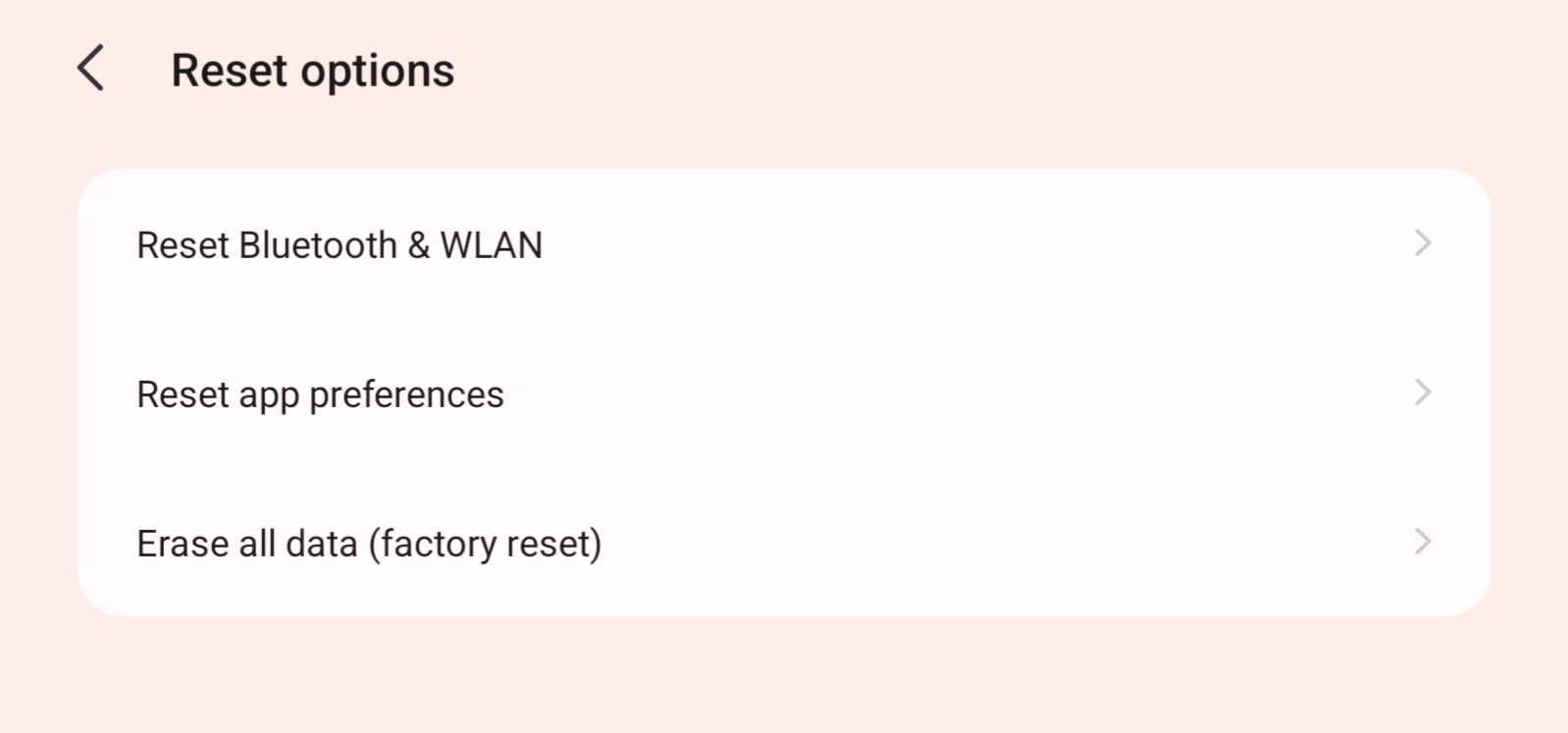
- Open Settings and find the reset option.
On a Pixel or most stock Android phones, go to Settings, then System, then Reset options. On a Samsung Galaxy phone, Samsung’s own instructions say to go to Settings, General management, Reset, then Factory data reset. - Read the warning screen.
It tells you what’s about to be erased. This is your last chance to back out if you skipped a prerequisite. - Confirm with your credentials.
You’ll likely need to enter your screen lock PIN or password, and on Samsung phones, log out of your Samsung account, which needs a network connection to complete. - Tap the final confirmation.
This is usually labeled “Erase all data,” “Factory data reset,” or “Delete all,” depending on your phone. - Wait for the phone to finish.
It restarts on its own, sometimes more than once. Don’t interrupt it or remove the battery if it’s removable.
If your phone has an encrypted SD card, Samsung specifically warns that you should decrypt it before resetting, or the card’s data can become inaccessible even though it’s still physically inserted. The whole process can take up to an hour, so don’t assume it’s stuck just because it’s taking a while.

Path B: Reset From Recovery Mode (Unresponsive Phone)
This method uses hardware buttons instead of the touchscreen, so it works even if your phone won’t boot normally or the screen is unresponsive.
The steps below are Google’s own instructions for Pixel phones. Other brands use similar ideas with different button combinations, so check your manufacturer’s support site for your exact model rather than guessing.
- Enter Fastboot mode.
On Pixel 6 and later, hold Volume Down and Power together for up to 30 seconds. On earlier Pixel models, hold Volume Up and Power instead. - Navigate to Recovery Mode.
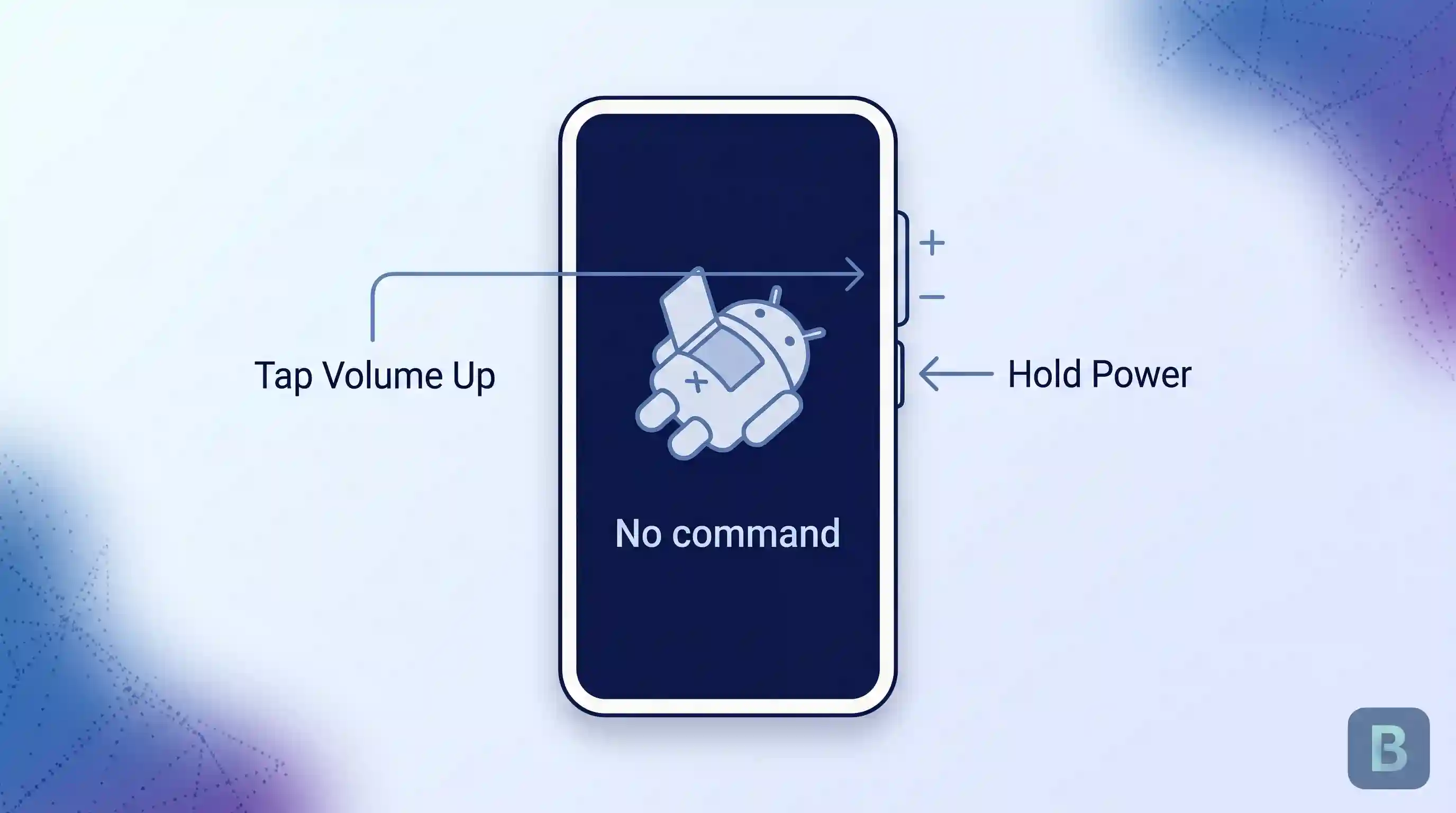
Use the volume buttons to highlight it, then press Power to confirm. - Get past the “No command” screen.
Hold Power and briefly press Volume Up once. This opens the actual recovery menu. - Select “Wipe data/factory reset.”
Scroll to it with Volume Down, then confirm with Power. - Confirm “Factory data reset.”
Then select “Reboot system now” once it finishes.
You’ll see “Data wipe complete” when it’s done. The phone restarts into the normal setup screen from there.
This method looks intimidating the first time, mostly because there’s no on-screen guidance telling you what to press next. Go slowly, and double-check each menu item before confirming, since there’s no easy way to back out mid-process on some devices.

Verify the Reset Worked
SuccessA successful reset ends with the normal Android setup screen, the same one you’d see on a brand-new phone. Language selection, wifi setup, and so on.
If Factory Reset Protection is active, the phone asks for the Google Account or screen lock that was last used on it before you can go any further. This is expected behavior, not a bug. It’s the phone confirming you’re the legitimate owner.
Check that your apps and personal files are actually gone by browsing the fresh setup. If old apps or accounts are still showing up, the reset didn’t complete properly, and you should run it again from the beginning.
Troubleshooting
Stuck at the Google Account verification screen
This is Factory Reset Protection working as intended, not an error. Enter the Google Account that was signed in before the reset. If you don’t remember it, or you bought the phone secondhand and don’t have the previous owner’s login, you’re stuck until whoever owned the account can clear it remotely or provide the credentials. There’s no legitimate workaround around this, and any tool claiming to bypass it is worth avoiding.
The reset seems frozen
Give it the full hour Google mentions before assuming something’s wrong. If it’s genuinely stuck past that, a forced restart (holding the power button for an extended press) is usually safe to try, though it does carry a small risk of leaving the reset incomplete.
Files still show up as recoverable after the reset
This depends on encryption, not on whether you did the reset correctly. On an older or unencrypted device, a factory reset only hides files from the operating system rather than destroying them at the data level, which is why some data can still be recovered afterward. If you’re getting rid of a phone with genuinely sensitive information on it, check whether your specific device encrypts by default before assuming the reset alone is enough.
The button combination isn’t working
Timing matters more than people expect. Hold the buttons together, not one after another, and keep holding through the full 30 seconds even if nothing seems to happen at first. If it still doesn’t work, confirm you have the right combination for your exact model, since it varies by manufacturer and sometimes by phone generation.
Where This Approach Has Limits
A factory reset doesn’t guarantee true data destruction on every phone. As covered above, that depends on encryption, and older or unencrypted devices can leave real data behind.
It doesn’t wipe external SD cards either. Those need to be erased separately, or physically removed, if you’re getting rid of the phone.
It won’t fix hardware problems. A cracked screen, failing battery, or damaged charging port stays broken after a reset, since the reset only touches software.
A phone managed by a school or workplace may block resets entirely, or wipe it back to a locked-down company configuration instead of a clean slate. Check with whoever manages the device before relying on this method.
And if you’re buying a secondhand phone, a reset that wasn’t done properly by the previous owner can leave you locked out by Factory Reset Protection with no way in. This is exactly why buying a factory-unlocked phone from a source that confirms a clean reset matters, not just a phone that turns on and looks fine in the listing photos.
Key Takeaways
- Back up your data and remove your Google Account before resetting, or you risk losing files or locking yourself out.
- Use the Settings method if your phone responds normally. Use the hardware button method if it’s frozen or unresponsive.
- Factory Reset Protection asking for your Google Account after a reset is normal, not an error, as long as it’s your own phone.
- A reset doesn’t always make data completely unrecoverable. It depends on whether the phone was encrypted.
- A reset doesn’t wipe SD cards, fix hardware problems, or always work on managed work or school devices.
FAQ
Will a factory reset remove a virus or malware from my phone?
Usually, yes. Since a reset erases all installed apps and their data, most malware gets removed along with everything else. The rare exception is malware embedded in the phone’s firmware rather than installed as an app, which a standard reset won’t touch. If problems continue right after a clean reset with no apps reinstalled yet, that’s worth taking to a professional rather than resetting again.
Does a factory reset erase or affect my physical SIM card?
No. A factory reset only touches the phone’s internal storage and software. Your physical SIM card isn’t affected at all and works the same in the next phone you put it in. An eSIM is different, since it’s built into the phone itself rather than a removable card, which is why it needs its own transfer process instead.
Can I cancel a factory reset once it’s started?
Generally no, not safely. Once you’ve confirmed the final step, interrupting the process, by powering off the phone or pulling the battery, risks leaving the phone in a broken, half-reset state that’s harder to fix than just letting it finish. If you’re having second thoughts, that decision needs to happen before you tap the final confirmation, not after.
Does a factory reset change my phone’s IMEI or unlock status?
No. Your IMEI, the unique number that identifies your specific device, is tied to the phone’s hardware, not its software, so a reset doesn’t change it. The same goes for whether the phone is carrier-locked or unlocked. If your phone was locked to a carrier before the reset, it’s still locked afterward, and you’d need to go through the carrier unlock process separately.
My phone shows different wording, like “Erase all data,” instead of “Factory reset.” Is it the same thing?
Yes. Manufacturers use different labels for the identical function. Factory reset, Factory data reset, Erase all data, and Reset phone all mean the same process. If you found a menu option that clearly warns your data will be erased, you’re looking at the right setting regardless of its exact name.
You must be logged in to post a comment Login