Tech
Check Android Phone Band Compatibility (Before You Buy)

A phone can look perfect on paper and still fail on your network. It might never reach 5G speeds, drop calls in your own neighborhood, or lose Wi-Fi Calling entirely. The cause is almost always the same: the phone’s radio bands do not match the ones your carrier actually uses where you live.
This guide shows you how to check that match before you buy a phone or switch carriers, using free official tools and a five-minute process. No technical background is needed.

What “Band Compatibility” Actually Means
A radio band is a specific slice of wireless frequency, identified by a number like Band 4 or Band 71. Carriers broadcast on a set list of these bands in your area. Your phone can only connect to a network if its hardware physically supports the bands that carrier is using.
This is a different question from whether a phone is “unlocked.” An unlocked phone has no software lock tying it to one carrier, so you are free to insert any SIM card. But carrier lock is a separate issue from band support. A fully unlocked phone can still be a poor fit for a carrier if its radio hardware was built for a different region.
There is a third layer too: some carriers, especially Verizon in the US, also require devices to pass network certification before they get full service, even when the bands line up. We cover that separately below.
What You’ll Need Before You Start
- Your phone’s exact model name (for example, “Pixel 8a” or “Galaxy S24,” not just “Samsung phone”)
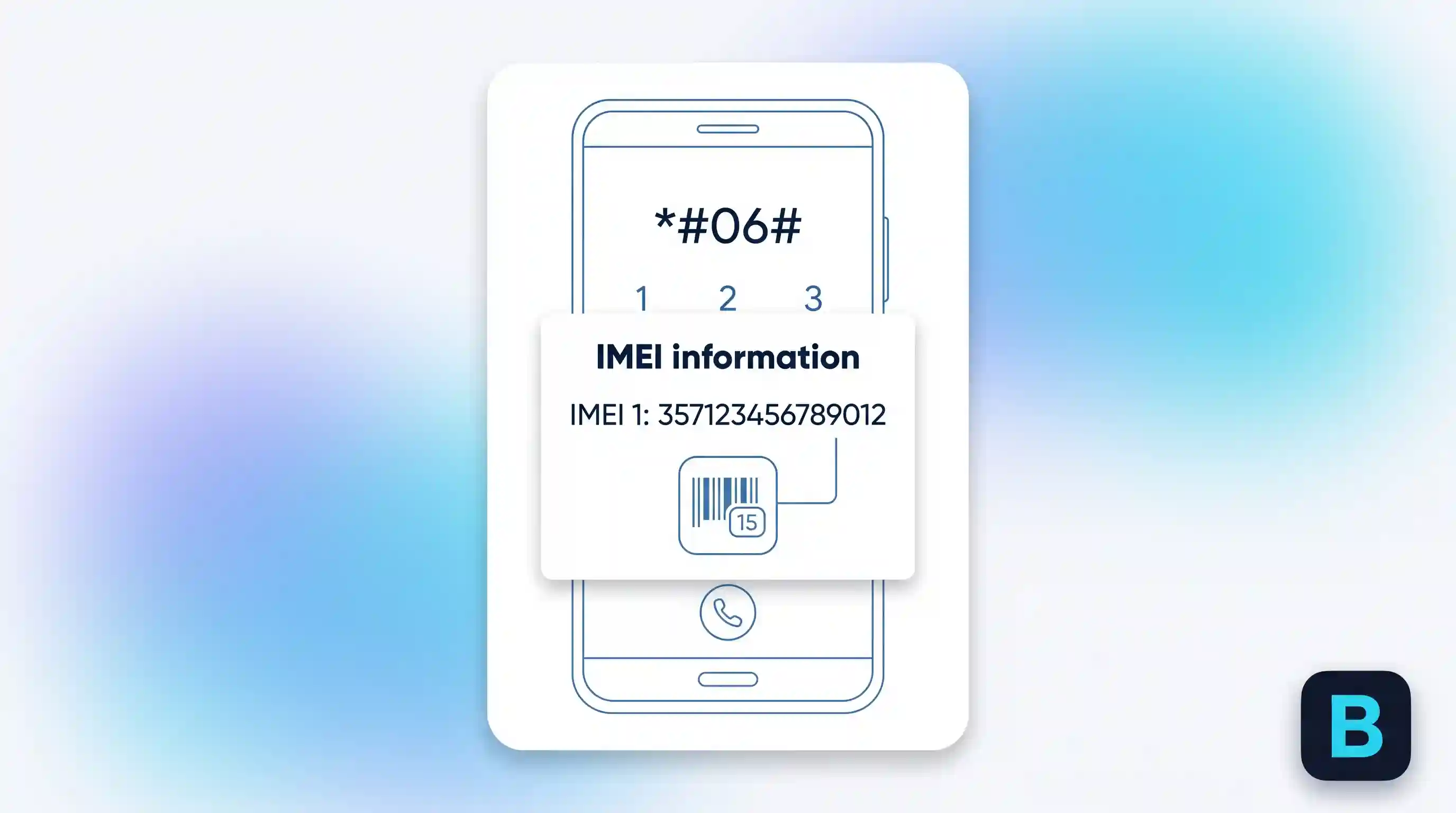
- Your phone’s IMEI number, found by dialing *#06# or in Settings under About Phone
- The name of the carrier you want to use
Method 1: Use Your Carrier’s Official Checker
This is the most reliable method, because it checks your specific device against that carrier’s live network data instead of a general spec sheet.
T-Mobile
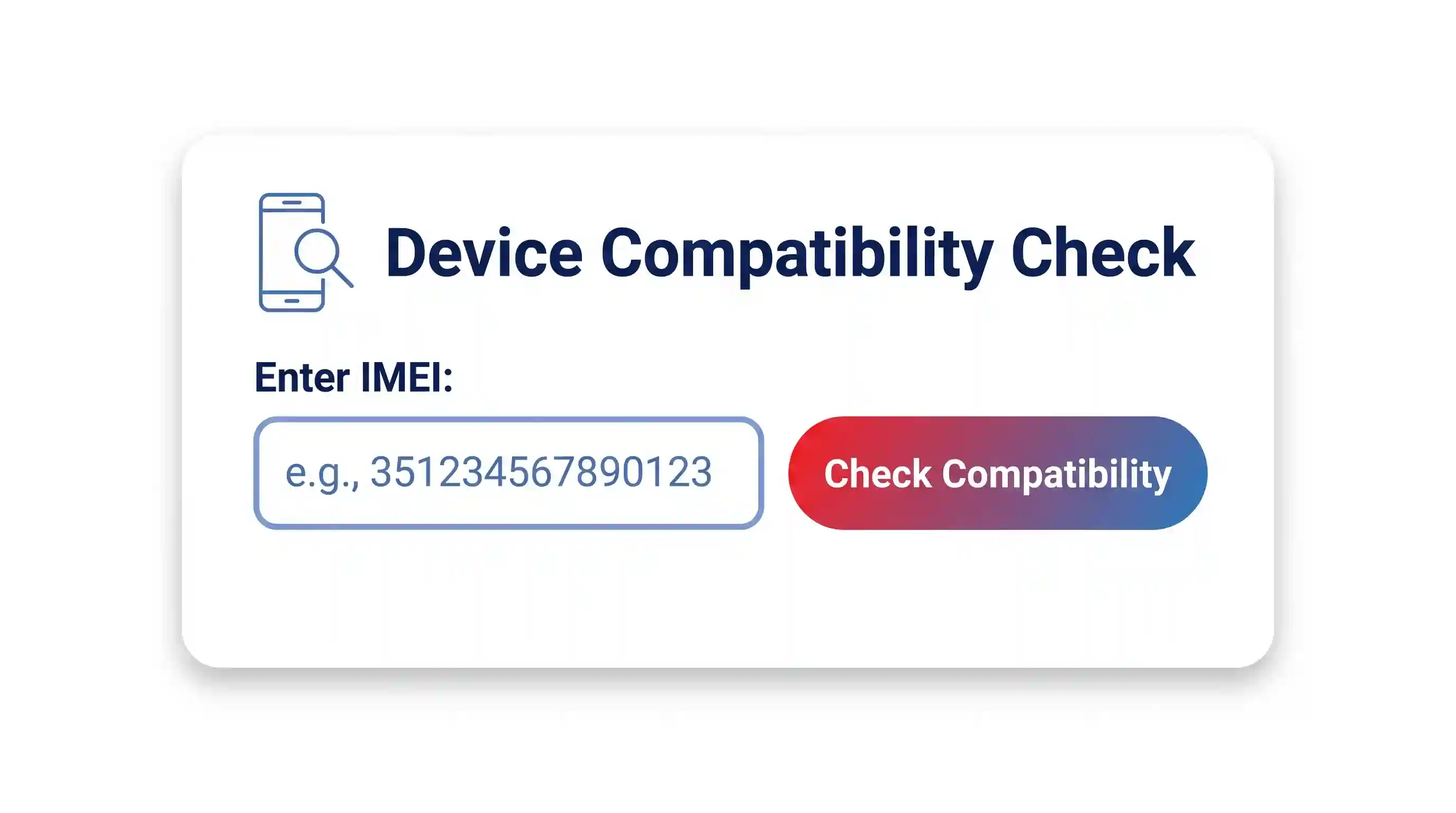
- Open T-Mobile’s BYOD checker in a browser.
- Enter your phone’s IMEI number.
- Read the result: Compatible, Partially Compatible, Incompatible, Locked, or Blocked.
- If the result says “Partially Compatible,” your phone will work but may not get Extended Range LTE or full VoLTE calling. Treat this as a real limitation, not a technicality.
Verizon
- Open Verizon’s compatibility check tool.
- Enter your Device ID (IMEI, MEID, or ESN, depending on your phone).
- Confirm the phone is unlocked. Verizon requires both hardware compatibility and an unlocked status before it will approve a device.
AT&T does not offer as complete a self-serve IMEI checker as T-Mobile or Verizon. For AT&T, cross-check with Method 2 below, then confirm with an AT&T store or support chat before you buy.
Method 2: Look Up the Manufacturer’s Official Band List
If you are checking a phone before you own it, the carrier tools above will not help, since you have no IMEI yet. Instead, look up the model’s published band list directly.
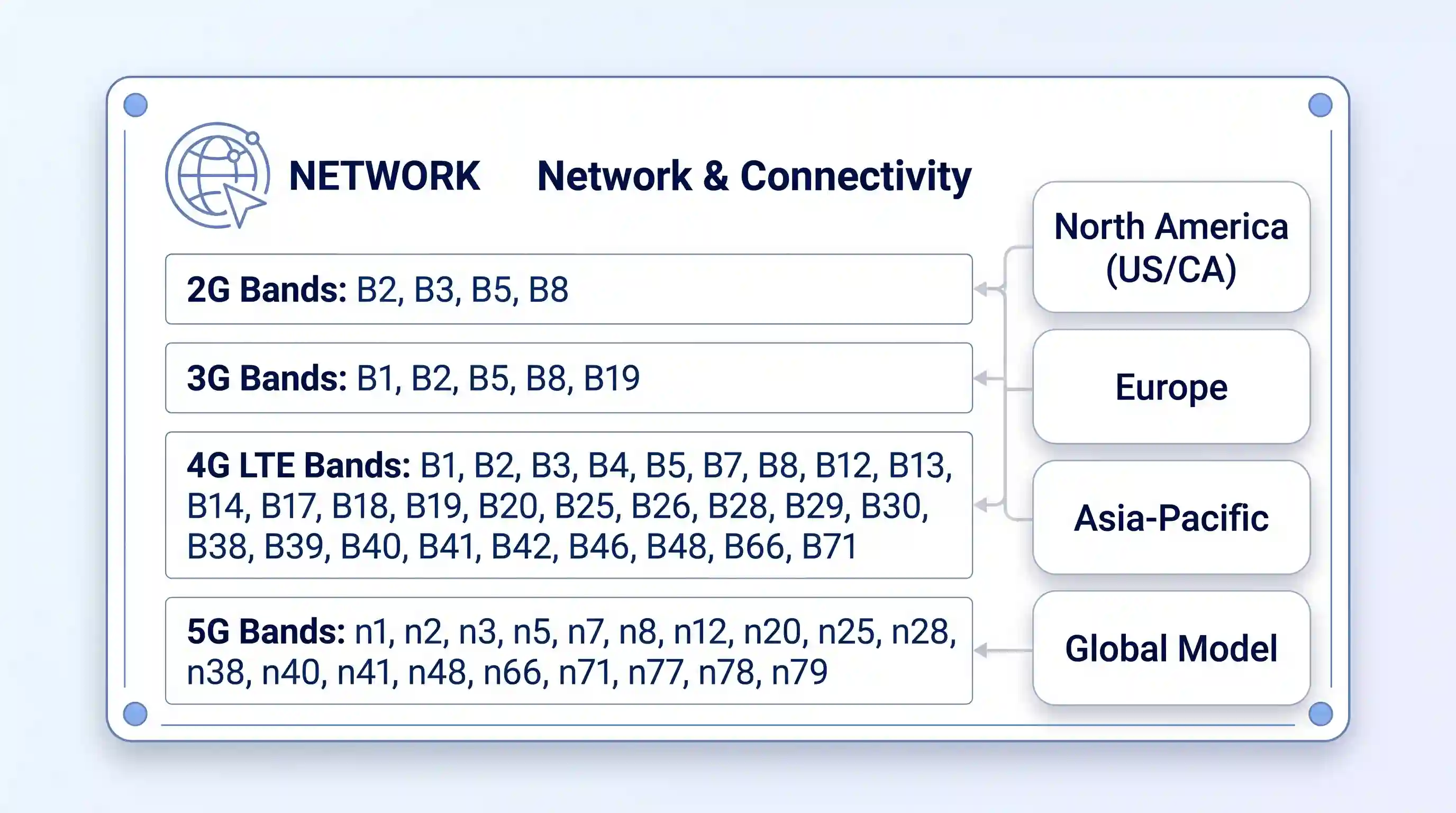
- Search the phone’s exact model name on GSMArena’s spec pages.
- Open the “Network” section on the phone’s page.
- Find the 4G LTE and 5G band lists. Pay close attention to the region or model-variant notes; the same phone name sold in different countries often ships with different radio hardware.
- Compare that list against your carrier’s published band list (most carriers post this on a coverage or network page).
This method takes a little longer than a carrier’s own checker, but it works for any phone, anywhere, before you spend any money.
Method 3: Cross-Check With a Dedicated Band Database
Two community-run tools focus specifically on band data and are worth a second look, especially for phones with confusing regional variants.
- Kimovil’s frequency checker lets you pick a phone model and a country, then shows which of that country’s carrier bands your phone supports and which it is missing.
- cacombos.com’s band database lists not just individual bands but which combinations of bands a phone can use at once, which affects real-world speed more than raw band count.
Both tools are free. Neither replaces an official carrier check, since band support alone does not guarantee a carrier will activate the device on its network.
Method 4: Check What Your Phone Is Actually Using Right Now
The methods above tell you what a phone is capable of. This one tells you what it is doing right now, on the network you already have.
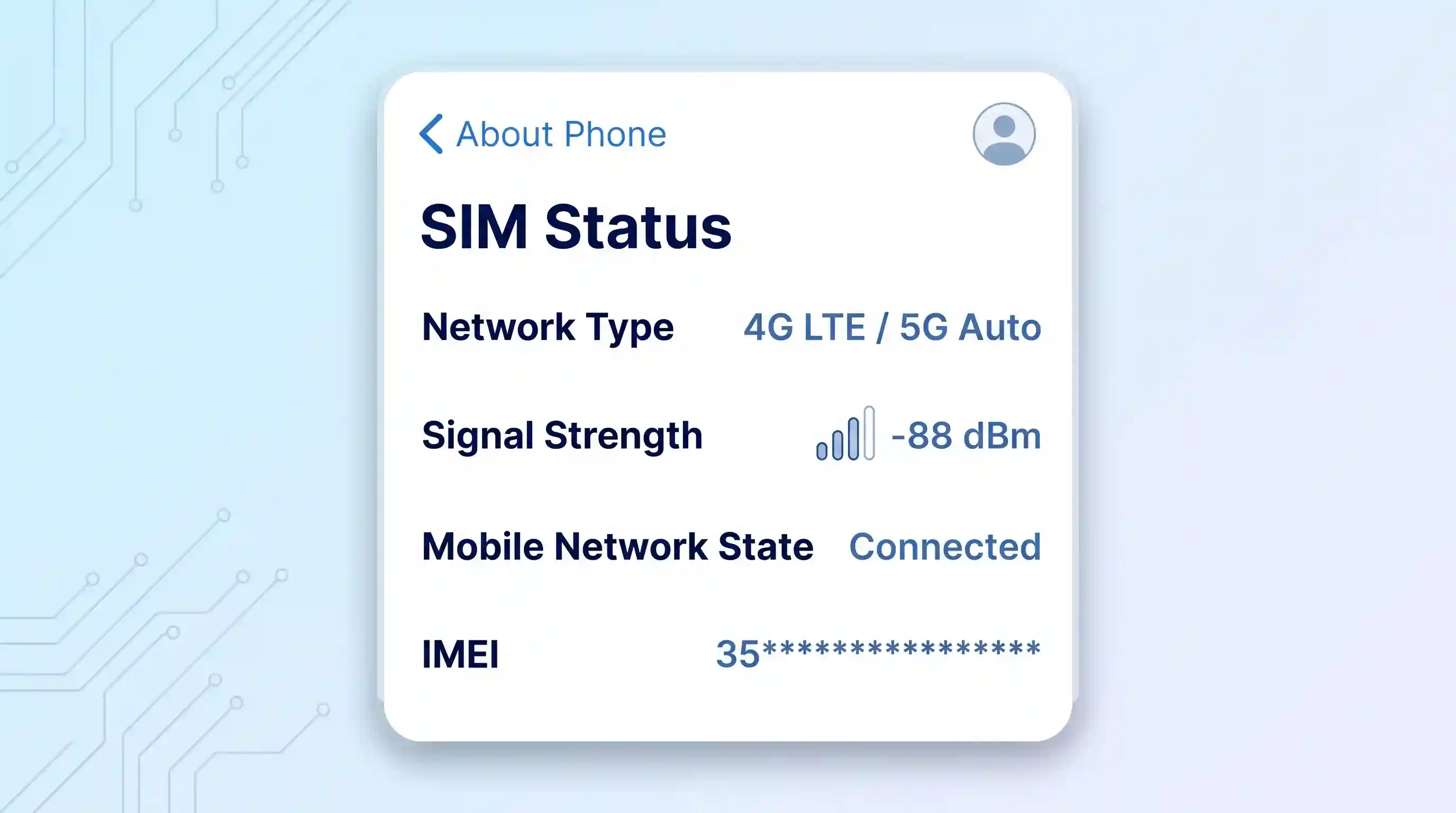
- On most Android phones, go to Settings, then About Phone, then SIM Status or Network to see basic connection details.
- For a more detailed reading, install a dedicated app. Android Police’s band-checking guide recommends LTE Discovery or Network Cell Info Lite for this.
- Open the app and grant location and phone-state permissions when asked; the app needs these to read live tower and band data.
- Look for a band number and a signal strength reading. A signal at or above -90 dBm is generally usable; closer to -50 dBm is excellent.
This method only works after you already own the phone and have a SIM inserted. Use it to confirm a purchase decision, not to make one in advance.
Which Method Should You Use?
| Method | Best For | What It Tells You | Limitation |
|---|---|---|---|
| Official carrier checker | A phone you already own, checking a specific carrier | Compatible / Partial / Incompatible, plus VoLTE support | Needs an IMEI, so it only works after purchase |
| Manufacturer specs (GSMArena) | Researching a phone before you buy it | Full band list by region/variant | You must manually compare it to your carrier’s bands |
| Band databases (Kimovil, cacombos.com) | Confirming region-specific variants and band combinations | Country-matched band gaps; aggregation combos | Community-maintained, so double-check anything critical |
| On-device apps | Confirming what’s happening on a phone you already use | Live band and signal strength | Only works after activation, not before buying |
One More Wrinkle: eSIM-Only Phones
Some newer phones ship without a physical SIM slot at all. This changes how you activate service, but it does not change any of the band-checking steps above. An eSIM is just a different way of loading your carrier’s profile onto the phone; the radio hardware underneath still needs to match your carrier’s bands the same way a physical-SIM phone does. If you are deciding between the two SIM formats first, see our eSIM vs. physical SIM guide before you shop.
Don’t Stop at Bands: Two More Checks Before You Buy or Switch
Band compatibility is necessary, but it is not the whole picture. Skipping either of the following checks is where most costly mistakes happen.
IMEI blacklist status. A phone can support every band you need and still be useless if it was reported lost, stolen, or unpaid on a financing plan. Carriers share this status through GSMA’s IMEI database. This matters most for used or third-party marketplace purchases.
Carrier certification. Even a device with the right bands and a clean IMEI can be refused full service if the carrier has not certified that exact model for its network, something Verizon in particular enforces. This is separate from both the band check and the blacklist check, and none of the tools above test for it directly. The carrier’s own BYOD checker is the only reliable way to confirm it, which is one more reason to run Method 1 even after you have already used Methods 2 and 3.
If you are buying a factory-unlocked phone specifically to avoid these problems, our factory-unlocked phone buying guide covers the purchase side of this decision in more detail.
What Happens If You Get It Wrong
A band mismatch rarely means “no service at all.” More often, it shows up as partial problems: no 5G even in a strong coverage area, no HD Voice or Wi-Fi Calling, or a signal that vanishes as soon as you leave a city center. These issues are easy to blame on the carrier when the real cause is the phone’s hardware. The financial risk is real too: used-phone sellers often will not accept a return once a SIM has been activated, and some carriers charge a restocking fee on a device that turns out to be a poor match.
Quick Troubleshooting: Right Bands, Still No Signal?
If your phone passed every check above but still will not connect properly, the problem is usually a setting rather than the hardware.
- Confirm the SIM card is seated correctly and is the right size for the tray.
- Check Settings for a network mode option, and make sure it is not locked to an older standard like 3G-only.
- Reset network settings, or update the carrier APN manually if your carrier provides specific values.
- If none of that works and you are preparing to sell, return, or switch the device entirely, a full factory reset guide can rule out a software conflict as the cause.
If you are switching carriers mainly to save money rather than to fix a compatibility problem, our guide on keeping costs down when you switch covers that side of the decision.
Frequently Asked Questions
Does “unlocked” guarantee a phone works on every carrier?
No. Unlocked only means the phone is not tied to one carrier’s SIM. It says nothing about which radio bands the phone’s hardware actually supports. This gap is especially common with phones bought overseas, since the same model name sold in different countries often ships with a different set of bands built in.
Why might two phones with identical band lists still perform differently on the same network?
Band support alone does not determine speed. Carriers combine multiple bands at once through a technique called carrier aggregation, and phones vary in which band combinations their modem can actually use together. Two phones can list the same individual bands and still see different real-world speeds because one supports more aggregation combinations than the other.
How often do carriers change which bands they use?
More often than most people expect. US carriers shut down their 3G networks by 2022 and reused, or “refarmed,” that spectrum for 4G and 5G. A band list that was accurate a few years ago can be outdated today, which is why checking directly with the carrier’s own tool matters more than relying on an old spec sheet.
Is a phone with more supported bands always the better choice?
Not automatically. What matters is whether the phone supports the specific bands your carrier uses in your area, not the total number of bands listed. A phone with fewer bands that happen to match your carrier exactly will outperform one with a longer list that misses a key band.
My phone shows the right bands, but I’m still not getting 5G. What’s wrong?
This is usually a certification or activation issue rather than a band problem. A phone can support the correct 5G bands on paper and still be limited to 4G if the carrier has not certified that exact model, if a network mode setting is capping the connection, or if 5G has not been fully deployed yet in your specific location. Run the carrier’s official checker again and confirm your network mode setting before assuming the phone itself is at fault.
You must be logged in to post a comment Login