


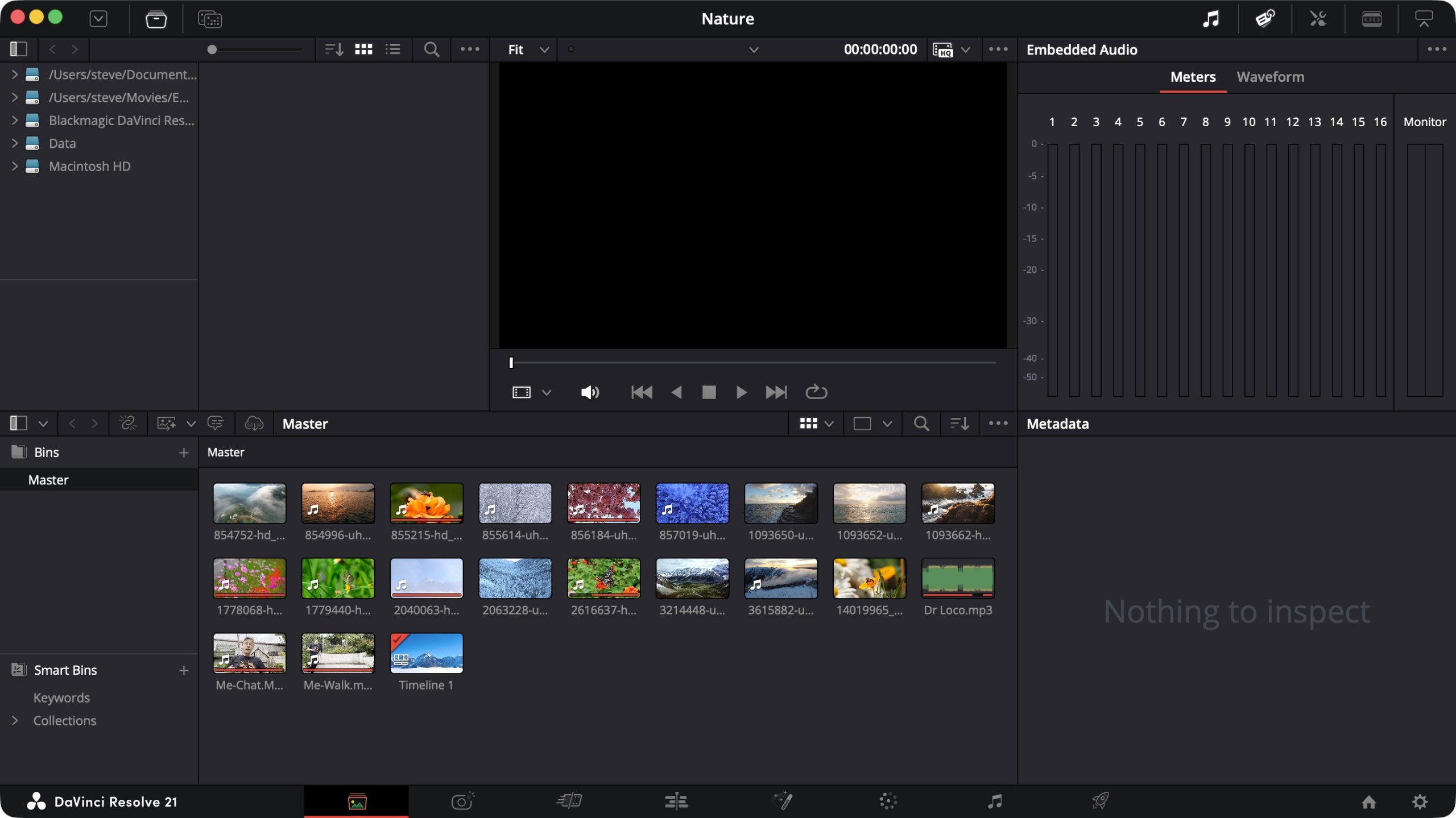
I consider Blackmagic’s DaVinci Resolve to be among the best professional-grade desktop non-linear video editing software out there.
You’ll find it a core part of our guides to the best free video editing software and best video editing software we’ve ever tested. So, I was keen to see what the latest version (21), offers. And to say I was surprised would be an understatement. This is one of those tools that just keeps getting better.
And as its latest major update has just been officially released, I thought it would be a great opportunity to see what Resolve 21 has to offer.
You can download the free app by clicking here.
DaVinci Resolve 21: Pricing & plans
- Powerful free version
- One-off fee for more advanced tools
- Professional tools at an absolutely unbeatable price
This is going to be a quick section: DaVinci Resolve is free.
There are no one-off fees, and certainly no subscription costs. Nothing. Nada. Zilch. We all know of Adobe’s continuous (and pricy) subscription plans, and even Apple are now embracing the subscription model with its Apple Creator Studio collection. But Resolve bucks the trend, and remains a bright beacon of hope in a dystopian subscription landscape.
Now there are limitations to Resolve, but these are generous: your exports are limited to 4K and 60fps, and any hardware acceleration is throttled, for instance. That’s because Blackmagic also have Resolve Studio, which unlocks export resolutions up to 32K and 120fps, offer more advanced color correction, additional effects, and also introduces a slew of AI-driven tools, all for a one-off price of $300.
But don’t let that put you off: Resolve should fit most people’s needs, this review will focus on the free version.
DaVinci Resolve 21: Interface

- Conceals complexity behind multiple interfaces called Pages
- Only shows the tools you need when you need them
- Great for beginners and veterans to use the same interface
Before we delve into what’s new, if you’re unfamiliar with what DaVinci Resolve is, let’s take a broad look at what it offers. Yes, it’s a video editor, but how good can it be considering it’s free? I mean, have you seen Windows Movie Maker? And iMovie used to show so much promise, but has now fallen by the wayside.
But Resolve is so much more than a basic and limited video tool. Despite it being free, it should really be compared to Apple’s Final Cut Pro and Adobe’s Premiere Pro. Within a single program, you can catalogue your clips, build your edit, apply transitions and titles, create complex effects, perform advanced color correction, perfect the audio, and finally export your completed project.
No need to venture into After Effects or Audition, or anything like that (unless you want to of course): pretty much everything can be done within Resolve. In order to achieve this, Resolve is divided into sections, which are referred to as ‘Pages’.
‘Media’ is where you ingest and organise your clips, ‘Cut’ and ‘Edit’ are two ways to build your project – ‘Cut’ having a simplified interface, while ‘Edit’ offers more versatile options. I see ‘Cut’ as ideal for newcomers to the editing world, but I also love the fact you can effortlessly move from one Page to the other and although you might not be able to alter the more advanced functions in ‘Cut’, if you added them while in ‘Edit’, you’ll still be able to preview them while in ‘Cut’.

Next is ‘Fusion’ – which is probably the trickiest Page. It’s where you create special effects, but rather than dragging a function onto a clip, Fusion uses the concept of nodes: you add effects to your worktop then connect clips to those effects. It’s an incredibly versatile and powerful way of working – once you get used to it.
And getting used to it you must, as that concept is also present in ‘Color’, Resolve’s color Correction section, where you can perform anything from basic alteration to more advanced options used by professionals (not surprising, since Resolve started out solely as a color grading tool), and finally, the ‘Fairlight’ Page is for working on the audio.
Whether you’re using Resolve or Resolve Studio, you have access to all the same Pages. The major difference is all the added tools Studio brings to the table.
You could very easily start your journey in Resolve, primarily focussing your efforts in the ‘Cut’ Page, and as you grow in confidence, start exploring the other sections, maybe even graduating to Resolve Studio in time – all without having to pay a penny – at first. If only I had such tools when I myself started out as a struggling editor.
DaVinci Resolve 21: Photo Page

- ‘Photo’ is a new dedicated space to work on your images
- Think of it as a sort of Lightroom replacement
- The color correction tools are relatively simple through Resolve’s powerful ‘Color’ Page
- Everything you could do to video clips, you can now do to photos.
It’s not that you couldn’t use photos in your video projects before, but now, they have their own dedicated Page, sitting between ‘Media’ and ‘Cut’. So what can you do with it? Pretty much everything you’d expect from a dedicated image organiser tool.
Resolve’s ‘Photo’ is compatible with common RAW formats from Canon, Sony and Nikon, as well as a host of others. Put it this way: I didn’t come across a format Resolve couldn’t handle. Working on an image is a fully non-destructive process: no matter what you do, the original file is never altered.
Any photo that’s added via the ‘Media’ Page will be found here, but you can also drag others straight onto the Page’s ‘Media Pool’ sidebar. To the right in an Inspector, where you’ll find a histogram, cropping tools, various color adjustments, even pitch and yaw sliders to rectify errors like fish-eye distortions for instance. You can also mark photos as ‘good’ (represented with a heart), or ‘reject’ (with an x). It’s all there, but it’s all pretty basic. Put it this way, Lightroom won’t be having sleepless nights over this inclusion.

But that’s only part of the story. In order to perform more advanced alterations, you need to add photos to an album (which is conveniently located where the timeline usually is). Once that’s done, you can venture to Resolve’s ‘Color’ Page, and have access to all the power and versatility (and complexity) that comes with that incredible color grading tool. Just like ‘Fusion’, ‘Color’ works with nodes.
You add them in sequence or parallel, reorder them, disconnect them, all of this will affect how each node affects your image, and once you go back to Photo, those alterations will be visible from there. This powerful versatility could be something Lightroom might have some concerns about, especially since this is but the first version of this few functionality.
DaVinci Resolve 21: AI tools

- Packed with more and more AI tools
- I repeat, tools – not slop: this is the good stuff
- Only available for paying Resolve Studio users
A new Page is always a big thing to talk about when it comes to a new version of Resolve, but another new trend is the increasing addition of AI tools.
But there’s a caveat: they’re reserved for paying customers. In the free version, that menu’s either greyed out, or if you click on the ‘AI Clip Analysis’ icon, a popup window encourages you to pay the one-time fee to gain access to all the goodies in Resolve Studio.
And goodies there are, like IntelliSearch, which allows you to search for that specific element inside a clip, or the ability to transcribe what’s being said in a clip, detect faces, transform said faces, remove blemishes, remove motion blur, and so much more. Sadly, all these are out of bounds – they’ve got to entice you to upgrade somehow, right?
Should I try DaVinci Resolve?

Try it if…
You’re looking for a powerful professional-grade video editor with an impressive amount of complex and versatile features, which now includes a dedicated section for cataloguing and grading your photos… all for free.
Don’t try it if…
You’re totally wedded to the likes of Apple or Adobe and have invested so much in those software ecosystems that you can’t be prised away from them, even at the prospect of a powerful and free video editing tool.
For more creative software, we’ve tested and reviewed the best video editing software for beginners and the best video editing apps for mobile devices.


















































You must be logged in to post a comment Login