Tech
Here’s How To Pair Your Roku Remote

If you lost your remote and just got your new one, this is for you.

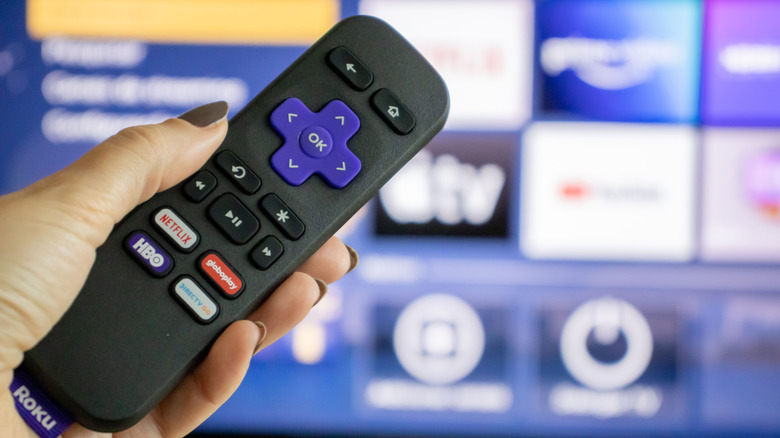
Picking up a streaming device like an Amazon Fire TV Stick or the Google TV Streamer is a cost-effective way to breathe new life into an older television. Roku’s fleet of streaming sticks and boxes enjoys a reputation for being affordable, easy to set up and offering a less bloated experience than Android TV. Like other streaming devices, every Roku model ships with a remote control that lets you control media playback and other actions.
Unlike your TV’s infrared remote, though, most modern Roku devices communicate with their remotes over newer technologies like Wi-Fi Direct or Bluetooth. This lets you enjoy more features like voice control and the ability to control your Roku device without requiring a clear line of sight between it and the remote. However, remotes using these technologies need to be paired before you can use them. This is done when you first set up your streaming device, but if you’ve replaced your remote or performed a factory reset, you’ll need to pair it with your Roku again.
To do this, you will need to put both the Roku device and its remote in pairing mode. Assuming you don’t have an extra remote to control your Roku device, unplug it from the power source, wait around five seconds, plug it back in and turn it on. Flip your remote over and look for a pairing button. It’s usually under the battery cover. Press and hold the button for five seconds until you see the status light flashing. If your Roku remote doesn’t have a pairing button, press and hold the Back and Home buttons simultaneously for 5 seconds. Your Roku remote control should now be paired with your device.
Using your phone to control your Roku device
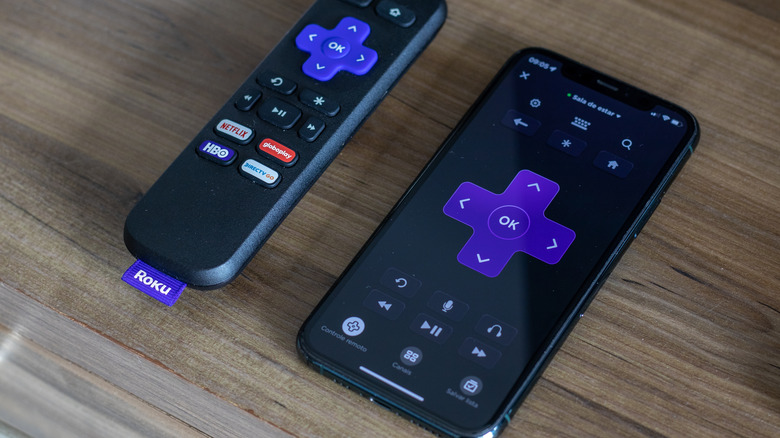
The Roku remote is a convenient way to control what’s on screen, but if you’ve misplaced it or if it refuses to pair, there is still one handy alternative: the Roku mobile app. You can install it on your Android or iOS device and use your phone to control your Roku device instead. Make sure your phone and Roku are both connected to the same Wi-Fi network. Launch the app on your phone, navigate to the Remote tab and tap on Connect device when it recognizes your Roku device.
The interface looks very similar to the layout of the physical remote. You get giant D-pad controls in the middle with your usual playback controls right below. The Home and Back buttons are situated at the top, where you will also find a microphone icon that lets you perform searches with your voice. Another advantage of using the Roku mobile app to control your TV is that you can type things out much faster on your phone’s keyboard whenever you trigger a search field.
The app also doubles as a hub for discovering new content and launching recently used apps faster. Plus, if you have headphones connected to your phone, your TV’s audio can be routed through them, making late-night movie watching more convenient.
You must be logged in to post a comment Login