Tech
How to Check Your Internet Speed and Read the Results

A speed test measures three things in under a minute: how fast you can download data, how fast you can upload it, and how long a signal takes to reach a test server and come back. Run one for free at Speedtest by Ookla or Fast.com, ideally over a wired connection, and you’ll have a real answer before your coffee gets cold.
Quick Take
Plug your computer into your router with an Ethernet cable for the clearest reading. Then run one test on Speedtest by Ookla and one on Fast.com — two tools catch problems a single test can miss. When the test finishes, look at three numbers: download speed, upload speed, and ping, also called latency. If your download number lands within about 20% of your plan’s advertised speed, your connection is working as sold. Wi-Fi tests are useful too. But they measure your router’s performance as much as your internet plan itself. The table further down turns these numbers into real guidance for video calls, streaming, and gaming.
Before You Test
You don’t need to install anything to check your speed. A browser and about three minutes are enough. Close anything that’s actively downloading or streaming in the background first. Another device mid-download will drag your number down, and the test will show a falsely low reading.
How you test depends on what you’re actually trying to find out:
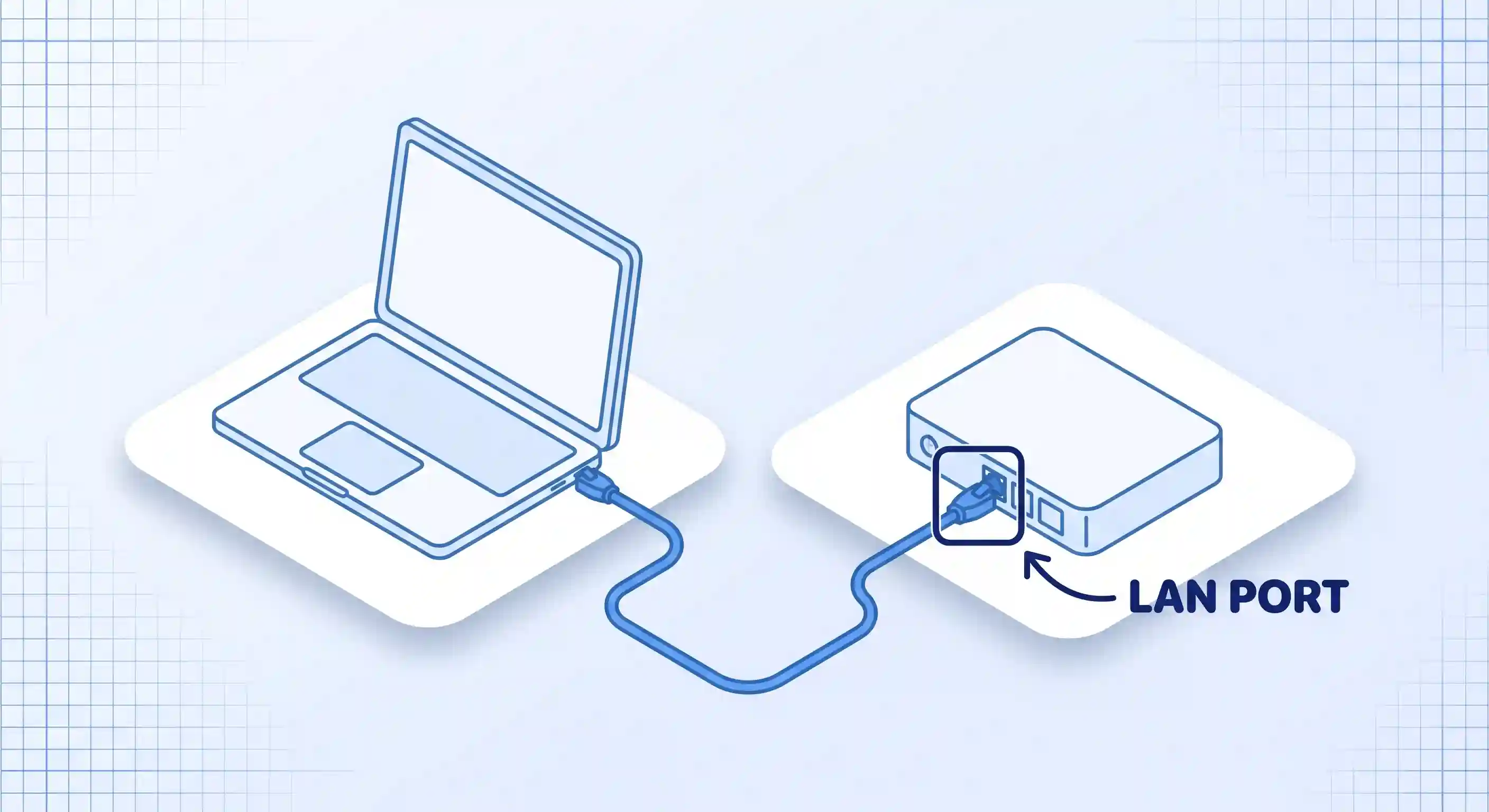
- Testing a computer: connect by Ethernet if you can. This shows your plan’s real ceiling, without your Wi-Fi signal getting in the way.
- Testing a phone or tablet: turn off Wi-Fi to test your cellular data speed, or leave it on to test your home Wi-Fi. These measure two completely different connections.
- Testing your whole network: run the test on the device sitting closest to your router. That reading comes closest to your plan’s real speed.

Run the Test
Once you’ve picked your path above, the actual test takes four short steps.
- Pick a real test tool. Speedtest by Ookla and Fast.com are both free and need no account. Fast.com pulls its test data from Netflix’s own streaming servers, so it doubles as a check on your real Netflix performance, not just a lab number. Running both catches the rare case where one tool’s test server is having a bad day.
- Connect the way your path calls for. Plugging in with an Ethernet cable gives the cleanest read on your plan’s real ceiling, according to T-Mobile’s testing guide. If you’re testing Wi-Fi, sit close to the router with as few walls in between as you can manage. Testing cellular means switching Wi-Fi off first.
- Run the test and let it finish on its own. Tap or click Go. Most tests take 20 to 40 seconds and stop automatically once the numbers stabilize.
- Repeat it three times, at different times of day. Try once in the morning, once during peak evening hours, and once more the next day. Write down all three sets of numbers before you draw any conclusions.
Reading Your Results
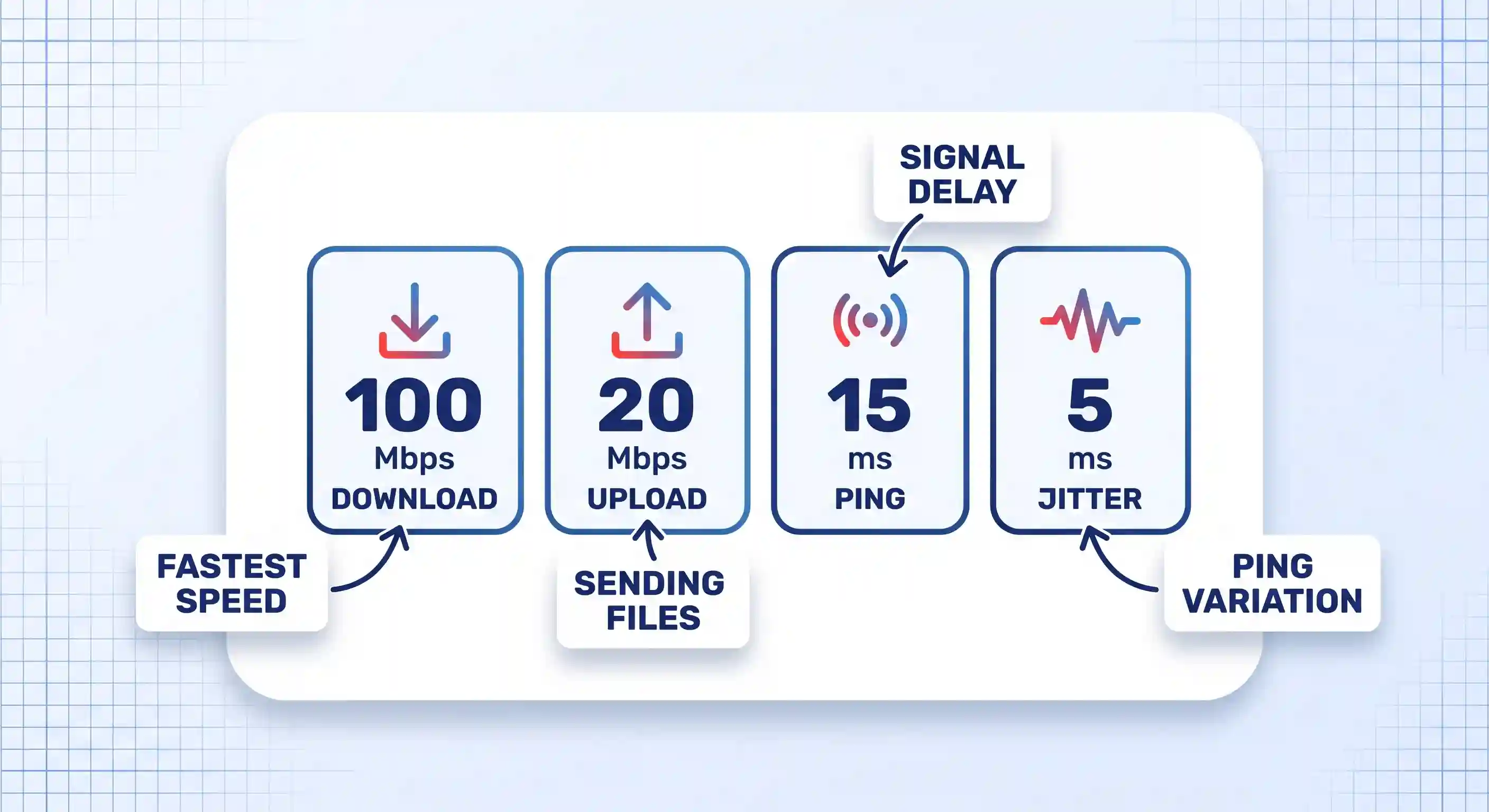
Your result screen shows four numbers, and each one tells you something different about your connection.
Download speed is how fast data moves from the internet to your device. It’s the number that decides how fast a video buffers or a webpage loads.
Upload speed is the reverse: how fast your device sends data out. It matters most for video calls, uploading files to cloud storage, and live streaming to an audience.
Ping, also called latency, is how many milliseconds a signal takes to reach the test server and return. Lower is better. High ping doesn’t slow down downloads, but it makes anything real-time feel laggy even on a fast connection. For online gaming specifically, ping usually matters more than download speed, and switching to a faster DNS server can shave off extra milliseconds.
Jitter is how much your ping bounces around from moment to moment. A connection with low average ping but high jitter still feels choppy on calls, because the delay keeps changing instead of holding steady.
What Speed Do You Actually Need?
The FCC’s household broadband guide sorts household needs into three rough bands, based on how many things you’re doing at once rather than any single app.
| Typical activity | Recommended download speed | FCC service tier |
|---|---|---|
| Email, web browsing, basic video calls | 3–8 Mbps | Basic |
| HD video streaming, group video calls, most online gaming | 12–25 Mbps | Medium |
| 4K streaming, multiple people working from home at once | 25+ Mbps | Advanced |
| Meeting the FCC’s current definition of broadband | 100 Mbps download / 20 Mbps upload | 2024 benchmark |
These tiers come from the FCC’s household broadband guide, and the agency is upfront that they’re rough estimates, not lab-tested numbers. The bottom row reflects a separate, more recent change: in 2024, the FCC raised its official broadband speed benchmark to 100 Mbps down and 20 Mbps up, four times higher than the old 25/3 Mbps standard.
Verify Your Result Against Your Plan
Compare your download number to what you’re actually paying for. Real-world speeds often run a bit below the advertised number, especially during peak hours when your neighbors are all streaming at once. A gap of 10 to 20% below your plan’s rating is normal and not worth worrying about.
A gap of 50% or more, especially across multiple tests at different times, points to a real problem. It could sit with your equipment, your home wiring, or your provider’s network.
If you run a small business or work from home full time and you keep landing short of what you’re paying for, it may be worth comparing a broadband service built for business use, since those plans are usually built for steadier, more simultaneous demand than a typical home plan.
Troubleshooting Slow or Inconsistent Results
Most bad speed test readings trace back to one of a handful of causes. Work through these in order before you call your provider.
Your Wi-Fi band is congested
Most routers broadcast two bands: 2.4GHz and 5GHz. The 2.4GHz band reaches further through walls but runs slower, and it gets crowded by other devices, from cordless phones to neighboring Wi-Fi networks. If your result is low over Wi-Fi but fine over Ethernet, log into your router’s settings and switch your device to the 5GHz band, or simply move closer to the router.
Too many devices are active at once
Smart TVs, game consoles, and phones that auto-update in the background all quietly use bandwidth. If your household runs a dozen connected devices, a handful of them syncing at once can eat a real chunk of your plan before you’ve opened a single tab.
A VPN is adding overhead
A VPN encrypts your traffic and routes it through an extra server, and both steps cost some speed. For a well-built, up-to-date VPN, that cost is usually small. A free or overloaded VPN service can cost far more, sometimes cutting your speed drastically. If you rely on one regularly, it’s worth checking that you’re running a tested, well-reviewed VPN app rather than a free option pulling double duty for thousands of other users.
It’s peak hours in your neighborhood
Cable connections in particular share bandwidth with neighbors at the local node. Between roughly 7 and 10pm, when everyone is streaming or gaming at once, speeds can dip well below what you’d see at 6am. This is a real, physical limit of shared infrastructure. It isn’t a sign that your equipment is broken.
Your router or modem is outdated
Equipment older than five to seven years may not support the full speed of a newer plan, even if the plan itself is fine. Outdated firmware can cause the same problem. Restarting your router clears a surprising number of these issues, and checking for a firmware update is worth the extra two minutes.
Your device says you’re connected, but nothing loads
Occasionally a device shows a full Wi-Fi signal while the connection itself is dead upstream. That’s a different problem from a slow test result, and it needs its own fix — if you’re on Windows and seeing exactly this, the steps for Wi-Fi connected but no internet access walk through it directly.
The problem isn’t your line at all
If your speed test looks fine but one specific app or site still feels slow, the bottleneck is often somewhere else entirely. An overloaded browser with forty open tabs, background extensions, or a slow DNS lookup can all make things feel sluggish even when your raw connection is healthy. Before blaming your provider, it’s worth checking whether clearing out background tabs and extensions fixes the feeling on its own.
Where This Approach Has Limits
A speed test is a snapshot, not an average. It tells you what your connection did for those 20 to 40 seconds, not what it does at 11pm on a Friday when your whole household is home and active.
It also can’t tell you where a problem actually lives. A low reading could point to your provider’s network, your own router, bad wiring in the walls, or a damaged cable. The test alone won’t say which.
A mesh Wi-Fi system or a set of powerline adapters complicates a clean reading further, since each hop between units adds its own small loss. Satellite and fixed wireless home internet behave differently than cable or fiber, too: higher and more variable ping is normal for those connections, even when the download number looks perfectly fine.
Key Takeaways
- Test over Ethernet when you can. It’s the only way to see your plan’s real ceiling without your Wi-Fi getting in the way.
- Run the test more than once, at different times of day, before drawing any conclusion about your service.
- Download, upload, ping, and jitter each measure something different. Read all four, not just the headline number.
- A result within 10 to 20% of your plan’s advertised speed is normal. A much bigger gap is worth investigating.
- Wi-Fi band, VPN use, and peak-hour congestion are the most common reasons a result looks worse than it should.
- A speed test can tell you that a problem exists. It can’t always tell you where that problem lives.
FAQ
Why do I get different numbers on different speed test sites?
Each tool picks its own test server and measures slightly differently — Fast.com, for example, tests only download speed by default and pulls from Netflix’s own servers, while other tools test upload and ping against a separate network of third-party servers. A 10 to 15% difference between tools on the same connection, at the same time, is normal. Watch the trend across tools rather than expecting an exact match between them.
How often should I test my internet speed?
Once a month is enough for most households just to keep a baseline on file. Test more often, and specifically at different times of day, whenever something actually feels slow or you’re deciding whether to change plans.
Can my ISP tell if I ran a speed test?
There’s no indication that running a public speed test alerts your provider or changes your service in any way. The test simply measures the connection that’s already there, the same way any other website or app would.
Why is my upload speed so much lower than my download speed?
Most cable and DSL plans are built asymmetrically on purpose, because most home use — browsing, streaming, downloading — is download-heavy. Fiber connections are more often symmetrical, with upload and download speeds close to equal, since the underlying technology doesn’t force the same tradeoff.
Is a wired Ethernet test really necessary, or is Wi-Fi close enough?
For everyday use, a Wi-Fi test is close enough to tell you whether your internet feels normal. Ethernet testing matters more in two specific situations: when you’re trying to prove to your provider that your plan isn’t being delivered, or when you’re trying to isolate whether a slowdown is coming from your ISP or from your own Wi-Fi setup.
You must be logged in to post a comment Login