Tech
How to Configure a Proxy on Windows, Mac & Firefox

To configure a proxy correctly, first get the proxy address or hostname, port if required, and any setup script, bypass rules, or credentials you were given. Then configure either the operating system or Firefox itself, depending on which applications should use the proxy.
Before You Configure a Proxy
A proxy setting is only useful if you know what kind of configuration you were given. Before changing anything, collect the connection details and record your current settings so you can restore them if the connection stops working.
Warning
Write down or screenshot your current proxy settings before changing them. A wrong server address, port, setup script, or bypass rule can stop affected applications from reaching the internet.
Prerequisites
- The proxy server hostname or IP address and port if you are configuring the proxy manually.
- The proxy auto-configuration (PAC) URL if your administrator or provider uses an automatic setup script.
- Any required proxy username and password if the service uses authentication.
- Any hostnames, domains, or local addresses that should bypass the proxy.
- Administrator guidance if the device is managed by a workplace, school, or other organization and the controls are locked.
A PAC file is a proxy auto-configuration file that contains rules for deciding when traffic should use a proxy and which proxy should be selected. If you were given only a PAC URL, do not invent a manual server address and port.
The choice between a PAC file and manual proxy configuration depends on whether the proxy rules should be selected automatically or remain fixed to a particular endpoint.
Decide Where to Configure the Proxy
Before opening any settings screen, decide whether the proxy should apply through the operating system or only inside Firefox.
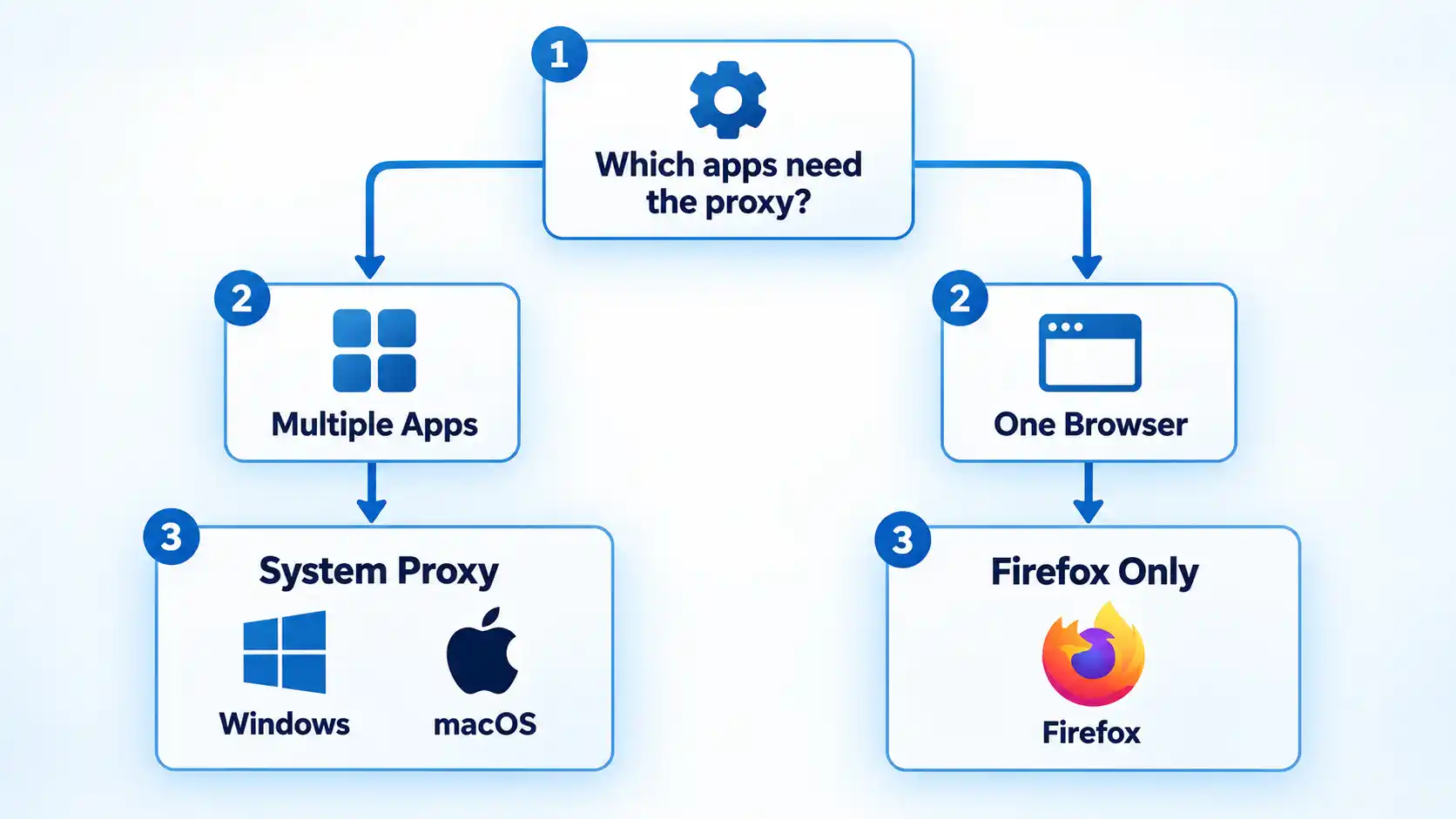

Use the Windows or macOS system proxy when compatible applications should inherit the operating system’s proxy settings. Not every application is required to honor those settings, so system-level configuration should not be described as affecting every program automatically.
Firefox can either inherit the operating system’s proxy configuration or use its own connection settings. Mozilla currently provides a Use system proxy settings option alongside automatic detection, manual proxy configuration, and a PAC URL option.
Understanding how proxy servers route traffic helps explain why changing the system proxy can affect several compatible applications while a Firefox-only configuration can remain limited to the browser.
The difference between a system proxy and browser proxy matters whenever different applications need different network routes.
Proxy configuration is also separate from VPN configuration. If you are deciding between the two technologies rather than simply entering proxy settings, proxy and VPN routing work differently even though both can change the public IP address a destination sees.
Microsoft currently places Windows proxy controls under Settings → Network & internet → Proxy. Windows supports automatic detection, a setup script, and manual proxy configuration.How to Configure a Proxy on Windows 10 or 11
*.example.com. Use the local-address bypass option only when that matches your network requirements.
Microsoft’s current Windows proxy documentation confirms these setup methods and notes that a proxy used specifically by a VPN connection must be configured separately.
Current macOS versions configure proxies per network service. Apple provides automatic discovery, PAC configuration, HTTP, HTTPS, and SOCKS proxy options.
How to Configure a Proxy on macOS
Apple’s current macOS proxy settings documentation confirms the System Settings path, supported proxy types, authentication fields, PAC configuration, and bypass controls.
Firefox can inherit the operating system’s proxy settings or use a separate browser-specific configuration. Mozilla’s current support page shows both legacy and newer navigation wording, so the exact labels can differ by Firefox version.
How to Configure a Proxy in Firefox
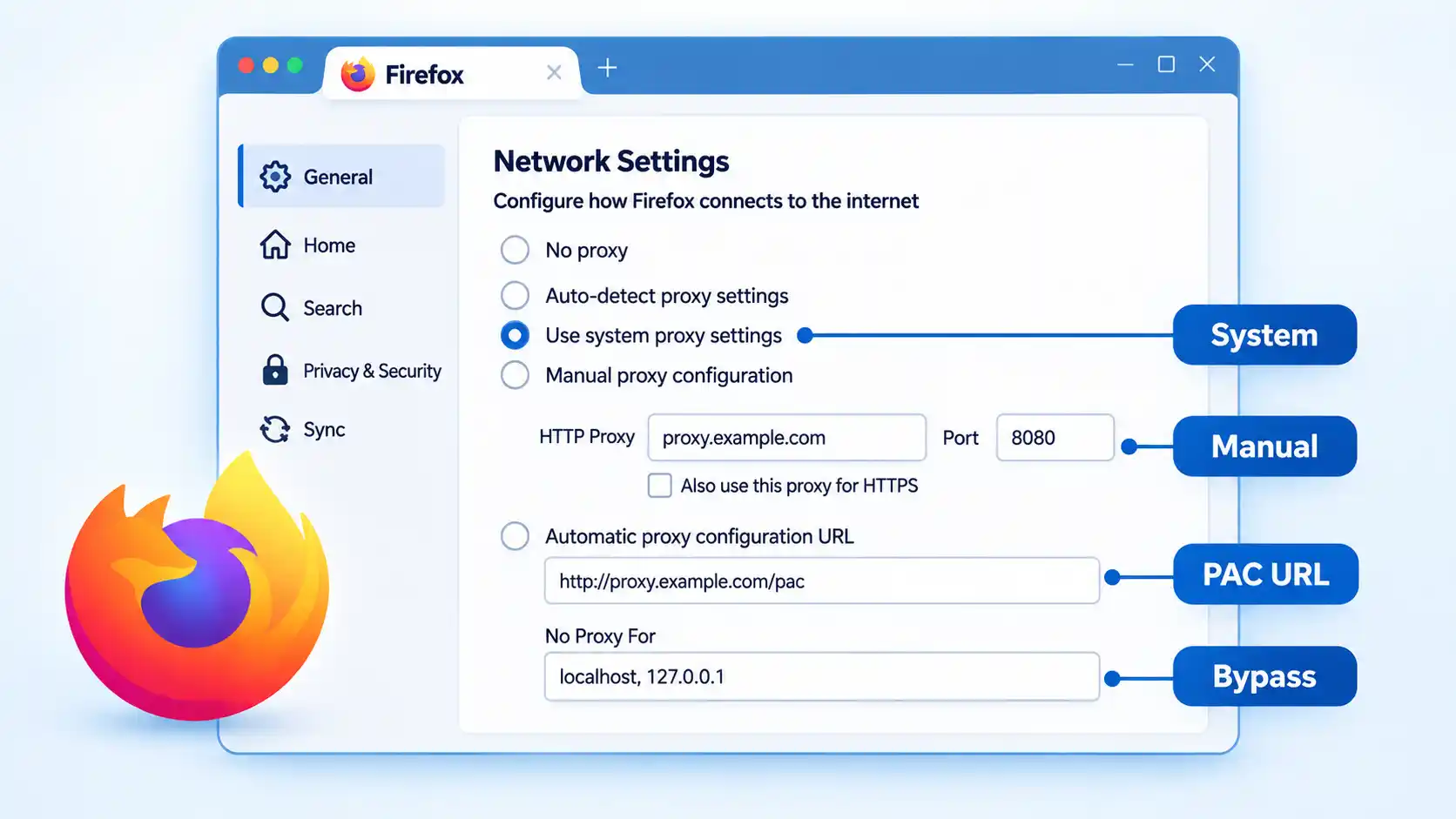
Mozilla’s current Firefox connection settings documentation confirms the available proxy modes and shows both the newer Privacy & Security route and the older General/Network Settings wording still encountered on some versions.
How to Verify the Proxy Is Working
Saving a proxy setting only confirms that the configuration was stored. Verification means checking that the browser or applications you intended to route through the proxy still connect correctly and that any authentication or bypass behavior matches the configuration you were given.
Verify the result
- Open a normal website in the application or browser that should use the proxy and confirm that it loads.
- If the proxy requires authentication, confirm that the expected login succeeds and does not enter a repeated credential-prompt loop.
- If you configured a bypass rule for a destination you can test safely, confirm that the destination remains reachable with the rule in place.
- If Firefox is set to Use system proxy settings, confirm that Firefox still connects when the operating-system proxy is enabled and stops inheriting that behavior when Firefox is switched to a separate setting.
- If connectivity fails immediately after enabling the proxy, restore the previous proxy configuration. If connectivity returns, investigate the proxy details before changing unrelated network settings.
These checks confirm basic connectivity and configuration behavior. They do not prove that every application on the device is using the same route, because some applications may ignore system proxy settings or use their own networking configuration.
If the Proxy Breaks Your Connection
Start with the proxy change itself. A full network reset is unnecessary when the problem began immediately after entering a wrong proxy address, port, PAC URL, credential, or bypass rule.
Nothing loads after enabling the proxy
Recheck the server name or IP address, port, and proxy type against the information you were given. If you entered a manual proxy when you should have used a PAC URL, or selected the wrong protocol, restore the previous setting and correct the configuration. An unavailable proxy server can also stop affected traffic.
Only some websites fail
Check the bypass or exception list first. A hostname may be bypassing the proxy when it should not, or a required local destination may be going through the proxy incorrectly. The destination itself can also reject the proxy connection independently of your local settings.
The browser repeatedly asks for proxy credentials
Confirm that the username and password belong to the proxy service rather than a website account. Repeated prompts can indicate rejected credentials or an authentication method that the current proxy arrangement cannot complete. On an organization-managed connection, ask the administrator before repeatedly changing credentials.
The PAC configuration does not apply
Recheck the PAC URL for typing errors and confirm that the configuration file is reachable from the network you are using. In Firefox, use the current automatic proxy configuration option and reload the configuration when needed. Do not replace a PAC setup with a guessed manual server unless your administrator or provider supplies one.
Firefox behaves differently from other applications
Check whether Firefox is set to Use system proxy settings or to its own manual or PAC configuration. Firefox’s connection settings can also show extensions that control how the browser connects to the internet, so disable or review such an extension only when it is actually responsible for the connection behavior.
More advanced proxy connection errors may require diagnosing authentication, DNS behavior, PAC rules, application inheritance, or organization-managed policy separately.
On Windows 11, if turning off the proxy does not restore normal connectivity, the issue may extend beyond the proxy setting. The broader Wi-Fi connected but no internet access troubleshooting path covers other Windows network causes.
How to Turn the Proxy Off
Windows
Return to Settings → Network & internet → Proxy. Turn off the manual proxy or setup script you enabled. If the network normally uses automatic detection, restore that option to its previous state rather than changing multiple settings at once.
macOS
Return to System Settings → Network → [network service] → Details → Proxies. Disable the proxy types you enabled and restore the previous configuration. If the Mac normally uses a PAC file or automatic discovery, restore that setting instead of simply clearing every proxy option.
Firefox
Return to Firefox’s proxy settings. Select No proxy if Firefox should connect without a proxy, or select Use system proxy settings if Firefox should follow the operating system again.
Bottom Line
The safest proxy setup starts by choosing the correct configuration layer. Use the Windows or macOS system proxy when compatible applications should inherit the operating-system settings, and configure Firefox directly only when the browser needs separate proxy behavior.
Keep the original settings, enter only the server, port, PAC URL, credentials, and bypass rules you were actually given, then verify the result before changing anything else. If connectivity fails, undo the proxy change first rather than escalating immediately to a full network reset.
You must be logged in to post a comment Login