Tech
How To Improve Your Audio Quality On Android Auto

There are several things you should check.

If you already have a perfectly functional cable that supports Android Auto, upgrading to a 5Gbps cable isn’t going to make Spotify sound like you rebuilt the stereo. Yes, a broken or poorly built cable can lead to dropouts, disconnects and other frustrations, but additional bandwidth won’t improve an intact digital audio stream.
Google does recommend trying a high-quality or replacement cable when wired Android Auto is acting up, but that’s basic troubleshooting, not some secret hi-fi upgrade. If you already have a stable connection, the best places to look for improvement are in the music, any processing your phone or app is doing and finally the car’s audio settings.
Don’t blame Android Auto first — Check the music app
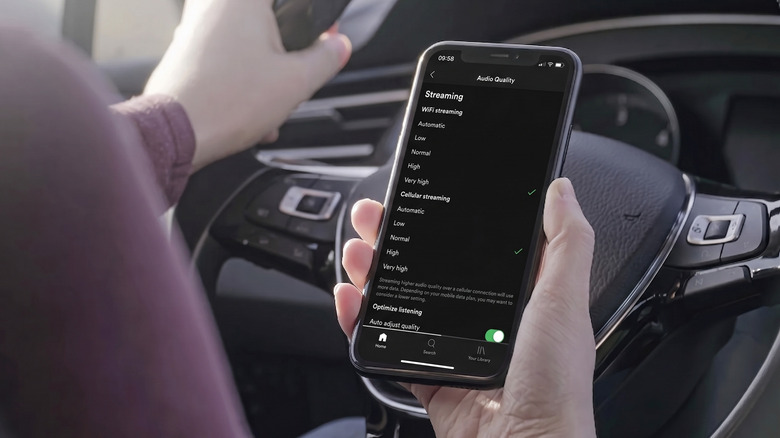
If your music app switches quality depending on the network, a weak cellular connection can result in poor streaming quality, and pre-downloading your favorite playlists or albums can be one of the easiest ways to eliminate this factor. Spotify’s Automatic setting adjusts the streaming quality according to the connection, while YouTube Music gives Premium subscribers the ability to set a separate streaming quality level for downloads. That’s worth doing if you frequently pass through areas where five bars drop to one with little notice.
Next, choose a higher download-quality setting, but don’t necessarily set all the numbers to the highest. Android supports playback sample rates up to 192kHz, but Google doesn’t provide a universal Android Auto output rate to confirm that your car is getting 192kHz audio. Bigger numbers here don’t necessarily help.
You should pay more attention to your EQ and normalization settings. An earbuds-oriented profile with a bass boost can sound pretty weird in a car’s completely different speaker configuration, especially if the car is adding its own bass boost, surround processing or EQ. Spotify is a great example (and sometimes an annoying one): On Android phones with a built-in equalizer, changes made through Spotify can also affect the sound of other apps.
Spotify’s Loud normalization setting also applies a limiter, so temporarily flatten the EQ, set normalization to Normal or turn it off and play a familiar downloaded track. Add your preferred adjustments back one at a time. It’s simple troubleshooting, but it’s better than changing six things and finding nothing.
Use wired and wireless connections to narrow it down
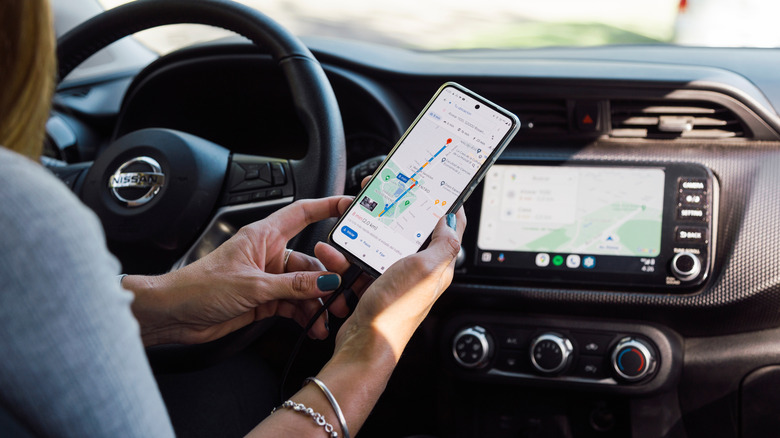
Wireless Android Auto uses both Bluetooth and Wi-Fi, rather than simply sending music over a standard Bluetooth connection. The initial wireless setup pairs the phone and car over Bluetooth, with Wi-Fi also required for the connection. That makes going into Android’s developer options to search for aptX, LDAC or some supposedly better Bluetooth codec a bad place to begin.
If playback is choppy, playback stalls or sounds obviously wrong, try the same downloaded song over wired Android Auto. If it sounds good, then you’ve isolated the connection without touching the music itself.
If wired playback fails as well, then the cable is finally a suspect. Always use a known, good cable and never use a hub or extension. What you don’t need is a cable that you purchased simply because the packaging says it supports transfer speeds that your music will never even come close to using.
The last place to check is the vehicle itself. Turn off bass boost, surround mode or other enhancements, flatten its EQ and compare the same track again. There is no consistent menu path because each infotainment system handles these controls differently (some seem to hide them for sport). If the problem persists, it may also be worthwhile to check whether a firmware update is available for an aftermarket receiver. Wireless Android Auto does require a compatible phone with 5GHz Wi-Fi support.
You must be logged in to post a comment Login