Tech
How To Use Repair Mode On Your Android Phone (And Why You Might Want To)


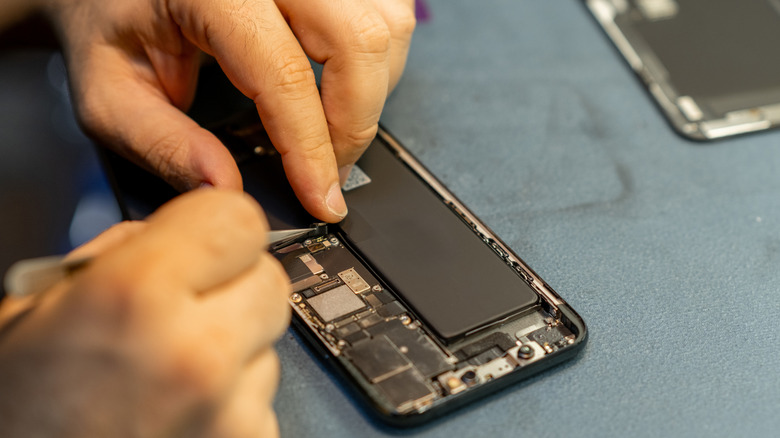
Accidents can happen with our smartphones sometimes, which might require us to take them to a technician. Even though we shouldn’t assume ill intent, any of us would be wary allowing a technician to access our phone and all of our private data and information. That stuff is meant to stay private, and the last thing we want is the prying eyes of a stranger looking through our stuff.
If you have an Android device — specifically a Pixel or a Samsung Galaxy running Android 14 and above — you’re in luck; both of these devices contain a private mode. It’s called Repair Mode on Pixels and Maintenance Mode on Samsung devices. It’s exactly what it sounds like; it allows the technician to use the phone as normal, which would also allow them to test that everything works, but they cannot access your data at all. It’s a great idea, and it definitely solves the privacy concern. If you cannot repair your smartphone yourself, this may be a good option.
How does Repair Mode work?
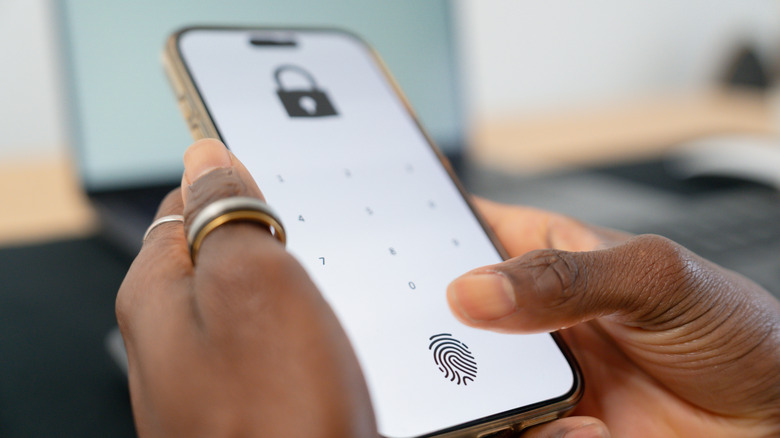
Activating Repair Mode is as easy as diving into the settings on your device and finding the option, which is in different places, deepening on which phone you have. You will be required to enter your phone’s PIN or password for extra security.
It works in a similar manner to Windows’ multiple desktop support. The phone behaves normally, but all of your data and files are completely inaccessible. The only thing is, if there’s a SIM card in the device, it can still pick up cellular signals, so if you’re wary of someone using your device and phone number to perform shady phone calls, remove the SIM card before handing it over.
The benefit is nobody will be able to see your stuff, and sometimes smartphone repairs can include something that would require using the phone’s software to make sure one or more of the features are working right. For example, if you needed one of the lens on the cameras replaced, the technician needs to open the Camera app to see if the replacement went successfully. The biggest problem is that this feature is currently only available on Google’s Pixel family and Samsung’s Galaxy family. Other Android devices don’t have it as of yet, which is a little disappointing. But if you have a supported device, this is an extra bit of security you can perform before handing your device over to the technician.
You must be logged in to post a comment Login