Tech
How to Use Your Phone as a Webcam on PC and Mac (2026)

You can use your iPhone or Android smartphone as a high-definition computer webcam using built-in operating system features—like Apple Continuity Camera on Mac or Microsoft Phone Link on Windows 11—or via third-party apps like DroidCam and Reincubate Camo over USB or Wi-Fi. This setup instantly replaces low-quality laptop cameras without requiring separate video capture hardware.
Most built-in laptop webcams utilize basic image sensors that struggle in low-light environments, produce grainy 720p footage, and lack autofocus precision. Modern smartphone cameras feature multi-lens arrays, advanced image signal processing (ISP), and high dynamic range (HDR) optics that outperform even mid-range standalone USB webcams. Repurposing your phone as a video feed is the most cost-effective way to achieve broadcast-quality video for remote meetings, online classes, or content streaming.
Quick Take: Choosing the Right Setup Method
The optimal method for converting your phone into a webcam depends on your mobile operating system, your computer OS, and whether you prefer a zero-software native pipeline or advanced manual camera controls.
| Method | Supported Devices | Connection Type | Max Resolution | Best For |
|---|---|---|---|---|
| Apple Continuity Camera | iPhone (iOS 16+) to Mac (macOS Ventura+) | Wireless (Wi-Fi/Bluetooth) or USB | 4K / 1080p 60fps | Mac users seeking zero third-party software installation. |
| Microsoft Phone Link | Android (Android 10+) to PC (Windows 11) | Wireless (Wi-Fi/Bluetooth) | 1080p | Windows 11 users wanting native wireless Android integration. |
| DroidCam | Android & iOS to Windows & Linux | Wi-Fi or USB Cable | 1080p (Pro) / Standard Def (Free) | Cross-platform users needing legacy Windows/Linux support. |
| Reincubate Camo | iOS & Android to Mac & Windows | Wi-Fi or USB Cable | 4K (Pro) / 1080p (Free) | Power users wanting manual exposure, LUTs, and studio framing. |
| Elgato EpocCam | iOS to Windows & Mac | Wi-Fi or USB Cable | 1080p (Pro) | Streamers integrated into the Elgato and Stream Deck ecosystem. |
Prerequisites and Hardware Requirements
Before configuring software protocols, prepare your physical and network environment to ensure stable video feeds and prevent hardware fatigue during extended video calls.
- Physical Mounting: Position your smartphone at eye level using a dedicated monitor mount, flexible tripod, or MagSafe desktop stand. Avoid leaning your phone against books or monitor bezels, as sudden shifts can disrupt autofocus or knock the device over during a live call. If your work involves presenting remote slide decks or facilitating interactive workshops, a stable mount ensures consistent framing alongside your home office tech setup.
- Connection Stability: Wireless connections require a strong 5 GHz Wi-Fi network with both devices connected to the same local subnet. For zero-latency transmission and uncompressed video, use a direct USB cable (USB-C to USB-C or USB-A to Lightning/USB-C). USB connections bypass network congestion and keep your phone charged.
- Power & Thermal Management: Video processing generates internal heat and drains smartphone batteries rapidly. Turn down screen brightness during calls, remove heavy protective cases if the phone feels hot, and keep the smartphone connected to an external power source or powered USB host port.
- Audio Configuration: Smartphone microphones are directional and sensitive, but using them across a room can introduce room echo. Pair your phone camera feed with a dedicated USB desktop mic or headset for optimal sound clarity. You can review recommended audio upgrades in our guide to the best budget microphones for home offices.
Path 1: Native Operating System Methods (No Apps Needed)
If you run modern operating systems on both your mobile device and computer, you can use built-in system features that require no third-party app installations.
Method A: Apple Continuity Camera (iPhone to Mac)
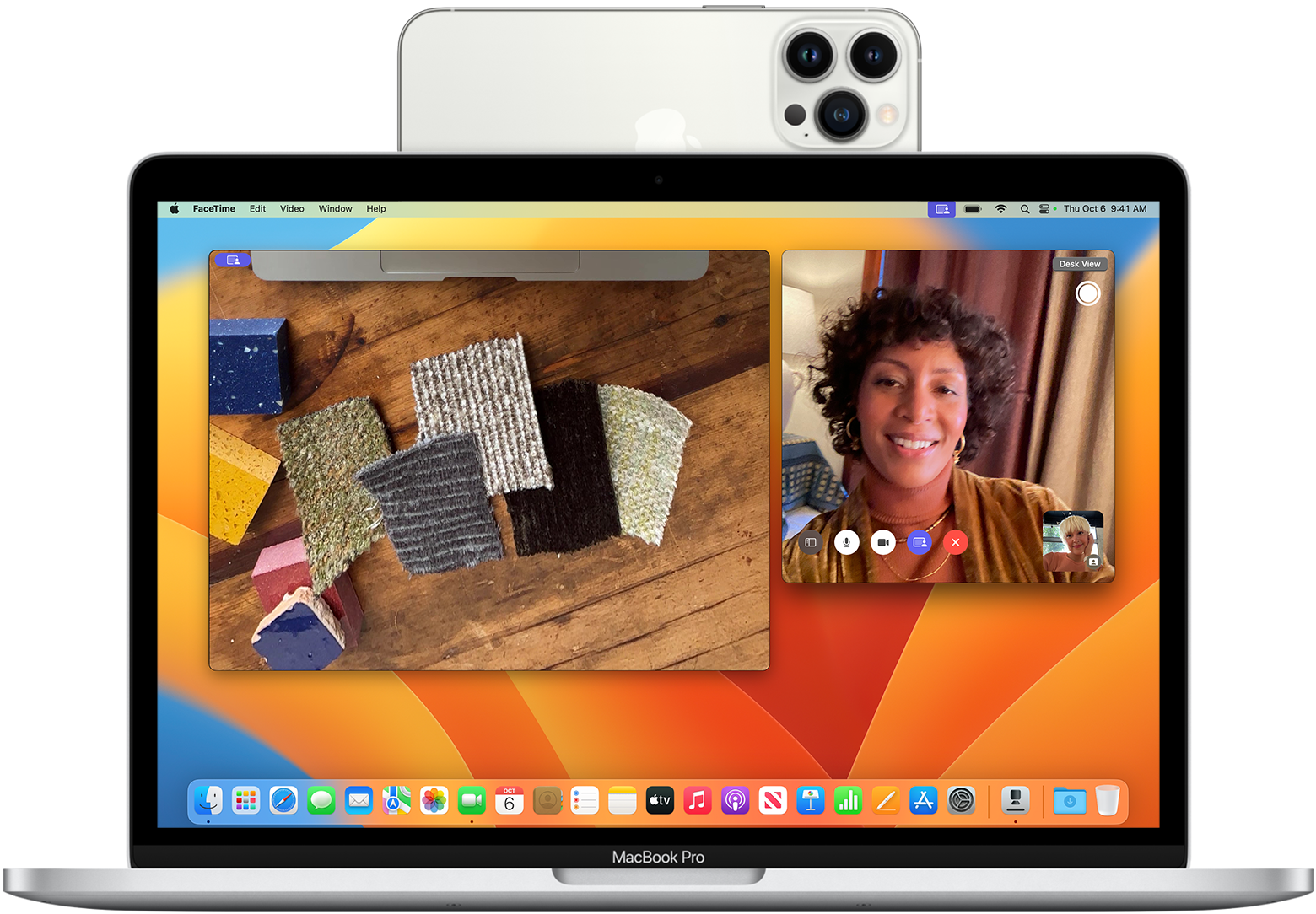
Apple’s native Continuity Camera protocol automatically recognizes a nearby iPhone as a high-definition webcam for any macOS video application, including Zoom, Microsoft Teams, FaceTime, and Web Browser instances.
System Requirements: An iPhone XR or newer running iOS 16 or later, and a Mac running macOS Ventura (13.0) or later. Both devices must have Wi-Fi and Bluetooth enabled and be signed into the same Apple Account with two-factor authentication enabled. Per Apple Support details on Continuity Camera, the feature operates both wirelessly and over a wired USB cable.
- Enable Continuity Camera: On your iPhone, open Settings > General > AirPlay & Continuity and ensure Continuity Camera is toggled ON.
- Mount the Device: Mount your iPhone near your Mac in landscape orientation with the rear camera facing you. Lock the iPhone screen.
- Select the Input in Meeting Software: Open your preferred conferencing software (e.g., Zoom, Google Meet, or FaceTime). Access the app’s video settings menu and select your iPhone under the camera device dropdown list.
- Configure Video Effects: On your Mac, click the Control Center icon in the top menu bar and select Video Effects. Toggle features such as:
- Center Stage: Keeps you centered in the frame as you move around.
- Portrait Mode: Blurs your physical background using hardware depth mapping.
- Studio Light: Artificially brightens your face while dimming background glare.
- Desk View: Simulates an overhead camera angle to show your physical desk surface using the ultra-wide lens.
Method B: Microsoft Phone Link (Android to Windows 11)
Microsoft natively integrates Android camera feeds directly into Windows 11 using the built-in Phone Link ecosystem, allowing your Android device to appear as a standard UVC camera across all desktop applications.
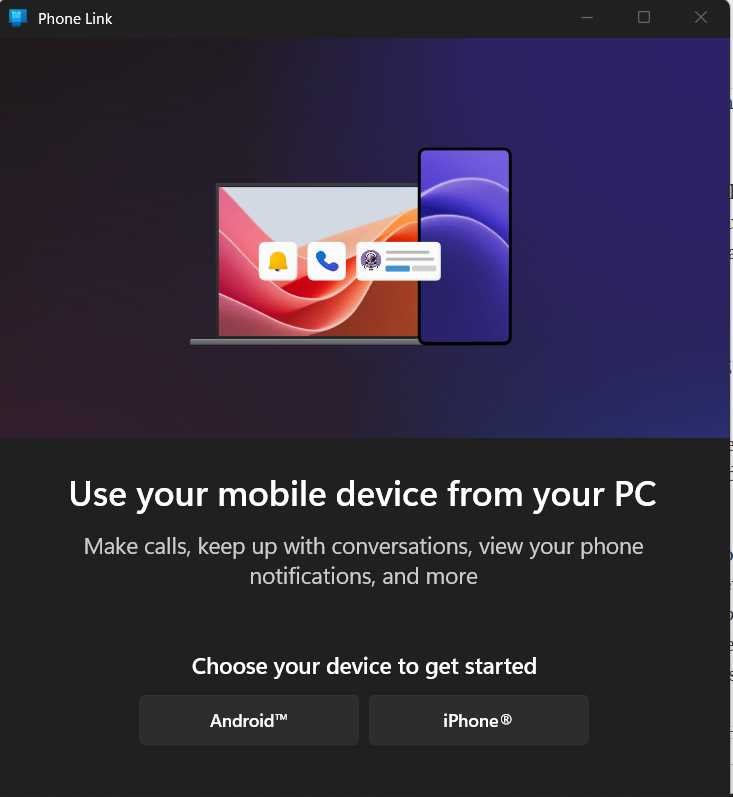

System Requirements: A PC running Windows 11 with the latest system updates, an Android smartphone running Android 10 or newer, and the Link to Windows mobile app version 1.24022.0 or later. Official setup guidelines are detailed in Microsoft Support instructions for mobile camera usage.
- Link Android to Windows: Open the Phone Link application on Windows 11. On your Android phone, open the Link to Windows app and scan the QR code displayed on your PC screen to complete Bluetooth and Wi-Fi pairing.
- Enable Camera Sharing: On your Windows 11 PC, open Settings > Bluetooth & devices > Mobile devices. Click Manage devices and ensure your paired Android device is toggled ON under “Use as connected camera.”
- Authorize Android Permissions: When prompted on your smartphone screen, grant permission for Link to Windows to access your mobile camera.
- Select Camera Source: Open your desktop video calling software, access the video preferences menu, and select your Android phone from the available camera list. A floating toolbar will appear on Windows 11, letting you toggle between front and rear lenses, pause the feed, or apply background blur.
Path 2: Cross-Platform & Legacy Setup via Third-Party Apps
If you use mixed ecosystems (such as an Android phone with a Mac, or an iPhone with a Windows 10/11 PC), third-party webcam client utilities bridge the connection reliably over Wi-Fi or USB cables.
Option 1: DroidCam Setup (Android/iOS to Windows/Linux)
DroidCam by Dev47Apps is a lightweight utility that creates a virtual webcam driver on your PC, routing video and microphone audio directly from your smartphone.
- Download Software Components: Download the mobile app from the Google Play Store DroidCam page (or Apple App Store for iOS). Next, download and install the Windows or Linux desktop client directly from the Dev47Apps DroidCam official connection portal.
- Connect via Wi-Fi:
- Ensure your PC and phone are connected to the same Wi-Fi network.
- Launch the DroidCam app on your phone. Note the Wi-Fi IP (e.g.,
192.168.1.15) and DroidCam Port (default is4747). - Open the DroidCam Client on your PC. Select the WiFi/LAN connection icon.
- Type the exact Device IP and Port numbers shown on your phone into the PC client fields. Check both Video and Audio boxes, then click Start.
- Connect via USB (Low Latency / High Reliability):
- On Android: Enable Developer Options by tapping your device’s Build Number 7 times in Settings > About Phone. Open Developer Options and switch USB Debugging to ON.
- Connect your phone to your PC using a USB data cable. If prompted on your phone, tap Allow USB Debugging.
- In the PC DroidCam client, select the USB icon, click the Refresh button to locate your device, and click Start.
- Configure Call Software: Open Zoom, Microsoft Teams, or Google Meet. In the audio/video settings menu, select DroidCam Source 2 (or Source 3) as your video camera, and DroidCam Virtual Audio as your microphone input. If you host multi-party teleconferences frequently, review our guide on how to hold a video conferencing meeting effectively.
Option 2: Reincubate Camo Setup (iOS/Android to Mac/Windows)
Reincubate Camo provides comprehensive control over smartphone optics, offering fine-tuned adjustments for exposure, focus, color temperature, and lens selection across both macOS and Windows environments.
- Install Client Software: Install the Camo app on your iPhone or Android phone via the Camo iOS App Store listing or Play Store. Download and install Camo Studio on your Mac or Windows PC.
- Pair Devices: Connect your smartphone to your computer via USB cable (or pair wirelessly over Wi-Fi by scanning the Camo Studio QR code). Open Camo Studio on your computer.
- Adjust Optics and Image Profiles: Use the Camo Studio interface on your desktop to switch between Ultra-Wide, Wide, and Telephoto lenses. Adjust digital zoom, crop, frame rates, and color balance without touching your physical smartphone.
- Select Camo Virtual Camera: Open your conferencing app and choose Camo Camera as your active video input source.
Option 3: Elgato EpocCam Setup (iOS to Windows/Mac)
Part of the Corsair/Elgato ecosystem, EpocCam is designed specifically for iOS users who want seamless integration with streaming tools and Elgato Stream Deck controllers. Additional information and setup files are available on the Elgato EpocCam official product hub.
- Download the EpocCam app on your iPhone and install the Camera Hub drivers on your macOS or Windows computer.
- Restart your PC or Mac after driver installation completes to register the virtual camera service.
- Connect your iPhone over Wi-Fi or USB, open Camera Hub on your computer, and select EpocCam inside Zoom, OBS Studio, or Microsoft Teams. If you stream using OBS, you can learn more about scene composition in our tutorial on OBS Studio streaming setup basics.
App Comparison: DroidCam vs. Camo vs. EpocCam vs. Native Solutions
When selecting the right mobile webcam application for your workflow, evaluate free resolution caps, license pricing, overlay features, and resource consumption.
| Feature / App | Apple Continuity Camera | Microsoft Phone Link | DroidCam (Dev47Apps) | Reincubate Camo | Elgato EpocCam |
|---|---|---|---|---|---|
| Free Tier Limit | 100% Free (Native) | 100% Free (Native) | Standard Def (480p), Ads included | 1080p, basic lens controls, subtle watermark | 720p, mono audio, watermark |
| Paid Tier Pricing | N/A | N/A | ~$5.00 one-time (DroidCamX Pro) | ~$4.99/mo or $39.99/year (Camo Pro) | ~$7.99 one-time (EpocCam Pro) |
| Max Resolution | 4K / 1080p | 1080p | 1080p (Pro) / Up to 4K (OBS Plugin) | 4K (Pro) | 1080p (Pro) |
| Desktop OS | macOS only | Windows 11 only | Windows, Linux | macOS, Windows | macOS, Windows |
| Manual Controls | Basic (Apple Video Effects) | Basic (Toggle lens, pause) | Moderate (Focus, brightness, contrast) | Advanced (LUTs, ISO, Shutter, Lenses) | Moderate (Filters, Stream Deck integration) |
How to Test and Calibrate Your Mobile Webcam
Before jumping into a critical job interview or live presentation, test your video feed locally to verify image clarity, framing, and audio sync.
- Test Hardware Permissions: On Windows 11, open Settings > Bluetooth & devices > Cameras and click your connected mobile device to check the live video preview. On macOS, open the native Photo Booth or FaceTime app to confirm camera detection. If your operating system experiences driver glitches, see our guide on troubleshooting steps for general OS and software permission fixes.
- Check Exposure & White Balance: Point your camera toward your face, avoiding strong light sources directly behind you (such as open windows). If using DroidCam or Camo, lock exposure and focus in the desktop app to prevent the camera from continuously hunting for focus when you move your hands.
- Verify Latency & Audio Sync: Clap your hands in front of the camera while monitoring the live desktop preview. If the video lags behind the audio by more than a quarter-second, switch from Wi-Fi to a direct USB connection. If network dropouts persist, inspect your home network using our guide to optimize Wi-Fi for video calls.
Troubleshooting Common Mobile Webcam Failures
Even robust mobile webcam setups can run into technical bottlenecks. Below are diagnosis steps for common failure modes.
Issue 1: Device Not Found / IP Connection Fails
- Cause: Your phone and computer are on isolated Wi-Fi bands (e.g., one on 2.4 GHz, the other on 5 GHz) or the router has AP (Access Point) Isolation enabled.
- Fix: Access your router’s administration panel and disable AP Isolation. Ensure both devices are connected to the identical SSID. If the DroidCam phone app displays an IP address of
0.0.0.0, your phone is disconnected from Wi-Fi; toggle Wi-Fi off and on again. Switch to a USB cable connection if local wireless interference is severe.
Issue 2: Black Screen or Permission Denied Error
- Cause: Mobile privacy settings are blocking camera access, or another desktop app is hogging the virtual camera driver exclusively.
- Fix: Close all running video apps (Zoom, Skype, OBS, Webex, Teams) on your computer. Open your phone’s Settings > Apps, locate DroidCam, Link to Windows, or Camo, and explicitly grant Camera and Microphone permissions. Restart the PC client app.
Issue 3: Rapid Battery Drain and Overheating
- Cause: High-resolution continuous video encoding combined with screen backlight operation generates extreme internal heat, causing thermal throttling and battery depletion.
- Fix: Lower the resolution output from 4K/1080p to 720p inside your app preferences. In DroidCam or Camo settings, set the mobile app screen to turn off or dim automatically after establishing a connection. Keep your phone connected to a high-wattage USB charger rather than a low-power un-bus-powered USB hub.
Where This Approach Has Limits
While smartphone webcams deliver superior image quality compared to low-cost webcams, they are not a complete replacement for dedicated, permanently mounted cameras in every scenario.
- Interruptive Mobile Events: Incoming cellular calls, alarms, or push notifications can interrupt active video feeds depending on your mobile operating system and application setup. Enabling Do Not Disturb mode during meetings is mandatory.
- Sensor Heat Limits: Prolonged video sessions exceeding 2 to 3 hours can cause thin smartphones to reach high thermal thresholds, resulting in dropped frame rates or temporary camera shutdowns.
- Focal Distance & Lens Distortion: Smartphone wide-angle lenses are engineered for handheld photography. When placed 18 to 24 inches from your face on a desk mount, fixed wide lenses can slightly distort facial proportions unless digital crop or optical telephoto lenses are applied via apps like Camo.
Key Takeaways
- Native First: If you use an iPhone with a Mac, rely on Apple Continuity Camera for zero-setup 4K/1080p video. If you use an Android device with Windows 11, use Microsoft Phone Link.
- Third-Party Versatility: For cross-platform or legacy setups, DroidCam offers the best budget-friendly USB and Wi-Fi drivers, while Reincubate Camo provides professional-grade optical controls and color grading.
- Prefer USB over Wi-Fi: Wired USB connections eliminate wireless signal degradation, reduce audio sync latency, and maintain device power during long conferencing calls.
- Mount Properly: Invest in an eye-level smartphone desk mount or MagSafe stand to ensure ergonomic viewing angles and clear framing.
Frequently Asked Questions
Can I use my smartphone as a webcam while keeping it plugged into a charger?
Yes. Keeping your smartphone connected to a USB port on your computer or an external power adapter is strongly recommended. Continuous camera capture and wireless video encoding draw significant battery power, so maintaining a wired power supply prevents unexpected shutdowns during long video calls.
Why does my smartphone get hot when used as a computer webcam?
Capturing uncompressed video, encoding real-time camera streams, and transmitting data continuously over Wi-Fi or USB requires high CPU and GPU utilization on mobile chips. To reduce heat, dim your phone’s screen, lower the resolution setting to 720p or 1080p 30fps, and avoid leaving the phone in direct sunlight.
Can I use my smartphone’s microphone along with its video feed?
Yes. Most utilities, including DroidCam, Camo, and Apple Continuity Camera, register virtual audio drivers on your computer alongside the video source. You can select your smartphone microphone inside Zoom, Teams, or Google Meet, though a dedicated external desktop USB microphone will deliver superior acoustic quality.
You must be logged in to post a comment Login