Tech
I Experienced Dolby Vision 2 On A Hisense RGB Mini-LED TV, And It’s A Must-have Feature

“It looks better.” That’s the thought that immediately ran through my head when I turned on the Hisense UR9 RGB Mini-LED TV after it received its long–awaited Dolby Vision 2 Max update. The update arrived unannounced one evening as I sat down to re-watch an episode of Pluribus. I installed it, went back to watching, and it was like I was staring at an entirely new TV.
Dolby Vision 2 is an updated version of the Dolby Vision HDR format that brings several important upgrades. On the display side, TVs that support Dolby Vision 2 primarily benefit from a new “image engine” designed to enhance not just forthcoming content with Dolby Vision 2 metadata, but legacy Dolby Vision content as well.
On the creative side, Dolby calls its new tool set Content Intelligence, and this lets producers safeguard their carefully mastered works from the vagaries of home viewing conditions, with everything from dark mancaves to well-lit living rooms accounted for. Regular Dolby Vision already did this to an extent by dynamically tone mapping images to fit the specific brightness capabilities of TVs, and it has been helped along by features such as Dolby Vision IQ, which uses the TV’s light sensor to automatically adjust brightness based on room lighting. But the more powerful processors and higher brightness capabilities of newer TVs allow for even more advanced features, which is where Dolby Vision 2 steps in.
Future TVs supporting the basic version of the new format will provide Dolby Vision 2 picture modes with an “intensity slider” allowing for user adjustment. TVs that support Dolby Vision 2 Max, a group that at present is limited to the 2026 Hisense UX, UR9, UR8, and U7 series (the first models to get the update, which is rolling out now) and TCL X11L and QM8L series (update expected in late 2026) will benefit from these additional features:
- Authentic Motion – Lets creatives dynamically adjust picture frame rates to eliminate motion judder when played back on TVs supporting the feature.
- Light Sense 2 – An evolution of Dolby Vision IQ that dynamically adjusts picture brightness based on room lighting conditions without compromising black levels.
- Pro settings – Dolby Vision 2 picture modes and settings that allow for additional adjustment of parameters including white balance.
Dolby has stated that Dolby Vision 2 content will be available in the future on streaming sources including CANAL+, iQIYI and Peacock. It’s possible it will also be used for mastering 4K Blu-ray discs, though there have not yet been any official announcements from the Blu-Ray Disc Association for confirm this. For now, however, Dolby Vision 2 can be used to enhance the massive library of existing Dolby Vision content, and the benefit of the new image engine is easy to appreciate.

The New Modes
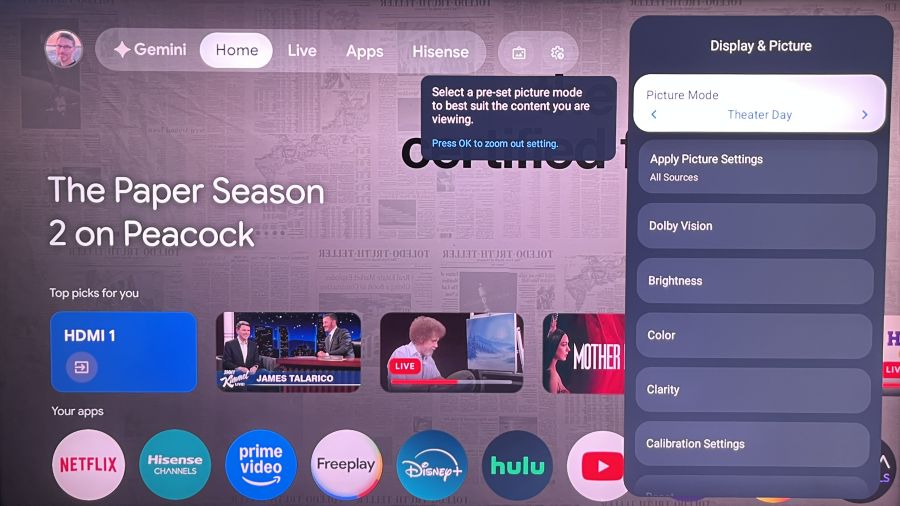
When you look at the Picture Settings menu on a Dolby Vision 2-supporting TV such as the Hisense UR9, you’ll see a new tab in the Display & Picture menu labeled Dolby Vision. Clicking this calls up a Dolby Vision 2 menu, where you can view a sample clip and preview a selection of related menu settings even when the TV isn’t playing Dolby Vision content.
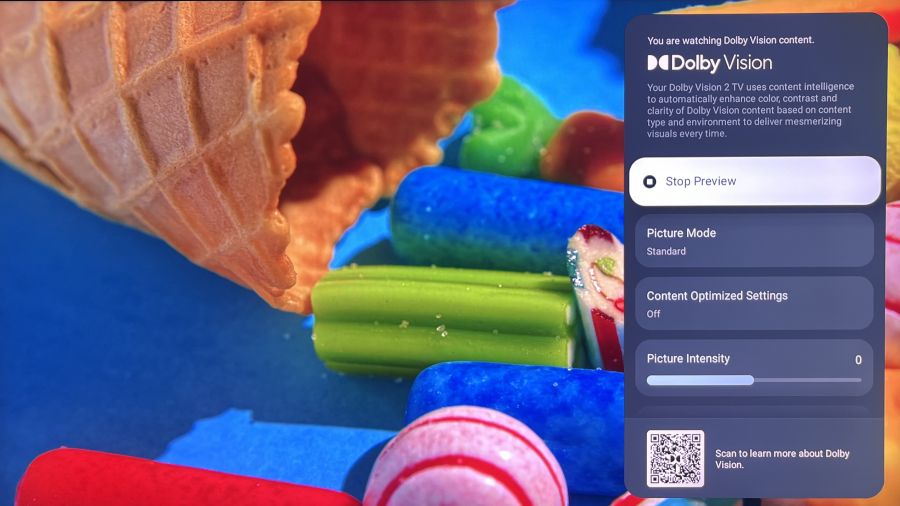
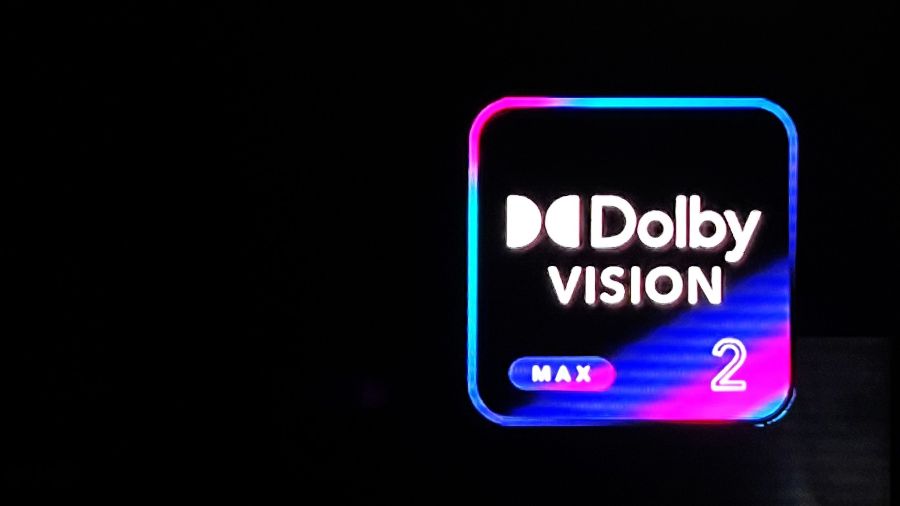
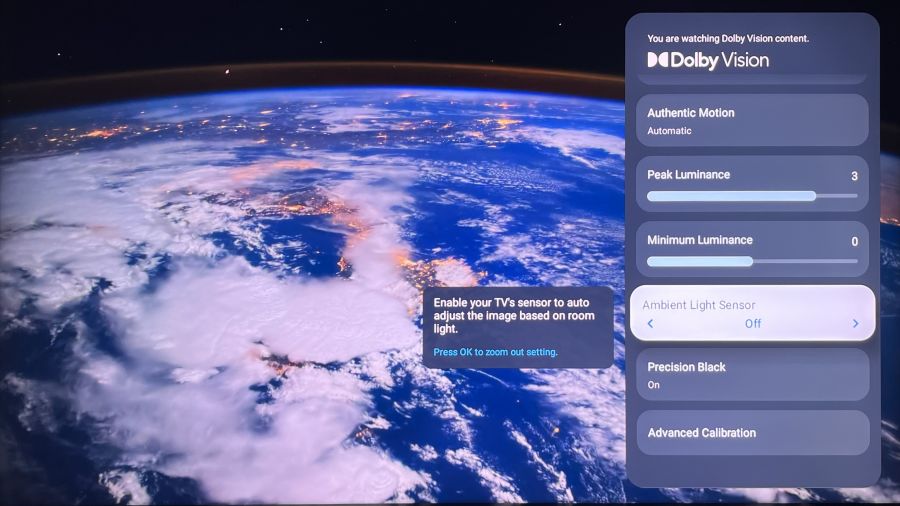
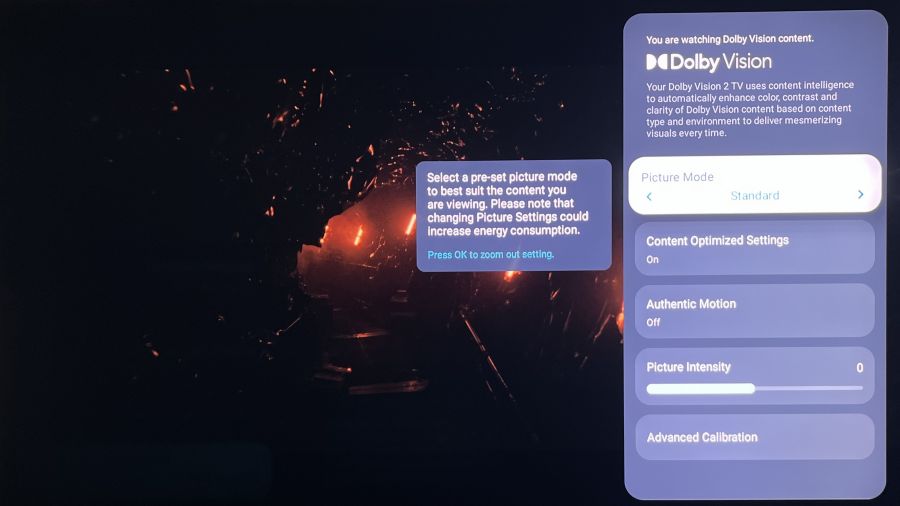
When you are playing actual Dolby Vision content, a Dolby Vision 2 logo pops up at the screen’s upper right, and clicking that same Dolby Vision tab in the Display & Picture menu will reveal a settings and adjustment menu with various presets. Custom and Game are two basic ones, with each providing only a Picture Intensity slider to boost or reduce the effect of the image engine, which adjusts multiple picture parameters at once. The Standard and Pro Reference presets both feature additional adjustments. Some of these can be used now for existing Dolby Vision programs, while others, like Authentic Motion and Precision Black, are intended for future Dolby Vision 2-authored content, and can be enabled by turning on the Content Optimized settings switch.
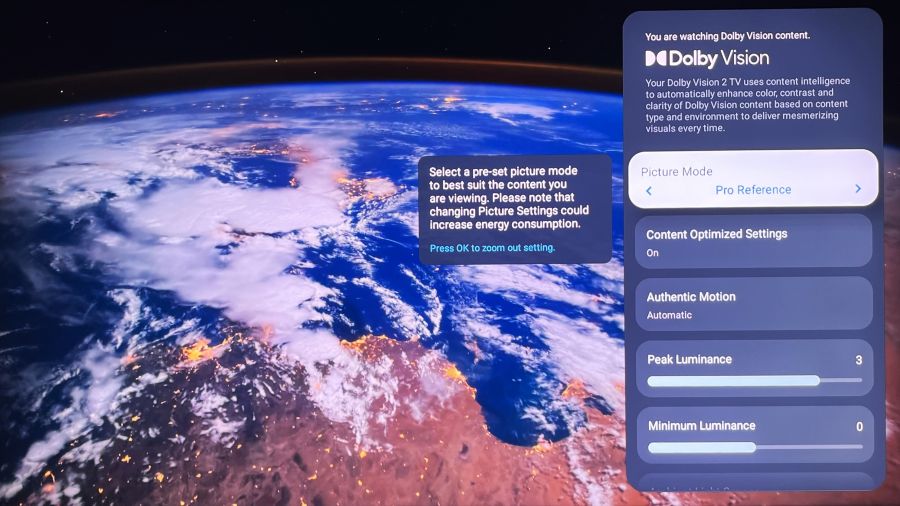
Along with a Picture Intensity slider, the Standard preset features an Advanced Calibration menu with a 20-point white balance adjustment. The Pro Reference preset also provides an Advanced Calibration Menu, but in place of the Picture Intensity slider it has Peak Luminance and Minimum Luminance adjustments that let you set your own tonal curve for the high and low ends of the brightness range.
Upping the Intensity
After playing with the various Dolby Vision 2 presets, I found that Standard provided the most consistently satisfying picture quality enhancement. It could sometimes make blacks look a bit elevated, but for the most part, all of the Dolby Vision content I watched looked significantly better.
The Dolby Vision 2 Picture Intensity slider provides five steps in either direction of the zero default to boost or reduce enhancement, with the -5 setting effectively turning it off. When watching a few reference Dolby Vision movie scenes on 4K Blu-ray, even with the Picture Intensity slider at its default zero setting I noted an increase in color richness and shadow and highlight detail. The effect made darker scenes in the James Bond film No Time to Die noticeably more three-dimensional. And in the movie’s brighter scenes, the boost in color richness and detail didn’t negatively impact the naturalness of skin tones.
I found the benefits of Dolby Vision 2 most apparent when watching scenes from House of the Dragon on HBO Max. This show has many interior shots that take place in dark castles, and it can be difficult to make out objects, and even characters, in the gloomy backgrounds. But watched with the Dolby Vision 2 Standard preset active on the Hisense UR9, those same dim scenes had a more lively and detailed look while maintaining solid contrast. Colors, such as the crimson of a robe worn by Rhaenyra, were also now visible in certain shots where they had previously appeared muted. It’s almost as if Dolby Vision 2 was created specifically to improve the look of House of the Dragon.

The Pro Reference preset also improved the appearance of Dolby Vision content at its default settings, though I found pictures looked flatter than with Standard when I tested it. For example, when I watched the “space waltz” scene from 2001: A Space Odyssey, where floating spaceships are accompanied by The Blue Danube, the picture in Pro Reference lacked the same level of visual “pop” as in Standard, which retained a full level of highlight detail even with the Picture Intensity slider pushed to its maximum setting. Adjusting the Pro Reference mode’s Peak Luminance and Minimum Luminance sliders let me get results that were reasonably close to Standard, but the latter still delivered a richer, more detailed and three-dimensional looking picture.
The Bottom Line
I’ll need to evaluate the Dolby Vision 2 on more than one TV to get a complete idea of its effect on regular Dolby Vision content – something that presumably can happen when TCL updates its sets with the feature. In the meantime, I’m thoroughly impressed with the improvements Dolby Vision 2 has brought to the Hisense UR9. I’ll admit to having considered Dolby Vision 2 mainly as a “future” thing that would only matter when actual Dolby Vision 2 content became available. But based on the picture quality enhancements I’ve already seen it bring to regular Dolby Vision content, Dolby Vision 2 looks to be a must-have feature.
You must be logged in to post a comment Login