
Lepow 16″ Quad Monitor for Laptop: 30-second review
The Lepow 16″ Quad Monitor for Laptop is an innovative multi monitor design that essentially enables you to take the office with you. The four monitor set, stand and backpack is available as a complete system.
The build quality matches that of the TriScreen Pro side panels that I recently reviewed..
The set also comes with a stand which considering it’s robust construction is surprisingly lightweight, and offers decent stability for the monitors through the test.
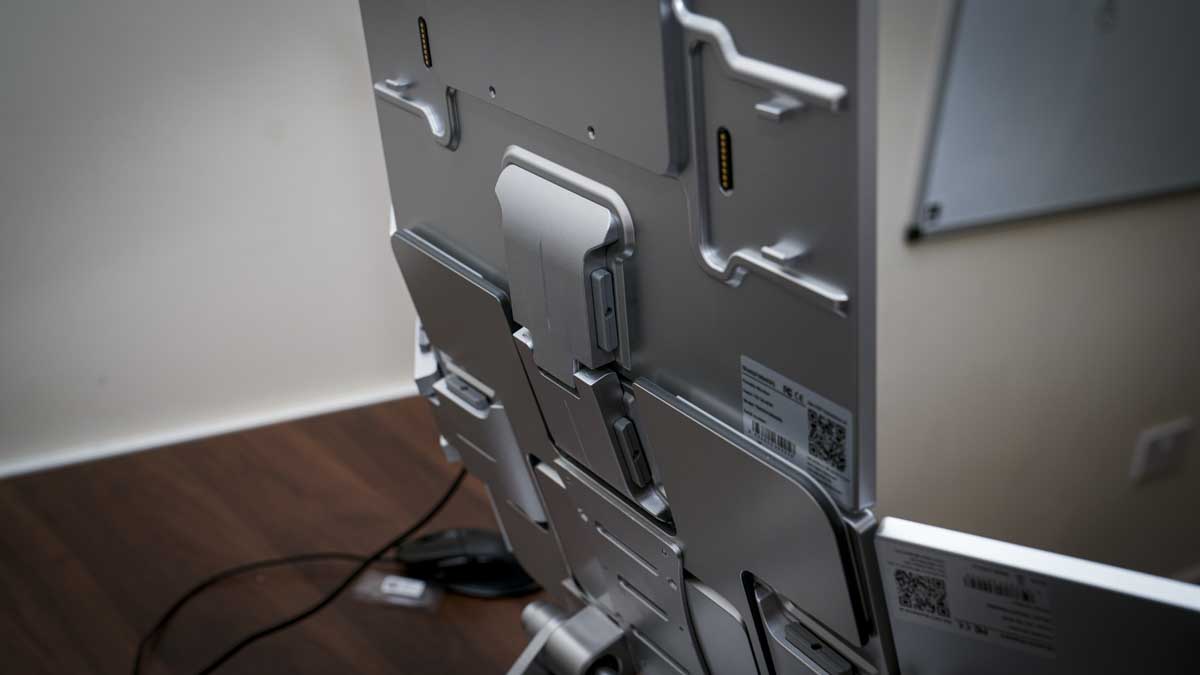
The monitors themselves are linked with the Transformer connectors, the same as those used on the TriScreen Pro, and as I found with that monitor setup the same is true here, careful alignment, then a firm press and a wiggle and click to ensure that everything is locked into place.
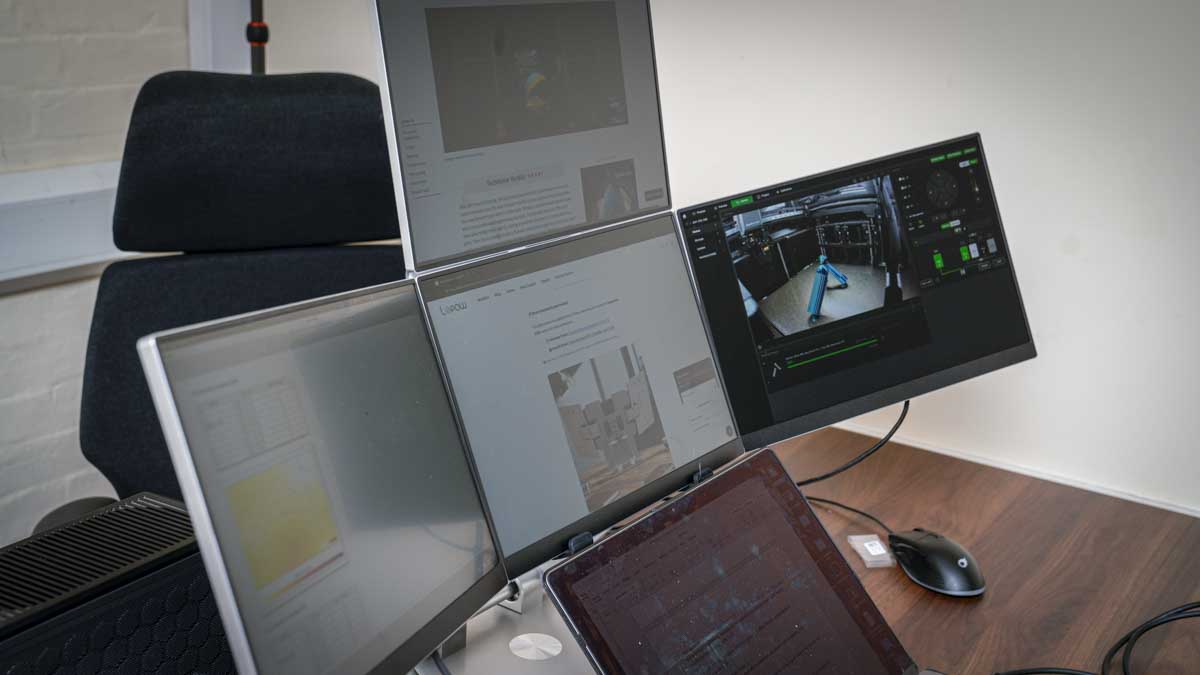
Once connected, the panels form a solid visual array with a decent of articulation once you discover that theres’s additional flex in the connectors once you pull the two ends apart, once you get that shift in angle you can position them around or above your laptop screen.
For most of the test, I used the screens with my MacBook Pro M1 Max, and, as with the TriScreen, you need the USBDisplay app to get everything working; without it on the Mac at least, you’ll just see four blank monitors.
The installation process for USBDisplay does require a series of special permissions to be granted under Privacy and Security. Once done, the app lets you change the orientation of the screens via a menu accessible by clicking the icon at the top of your screen.
If you want to rotate a panel from horizontal (landscape) to vertical (portrait), you do it physically by unclipping the monitor and then clipping it back in your intended orientation, and then you can access the app to correct the orientation.
The screen arrangement is, as ever, configured through the main display settings for the OS, whether Windows or macOS.
In use, having four 16-inch panels arranged around my MacBook Pro was genuinely useful and offered a great way to organise my workspace, allocating an application to each screen. I found that I essentially had five displays: the main MacBook display, then the four mounted above.
While all the displays are identical in size, I used one as the main display, and the others for all other windows and content. The main Laptop screen I left empty for use with any color-critical apps I needed.
The display quality as covered by the benchmarking was good, although the results and specifications highlight the limited resolution, color accuracy and refresh rate; however, in a work environment and for pure productivity, the system, with the solid stand, absolutely makes sense and works exceptionally well.
Lepow 16″ Quad Monitor for Laptop: Price and availability

- How much does it cost? From approximately $1059
- When is it out? Available now
- Where can you get it? Directly from Lepow official store
The Lepow TriScreen Pro is available now direct from Lepow’s website here, where you can select between triple and quad display systems. At time of review, it’s priced at $769 (down from $819).
You can order the system with a US, UK, AU, JP, EU, and KR plug, depending on where in the world you’re based.
The system includes four 16-inch panels with proprietary connectors, an HDMI cable, a USB-C cable, a power supply, and a carry case.
Lepow 16″ Quad Monitor for Laptop: Specs
Screens: 4 × 16-inch IPS matte anti-glare
Resolution: 1920 × 1200
Aspect ratio: 16:10
Brightness: 400 nits
Contrast: 1500:1
Color gamut: 100% sRGB
Refresh rate: 60Hz
Connector: Proprietary Transformer magnetic connector
Host connection: USB-C (data) + USB-A or USB-C (power)
Driver: One-time installation required
Dimensions: 420 × 360 × 30mm per panel
Lepow 16″ Quad Monitor for Laptop: Design
Each of the four 16-inch panels in the Lepow 16″ Quad Monitor for Laptop are identical, with a thin, lightweight construction that enables them to pack into the supplied backpack and makes everything ultra portable.
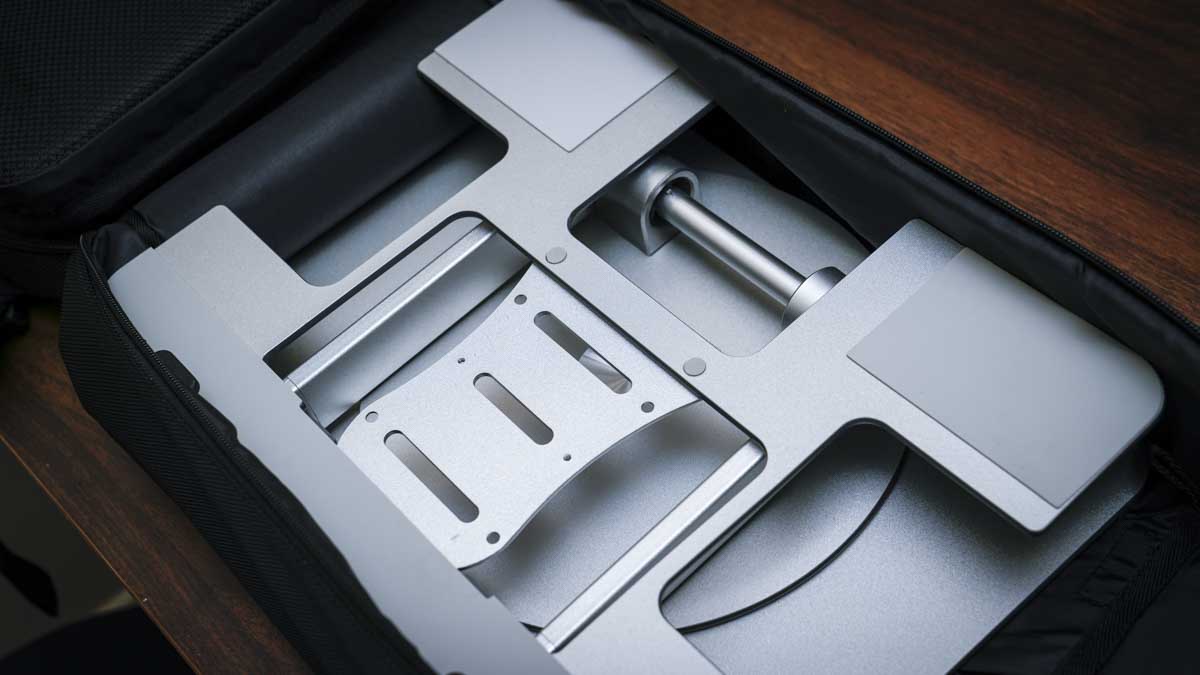
When it comes to the size and weight of each, the monitors weigh 1050g per unit and measure 420 × 360 × 30mm. When the kit arrives, everything is nicely boxed, but it’s worth assembling before use just to check on the construction. I noted that the central monitor really needs to be screwed into the stand using the VESA mounting holes. Otherwise, once the other monitors are attached, it can feel unstable; attaching the monitor fixes this.
That said if you need to transport it in the back pack the monitor really needs to be detached from the stand to avoid it getting damaged, so I found securing it with two of the four screws saved time when disasembling, this is definately something in the design that needs reworking.
Each display is otherwise identical, with a matte IPS panel, a slim profile, and a finish that gives them a premium look, which is reflected in the price. Unlike the large 27-inch display from Lepow that I looked at recently, these are lightweight with a polymer composite build rather than metal, which makes each panel relatively light, which is handy due to their intended portability. The actual construction feels robust, the panels are rigid, and there is no flex when handling them, which is relevant when attaching the Transformer connectors.
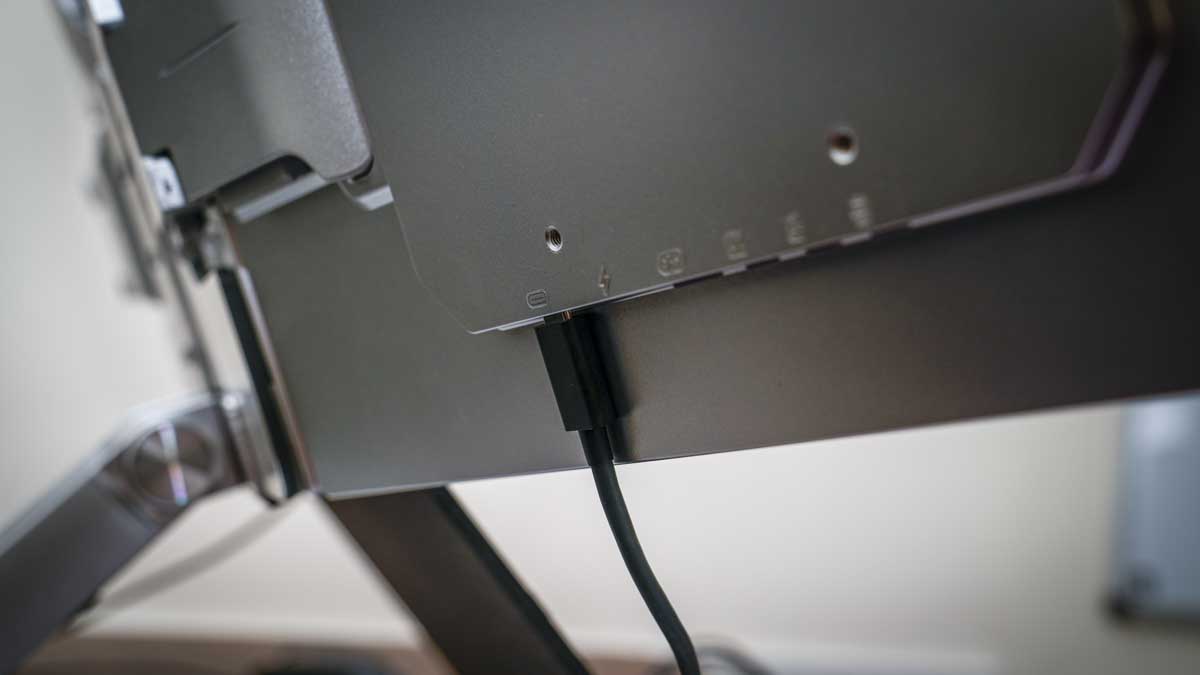
The Transformer connectors are a real innovation and allow each monitor to connect seamlessly, and then there are just two cables that are needed to connect to the laptop and power. Each monitor has two USB-C ports: one for the display and the other for power, and it’s up to you which you use to connect to the system.
The Transformer connectors then carry the data to each of the other monitors without the need for additional cables.
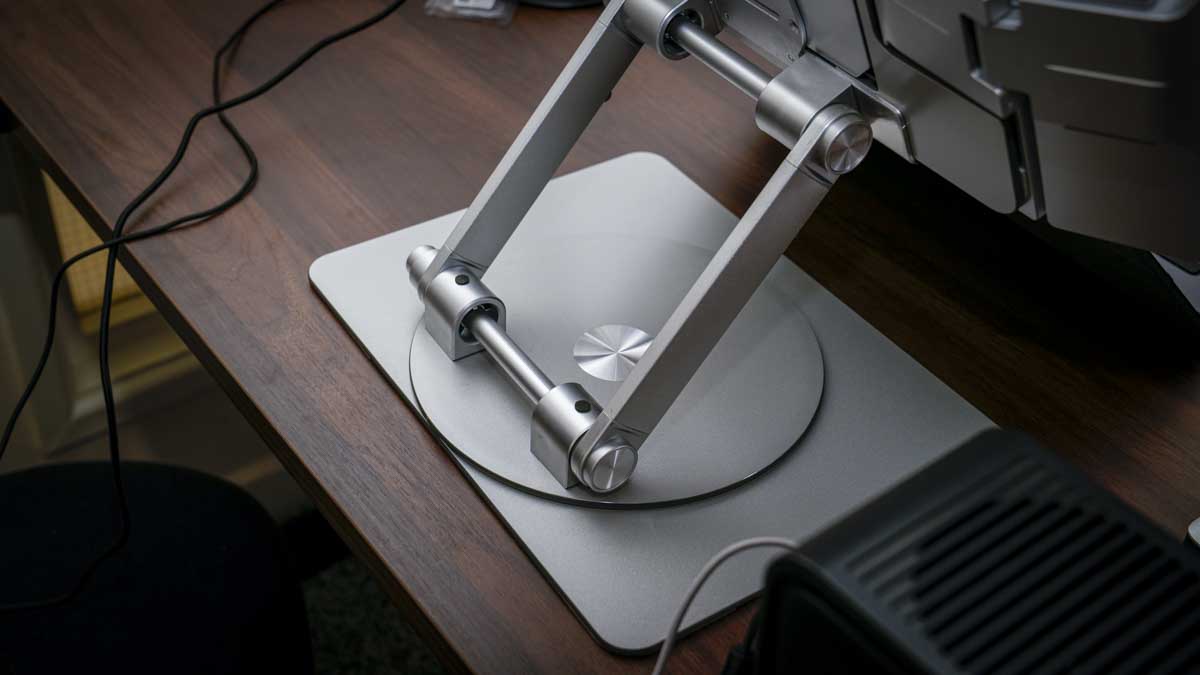
Each monitor in the review kit is identical, and these can be mounted on the lightweight CNC’d aluminium stand. This is incredibly lightweight, a perfect design for a portable system like this, and provides a good, solid base to support the weight of the monitors.
Once the first monitor is placed in the stand, the others can be clipped on, and, as previously mentioned, screwing the central monitor into the stand ensures absolute stability, this is a bit of a design flaw and not ideal.
It does take a few minutes to assemble and connect, but once done, the setup is solid and essentially lets you set up a larger workspace with plenty of screen real estate in a relatively space-limited location.
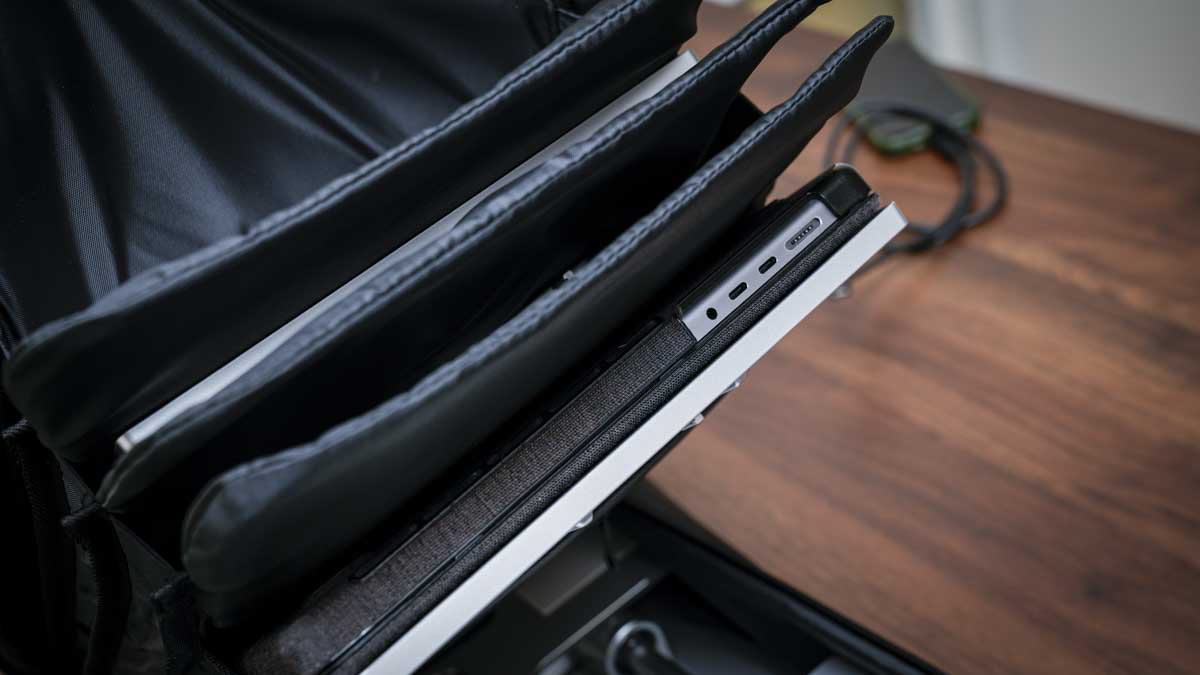
Then at the end of your work session, the breakdown of all the components is relatively quick, and everything, including your laptop, can be neatly packed into the backpack along with the cables and charger. It’s a tight fit, but there is room.
Lepow 16″ Quad Monitor for Laptop: Features
The Lepow 16″ Quad Monitor is a modular display system that’s been designed to work alongside your laptop to expand on the screen space you have available.
Each monitor features three connection points: one on each side and one on top, so you can configure the system as you want. For instance, you could have four panels in a horizontal row, a vertical stack, a mixed landscape-and-portrait that wraps around your laptop screen, a 2×2 grid, or in a triangle for meets where all participants can see a screen.
In practice, the configuration I found most useful for day-to-day work had two panels in landscape mode above the laptop screen and one on each side also in landscape mode. I tried portrait, but I think that’s going to take a mind shift on my behalf. This configuration kept a relatively low profile while still providing plenty of screen space.
This meant I could keep my main applications centre focus, with email and music on the side panels, and an additional browser window open at the top. Everything was always visible, and there was never a need to switch between applications as you do when using a single panel.
While PC users are used to this multi-screen display, Mac users often face constraints, and this system requires some initial setup with the USBDisplay App. Once installed however, you’re good to go.
One interesting feature of the monitors is that, as they’re designed for productivity and office work, the aspect ratio is 16:10 rather than the more common 16:9. This just means you have additional screen height for email, document editing, spreadsheets, and web browsing in landscape orientation, and more horizontal width in portrait. This format really does make sense for the intended use.
Switching between display modes, like turning a screen from horizontal (landscape) to vertical (portrait), has two steps: physically move the panel, then choose the correct option in the USBDisplay menu bar app.
The monitors switch relatively quickly, and the other part is to change the monitor arrangement in the operating system’s display settings. This takes only a few seconds and is easy after a couple of goes. The USBDisplay app is extremely simple and one of those single-screen support programs that runs in the background until you need it, when it can be accessed from the menu bar.
While the system is designed for multiple monitors, the modular approach means you can use one, two, three or all four even on a Mac.
If you need however, each panel can operate as an independent USB display with its own power and data connections, so if you want to travel with just one additional monitor for your laptop, then you can.
Lepow 16″ Quad Monitor for Laptop: Performance
Benchmark scores
Spyder X2 Calibration Results
Gamut: 5.0/5
Tone Response: 4.5/5
White Point: 2.5/5 | Measured 7200–7500K
Contrast: 5.0/5 | Peak 1700:1 at 25% brightness
Luminance Uniformity: 2.5/5
Color Uniformity: 4.5/5
Color Accuracy: 3.5/5
Overall Rating: 4.0/5
Peak brightness (measured): 333.2 nits at 100%
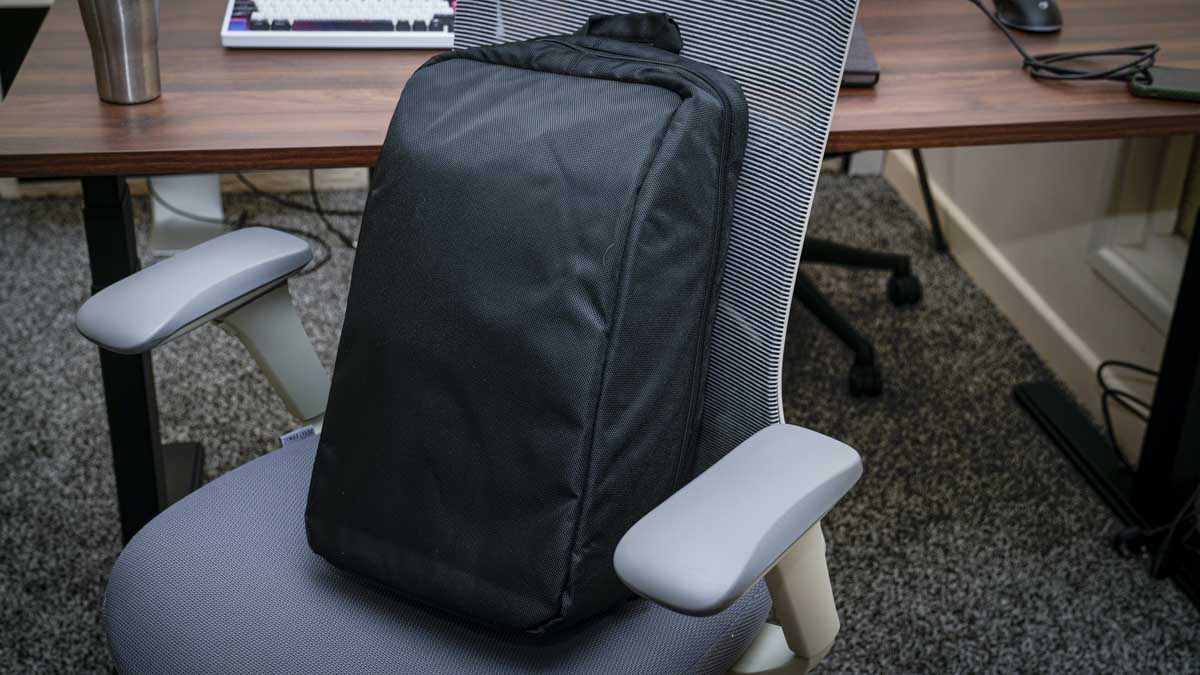
Through this test, I was surprised by just how portable these monitors were, and while the supplied backpack was quite plain and uninspiring, it was perfectly sized to hold all four panels, with seperate sections for each, as well as a large cavity for the stand, and still room to squeeze in my 16-inch MacBook Pro.
The backpack was a little weighty, but no more than my usual work camera backpack, and perfectly acceptable for daily use on a commute from home to the studio/office or another location.
Over the test period, I varied the setup I took with me, and early on, screwed one of the panels onto the stand to make a secure base for any other monitor combination I would take.
The stand, while simple, is perfectly designed, with the three sections folding down securely so it essentially packs down nearly flat. Each section can be angled up to the position you need, and large push-button releases and locks the angle.
Through the test, I found that my most common configuration was to have two landscape panels above the laptop, one landscape panel on each side, which gave five visible screens, and I assigned a specific application to each.
As an example, email on one, 3D printer monitoring on another, music and media controls on a third, server monitoring on the fourth, and the main laptop screen reserved for primary work.
The fact that the four monitors are identical makes them extremely easy to work with, and they essentially match the one on the MacBook Pro, at least in size.
Initially, it took a while to figure out the best configuration, but once settled on the monitor positioning it was then time to install the USBDisplay software. Locating the software wasn’t straightforward, and finding the correct page, which didn’t seem to be linked from any page on the manual or website, took time. You can use this link on the official site, and scroll down to the firmware section.
Once this software is installed, everything else is straightforward: the monitors will flicker to life, ready to be oriented using the USBDisplay app and arranged in the system display settings.
Out of the box, the calibration is OK and perfectly adequate for productivity. If you do want to match them to the MacBook Pro monitor, then a calibration device is needed. Just as a matter of course for the test, I used the Spyder X2 Ultra to calibrate and analyse the displays.
During calibration, it showed that despite the relative limitations of the panels, they still scored 5/5 for Gamut and Contrast, with a Tone Response of 4.5/5, which is impressive.
White Point, however, was quite low at 2.5/5, out of the box, with a measured reading of 7200–7500K, but it improved after calibration as the monitors are set to a yellowish warm by default. More notable was the Luminance Uniformity, which also scored 2.5/5, with brightness differences across the panels. I tested each, and each was slightly different, though in all cases you’d be hard-pressed to notice it visually. Really, this would only be an issue for photographers and videographers.
As the initial benchmarks showed, the panels arrive with a slight warm tint before calibration, which is easily corrected via the OSD. Running the Spyder X2 calibration across all four panels individually takes around an hour, but it brings them closer in representation to each other and to the MacBook Pro screen. For productivity applications, Word, Excel and PowerPoint, this really isn’t an issue, however this is something to note for color-sensitive work.
As these monitors are designed to be portable and will more than likely be used away from ideal office conditions, brightness is an important feature. Here, the benchmarking measured 333.2 nits at 100% against a claimed 300 nits.
In a studio or office environment at 50–75% brightness, the panels are a decent brightness, and in normal ambient light, there is no visibility issue. The 1920×1200 resolution is a bit of a limitation, and comparing these panels directly to the MacBook Pro display makes the difference apparent, but in use with Word and Excel rather than being used for creative displays, it is absolutely fine.
On Windows, the setup is considerably more straightforward than on Mac. Install the driver once you find it, again link above, connect the panels, and Windows handles the rest without prompting for permissions. Switching between Mac and PC required only swapping the USB-C and power cables with no reconfiguration of the panels.
Lepow 16″ Quad Monitor for Laptop: Final verdict
The Lepow Lepow 16″ Quad Monitor for Laptop is a great choice if you’re looking for a lightweight multi-screen solution that is ultra-portable. The way they all connect is innovative, and once you figure out how you like to position them, they really do become a very slick display option.
These are, however, designed for productivity rather than creative use and gaming, and with the limitation of 1920×1200 resolution at 60Hz and limited color depth, those specifications lack for the creative or game sector, however, they are ideal for productivity. However, as an addition to a MacBook Pro or ASUS ProArt monitor, there’s no arguing just how useful the multi-display system is, we all have to write emails, and do you really need an Adobe RGB class monitor for your music library?
What I also liked was that, because of the modular design, you can take one, two, three, or all four, and that choice is fully up to you. That flexibility makes them extremely useful.
Over a month of testing, I initially started taking the system with me as part of the test, but relatively quickly, the use alongside the MacBook and Netgear M7 made a powerful onsite solution giving plenty of space for documents and other media, and then the fact that it all packs into a handy backpack just made it ultra convenient.
It is a shame that the resolution is limited, and while the panels are 100% sRGB, which is fine for productivity for photographers and videographers, the fact that the minimum DCI-P3 requirement is not met and is way off the ideal of Adobe RGB accuracy means that most creative users will find them slightly limited on the creative front.
These modular monitors however seem perfectly suited for developers, business users, remote workers, or content creators who need multiple screens for productivity, monitoring, and organisation, rather than for color grading. The Lepow 16″ Quad Monitor is excellent and offers something that few other products at this price can match.
Should I buy the Lepow 16″ Quad Monitor for Laptop?
|
Value |
Four 16-inch modular panels, a metal CNC stand, and a carry backpack for $893. Decent value for a portable quad-screen system. |
4 |
|
Design |
The composite polymer build is a step below the TriScreen Pro’s CNC aluminium, but it feels robust and perfectly suited for portable use. |
4 |
|
Features |
Fully modular quad-screen configuration with 16:10 panels, 360° orientation options, and a versatile meeting mode |
4 |
|
Performance |
The results say it all with a Rating of 4.0/5. 333.2 nits measured vs 400 nit claim. White-point mismatch before calibration, meaning they’re essentially excellent for productivity but not suitable for color-critical work. |
3.5 |
|
Overall |
A genuinely portable modular quad-screen system that offers flexible configurations for wherever you work. |
4 |
Buy it if…
Don’t buy it if…
For more picks, see our guide to the best business monitors and the best portable monitors we’ve tested.
You must be logged in to post a comment Login