Tech
LG 39GX950B review: An ultrawide OLED that gets remarkably close to having it all
LG 39GX950B
MSRP $1,799.99


“An ultrawide that does almost everything”
Pros
- Excellent 5K2K OLED picture quality
- 165Hz at full resolution and 330Hz dual mode
- Excellent 39-inch size for work and gaming
- Strong brightness for an OLED
Cons
- 330Hz mode drops to 1080p ultrawide
- Matte coating may not suit everyone
- PBP drops to 75Hz with two connected devices in testing
- Two-year burn-in warranty feels short for the price
Quick Verdict
I’ve been lucky enough to play with some really interesting monitors, but there is usually a compromise somewhere. You get the resolution you want but have to give up some refresh rate, or you get the OLED visuals but not quite the brightness you would expect from an LED panel. Those trade-offs have become pretty familiar.
LG’s 39GX950B is a 5K2K ultrawide OLED that promises to avoid most of them. It is a 21:9 panel running at 5120 x 2160, which works out to 143 pixels per inch at 39 inches. The other trick is a dual mode that lets you drop the resolution and push the refresh rate all the way up to 330Hz.
Cinematic gameplay, competitive gaming, and a high-quality desktop setup are all part of the pitch here. After spending a couple of weeks with it, I think the monitor gets surprisingly close to pulling that off.
A clean design and a great ultrawide size
LG has kept the design fairly restrained. There are no excessive gamer touches, and the stand is simple, clean, and minimalist while still feeling very sturdy. Tilt, pivot, and a substantial amount of height adjustment make it easy to get the screen into a comfortable position.

The 1500R curve also works well for me. LG has used more aggressive curves on some of its previous monitors, but this one feels much easier to live with. A 21:9 ratio on a 39-inch screen feels about right too. It gives you plenty of space without becoming overwhelming or taking over the entire desk.
I normally work with two screens, but I’ve really enjoyed using this ultrawide. I placed it roughly the same distance away as I would have my two monitors, and I don’t need to turn my head very much to see the edges. After using it for a while, I think I actually prefer this setup to having two separate screens.
One thing I didn’t expect was the matte OLED coating. For most people, I suspect it is the more practical choice because it does a very good job of reducing glare and reflections. Studio lights pointed toward the display were diffused surprisingly well during my testing, so anyone working in a bright room should appreciate it.
My own room doesn’t have much glare to begin with, though, so I would personally still prefer a glossy panel. A gloss coating could also make the already impressive colors look even more striking.
The 5K2K OLED panel looks excellent
LG uses a fourth-generation tandem OLED panel here, and the picture quality is about as good as you could reasonably expect from an OLED monitor. HDR True Black 500 gives you the deep contrast you’d expect, while colors have plenty of impact. G-SYNC and FreeSync Premium Pro are also supported, so the display can match the refresh rate to your graphics hardware.
5120 x 2160 is particularly useful for desktop work. You get the same vertical resolution as a 4K display, but with roughly 33% more width. At 39 inches and 143 pixels per inch, text looks incredibly sharp, while the extra horizontal space gives you a lot of room to work with multiple windows.
Brightness is another area where this OLED is impressive. LG rates the panel for up to 1,500 nits of peak brightness with HDR content, although you aren’t going to see 1,500 nits across the entire screen. Full-panel brightness is around 350 nits, which is still very good for an OLED.
After a couple of weeks with the monitor, I had actually turned the brightness down substantially for my environment. It has consistently felt bright enough, and I haven’t found myself wishing for more.
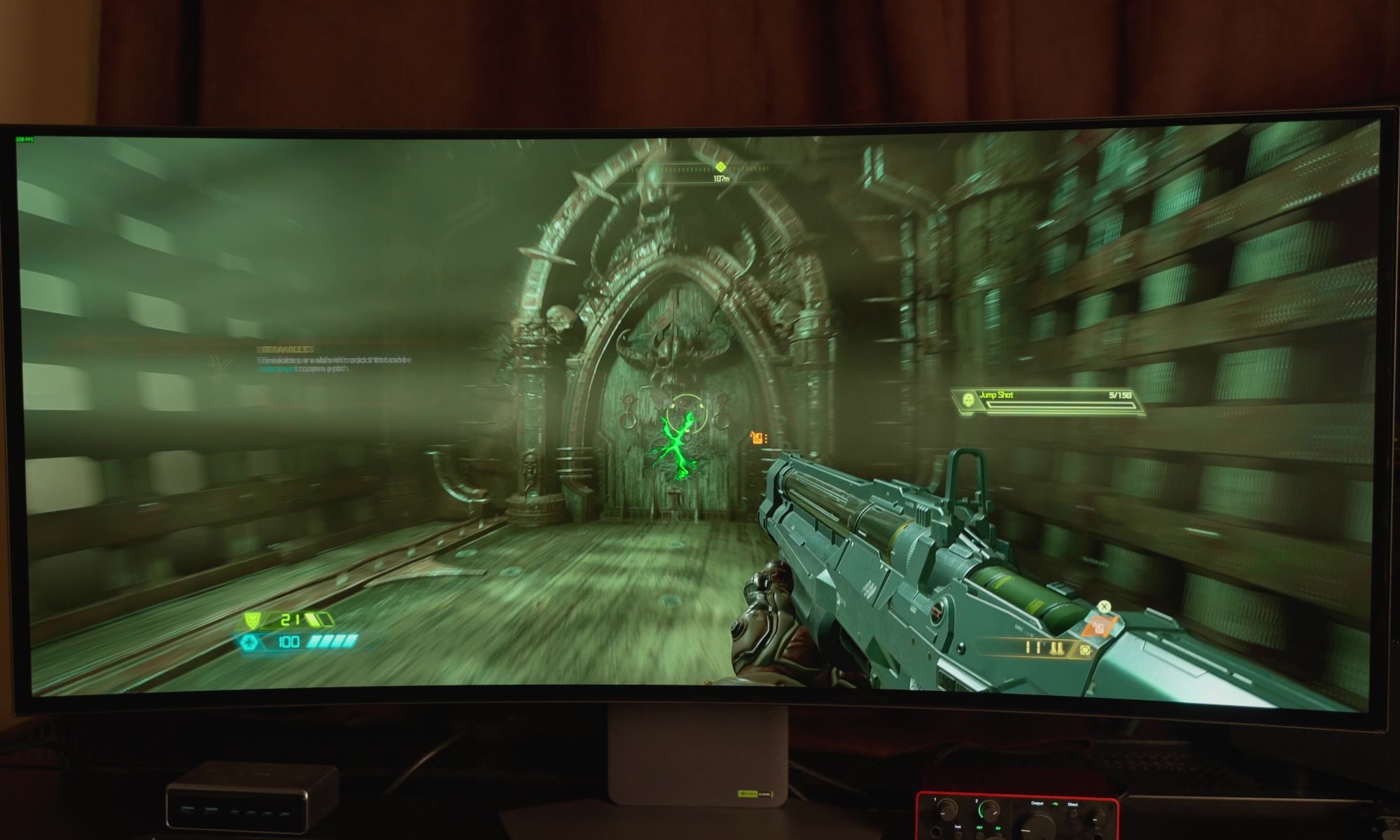
Games and video look fantastic. Cutscenes have plenty of impact, Netflix content looks great, and dark scenes in games are easier to navigate because you can pick out details that might otherwise disappear into the shadows. If you’re using it with a PC, turning HDR on makes a noticeable difference too.
The matte finish is really the one part of the picture I’d change for myself. Everything looks great as it is, but I’d be interested to see what this panel could do with a glossy coating.
330Hz is more useful than I expected
Motion is excellent even before getting into the monitor’s headline refresh-rate mode. LG claims a 0.03ms gray-to-gray response time, and scrolling around a webpage feels smooth and responsive. The bigger change comes when you switch to the second mode, which drops the resolution to 1080p ultrawide but pushes the refresh rate all the way to 330Hz. I wasn’t sure how much difference I’d actually see between 165Hz and 330Hz. After moving from 30fps to 60, then 120 and 144Hz, the gains can start to feel smaller as the refresh rate climbs. I expected 330Hz to be more of the same, but the difference was surprisingly noticeable. First-person shooters felt extremely fluid, movement was fast and responsive, and games I hadn’t touched for a while became more enjoyable simply because of how quickly everything reacted. Even interacting with the PC feels snappier at that refresh rate.
I found myself going back and forth between the two modes because 330Hz is genuinely fun, but the resolution drop is too significant for general desktop use. I wouldn’t want to use 1080p ultrawide as my everyday resolution on a 39-inch display after getting used to the clarity and workspace of 5K2K. Most of the time, I stayed with the high-resolution mode and switched to 330Hz when I wanted to play a fast-paced game. It works as a compromise, although I would obviously love to have both the resolution and refresh rate without giving up so much in either direction.
Getting the most out of either mode also requires serious hardware. Driving games at very high frame rates takes a lot of graphics power, while running games at 5120 x 2160 puts plenty of pressure on the GPU too. Motion itself has been excellent in my testing, with no tearing or flicker, minimal bloom thanks to the OLED panel, and a consistently sharp image. The matte coating also does a very good job of handling glare, even with studio lights hitting the screen.
Excellent connectivity, with one compromise
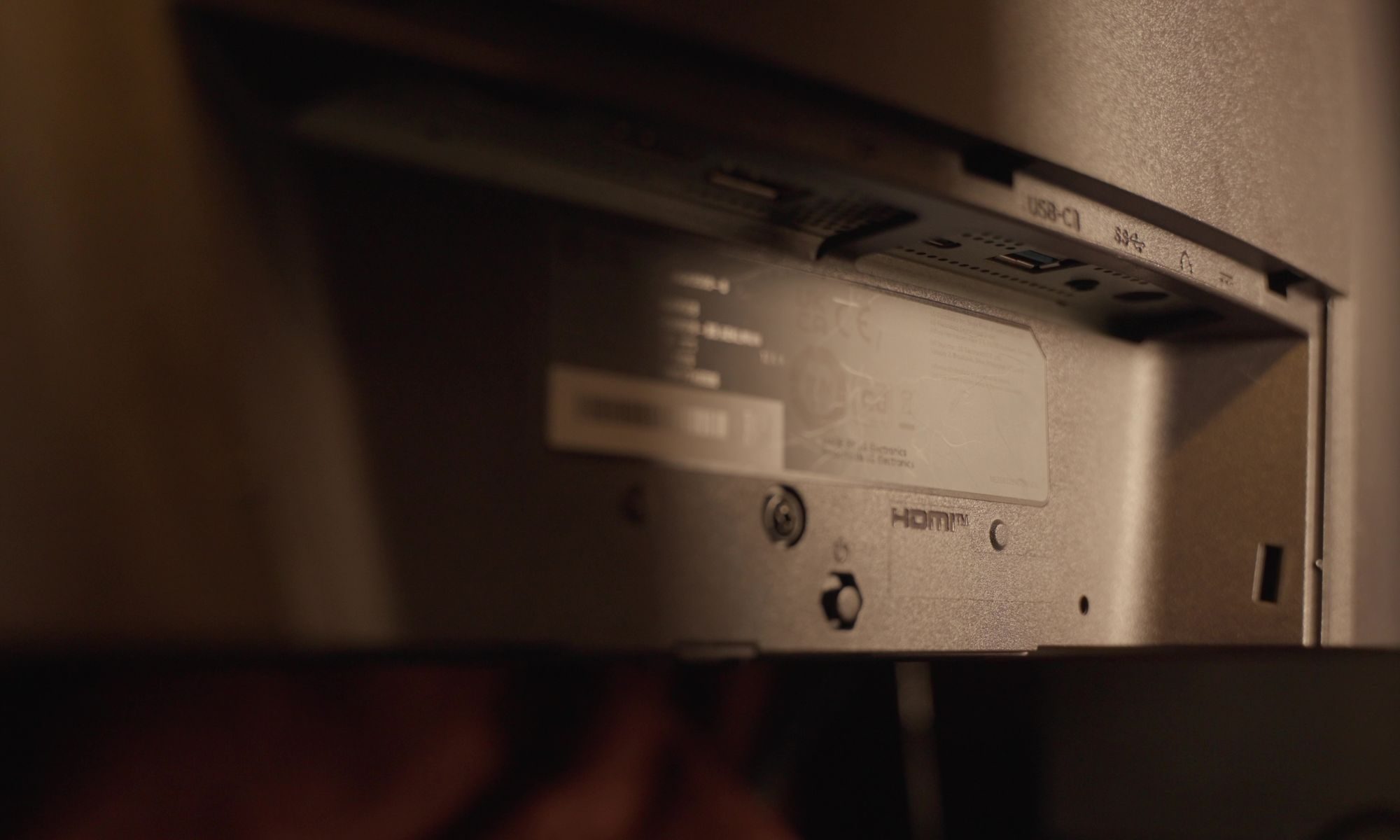
Connectivity is one of the monitor’s strongest features. DisplayPort 2.1 with UHBR20 is the headline inclusion, and it can deliver the full 165Hz refresh rate without Display Stream Compression. You’re getting the full-resolution experience without having to make that particular compromise.
HDMI 2.1 is also available for consoles and other devices. USB-C supports up to 90W of power delivery, which is particularly useful if you’re connecting a laptop because the same cable can carry the video signal while charging the machine.
Two downstream USB-A ports and a headphone/mic combination jack round things out.
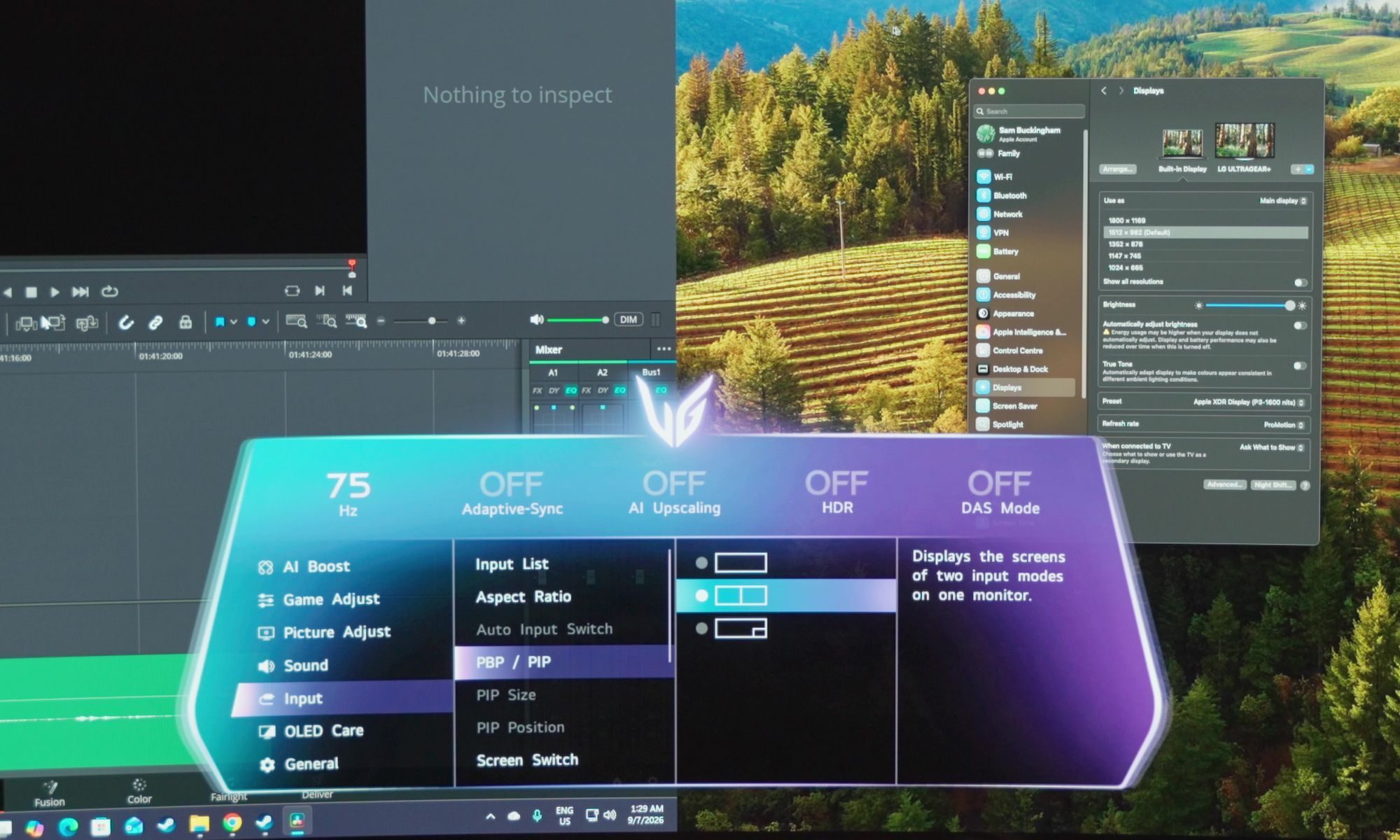
Picture-by-picture and picture-in-picture are useful additions as well. You can connect two devices and have them displayed on the screen at the same time, which could be handy if you’re regularly working between machines.
My experience with it wasn’t quite as good as I’d hoped, though. When I connected a Mac and PC together, the refresh rate dropped to 75Hz. I had hoped both devices would be able to maintain a higher refresh rate while sharing the display, but that wasn’t the case.
LG’s software is better than the monitor’s menus
The monitor’s own interface works well enough, although the neon, gamer-focused design feels a little garish to me. Navigating through it is straightforward, but LG’s accompanying software is a much better way to manage the display. I’d recommend installing it rather than relying entirely on the joystick and built-in menus. There is a small annoyance in that the software takes a few seconds to load even when it is already running in the background, but once it appears, changing settings is considerably easier.
LG has also packed several AI features into the monitor, with AI upscaling being the one I found most useful. I generally prefer DLSS and FSR in modern PC games, but those options aren’t available everywhere, and older games can benefit significantly from having the monitor handle the upscaling. The same applies to lower-resolution devices such as the Nintendo Switch. I wouldn’t leave it enabled for everything, but there are definitely situations where it is worth trying. AI sound takes a different approach by isolating voices and improving clarity. I noticed an effect when using it, although I wasn’t always convinced I preferred the result, and its requirement for the monitor’s speakers or wired headphones makes it less useful with my usual audio interface or wireless headphones setup.
AI scene optimization is probably the easiest feature to appreciate if you don’t want to think about display settings yourself. The monitor can adjust things such as brightness and color temperature based on what you’re doing, but I left it turned off because I do photo and video editing and don’t want those settings changing in the background without me making that decision. For someone who isn’t as particular about keeping those settings fixed, letting the monitor make those adjustments automatically could be genuinely useful.
OLED burn-in is still worth considering
Burn-in remains something to think about with any OLED monitor, although modern protections have made it much less concerning than it once was. LG is one of the companies leading the way here, and I don’t worry about burn-in nearly as much as I used to.
PC displays do present a particular challenge, though. Desktop interfaces can leave static elements such as taskbars on screen for long periods, while games can keep HUD elements in the same position. Anyone buying an OLED monitor should be aware of that and take some basic precautions.
My bigger concern is the warranty. LG provides two years of burn-in coverage with this monitor, which feels short when you’re spending this much money. Some of LG’s top-tier OLED TVs come with five years of burn-in coverage, and having that extra reassurance matters when you’re making a significant investment.
It is worth taking some responsibility for the display yourself, too. Avoid leaving the screen on unnecessarily for long periods, and there is little reason to run it at maximum brightness all the time.
It works well with a Mac, too
Mac compatibility was good in my testing. I was able to use the monitor with my Mac and even activate the dual mode.
I wouldn’t necessarily recommend buying the 39GX950B specifically as a Mac monitor, but it’s reassuring to know that it works well if you want to include a Mac in a mixed setup.
An ultrawide OLED with surprisingly few compromises
I started this review talking about the compromises that usually come with impressive monitor technology. Resolution can come at the expense of refresh rate, while OLED can mean giving up some brightness. An ultrawide OLED that tries to cover both high-end gaming and everyday desktop work therefore has plenty of opportunities to fall short.
LG’s 39GX950B mostly doesn’t.
Deep blacks, strong colors, high resolution, serious brightness, and high refresh rates are all here. The 5K2K mode makes it an excellent desktop monitor, while 330Hz gives fast games a completely different feel. Having both available on the same display makes it unusually versatile.
My changes would be fairly small. I’d prefer a glossy coating for my own setup, and I’d make some minor tweaks to the monitor’s interface. The two-year burn-in warranty is also difficult to overlook at this price.
Money is the obvious consideration, and so is the graphics card you’ll need to drive the display properly. This isn’t something you can bolt onto a seven-year-old desktop and expect to run at its best. Both the monitor and the hardware behind it need to be capable of handling what the panel offers.
Should you buy
LG launched the 39GX950B at $1,800, with another listed price of $1,600, which puts it firmly into premium-monitor territory. Sales have already started appearing, though, and LG has historically made some substantial reductions on displays in this range. I’d therefore check the current selling price rather than judging it entirely by the launch figure.
For me, the LG 39GX950B comes surprisingly close to being a monitor without a major compromise. You get the resolution, OLED picture quality, brightness, and refresh rate, as long as you’re willing to pay for them and have the hardware to make use of them. For the right setup, it just might be worth it.
Why not try?
The LG 39GX950B is unusually hard to compare with other monitors because its combination of 39-inch size, 5K2K resolution, OLED panel, and dual 330Hz mode is still pretty unusual. There are a few alternatives worth considering, though, depending on which part of the LG’s appeal matters most to you.
Alienware 39 5K2K OLED Gaming Monitor (AW3926QW): If you like almost everything about the LG but don’t want to spend $1,800, start here. Alienware’s 39-inch 5K2K OLED has the same 165Hz native refresh rate and 330Hz dual mode, while its glossy RGB-stripe panel takes a different approach to text clarity and reflections. At around $1,100, it is also considerably cheaper than the LG.
LG UltraGear 45GX950A: If 39 inches doesn’t feel like enough, LG’s 45-inch model takes much the same approach and makes it considerably bigger. You still get 5K2K resolution, 165Hz at full resolution, and a 330Hz dual mode, but the 800R curve and lower 125 PPI make it a very different proposition on a desk. It’s the one to consider if immersion matters more than keeping the screen relatively manageable.
Samsung Odyssey OLED G9: If what attracted you to the LG was the idea of replacing a two-monitor setup with one huge OLED, Samsung’s Odyssey OLED G9 takes that concept much further. Its super-ultrawide format gives you considerably more horizontal space, although it moves away from the LG’s 5K2K resolution and 39-inch sweet spot. It’s the more extreme option for someone who wants maximum screen real estate rather than the balance Sam found so appealing here.
How I tested
I used the LG 39GX950B as my main monitor, spending a couple of weeks with it across everyday desktop work, gaming, video, and photo and video editing. I used it in place of my usual two-monitor setup and positioned it at roughly the same distance, which gave me a good sense of how the 39-inch 21:9 screen worked as a single-display replacement.
I also spent time switching between its 5K2K 165Hz mode and the 330Hz dual mode, particularly while playing fast-paced games. Alongside gaming, I used the monitor for regular desktop work, watched video and streaming content, tested HDR, connected a Mac, and tried its picture-by-picture and picture-in-picture features with multiple devices. I also spent time with LG’s monitor software and its AI features, including AI upscaling, AI sound, and AI scene optimization.
The display was used in a room with studio lighting, which also gave me a chance to assess how well the matte coating handled glare and reflections. I used the monitor’s settings as part of normal use rather than relying on external calibration or measurement hardware. My observations in this review are based on that real-world use, including how the monitor handled high-refresh gaming, desktop work, content consumption, and creative work.
FAQ (Frequently Asked Questions)
What size is the LG 39GX950B?
The LG 39GX950B features a 39-inch ultrawide display with a 21:9 aspect ratio.
What resolution does the LG 39GX950B have?
The monitor has a 5120 x 2160 resolution, commonly referred to as 5K2K.
Does the LG 39GX950B support HDMI 2.1?
Yes. It has HDMI 2.1, DisplayPort 2.1 with UHBR20, and USB-C with 90W power delivery.
Will LG 39GX950B work with Mac?
Yes. Even during our testing, I used it with a Mac and was also able to activate Dual Mode.
Can you connect a laptop to the LG 39GX950B with USB-C?
Yes. The USB-C port supports display output and delivers up to 90W of power, allowing compatible laptops to charge and connect with a single cable.
Is picture-by-picture mode supported by LG 39GX950B?
Yes. The monitor supports both Picture-by-Picture and Picture-in-Picture modes, allowing two connected devices to be displayed simultaneously on the screen.
You must be logged in to post a comment Login