Tech
Monitor Not Detecting Your DisplayPort Signal? This Might Be Why


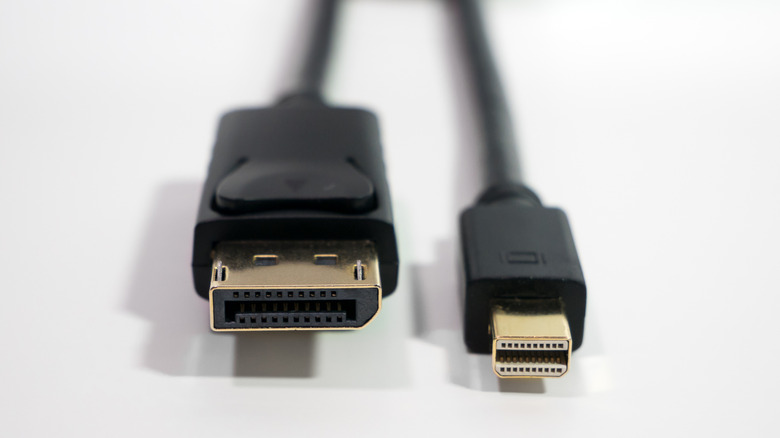
There are plenty of situations where you need multiple monitors to display the same or different things: sports bars showing football games, concerts with several camera angles, presentations in large conference halls, and other live events. For personal use, multiple displays can be a cool way to support your everyday workflow and boost productivity, like if you’re a trader or developer. And if you’re a creative professional, being able to dock your laptop to view your work on a larger, more color-accurate screen is practically essential.
While most commercial TV manufacturers think the HDMI port already hits all the right notes, there’s still a certain segment of society who will always prefer DisplayPort instead: gamers. Due to its bandwidth and high refresh rate capabilities, DisplayPort is a godsend for maxing out their high-end PC specs or virtual reality headsets. Often, DisplayPort beats out the HDMI connectors when it comes to purely visual experiences, offering smoother frames and a tendency to have less lag. That is, of course, when it works properly. If you’re unlucky, you may encounter issues with your DisplayPort, such as tearing, flickering images, or the dreaded “DisplayPort not detected” error. So, whether you’re using a Mac or Windows device, there are two main possible reasons why your DisplayPort isn’t working: hardware and software issues. Here’s what to look out for in both and how to fix it.
Investigate your hardware
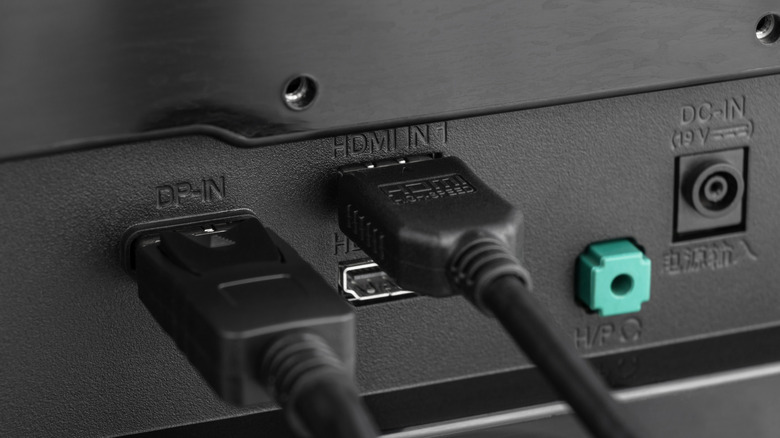
When it comes to your DisplayPort hardware issues, there are three main components: the input, the output, and the cable itself. To know if the cause is any of these, you’ll need to test each one separately. To start with, you’ll want to look at your DisplayPort cable for any damage that can affect signal stability. You’ll want to check the body of the cable for cuts or slices and the ends for things like bent pins or signs of dust or corrosion. These can happen if you don’t store your cables properly or expose them to the elements, but they can also just be bad quality. If you have a spare cable that you already know works, it can help to swap it out for testing. Should the cable be the problem, the easiest way to fix it is to replace it with a higher-version one.
The next step is to inspect the ports. You’ll want to avoid any loose connections between the ports and cable by unplugging and plugging it back in. It’s possible that things like dust and debris can affect its ability to transmit or receive data. Similar to cleaning your computer’s USB ports, you’ll need to shut it down before using a soft-bristle brush, compressed air, isopropyl alcohol, and a cotton swab to clean it. If you are using any adapters, such as DisplayPort to HDMI adapters, these might also interfere with performance if they are broken or not compatible.
Check your software

Before you assume the worst, the first thing you should do is turn your monitor and computer off and back on again. Similar to many other tech problems, a quick restart might just do the job and fix any connection kinks. If that doesn’t work, you’ll want to check your display settings, such as whether you’ve set the right input source. If you have multiple devices connected to a monitor, such as a computer, console, or media player, it might not be set to the correct one. Depending on the kind of monitor you’re using, you might actually need to install additional drivers before you can use it. If you’re not sure, you can either check the instruction manual that comes with your monitor or the manufacturer’s official website. For some models, you may even be able to find YouTube instruction videos to reference.
Alternatively, it’s possible that your GPU drivers are outdated, which you can solve by downloading updates from their website. Depending on what GPU you own, there are also companion tools like Nvidia GeForce Experience and AMD Adrenalin that can automatically manage these updates. However, there are times that you might want to roll back your drivers as well, especially if your DisplayPort errors began after an update. This is because the update may have been corrupted in the process. When all else fails, it may be time to get in touch with the manufacturer for support. If your monitor is still under warranty, it may be worth having it replaced.
You must be logged in to post a comment Login