Tech
Scanning A QR Code That’s Already On Your Phone Is Actually Simple



Technology is always moving forward, and for the most part, it’s making our lives easier. Every once in a while, though, an invention comes along that basically changes the way we interact with the world around us. QR codes are a perfect example. They’ve become so deeply woven into our everyday lives that we barely even think about them anymore. Everyone has a smartphone anyway, so if you have some information you want to get across efficiently, just place a QR code in an accessible location and have everyone scan it with their phones.
The iPhone’s camera app automatically recognizes QR codes and lets you open links, join Wi-Fi networks, and perform other actions with a single tap. The default camera app on many Android smartphones lets you do the same. You could also use a dedicated QR scanner app or fire up Google Lens to handle the job. But what about when someone sends you a QR code digitally? How do you scan a QR code that’s on your phone’s screen using the same device? Well, both Apple and Google have thought of that too.
On an iPhone, save the image of the QR code to your photo library. Launch the Photos app, expand the image, tap and hold the QR code, and select the action that appears, such as “Open in Safari” for a website link. If you’re using Android, launch the Google Photos app, select the image, swipe up to reveal more options, tap “Search,” and then tap the highlighted QR code to reveal its contents.
Your photo app can do more than scan QR codes
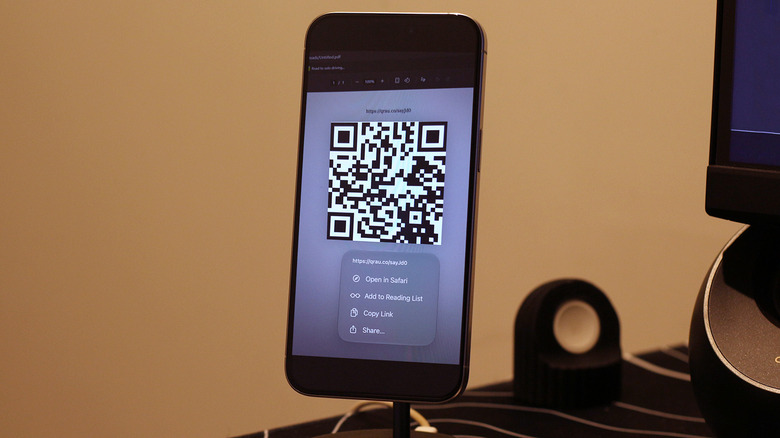
Both Google Photos and the Photos app that comes with Apple devices have evolved over the years to do much more than simply store your media files. Being able to scan a QR code that’s already in your photo library can come in handy. For instance, when you point your phone at a QR code, the camera app usually takes a second or two to recognize it. Plus, if you move the QR code out of the frame, the shortcut to open its link quickly disappears. In such cases, quickly grabbing a picture and accessing the QR code through the Photos app later can prove to be much more convenient.
If an image contains text, you can quickly copy it as well. On iPhone, all it takes is a long tap on the text area in an image, and you’ll see the selection handles pop up alongside a context menu where you can copy or share the selected text. Google Photos lets you do the same when you swipe up and tap the “Copy text” option.
Though it’s become incredibly convenient to do so, you should be careful about scanning unknown QR codes. While QR codes themselves are harmless, they can direct you to malicious websites or phishing pages designed to steal your personal information.
You must be logged in to post a comment Login