Tech
Wacom MovinkPad 11 review: Specs, features,price

Wacom is back with a new pen display pad, with the MovinkPad 11 aimed at artists who like to sketch and create on the go. That’s assuming that you can fit it into your workflow.
Wacom stands as one of the elder leaders in the world of graphic pen displays, producing a variety of pen displays to meet every need. As artists become more mobile in their day-to-day workflow, so grows the need for portable and versatile equipment for creatives on the go.
Wacom provided the MovinkPad 11 to use for an extended test drive, to see if its quality and execution live up to the reputation Wacom has held onto for so many years.
The MovinkPad 11 arrived in a padded shipping box from Wacom, with simple and vibrant sketchbook-style branding.
Wacom MovinkPad 11 review: Its box
Inside the box
- Wacom MovinkPad 11 (and Android driven pad with full functionality)
- Wacom Pro Pen 3 with nib holder (Felt nib x3)
- USB-C to USB-C Cable (1m/Power)
- IPI Booklet
- Regulation sheet
The Wacom MovinkPad 11 also includes complimentary software:
- Clip Studio Paint Debut (2-year license)
- ibisPaint X (180-day trial)
- Artwod (3-month trial)
- Magma (3-month trial)
- Product Dimensions (L x W x H): 266 x 182 x 7 mm / 10.5 x 7.2 x 0.3 in
- Product Weight: 588 g / 1.3 lb
- Product Color: Light Gray
- Storage Temperature and Humidity – Temperature: -10 to 60 degree C – Humidity: 30 to 90% RH (non-condensing)
- Operating Temperature and Humidity – Temperature: 5 to 40 degree C – Humidity: 30 to 80% RH (non-condensing)
- Screen Size: 11.45 in / 29 cm
- Active Area: 243 x 159 mm / 9.6 x 6.3 inch
- Display Technology: IPS
- Surface: AF + AG glass
- Direct Bonding: Yes
- Touch Technology: Projected capacitive technology
- Multi-touch: Yes – 10 fingers
- Display Resolution: 2200 x 1440 pixels
- Display Colors: 16.7 million
- Color Depth: 8bit x RGB = 24bit
- Color Gamut Coverage Ratio: sRGB 99% (CIE1931) (typ)
- Aspect Ratio: 3:2
- Viewing Angle: 170 deg. (85/85) H / 170 deg. (85/85) V (typ)
- Contrast Ratio: 1200:1 (typ)
- Brightness: 400cd/m2(typ)
- Refresh rate: 60/90 Hz
- Processor: Mediatek Helio G99
- Memory: 8GB
- Storage: 128GB
- Operating system: Android 14
- Wireless Connectivity: IEEE 802.11a/b/g/n/ac – Bluetooth 5.2
- I/O Connectors: 1x USB Type-C port (USB2.0)
- Battery Type: Lithium-ion battery
- Battery Capacity: 7700mAh (typ)
- Camera: 5M pixels (Front) / 4.7M pixels (Rear)
- Mic/ Speaker: Dual Microphones / Stereo Speaker
- Sensor: G-sensor / e-compass / Ambient light sensor
- System Requirement for Wacom MovinkPad Instant Pen Display
- Windows: Windows 11 *Windows ARM-based computers are not supported
- Mac: macOS 14 (Sonoma), 15 (Sequoia), 26 (Tahoe) *Intel Mac computers are not supported.
Pen Specs
- Wacom Pro Pen 3 with Nib holder
- Pen Technology: Electromagnetic resonance technology
- Pen Pressure Levels: 8192 levels
- Supported Pen Tilt Angle: 60 degrees
- Pen Resolution: 5080 LPI
- Pen Type: Pressure-sensitive, cordless, battery-free
- Switches: 3 side switches
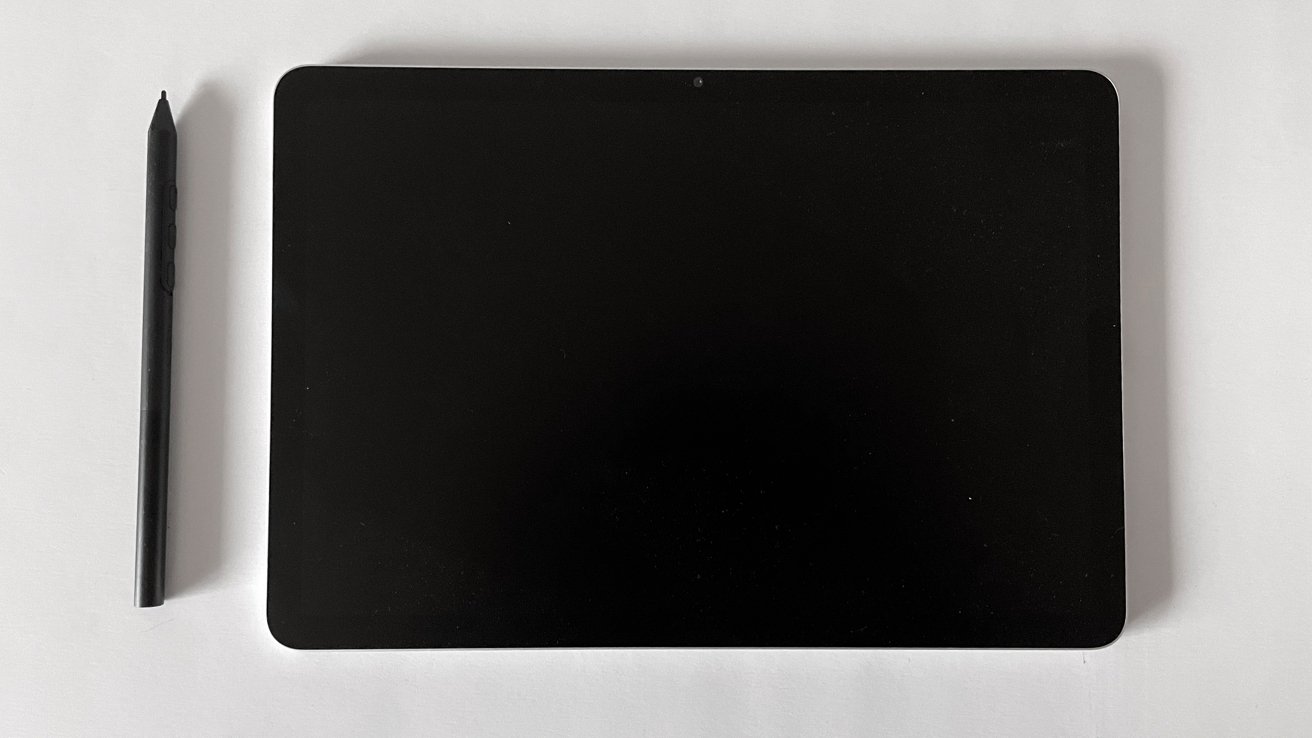
The MovinkPad 11 is an incredibly well-made, lightweight all-in-one pad from top to bottom. Nothing about the MovinkPad 11 feels cheap.
In appearance, the MovinkPad 11 feels a lot like an Apple product with the gray metal case and simple design.
This is a full functionality, independent all-in-one pad, not simply a pen display that requires a desktop or laptop to drive its use. This means the MovinkPad 11 also includes all the bells and whistles of a tablet, including speakers, front and rear cameras, a native Android operating system, 8 GB of memory, 128 GB of internal storage, and wireless connectivity via Wi-Fi and Bluetooth.
Wacom MovinkPad 11 review: Unpowered
In a sign of the times for technology, the MovinkPad 11 does not include HDMI ports or USB-A ports. Wacom is fully embracing USB-C connectivity and charging.
Wacom includes the Wacom Pro Pen 3 with the MovinkPad 11, and this is a solid stylus pen. It is one of the thinner models that is closer to an actual pencil is size and feel.
Setting up the MovinkPad 11 was incredibly easy, outside of one small issue Wacom needs to address immediately.
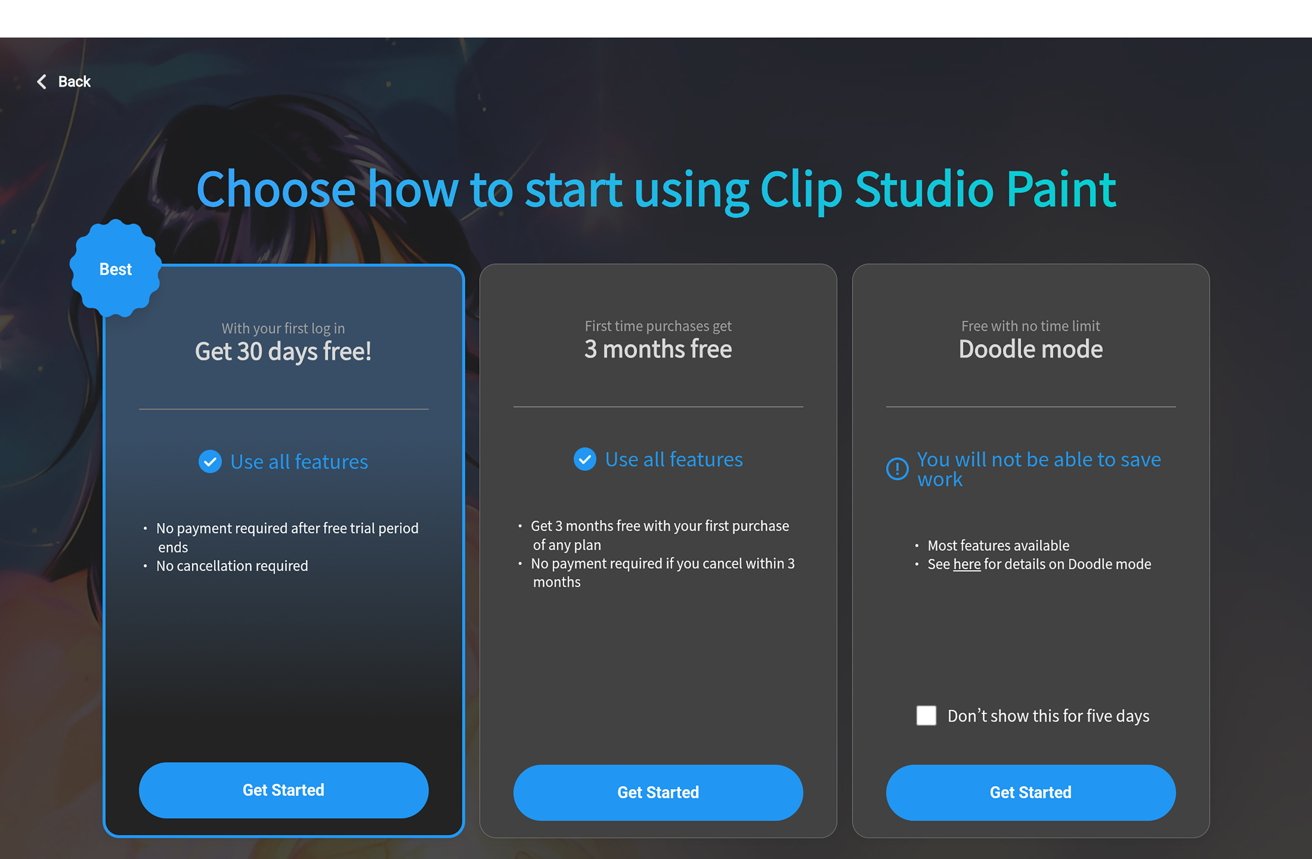
After unboxing and charging the MovinkPad 11, I powered up the pad and was greeted with a simple and straightforward series of steps. It guided me on how to connect to my Wi-Fi, adjust settings, link my AppleInsider work Google account, and get straight into sketching via the preloaded Wacom Canvas app.
Wacom MovinkPad 11 review: Guiding through the set-up process
You can enter the OS settings easily to install new apps and make personal preference adjustments, and I did over time.
But my initial test with every pen display and all-in-one is to answer how quickly and easily I can get to work from unboxing to initial startup. In the case of the MovinkPad 11, very easily.
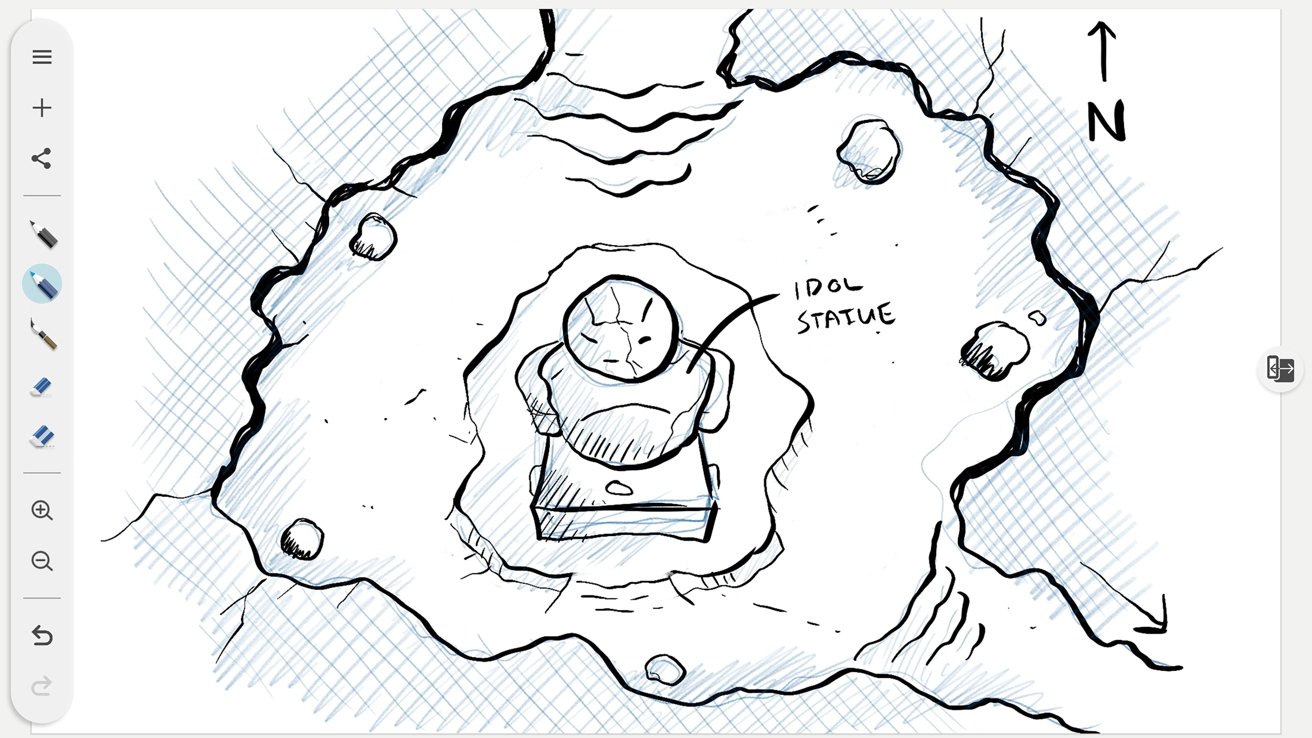
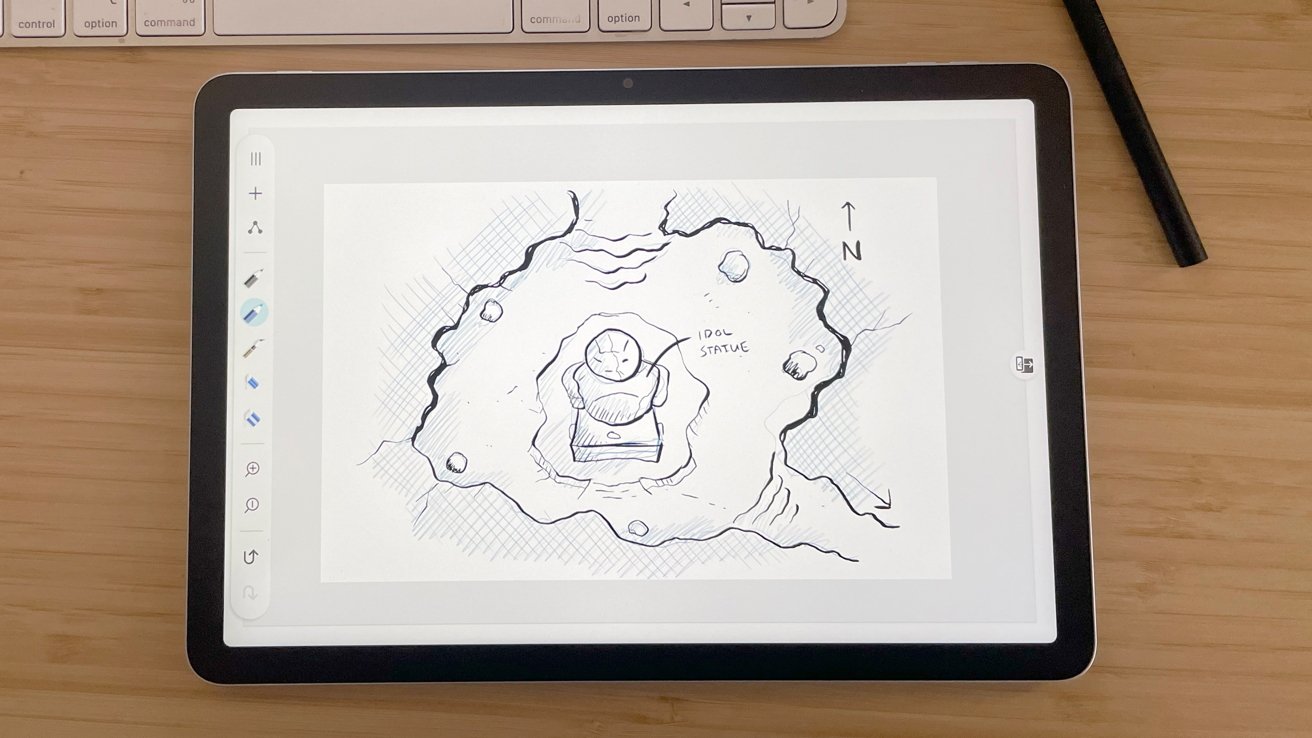
After setting up the MovinkPad 11, I opened a fresh Wacom Canvas document and settled in to sketch and eventually worked up a sketch for an upcoming cartography project.
Wacom includes Wacom Canvas, Wacom Shelf, and Wacom Tips apps at startup. Each of these applications work in conjunction with the MovinkPad 11 to create and save sketches, and also to adjust the preferences for their use with the MovinkPad 11.
Wacom Canvas is a lightweight sketching app with simple functionality that I enjoyed. With simple pencil-style brushes in blue and gray, an inking brush, two eraser sizes, and export functionality as PNG files or transferring straight into Clip Studio, it is a solid app with limits.
I wish Canvas provided at least 2 to 4 layer options.
The app is designed purely for sketching, but when I want to draw in blue and refine with an ink brush, the eraser tool takes everything. I would like a little separation here, as this is my standard workflow in Photoshop.
Wacom MovinkPad 11 review: Screenshot of the drawing process.
The purchase of the MovinkPad 11 from Wacom includes a 2-year Clip Studio Paint Debut license, as well as trials for the sketching app ibisPaint X (180-day trial), ArtWod (3-month trial), and Magma (3-month trial).
Outside of Photoshop, Clip Studio Paint is the go-to app for digital illustrators. The inclusion of a 2-year license is a great feature for the MovinkPad 11.
Wacom Shelf auto-saves and stores your Canvas sketches, but it takes a moment to realize that and make use of the app. It works, and it does a good job, but the initial setup did not explain this.
For someone working for an hour and accidentally clicking the new sketch button in Canvas, there will be panic.
Wacom Tips handles the preferences for the MovinkPad 11 and the stylus. However, I was shocked to see there are no options to adjust the pressure sensitivity for the stylus on the MovinkPad 11.
Pen pressure can be adjusted in some individual apps like Clip Studio, and Wacom is typically very good with their pressure sensitivity and the artist’s needs. To see it excluded with the MovinkPad 11 is surprising when hand fatigue, carpal tunnel, and arthritis affect how artists work.
I hope this will be considered in future offerings.
Wacom MovinkPad 11 review: Screenshot of the drawing process.
The Pro Pen 3 is lightweight and sturdy. It doesn’t feel flimsy, and I love the pencil-like dimensions.
The pen nibs included are the wonderful felt nibs offered by Wacom. They are always my preferred nibs for drawing with any stylus for the paper-like texture and micro resistance they provide.
During my time with the MovinkPad 11, I was relieved to see that the sharpness of the line quality and responsiveness on the display remain consistent with the drivers Wacom is famous for. Battery life for a single full charge is incredibly impressive.
Overall, drawing on the MovinkPad 11 is a lovely experience.
The MovinkPad 11 is a great all-in-one, but it does have a few drawbacks.
It is an all-in-one pad and has no angle adjustment outside of how you hold it. Or if you integrate the optional Wacom foldable stand sold in its online shop for $99.
Working on a flat surface means the tablet is flat. This did not do my posture any favors, so I moved the intended sketchbook seating posture, holding the MovinkPad 11 in my hand or lap and sketching.
It helped, but it drove home the idea that long sketching sessions with the MovinkPad 11 as-is will be tiring and cumbersome.
The MovinkPad 11 is great for short sessions and sketching on the go. But alternative approaches are required for long/more involved work.
I also do not like that the carrying case for the MovinkPad 11 is an optional extra. The pad on its own also does not include any sort of flap or covering for the screen.
Wacom MovinkPad 11 review: A case would’ve been nice to protect the display while on the move.
The screen is durable, certainly. But, as an all-in-one advertised as something aimed at on-the-go artists, I feel my eye twitch when I think about throwing it into a laptop bag unprotected.
This is not an inexpensive piece of equipment, and I would have liked to see Wacom include some basic protection as standard.
Another downside for users in a macOS-dominant workspace is that the MovinkPad 11 is an Android native all-in-one.
This is not the end of the world by any means. But it does mean that Mac users like me will have to jump through a few extra logistical hoops to drop the MovinkPad 11 into their workspace.
The MovinkPad 11 retails in the Wacom Online shop for $449, but I have seen it on sale there for as low as $399.
The MovinkPad 11 is a solid all-in-one, but the retail cost is not a small investment, and it must be weighed against the alternatives available.
Comparatively, an iPad averages $349, and the Apple Pencil Pro retails for $129. Add Procreate for $12, and you’re set up with an all-in-one that natively runs with macOS and merges seamlessly into that workspace for $490.
At $449 vs. $490, it is all about what you need in your life and tradeoffs.
With the MovinkPad 11 you secure the incredible drivers and functionality Wacom is known for. But you sacrifice the loss of macOS and Procreate.
On the other side at $490, you spend slightly more and lose the Wacom functionality, but you gain utility with macOS.
The MovinkPad 11 is a solid offering from Wacom for artists looking for a simple and powerful digital sketching tool.
However, the native Android operating system hinders seamless integration into iOS and macOS spaces. For the same ballpark retail cost, comparable options already exist for Apple users.
Ultimately, it will come down to personal preference and what is most important for you and your workflow. That said, I do not believe there is a wrong answer.
The MovinkPad 11 is excellent. If I worked in a Windows environment, I would happily purchase one.
I don’t.
- Easy installation
- Beautiful display
- Sturdy construction
- Portable
- USB-C port
- Amazing line quality and pressure sensitivity
- A 2-year Clip Studio Debut license
- Protective travel case is a paid optional feature
- Possible additional cost for stand
- Not a “cheap” option for a casual artist
- Android all-in-one that requires extra steps for macOS users
Rating: 3.5 out of 5
The hardware is good, the use of the tablet is good. It’s better on Windows than it is on Mac, and that’s a problem.
I want to like it, it’s just hard to whole-heartedly recommend with those “extra steps” I mentioned.
The MovinkPad 11 is currently available through the Wacom online store for $399.95. It’s also available from Amazon for $399.95.
You must be logged in to post a comment Login