Tech
What That Leaf Symbol On Google Maps Actually Means


We find the most joy using our smartphones as social media machines, but our phones also handle mundane activities like communication and navigation. If you’re on Android, you most likely default to Google Maps to plan your commutes and explore new places. While Apple Maps’ many useful features make it a compelling alternative, Google Maps enjoys a huge user base, likely because it has had a head start of more than a decade in mapping out even the most rural corners of the world.
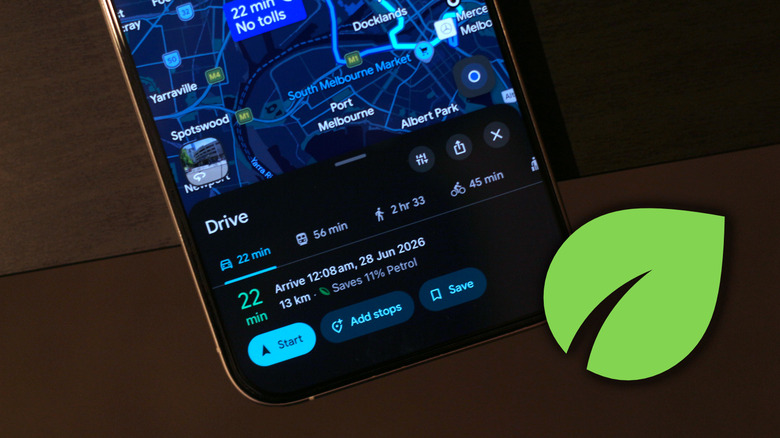
For those of us who aren’t passionate navigators, Google Maps offers a clean user interface with easy-to-understand controls. That said, there are several quality-of-life Google Maps features that are easy to miss. These are often hidden within menus or denoted by icons you might not have given much thought about. The green leaf symbol is one such example that shows up when you start picking a route to a destination. It essentially indicates that the route is the most eco-friendly option.
You can view more info about the eco-friendly route if you expand the navigation details from below. Google Maps will display how much gas you’ll be saving by picking this route and, if applicable, how much longer your trip will take compared to the fastest route. Google claims it determines which route is the most eco-friendly by taking into consideration factors such as real-time traffic and road conditions.
Customizing Google Maps just for you
Relying on eco-friendly routes is an effective way to save fuel in your car. You can customize your Google Maps experience to let it automatically select eco-friendly routes whenever available. To do this, open Google Maps, tap on your profile picture, head to Settings > Navigation, and turn the “Prefer fuel-efficient routes” toggle on. From now on, assuming your destination has more than one route, Google Maps will automatically put you on the one that saves the most gas.
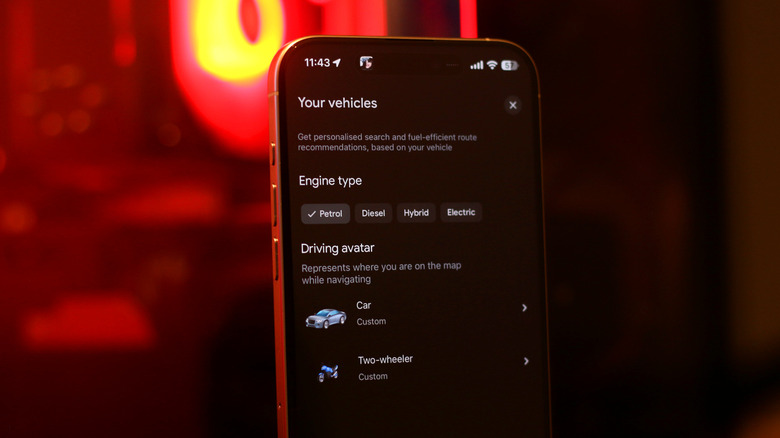
Now is also a good time to enter more details about the vehicle you’re driving, since, by default, Google Maps calculates routes assuming you have a gas or petrol-powered car. Navigate to Settings > Your Vehicles and select an engine type. Options include petrol, diesel, hybrid, and electric. This is important because Google Maps estimates eco-friendly routes based on your vehicle’s engine type. You can also select a different avatar for your car and motorcycle. This replaces the default blue navigation arrow that shows where you are on the map.
You must be logged in to post a comment Login