Tech
Why Your Security Camera Is Offline on Your Phone: Fix It

If your security camera shows offline on your phone, do not reset it immediately. First determine whether the failure is at the camera, your home network, the internet connection, the phone app, or an intermediate recorder or base station, then fix only the affected layer.
First, Find Out What Is Actually Offline
An “offline” message tells you that part of the viewing path has failed, but it does not always identify which part. The camera may have lost power or Wi-Fi, your router may have lost internet access, the manufacturer’s online service may be unreachable, or the problem may exist only on your phone.
Start with the broadest distinction. If other phones, laptops and smart devices also cannot reach the internet through your home Wi-Fi, troubleshoot the router or internet connection before changing the camera. Google makes the same distinction in its Nest camera connection guidance: an offline Nest camera cannot stream live video or save new video to the cloud, and Google first recommends checking whether other devices can use the home network.
If the camera still works on a local monitor, Network Video Recorder (NVR), or another phone, the camera itself may not be fully offline. The problem is more likely somewhere in the remote-viewing or phone-side path.
The table below helps isolate the failure before you start changing settings.
| Symptom | Likely layer | First check |
|---|---|---|
| Camera has no power or status indication | Camera power | Check its battery, outlet, cable, power adapter or supported Power over Ethernet connection. |
| Several smart devices are offline | Router, modem or internet service | Test a website from another device connected to the same home network with cellular data disabled. |
| Camera works locally but not away from home | Remote-access, cloud or account path | Test the camera app over mobile data and verify that the phone itself has internet access. |
| Camera works on another phone | Phone, app or account | Check the affected phone’s connection, app version, account session and permissions. |
| Every camera behind the same recorder or base station is offline | Recorder, base station or shared network path | Check whether that intermediate device is powered, connected and online before resetting individual cameras. |
If the camera has never worked on a phone before, confirm the correct setup for monitoring a security camera from your phone before treating the problem as a new offline fault.
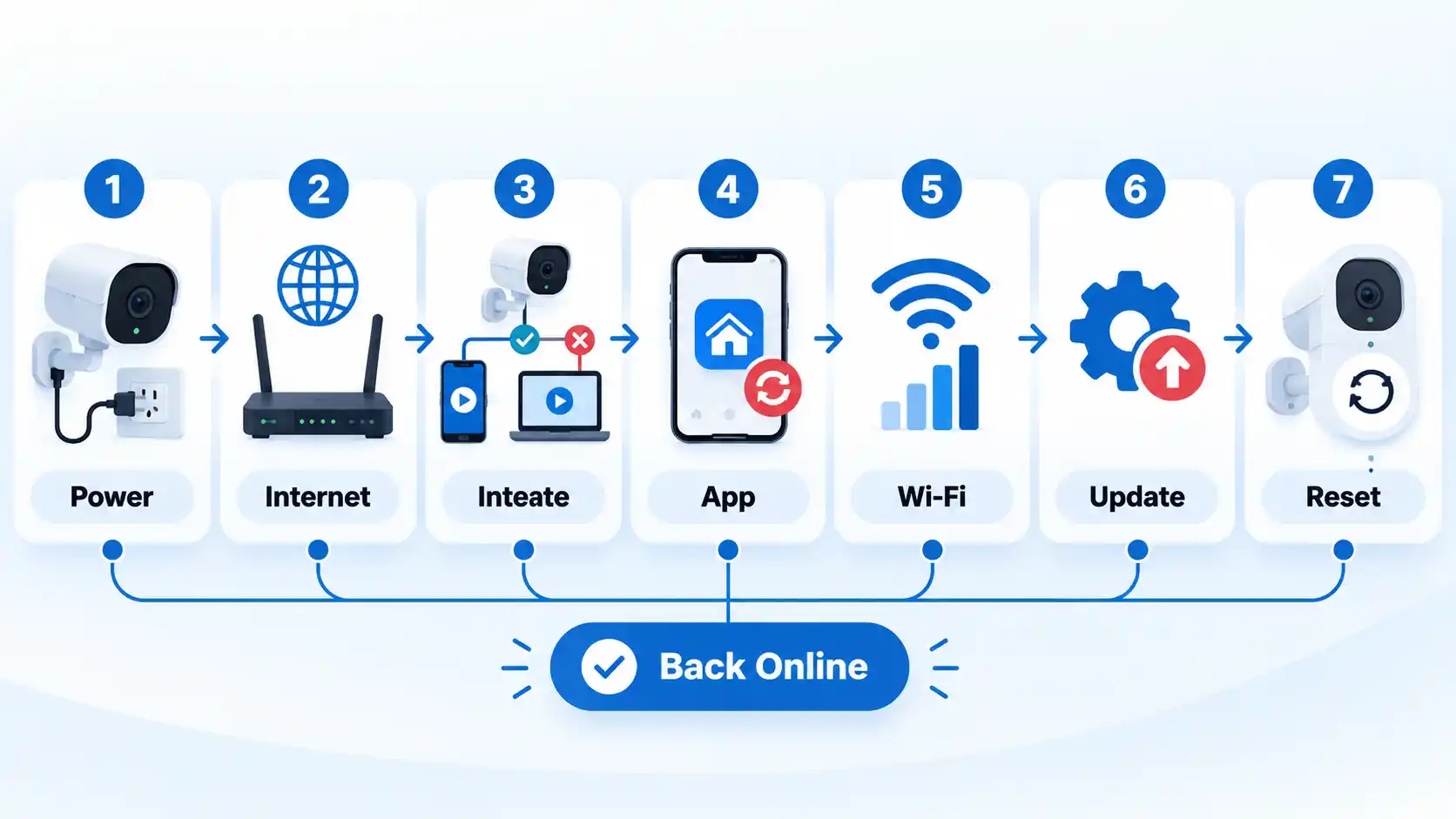
Work through these checks in order. The sequence starts with causes that are easy to verify and unlikely to erase settings, then moves toward device-specific recovery only after the simpler possibilities have been ruled out.
How to Fix a Security Camera That Shows Offline on Your Phone

If the Camera Works on Home Wi-Fi but Not on Mobile Data
This symptom is especially useful because it shows that at least part of the camera’s local path still works. The problem is more likely to involve remote access, the vendor’s cloud or peer-to-peer service, the phone’s mobile connection, or the account rather than basic camera power.
Turn Wi-Fi off on the phone and first confirm that ordinary websites load over mobile data. Then reopen the camera app and make sure you are still signed into the correct account. If the manufacturer publishes a service-status page, check it before changing router settings.
Do not add port-forwarding rules merely because remote viewing stopped. Many modern camera ecosystems use manufacturer-supported cloud or peer-to-peer paths and do not require you to expose a camera management port directly to the internet. A feed that works at home but not over mobile data points toward the security camera remote-access path rather than an immediate hardware failure.
If restoring access appears to require reopening old router exposure, review how to secure IP cameras and CCTV recorders from remote-access risks before reversing security controls simply to make the feed load again.
If the Camera Keeps Going Offline and Coming Back
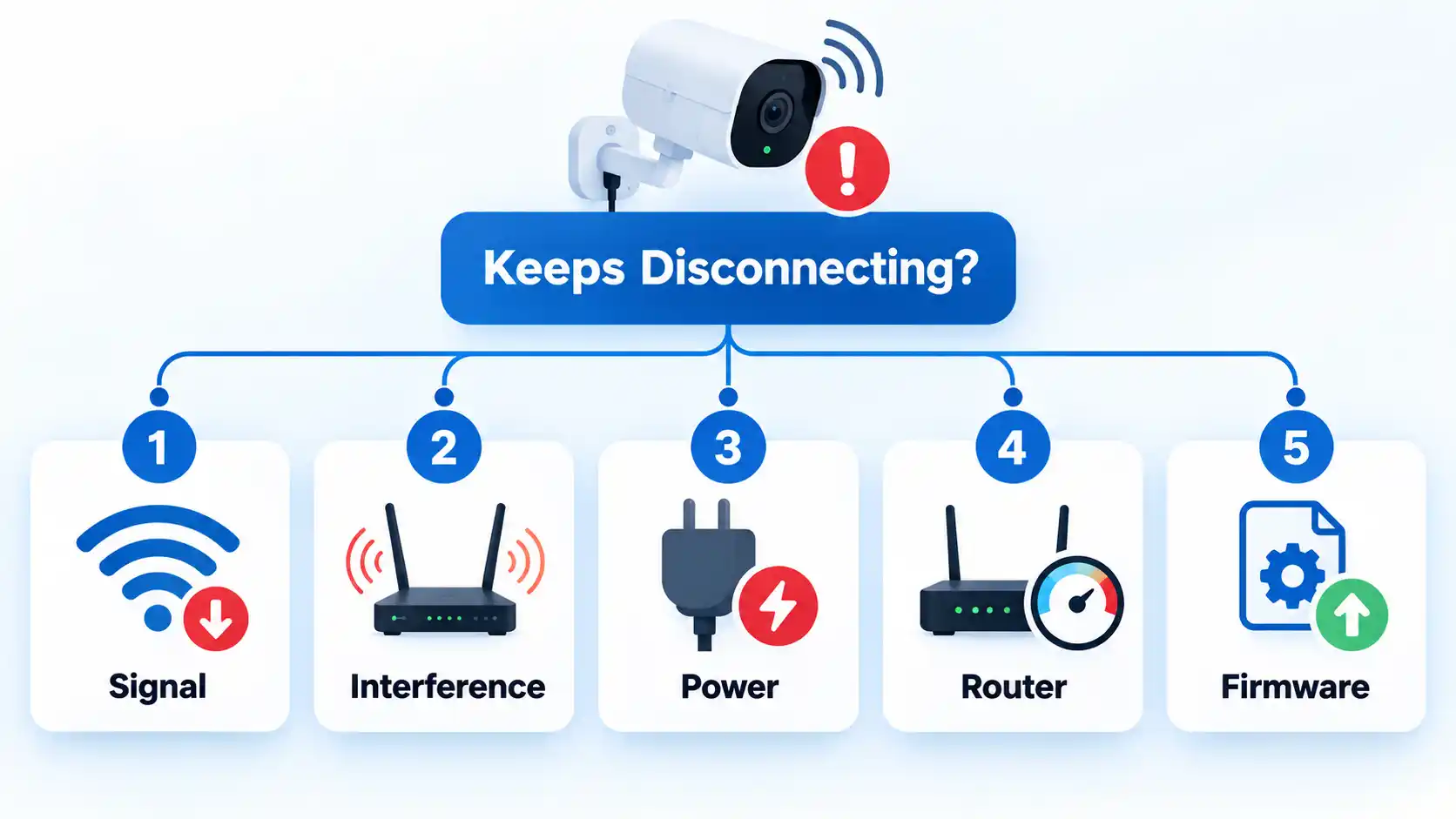
An intermittent camera is different from one that is completely unreachable. Repeated disconnects often point toward marginal signal quality, interference, unstable power, network congestion or a configuration problem rather than a permanently failed camera.
The camera disconnects more often when it is far from the router
Weak signal is a strong suspect. Test the camera temporarily closer to the router, or compare conditions near its normal location. Walls, floors, large furniture and nearby electronics can reduce usable Wi-Fi. TP-Link’s current camera and smart-device offline guidance identifies signal strength, physical obstacles and interference as possible causes of repeated disconnections.
The camera drops out only at certain times
Look for changing wireless conditions or network load. Video calls, streaming, gaming and other high-bandwidth activity can reduce the capacity available for camera video. Google specifically identifies competing high-bandwidth devices as a possible contributor to Nest camera connection problems. Compare the timing with other network activity before concluding that the camera itself is failing.
The camera repeatedly powers off and comes back
Inspect the power path rather than concentrating only on Wi-Fi. Check the battery, outlet, approved power adapter, cable or Power over Ethernet connection appropriate to the model. An unstable supply can make a camera appear to have a networking problem when it is actually rebooting.
The problem started after a router or mesh-network change
Review the network name, password, security mode, access-point placement and any isolation or optimization settings that changed. Some vendor-specific automatic Wi-Fi optimization features can affect device stability. TP-Link’s current Tapo guidance, for example, identifies router settings, interference and some automatic optimization features as troubleshooting targets; apply such vendor-specific changes only when they match your own router and camera documentation.
The camera became unstable after software or configuration changes
Confirm that the viewing app and camera firmware are supported and current, then review only the settings that changed. Avoid undocumented firmware downgrades or broad router changes simply to recreate an older configuration. If a supported update introduced a device-specific fault, use the manufacturer’s recovery or support process for that model.
Special Cases: Recorders, Base Stations and Cellular Cameras
Not every security camera connects directly to your router and then to the manufacturer’s online service. Some systems introduce another device or another network between the camera and your phone, which changes what “offline” can mean.
NVRs and base stations
If several cameras feed an NVR or base station, check that shared device before treating every camera as faulty. The recorder may have lost its Ethernet connection, internet access, account session or power while the cameras themselves continue operating locally.
Some ecosystems also mix connection methods. The practical point is to identify whether your cameras communicate directly with the router or depend on an NVR, hub, base station or similar intermediary before deciding which device to restart or reset.
Cellular security cameras
A 4G or other cellular camera adds a separate connection path. If it goes offline, Wi-Fi troubleshooting may be irrelevant. Check camera power, the Subscriber Identity Module (SIM) status where applicable, the associated data service and usable cellular coverage according to the manufacturer’s instructions.
A cellular camera that has power but no usable mobile-network connection may still be inaccessible remotely, just as a Wi-Fi camera with no internet path can be unavailable from your phone.
Do Not Factory-Reset the Camera Too Early
A factory reset can be useful when configuration is genuinely corrupted, but it is a poor first diagnostic step. It can force you to pair the camera again, re-enter network details, restore settings and regain physical access to the device.
Warning
Before a factory reset, identify the exact model, record any configuration you need to reproduce, preserve footage when the vendor provides a supported way to do so, and use only that model’s documented reset procedure. Some systems can delete stored history or require complete re-enrollment after a reset.
Current vendor troubleshooting reflects this cautious order. Google’s Nest camera Wi-Fi troubleshooting places factory reset after less destructive connection checks and warns that a reset permanently deletes the camera’s video history. Wyze likewise places reset after power, network and other troubleshooting steps in its current offline-camera guidance.
Does “Offline” Mean Your Recordings Are Gone?
Not necessarily. Live remote viewing and recording are separate functions, and the outcome depends on where the camera stores video.
A cloud-dependent camera normally needs an internet path to upload new footage to its cloud service. Google states that an offline Nest camera cannot save new video to the cloud. That behavior should not be generalized into a claim that every camera loses all footage whenever internet access fails.
A camera using a microSD card or an NVR may continue recording locally during some internet failures, but only if the camera, recorder, power and local path required by that system are still operating. Conversely, a complete camera power loss prevents the camera from recording regardless of whether the phone app can connect.
After restoring connectivity, verify the actual storage destination and timeline instead of assuming that an offline notification either erased all footage or guaranteed that local recording continued.
How to Confirm the Camera Is Really Back Online
Do not stop troubleshooting merely because the offline badge disappears. Verify the functions you actually depend on, especially if the problem involved remote access or recording.
Verify the result
- The live feed loads and shows a current image rather than an old thumbnail.
- The camera remains reachable from the local network for several minutes without repeatedly disconnecting.
- If remote viewing is required, the feed also loads after Wi-Fi is disabled on the phone and the phone switches to mobile data.
- Motion or other intended notifications arrive if they are enabled.
- New recordings appear at the expected local, recorder or cloud destination if recording is part of the setup.
- Other cameras using the same NVR, base station or network remain online after the repair.
Bottom Line
When a security camera shows offline on your phone, diagnose the connection path before changing configuration. Check power first, then the wider internet connection, the affected scope, the phone and app, the camera’s local network link, any shared recorder or base station, and supported software updates.
Restart the layer that evidence points to, and leave a factory reset for last. That approach is more likely to identify the actual fault without erasing settings or creating a second problem while trying to fix the first.
You must be logged in to post a comment Login