For most data engineering teams, managing pipeline reliability often means waiting for an alert, manually tracing failures across distributed jobs and clusters, and fixing problems after they’ve already hit the business. Agentic AI needs the data to be there, clean and on time. A pipeline that fails silently or delivers stale data doesn’t just break a dashboard — it breaks the AI system depending on it.
That gap is what Definity, a Chicago-based data pipeline operations startup, is building into: embedding agents directly inside the Spark or DBT driver to act during a pipeline run, not after it. One enterprise customer identified 33% of its optimization opportunities in the first week of deployment and cut troubleshooting and optimization effort by 70%, according to Definity. The company also claims customers are resolving complex Spark issues up to 10x faster.
“You need three big things for agentic data operations: full stack context that is real time and production aware. Control of the pipeline. And the ability to validate in a feedback loop. Without that, you can be outside looking in and read only,” Roy Daniel, CEO and co-founder of Definity told VentureBeat in an exclusive interview.
The company on Wednesday announced that it has raised $12 million in Series A financing led by GreatPoint Ventures, with participation from Dynatrace and existing investors StageOne Ventures and Hyde Park Venture Partners.
Advertisement
Why existing pipeline monitoring breaks down at scale
Existing tools approach the problem from outside the execution layer — Datadog, which acquired data quality monitor Metaplane last year, Databricks system tables, and platforms like Unravel Data and Acceldata all read metrics after a job completes. Dynatrace has monitoring capabilities; it also participated in Definity’s Series A.
The Definity approach is differentiated from other options in the way the solution is architected. According to Daniel, that means by the time a platform monitoring tool surfaces a problem, the pipeline has already run — and the failure, the wasted compute or the bad data is already downstream.
“It’s always after the fact,” Daniel said. “By the time you know something happened, it already happened.”
How Definity’s in-execution agents work
The core architectural difference is where the agent sits — inside the pipeline rather than watching from outside it.
Advertisement
Inline instrumentation. The Definity system installs a JVM agent directly inside the pipeline execution layer via a single line of code, running below the platform layer and pulling execution data directly from Spark.
Execution context during the run. The agent captures query execution behavior, memory pressure, data skew, shuffle patterns and infrastructure utilization as the pipeline runs. It also infers lineage between pipelines and tables dynamically — no predefined data catalog is required.
Intervention, not just observation. The agent can modify resource allocation mid-run, stop a job before bad data propagates or preempt a pipeline based on upstream data conditions. Daniel described one production deployment where the agent detected that an upstream job had been preempted and the input table it was supposed to write was stale — and stopped the downstream pipeline before it started, before bad data reached any dependent system.
What is and isn’t real time. Detection and prevention are real time. Root cause analysis and optimization recommendations run on demand when an engineer queries the assistant, with full execution context already assembled.
Advertisement
Overhead and data residency. The agent adds approximately one second of compute on an hour-long run. Only metadata transmits externally; full on-premises deployment is available for environments where no metadata can leave the perimeter.
What in-execution intelligence looks like in a production environment
One early user of the Definity platform is Nexxen, an ad tech platform running large-scale Spark pipelines for mission-critical advertising workloads, running on-premises.
Dennis Meyer, Director of Data Engineering at Nexxen, told VentureBeat that the core problem he was facing was not pipeline failures but the accumulating cost of inefficiency in an environment with no elastic cloud capacity to absorb waste.
“The main challenge wasn’t about pipelines breaking, but about managing an increasingly complex and large-scale environment,” Meyer said. “Because we operate on-prem, we don’t have the flexibility of instant elasticity, so inefficiencies have a direct cost impact.”
Advertisement
Existing monitoring tools gave Nexxen partial visibility but not enough to act on systematically. “We had existing monitoring tools in place, but needed full-stack visibility to understand workload behavior holistically and to systematically prioritize optimizations,” Meyer said.
Nexxen deployed Definity with no pipeline code changes. According to Meyer, the team identified 33% of its optimization opportunities within the first week, and engineering effort on troubleshooting and optimization dropped by 70%. The platform freed infrastructure capacity, allowing the team to support workload growth without additional hardware investment.
“The key shift was moving from reactive troubleshooting to proactive, continuous optimization,” Meyer said. “At scale, the biggest gap often isn’t tooling — it’s actionable visibility.”
What this means for enterprise data teams
For data engineering teams running production Spark environments, the shift from reactive monitoring to in-execution intelligence has architectural and organizational implications worth thinking through.
Advertisement
Pipeline ops is becoming an AI infrastructure problem. Data pipelines that previously supported analytics now carry AI workloads with direct business dependencies. Failures that were once an inconvenience are now blocking production AI delivery.
Troubleshooting time is a recoverable cost. According to Meyer, Nexxen cut engineering effort on troubleshooting and optimization by 70% after deploying Definity. For teams running lean, that time going back to the roadmap is the most direct near-term case for evaluating this category.
We may receive a commission on purchases made from links.
The television industry is worth a few hundred billion dollars, and it’s expected to smash past $500 billion by 2030. That sounds all very impressive, but a chunk of that comes not from selling pwople their dream TV, but from selling them things they don’t need. It’s not an accident, either; it’s a business model.
Buying a TV should be simple. You can confidently shop for a one online, or you can walk into a store, check out one that looks good, get the hard sell, and then take it home. But with the salesperson’s technical jargon and overinflated claims, you might get a feeling that you’ve bought more than you needed once you settle down on the couch to watch that first show — or maybe you didn’t get the features you actually need. The problem is, many of us do not have the time or the technical knowledge to push back. Therefore, we trust the spec sheet and believe the salesperson, which can result in overspending. Manufacturers and retailers may very well count on exactly that to boost their sales figures.
Advertisement
To arm yourself before you go to the store, we’ve listed five of the most persistent myths in the world of TV buying. They’ve been repeated over and over to the point that they now feel like common sense. But are they? After debunking these myths, we hope you can save a little bit of money, whether you’re on the way to the store or contemplating your next purchase. Here are five TV myths it’s time to stop believing once and for all.
Advertisement
Myth: you need 4K on a small TV
Hollygraphic/Getty Images
Walk into any electronics store with the intention of buying a TV and salespeople will tell you that 4K is the essential viewing experience. They’re not wrong. However, if it’s a small TV you need (we’re talking 44 inches or under), you can save yourself a bit of cash by opting for a 1080p display instead, like that on the Roku Select Series FHD TV. That’s because researchers at the University of Cambridge and Meta Reality Labs say your eyes may not get any of that 4K benefit from a small screen. The explanation for this lies in how the human eye works. “Our brain doesn’t actually have the capacity to sense details in colour very well,” says Professor Rafał Mantiuk, co-author of the study. Our peepers can only process detail up to a certain point. Feed them more resolution than they can handle, and the signals sent to your brain won’t be that different from a lower resolution.
The researchers measured pixels per degree (PPD), which isn’t how many pixels a screen has, but how a screen looks from your viewing position. For an average-sized living room with 2.5 meters between couch and screen, a 44-inch 4K TV offers little to no noticeable benefit over a lower-resolution QHD set of the same size. Knowing the point when you can tell the difference between 4K and 1080p could save you money — and the research team was so keen to assist people with this that they made an online calculator to help. Just enter the necessary details, and it will tell you exactly what resolution is actually beneficial to your eyes.
Advertisement
Myth: you need premium HDMI cables
Towfiqu Ahamed/Getty Images
Cable manufacturers will try to convince you that expensive 4K cables are a necessity, but the fact is they’re not. If your current cheap cables do fall short, the solution is simply another cheap cable from a different brand. HDMI is just a digital signal; it either carries the data or it doesn’t. Whatever you’ve read, a pricier cable will not enhance your picture because the signal has no way of carrying any alleged extra quality. Even if you dug out a dusty old cable from the back of a drawer, it would almost certainly deliver the same picture quality as a $50 cable you just pulled off the shelf at Best Buy.
It’s also worth noting that HDMI cable “versions” don’t actually exist. Whether it’s HDMI 2.0 or 2.1, these numbers describe your device’s ports. What actually counts when choosing the right HDMI cable is the speed category. If that dusty old cable is a standard cable, it won’t be able to handle 4K. But the good news is, even the cheapest cables on today’s market are almost always high-speed or premium high-speed, the latter of which can handle just about any 4K content.
Gold-plated connectors and signal fidelity are unnecessary, too. In fact, buying high-priced cables means you’re just buying a brand name, gimmicky features, and possibly a fancy box. The one exception is next-gen gaming. If you have the hardware capable of pushing 4K at 120fps, treat yourself to an ultra-high-speed cable — but even then, these are often reasonably priced; you don’t need to fork over a fortune.
Advertisement
Myth: you need an extended warranty
bangoland/Shutterstock
The moment you buy a new TV, just wait for the extended warranty hard sell. But did you know that extended warranties are often far more profitable for retailers than the hardware itself? In many cases, they pocket more than half of what you pay for the plan. With the global extended warranty market projected to reach an incredible $286.4 billion by 2032 according to Allied Market Research, this is not an industry built on goodwill — it’s a serious business. But the reality of a modern flat-screen TV is that they fail at a very low rate; we’re talking single-digit percentage numbers here. And when something does go wrong, the repair cost is usually just marginally higher than what you would have paid for the extended warranty. Consumer Reports put it bluntly when they said, “You shouldn’t have to pay extra to get manufacturers or retailers to stand behind their products.”
The pricing is not arbitrary, either. Companies work out how many TVs in a given model are likely to fail and set their prices accordingly, which ensures they always come out on top. The reality is, you’re not buying protection for your TV; you’re subsidizing their profits. Even if you do make a claim on your extended warranty, the experience is seldom straightforward. Repairs drag on, and a lot of the time they need more than one attempt to fix it. Most major credit cards quietly offer the cardholder a warranty extension as a free perk anyway, as long as you use that card to purchase the TV. The smart move is to keep your money or stash it in a repair fund. On a TV that is statistically very unlikely to need fixing, the odds are firmly in your favor.
Advertisement
Myth: TV contrast ratio specs are accurate
TextureVerse Studio/Shutterstock
Contrast ratio measures how deep a TV’s blacks are against how bright its whites can get — and it is one of the most important factors in picture quality. However, if you’ve ever compared the contrast ratios of two TVs, you’ve probably been misled. That’s because the numbers are not directly comparable across brands. Manufacturers are not required to follow any single testing procedure when measuring it, so every brand does it differently — and most measure it in whatever way produces the biggest number.
At the heart of this is the difference between native and dynamic contrast ratio. Every TV has a native contrast ratio — what the screen can physically produce. Many also have dynamic contrast, a feature that adjusts brightness in dark and light scenes to deepen blacks and brighten whites. Because the dynamic figure is often much larger than the native figure, manufacturers sometimes highlight it on packaging — and it cannot be trusted as a reliable guide to what you will actually see. The number on the box is not a standardized measurement; it’s a marketing decision. With no standard benchmark, these numbers are essentially meaningless.
Advertisement
Myth: OLED burn-in is still a serious concern
Amtitus/Getty Images
Burn-in — the ghostly remnant of a static image permanently etched on an OLED screen. It has long haunted the OLED and spooked many buyers over the years. It’s probably the main reason many people have opted for LCD TVs instead. But should you be worried about burn-in on OLED TVs? Evidence suggests that fear is largely misplaced. Most people who think their screen has some burn-in symptoms are actually experiencing image retention. This is temporary and clears up on its own. True burn-in is permanent and was a legitimate concern with older OLEDs. But nowadays, it requires extreme conditions to happen. When it occurs, it occurs when the same static element, like a news channel logo, is left on the screen at high brightness for days on end.
RTINGS decided to put this one to bed when they conducted one of the most comprehensive TV longevity studies ever conducted. It was a 3-year accelerated test on over 100 TVs, accumulating more than 10,000 hours of usage. In the end, every single OLED did eventually show burn-in, but the tech experts made it clear that this was the result of deliberately extreme conditions, and they do not represent normal use. In an earlier test, RTINGS ran six OLED TVs for over 9,000 hours, showing a mix of general TV — the same way people actually watch TV. Not one of them developed significant burn-in. Myth debunked.
Advertisement
Methodology
Yuganov Konstantin/Shutterstock
We searched for the most widely discussed myths regarding TVs on the internet. The five we listed are easily the most talked about. We looked into it even deeper and found expert sources that have firmly debunked each of these myths. Our author also leaned on personal experience, having been a long-time nonbeliever in some of these; personal use showed that a small 1080p TV never posed a problem mounted on a bedroom wall for years, and affordable HDMI cables have never given any trouble. Additionally, the writer is too frugal to buy extended warranties, which have never resulted in any issue. However, all this debunking is also backed by reputable sources rather than relying on the author’s intuition alone.
How to watch Giro d’Italia 2026 for free from anywhere with a VPN. Jonas Vingegaard, Giulio Pellizzari and Adam Yates are amongst the maglia rosa favourites.
“Current evidence indicates that this data originated from Checkmarx’s GitHub repositories, and that access to those repositories was facilitated through the initial supply chain attack of March 23, 2023,” Checkmarx said Monday. The company didn’t say what kinds of data were leaked.
Checkmarx isn’t the only security company to suffer the aftereffects of the Trivy breach. Socket said that another security firm, Bitwarden, was also hit in the same supply-chain attack. Socket tied the Bitwarden breach to the Trivy campaign because the payload used the same C2 endpoint and core infrastructure as the Checkmarx malware.
The Trivy attack was carried out by a group calling itself TeamPCP. The group is among the most successful access-broker operations, a class of hackers that smashes and grabs credentials from victims and then sells them to other hackers. The key to its ascendency is its targeting of tools that already have privileged access.
In the case of Checkmarx, it appears TeamPCP sold access credentials to Lapsu$, a ransomware group made up mostly of teenagers known as much for its skill in breaching large companies as it is for its taunts and braggadocio once it succeeds.
Advertisement
The incidents demonstrate the cascading effects a single breach can have. With both Checkmarx and Bitwarden affected, it’s possible that there will be new attacks on their customers or partners and that even more downstream compromises could result from those. Socket CEO Feross Aboukhadijeh said in an email that security organizations are particular targets because of their products’ close proximity to sensitive data and their wide distribution across the Internet.
“You will see this same thread throughout these compromises,” Aboukhadijeh said. “Attackers are treating security tools as both a target and a delivery mechanism. They are attacking the products that are supposed to protect the supply chain, then using those same products to steal credentials and move to the next victim.”
There’s one big question looming over anyone who considers smart glasses tech right now: Do you want to wear something with tech on your face? And, for how long? And is that something you’re even comfortable with, conceptually? The decision when it comes to display-enabled tethered glasses and wireless glasses is pretty different.
Display glasses vs. camera and audio glasses
Tethered glasses are really more like eye headphones that you’re perching on your face over your eyes. Although they have somewhat see-through lenses, they’re not made for all-day wear. You’ll put them on for movies, playing games or doing work, and then take them off. The commitment level might be a couple of hours a day at most.
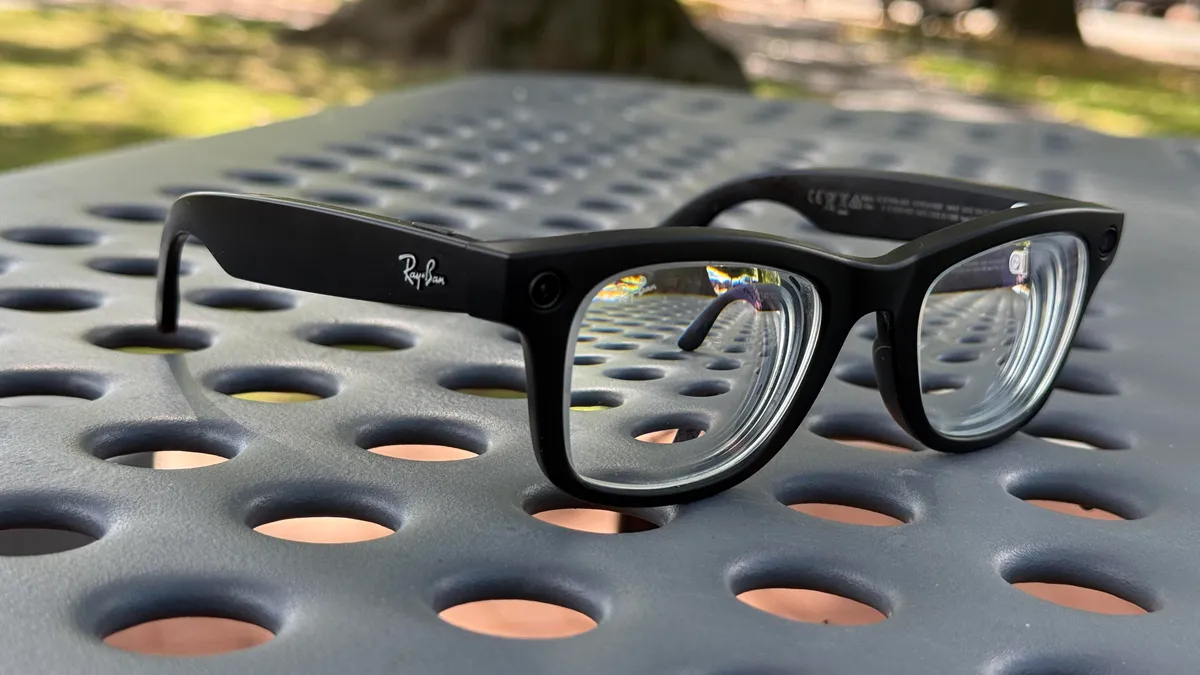
Meanwhile, wireless smart glasses aim to be true everyday glasses. They’ll likely replace your existing glasses, become an additional pair or maybe act as smart sunglasses. But if you’re doing that, keep in mind you’ll need to outfit them with your prescription… or, get used to the limited battery life of wireless glasses. Meta Ray-Bans last several hours on a charge, depending on how they’re used. After that, they need to be recharged in their case, so you’ll need to wear another pair of glasses or just accept wearing a pair with a dead battery.
Advertisement
Meanwhile, there are other smart glasses that have longer battery life, like the Even Realities G2, but lack cameras and built-in speakers.
Live AI, Meta’s newest Ray-Bans feature, can keep a constant camera feed on the world. I tested it out.
Scott Stein/CNET
AI and its limits…and privacy
Advertisement
You’ll also want to consider what you’ll use the glasses for, and what devices or AI services you use. Wireless audio and video glasses like Ray-Bans need a phone app to pair and use with, but they can also act as basic Bluetooth headphones with any audio source. However, Meta Ray-Bans are limited to Meta AI as the functioning onboard AI service, with a few hook-ins to apps like Apple Music, Spotify, Calm and Facebook’s core platforms. You’re living in Meta’s world, and that’s a big problem when it comes to trusting the glasses to have a responsible data policy. You can choose to not use the AI features on Meta glasses, something I do because a lot of the AI functions aren’t that useful for me anyway.
Meta is opening up its smart glasses to app developers, although to what degree is still unknown. Meta’s newest Ray-Ban Display glasses, meanwhile, add more apps but mainly for Facebook app-connected functions. Meta’s also beginning to support connected fitness devices, but only with Garmin and its upcoming Oakley Vanguard sports visor for now.
Google’s next wave of glasses expected later this year should be more flexible, tapping into Gemini AI and more Google apps and services. But we still don’t know the entire limits of those glasses, either.
Apple is also expected to have its own AI-enabled glasses within the next year. In other words: things will be changing fast in this space.
Advertisement
AI-enabled glasses can often use AI and the onboard camera for a number of assistive purposes like live translation or describing an environment in detail. For those with vision loss or assistive needs, AI glasses are starting to become an exciting and helpful type of device, but they’re more limited than what you can do on phones and computers right now. Meta’s AI functions on glasses aren’t as flexible — you can’t necessarily add documents and personal information into it in the same way you can with other services. At least, not yet.
Tethered display glasses have limits, too
Display-enabled tethered glasses use USB-C to connect to gadgets that can output video via USB-C, like phones, laptops, tablets and even handheld game consoles. But they don’t all work the same. Phones can sometimes have app incompatibilities, preventing copyrighted videos from playing in rare instances (like Disney+ on iPhones). Steam Decks and Windows game handhelds work with tethered display glasses, but the Nintendo Switch and Switch 2 don’t, and need proprietary and bulky battery pack “mini docks” sold separately to send a signal through. Some glasses-makers like Xreal are building more custom chipsets in-glasses to pin displays in space or customize display size, while others lean on extra software only available on laptops or certain devices to perform extra tricks. But the space here is also changing. Project Aura, coming this year, will pair Xreal display glasses to an Android mini-computer to run lots of apps in 3D and with hand tracking, like a tiny mixed reality headset. More devices like this could emerge, adding true 3D augmented reality and more.
Advertisement
Lexy Savvides
Lots on the horizon
If this all sounds like a bit of a Wild West landscape, that’s because it is. Glasses right now remind me of the wrist wearable scene before the Apple Watch and Android watches arrived: It was experimental, inconsistent, sometimes brilliant and sometimes frustrating. Expect glasses to evolve quickly over the next year or so, meaning your choice to buy in now is not guaranteed to be a perfect solution down the road.
While Meta is currently leading the way on face wearables, it’s likely that glasses coming soon will be even more evolved. Once Google and Apple enter the picture, expect more app and service compatibility on smart glasses, too.
And, keep an eye on your wrist. Meta’s neural band for its display glasses is a sign of where others will follow, and Google and Apple will likely fold watch interactions with its glasses for easier gestures and shortcut controls.
More companies are entering this space, including longtime glasses-maker (and social app company) Snap. Snap’s everyday AR glasses are coming later this year, too, but we don’t know that much about them yet, although I’ve tried their bulky developer prototypes several times.
The Ugreen Maxidok 17-in-1 Thunderbolt 5 Docking Station is a very capable and modern docking station that provides a vast array of fast ports in a compact and stylish chassis that can act as a one-stop shop for power users. The Thunderbolt 5 USB-C ports are fast, alongside brisk USB and SD card slots, though it is quite expensive overall.
Compact and stylish aluminium finish
Lots of ports
Very easy to live with
Quite expensive
Maximum functionality relies super-modern devices
Key Features
Advertisement
Review Price:
£419.99
Thunderbolt 5 connectivity
Advertisement
This Ugreen dock offers bang up-to-date connectivity with Thunderbolt 5 both in and out, allowing for fast power delivery and high resolution and refresh rate display out with compatible devices.
17-in-1 ports
Advertisement
It comes with a wide range of ports for display, charging other devices and connecting external storage and more to one laptop in a neat package.
Introduction
The Ugreen Maxidok 17-in-1 Thunderbolt 5 Docking Station looks to be one of the most feature-rich Thunderbolt 5 docks you can buy in 2026.
It’s a box that’s not much bigger than a new Mac Mini, packing everything from high-wattage USB-C with DisplayPort power, Ethernet, SD card, and more USB ports than you can shake a stick at, all in a small, premium package.
Advertisement
At £419.99/$499, it’s one of the more premium choices in the modern Thunderbolt 5 canon of docking stations, but may well have enough about it to be one of the strongest choices you can find – I’ve been putting it through its paces for the last couple of weeks to find out.
Advertisement
Design and Features
Compact and solid build
Vast array of modern ports
Handy accessories included
The Maxidok 17-in-1 Thunderbolt 5 Docking Station looks a little different from other laptop docking stations out there, opting for a small cubed shape when a lot of rivals are either hefty vertical towers or long horizontal desk hogs.
Size-wise, it isn’t too dissimilar from the latest Mac Mini, meaning it’s nice and compact. Build quality is strong, with a dark grey aluminium shell that fits the Apple aesthetic and gives this unit some heft; the sides also have copper-coloured accents with venting holes to provide a little bit of flair alongside a Ugreen logo on the top.
Image Credit (Trusted Reviews)
The ventilation holes on the sides of the unit are for passive cooling, while a fan inside the dock provides active cooling for more demanding workflows.
Advertisement
Advertisement
The ports on the Maxidok 17-in-1 Thunderbolt 5 Docking Station are accessible, with the front panel housing a power button and indicator LED, along with separate MicroSD and SD card readers.
The SD card readers are potentially faster than a lot of the ones you’ll find in modern ultrabooks, being rated for up to 312Mbps, as they’re both UHS-II-rated, as long as you’re using a card that’ll take advantage of the higher-speed interface.
There is also a headphone jack and a trifecta of USB-C ports, two of which share up to 60W of power for fast charging a laptop, phone, or other devices.
Image Credit (Trusted Reviews)
The main attraction is the rear I/O of this Ugreen unit, though, with an upstream Thunderbolt 5 port to your laptop handling the rest of the crowd of ports that provides up to 140W of power to the host device. To add to this, there are two further Thunderbolt 5 ports for hooking up external monitors, fast external SSDs and such, plus a full-size DisplayPort 2.1 for another monitor.
For reference, Thunderbolt 5 doubles data speeds from 40Gbps to bi-directional 80Gbps, and up to 120Gbps in ‘boost mode’ for higher display bandwidth, which technically means it’s capable of up to 8K/60Hz or 4K/240Hz, depending on the laptop you’re using and the ports it comes with.
Advertisement
Advertisement
Image Credit (Trusted Reviews)
Moreover, for those connecting high-speed SSDs, Thunderbolt 5 also provides a hefty bandwidth increase with up to 64Gbps PCIe 4.0 available, and transfer speeds of up to 6200MB/s – that means you’ll be able to take advantage of any fast Gen 4 SSD you plug in at nearly full pelt.
You also get 2.5-Gig Ethernet for stable and brisk wired networking, alongside three 10Gbps USB-A ports for legacy devices and peripherals, and separate audio and mic jacks. On the underside is an M.2 slot for adding additional SSD storage, which supports up to 8TB drives, and has a hefty metal heatsink that means the slot is sunk quite far into the unit.
Image Credit (Trusted Reviews)
All of this is powered by a hefty 12V DC power brick, which is nearly as large as the Maxidok 17-in-1 Thunderbolt 5 Docking Station itself; nonetheless, as this dock can put out up to 240W of power to compatible devices, it’s certainly required.
Ugreen also bundles a range of region-specific power cables in the box, plus a proper Thunderbolt 5-capable USB-C cable and an M.2 screwdriver for undoing the enclosure on the base of the Maxidok 17-in-1 Thunderbolt 5 Docking Station.
Advertisement
Advertisement
Performance
Fast charging to my MacBook Pro
Convenient means of connecting everything I needed to
Permissions need to be granted before it can work
During my time with the Maxidok 17-in-1 Thunderbolt 5 Docking Station, I hooked it up to my main 16-inch M1 Pro-powered MacBook Pro work laptop and used it in conjunction with a range of devices to best judge its usability.
I used the bundled Thunderbolt 5 USB-C port to connect my MacBook to the docking station, which not only makes it the brains of the operation, but with up to 140W of power delivery, also charges my laptop up briskly to boot.
Image Credit (Trusted Reviews)
When hooking up an external display, I was initially greeted with no signal, but it turns out that macOS needed permissions to connect to the dock before anything would work – that’s just a useful troubleshooting tip if you get no display out over either one of the rear USB-C ports or the DisplayPort 2.1 port on the unit.
My 16-inch M1 Pro-powered MacBook Pro unfortunately doesn’t support full-fat Thunderbolt 5 output, and instead has three Thunderbolt 4 USB-C ports, meaning its display out capabilities max out at 6K/60Hz, rather than the 8K/60Hz that Ugreen touts.
Advertisement
Image Credit (Trusted Reviews)
Nonetheless, I had no trouble using it at 4K/144Hz with my Philips Evnia 32M2N8900 monitor hooked up to the docking station via the Thunderbolt 4-capable USB-C cable that came with the monitor initially. With a compatible Thunderbolt 5 monitor, though, you may be able to reap the full benefits of 4K/240Hz output over USB-C.
The vast array of ports also allowed this Maxidok 17-in-1 Thunderbolt 5 Docking Station to become the central hub of desktop connectivity, and it was soon easy to try and fill the ports up with an SD card from my camera, a wired mechanical keyboard, wired networking and a spare SSD on the underside to conveniently add storage to the 512GB internal capacity of my MacBook when I needed to.
Advertisement
Image Credit (Trusted Reviews)
This dock is designed primarily for more intensive power users than me, and I still had ports I could have used when I thought I’d connected all my devices. It goes to prove the power of an apparent 17-in-1 docking station, and what you can really do with it.
Advertisement
Should you buy it?
You want lots of ports in a compact frame
This Maxidok 17-in-1 Thunderbolt 5 Docking Station impresses with its immense functionality and speed in a chassis that’s much more compact than rival choices.
Advertisement
You don’t need so many ports
Advertisement
If you don’t strictly require the 17-in-1 connectivity this laptop provides, then you can get away with a less featured choice that’ll also be a fair amount more affordable.
Final Thoughts
The Ugreen Maxidok 17-in-1 Thunderbolt 5 Docking Station is a very capable and modern docking station that provides a vast array of fast ports in a compact and stylish chassis that can act as a one-stop shop for power users.
Advertisement
The Thunderbolt 5 USB-C ports are fast, alongside brisk USB and SD card slots, though it is quite expensive overall.
How We Test
We test every docking station we review thoroughly over an extended period of time. We use industry-standard tests to compare features properly. We’ll always tell you what we find. We never, ever, accept money to review a product.
Find out more about how we test in our ethics policy.
Tested for more than a week
Tested with real world use
FAQs
What ports does the Ugreen Maxidok 17-in-1 Thunderbolt 5 Docking Station have?
The Ugreen Maxidok 17-in-1 Thunderbolt 5 Docking Station has 17 total ports with one upstream Thunderbolt 5 port (80Gbps/120Gbps, 140W, two downstream Thunderbolt 5 ports (80Gbps, 15W), two USB-C ports (10Gbps, 60W, one USB-C port (10Gbps, 7.5W, three USB-A ports (10Gbps, 7.5W, one DisplayPort 2.1, Ethernet (2.5Gb), an SSD slot (M.2 NVme up to 8TB), a UHS-II SD card reader (312MBps), a UHS-II microSD card reader (312MBps), a 3.5mm combo audio jack (front), a 3.5mm In audio jack (back), a 3.5mm Out audio jack (back) and uses a 240W power supply.
Advertisement
Full Specs
Ugreen Maxidok 17-in-1 Thunderbolt 5 Docking Station Review
UK RRP
£419.99
USA RRP
$499
Manufacturer
Ugreen
Size (Dimensions)
133 x 133 x 53 MM
Weight
870 G
Release Date
2026
First Reviewed Date
13/04/2026
Resolution
x
Ports
One upstream Thunderbolt 5 port (80Gbps/120Gbps, 140W) Two downstream Thunderbolt 5 ports (80Gbps, 15W) Two USB-C ports (10Gbps, 60W) One USB-C port (10Gbps, 7.5W) Three USB-A ports (10Gbps, 7.5W) One DisplayPort 2.1 Ethernet (2.5Gb) SSD slot (M.2 NVme up to 8TB) UHS-II SD card reader (312MBps) UHS-II microSD card reader (312MBps) 3.5mm combo audio jack (front) 3.5mm In audio jack (back) 3.5mm Out audio jack (back) 240W power supply
There’s an old saying that the happiest days of a boat owner’s life are the day they buy the boat, and the day they sell it. For me, the happiest days of an Android tablet owner’s life are the day they buy a new one, and the day they buy a newer one. For some reason, I always buy tablets with great expectations, get them set up, and then promptly lose them in a pile on my desk, not to be seen again. Then a shiny new tablet gets my attention in a year or so, and the cycle repeats.
You might be thinking that I just buy cheap junk tablets. It is true that I have. But I have also bought new Galaxy and Asus tablets with the same result. Admittedly, I have owned several Surface Laptops and Pros, and I do use them. But I can’t remember the last time I have used one without the keyboard. They aren’t really tablets — they are just laptops that can also be heavy, awkward tablets.
Why?
I get the sense that iPad users get more use from their devices, but I’m not sure why. Maybe because Android tablets are really just blown-up phones. These days, my phone is big enough for most things. Sure, the tablet is bigger, but it isn’t that much bigger. In addition, my phone usually has a much better CPU, camera, and everything else. Not to mention it is constantly connected to the Internet, even if I’m not in range of a known WiFi router.
Read webpages? Phone. Play games? Phone. Deal with e-mail? Phone. The only advantage is if I put the tablet’s cheap Bluetooth keyboard on and use it like a laptop. But wait, I can just as well do that with the phone. Plus, voice typing for things like e-mails and messages is much better than it used to be.
Advertisement
Then there’s using it as a laptop replacement. When my laptop weighed a ton and got a few hours on a battery, that seemed like a good idea. But modern laptops don’t weigh that much, and they have pretty reasonable battery life, too. I always install some kind of Linux, like Termux and even Termux-X11, so I can use it as a lightweight Linux laptop. And I still don’t use it. (My setup is similar to the one in the video below, although you may have a few hiccups getting it all to work.)
Desktop
Phone, tablet, or laptop, I’m still more likely to be found at my desk behind a big screen with a serious computer. Maybe it’s a generation gap, like clinging to a landline phone (I don’t) or a DVD player (another thing I don’t do). Maybe it is that most of the things I do on the computer benefit from large split screens and fast computing times.
Of course, there’s also the gadget factor. My desktop computer is huge and heavy, full of cards and water coolers, disk drives and fans. Some people trick out their cars. It is hard to expand most laptops, phones, and tablets, although I have had some success taking them apart for simple upgrades. They never seem to go back together quite right, though.
So Then?
So then what do I actually want a tablet for? I don’t know. Which leads me to ask you: what are you using a tablet for? Do you really use it regularly? Or is it another gadget collecting dust? It doesn’t count if you repurpose them for some dedicated use: a second screen, a touchpad, or a 3D printer controller. I mean using them as a replacement for your normal computing platform. Let us know in the comments.
An anonymous reader quotes a report from NBC News: The Food and Drug Administration on Friday granted a quick review of three experimental psychedelic drugs meant to treat major depression and post-traumatic stress disorder. It’s the latest move by the Trump administration signaling a shift in policy toward treatments that also give users a high — coming a day after the Justice Department said it would ease restrictions on state-licensed medical marijuana.
UK-based biotech company Compass Pathways said Friday it has received an expedited review for its experimental form of synthetic psilocybin for treatment-resistant depression. In a press release the company cited two large, phase 3 studies that had “generated positive data.” Usona Institute, headquartered in Wisconsin, also said it’s received a voucher for its work with psilocybin to treat major depressive disorder. In an email, a Usona spokesperson said the company expects the review process to last one to two months after it submits its application. “The voucher expedites the timeline only; it does not alter scientific or regulatory standards,” the spokesperson wrote. New York-based Transcend Therapeutics has also been granted a priority review voucher for its experimental drug methylone for PTSD, Blake Mandell, the company’s chief executive officer, said. “There’s a battle still raging in their mind that we don’t fully understand biochemically,” FDA Commissioner Marty Makary said. “When you see something that looks promising for a community that is suffering with mental health illness, despair and suicidal ideation, you can’t help but recognize that.”
Makary told NBC News that with the priority voucher program, the agency could potentially approve the first psychedelic drug by the end of summer.
If you’ve been thinking about buying an Apple MacBook Air, B&H is having a fantastic sale right now with savings across several 13-inch M4 models. It runs through May 2, so you’ll need to move quickly.
We said it offered “a perfect marriage of performance and efficiency”, and that “it’s a gorgeous-looking laptop that’s easy to carry around, with a keyboard that feels great to type on.”
Apple rolled out newer MacBook Air models with the M5 chip back in March, but the M4 chip, with its 10-core CPU, 10-core GPU, and 16-core Neural Engine, is certainly no slouch. Apple’s 13-inch ultraportable was our laptop of the year 2025.
The 13.6″ Liquid Retina display delivers crisp detail and vibrant color, while the fast SSD gives you plenty of room for files, media, and project assets.
Advertisement
For those needing maximum storage, the Apple 13″ MacBook Air in Starlight with a 2TB SSD is down to $1,549 from $1,799, delivering a huge amount of space that will be ideal for storing large media libraries, video projects, and the like.
The Apple 13″ MacBook Air in Midnight with 24GB RAM and a 1TB SSD is now $1,299, reduced from $1,499, and it’s another great choice for users who want extra memory without blowing the budget.
Rounding things out, the Apple 13″ MacBook Air in Sky Blue with 16GB RAM and a 1TB SSD is down to $1,199 from $1,399, giving buyers another affordable entry point into Apple’s M4 line-up.
With these prices locked at their lowest levels in 180 days, this sale delivers some of the best MacBook Air (M4) deals I’ve seen.
Advertisement
If you’re still not fully sold, our Editor-at-Large Lance said in his glowing review, “The MacBook Air 13-inch (M4) has an excellent build and design, working on it is a pleasure, and the M4 provides all the power I need for the widest range of tasks. I appreciate the long battery life, bright, colorful screen, and clear audio. It has enough ports to support my almost always connected external screen, and I’m glad there’s still a vestigial 3.5mm headphone jack. macOS and the supporting Apple ecosystem are unparalleled.”
The Commission says Meta’s own terms set 13 as the minimum age for Facebook and Instagram, but the systems in place to enforce that rule are not effective enough. Regulators say underage users can still get in by entering a false birth date, while existing accounts belonging to children are… Read Entire Article Source link
As a professional photographer for many years, I’ve photographed everything from editorial photo stories to elaborate product photography along with landscapes, weddings, travel and street photography in my personal work. And if you’ll allow me to blow my own trumpet, I’ve also been shortlisted for numerous major industry awards for my work in those areas. From my experinece I’ve learned that there are three types of camera that all photographers need to have in their photography setups. And I’m not talking about brands, such as a Sony or a Canon, or even sensor types, like a full-frame or APS C. I mean a deeper level of camera selection — the types of camera that offer fundamentally different ways of approaching your photography and allow you to create your best work, no matter what genre you like to dabble in.
While these types could mean three physically different cameras, they could also be covered by two cameras, or even just one. Let’s dive in with camera type number one.
Don’t miss any of our unbiased tech content and lab-based reviews. Add CNET as a preferred Google source.
Advertisement
The workhorse
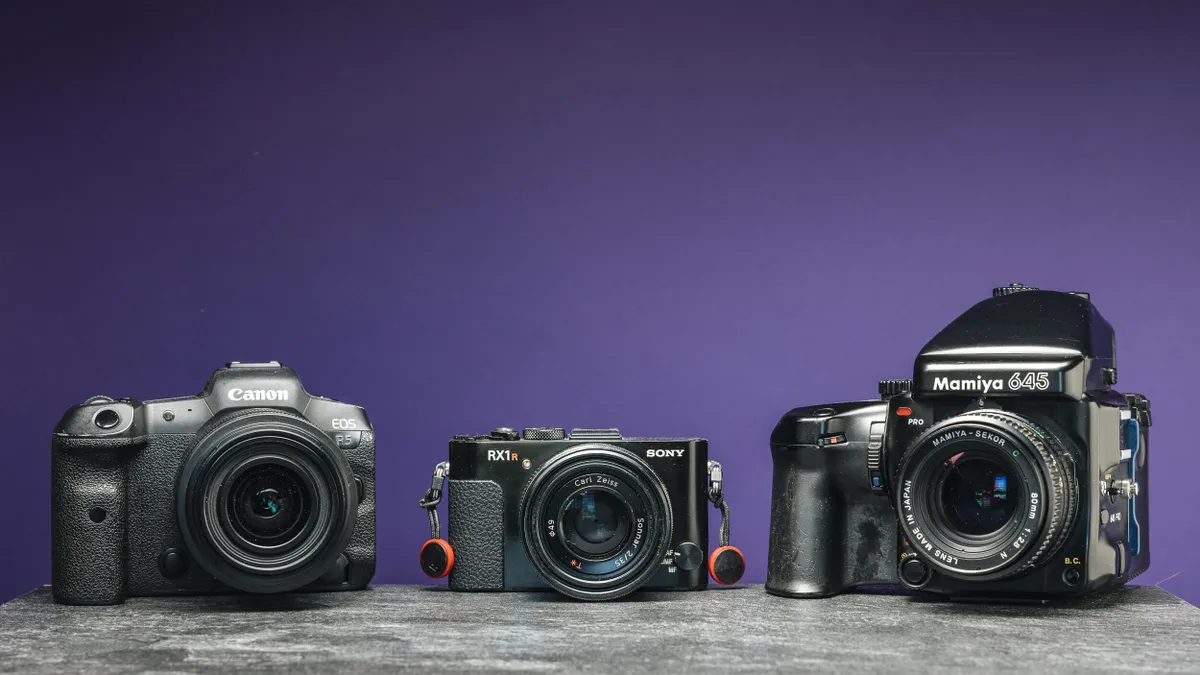
This is the camera that gets stuff done. It’s likely packed with modern camera technology. It’s fast to use, shoots at high speed, has lightning-fast autofocus, possibly image stabilization, and almost certainly uses interchangeable lenses. It may well be full frame. It’s the camera that pros the world over use for all kinds of photo shoots — just like I have — from weddings to cars to products to pets … whatever. It’s a jack-of-all-trades camera that you can trust will do anything you need it to any time you need it to do it.
I’ve used my Canon R5 on numerous professional shoots for photos and videos. It’s a high-performance all-rounder.
Andrew Lanxon/CNET
For me right now, that’s the Canon R5. Fast, high resolution. Tons of features. A flippy screen. And it shoots awesome video. Endless lens and accessory options. It’s the camera I trust for most of my professional work because I know it can deliver and I know I can deliver when I’m using it. Previously it’s been the Canon 5DIV and before that it was the Canon 6D. For you, it might be the Sony A7RV, the Nikon Z8 or the Panasonic Lumix S5II.
Advertisement
It might not be the latest model around, but whether it was launched in 2026 or 2006 it’ll tick all the boxes you need for a busy day of photography whether you’re a professional or an enthusiastic amateur. The workhorse is a camera that’ll do everything you need from it and it’ll do it well. But it’s likely also quite big and probably quite expensive. While it’s great that there are so many lenses to choose from, maybe sometimes you don’t want the burden of choice. So that’s when you need…
A compact, fixed-lens camera like Fujifilm’s X100VI is great to have with you, always ready to shoot.
John Kim/ CNET
The everyday carry
It’s a small digital. A compact point and shoot, ideally. Almost certainly a fixed lens. The Fuji X100VI or the Ricoh GRIII. Even the relatively ancient Sony RX1R or the Leica Q3. The Q3 isn’t that small really but I actually love my Q3 43 as an everyday carry. It’ll be the type of camera you can quickly grab when you’re heading out in a hurry without thinking about lenses. When you don’t want a backpack full of gear when camping, but do want lots of fun shots of you and your mates around the campfire. It’s the camera you can always carry. It’s the social camera you don’t mind getting in among the chaos of life. It could feasibly even just be your phone camera.
It’s probably the lightest camera you own that allows you to comfortably wear it around your neck while you’re walking around the streets of some old Italian town. It’s maybe even small enough to slip into your pocket when you go into a bar and easily slip back out when the light comes in beautifully through the pub window and you want to catch a quick shot.
Having my Leica Q3 43 always with me allows me to snap scenes whenever I see them.
Advertisement
Andrew Lanxon/CNET
It’s a camera for quick shooting and for social shooting — maybe even grubby from-the-hip or spray and pray shooting. It’s probably the camera you’ve captured the most memories on but it’s also probably not the camera you’ve used to take your favorite fine art photos. Oh no, that’ll be this one.
The artful one
It might not technically be your best camera. It might not have the most features. It might not be the smallest, the fastest or the easiest to use. But it’s the camera that inspires you the most. It’s the one that makes you feel creative just by looking at it. It’s the one you choose to take when you drive for hours to one location in the slim hope that you might have good light that evening.
It’s the camera that makes you slow down and think about the art in your images rather than rattling off a thousand mediocre snaps. It’s the camera that’s responsible for the work you’re most proud of.
Advertisement
The Hasselblad 907X — an amazing, quirky camera.
Andrew Lanxon/CNET
This camera could be a lot of things. It could be a film camera, be it 35mm or 120 medium format. That alone would slow you down and make you take a more methodical approach unless you’re happy to spend a fortune on film. Or maybe it’s something like a modern digital medium format like a Fuji GFX or my personal favorite, Hasselblad’s 907X 100C — that weird little box gave me such a buzz when I used it that it was genuinely difficult to part with it when I had to send it back.
I found the Hasselblad’s X-Pan panorama mode incredibly inspiring. This image was even shortlisted for a major UK photography award.
Advertisement
Andrew Lanxon/CNET
It’s a camera you might not even own yet and maybe don’t even know you want. I didn’t know I was at all interested in film photography until only quite recently, yet I gave a man a fistful of cash in a car park to buy his medium format Mamiya 645 Pro, which I’ve really enjoyed putting numerous roles of film through. Life throws things your way sometimes. So maybe this camera is one you’ll need to be a bit open minded about. But it’s also the one you might be most glad you got in the years to come.
Three types, one camera
Between the workhorse, the everyday carry and the artful one, you have yourself covered in any aspect of photography, no matter what genre you like to dabble in.
I took my Canon R5 to Sicily where it performed all the roles of workhorse, everyday carry and inspirational camera admirably. You don’t necessarily need three separate cameras.
Advertisement
Andrew Lanxon/CNET
Of course, some cameras can be two things; an artistically inspiring camera that’s also an everyday carry. Hell, some cameras could be all three rolled up in one. And that’s absolutely fine — as long as that one camera ticks each of those three boxes for you. It’s really up to you to interpret whether your camera is small enough to be your everyday carry or inspiring enough to be your artful one. But this rule certainly doesn’t mean you need to go out and buy two additional cameras.
My Canon R5 with a compact prime on it certainly can be all three. It was a great everyday carry on a trip to Sicily and it inspired me to take artistic photos that I adored and that I later licensed to go into a luxury travel book meaning it was also my professional workhorse. So on that one trip alone it ticked all three boxes for me. But it’s not always all of those things.
My Leica Q3 43 was a superb everyday carry camera on my recent travels to the Swedish Arctic and Barcelona. It was the camera I took on multiple ferry trips to various remote Scottish islands and it was the camera I took when I went to hang with my brother for his 40th birthday. And yeah, it too is also a camera that excites me, that inspires me and urges me to be more creative with my shooting. Because it’s a damn Leica and what photographer doesn’t feel excited to take photos when they’re holding a Leica?
Advertisement
My Leica Q3 43 was an amazing everyday carry and professional workhorse on my assignment in Sweden. Did it also inspire me creatively? You bet.
Volvo
But it’s my recent forays into film that have taught me even more about slowing down and crafting an image and the culmination of that has led me to getting the Mamiya 645 as my artful camera, which completes my personal holy trinity.
And sure, as my work and my style develops and other cameras come and go, that trio of cameras will likely change over the years but the basic building blocks of workhorse, everyday carry and the artful one will always need to be met by whatever cameras I have.



















































You must be logged in to post a comment Login