There’s a lot for Mark Zuckerberg to cover at this year’s keynote.
Meta
Meta is about to hold its biggest event of the year. While Connect was once solely dedicated to virtual reality, the event now covers all the company’s hardware projects, as well as AI and the metaverse.
And this year could be even more jam-packed than usual. Between Meta’s ever-expanding smart glasses lineup, its breakneck AI releases and the current industry freakout over the pace of AI development, there’s certainly a lot of ground for CEO Mark Zuckerberg to cover.
Like last year’s event, Meta has again opted for an evening keynote, with Zuckerberg taking the stage at 4PM PT/7PM ET on September 23. There will be additional talks and developer sessions the following day, starting with a 10AM PT/1PM ET “developer state of the union.” As usual, I’ll be on the ground watching the keynote live from Meta’s HQ in Menlo Park so check back for our liveblog and post-keynote coverage. In the meantime, here’s everything I’ll be looking out for during Connect.
Advertisement
New and updated smart glasses
As with the last few years, there’s likely to be a lot of glasses-related news. One interesting change with this year’s strategy is that the company is reportedly working on a pair of camera-free frames. These glasses, which will reportedly come in two styles, will instead come with extra microphones for chatting with Meta’s AI assistant. The lack of cameras could offer Meta a couple of advantages. The frames will reportedly be a bit slimmer and look more like “normal glasses.”
More significantly, they could also help Meta address ongoing privacy concerns and backlash against its current lineup of glasses. Meta has been trying to get ahead of the “creep glasses” narrative in recent weeks by cracking down on people who tamper with the LED lights and post videos of themselves harassing others. In a recent AMA on Instagram, Meta CTO Andrew Bosworth said the company would have “more to say” about the issue during Connect.
Advertisement
Ray-Ban has recently hinted that it has new Meta-branded glasses coming soon. That could be a reference to these camera-free frames or, perhaps, a new Gen 3 lineup (the first Gen 2 models debuted at last year’s Connect). Another possibility is the next generation of Meta Ray-Ban Display. There have been reports that Meta is working on a version of the glasses that will come with displays in both lenses, which would open up some interesting possibilities in terms of their UI. But it’s been a while since we’ve heard anything about the rumored device, sometimes called “Hypernova 2,” so Meta could be holding that one back for now.
‘Phoenix’ Mixed Reality headset
Meta (via UploadVR)
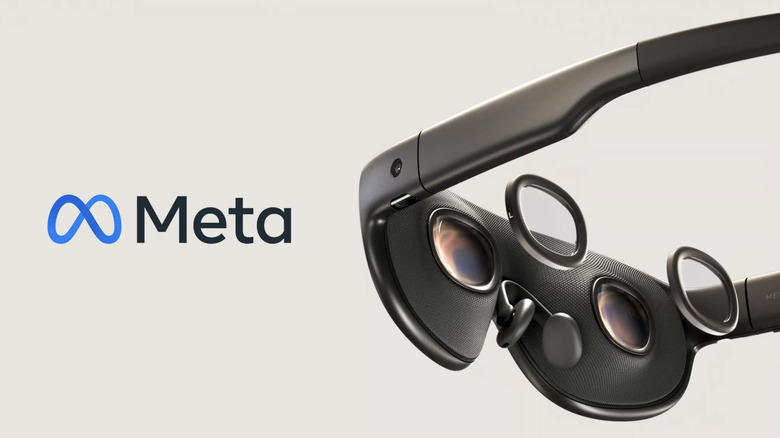
It’s been a while since we’ve seen a new headset from Meta, and we’ve never seen anything from them quite like the device currently known as “Phoenix.” The mixed reality headset has been rumored for some time, but it certainly seems like the company is gearing up for it to make its official debut at Connect.
Several images of the lightweight device recently surfaced in a HorizonOS update. Those images show a thin device that almost looks more like a pair of goggles than a headset. It also clearly shows a cable, which supports previous reporting that Phoenix will rely on a tethered connection to a separate puck. It’s also rumored to support hand and eye tracking rather than a dedicated controller.
Advertisement
And while we don’t know much about what Phoenix will look like in the way of specs, it seems like a pretty good bet the headset will be among the first devices to use the new Snapdragon Reality Elite chip Qualcomm announced earlier this year. Intended for mixed reality headsets, the chip was specifically designed to support slimmed-down form factors.
Avatars and the metaverse
A new kind of headset will probably also mean some updates to HorizonOS, and it will be interesting to see what kinds of experiences Meta will promote alongside the new hardware. The company has been shuttering VR studios left and right, so I doubt we would see any huge game announcements to go with Phoenix. But it does seem like Meta could promote more entertainment-focused offerings. Deadline reported last year that Meta was backing a new “3D horror series” based on A24’s Talk to Me that’s apparently meant for viewing in the company’s headsets.
Advertisement
We may also hear more about Meta’s holographic avatars that we first saw two years ago with its Orion prototype. Meta told me at the time that the technology would eventually come to virtual reality and, given that Qualcomm has highlighted “photorealistic avatars” as one of the benefits of its aforementioned chip, this seems like a very real possibility. The Information also recently reported that an avatar of Meta’s CTO could make an appearance during the Connect keynote. These avatars could also factor into Meta’s evolving vision for the metaverse. When the company almost shut down Horizon Worlds in VR earlier this year, Bosworth said that augmented reality was very much part of the company’s “expansive construct of the metaverse.”
AI and developers
The last few years of Connect have included a lot of AI news and this year shouldn’t be any different. This will be the first Connect since we’ve seen a flood of new AI releases from the company’s superintelligence group, and I’m sure the company is saving some AI-focused updates for Connect.
Advertisement
I fully expect Meta to talk a lot more about its AI agent, Muse. The company teased that glasses support for the agent would be coming “soon,” so I wouldn’t be surprised if we hear more about how this will work at Connect. (Agent capabilities could also be a good selling point for camera-free glasses.)
I’m also hoping to hear more about Meta’s work to bring more third-party apps to its glasses ecosystem. Last year at Connect, the company announced a handful of apps that would be coming to its camera glasses, but we haven’t seen a whole lot of momentum since. And earlier this year it started allowing developers to create dedicated apps for Meta Ray-Ban Display. Showing off a new slate of third-party apps for the frames could be a good way to build more excitement for the product even if we don’t see updated hardware.
Jazz collectors have hardly suffered from a shortage of Miles Davis and John Coltrane reissues in 2026, but Craft Recordings has made a convincing case for revisiting both catalogs during their centennial year. The next Original Jazz Classics wave arrives October 9 with Relaxin’ with the Miles Davis Quintet and John Coltrane with the Red Garland Trio, along with the first OJC edition of Vince Guaraldi Trio’s A Charlie Brown Christmas.
The formula will be familiar to anyone who has followed the revived OJC series. All three albums are sourced from the original master tapes using all-analog mastering, pressed on 180-gram black vinyl and housed in Stoughton tip-on jackets with obi strips. The Miles Davis and John Coltrane titles were cut by Kevin Gray at Cohearent Audio and pressed at RTI, while A Charlie Brown Christmas was cut by Matthew Lutthans at The Mastering Lab and pressed at Quality Record Pressings. All three will also be available in 24-bit/192kHz digital editions.
Each LP is priced at $39, while Craft is offering the three together for $102. The digital editions are $10 each.
Our recent reviews of Craft’s $39 OJC editions of Cookin’ with the Miles Davis Quintet and John Coltrane’s 1957 Coltrane found both pressings to be excellent examples of what the revived series is doing right. Craft has stuck with an approach that makes sense: original tapes, experienced mastering engineers, established pressing plants and proper jackets without turning every important jazz album into a $125 luxury object.
Advertisement
Miles Davis — Relaxin’ with the Miles Davis Quintet
Miles Davis, John Coltrane, Red Garland, Paul Chambers and Philly Joe Jones walked into Rudy Van Gelder’s Hackensack studio twice in 1956 and generated enough material for four Prestige albums: Cookin’, Relaxin’, Workin’and Steamin’. Seventy years later, that remains a fairly ridiculous display of musical efficiency.
Originally released in 1958, Relaxin’ catches Davis’ First Great Quintet operating with the confidence of a working band rather than five musicians assembled for a recording date. “If I Were a Bell,” “You’re My Everything” and “I Could Write a Book” leave plenty of room for Miles’ economy and Garland’s elegant touch, while “Oleo,” “It Could Happen to You” and Dizzy Gillespie’s “Woody’n You” reveal how quickly this group could change gears without making the music feel forced.
There is also some useful context for collectors. Craft previously issued Relaxin’ as a limited Small Batch One-Step pressing, mastered by Bernie Grundman and originally priced at $99. That edition used a very different production process and presentation. The new OJC is the more conventional proposition: Kevin Gray, original tapes, AAA mastering, RTI, a Stoughton jacket and a $39 price.
Having recently reviewed Craft’s OJC edition of Cookin’, I would not dismiss the less expensive route as some kind of consolation prize. That pressing demonstrated just how much performance Craft and RTI can deliver at this price point, and Relaxin’ gives collectors another piece of the same historic 1956 sessions without requiring a boxed set or premium One-Step purchase.
Mastering: AAA from the original tapes by Kevin Gray at Cohearent Audio
Vinyl: 180-gram black vinyl pressed at RTI
Packaging: Stoughton tip-on jacket with obi
Digital: 24-bit/192kHz hi-res audio
John Coltrane — John Coltrane with the Red Garland Trio
Coltrane’s second selection in this October batch is arguably the more interesting choice because it catches him in one of the most important transitional periods of his career.
Recorded in 1957 and released by Prestige the following year, John Coltrane with the Red Garland Trio reunited the saxophonist with Miles Davis Quintet bandmates Red Garland and Paul Chambers, with Art Taylor on drums. Prestige subsequently reissued the album in 1961 under the much more familiar title Traneing In.
The title might suggest a supporting role, but Coltrane is very much the center of gravity. The expansive “Traneing In” gives him room to push against Garland’s more lyrical piano language, while “Slow Dance,” the Coltrane original “Bass Blues,” “You Leave Me Breathless” and Irving Berlin’s “Soft Lights and Sweet Music” move between hard bop, blues and standards without turning the session into a stylistic grab bag.
Advertisement. Scroll to continue reading.
Its timing also makes the album fascinating. We recently reviewed Craft’s OJC edition of Coltrane’s self-titled Prestige debut, recorded in May 1957, and that record already captures a musician rapidly separating himself from the pack. John Coltrane with the Red Garland Trio sits within the same extraordinary period when his playing was becoming more harmonically aggressive and unmistakably personal.
Advertisement
With Coltrane’s 100th birthday falling on September 23, the number of anniversary releases has become substantial, ranging from individual albums to Rhino’s sprawling six-LP John Coltrane 100 collection. The OJC approach is considerably simpler: one complete Prestige album, properly mastered and pressed, without trying to summarize a career that changed jazz in barely more than a decade.
Mastering: AAA from the original tapes by Kevin Gray at Cohearent Audio
Vinyl: 180-gram black vinyl pressed at RTI
Packaging: Stoughton tip-on jacket with obi
Digital: 24-bit/192kHz hi-res audio
Vince Guaraldi Trio — A Charlie Brown Christmas
And then there is Charlie Brown.
A Charlie Brown Christmas has been issued in enough vinyl configurations to keep an entire pressing plant busy through the holidays, but this version is notable for a very specific reason: it is the album’s first release in the Original Jazz Classics series.
It also arrives following another remarkable milestone. The 1965 soundtrack was recently certified 6X Platinum in the United States, representing six million album sales and streaming equivalents and making it the best-selling jazz album of all time. That puts a Vince Guaraldi soundtrack created for a half-hour animated television special ahead of some fairly serious competition.
The music hardly needs seasonal assistance at this point. Guaraldi’s “Linus and Lucy,” “Christmas Time Is Here,” “Skating” and “Christmas Is Coming” coexist naturally with his interpretations of “O Tannenbaum,” “What Child Is This,” “Hark, the Herald Angels Sing,” Beethoven’s “Für Elise” and “The Christmas Song.” Guaraldi is joined across the sessions by bassists Fred Marshall and Monty Budwig and drummers Jerry Granelli and Colin Bailey.
Advertisement
This OJC edition is also produced differently from the Davis and Coltrane LPs. Matthew Lutthans cut the lacquers AAA from the original master tapes at The Mastering Lab, with the 180-gram vinyl pressed at QRP. The album receives the same Stoughton tip-on jacket and obi treatment as the other October releases.
For collectors already staring at several copies of A Charlie Brown Christmas, another colored or novelty pressing might be difficult to justify. The OJC edition has a much clearer purpose: a straightforward audiophile black-vinyl edition centered on the mastering, pressing quality and original album presentation.
Mastering: AAA from the original master tapes by Matthew Lutthans at The Mastering Lab
Vinyl: 180-gram black vinyl pressed at QRP
Packaging: Stoughton tip-on jacket with obi
Digital: 24-bit/192kHz hi-res audio
The Bottom Line
Craft Recordings has spent much of 2026 demonstrating that a jazz centennial does not have to mean another compilation with familiar artwork and a new sticker on the front.
A Charlie Brown Christmas is the curveball, and probably the release with the broadest audience. The best-selling jazz album of all time finally joining Original Jazz Classics feels almost overdue, but Craft has at least given collectors a reason to consider buying it again: original tapes, Matthew Lutthans, QRP and none of the visual gimmicks that have accompanied some of its other recent editions.
Three famous records being reissued again is not inherently news. Three carefully produced AAA editions at $39 each, including the first OJC release of one of the most culturally important jazz albums ever recorded, is a considerably better argument.
Advertisement
Pricing & Availability
All three Original Jazz Classics releases arrive October 9, 2026 and are available for preorder from Craft Recordings for $39 each, or get the complete bundle for $102.
Jeff Kohler is asking the U.S. Supreme Court to clarify patent law after courts sided with Google to invalidate his software patent. (Photo courtesy of Jeff Kohler)
Jeff Kohler was working as a software engineer in 2005 when he started spending his nights and weekends on a side project: a web conferencing system that could record and replay live sessions. He filed for a patent without the help of a patent attorney, stuffing two CDs full of C++ source code into the application to show his work.
The patent was issued in 2010, and years later, after Kohler had joined Microsoft, the Redmond company licensed his technology for its Teams video-conferencing platform.
When YouTube later added the ability for viewers to pause, rewind, and change the playback speed of live video, Kohler saw in the feature what he considered to be his own invention. Kohler, who lives in Bellevue, Wash., sued Google for patent infringement in U.S. District Court in Seattle in April 2023.
But rather than defending the feature’s originality, Google argued that Kohler’s patent was too abstract to be eligible for patent protection. The district court agreed and dismissed the case, and the U.S. Court of Appeals for the Federal Circuit affirmed that decision.
Both decisions cited Alice Corp. v. CLS Bank International, a 2014 U.S. Supreme Court ruling that raised the bar for software patent eligibility by holding that an inventor cannot patent an “abstract idea” implemented with generic technology.
Advertisement
Since then, Alice has been used to invalidate thousands of software patents, and the Supreme Court has repeatedly declined to revisit the standard. Now, Kohler is asking the Supreme Court to take up his case, not to overturn Alice, but to clarify how courts should apply it.
“The patent legal system has become hostile to inventors,” Kohler said. “Because of Alice, my case got stopped before it even started.”
HowAlicechanged patent law
When Alice was handed down, patent trolls were on the rise: shadowy entities that bought vague patents to sue tech companies on shaky claims of patent infringement.
That changed under the 2014 ruling, which requires that a patent clear two hurdles: the idea cannot be “abstract,” and it must propose a sufficiently “inventive concept.” The standard has become “a crucial tool” for fighting patent trolls, in the words of the Electronic Frontier Foundation.
Advertisement
But critics say it’s ill-suited to software patents. Because software inventions often rely on pre-existing hardware to run the source code, courts tend to find many of these patents to be insufficiently inventive.
Jon McMichael, an IP litigation partner at Fenwick who has written about Kohler’s case, said this challenge is common in patents where inventors rely on general-purpose computers and off-the-shelf hardware to implement their ideas.
“That’s where those patent holders run into more problems,” he said.
Experts say the courts’ application of Alice has broadened to invalidate the patents of real inventors in addition to those of patent trolls. Toshiko Takenaka, a University of Washington IP law professor who is working on an academic paper about Kohler’s case, said Alice’s ability to quickly defeat bad actors comes “at the expense of the best inventors.”
Advertisement
“Software patents are too frequently being invalidated without giving the owner the opportunity to defend it,” Takenaka said. “This inventor provided something ordinary computers could not do, right? So therefore, in my view, this is an eligible invention.”
Some judges have raised similar concerns, including Federal Circuit Chief Judge Kimberly Moore, who authored the opinion affirming the dismissal of Kohler’s case. In a 2020 concurrence in a separate case, Moore wrote that she and her fellow judges were “unanimous in our unprecedented plea for guidance” from the Supreme Court on how to interpret Alice, which she called a “patent-killing judicial exception of our own creation.”
A quest for legal clarity
After filing his patent, Kohler spent more than 15 years at Microsoft, where he helped launch HoloLens and rose to senior director of product management for the Surface line. He later served as a product leader at Meta for its Horizon platform.
Kohler says he’s hopeful the Supreme Court will agree to hear his case because his petition takes a new approach, asking the court to clarify how to apply the Alice test rather than disputing the test entirely. His new attorney, Kathryn Jean Miller, who does not have prior patent law experience, was admitted to practice before the Supreme Court bar for this case.
Advertisement
“It’s me and my lawyer against the world,” Kohler said. “I never thought I would be doing something like this.”
The Supreme Court has declined more than 89 petitions related to Alice, some of which had the Solicitor General’s endorsement. The justices will decide on Sept. 28 whether to hear Kohler’s case and likely announce their decision the following week.
Kohler is hoping that other inventors will file amicus briefs, which are due by Sept. 23, to illustrate to the court the need for clarification.
“There’s a broad coalition of people who would like some sanity brought back to patent law, from small inventors and startups to former judges,” Kohler said. “That’s what I’m trying to do with my petition.”
The research points to new possibilities for long-term data storage, energy-efficient computation and molecular systems, according to the team.
A team of Maynooth University researchers has developed a “thermodynamically favoured molecular computer” that is thought to be one of the most complex and fastest DNA computers yet created.
The work of Prof Damien Woods, Dr Abeer Eshra, Dr Constantine Evans, Janet Adio and Dr Tristan Stérin was published this week (16 September) in the journal Nature.
Their research demonstrates a molecular computer made from strands of DNA that can perform multiplication, division and addition. Unlike conventional computers that run on silicon chips, the system is a collection of interacting DNA strands in water without a continuous electricity supply that needs only a small amount of heat to kick-start computations.
Advertisement
Woods said: “Silicon-based computers use so much energy; 23pc of Ireland’s electricity goes into computing and data storage. We’ve been blinkered by only seeing one type of computer, but there are other examples around us, including our brain.”
According to the team, the research points to new possibilities for long-term data storage, energy-efficient computation and molecular systems that could operate inside cells for applications such as disease detection.
The team created the DNA computer by adding a small drop of water and salt to a test tube, together with short pieces of DNA and a longer DNA scaffold. This ‘recipe’ was then heated and cooled, allowing the DNA to perform a computation.
“The molecules interact, form a structure and that structure is the answer. One key innovation is that the system naturally finds that answer without needing continuous energy inputs,” said Woods.
Advertisement
The university said its DNA computer was “shown to be robust and reusable” and was capable of performing up to 25 different calculations in a row.
“A small droplet of liquid contains billions, and sometimes trillions, of DNA strands. These strands interact with one another to produce a result,” said Eshra.
“The reaction happens fast in the test tube, but not as fast as silicon – nor is it intended to be. But compared to other DNA computers, ours is the fastest.”
Woods leads an EU-funded DNA computing initiative at the university’s Hamilton Institute that explores alternative forms of computing.
Advertisement
He said: “This is blue-skies science. We don’t know where the future is going to take us.” The team’s Nature-published research can be viewed here.
Don’t miss out on the knowledge you need to succeed. Sign up for the Daily Brief, Silicon Republic’s digest of need-to-know sci-tech news.
To configure a proxy correctly, first get the proxy address or hostname, port if required, and any setup script, bypass rules, or credentials you were given. Then configure either the operating system or Firefox itself, depending on which applications should use the proxy.
Before You Configure a Proxy
A proxy setting is only useful if you know what kind of configuration you were given. Before changing anything, collect the connection details and record your current settings so you can restore them if the connection stops working.
Warning!
Write down or screenshot your current proxy settings before changing them. A wrong server address, port, setup script, or bypass rule can stop affected applications from reaching the internet.
Advertisement
Prerequisites
The proxy server hostname or IP address and port if you are configuring the proxy manually.
The proxy auto-configuration (PAC) URL if your administrator or provider uses an automatic setup script.
Any required proxy username and password if the service uses authentication.
Any hostnames, domains, or local addresses that should bypass the proxy.
Administrator guidance if the device is managed by a workplace, school, or other organization and the controls are locked.
A PAC file is a proxy auto-configuration file that contains rules for deciding when traffic should use a proxy and which proxy should be selected. If you were given only a PAC URL, do not invent a manual server address and port.
The choice between a PAC file and manual proxy configuration depends on whether the proxy rules should be selected automatically or remain fixed to a particular endpoint.
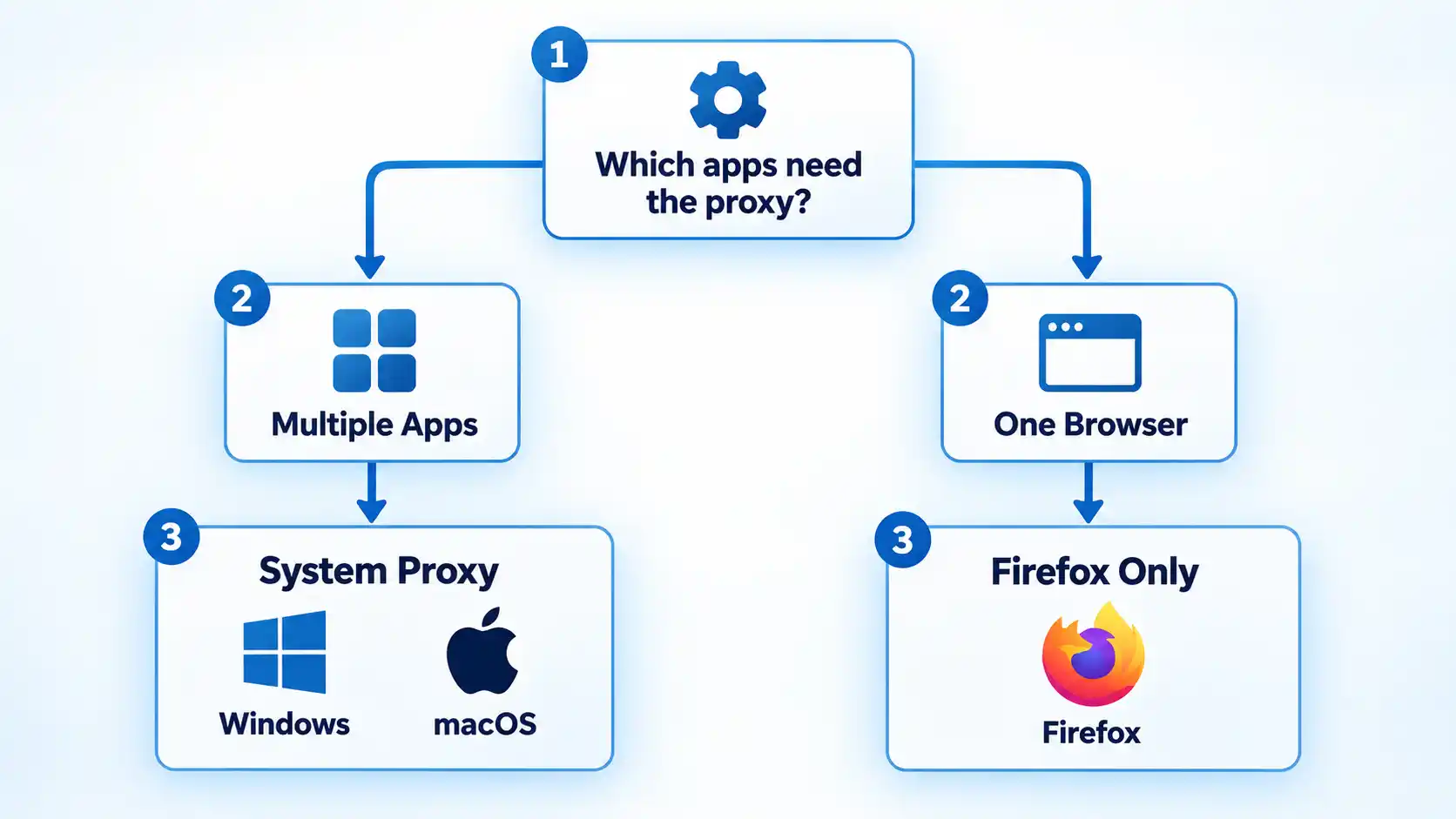
Decide Where to Configure the Proxy
Before opening any settings screen, decide whether the proxy should apply through the operating system or only inside Firefox.
Use the Windows or macOS system proxy when compatible applications should inherit the operating system’s proxy settings. Not every application is required to honor those settings, so system-level configuration should not be described as affecting every program automatically.
Firefox can either inherit the operating system’s proxy configuration or use its own connection settings. Mozilla currently provides a Use system proxy settings option alongside automatic detection, manual proxy configuration, and a PAC URL option.
Advertisement
Understanding how proxy servers route traffic helps explain why changing the system proxy can affect several compatible applications while a Firefox-only configuration can remain limited to the browser.
The difference between a system proxy and browser proxy matters whenever different applications need different network routes.
Proxy configuration is also separate from VPN configuration. If you are deciding between the two technologies rather than simply entering proxy settings, proxy and VPN routing work differently even though both can change the public IP address a destination sees.
How to Configure a Proxy on Windows 10 or 11
Microsoft currently places Windows proxy controls under Settings → Network & internet → Proxy. Windows supports automatic detection, a setup script, and manual proxy configuration.
Advertisement
Open Windows Proxy settings. Open Settings, select Network & internet, then select Proxy.
Choose the setup method you were given. Use Automatically detect settings only when the network is designed to provide proxy settings automatically. Use Use setup script when you were given a script address. Use Manual proxy setup when you were given a fixed server name or IP address and, where required, a port.
Configure a setup script if required. Next to Use setup script, select Set up, turn on Use setup script, enter the script address exactly as supplied, then select Save.
Configure the proxy manually if required. Under Manual proxy setup, select Set up next to Use a proxy server. Turn the option on, enter the proxy server name or IP address, enter the port if required, then continue with any exceptions you were given.
Add exceptions if needed. Enter websites that should bypass the proxy in the exception list. Microsoft documents semicolon-separated entries and supports wildcard endings such as *.example.com. Use the local-address bypass option only when that matches your network requirements.
Save the configuration. Select Save, then test the applications that are expected to use the Windows proxy.
Microsoft’s current Windows proxy documentation confirms these setup methods and notes that a proxy used specifically by a VPN connection must be configured separately.
How to Configure a Proxy on macOS
Current macOS versions configure proxies per network service. Apple provides automatic discovery, PAC configuration, HTTP, HTTPS, and SOCKS proxy options.
Open the network service settings. Choose Apple menu → System Settings, select Network, then choose the network service you are using, such as Wi-Fi or Ethernet.
Open the proxy controls. Select Details, then select Proxies.
Choose the proxy type. Enable only the method you were instructed to use. Apple’s current options include Auto proxy discovery, Automatic proxy configuration, Web proxy (HTTP), Secure web proxy (HTTPS), and SOCKS proxy.
Enter the connection details. For HTTP, HTTPS, or SOCKS, enter the server address and port supplied to you. If the proxy requires authentication, turn on Proxy server requires password and enter the supplied username and password.
Enter the PAC URL if you use automatic configuration. When Automatic proxy configuration is selected, enter the PAC file address in the URL field instead of inventing a manual server address.
Set bypass rules if required. Use Exclude simple hostnames or Bypass proxy settings for these hosts & domains only when your network instructions require those destinations to connect without the proxy.
Review and test the settings. Review the proxy entries you enabled, then test the network service and applications expected to use them.
Apple’s current macOS proxy settings documentation confirms the System Settings path, supported proxy types, authentication fields, PAC configuration, and bypass controls.
How to Configure a Proxy in Firefox
Firefox can inherit the operating system’s proxy settings or use a separate browser-specific configuration. Mozilla’s current support page shows both legacy and newer navigation wording, so the exact labels can differ by Firefox version.
Open Firefox Settings. Open the Firefox menu and select Settings.
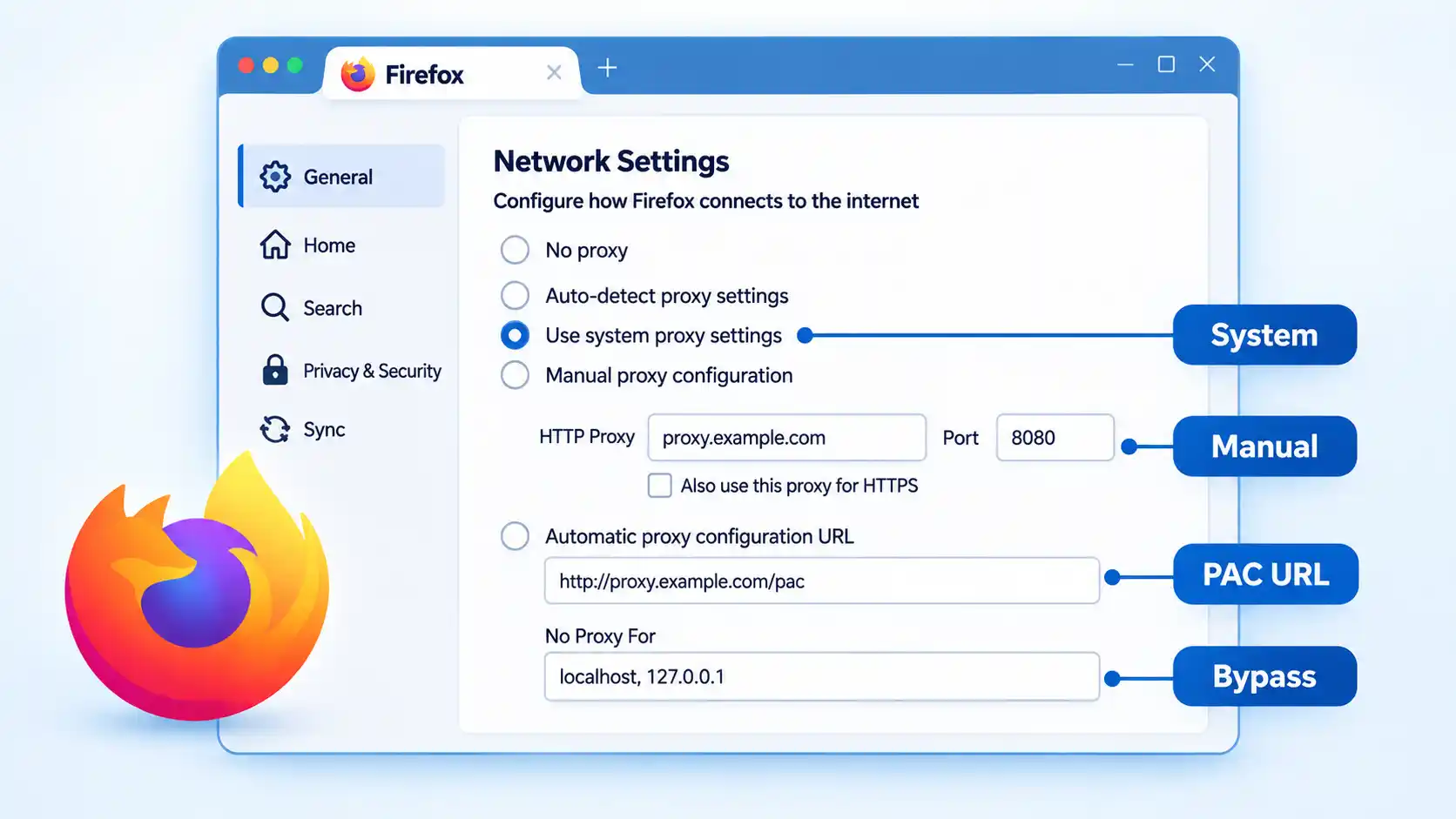
Open the proxy settings area. On newer layouts, select Privacy & Security, find Connection and software security, open Advanced settings, then find Proxy settings and select Configure proxy. On versions that still show the older layout, Firefox may place the same controls under General → Network Settings.
Choose how Firefox should connect. Select No proxy, Auto-detect proxy settings for this network, Use system proxy settings, Manual proxy configuration, or Automatic proxy configuration URL according to the setup you actually need.
Enter manual proxy details if required. Under Manual proxy configuration, enter the proxy hostname and port supplied to you. If the same proxy should also be used for HTTPS, enable Firefox’s option to reuse that proxy for HTTPS.
Enter the PAC URL if required. Select Automatic proxy configuration URL, enter the supplied PAC location, then reload the configuration if needed.
Add Firefox bypass entries if required. Use No Proxy For for hostnames or IP addresses that should bypass Firefox’s proxy. Mozilla documents as a way to bypass simple hostnames that do not contain periods.
Apply the setting and test Firefox. Save or close the connection settings as presented by your Firefox version, then load a normal website and any destination that is expected to behave differently through the proxy.
Mozilla’s current Firefox connection settings documentation confirms the available proxy modes and shows both the newer Privacy & Security route and the older General/Network Settings wording still encountered on some versions.
How to Verify the Proxy Is Working
Saving a proxy setting only confirms that the configuration was stored. Verification means checking that the browser or applications you intended to route through the proxy still connect correctly and that any authentication or bypass behavior matches the configuration you were given.
Advertisement
Verify the result
Open a normal website in the application or browser that should use the proxy and confirm that it loads.
If the proxy requires authentication, confirm that the expected login succeeds and does not enter a repeated credential-prompt loop.
If you configured a bypass rule for a destination you can test safely, confirm that the destination remains reachable with the rule in place.
If Firefox is set to Use system proxy settings, confirm that Firefox still connects when the operating-system proxy is enabled and stops inheriting that behavior when Firefox is switched to a separate setting.
If connectivity fails immediately after enabling the proxy, restore the previous proxy configuration. If connectivity returns, investigate the proxy details before changing unrelated network settings.
These checks confirm basic connectivity and configuration behavior. They do not prove that every application on the device is using the same route, because some applications may ignore system proxy settings or use their own networking configuration.
If the Proxy Breaks Your Connection
Start with the proxy change itself. A full network reset is unnecessary when the problem began immediately after entering a wrong proxy address, port, PAC URL, credential, or bypass rule.
Nothing loads after enabling the proxy
Recheck the server name or IP address, port, and proxy type against the information you were given. If you entered a manual proxy when you should have used a PAC URL, or selected the wrong protocol, restore the previous setting and correct the configuration. An unavailable proxy server can also stop affected traffic.
Only some websites fail
Check the bypass or exception list first. A hostname may be bypassing the proxy when it should not, or a required local destination may be going through the proxy incorrectly. The destination itself can also reject the proxy connection independently of your local settings.
The browser repeatedly asks for proxy credentials
Confirm that the username and password belong to the proxy service rather than a website account. Repeated prompts can indicate rejected credentials or an authentication method that the current proxy arrangement cannot complete. On an organization-managed connection, ask the administrator before repeatedly changing credentials.
Advertisement
The PAC configuration does not apply
Recheck the PAC URL for typing errors and confirm that the configuration file is reachable from the network you are using. In Firefox, use the current automatic proxy configuration option and reload the configuration when needed. Do not replace a PAC setup with a guessed manual server unless your administrator or provider supplies one.
Firefox behaves differently from other applications
Check whether Firefox is set to Use system proxy settings or to its own manual or PAC configuration. Firefox’s connection settings can also show extensions that control how the browser connects to the internet, so disable or review such an extension only when it is actually responsible for the connection behavior.
More advanced proxy connection errors may require diagnosing authentication, DNS behavior, PAC rules, application inheritance, or organization-managed policy separately.
On Windows 11, if turning off the proxy does not restore normal connectivity, the issue may extend beyond the proxy setting. The broader Wi-Fi connected but no internet access troubleshooting path covers other Windows network causes.
Advertisement
How to Turn the Proxy Off
Windows
Return to Settings → Network & internet → Proxy. Turn off the manual proxy or setup script you enabled. If the network normally uses automatic detection, restore that option to its previous state rather than changing multiple settings at once.
macOS
Return to System Settings → Network → [network service] → Details → Proxies. Disable the proxy types you enabled and restore the previous configuration. If the Mac normally uses a PAC file or automatic discovery, restore that setting instead of simply clearing every proxy option.
Firefox
Return to Firefox’s proxy settings. Select No proxy if Firefox should connect without a proxy, or select Use system proxy settings if Firefox should follow the operating system again.
Bottom Line
The safest proxy setup starts by choosing the correct configuration layer. Use the Windows or macOS system proxy when compatible applications should inherit the operating-system settings, and configure Firefox directly only when the browser needs separate proxy behavior.
Advertisement
Keep the original settings, enter only the server, port, PAC URL, credentials, and bypass rules you were actually given, then verify the result before changing anything else. If connectivity fails, undo the proxy change first rather than escalating immediately to a full network reset.
When Microsoft’s developers and engineers sit down to code, they can now choose to work in Rust, which Redmond has added to its list of canonical languages. “Rust now is a Tier One language at Microsoft, and that just means that it sits among C++, C# and TypeScript as the best supported languages for internal development in the company,” explained Victor Ciura, Microsoft principal engineer for the Rust tooling team, during a keynote talk today at this year’s annual RustConf, being held this week in Montréal. Ciura said Microsoft has “paved a path” of tools and processes that support local Rust development across the entire software development lifecycle.
Rust is no stranger at Microsoft and is already present in over 100 Microsoft project repositories. The company has built Oxidizer, a set of crates to build scalable services in Rust, which have been used to build and refine the Microsoft 365 core services such as Outlook, Word, Excel, OneDrive, and SharePoint. The Copilot tech stack also owes quite a bit to Rust… [C]ompany engineers built rustc_codegen_utc, a custom Rust compiler code-generation backend that wires the rustc compiler directly into the Microsoft Visual C++ internal toolchain for Windows… “The result is a unified code generation platform for Rust and C++ on Windows” [Ciura wrote in a blog post, noting that more than 100 Microsoft project repositories now build with rustc_codegen_utc.]
Still, Redmond running towards Rust is a welcome development. In his 2025 RustConf keynote, Microsoft Azure CTO Mark Russinovich noted that ~70 percent of Windows CVEs are memory issues.
“One of the things that I realized a long time ago is that no matter how much we really want to make C and C++ better, we can’t make it as good as what Rust starts with,” he said.
CanJam SoCal 2026 offered another reminder that personal audio has developed a rather elastic definition of “reasonable.” We listened to headphone systems approaching $57,000, while new amplifiers from Feliks Audio, Layer Audio Design and others demonstrated just how far manufacturers are willing to push dedicated headphone amplification.
Cayin is heading in the opposite direction with the new HA-1A MK3, the smallest member of its HA-series of tube headphone amplifiers.
Rather than combining a DAC, streamer, touchscreen and enough menu options to require a weekend seminar, the HA-1A MK3 is an old-school analog headphone amplifier built around a pure vacuum-tube, single-ended Class A circuit.
And that simplicity may be its strongest selling point.
Advertisement
The amplifier uses two JJ 12AU7/ECC82 tubes for voltage amplification and a pair of Electro-Harmonix EL84EH/6BQ5 output tubes. Cayin also uses custom-designed output transformers, point-to-point internal wiring and separate power supplies for the voltage and power-amplification stages.
Related Reviews:
Small Box, Serious Tube Amplifier
At only 240 x 240 x 140mm (9.4 x 9.4 x 5.5 inches), the HA-1A MK3 occupies considerably less desktop real estate than many high-end tube amplifiers.
Do not mistake small for lightweight.
Cayin HA-1A MK3
The transformers and metal chassis push its weight to 8.8kg, or roughly 19.4 pounds, which is substantial for something that takes up only about 9.4 inches in each direction.
Advertisement
Cayin provides both a 6.35mm headphone output and 4-pin XLR headphone output, along with selectable Low and High impedance settings. Low covers headphones from 8 to 150 ohms, while High is intended for models between 151 and 600 ohms.
That significantly broadens the potential headphone roster compared with traditional OTL tube amplifiers, which generally make the most sense with higher-impedance dynamic headphones.
The international launch materials rate output through the 4-pin XLR connection at up to 2,700mW + 2,700mW. Cayin’s current German product page lists 2,800mW + 2,800mW and 2,500mW + 2,500mW through the 6.35mm output, so there appears to be a minor regional specification discrepancy that Cayin will hopefully clarify before U.S. shipments begin.
Advertisement. Scroll to continue reading.
Advertisement
There is also an important distinction regarding that XLR connection. Cayin describes it as a balanced headphone output, but the amplifier itself is specified as a single-ended Class A design. A 4-pin XLR connector should therefore not automatically be interpreted as evidence of a fully differential internal amplifier topology.
More Than a Headphone Amp
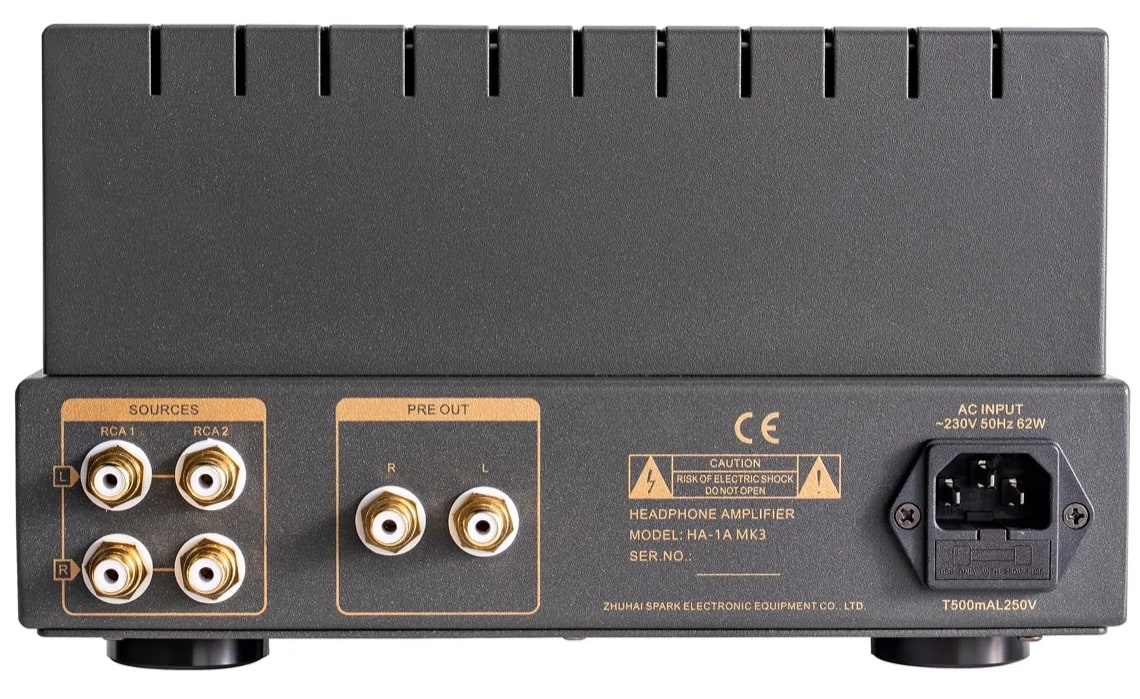
The HA-1A MK3 also includes two pairs of RCA inputs and a dedicated RCA preamplifier output, allowing it to control active loudspeakers or an external power amplifier.
Preamp gain is rated at 9dB with a maximum 5V output.
That makes the Cayin considerably more useful in a small desktop or two-channel system where the headphone amplifier might also serve as the analog control center.
Advertisement
An ALPS volume potentiometer, approximately 50-second delayed startup, automatic muting circuit and removable tube cage round out the package.
There is no DAC, Bluetooth or network streaming.
Good.
We already own enough products desperately trying to become computers.
Advertisement
Cayin HA-1A MK3 Specifications:
Amplifier Type: Pure tube, single-ended Class A
Tubes: 2 x JJ 12AU7/ECC82, 2 x Electro-Harmonix EL84EH/6BQ5
Headphone Outputs: 6.35mm, 4-pin XLR
6.35mm Output: Up to 2.5W + 2.5W
4-pin XLR Output: Up to 2.7W + 2.7W in international launch materials
Impedance Settings: Low 8-150 ohms; High 151-600 ohms
The Feliks Audio Echo Vibe ($1,095) remains one of our favorite affordable tube headphone amplifiers, but its OTL architecture and 350mW output make it a very different proposition. It is particularly compelling with high-impedance dynamic headphones, whereas the Cayin’s transformers, selectable impedance ranges and substantially greater output power should make it suitable for a broader selection of headphones.
At $1,499, the Layer Audio Design GEN-300B features a single-ended Class A 300B circuit and can drive both headphones and efficient loudspeakers with up to 10 watts per channel through its speaker outputs. It is more ambitious as an integrated amplifier, but also considerably larger and heavier.
The Cayin occupies an interesting space between them.
It delivers a traditional transformer-coupled tube circuit, meaningful headphone output, wide impedance compatibility and preamp functionality without turning a desktop headphone system into a piece of living-room furniture.
In 2021, America approved $65 billion to fund broadband internet services as part of President Biden’s Bipartisan Infrastructure Law. But Trump’s administration announced they’d withhold funds from states with net neutrality protections…
States could object and sue the government, Ars Technica reported last October, “but even a successful lawsuit could take years and leave unserved homes without broadband for the foreseeable future.” So where does that leave California’s net neutrality laws? Ars Technica asks. California expect to spend about $1.4 billion to deploy broadband to 270,571 locations…
Similar to federal net neutrality rules repealed during the first Trump administration, California’s law prohibits ISPs from blocking or throttling lawful traffic and says ISPs may not require fees from websites or online services to deliver or prioritize their traffic to Internet users. While the first Trump administration lost its attempt to preempt state net neutrality laws, the second Trump administration is trying to achieve a similar result by making federal broadband money conditional on whether states agree not to enforce net neutrality…
California and Illinois are the only states that haven’t finalized their funding, according to the BEAD progress dashboard maintained by the National Telecommunications and Information Administration (NTIA)… California could try to continue enforcing its net neutrality law even while accepting the federal funding, a strategy that would involve another long court battle over its right to regulate broadband providers. This would be difficult, as the Trump administration is requiring states that accept grant funding to commit that they won’t enforce net neutrality rules… [N]early 30 advocacy groups that focus on access to technology are treating the vote as a significant milestone and urged state leaders to defend California’s net neutrality law in a letter yesterday…
Advertisement
Winning a court battle would become much more difficult after the state accepts the money [according to Paul Goodman, legal counsel for the Center for Accessible Technology]. Goodman said the CPUC should delay the vote and that California should file a lawsuit arguing that the NTIA-imposed condition is illegal. In addition to net neutrality, Goodman said California may be giving up other regulatory authority over companies, like AT&T and Verizon, because the NTIA requirement forbids rate regulation and “utility-style rules on broadband Internet service” in general… Goodman said the exemption from state laws would last for up to 14 years. This is because ISPs receiving grants would have four years to deploy the required broadband networks, and the extended period of performance lasts another 10 years… AT&T is already trying to get out of state obligations related to its basic phone service in California, as we’ve reported… [Also at stake is whether “ISPs themselves get to pick the price of the mandated low-cost broadband offerings,” the article points out.]
The letter from 30 advocacy groups to California state leaders argues accepting the money “would set a dangerous precedent for the federal government to use federal funding as a cudgel that forces states in line with its agenda… If California were to allow this funding to be used as leverage, there is no telling what other resources the administration would confidently seek to exploit.”
Thursday California’s Public Utility Commission did vote to approve the plan, but a spokesperson earlier told Ars Technica their vote “does not address subgrantee agreements, or the conditions the NTIA requires be included in subgrantee agreements.”
A good Android app should earn its place on your phone. It might make an everyday task easier, handle something the built-in software can’t, or let you change an experience that never quite worked for you.
These 20 apps cover everything from quick notes and password management to automation and local file sharing. Some are free, others charge for advanced features, and a few take some effort to figure out. The point isn’t to install them all. It’s to find the ones that make your phone work better for you.
To pick the apps listed below, I started with a category-wise breakdown of apps that an average person runs into on a day-to-day basis. Subsequently, I narrowed down my picks based on average Google Play Store ratings, developer trust, and the general consensus on the reliability (and feature set) of an app based on real-human feedback across social resources like Reddit and official community forums.
Advertisement
In order to test these apps, I installed them on my Pixel 10a, running the latest build of Android 17. All the apps tested were installed from the Google Play Store with the latest update available at the time of writing in September of 2026. I signed in using my personal Google account, and wherever applicable, a separate service account linked to my Play Store log-in to access the full set of features.
The best Android apps at a glance
Here’s the complete selection, organized by what each app does best. Jump to an individual recommendation for more details.
App
Best for
Price
TickTick
Managing tasks and schedules
Free; Premium subscription
Google Keep
Capturing quick notes
Free
Notion
Organizing projects and information
Free; paid plans
ChatGPT
Everyday AI assistance
Free; paid plans
Google Gemini
Android-integrated AI assistance
Free; paid plans
Bitwarden
Managing passwords and passkeys
Free; paid plans
Signal
Private messaging
Free
Proton VPN
VPN connections
Free; paid plans
Niagara Launcher
Simplifying the Android home screen
Free; paid features
Tasker
Automating Android tasks
Paid
LocalSend
Sharing files between devices
Free
Solid Explorer
Advanced file management
Free trial; paid unlock
Snapseed
Editing photos
Free
Canva
Creating graphics and presentations
Free; paid features
Pocket Casts
Organizing podcasts
Free; paid plans
Poweramp
Playing a personal music library
Free trial; paid unlock
Libby
Borrowing ebooks and audiobooks
Free with an eligible library card
Waze
Driving and traffic updates
Free
JustWatch
Finding movies and TV shows
Free; Pro subscription
Caliber
Tracking strength workouts
Free; paid plans and coaching
The best productivity and organization apps
TickTick – Best for managing tasks and schedules
TickTick
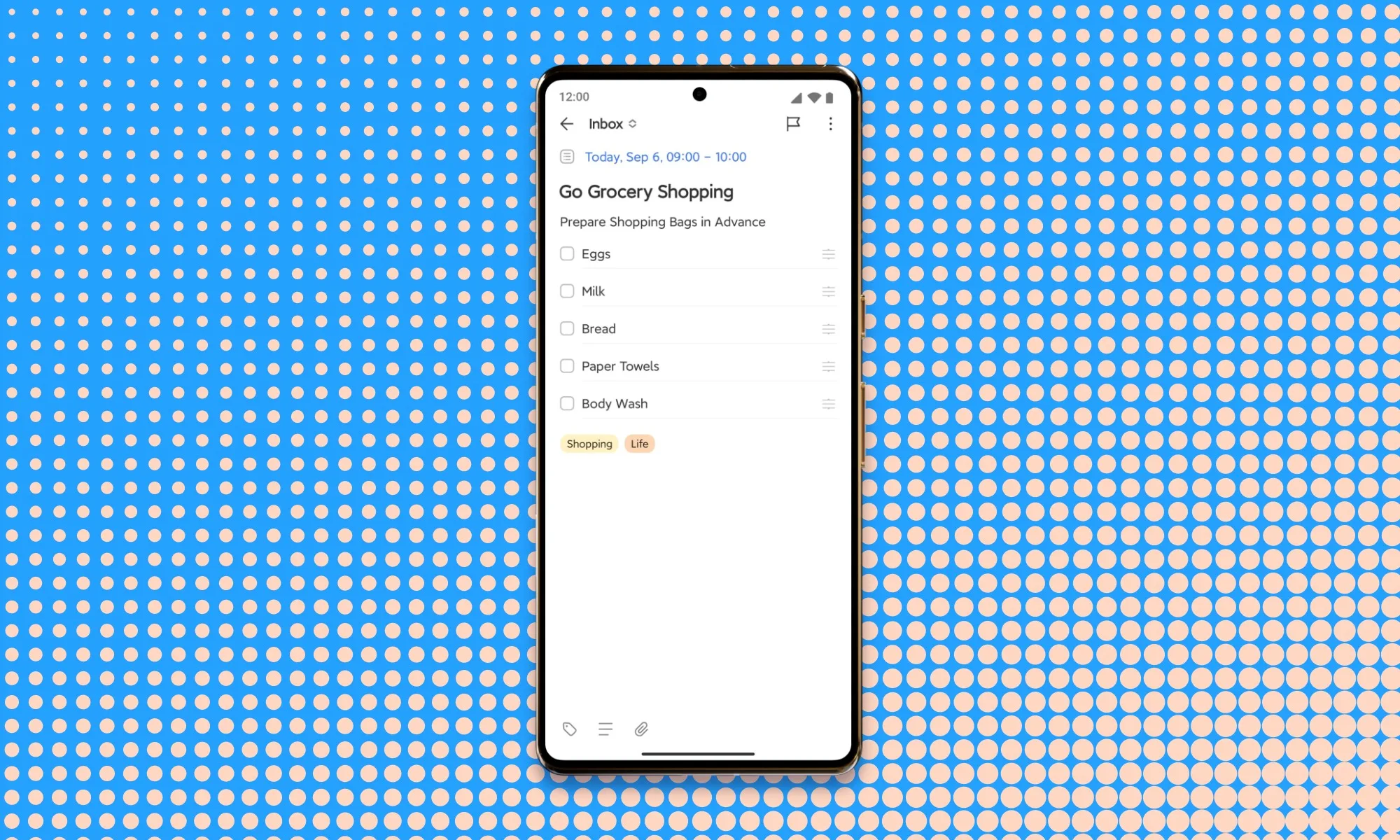
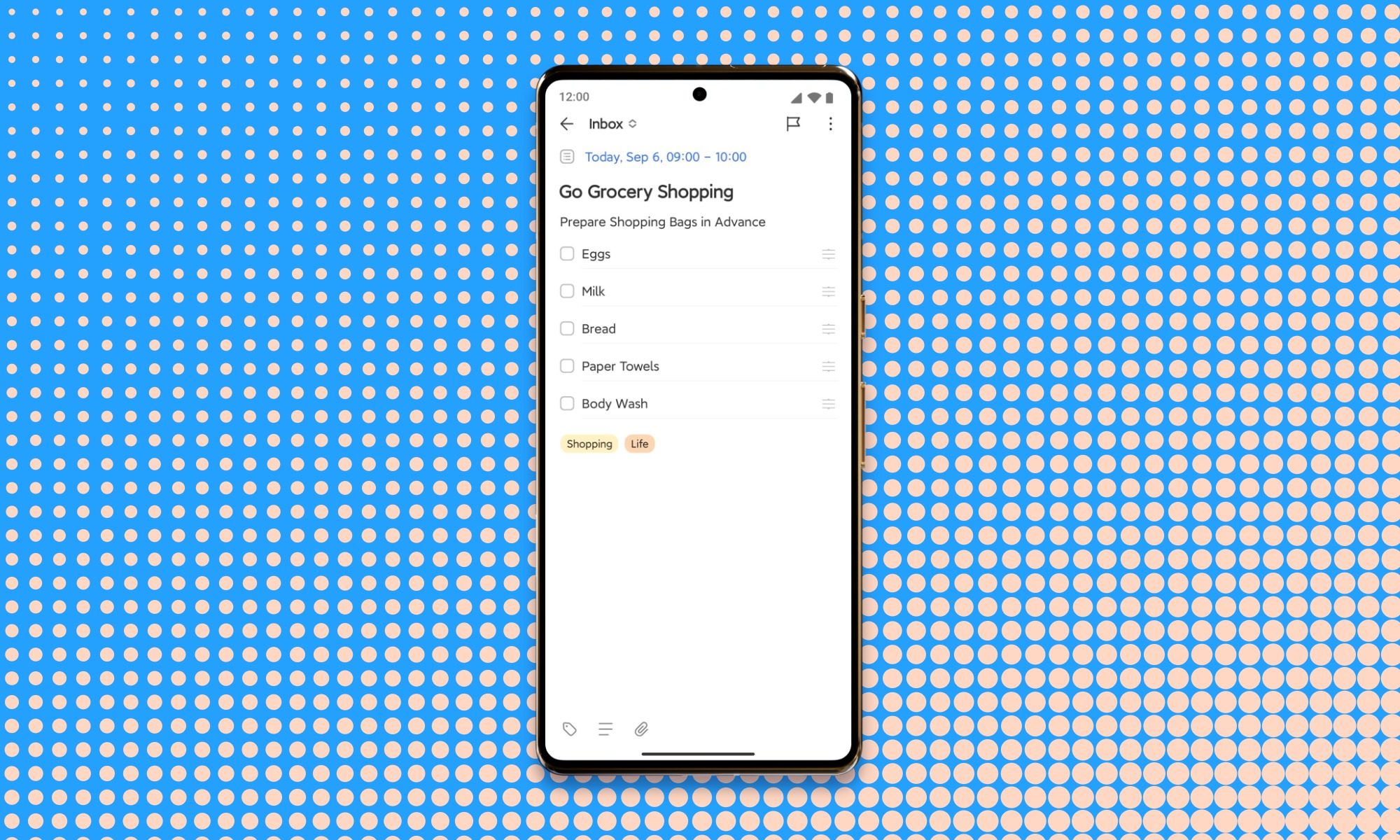
Remembering what you need to do is one problem. Finding time to do it is another. TickTick combines task lists, recurring reminders, calendar planning, and habit tracking, so your commitments and schedule live in the same place.
The integrated calendar is especially handy when you’re trying to fit tasks around meetings and appointments. You can keep track of recurring household chores alongside larger projects without juggling separate apps.
Basic task management is free, while Premium unlocks advanced calendar functionality and removes certain organizational limits. It’s more involved than a basic notes app, but that extra structure makes sense when a simple checklist no longer cuts it.
Sometimes you just need somewhere to write something down before it disappears from your brain. Google Keep handles notes, checklists, voice memos, and photos without asking you to build an elaborate organizational system first.
Its Android widgets are particularly convenient. You can keep a shopping list or frequently used note on your home screen instead of opening the app every time you need it.
Keep is free for standard personal use and works alongside other Google services. It’s less suited to complicated projects involving connected documents, databases, or detailed task dependencies. Our guide to the best note-taking apps covers more options if you need something different.
Notion – Best for organizing projects and information
Digital Trends
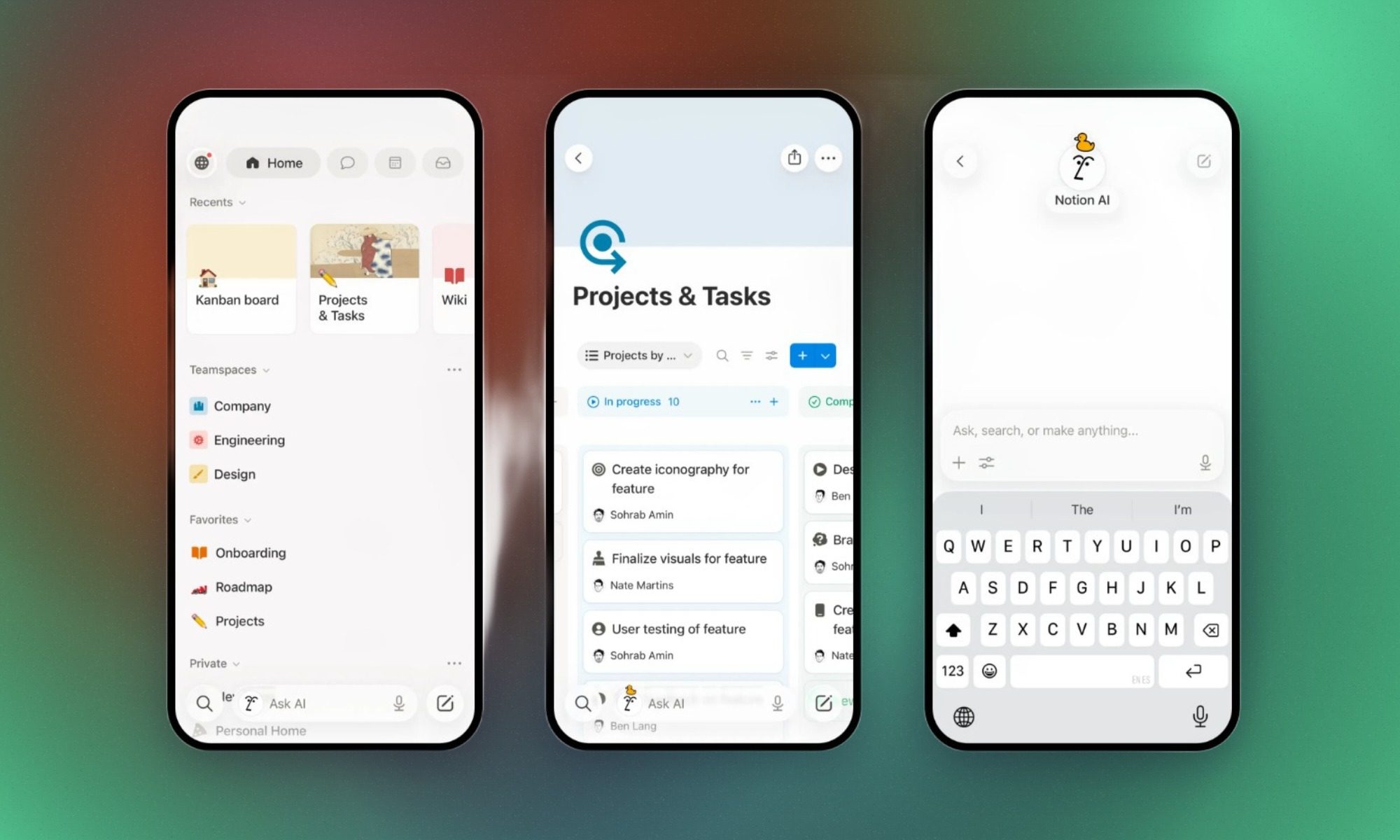
When your notes start turning into projects, reference materials, and sprawling collections of information, Notion gives you somewhere to organize the lot. You can build connected pages, documents, databases, and shared workspaces for everything from research to collaborative projects.
The Android app lets you access those workspaces away from your computer. Editing a complicated database on a small screen can be cumbersome, though, so it’s better suited to checking information and making smaller updates.
The free plan limits individual file uploads to 5MB. Offline access also takes preparation: you can download pages, but their subpages don’t automatically come along for the ride. Paid plans offer additional offline conveniences.
There’s plenty of flexibility, provided you’re willing to spend some time setting things up.
ChatGPT can help when you’re trying to make sense of something unfamiliar, untangle an idea, or get a first draft onto the page.
Its Android app supports conversational assistance, voice interaction, and image-related capabilities. You might use it to understand an error message, reorganize a document, or prepare questions before a meeting. It’s also useful for exploring different approaches when you aren’t sure where to begin.
You can use ChatGPT for free, although paid plans offer different usage allowances and additional capabilities.
There’s one important catch: a confident answer isn’t necessarily a correct one. Factual claims, references, and important advice still need checking, particularly when the consequences of getting something wrong are significant.
Google Gemini – Best for Android-integrated AI assistance
Shikhar Mehrotra / Digital Trends
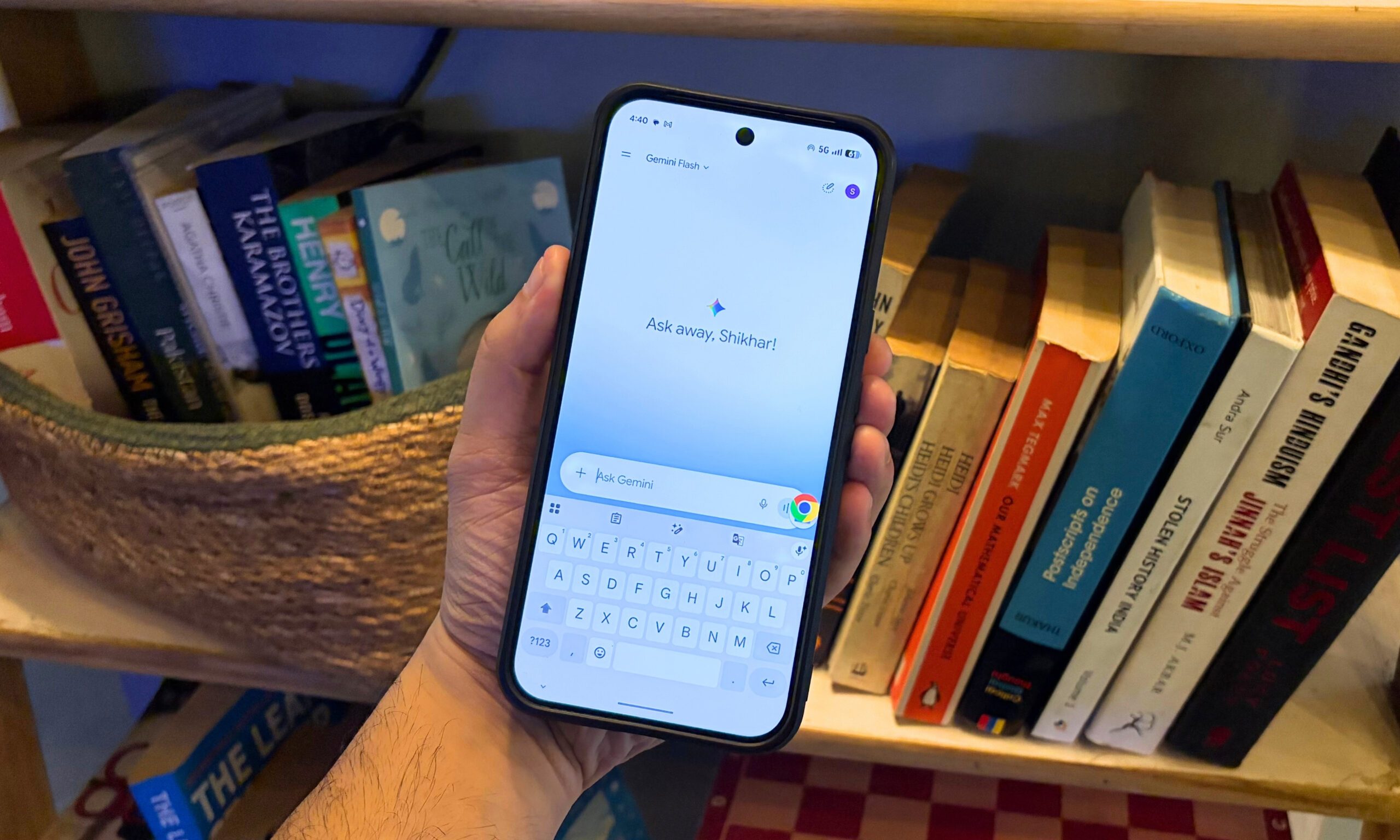
Google Gemini can take over as your phone’s primary digital assistant, bringing AI assistance into supported Android functions and Google services. Our guide to using Gemini on Android explains how to make the switch.
Depending on your device and account, that means you can use it for supported phone functions and tasks involving connected Google services. Its appeal is having an assistant that works with parts of your phone rather than one you primarily open for a separate conversation.
Gemini offers free access, with additional capabilities available through paid Google AI plans. Exactly what’s available depends on your device, region, account, and subscription.
Before replacing Google Assistant, check whether Gemini supports the functions you regularly use. Some Assistant voice features still aren’t available through Gemini, and losing a familiar shortcut can be more annoying than gaining a new AI feature is useful.
Bitwarden – Best for managing passwords and passkeys
Bitwarden / Digital Trends
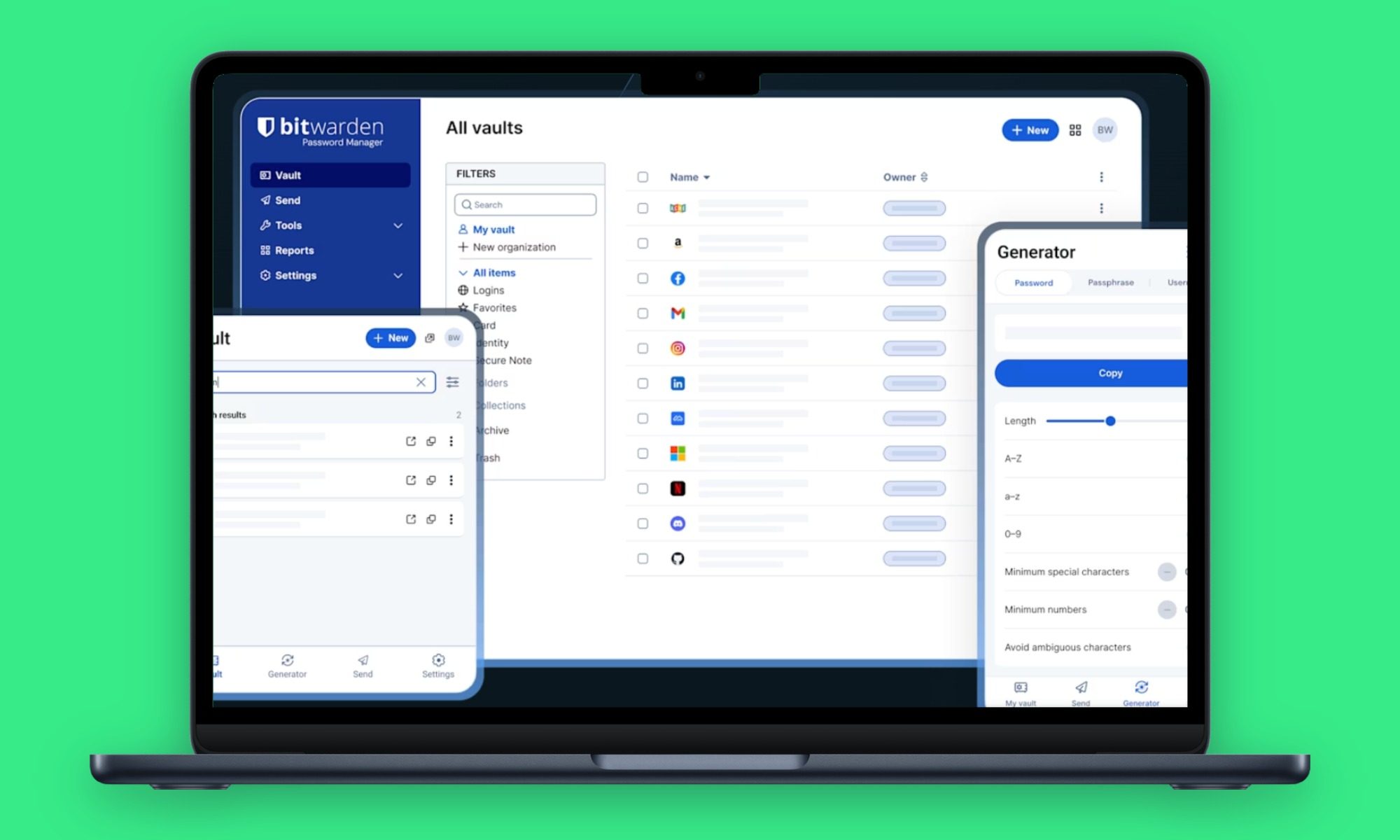
Bitwarden takes care of the password problem: generating complicated credentials, storing them in an encrypted vault, and helping fill them in across supported apps and websites. It also supports passkeys as more services move toward passwordless sign-in.
The free personal plan includes password management and synchronization across devices. You can access your credentials on both your Android phone and computer without paying for a personal subscription, while paid plans add further capabilities. For a closer look at Bitwarden and its alternatives, see our best password managers guide.
Autofill isn’t perfect everywhere. Some Android apps and websites may still require manual intervention, and you’ll need to protect access to your vault itself. Even so, it’s considerably more manageable than trying to remember a different password for every account.
Signal puts end-to-end encryption at the center of its messaging experience. You can send individual and group messages, make voice or video calls, and share media, with supported conversation content protected from being read by intermediaries.
It also supports usernames, so you can connect with people without necessarily sharing your phone number with them. You’ll still need a phone number to register, however. Having a username doesn’t remove that requirement.
Advertisement
Signal is free, although you’ll get more out of it if the people you regularly contact use it too.
And while encryption protects message content, it doesn’t solve every privacy problem. Someone with access to your unlocked phone, for example, presents a different kind of risk.
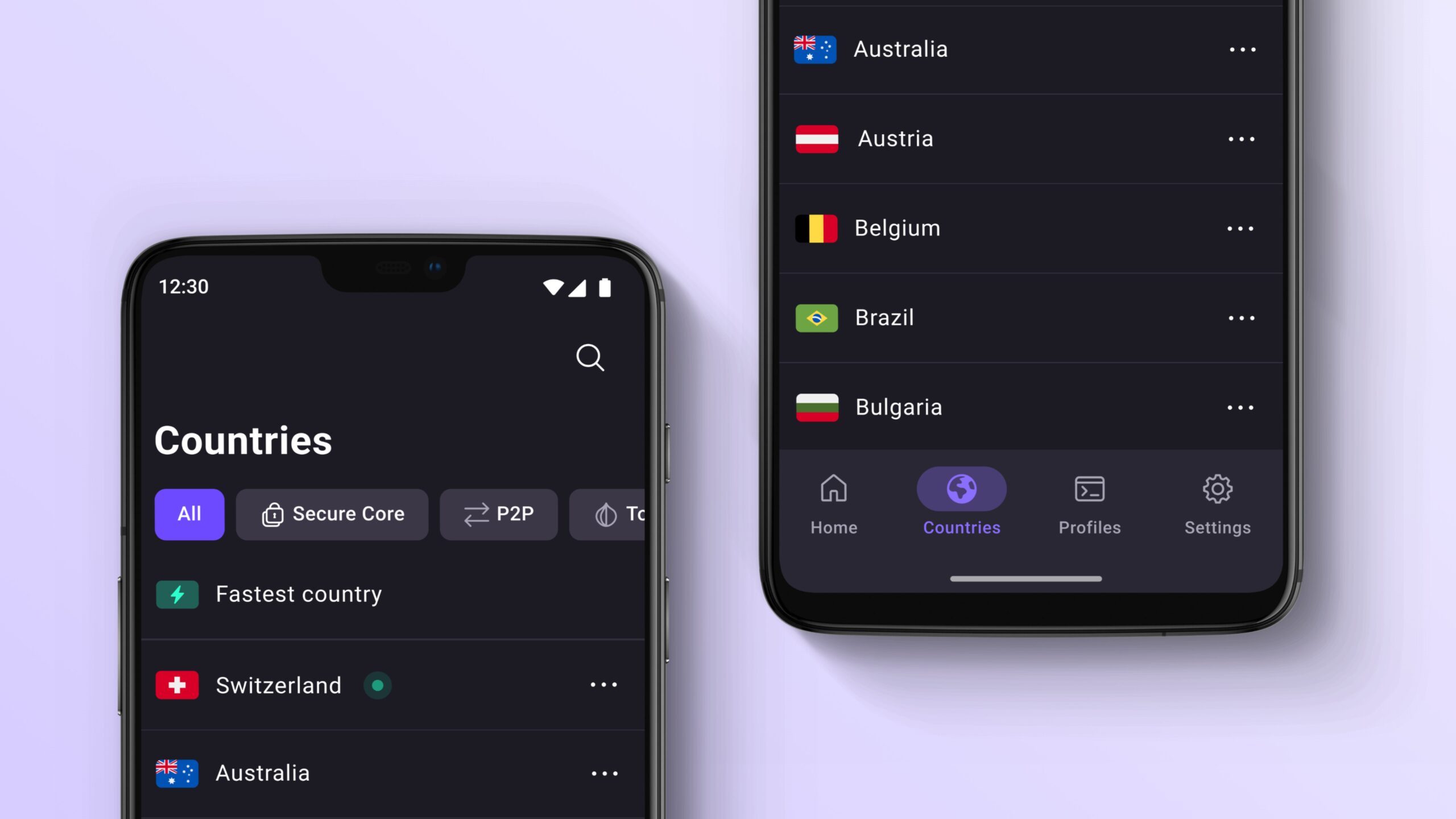
Proton VPN offers a free way to encrypt traffic between your phone and a VPN server while changing the IP address websites see. That can be helpful on networks you don’t fully trust or when you need to connect through a different server location.
Unlike free VPN services that impose small monthly data allowances, Proton VPN advertises no data or bandwidth caps on its free plan. You’ll have less control over server selection than a paying subscriber, though. Paid plans provide additional locations and capabilities.
Advertisement
A VPN isn’t an invisibility cloak. Websites can still identify you through account logins and other methods, and you’re placing some trust in the VPN provider. It’s one privacy tool, not a substitute for sensible security habits.
Niagara Launcher – Best for simplifying the Android home screen
Niagara Launcher
Niagara Launcher does away with the conventional grid of home-screen icons in favor of a streamlined layout and an alphabetical app list you navigate by letter.
That makes it easier to reach apps without filling several screens with folders and widgets. The layout is particularly appealing if you prefer using your phone with one hand or have grown tired of hunting through a crowded home screen.
You can use Niagara for free, with more customization available through paid features. Digital Trends has also covered Niagara Launcher’s backup feature , which lets users preserve their home-screen setup when changing phones.
Advertisement
Replacing your default launcher changes a part of the phone you interact with constantly, so expect an adjustment period. Some integrations and behavior can also depend on your device manufacturer.
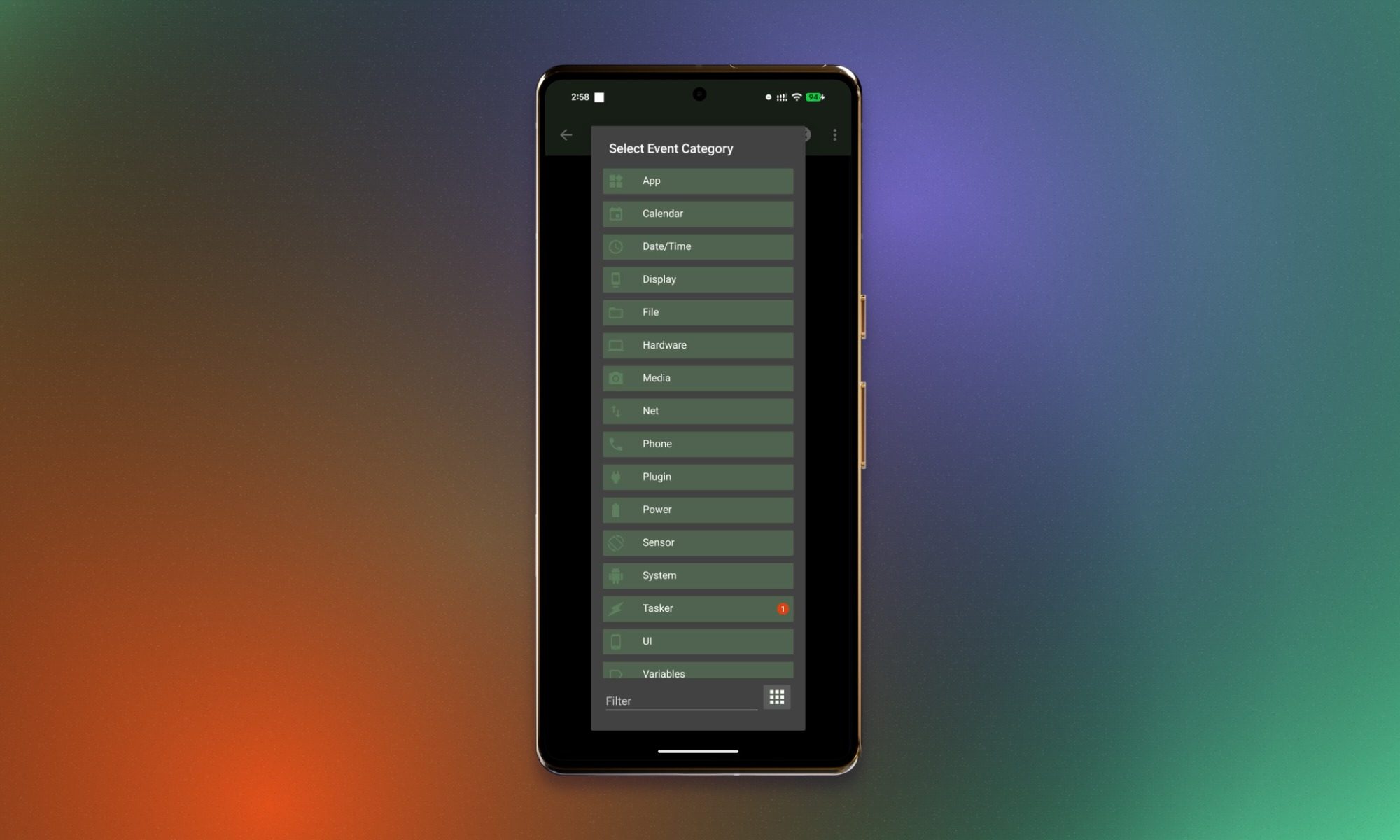
Tasker is for those moments when you find yourself thinking, “Why can’t my phone just do this automatically?”
You can build routines around triggers such as time, location, and device conditions. A profile might respond when your phone connects to a particular Wi-Fi network, for instance, although the actions it can perform depend on Android permissions and restrictions.
The freedom to create your own routines is appealing, but you’ll have to learn how Tasker works before you can make much use of it. It’s a paid app, and newer Android restrictions can complicate certain automations.
Advertisement
People who enjoy tinkering will find more to explore here than those who simply want to enable a ready-made routine and move on.
LocalSend – Best for sharing files between devices
LocalSend
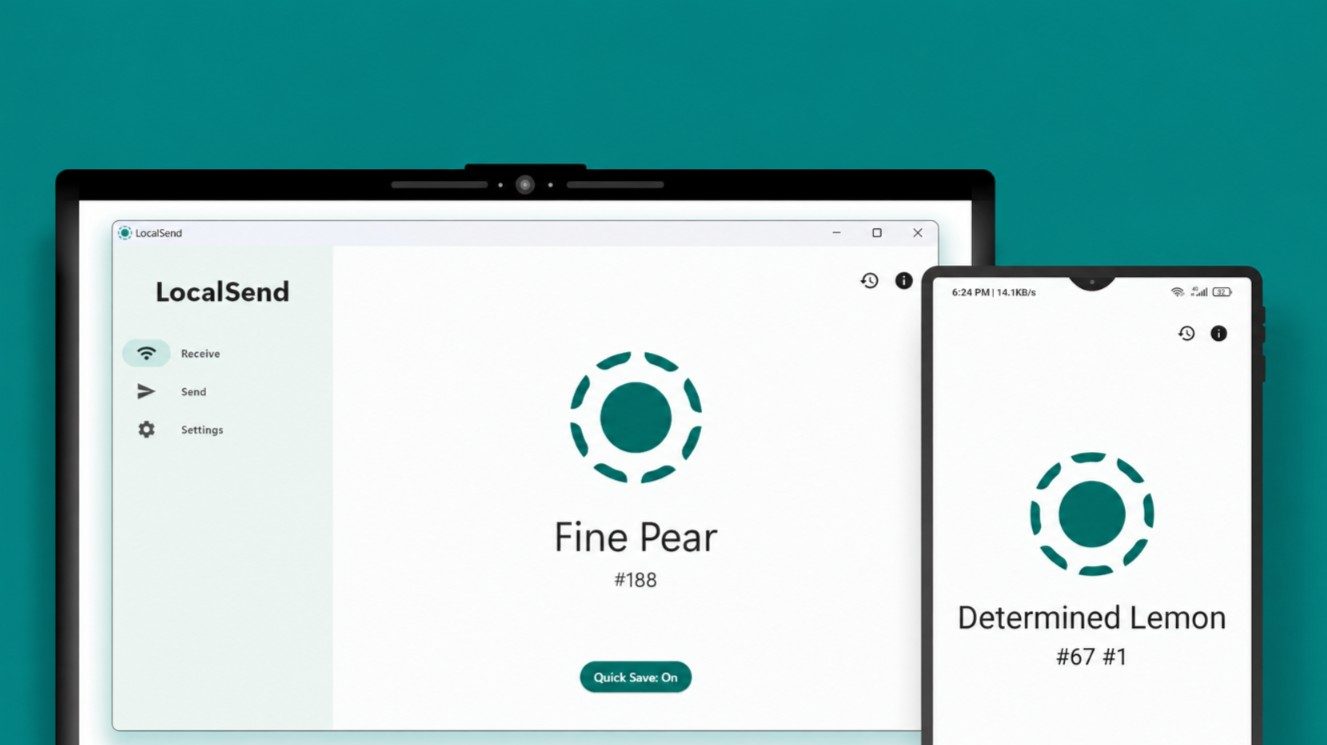
Moving a file from your Android phone to a computer shouldn’t require emailing it to yourself. LocalSend offers a simpler route, transferring files directly between devices on a compatible local network.
It supports Android, Windows, macOS, Linux, and iOS. You can use it to move photos to a Windows computer or send a document to a Mac without setting up cloud synchronization.
The core functionality is free, and there’s no need to create an account or upload files to an internet-based storage service.
Advertisement
Both devices need to be on a network that allows them to communicate, however. Restrictive office and public Wi-Fi networks can get in the way.
Solid Explorer – Best for advanced file management
Solid Explorer
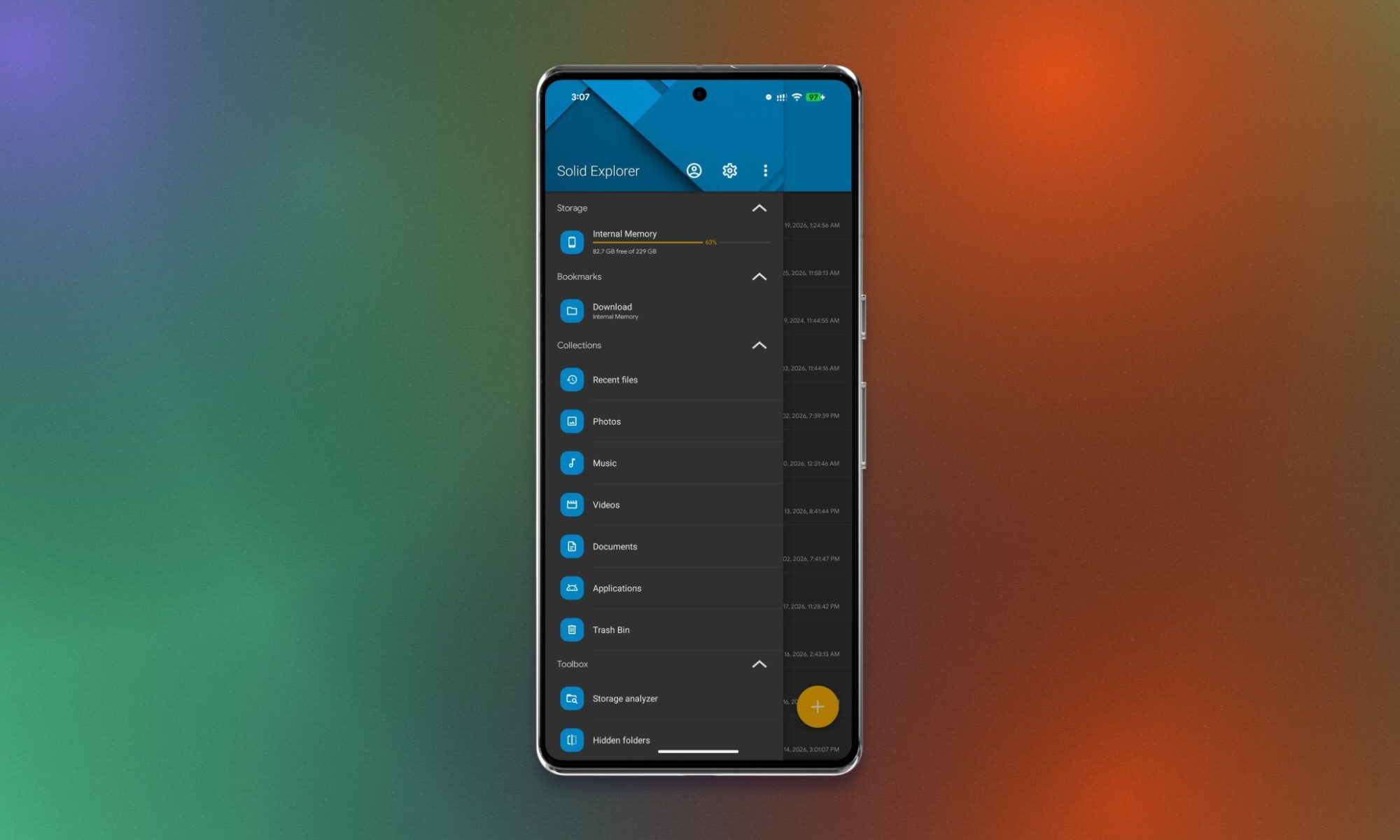
Solid Explorer gives you a dual-pane interface, letting you work with two folders at once instead of constantly navigating back and forth. It also connects to compatible cloud storage and network folders.
That combination comes in handy when you’re moving documents between local and remote storage or sorting through a large collection of downloaded files. For everyday tasks such as opening an attachment, your phone’s built-in file manager may already be enough.
Solid Explorer offers a trial, followed by a paid in-app unlock for continued full access. Some functionality may require additional purchases.
Advertisement
Keep in mind that Android’s storage restrictions still apply. Even an advanced file manager can’t necessarily access every protected location on your phone.
Your phone’s built-in photo editor can probably handle a crop or quick brightness adjustment. Snapseed gives you more control when you want to spend a little longer getting a photograph right.
Google’s editor supports RAW files, selective adjustments, and smart masking for making targeted changes to a subject or background. Batch editing lets you apply saved looks and adjustments to multiple photos, while non-destructive editing means you can return to earlier changes. Digital Trends also covered the redesigned interface when Snapseed 4.0 arrived on Android in May 2026.
It’s free, with no subscriptions, in-app purchases, ads, or watermarks advertised in its Google Play listing.
Advertisement
There’s more to learn than with a basic photo editor, but you don’t have to pay a subscription to access its editing tools.
Canva – Best for creating graphics and presentations
Canva
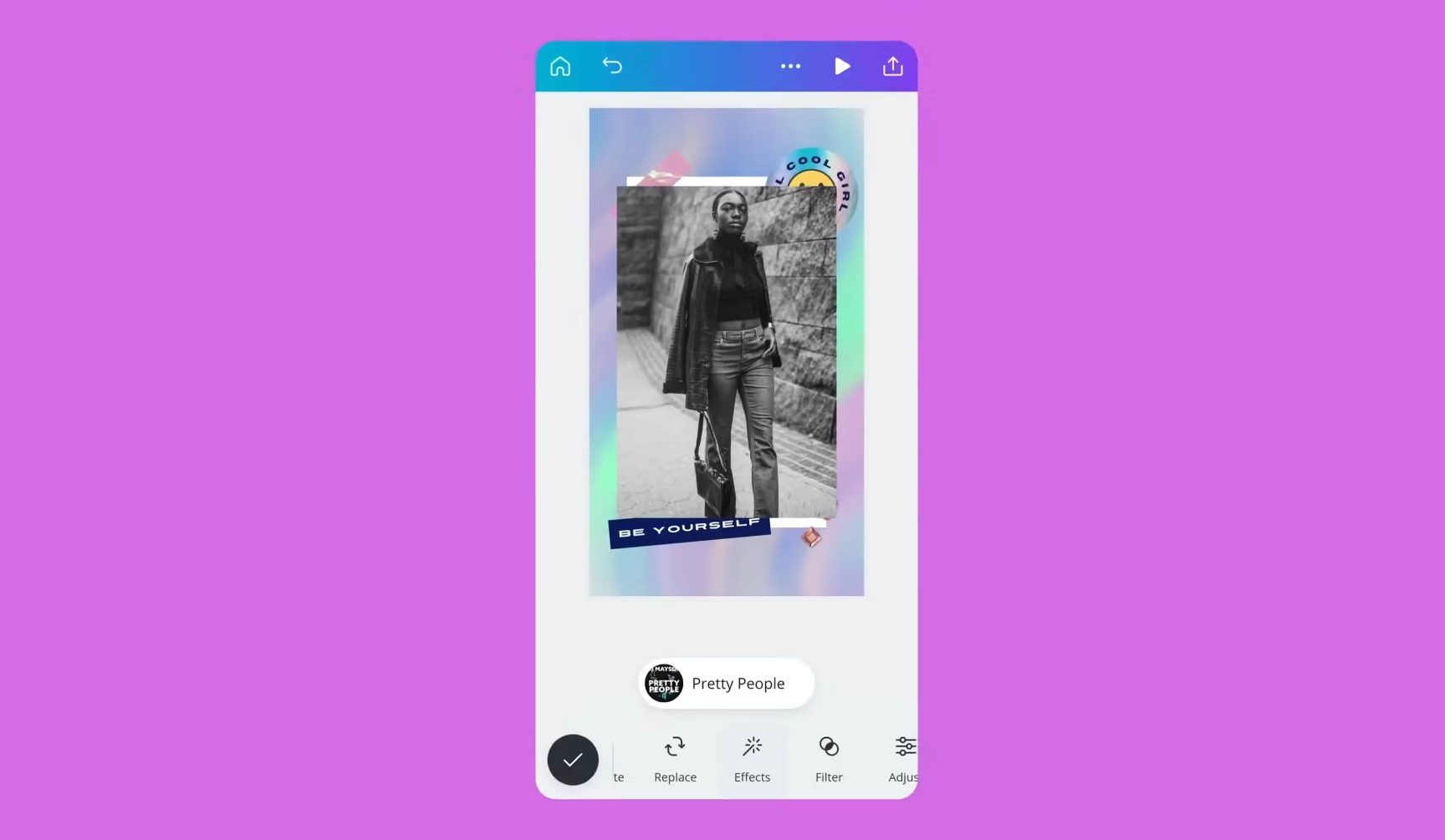
Need to put together a presentation or social graphic away from your computer? Canva gives you templates and design tools for creating slides, posters, and other visual materials on Android.
Rather than arranging every element from scratch, you can start with a layout and replace its text and images. That’s convenient when you need to make a quick change or put together something presentable without returning to your desk.
The free version includes design tools and resources, but some templates, assets, and advanced capabilities require payment. Free and premium elements can appear together while you’re browsing, so check what’s included before spending time customizing a design.
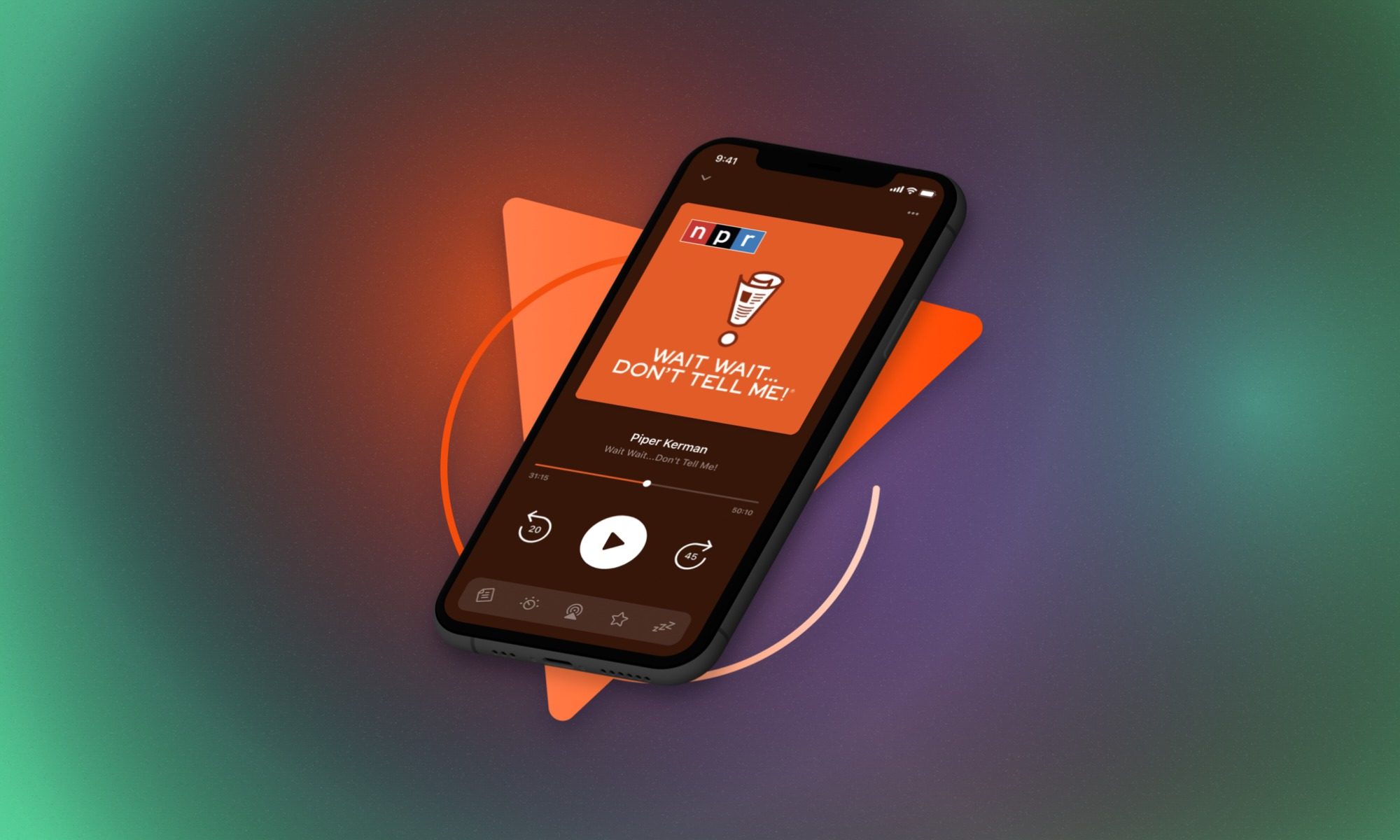
Following several podcasts can leave you with more episodes than you’ll ever get around to listening to. Pocket Casts gives you a dedicated place to manage subscriptions, organize episodes, and control playback.
It also supports Android Auto and Wear OS, so listening doesn’t have to revolve around your phone screen.
Core podcast listening and management are free, while Plus and Patron subscriptions add functionality. If you only listen to the occasional episode through another audio service, a separate podcast app might be more organization than you need.
Poweramp – Best for playing a personal music library
Poweramp
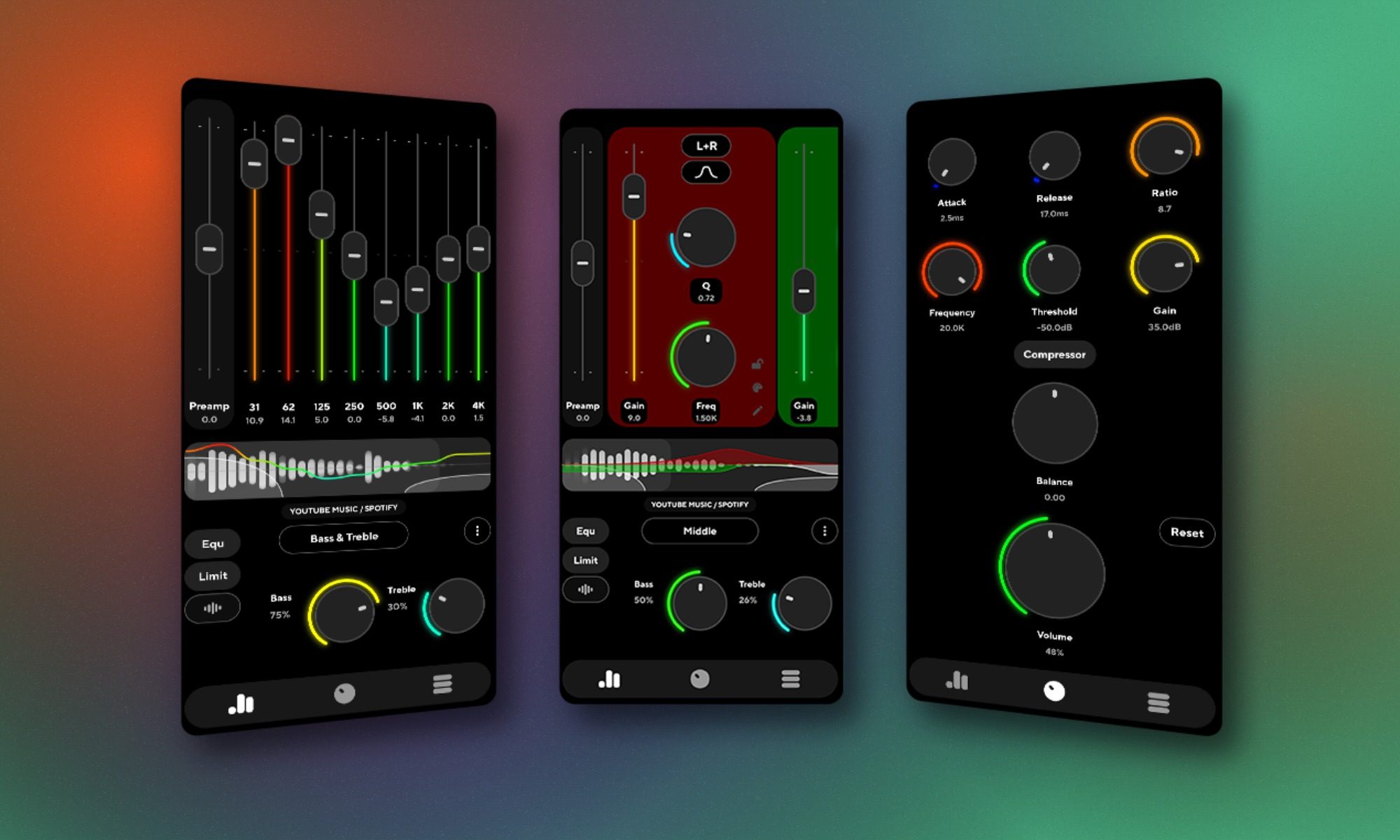
If you’ve kept a collection of music files rather than relying entirely on streaming, Poweramp gives you a dedicated player for them.
It supports numerous audio formats and includes extensive sound adjustments, including an equalizer. You can tailor playback to different headphones and speakers rather than making do with a streaming app’s default sound.
You’ll need to supply your own music, since Poweramp doesn’t come with a subscription catalog.
The app offers a 15-day trial. After that, continued full access requires a paid unlock, making it a different proposition from paying every month for music streaming.
Before buying another ebook or audiobook, it might be worth checking what your local library has available.
Libby connects eligible cardholders with digital collections from participating libraries. You can borrow ebooks, audiobooks, and, where offered, magazines without purchasing individual titles through the app.
The catch is availability. Your library needs to participate, its catalog determines what you can borrow, and popular books may have waiting lists. Borrowing periods vary, too.
Some features are region-specific. Sending borrowed ebooks to Kindle, for example, is available only in the US.
Libby won’t guarantee immediate access to everything on your reading list, but it can save you money on the titles your library carries.
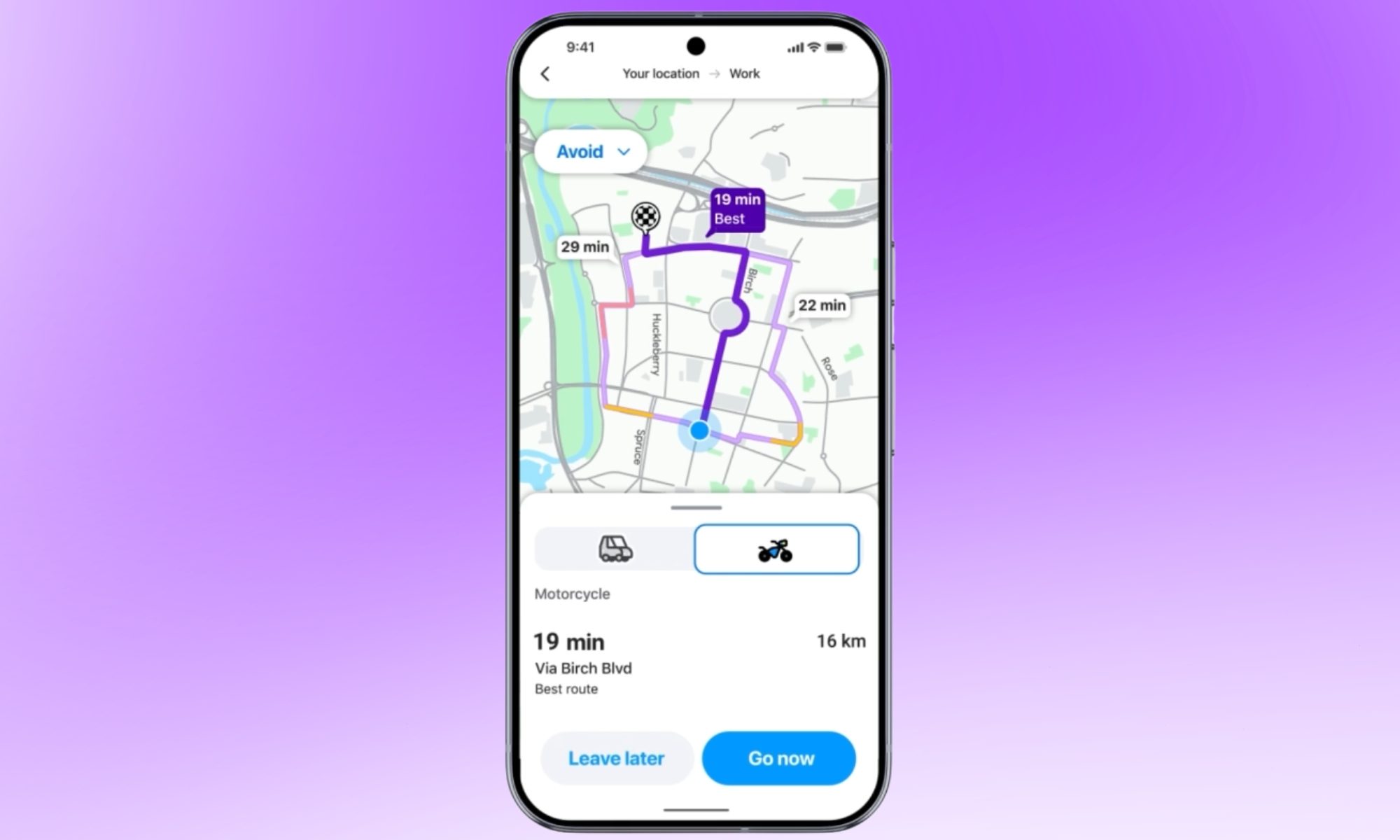
Google Maps can get you from one place to another, but Waze puts particular emphasis on what other drivers are reporting along the way.
Community-contributed reports can warn you about traffic, road hazards, incidents, and changing conditions. Waze combines that information with navigation and rerouting, giving you more context about what’s happening on the road.
During a daily commute, an incident report can be helpful before you reach the affected stretch rather than when you’re already stuck in traffic.
Waze is free, although it includes advertising. It’s primarily designed for driving, so Google Maps remains a more versatile option when you need walking, cycling, or public transit directions.
JustWatch can save you from opening three streaming apps just to find out where a movie is available.
Search for a film or TV show, and it’ll show viewing options across supported services. You can also keep a watchlist for those recommendations you intend to get around to eventually.
Streaming discovery is free, and an account lets you maintain a watchlist across devices. JustWatch Pro is a paid subscription that adds features such as advanced filters.
Its catalog varies by country, and streaming availability can change. JustWatch is handy for narrowing down where to look, but a listing isn’t a guarantee that a title will stay on a particular service.
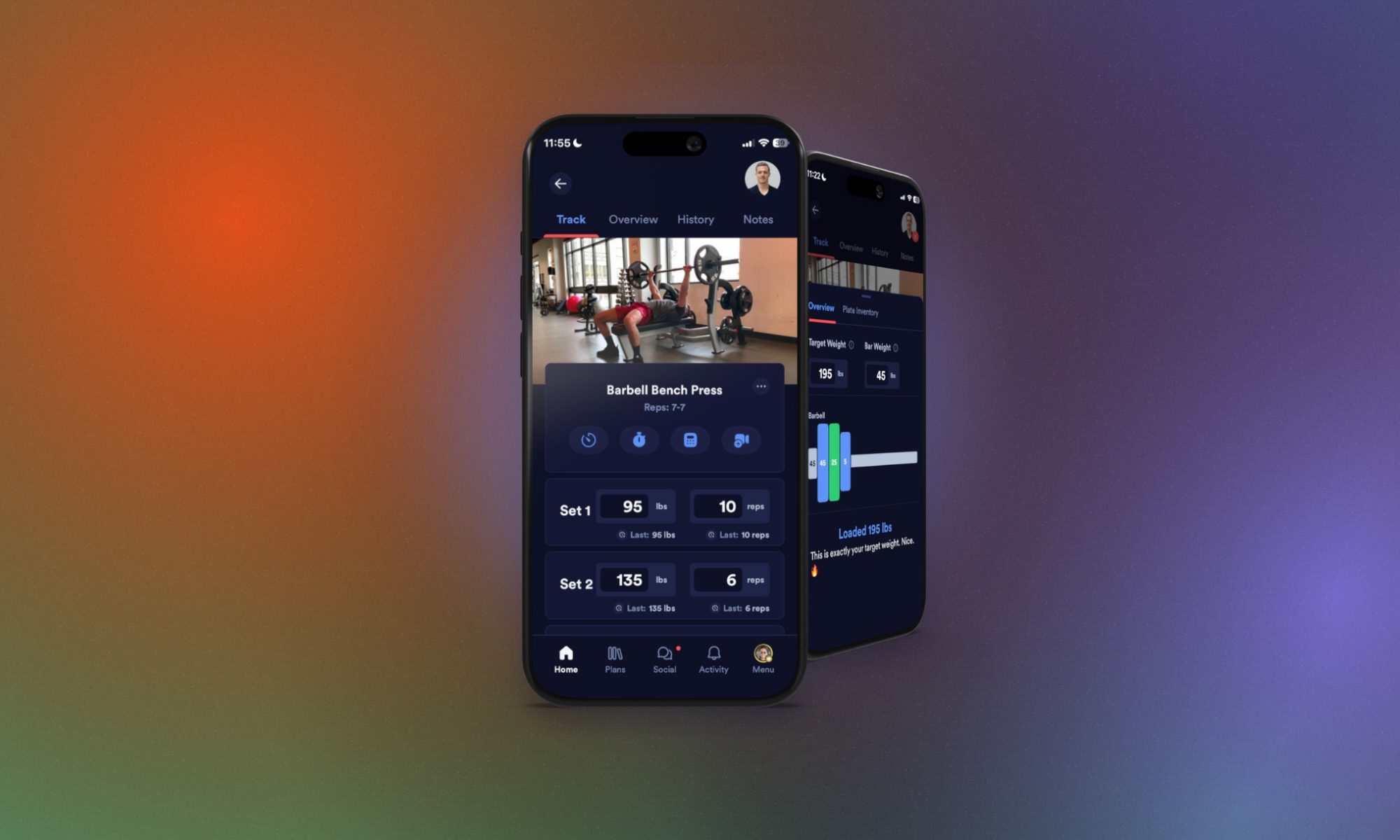
Keeping a record of your workouts makes it easier to see what you lifted last time and plan your next session. Caliber brings strength-training programs, exercise logging, and progress tracking into one app.
You can create workouts, record sets and repetitions, and consult your training history instead of trying to remember the details of your previous session.
Workout creation and logging are free. Caliber Plus adds coach-designed plans, Strength Score, Strength Balance, and other advanced tools, while individual coaching is sold separately. Some features that remain free for older accounts require Plus for users who signed up after April 2024.
Its focus is structured strength training rather than general daily activity tracking, so it makes more sense for planning gym sessions than counting your steps.
Frequently asked questions (FAQs) – People Also Ask
What apps should I install first on a new Android phone?
Start with whatever your existing apps don’t handle well. Bitwarden is useful if you need password management across devices, while LocalSend makes transferring files between Android and other platforms easier.
Google Keep is a straightforward choice for quick notes. If those notes have turned into tasks you need to schedule and track, TickTick might be a better fit.
There’s no reason to install every recommendation. If a built-in app already does the job, you can leave it alone.
Advertisement
What are the best free Android apps?
Google Keep, Snapseed, Signal, and LocalSend provide their core functionality without requiring a subscription. Libby is also free if you have an eligible card from a participating library.
Bitwarden and Proton VPN offer free plans alongside paid subscriptions. TickTick, Notion, Canva, and Pocket Casts have free versions with feature restrictions.
It’s worth checking whether a free plan includes the tools you actually need before building a workflow around it.
Are paid Android apps worth buying?
A one-time purchase can make sense if an app solves a problem you encounter regularly. Tasker’s automation tools and Poweramp’s local music playback are two examples.
Advertisement
Subscriptions need a little more thought. Check which features require payment, how often you’ll use them, and whether the free tier already covers what you need.
Paying for something you use every day is one thing. Paying for an advanced feature you’ll never touch is another.
How did we test these apps? The criteria for picking the finest for your Android phone
We look for apps that solve practical problems, offer functionality beyond built-in Android software, or provide a meaningful alternative to an existing service.
For this selection, we researched features, pricing models, free-tier restrictions, and documented compatibility considerations using official Google Play listings and developer information.
Advertisement
We also considered whether each app serves a distinct purpose. That means combining everyday tools with Android-specific utilities rather than filling the guide with several recommendations that do essentially the same thing.
Neither OpenAI or Anthropic is acting responsibly, warned AI researcher Jacob Coxon when resigning last week from Anthropic. But just hours earlier, OpenAI VP of Research Aidan Clark had posted “For the first time, I am asking myself if things are moving too fast. I’m honestly not sure, but I am sure that it would be good for us to have an answer to ‘What would a successful pace look like?’”
CNN noted Wednesday they’re just some of the many AI insiders who are now concerned about the speed of research. Coxon even wrote that “The people building AI earnestly believe that it could kill us all by the end of the decade. This is not a marketing stunt. If anything, many executives and senior researchers will couch their phrasing in the press to sound sensible — but I hear the same people express fear privately.”
In 10 days since, Coxon’s post has been viewed more than 170 million times, warning that OpenAI and Anthropic are “racing straight to self-improving superintelligence and gambling with our lives.” It’s part of what CNN now calls “pressure on AI companies and governments to do something about the pace of development and safety,” where “much of that pressure is coming from staffers inside the companies.”
One staffer at a top AI company told CNN the fears of how AI could hurt humanity keeps them up at night. Another researcher who recently left a different AI company said it’s a common subject of conversation at parties and social events in Silicon Valley. “You can’t spend more than a few hours in this community without realizing that a very substantial number of people are really pretty worried about these sorts of outcomes,” said the researcher. “A majority would say there’s some chance of it killing everyone….” Dozens of Coxon’s colleagues in the AI industry publicly supported his statements, with some making even more dire predictions… OpenAI CEO Sam Altman and SpaceXAI CEO Elon Musk agreed to Amodei’s proposal to embed independent watchdogs at the AI companies…
Advertisement
“I would burn my equity to the ground in a heartbeat for a 1% higher chance we make it out of this situation alive. I expect a great many of my colleagues across the industry would as well,” wrote Drake Thomas, who works on AI safety at Anthropic. “I promise you, we are actually just f**king scared, it’s not galaxy brained marketing…” AI staffers told CNN that they fear that as AI gets better at training and improving itself, their leverage goes down, prompting today’s urgency. “As we get into this recursive self-improvement loop, I think that might substantially reduce staff’s bargaining power, because frankly, you’ll be able to replace many of the staff with models that can do as good a job,” the researcher who recently left a top AI company said.
Coxon posted Tuesday on X that Anthropic “largely initiated” the race to recursively self-improving AI, justifying it with “a belief in its inevitability.” And then OpenAI “had to shed a bunch of dead weight like Sora,” as he sees it, “because Anthropic was going for the jugular.” (In fact, his specific disagreement with Anthropic’s leadership was whether China and the U.S. could ever negotiate an alternative to their current race towards self-improving AI…)
In an informal “Ask Me Anything”, Coxon responded to a question about when we’d see a Terminator-like malevolent AI by saying that “Skynet could go live in the 2030s if we aren’t careful. ai-2027.com is a modern skynet story written a year ago and it’s on track so far.” Yet while AI development risks an end to humankind, “I do think that if we go slower we can take risk to 0%… But this requires radical action.” He acknowledged there was still a possibility that the steady increases to model intelligence could suddenly plateau, but “They haven’t so far, and it’s just a few more steps up the ladder to hit the finish line.”
To avoid stifling innovation, he recommends “prioritizing applications that actually improve people’s lives [like healthcare discoveries], rather than immediately going for raw economic value or intelligence.” But isn’t mass unemployment a more pressing threat? “Things are coming so fast that unemployment would be a brief preliminary to deadly superintelligence.”
Advertisement
To people who feel disempowered, Coxon offered his solidarity. “I also feel disempowered. Part of resigning was a feeling of hopelessness about the future. I would say — keep your eyes open as things get crazier and advocate for increased transparency into AI companies.”
When asked if he’d start his own company now, Coxon said he had “No idea what I’m doing next.”
EA Sports FC 27 builds on the familiar formula with sharper gameplay, smarter player movement, improved Career and Ultimate Team modes, and the new social The Grounds mode. Reviewers highlight the improvements on the pitch and deeper progression, though there are lingering AI and gameplay issues.
































































You must be logged in to post a comment Login