Progress Software warned customers to patch a critical authentication bypass vulnerability in its MOVEit Automation enterprise-grade managed file transfer (MFT) application.
MOVEit Automation automates complex data workflows without requiring manual scripting and serves as a central automation orchestrator to schedule and manage file transfers between different systems, including local servers, cloud storage, and external partners.
Tracked as CVE-2026-4670, the security flaw affects MOVEit Automation versions before 2025.1.5, 2025.0.9, and 2024.1.8. Remote threat actors can exploit it without privileges on the targeted systems in low-complexity attacks that don’t require user interaction.
“We have addressed the vulnerability and the Progress MOVEit Automation team strongly recommends performing an upgrade to the latest version,” the company says in a Thursday advisory. “Upgrading to a patched release, using the full installer, is the only way to remediate this issue. There will be an outage to the system while the upgrade is running.”
Advertisement
The same day, Progress also released security updates to address a high-severity privilege escalation vulnerability (CVE-2026-5174) stemming from an improper input validation weakness in the same software.
However, there is no information regarding how many of these systems have already been secured against CVE-2026-4670 attacks.
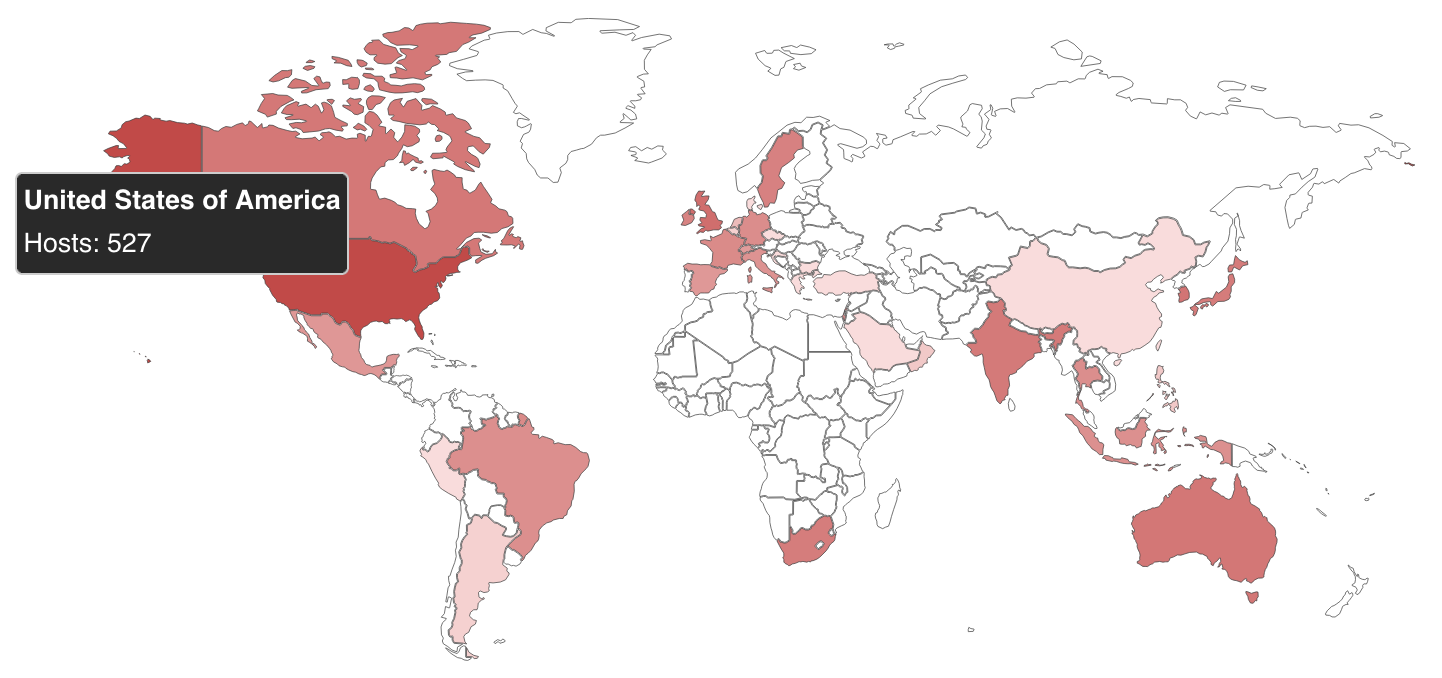
Map of MOVEit Automation instances exposed online (Shodan)
While the company has yet to flag these security issues as exploited in the wild, other MoveIT MFT vulnerabilities have been targeted in attacks in recent years.
For instance, the Clop ransomware gang exploited a zero-day in the MOVEit Transfer secure file transfer platform in an extensive series of data theft attacks in 2023 that affected more than 2,100 organizations and over 62 million individuals, according to Emsisoft estimates.
Progress Software says its MOVEit MFT solutions are used by more than 3,000 enterprise organizations and over 100,000 users worldwide.
AI chained four zero-days into one exploit that bypassed both renderer and OS sandboxes. A wave of new exploits is coming.
At the Autonomous Validation Summit (May 12 & 14), see how autonomous, context-rich validation finds what’s exploitable, proves controls hold, and closes the remediation loop.
Format: Would you prefer wearing a ring or a wrist-based device? If you want something understated that you can wear all the time and don’t mind not having a screen to glance at, then a ring would be ideal. If having a watch on your wrist is comfortable, then a smartwatch or wrist-based tracker may be the right choice.
Compatibility: If you’re an Apple user, ensure your fitness tracker is compatible with iOS. The same goes if you’re an Android user.
Storage capacity: For those who don’t want their fitness tracker to be dependent on their phone, look at a device with its own storage capacity.
Special features: Before purchasing a fitness tracker, consider the health metrics that are important to you for your favorite workouts. If you’d like your tracker to do more than monitor your fitness, you’ll be better off with a smartwatch like the Pixel Watch 4 or Apple Watch SE 3.
Advertisement
Wi-Fi or Bluetooth: If you’re the type of person who likes to leave their phone behind when working out but still needs internet access, ensure your fitness tracker has Wi-Fi.
GPS? For those who run, hike or walk and want to keep track of metrics like distance and pace without their phone, choose a fitness tracker that has built-in GPS.
Screen size: Once you decide you want a fitness tracker with a screen, make sure it fits your personal preferences. A smaller screen may be better if you prefer for it to be less obvious that you’re wearing a fitness tracker on your wrist.
Battery life: How often do you want to be charging your fitness tracker? If frequently charging your devices is a pet peeve, ensure your fitness tracker of choice has a long battery life, especially for your preferred workouts.
Advertisement
Water resistance: Individuals who work out by swimming or those who enjoy taking a dip in the pool after exercising will want a fitness tracker that is water-resistant. Confirm your device is rated for the depth you plan to swim at.
Subscription cost: It’s common for fitness trackers to come with the added cost of a subscription, particularly if you want to access all available features or require extra features for your workout or fitness goals. To guarantee that a fitness tracker is in your budget, check not only the price of the device, but also how much your subscription of choice will run you over the course of a year.
Global ICT experts gather in Shenzhen to master cutting-edge engineering practices and foster international collaboration
Partner Content ZTE successfully co-organized the graduation of the 2026 Engineering Capacity Building Program (Information & Communication Engineering) in Shenzhen. Under the theme “Wisdom Leading Communication Frontiers, Empowering Engineering Practice”, the program was hosted by the Chinese Society of Engineers, organized by the China Institute of Communications, and co-organized by the Guangdong Institute of Communications and ZTE.
Group Photo of the 2026 Engineering Capacity Building Program (Information & Communication Engineering)
The initiative brought together over 60 ICT engineers from more than 20 countries, including Indonesia, Uzbekistan, South Africa, the Czech Republic, Colombia, Peru and China. Through a diverse range of activities, including reports, technical exchanges, and interactive workshops, the program explored global digital and intelligent engineering practices to enhance the professional capacities of domestic and international engineers.
During the organizational and technical reporting sessions, experts from the Secretariat of the Chinese Society of Engineers (CSE) , the China Institute of Communications, the Institution of Engineering and Technology (IET), and ZTE shared insights on innovative practices in engineering capacity building, ICT frontiers, and the evolution of global project management, sparking active interactions among attendees. Magendaran Kaliaperumal, an engineer from Indonesia, shared his profound experience: “Participating in our country’s network integration project, I have truly felt the transformative power of cutting-edge digital and intelligent technologies. From digital project management to the precise optimization of resource scheduling, these technologies have significantly enhanced delivery efficiency and quality.”
Advertisement
Speaking on the transition of digitalization and greening, Prof. Gong Ke, Chairman of the ECBAP (Engineering Capacity Building for Africa Programme) of WFEO (World Federation of Engineering Organizations) in Africa, emphasized: “Engineering is a key force in achieving sustainable development goals for society.” This exchange of ideas laid a solid theoretical foundation for subsequent practical sessions and inspired a sense of responsibility among engineers to collectively drive innovative industry development.
2026 Engineering Capacity Building Program (Information & Communication Engineering)
During the site visits, the engineers toured ZTE’s headquarter, experiencing immersive digital and intelligent engineering practices. At the museum, exhibition halls, and smart production lines, participants witnessed the technological leap from 5G to 6G, as well as the deep integration of lean production and intelligent manufacturing. An Algerian engineer expressed his excitement: “We just commercialized 5G last year, and today, seeing the forward-looking breakthroughs of 5G-A and 6G in Integrated Sensing and Communication (ISAC) and intelligent economic foundations makes me highly optimistic about the future.”
The engineers also visited SenseTime to learn about its leading Artificial Intelligence Data Centers (AIDCs) , exploring innovative applications in urban governance, environmental monitoring, and smart healthcare. An Ethiopian engineer remarked: “This program has redefined my perception. The deep integration of cutting-edge technology with real-world scenarios truly demonstrates the potential of technology to drive high-quality social development.”
In the workshop sessions, engineers gained hands-on experience with ZTE’s enterprise-level AI agent, Co-Claw, and collaborated to develop various models based on real business scenarios. At Shenzhen Polytechnic University, they studied new energy vehicle and drone application technologies, personally operating and debugging industrial-grade drones with independent intellectual property rights.
Advertisement
At the closing ceremony, Hu Lihua, Vice President of ZTE, delivered a speech, stating: “ZTE will, as always, open its technological platforms to empower the growth of engineers, working together to build a global engineering community featuring collaborative technology research, shared achievements, and win-win industry growth.”
Participants enthusiastically shared their experiences and insights. “This program not only showed us the potential of cutting-edge technologies but also sparked new thinking on how to enhance our capabilities and adapt to future technological trends,” they noted. A representative from Peru stated they would bring these “genes of innovation” back home to foster further international cooperation. The engineers agreed that open collaboration and mutual recognition of professional capacities are crucial to achieving sustainable development in engineering technology and global digital inclusion.
Closing Ceremony of the 2026 Engineering Capacity Building Program (Information & Communication Engineering)
The China Institute of Communications will continue to leverage its platform advantages to gather high-quality industry resources, actively promote international mutual recognition of engineers, and enhance the professional and international standards of engineers in the ICT and digital technology fields, thereby supporting enterprises in their global expansion.
As a co-organizer of the event, ZTE will leverage its deep expertise in information and communication engineering to continue partnering with all sectors. ZTE remains committed to nurturing global “digital craftsmen” with international vision, digital literacy, and innovative capabilities, contributing to bridging the global digital divide and achieving sustainable development.
Google is introducing a new Android security feature that will detect and flag phone calls in which scammers use artificial intelligence to impersonate a user’s personal contacts.
Called “fake call detection,” the feature is rolling out globally this month to Android 12 and later devices, starting with Pixel devices, and will be enabled by default.
Once activated, it works automatically when both a caller and recipient are using Phone by Google: when a contact places a call, their device sends a silent, encrypted confirmation signal to the recipient’s device in real time.
If that signal is not sent (indicating the call may be spoofed), the recipient’s device will instead ping the contact’s actual phone to verify the call’s authenticity. If the contact’s device confirms it is not placing a call, the recipient receives an on-screen warning to hang up immediately.
“If a scammer tries to impersonate your contact, that initial confirmation signal will be missing. Your device will instantly notice this and ping your contact’s actual device to double-check,” Google said.
Advertisement
“If their real device says, ‘I’m not making a call right now,’ you’ll get a warning on your screen advising you to hang up immediately. This proactive alert helps you avoid falling victim to deepfake impersonation and call spoofing in real time.”
This new security feature is built on top of the Rich Communication Services (RCS) open standard and will only work on Android devices where the Phone by Google, Contacts, and Google Messages (with RCS enabled) apps are installed.
According to Google, this addresses two widespread fraud tactics: scammers spoofing a familiar contact’s phone number while simultaneously using AI voice-cloning technology to mimic that person’s voice.
Advertisement
Last year, the U.S. Federal Trade Commission (FTC) warned that reported losses from impersonation scams reached $2.95 billion in 2024 alone, while INTERPOL’s March 2026 Global Financial Fraud Threat Assessment flagged impersonation fraud as one of the leading threats contributing to more than $440 billion in global losses last year.
“For years, people have relied on caller ID to know who is on the other end of the line, but this is no longer sufficient due to scammers’ new tactics,” Google added.
“If your device uses a different app, you can install Phone by Google from the Play Store and set it as your default phone app to help protect yourself from fake calls.”
Automated pentesting tools deliver real value, but they were built to answer one question: can an attacker move through the network? They were not built to test whether your controls block threats, your detection rules fire, or your cloud configs hold.
This guide covers the 6 surfaces you actually need to validate.
Mitsu Makes spent six months on one of the more unusual 3D printer projects in recent memory. The result stands as a working machine with a frame constructed primarily from wood rather than the aluminum or steel common in most DIY and commercial designs. An interest in exploring alternative materials drove the effort. Standard builds lean heavily on rigid metals to maintain alignment under the forces of rapid movement and heating cycles. This project tested whether careful design and added supports could let wood succeed in the same role.
Cutting the first layer of wood was necessary, so he began with massive, thick solid wood stock and then put unique drawings through a CNC machine to create the frame components. Hand sanding was a labor of love that took seven hours to complete, as he needed to ensure a flawless fit and no flex in the finished structure. He used conventional wood glue as the primary bonding method for the frame and avoided using screws throughout the vital drying period to guarantee everything was secure. Clamps were needed to maintain the structure square for a few days, as he wanted to ensure that the enormous assembly did not warp. We didn’t begin staining until it was finished, and even then, he tested the finish on some spare pieces before applying it to the rest of the frame, top plate, steel backer sections, and bed mount.
A1 mini + LED Lamp Kit for Creative Light Projects: Bring your ideas to life with the included LED Lamp Kit. Simply print compatible lamp models and…
The Perfect 3D Printer for Beginners: A1 mini 3D Printer is designed to make 3D printing easy from day one with automatic calibration, simple setup…
Experience the Bambu Lab Ecosystem: Access MakerWorld’s huge library of ready-to-print models, manage prints through the Bambu Handy app, and enjoy…
Steel backing plates were utilized to reinforce the points where the linear rails met the wood. These were laser cut and pre-drilled by Justway, adding much-needed stiffness to the wood sections, which can be rather thin in places (about 3mm). The printer’s mobility is caused by a cross-gantry setup. We have two stepper motors for the X and Y axes, and a third for the Z axis, which powers the lead screws (150mm long). This gives us 110mm of vertical travel and the ability to automatically tram the bed, which is a game changer.
On the control electronics front, he went with a BigTreeTech Manta M8P board with Klipper firmware. This combination gave him various advanced tuning options and made it much easier to maintain the wiring clean. Regarding the toolhead, he modified an Annex Engineering K3 carriage and fitted a Dragon UHF hot end and a Sherpa Mini extruder, which is a wonderful piece of kit. He also has a Beacon RevH probe, which helps with accurate bed mapping.
Turning on the power gave him quick smooth mobility, as well as useful functions like auto homing, Z axis tilt adjustment, and entire bed mesh probing. His initial test prints, a Voron calibration cube, were quite impressive, and he refined things a bit to improve the output even more, but one thing that really stood out was how quiet the printer was running, as the wood helps to dampen vibrations, which is far superior to your average metal frame. [Source]
Compliance builds trust. Done right, it doesn’t limit enterprise choice or burden IT teams. And it supports innovation where it matters: in the real world, at scale, under scrutiny.
Somewhere in your organization, a procurement process is stalled. A vendor passed the technical evaluation. The security team has questions. Legal is reviewing a data processing agreement.
Someone is waiting on a SOC 2 Type II report that should have been easy to produce but apparently isn’t. Meanwhile, the business problem the technology was supposed to solve is getting worse.
Advertisement
Latest Videos From
Dan Jones
Senior Security Advisor at Tanium.
This is what compliance looks like from inside many enterprises: not a framework, but a friction tax. A necessary drag imposed by auditors, regulators, and legal teams on the people who are trying to move the business forward.
Advertisement
One acronym after another: SOC 2, FedRAMP, ISO 27001, NIST CSF, and now Europe’s expanding regulatory stack of NIS2, DORA, and the AI Act—and each new addition seems to add process and subtract productivity.
Yes, this is the lived experience inside many organizations, but the frequently drawn conclusion, that compliance is more pain than gain, is backward.
The friction isn’t compliance. The friction is bolted-on compliance — the kind that gets retrofitted onto products not designed for it, managed by vendors who treat it as a checkbox, and inherited by enterprise customers who then exhaust themselves trying to close gaps that should never have existed.
Sign up to the TechRadar Pro newsletter to get all the top news, opinion, features and guidance your business needs to succeed!
Advertisement
When compliance is foundational rather than cosmetic, the dynamic inverts entirely. Security debt shrinks. Procurement cycles compress. Audit prep stops being a fire drill and starts being a byproduct of normal operations.
And perhaps most consequentially in this AI moment: Organizations that have built compliance into how they operate can move into regulated markets, deploy AI with confidence born from genuine governance, and earn the kind of customer trust that actually accelerates growth.
Success isn’t about minimizing compliance exposure. It’s about recognizing that compliance done right isn’t a constraint on where the business can go. It’s what makes going there possible.
Meeting the regulatory moment
The pace of regulatory change over the past five years is not a coincidence or an overreach.
It is a rational response to the scale and speed of digital transformation—and to the mounting evidence of what happens when that transformation outpaces accountability: ransomware attacks that hobble hospitals; AI systems that take consequential decisions with no accountability mechanisms; data brokers that monetize personal information at a scale no one fully consented to.
Digital transformation has moved faster than the governance structures built to oversee it, and regulators, particularly in Europe, have taken action.
Advertisement
Through its leadership, Europe’s approach will increasingly become the global default. The EU’s AI Act, which entered into force in August 2024, establishes binding requirements for artificial intelligence for the first time anywhere in the world.
NIS2 has significantly expanded cybersecurity obligations across critical infrastructure sectors. DORA, which came into application in January 2025, requires financial services firms to demonstrate comprehensive digital operational resilience—not just on paper, but continuously, across their entire third-party supply chain.
These frameworks no longer affect only IT departments. They extend from senior management to legal counsel to external stakeholders, permeating entire organizations. A breach today isn’t just an IT incident—it’s a board-level event with regulatory consequences.
An AI deployment isn’t merely a product decision—it’s a governance commitment. What starts as compliance pressure in Brussels influences procurement criteria in Singapore, insurance requirements in San Francisco, and contract language in Sydney. And these frameworks continue to evolve.
Advertisement
At the CyberUK conference in April, Minister for Security Dan Javis announced a £90m resilience investment, a new Cyber Resilience Pledge for organizations, and a National Cyber Action Plan due this summer.
The question, then, is not whether this environment is demanding. It is. The question is whether your response, and your vendors’, is making your organization stronger or more fragile. Compliance is not only a legal signal; it’s also an engineering signal.
Software that maintains compliance across multiple overlapping frameworks—especially in domains like AI governance, cloud operations, and data security—has demonstrated something important: that it can continuously execute with discipline, at scale, every time.
And if your vendor struggles to produce clean compliance documentation, or whose compliance posture is a layer of controls wrapped around an architecture not designed for them, that’s a demonstration of limited capability and potential.
Advertisement
Five lenses for using compliance strategically
Most organizations evaluate compliance as a binary: Either a vendor is compliant or they aren’t. The more useful practice is to use compliance as a multidimensional diagnostic. Here are five questions that reframe it that way.
Does compliance reduce your future exposure, or just your current liability? There’s a meaningful difference between a vendor who has passed a compliance audit and a vendor whose architecture was designed to remain compliant as requirements evolve. The former gives you a certificate.
The latter gives you continuity. Ask how controls are implemented: Are they automated and continuously monitored, or manual and periodic? Ask how the vendor tracks regulatory evolution and builds it into their roadmap.
Advertisement
A vendor whose compliance posture is reactive will become a source of regulatory drag for your organization when the next framework arrives. And the next framework is already coming.
Does compliance reduce your internal work, or create more of it? Audit readiness should be a built-in operational state, not an emergency.
If proving compliance to an auditor requires your team to pull manual reports, stand up compensating controls, or write exception documentation, that’s a product design problem that your organization is absorbing. Every manual workaround is a cost, a risk, and a symptom.
The right tools make compliance frictionless from the inside—continuous visibility, automated reporting, and exception management that lives in the platform rather than in a spreadsheet maintained by someone who will eventually leave.
Advertisement
Does it accelerate decisions, or slow them down? Compliance frameworks should shorten, not extend, due diligence cycles. A vendor with a mature, auditable compliance baseline gives procurement and security teams a shared reference point that replaces weeks of less structured evaluation.
This is especially valuable in the AI era, where the pressure to deploy is high and the governance questions are genuinely novel. Organizations that have established compliance baselines can evaluate new AI tools against a framework they already understand and trust.
Those that haven’t are starting from scratch every time—and in a fast-moving market, that gap compounds.
Does it unlock markets, or just protect against risk? This is where compliance shifts from defensive to offensive. In financial services, healthcare, defense, and critical infrastructure, compliance isn’t just a risk management tool—it’s a market access requirement.
Advertisement
Organizations that have built strong compliance postures can move into these sectors faster and with greater customer confidence than those that haven’t.
Microsoft’s investment in FedRAMP authorization for its cloud services, for example, wasn’t primarily about risk mitigation—it was about unlocking a massive public sector market that would otherwise have been unavailable.
The compliance investment paid for itself in market access. That calculation is available to any organization willing to make it.
Does it position you for what’s coming, or just what’s here? Regulatory requirements will only expand. The EU AI Act is a framework in motion—obligations phase in through 2027, and its enforcement will reshape how AI is procured and deployed globally.
Advertisement
NIS2 and DORA are being watched as models for similar legislation in other jurisdictions. The vendors and organizations that are treating these frameworks seriously now are building institutional capability that will matter enormously when the next wave arrives.
Compliance as AI accelerator
Nowhere is the compliance-as-enabler argument more immediately relevant than in enterprise AI adoption. The pressure to deploy AI tools is intense. The governance questions are real and unresolved.
And the regulatory, reputational, and operational consequences of getting it wrong are significant enough that many organizations are effectively paralyzed: moving fast enough to feel like they’re doing something, slowly enough to ensure they haven’t really committed.
Advertisement
Compliance frameworks can alleviate this paralysis.
The EU AI Act’s risk classification system gives enterprises a structured way to categorize AI deployments and apply proportionate governance. NIST’s AI Risk Management Framework provides a methodology for evaluating AI tools that maps to existing security and compliance practices.
These aren’t bureaucratic obstacles to AI adoption; they’re decision architectures for organizations that need to move not just with speed, but with confidence.
The vendors who understand this are already building it into how they position AI capabilities.
Advertisement
They’re not just asking “what can this model do?” They’re answering “how does this deployment remain auditable, explainable, and compliant as requirements evolve?” That’s not caution. That’s the only kind of AI deployment that actually scales inside a regulated enterprise.
Innovation + confidence = scale
At the start, we described a procurement process stalled by a vendor who couldn’t produce clean compliance documentation. That scenario is frustrating.
But consider what it’s actually revealing: a vendor who either built something without thinking about how it would be governed, or who thought about it after the fact and found the retrofit difficult
Advertisement
Either way, that difficulty doesn’t stay in procurement. It moves with the product into your environment, your audit cycles, your incident responses, and eventually your board conversations.
The regulatory landscape will keep intensifying. The AI Act’s requirements are still phasing in. NIS2 enforcement is finding its teeth. New frameworks are forming around data sovereignty, algorithmic accountability, and critical infrastructure resilience. None of this is going to simplify.
But that’s precisely the point. In a more complex regulatory environment, the organizations that have built compliance into how they operate—and demanded the same from their vendors—will move faster, not slower, than those who haven’t.
They’ll spend less time on exceptions and workarounds. They’ll close procurement cycles in weeks rather than quarters. They’ll deploy AI without governance paralysis. And when the next regulatory wave arrives, they’ll already be most of the way there.
Advertisement
Compliance isn’t about limiting what technology can do. It’s the proof that innovation has earned the right to scale.
This article was produced as part of TechRadar Pro Perspectives, our channel to feature the best and brightest minds in the technology industry today.
The views expressed here are those of the author and are not necessarily those of TechRadarPro or Future plc. If you are interested in contributing find out more here: https://www.techradar.com/pro/perspectives-how-to-submit
Control Resonant launches globally on PS5 on September 24, and Remedy is making a cleaner break from the first game than a new city alone would suggest. Dylan Faden, not Jesse, is the playable character this time.
That choice gives the sequel a sharper charge. Dylan was once treated as a threat, but Control Resonant puts him at the center of a story about power, damage, and the bond that still ties him to Jesse.
Why put Dylan in control now
Dylan gives Control Resonant a way back into the Faden story without replaying Jesse’s rise through the Federal Bureau of Control. He carries a different kind of history, one shaped less by discovery than by fallout.
Sony
The change also reaches into combat. Dylan uses the Aberrant, a shapeshifting weapon built around aggressive close-range action, which gives him a different rhythm from Jesse and her Service Weapon.
That helps the handoff feel more intentional. Remedy isn’t simply changing the face on screen. It’s giving players a new body language for the same haunted universe.
Advertisement
What changes when Jesse steps aside
Jesse’s arc was about forcing answers out of a hostile institution. Dylan begins from a more damaged place, with the consequences of that world already written into him.
That puts Jesse and Dylan’s unresolved history under real pressure. Jesse is still part of the frame, but Dylan carrying the playable perspective forces the sequel to face the damage between them instead of leaving it on the edge of the lore.
Sony
The warped Manhattan setting gives that conflict more room to breathe. Moving beyond the Oldest House lets Remedy expand the threat while keeping the Faden family wound close to the action.
What should players watch next
Pre-orders are open now, but the bigger question is how Remedy handles the handoff from Jesse to Dylan. The risk isn’t that Dylan lacks story potential. It’s whether Control Resonant can make his central role feel earned without flattening Jesse’s importance.
The PS5 Digital Deluxe Edition includes 48-hour advance access, so some players can start on September 22 instead of September 24. Everyone else should watch the same thing when launch arrives, whether Dylan Faden can carry the emotional weight the first game left unresolved.
The UK’s Competition and Markets Authority has imposed binding rules on Google’s search services in a move it calls a world first.
The UK’s competition regulator has formally required Google to let publishers opt out of having their content used to power AI features in search, including its AI Overviews product.
The Competition and Markets Authority (CMA) imposed the conduct requirement today (3 June) under the UK’s digital markets competition regime, making it the first binding ruling of its kind to be issued against a major tech platform in the UK.
Following consultation feedback, publishers will also be able to opt out of their content being used for the fine-tuning of Google’s AI models, giving them control over the full range of AI use cases of their content. Google will also be required to attribute publisher content clearly, using links, in AI-generated search results.
Advertisement
The CMA said the requirement would put publishers, including news organisations, in a stronger position to negotiate content deals with Google.
The ruling follows Google’s designation in October 2025 as having strategic market status in UK search, a formal finding of substantial and entrenched market power that gave the CMA the power to impose targeted rules on the company.
The CMA said it was also responding to Google’s announcement in May that it planned significant changes to its search platform to further embed AI technologies, which the regulator said could fundamentally change how search results are presented to UK users. Today’s requirement will apply to those changes.
“Today, we have introduced a world-first requirement on Google’s search services in the UK, enabling fair treatment, greater transparency and meaningful choice for businesses and consumers,” said Sarah Cardell, CEO of the CMA.
Advertisement
“With features like AI Overviews rapidly reshaping online search, it is crucial that content publishers, including news organisations, have appropriate bargaining power over how their content is used.”
A spokesperson for Google pointed siliconrepublic.com to its official blog post reaction to the announcement, saying it would begin testing a new toggle in Search Console allowing website owners to decide whether their content appears in AI Overviews, AI Mode and related features. Sites that opt out will not receive traffic or impressions from those features, Google said, and the setting will not affect rankings in standard search results.
The company also said it would roll out new performance insights in Search Console showing publishers which of their pages appear in AI responses and in which countries.
Google said it would begin the rollout to a subset of website owners in the UK first, “allowing for thorough testing before rolling them out to website owners globally”.
Advertisement
The blog post, written by Mrinalini Loew, general manager of Google Search Ecosystem, did not directly address the CMA’s ruling but framed the changes as part of Google’s own initiative to give website owners more control as user behaviour shifts toward AI-powered search. Google said AI Overviews now has over 2.5bn monthly active users and AI Mode has surpassed one billion.
Google has nine months to implement all required changes under the CMA’s conduct requirement, though the regulator said it expects the key publisher controls to be available well before that deadline. Google must submit compliance reports every six months in the first year, backed by data and metrics.
Cardell confirmed that further action in relation to Google’s search business would be announced in the coming weeks. The CMA said it has now launched four strategic market status investigations into major tech companies since the digital markets regime came into force last year, covering Google, Apple and Microsoft.
Don’t miss out on the knowledge you need to succeed. Sign up for the Daily Brief, Silicon Republic’s digest of need-to-know sci-tech news.
Microsoft announced today at its Build 2026 developer conference the release of Coreutils for Windows, bringing many commonly used Linux command-line utilities to Windows as native applications.
The project is based on the open-source uutils project, a cross-platform rewrite of the GNU coreutils in Rust, and is designed to make it easier for developers to switch between Linux, macOS, Windows, and Windows Subsystem for Linux (WSL) without changing workflows.
“Developers constantly move between platforms, but familiar commands don’t work consistently, forcing workarounds, lost speed and context switching,” announced Microsoft.
“To address this, we’ve built Coreutils for Windows from the uutils open-source project, a cross-platform reimplementation of GNU Coreutils in Rust. These are Linux-like command-line utilities that run natively on Windows.”
According to Microsoft, the goal is to make existing commands and tools work across platforms so that scripts can be used on Windows without modification or other tools.
Advertisement
The Coreutils for Windows project has also been released on GitHub as a Microsoft-maintained package that combines uutils/coreutils, findutils, and a GNU-compatible grep implementation into a single binary.
Linux utilities running natively on Windows
Coreutils for Windows includes numerous commands commonly used in Linux, such as cat, cp, find, grep, hostname, ls, mv, pwd, rm, sleep, tee, and uptime.
The utilities can be installed through WinGet using the following command:
winget install Microsoft.Coreutils
Rather than creating separate executables for each program, Microsoft created a single coreutils.exe binary that contains all the functionality of each program.
Advertisement
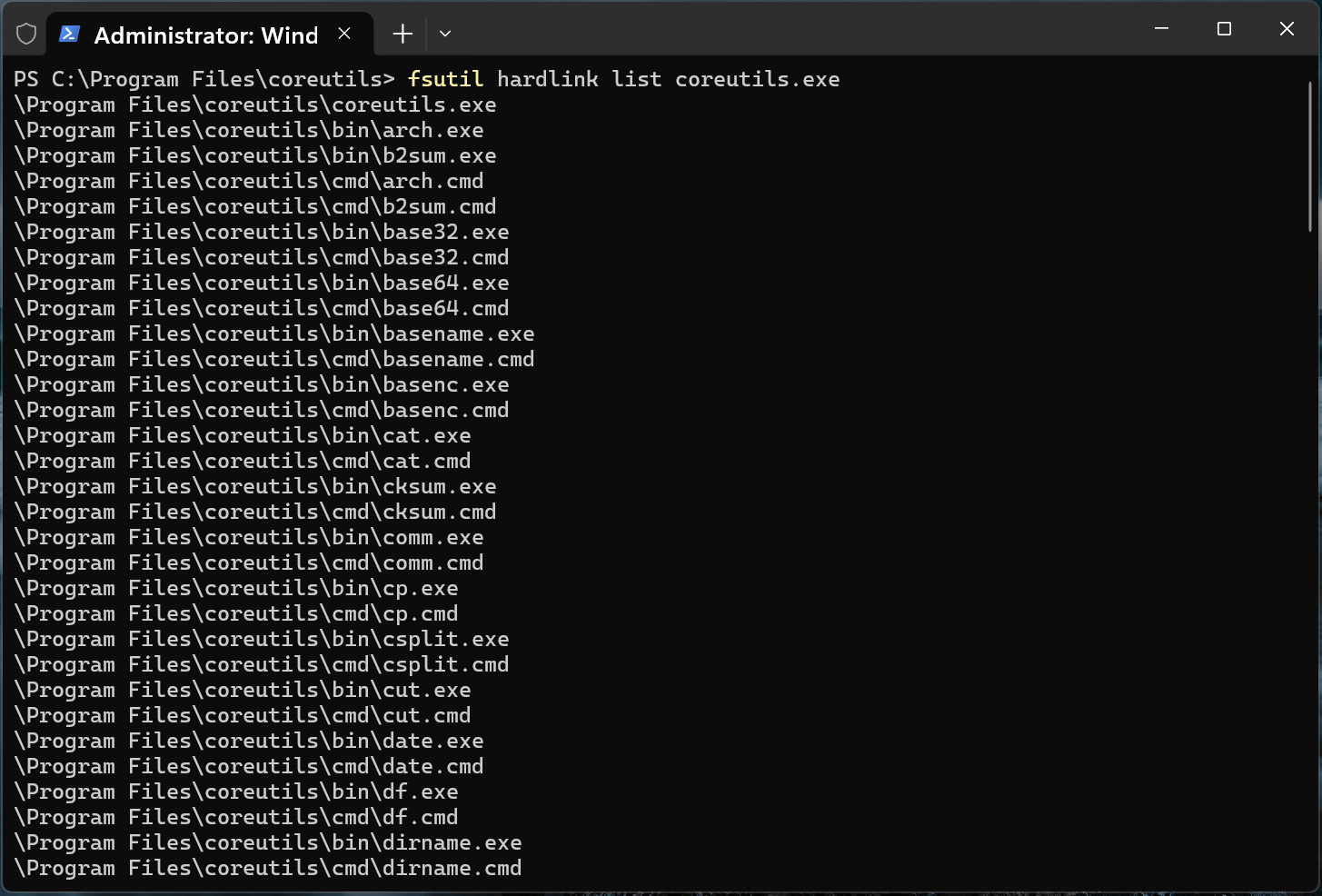
When Coreutils for Windows is installed, the setup creates NTFS hardlinks for each supported command, such as ls.exe, cp.exe, cat.exe, and rm.exe, that all point to the c:\Program Files\coreutils\coreutils.exe executable.
When a user launches one of these commands, Windows loads coreutils.exe, which determines which utility to run based on the name of the command that was executed. This allows Microsoft to maintain a single executable while still providing individual Linux-style commands.
Running fsutil hardlink list coreutils.exe shows dozens of command names, including cat.exe, cp.exe, cut.exe, base64.exe, and others, all referencing the same file on disk.
Coreutils using NTFS hardlinks to map commands to binary
As many Linux command names conflict with existing Command Prompt and PowerShell commands, Microsoft shared a compatibility table showing how each utility behaves in different Windows shells.
For example, commands such as ls, cat, cp, mv, rm, pwd, sleep, and tee are included with the package.
Advertisement
However, whether the Coreutils version is executed depends on the shell being used, the order of directories in the system PATH, and the PowerShell alias table.
Other commands, including dir, more, paste, and whoami, are not shipped because they conflict with existing Windows commands.
Microsoft also did not release several popular Unix utilities that rely on POSIX functionality, which is unavailable on Windows, including chmod, chown, chroot, nohup, tty, and who.
The company says they also did not release the ‘kill’ or ‘timeout’ commands, as Windows does not support POSIX signals, though this may be possible in the future.
Advertisement
Microsoft also warns that there may be differences between Linux functionality and how commands work in Windows due to differences in line feeds, file permissions, and POSIX support.
Coreutils for Windows was announced as part of Microsoft’s strategy to make Windows a developer-friendly platform.
During Build 2026, the company also announced WSL containers, which will provide a built-in way to create, run, and interact with Linux containers on Windows using native CLI and API tools.
Automated pentesting tools deliver real value, but they were built to answer one question: can an attacker move through the network? They were not built to test whether your controls block threats, your detection rules fire, or your cloud configs hold.
This guide covers the 6 surfaces you actually need to validate.
Megaport spent a decade as a company you used to connect to other people’s clouds. On Wednesday it announced a plan to become one. The Australian networking firm secured four new AI infrastructure contracts worth a combined A$458.9M (about $329M) and launched a fully underwritten entitlement offer to raise A$827.3M (about $594M), according to its filing. The money funds a pivot from plumbing to compute.
The contracts come first. All four are with US-based technology providers running AI applications, are expected to start in the first half of 2027, and require nearly A$369.5M in capital expenditure, mostly for high-performance Nvidia GPUs alongside network and storage. That is a meaningful commitment for a company of Megaport’s size, and it explains why the raise is so large relative to the business.
What the capital is really buying is the strategy behind the contracts. Megaport says it will build a globally distributed AI inference cloud, anchored by an on-demand GPU pool backed by about A$350M in investment and offered to enterprise customers on both contracted and consumption-based pricing.
The pool is to be deployed across the company’s existing footprint of more than 1,100 connected data centres in 31 countries, with rollout over the next six to nine months.
Advertisement
The 💜 of EU tech
The latest rumblings from the EU tech scene, a story from our wise ol’ founder Boris, and some questionable AI art. It’s free, every week, in your inbox. Sign up now!
The bet is geographic. Most GPU capacity today sits in a handful of enormous data centres optimised for training the largest models. Megaport is targeting the other half of the AI workload: inference, the act of running a trained model to answer a query, which benefits from being close to the user.
Its pitch is that a distributed network of smaller GPU pools, spread across the data centres it already connects, fits inference better than centralised mega-campuses, and slots into the gap between hyperscaler clouds and single-location GPU specialists.
Advertisement
It is a credible reading of where AI infrastructure is heading. As models move from research demos into products embedded in real applications, the economics shift from training to serving, and serving rewards proximity and distribution.
Megaport already owns the network that links the locations where that compute would live, which is a genuine structural advantage if the thesis holds.
The numbers around the raise were briefly muddled across early coverage, which is worth untangling. The four contracts are worth A$458.9M in total contract value; the capital raise is A$827.3M; the GPU pool commitment is about A$350M.
Several headlines collapsed these into a single figure. They are distinct: contract wins, the money to fund them, and the specific compute investment inside that money.
Advertisement
Megaport also tightened its 2026 revenue guidance to A$307M–A$315M and projected combined group pro forma annual recurring revenue of A$662.9M once the compute division is folded in. The shares were halted while the raise was arranged, a standard mechanism for a deal of this scale on the ASX.
The risk is the obvious one for any company spending heavily on Nvidia GPUs on the strength of contracts that begin in 2027: that AI infrastructure demand, and pricing, may look different by the time the hardware is installed and earning.
Megaport is committing capital now against revenue that lands later, in a market moving fast enough that 18 months is a long time. The contracts give it a floor. The inference-cloud ambition is the part that has to compound, and that is the part the A$827M is really betting on.
We’ve seen just about every possible way to make a clock here at Hackaday over the years. So it’s rare to have a first, but here we are with [Twisted & Tinned], who’s made a novel clock with a diffraction grating.
The display of the clock looks for all the world like a jumble of LEDs, that is, until you place the grating in front of it. Those LEDs are addressable multi-color parts, and each digit is generated at a different color all on top of each other. The grating splits out these colors, resulting in a magical set of floating LED figures.
Behind those LEDs is a Pi Pico, but that’s just one of many microcontrollers that could have powered this project. It’s the use of the diffraction grating in a novel way with those LEDs that makes the difference, and we rather like it. He’s also managed to get the grating pattern in the 3D printed surround for a shimmering look, by printing directly onto a diffraction grating sheet. That in particular is a technique we’ve looked at before in detail.






































































You must be logged in to post a comment Login