Tech
Strong Password Policy and Password Manager Guide

Create a strong password policy by prioritizing length and uniqueness, blocking compromised passwords, allowing password managers and autofill, removing arbitrary complexity and expiration rules, and requiring MFA for important accounts. Deploy the policy with a managed password vault, secure recovery procedures, and tests that confirm the written rules work in every covered system.
Quick Take
- Require at least 15 characters when a password is the only authentication factor.
- Allow passwords of at least 64 characters, including spaces.
- Do not require arbitrary mixtures of uppercase letters, numbers, and symbols.
- Replace scheduled password expiration with changes triggered by suspected compromise.
- Reject commonly used, predictable, and previously compromised passwords.
- Allow password managers, paste, and autofill on login forms.
- Protect important accounts and cloud-synchronized vaults with MFA.
- Test login, recovery, export, offboarding, and session-revocation controls.
These requirements follow current NIST authenticator guidance. They are a security baseline rather than proof that a particular policy satisfies every law, contract, or industry framework.

Prerequisites and Ownership
Identify the accounts in scope
Inventory the systems that accept passwords before writing the rules. Include workforce accounts, customer accounts, administrator access, cloud services, remote-access tools, shared credentials, and legacy applications. Record which systems use single-factor authentication, MFA, or single sign-on.
Keep machine credentials in a separate category. API keys, database secrets, certificates, service-account tokens, and CI/CD credentials require secrets-management controls rather than an ordinary employee password vault. A dedicated article on business secrets management should cover those systems.
Assign responsibility
Name a policy owner, identity-platform administrator, security reviewer, help-desk recovery owner, and departmental access approver. A policy without named owners tends to fail at exceptions, recovery, and offboarding rather than during ordinary password creation.
Document technical constraints
Record each system’s minimum and maximum length, supported characters, MFA options, password-history rules, breached-password screening, paste and autofill behavior, recovery process, and session controls. Legacy systems that cannot meet the baseline should enter a documented exception process with compensating controls and a retirement or remediation date.
Step-by-Step: Create the Password Policy
-
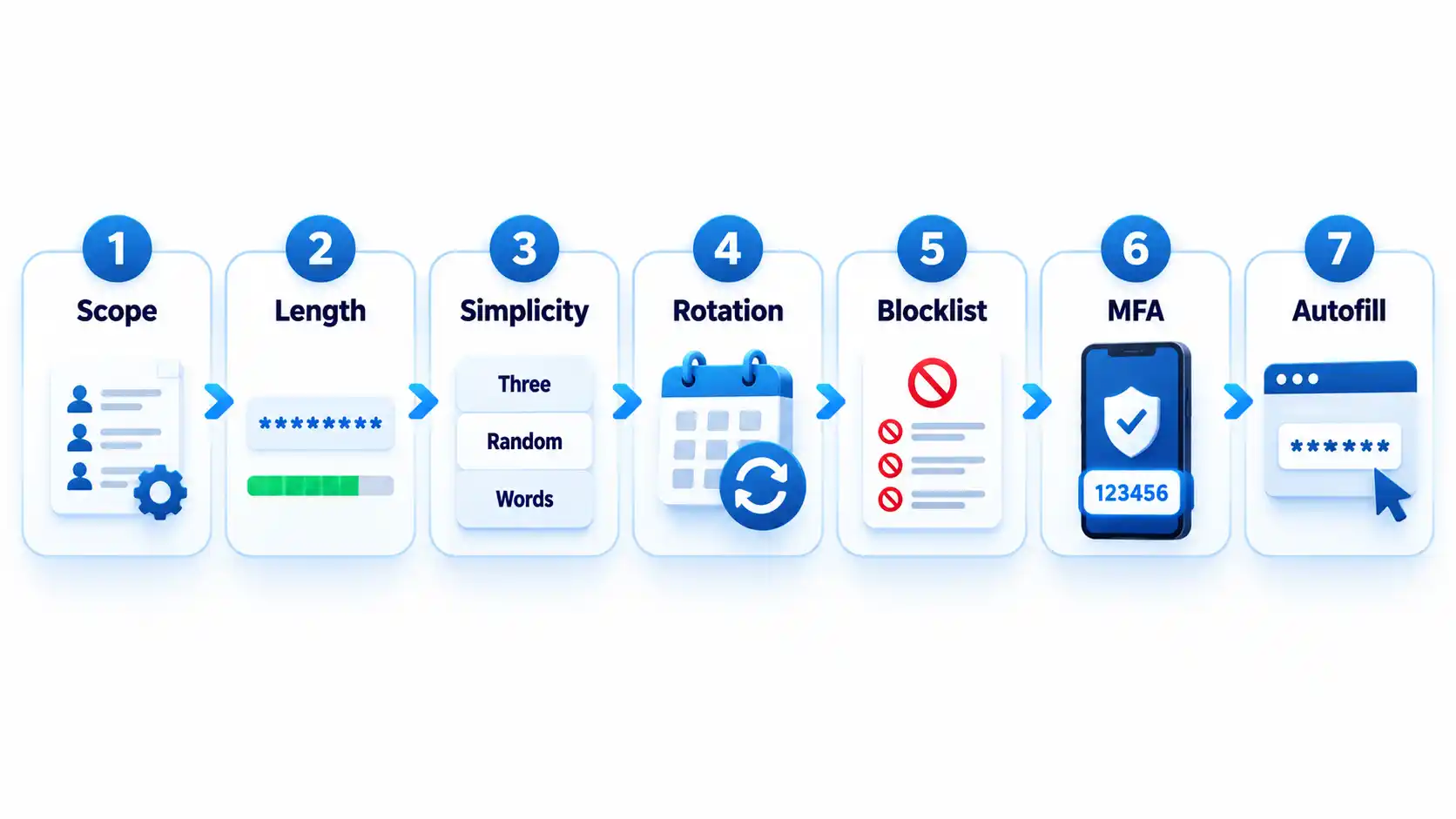
Define which accounts the policy covers
State whether the policy applies to employees, contractors, administrators, customers, service providers, and shared accounts. Classify higher-risk accounts such as email, identity-provider, financial, cloud-administrator, source-code, and password-vault accounts.
Where possible, replace shared accounts with individually attributable accounts. If sharing is unavoidable, use a managed vault that records access and lets administrators revoke membership.
Expected result: Every covered account type has an owner, risk classification, authentication method, and exception status.
-
Set length and input requirements
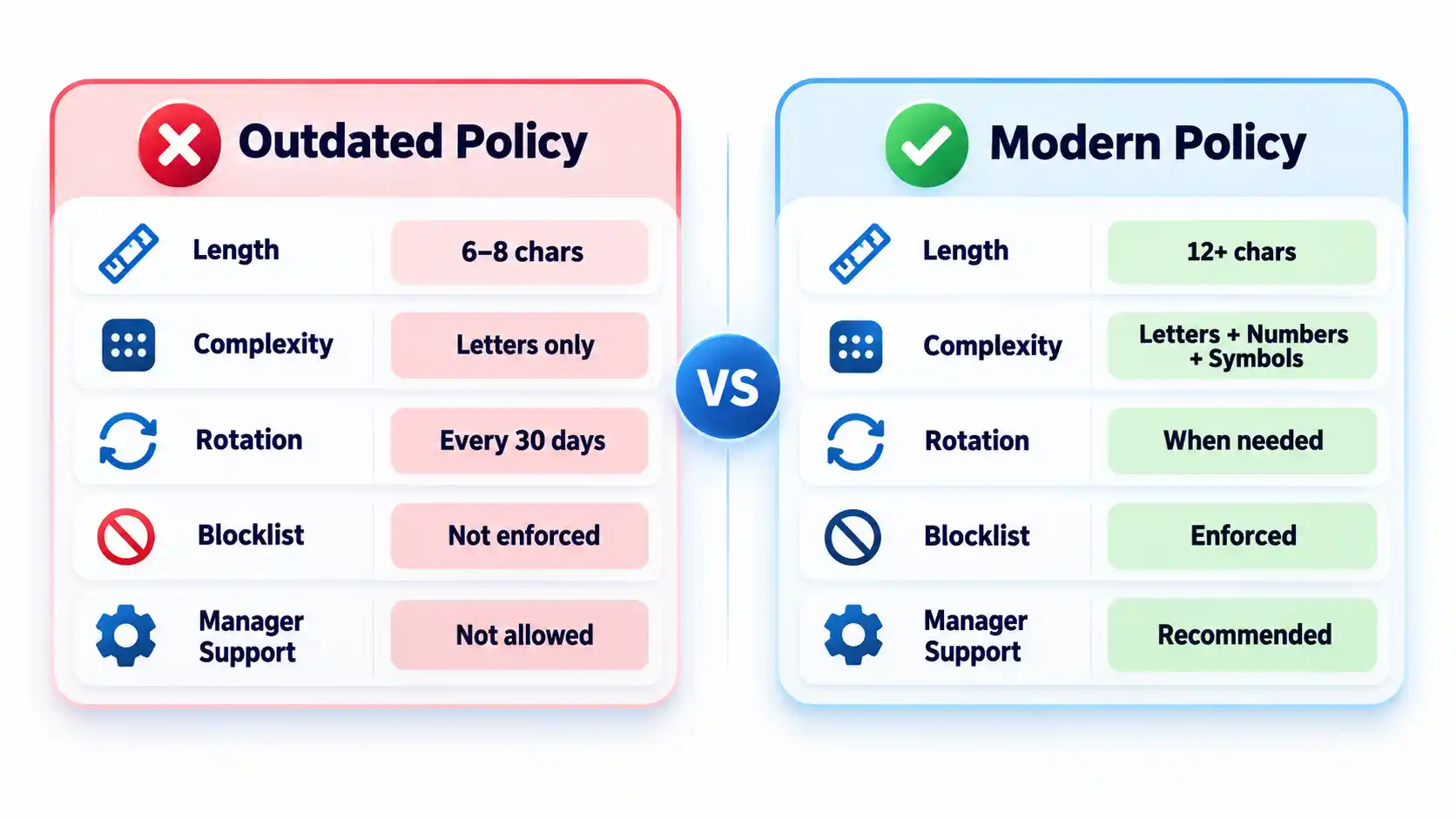
Require at least 15 characters when a password is the only authentication factor. NIST permits passwords used only as part of an MFA process to be shorter, but they must contain at least 8 characters. Organizations may adopt a longer minimum when users can rely on a password generator.
Permit passwords of at least 64 characters. Accept spaces and broad character sets, process the entire submitted password, and never silently truncate it. Systems that mishandle spaces or long generated values should be corrected or documented as exceptions.
Expected result: Users can create long passphrases or generated passwords without encountering unnecessary input restrictions.
-
Remove mandatory composition rules
Do not require every password to contain a prescribed mixture of uppercase letters, lowercase letters, numbers, and symbols. Current NIST rules prohibit these composition requirements because users commonly satisfy them with predictable patterns.
Symbols remain acceptable when a generator selects them or a service requires them. The policy should not imply that a short password becomes safe simply because one letter was replaced with a familiar symbol. NIST’s public password creation guidance prioritizes length and recommends long passphrases when a password must be created manually.
Expected result: Users can choose long, usable passwords without following predictable formatting recipes.
-
Replace scheduled expiration with event-driven changes
Do not force users to change passwords every 30, 60, or 90 days without evidence of risk. Require a change when a password is known or suspected to have been disclosed, appears in relevant breach data, was transmitted insecurely, or may remain known to someone whose access has ended.
A password change must be accompanied by session revocation when an attacker could already be signed in. Changing the secret alone may not invalidate active browser sessions, application tokens, or remembered devices.
Expected result: Password changes respond to compromise and access changes rather than an arbitrary calendar.
-
Block weak and compromised passwords
Compare new and changed passwords against a blocklist containing commonly used, expected, and compromised values. Include context-specific choices such as the organization’s name, service name, username, and predictable derivatives.
Explain why a proposed password was rejected and ask the user to choose a genuinely different value. Do not reveal whether another person uses that password. Avoid enormous blocklists that create excessive false rejections without meaningfully improving protection against rate-limited online guessing.
Expected result: Users cannot enroll values that attackers are likely to guess early or already possess from breach collections.
-
Add controls around the password
Require MFA for email, identity-provider, financial, remote-access, cloud-administrator, source-code, and password-manager accounts. Prefer phishing-resistant methods such as passkeys or hardware-backed security keys where the service and user environment support them.
Rate-limit or progressively delay failed attempts. Monitor suspicious logins, protect account recovery, avoid knowledge-based questions as a sole recovery method, and provide a way to revoke sessions after suspected compromise. The OWASP authentication guidance treats password controls, MFA, recovery, session handling, and login monitoring as connected parts of account security.
Expected result: A guessed or disclosed password is harder to convert into persistent account access.
-
Require password-manager-compatible login forms
Allow users to paste and autofill credentials. Use standard password fields and avoid scripts or form designs that block managers. NIST requires verifiers to allow password managers and autofill and recommends permitting paste when autofill interfaces are unavailable.
Do not interpret clipboard blocking as a security control. It can push users toward shorter passwords they can type manually or toward storing credentials in insecure notes.
Expected result: Users can generate, store, and enter unique credentials without weakening them for convenience.
How to Choose a Password Manager
Select a manager by deployment fit, recovery design, security controls, and usability rather than by the length of its feature list. The NCSC buyers guide emphasizes that an unusable manager will leave insecure workarounds in place.
| Manager type | Best fit | Principal advantage | Main limitation |
|---|---|---|---|
| Browser or platform manager | People using one primary browser or device ecosystem | Low setup friction and integrated autofill | Potential platform lock-in and fewer team controls |
| Standalone cloud-sync manager | Mixed-device users and small teams | Cross-platform access and centralized synchronization | Remote account and recovery paths require strong protection |
| On-device manager | Narrow or offline use cases | Reduced dependence on a cloud service | Limited synchronization and more difficult recovery |
| Enterprise-managed vault | Organizations requiring governance and offboarding | Managed sharing, audit records, policy enforcement, and provisioning | Greater administrative complexity and recurring cost |
Evaluate the following capabilities before deployment:
- Protection of credentials and metadata at rest.
- Who controls or can recover the vault’s decryption key.
- MFA, passkey, and approved-device support.
- Recovery options and the people authorized to use them.
- Secure sharing without revealing passwords in email or chat.
- Role-based administration, audit records, and offboarding controls.
- Restrictions or alerts for bulk export.
- Supported browsers, operating systems, and mobile devices.
- Update delivery and the provider’s vulnerability-disclosure process.
- A practical method for leaving the service without permanent lock-in.
Browser and device managers can be appropriate when convenience and ecosystem integration matter most. A reputable standalone manager may fit mixed-device environments or teams requiring advanced sharing and administration. The NCSC’s updated password-manager guidance recommends evaluating reputation, device security, recovery, MFA, and platform needs instead of assuming one type fits everyone.
How to Deploy and Use the Password Manager
1. Protect the vault account
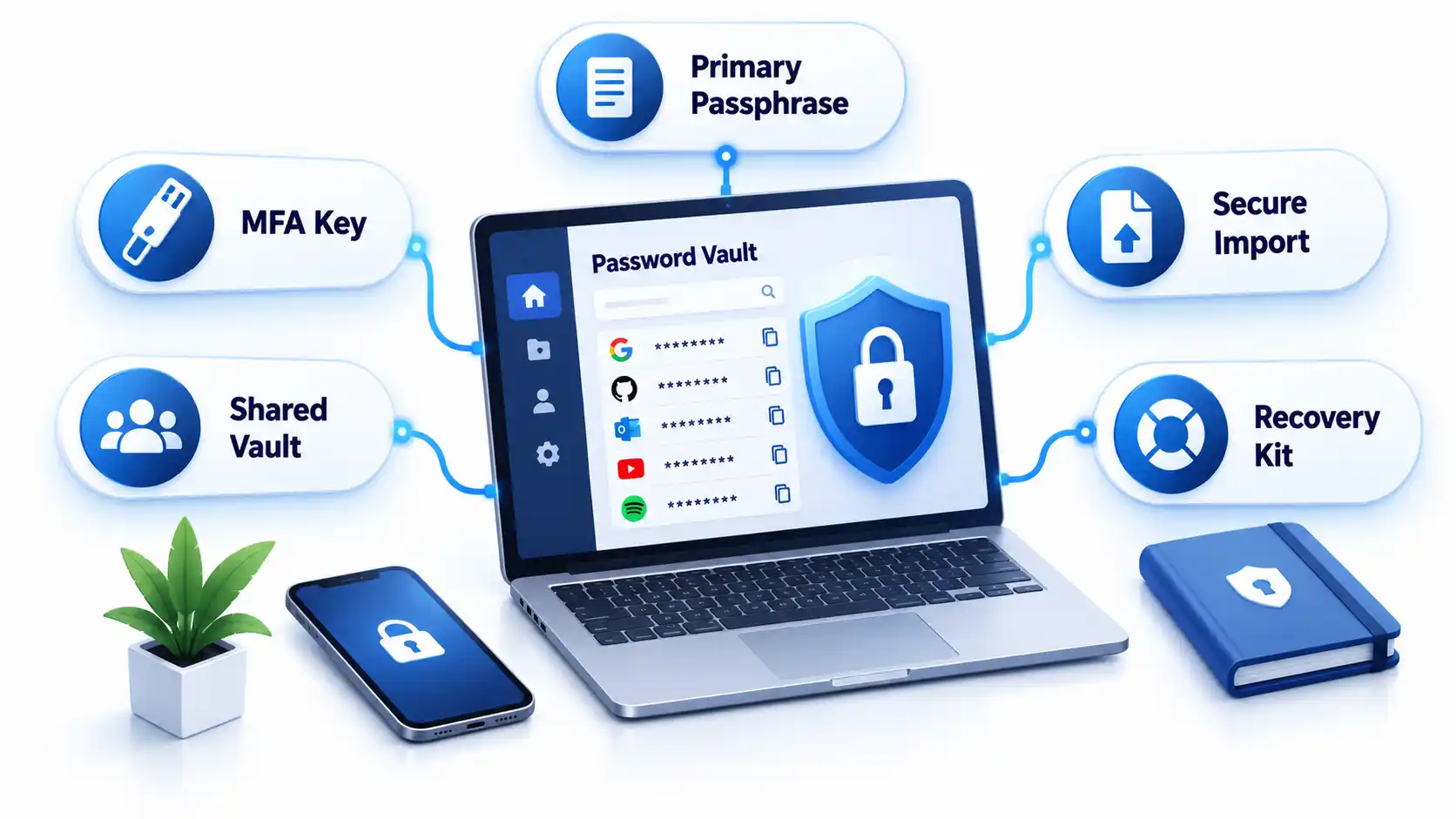
Create a long, unique primary passphrase that is never used elsewhere. Enable the strongest practical MFA and secure every registered device with updates, automatic locking, and a local PIN or biometric unlock.
Store recovery keys or emergency instructions separately from the vault. Avoid circular recovery in which the only way to access the email account is through the vault while the only way to recover the vault is through that email account.
2. Import credentials carefully
Some managers migrate credentials through a CSV file. That export may contain readable usernames and passwords. Create it only on a trusted device, import it immediately, verify that the records arrived, and delete the exported file from the original folder, recycle bin, cloud synchronization, and temporary storage.
Do not perform a vault migration over an unfamiliar hotspot. Review the precautions in this public Wi-Fi security guide before accessing sensitive accounts away from a trusted connection.
3. Replace reused passwords in risk order
- Secure the password-manager account and its recovery channels.
- Change email and identity-provider credentials.
- Change banking, payment, payroll, and financial credentials.
- Change administrator, cloud, source-code, and remote-access credentials.
- Change shopping, social-media, subscription, and lower-impact accounts.
Do not change dozens of accounts without confirming that each new password was saved. Keep the old session open until the new credential has been tested in a separate private window or another approved device.
4. Configure generation and autofill
Generate a different random password for every compatible service. Match the site’s supported length and character rules while avoiding needless manual edits. If autofill does not appear, check the exact domain before searching the vault and copying the password.
Autofill may help resist phishing because a manager should associate credentials with the legitimate domain. It is not infallible. Users must still inspect unusual addresses, subdomains, redirects, and browser warnings.
5. Configure team sharing and offboarding
Store business credentials in organization-controlled collections rather than personal vaults. Grant access by role, assign an accountable owner, review membership, and remove access promptly when someone changes roles or leaves.
Revoking vault access prevents future retrieval, but it cannot make a password unknown to someone who already viewed or copied it. Rotate credentials when a departing user could retain them. Teams protecting software repositories should connect this process to the controls in the guide to preventing source-code theft.
Verify That the Policy Works
Test the deployed controls instead of assuming a written setting was applied consistently.
Checklist
- Confirm that a 15-character single-factor password is accepted.
- Confirm that long passphrases, spaces, paste, and autofill work.
- Confirm that the application processes the full password without truncation.
- Attempt to enroll a known common password and verify that it is rejected with useful guidance.
- Confirm that uppercase, number, and symbol mixtures are not mandatory.
- Verify that routine expiration is disabled and compromise-driven resets work.
- Trigger repeated failed attempts in an approved test account and verify rate limiting or progressive delay.
- Test MFA, recovery, session revocation, emergency access, and lost-device procedures.
- Remove a test user from a shared collection and verify that access ends.
- Verify that export actions are restricted, logged, or both.
Record exceptions and failed tests with an owner and target correction date. Repeat the checks after identity-platform changes, password-manager migrations, or major policy revisions.
Failure Modes and Troubleshooting
| Failure | Likely cause | Security consequence | Corrective action |
|---|---|---|---|
| Long generated password is rejected | Legacy length or character restriction | User shortens or reuses a password | Correct the restriction or document a temporary exception |
| Autofill does not appear | Unsupported form, disabled extension, or domain mismatch | User may copy into the wrong page | Verify the domain and manager permissions before manual entry |
| Credentials fill on an unexpected subdomain | Overly broad saved-domain matching | Password may reach an unintended service | Narrow the saved address and report unsafe matching |
| Primary passphrase is lost | Recovery was not configured or documented | Vault data may become inaccessible | Use the approved recovery process and reset affected accounts if recovery fails |
| MFA device is lost | No backup factor or recovery key exists | User is locked out or bypasses policy | Use pre-established recovery and revoke the lost device |
| Exported CSV remains on disk | Migration cleanup was missed | Passwords remain exposed in plaintext | Delete all copies and rotate credentials if exposure is possible |
| Former worker retains a shared password | Vault removal occurred without credential rotation | Continued unauthorized access remains possible | Rotate the credential and review account activity |
| Legacy system requires frequent changes | Obsolete platform rule | Users may create predictable variations | Apply compensating controls and schedule remediation |
| Vault and email recovery depend on each other | Circular recovery design | One lost factor can lock out both services | Create an independent recovery route and protect it offline |
Operational Limits and Edge Cases
- Concentrated value: A vault makes unique passwords practical, but a successful vault compromise can expose many accounts. Protect the primary account and registered devices accordingly.
- Compromised endpoints: Malware or someone using an unlocked computer may capture credentials after the vault decrypts them. A password manager does not replace device protection. Organizations can evaluate those controls separately in this endpoint protection guide.
- Recovery trade-off: Recovery improves availability but creates another path that an attacker may target. Document who can recover a vault and what evidence is required.
- Shared accounts: A vault improves sharing, but individual accounts remain preferable because they provide attribution and cleaner revocation.
- Offline access: Emergency recovery material needs physical protection, named custodians, and periodic verification.
- Phishing: Passwords themselves are not phishing-resistant. Adopt passkeys where appropriate and evaluate the differences in a future passkeys versus passwords guide.
Key Takeaways
- Use length, uniqueness, blocklists, and login protections instead of frustrating composition rules.
- Require at least 15 characters when a password is the only authentication factor.
- Do not force periodic changes without evidence of compromise.
- Allow password managers, paste, autofill, and long values.
- Protect the password vault, email, identity provider, and administrator accounts with MFA.
- Select a manager based on security, recovery, usability, platform support, export, and governance.
- Replace reused passwords in risk order and verify each change.
- Test recovery, offboarding, exports, and session revocation before an incident.
Frequently Asked Questions
Should contractors use the company password manager?
Contractors should use an organization-controlled vault when they need access to company credentials. Place them in restricted groups, set an access end date where supported, and avoid mixing business credentials with their personal vaults. At contract completion, revoke access and rotate any credential they could have copied.
Should a password manager store the code for its own MFA?
Storing a service’s password and MFA code in one vault is convenient, but storing the vault’s own second factor inside that same locked vault creates a circular dependency. Protect the manager itself with a separate authenticator, passkey, hardware key, or securely stored recovery code.
What happens if the password manager company shuts down?
A usable exit plan should let authorized users export or transfer credentials to another manager. Confirm the export format before deployment and document how migration would work. Because exports may be plaintext, continuity planning should not involve leaving permanent backup exports on ordinary drives.
Can administrators see employees’ passwords in a business vault?
That depends on the manager’s encryption, sharing, recovery, and administrative design. Some administrators can recover accounts or manage shared collections without seeing every private credential. Others may have broader recovery powers. Review the product’s key-ownership and recovery documentation before adoption.
Should personal and work passwords be kept in the same vault?
Separate vaults or clearly separated organization-controlled and personal spaces are preferable. The company must be able to manage, audit, and revoke business access without gaining control over personal credentials. Employees should also retain their personal passwords after leaving without exporting company secrets.
What should happen when a password appears in a data breach?
Change the affected password, revoke active sessions, review account recovery methods, inspect recent activity, and replace the same password anywhere it was reused. Follow a documented data breach response checklist so the reset does not overlook tokens, forwarding rules, or connected applications.
You must be logged in to post a comment Login