Connect with us
DAPA Banner

Tech

Unable To Stop AI, SAG-AFTRA Mulls a Studio Tax On Digital Performers

Published

on

An anonymous reader quotes a report from Variety: In the future, studios that use synthetic actors in place of humans might have to pay a royalty into a union fund. That’s one of the ideas kicking around as SAG-AFTRA prepares to sit down with the studios on Feb. 9. Artificial intelligence was central to the 2023 actors strike, and it’s only gotten more urgent since. Social media is awash in slop, while user-made videos of Leia and Elsa are soon to debut on Disney+. And then there’s Tilly Norwood — the digital creation that crystallized AI fears last fall. Though SAG-AFTRA won some AI protections in the strike, it can’t stop Tilly and her ilk from taking actors’ jobs. As negotiations with studios begin early ahead of the June contract deadline, AI remains the most existential concern. Actors are also pushing to revisit streaming residuals, arguing that current “success bonuses” fall far short of the rerun-based income that once sustained middle-class careers. They also note the strain caused from long streaming hiatuses, exclusivity clauses, and self-taped auditions.

Source link

Continue Reading
Click to comment

You must be logged in to post a comment Login

Leave a Reply

Tech

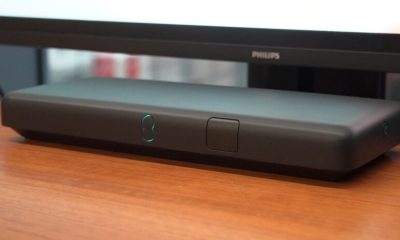
5 Handy Uses For Smart Sensors You Probably Didn’t Think Of

Published

on


We may receive a commission on purchases made from links.

A smart motion sensor typically detects the presence or movement of a person, while a smart switch is most often used to turn lights on or off. These devices are already useful just as they were designed, but did you know that you can actually program them to let you accomplish other useful things?

With a little creativity, you can use a smart sensor to warn you if you’re forgetting something, to catch if something goes wrong before it becomes a major problem, or to just generally make your life easier. Most of the features also do not require complex programming — you can either install the smart sensor directly where needed, or, at worst, add a timer via your preferred home app and keep notifications on.

Advertisement

Let’s look at a few handy uses for smart sensors that you probably haven’t considered yet. You might be surprised what these things can accomplish with a little bit of ingenuity.

Advertisement

Warn you if you left a door or window open

Contact sensors are pretty simple smart devices, as their primary purpose is to warn you when the two pieces are not in contact. These are most commonly used for doors and windows — you can program them to send a notification on your phone when you leave your house, and you left a window or door open. There are also several creative uses for contact sensors, including automatically turning on lights and running a home routine.

Though these sensors are typically attached to doors and windows, that does not mean they’re limited to those used for access. If you often second-guess yourself about whether you’ve properly closed your fridge door, especially when you’re on vacation for a couple of days, attaching a contact sensor to it will help you avoid that problem. You can then set the sensor to warn you if the door is open for too long. If you still need to check, just open your phone and check the device’s status.

You can also install the sensor inside a cupboard or cabinet if you’re guarding stuff. For example, if you keep chocolates in your pantry and don’t want your kids raiding your sweets without your knowledge, you can set the sensor to warn you when the cupboard door opens, allowing you to check your smart security camera to see who’s the culprit.

Advertisement

Get notifications for mail or packages

Smart mailbox alarms exist to ensure you don’t miss letters or packages that might’ve arrived when you were asleep or weren’t home. After all, we rarely receive snail mail these days, but the letters that do come in are quite important, like a jury duty summons or your tax return check. These sensors work similarly to a motion sensor in that they detect movement in your inbox.

Because of this, you do not need to purchase a smart mailbox alarm — if you already have an extra motion sensor at home, you can install it in your mailbox and set it to alert you if it detects movement. However, this might not work for larger packages that won’t fit in your mailbox. So, if you want to get alerted when an Amazon package arrives at your doorstep, consider getting a Ring camera.

Advertisement

This smart doorbell camera can tell you when someone’s at your door, but you can also program it to notify you if it detects movement on your porch. This means it can double as a security camera while simultaneously notifying you if someone leaves a package at your doorstep.

Advertisement

Control the exhaust fan bathroom automatically

Smart switches are often used for remotely turning on devices using voice commands. But because you can control them with an app, you can make them do a lot of other clever things beyond switching on or off on your command. One thing you can do is program your bathroom exhaust fan to work automatically based on which light you turn on.

The biggest problem some people encounter with bathroom exhaust fans is that they do not work optimally. Most exhaust fans turn on when you switch on the bathroom lights — this is a problem for some people, as it can cause a cold draft while they’re showering. And when you switch off the light after showering, it also turns off the exhaust, leaving excess moisture stuck inside your bathroom.

If you use a smart switch to control the lights and the exhaust fan in your bathroom, you can program it so that you don’t have to think about the exhaust fan. For example, you can set the exhaust fan to automatically turn on when you switch on the light for your toilet area to keep the area fresh. But for your shower, you can instead command the exhaust fan switch to turn on minutes after you turn off the light. That way, you don’t get chilly while you’re bathing, while the exhaust fan will still ensure that moisture is exhausted after you leave the restroom.

Advertisement

Avoid extensive water damage by catching leaks early

You might think that a water leak sensor is an unnecessary smart device for your home, especially if you live in a newly constructed dwelling. But if you live in an older home or experience freezing winters in your area, this might be a prudent investment. That’s because a leak sensor will warn you if you have a problem with your plumbing before it becomes a major issue, making it one of the smart gadget upgrades you can install in your bathroom or kitchen.

As the name suggests, these devices alert you when they detect a water leak. That way, you can immediately shut off your taps before the water spreads all over your floor. Since these smart devices send a notification to your phone, you also get warned wherever you are in the world as long as you’re online.

This is crucial if you’re away for an extended period. That way, you can immediately inform a trusted person to turn off the taps in your home and avoid coming home to extensive (and expensive) water damage.

Advertisement

Toggle perimeter and safety lights as necessary

Smart switches can be programmed to automatically turn on and off your perimeter and safety lights based on sunrise and sunset times. However, this only takes into account the position of the sun and does not consider meteorological effects. So, if you want to ensure that your lights turn on when the skies get too dark, you can install a smart light sensor.

With a smart light sensor installed, you can then use it to command all the lights around your home to switch on when it gets too dark — whether through the setting of the sun or because of a snowstorm — and turn off when there’s enough light to save on electricity costs. You can even use it to automatically adjust the dimmable lights in your home, ensuring a consistent brightness level throughout the day and night.

Advertisement

You can also pair a smart light sensor with a smart motion detector to specific areas in your home. That way, you can program lights in common areas, like your hallway or garden, to turn on only when someone is in the area and it’s dark. You can also use it to automatically lower or raise smart blinds to help keep the temperature in your home under control or to maximize natural light.


Advertisement

Source link

Continue Reading

Tech

Iran-linked hackers use Cold War tricks and fake online identities to steal secrets from Apple and Microsoft users

Published

on


  • Charming Kitten relies on deception rather than exploiting technical software vulnerabilities
  • Fake identities build trust before phishing attacks compromise sensitive user credentials
  • Operations extend across Apple and Microsoft platforms, affecting diverse users globally

Iran-linked cyber operations are drawing renewed attention for relying less on advanced code and more on human manipulation to gain access to sensitive systems.

At the centre of this activity is Charming Kitten, a group associated with Iran’s security apparatus which has spent years targeting officials, researchers, and corporate employees.

Source link

Advertisement
Continue Reading

Tech

Copilot is ‘for entertainment purposes only,’ according to Microsoft’s terms of use

Published

on

AI skeptics aren’t the only ones warning users not to unthinkingly trust models’ outputs — that’s what the AI companies say themselves in their terms of service.

Take Microsoft, which is currently focused on getting corporate customers to pay for Copilot. But it’s also been getting dinged on social media over Copilot’s terms of use, which appear to have been last updated on October 24, 2025.

“Copilot is for entertainment purposes only,” the company warned. “It can make mistakes, and it may not work as intended. Don’t rely on Copilot for important advice. Use Copilot at your own risk.”

A Microsoft spokesperson told PCMag that the company will be updating what they described as “legacy language.”

Advertisement

“As the product has evolved, that language is no longer reflective of how Copilot is used today and will be altered with our next update,” the spokesperson said.

Tom’s Hardware noted that Microsoft isn’t the only company using this kind of disclaimer for AI.  For example, both OpenAI and xAI caution users that they should not rely on their output as “the truth” (to quote xAI) or as “a sole service of truth or factual information” (OpenAI).

Source link

Advertisement
Continue Reading

Tech

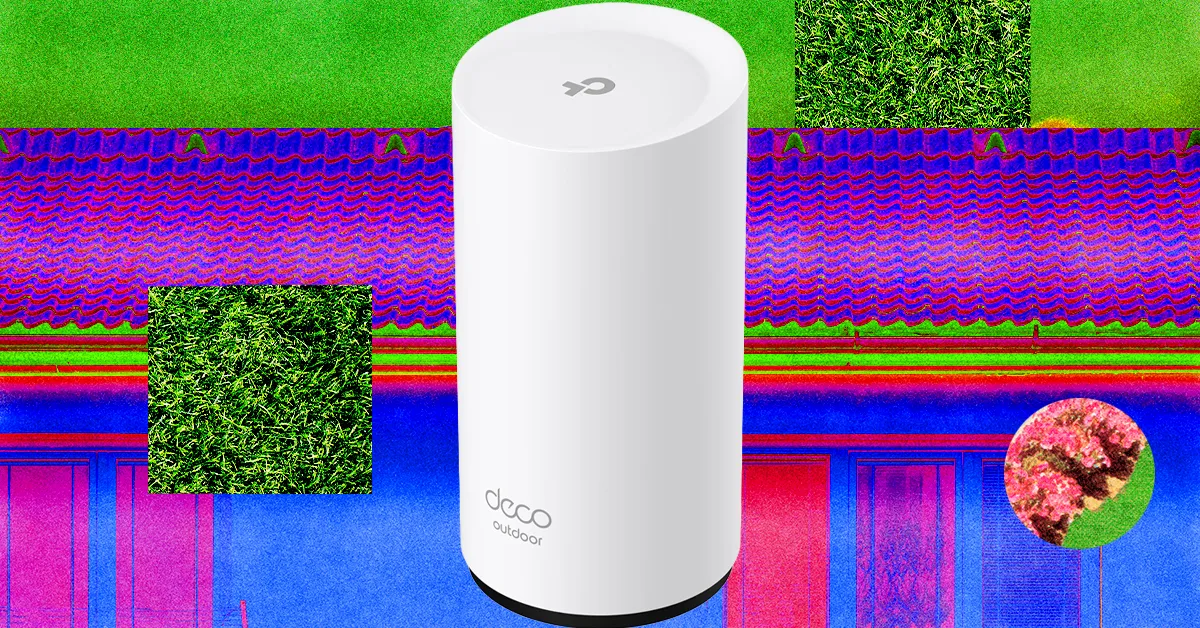
How to Get Reliable Wi-Fi in Your Backyard

Published

on

No one wants the tunes buffering when they have friends round for a barbecue or a stuttering podcast as they try to finish yard work. While the average router might fill your home with Wi-Fi, it doesn’t always extend to the patio or deck, much less the end of your backyard. But you can get great Wi-Fi coverage in your outdoor spaces, and I will show you the best options.

You may also want to read up on how to make your Wi-Fi faster, how to buy a router, and whether you should opt for a single router or a mesh system.

Table of Contents

Adjust or Move Your Router

Advertisement

Before you think about spending any money, try adjusting or moving your wireless router. Routers send out Wi-Fi signals in a rough circle, so I always recommend placing your router in the center of your home. Moving it slightly closer to your backyard or wherever you want to extend Wi-Fi is the simplest option. Ensure it’s positioned high and in the open. You may need a longer Ethernet cable. If your router has adjustable antennas, I also strongly recommend moving them and testing the signal strength in your problem spot (this can make a surprising difference).

If you have a mesh system, try moving one of the nodes to the back windowsill of your home to extend Wi-Fi into the backyard. If you’re able, running an Ethernet cable between your main router and the node nearest your outside space for wired backhaul can also extend range and speed significantly. If you have an outbuilding, you could even consider running an armored Ethernet cable from your main router to a mesh node or access point out there.

Use Your Smartphone as a Hot Spot

If you get a decent cellular network signal on your phone in your garden and you have plenty of data, it might be worth using your phone as a hot spot, which enables other devices to piggyback on your mobile network connection. We have a full guide on how to use your smartphone as a hot spot, but it’s very easy to do. Here’s the quick version:

Advertisement
  • On an iPhone: Open Settings, Personal Hotspot, toggle on Allow Others to Join, and set a Wi-Fi Password.
  • On an Android: Open Settings, Network and Internet (or Connections on a Samsung phone), choose Hotspot and tethering, toggle Wi-Fi hotspot on, and pick a name and password.

The problem with this is that it will use up your data allowance, tie up your phone, and drain your battery fast. But it’s a good solution in a pinch.

Upgrade Your Setup

If the two options above don’t fix your Wi-Fi woes, it might be time to upgrade your hardware. We have guides to the best routers, best mesh systems, and best Wi-Fi extenders. If you’re currently using an old or ISP-provided router, simply snagging a new one could make a big difference to your range. Most routers have a rough estimate of the square-footage range, but the construction of your home and other factors will impact it.

Switching from a single router to a mesh system is a better upgrade if you need to extend that Wi-Fi coverage. I’m not keen on Wi-Fi extenders, but they can sometimes be the most cost-effective way to get Wi-Fi to a single trouble spot. If you recently upgraded or already have a mesh, there are still other options.

Get an Outdoor Router

Advertisement

Folks with a mesh system can often add an outdoor router or node easily. Outdoor routers are weatherproof and generally have an IP rating determining what kind of weather they can withstand. They often come with fixings to mount on an exterior wall, fence, or pole, but you must consider how to run a power cable to an outlet. The right outdoor router for you depends entirely on your mesh system.

Source link

Continue Reading

Tech

Week in Review: Most popular stories on GeekWire for the week of March 29, 2026

Published

on

Get caught up on the latest technology and startup news from the past week. Here are the most popular stories on GeekWire for the week of March 29, 2026.

Sign up to receive these updates every Sunday in your inbox by subscribing to our GeekWire Weekly email newsletter.

Most popular stories on GeekWire

Source link

Continue Reading

Tech

When And Why US Aircraft Carriers Break This Vital ‘5-Mile’ Rule

Published

on


All 11 U.S. aircraft carriers employ what is called a “Five-Mile Rule,” which is rarely broken. The rule is a 5 nautical mile (5.75-mile) exclusion zone established around aircraft carriers, and its purpose is essentially force protection. Aircraft carriers are huge machines that can be dangerous to get close to, as colliding with one will always end in the carrier’s favor. Additionally, the constant need for flight operations ensures the safety of both the pilots and crew. Essentially, a five-mile buffer serves to further protect the carrier from threats.

It’s almost unfathomable how large carriers like the Lincoln are, as it displaces over 100,000 tons of seawater. When moving, it can’t turn or stop on a dime, as its inertia is considerable. Getting too close means that a collision can be unavoidable, so the exclusion zone’s purpose is essentially all about safety. While you might see pictures showing tight formations with the Lincoln among the vessels that comprise its Carrier Strike Group, that’s not normal during combat and flight operations, as breaking the Five-Mile Rule is a big naval no-no … until it isn’t.

Advertisement

Violating the exclusion zone isn’t common, but it happens. Think of it more as a rule that’s allowed to be broken than an unwavering law because there are conditions that warrant its violation. Typically, an emergency, where someone falls overboard, an unforeseen issue that arises during combat or flight operation, or any emergent situation might compel an aircraft carrier’s captain to chuck the exclusion zone into the drink and move the carrier or another ship closer than normal. Everyone onboard is trained for these situations, but it’s nonetheless dangerous since exclusion zones are there for good reasons.

Advertisement

The Five-Mile Rule and why it’s necessary

First and foremost, all U.S. aircraft carriers have a five-mile rule, and it’s all for the same reason. In 2000, the USS Cole (DDG-67) was attacked by a small vessel, causing widespread damage to its hull while killing 17 sailors and wounding almost 40 additional personnel. Since then, the U.S. Navy has been wary of small vessels, and a five-mile buffer ensures that none can get close to the carrier, as the Cole bombing proved the danger that explosive-laden craft could pose in potentially sinking an aircraft carrier. Another reason is flight operations, which is dangerous in and of itself.

The danger is elevated when an approaching aircraft has problems with onboard weapon systems or fuel. This can endanger surrounding ships, so the buffer offers added protection. Also for flight operations, the carrier must turn into the wind, requiring a large turn radius, making it imperative that its surrounding waters are devoid of any vessels. Air operations also require a bubble of airspace for recovering aircraft low on fuel, which the exclusion zone provides. The rule is only violated when combat action requires it, but under normal conditions, breaking the buffer can be hazardous.

Another aspect of carrier operations results in high-powered radar and electronic warfare radio signals. These can disrupt communications and electronics, especially with commercial, civilian vessels. Keeping them away limits potential damage to their navigation and communications equipment. The carrier is further protected by a series of submarines, cruisers, and guided-missile destroyer escorts, ensuring that no vessels stray too close. This ensures that everyone on or around an aircraft carrier like the Lincoln remains safe and secure.

Advertisement


Source link

Advertisement
Continue Reading

Tech

5 Things You Didn’t Know Your Apple Watch Can Do In 2026

Published

on


Are you using your Apple Watch to its full potential? Whether you’ve owned an Apple Watch for years, answering texts and counting steps with the small device on your wrist, or you’re new to wearing a smart watch, it’s likely that there’s a trove of hidden features and tools that you’ve never used.

Apple currently sells three versions of its popular watch: the Series 11, the SE 3, and the Ultra 3. Each version offers different features, display sizes, and battery life, but no matter which version you own, there are hidden tools that you aren’t utilizing.

It’s common knowledge that you can answer texts and phone calls, tap to pay, and track your daily exercise routine, but all models of Apple Watch offer much more. Before you get too involved in picking a fun watch face and comfortable or stylish band, take the time to learn about all the functions your watch offers. After all, it’s a big investment, especially if you opted for the high-end Ultra 3. Here are some Apple Watch features that may have flown under your radar.

Advertisement

Sleep apnea detection

If you or a loved one snores loudly or wakes up after hours of sleep still feeling tired, you may be showing symptoms of sleep apnea, a disorder that causes pauses in your breathing while you’re asleep. It affects about 30 million Americans, and the risk increases as you age. Untreated sleep apnea can lead to other issues with your health, such as high blood pressure and cardiac rhythm disturbances. If you suspect you have sleep apnea, you should make an appointment with a health care provider, but while you wait to be seen by a doctor, your Apple Watch can help look for breathing disturbances.

The Sleep Apnea Notifications feature is available on Apple Watch Series 9 or later, Apple Watch Ultra 2, or Apple Watch SE 3. Your phone must be updated to the latest version of iOS, and you must also turn on the Sleep Tracker feature, found in the Health app on your phone. Then, wear your watch when you sleep for a minimum of 10 nights over a 30-day period, and the data will be analyzed every 30 days.

Advertisement

To turn on sleep apnea notifications, open the Health app on your iPhone, tap Search, then tap Respiratory, and set up Sleep Apnea Notifications. If you receive a notification, you can export the report as a PDF to share with your health care provider.

Advertisement

Mute notifications with gestures

You’re in an important meeting, or mid-way through the first act of Hamilton, when you suddenly realize you forgot to silence notifications on your Apple Watch. The situation dictates stealth — you don’t want to interrupt your boss or draw attention to yourself in a dark theatre. Luckily, Apple offers several options that will allow you to quickly mute the notifications on your watch.

If you only remember that notifications are active because you receive an alert, such as an incoming phone call or text, you can quickly mute your that alert by covering your watch display with your hand for at least three seconds. You’ll feel a tap to notify you that you’ve successfully muted the notification. This option is typically on by default, but you can check by going to the Settings app on your watch and tapping Gestures.

You can also mute calls and dismiss notifications simply by quickly turning your wrist over and back again. Apple dubbed this the wrist flick gesture, and it’s supported on the SE 3, Series 9, Ultra 2, and later models. Again, this feature is turned on by default, and you can access it on the Settings app under Gestures.

Advertisement

Live Listen

If you’re hard of hearing, you have a loved one that is struggling with their hearing, or you’re simply struggling to hear clearly in an especially noisy situation, you can turn an Apple Watch into an accessibility aid using Live Listen. This feature uses the microphone on your iPhone to stream sound to your AirPods or MFi hearing devices. When paired with your Apple Watch, a transcription of the conversation also appears on your watch’s screen in real time.

You must use headphones or a hearing device with this feature, and Live Captions is not available in all languages or regions. Apple also warns that the accuracy of the captions may vary, so you should not rely on the transcription in an emergency situation. Live Listen is available with watchOS 26, which requires an Apple Watch Series 6 or SE 2 or later. It’s available on all models of the Apple Watch Ultra.

If you want to keep Live Listen easily accessible, add it to your watch’s Control Center. Once you’ve done that, simply place your phone near the source you want to listen to, such as a speaker or a lecturer. Open the Control Center on your watch and tap the Hearing Controls button. Scroll down to Live Listen, then you can start a session, or rewind a current session, view the live transcription, and stop the session.

Advertisement

Music recognition

We’ve all been there: you’re enjoying coffee at a cafe or watching a movie with friends and you hear a catchy tune that you simply love. You don’t know the name or the artist, and the song is fleeting – once it’s over, you may wait months to hear it again! In the days before smart phones, you’d have to describe the song to a friend or family member, hoping someone would recognize it from your clumsy humming. Eventually, music recognition apps like Shazam appeared on the scene, but you’d have to get your phone out and get the app going before the song ended.

If you own an Apple Watch, you no longer have to hum for friends or even get your phone out of your pocket. Apple now owns Shazam and has built music recognition directly into your watch, with no additional app necessary. Simply open Music Recognition on your watch by tapping the icon (a blue circle with a white, S-shaped logo) and tap again to initiate listening. Once it identifies the song, your watch will display both the title and artist. You can then see the song in Apple Music, add it to your library or playlist, and even see additional details about the song, such as the album and release date, all without pulling out your phone. If you forget to take note of a song that you heard days or weeks earlier, open the Music Recognition app on your watch and scroll down to see a history of identified songs. This capability is available on all watches running watchOS26.

Advertisement

Live translation

Only about 23% of Americans are bilingual, or able to speak more than one language. Though much of the world speaks English, this can still be a challenge, especially when we travel — only about 360 million out of more than eight billion people speak English as their first language. If you frequently travel internationally, you may want to consider investing in an Apple Watch rather than relying on a translation app on your phone.

Apple’s live translation app allows users to translate both text and voice into a long list of supported languages. You can also download new languages so you can use them without an internet connection. Offline translation is available on the Apple Watch SE 3, Series 9 and newer, and Ultra 2 and newer models.

To use live translation, first open the Translate app on your Apple watch. Tap the language you want to translate your text or speech into. If you require verbal translation, tap the microphone button and say a phrase. Your watch will translate as you type or speak and translation will appear on your watch display. To play the audio translation, tap the play button. To automatically hear translations, tap More, then Play Translations. If it’s a common phrase that you’ll likely repeat throughout your day, you can save the translation as a favorite for easy access in the future. If a word has several meanings, your Apple Watch allows you to select the one you want, and you can also select feminine or masculine translations for words.

Advertisement


Source link

Advertisement
Continue Reading

Tech

Polymarket took down wagers tied to rescue of downed Air Force officer

Published

on

A Democratic congressman had harsh criticism for Polymarket for allowing users to bet on the date the United States would confirm the rescue of Air Force service members shot down over Iran.

In a social media post on Friday, Representative Seth Moulton wrote, “They could be your neighbor, a friend, a family member. And people are betting on whether or not they’ll be saved. This is DISGUSTING.” (President Donald Trump announced early Sunday that the second service member, a weapons system officer, has been rescued.)

Moulton also described Polymarket as a “dystopian death market” and noted that Donald Trump Jr. is an investor. The congressman recently banned his staff from participating in prediction markets like Polymarket and Kalshi. 

Polymarket responded that it had taken the market down “immediately” for not meeting the company’s integrity standards.

Advertisement

“It should not have been posted, and we are investigating how this slipped through our internal safeguards,” the company said.

Polymarket previously saw hundreds of millions of dollars traded on contracts tied to the bombing of Iran by the United States and Israel.

Source link

Advertisement
Continue Reading

Tech

Building A Vise Stand With Pen-Like Retracting Wheels

Published

on

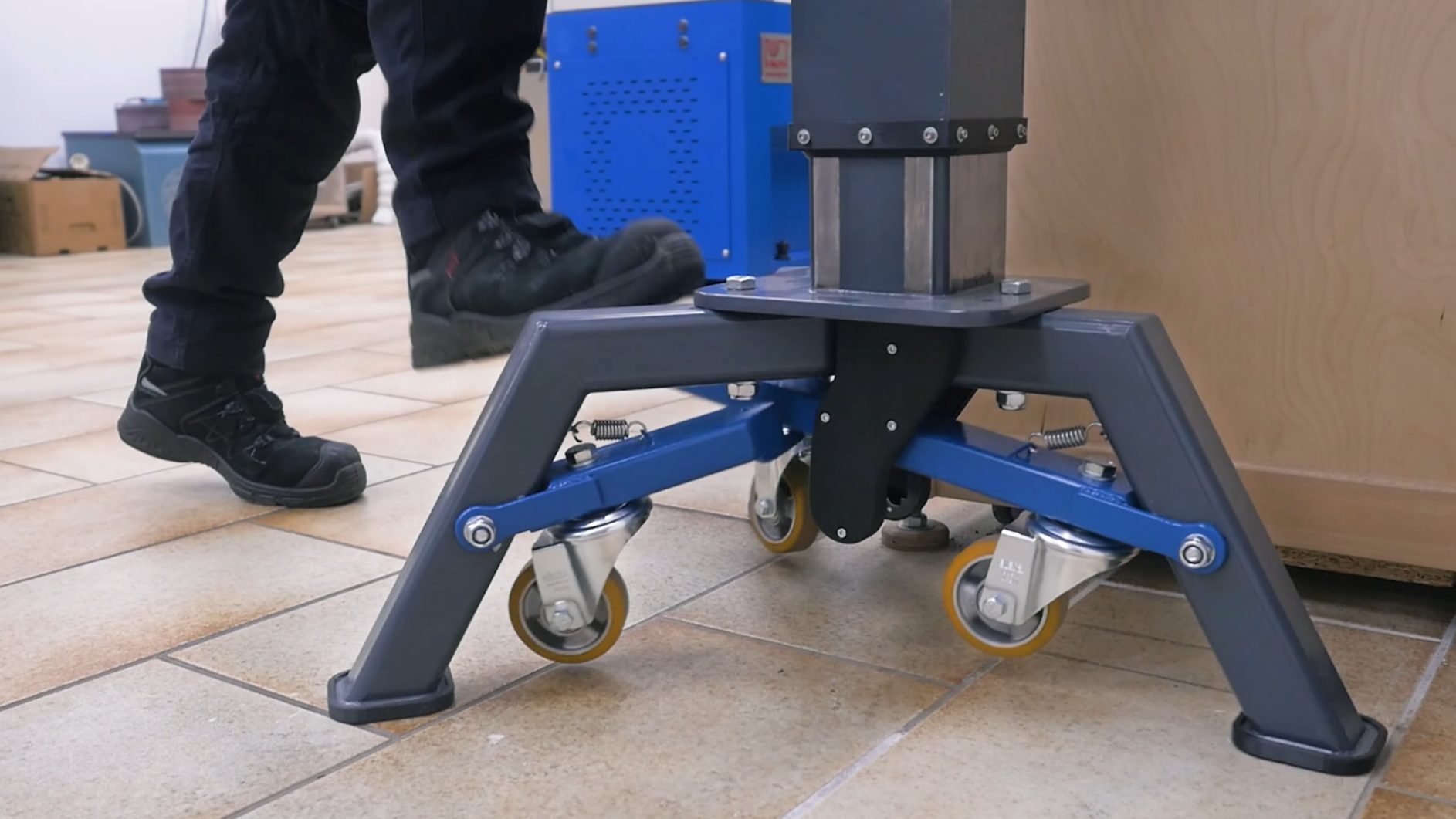
Old shop tools have a reputation for resilience and sturdiness, and though some of this is due to survivorship bias, some of it certainly comes down to an abundance of cast iron. The vise which [Marius Hornberger] recently restored is no exception, which made a good stand indispensable; it needed to be mobile for use throughout the shop, yet stay firmly in place under significant force. To do this, he built a stand with a pen-like locking mechanism to deploy and retract some caster wheels.

Most of the video goes over the construction of the rest of the stand, which is interesting in itself; the stand has an adjustable height, which required [Marius] to construct two interlocking center columns with a threaded adjustment mechanism. The three legs of the stand were welded out of square tubing, and the wheels are mounted on levers attached to the inside of the legs. One of the levers is longer and has a foot pedal that can be pressed down to extend all the casters and lock them in place. A second press on the pedal unlocks the levers, which are pulled up by springs. The locking mechanism is based on a cam that blocks or allows motion depending on its rotation; each press down rotates it a bit. This mechanism, like most parts of the stand, was laser-cut and laser-welded (if you want to skip ahead to its construction, it begins at about 29:00).

Unlike locking caster wheels, this provides significant grip when the wheels are retracted; considering the heft of the vise [Marius] restored, this must be helpful. If you’re more interested in building a vise than a stand, we’ve seen that too.

Advertisement

Thanks to [Keith Olson] for the tip!

Source link

Advertisement
Continue Reading

Tech

Check out this stunning Earth shot as Artemis II crew edges toward new record

Published

on

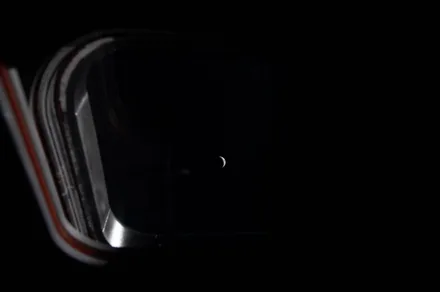
NASA has shared a stunning image (above) captured by the crew of the Artemis II mission as they head toward the moon. It shows a tiny Earth, mostly in darkness and surrounded by the inky blackness of space.

The photo was taken on day four of the Artemis II mission that will see four astronauts fly around the moon before returning to Earth. On Monday, the crew — NASA’s Victor Glover, Reid Wiseman, and Christina Koch, along with Jeremy Hansen of the Canadian Space Agency — will loop around our nearest neighbor, setting a new flight record in the process.

“One last look at Earth before we reach the moon,” NASA said in a post on X that shared the incredible photo.

“This view of the Earth was captured on April 5, the fourth day of the Artemis II mission, from inside the Orion spacecraft. The four astronauts will reach their closest approach of the moon tomorrow, April 6.”

Advertisement

One last look at Earth before we reach the Moon.

This view of the Earth was captured on April 5, the fourth day of the Artemis II mission, from inside the Orion spacecraft. The four astronauts will reach their closest approach of the Moon tomorrow, April 6. pic.twitter.com/z2NJUGWkKc

— NASA (@NASA) April 5, 2026

Tantalizingly for the crew, the Orion spacecraft is expected to pass within about 4,070 miles of the moon, giving astronauts their closest view of the cratered, rugged terrain in more than five decades.

But that’s not all. On Monday afternoon, shortly before 2 p.m. ET, the Artemis II crew will surpass the greatest distance from Earth ever reached by humans, set by the Apollo 13 crew in 1970 when it flew 248,655 miles from our planet. Then, about five hours later, the Artemis II astronauts will reach their farthest point from Earth, 252,760 miles, setting a new record.

Advertisement

The 10-day mission, which launched from the Kennedy Space Center in Florida on April 1, has so far been going mostly to plan. One hiccup, however, concerns the onboard toilet, which has been experiencing intermittent problems during the flight.

The latest issue has been caused by what engineers believe may be ice blocking a pipe that expels the astronauts’ urine into space. It means that for now, the crew members are having to use special bags to collect and store their liquid waste. Fortunately, the toilet still works for number-2 waste, which is dealt with differently.

Artemis II marks the first crewed flight of the Orion spacecraft and the second Orion flight overall. The mission is designed to test the spacecraft’s systems in preparation for more complex missions like Artemis IV, which will endeavor to return humans to the lunar surface after an absence of more than five decades.

Advertisement

Source link

Continue Reading

Trending

Copyright © 2025