Connect with us

Tech

Wayve and Uber steal a march on Waymo with paid self-driving London rides

Published

on

AI AND ML

15 Mustangs on the city streets, but the Nissan LEAF follow-up could dispense with the safety driver

Wayve and Uber have launched self-driving rides in London, but what’s more interesting is what is planned for the next few months and years.

Advertisement

As of today, the plan is for 15 electric Ford Mustangs, equipped with the Wayve AI driver, to roam the capital, picking up passengers with a safety driver on hand to keep an eye on things.

However, at a launch event on Thursday, Wayve showed off the follow-up to the Mustang: a Nissan LEAF, which will run the Wayve AI Driver using NVIDIA DRIVE Hyperion. This glimpse into the future was arguably more intriguing than today’s electric Mustang.

Unlike the Mustang, the LEAF’s self-driving equipment looked as though it might have been part of the car’s design, from a roof-mounted sensor pack that followed the roofline, through to sensors attached to the wings and bumpers.

A Wayve representative told us it had worked with Nissan on the integration. That said, the tech is relatively agnostic when it comes to platforms and sensor configurations.

Advertisement

Wayve was, however, a little less forthcoming at the launch event about the underlying technology changes between the Nissan-based prototype on show and the Mustang parked up in front of it. The hope is that the update will reach UK roads next year, although that depends on several factors, including technology and regulations. Right now, Uber stated, “The initial launch phase features supervised autonomous rides, meaning a trained and TfL licensed private hire driver is onboard to oversee the trip.”

So no San Francisco Waymo-esque rides with the driver’s seat spookily empty just yet. However, a Wayve representative told us the Nissan LEAF would eventually be capable of such a feat.

The rollout of the Mustang feels a little like a stunt to steal a march on competitors such as Waymo, which has also had vehicles rolling around the tricky streets and traffic of London. Waymo is presently in a testing phase, but Wayve and Uber are now taking paying passengers. Both services, however, must have a trained driver onboard, poised to intervene if the need arises.

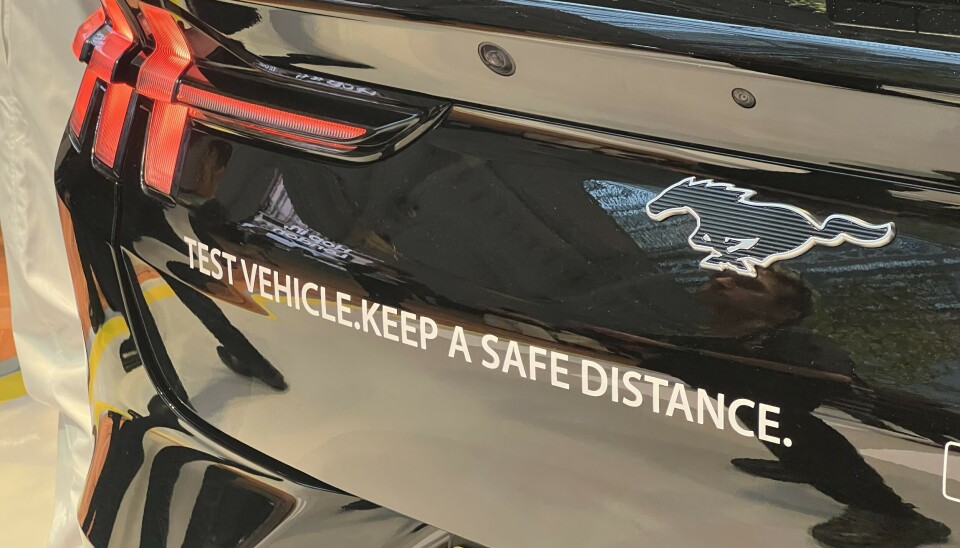
Rear of a black Ford Mustang showing its badge and a test vehicle warning.

A Ford Mustang used in Wayve and Uber’s supervised self-driving trials.

The untried nature of the Wayve and Uber Mustang is evidenced by the words “TEST VEHICLE. KEEP A SAFE DISTANCE” printed on the rear of the car. Paying passengers are part of the AI Driver’s learning process, with lessons learned feeding into the next generation of autonomous vehicles, which might, or might not, still need that safety driver behind the wheel, just in case.

Advertisement

Wayve was founded in 2017 and is headquartered in London. It has trained its AI tech on the city’s roads since 2018. In 2024, Wayve partnered with Uber, which included an investment to deploy vehicles with Wayve’s technology in 12 markets worldwide, starting with London. The LEAF will first see action in Tokyo. ®

Source link

Continue Reading
Click to comment

You must be logged in to post a comment Login

Leave a Reply

Tech

Hackaday Links: September 6, 2026

Published

on

Yesterday, Isar Aerospace secured its place in the history books when the upper stage of their Spectrum rocket put a payload of CubeSats into low Earth orbit (LEO). Not only does this make them the first European company to achieve such a feat, but it also marks the first time a booster departing from continental Europe has reached orbit. Not bad for a second attempt.

Standing 28 meters (92 feet) tall, the two-stage Spectrum rocket is just shy of half the size of the SpaceX Falcon 9 and designed to put a maximum of 1,000 kilograms (2,200 pounds) into LEO and 700 kg (1,500 lb) into the Sun-synchronous orbits used by Earth observation satellites. That puts its performance considerably ahead of other commercial launchers such as Rocket Lab’s Electron. Although the booster is not reusable, Isar Aerospace has stated they’re targeting a respectable launch cost of €10,000 ($11,700) per kilogram. The German company notes there are several more Spectrum vehicles currently in production, and when their new factory is operational, they’ll have the capacity to produce up to 40 of them each year.

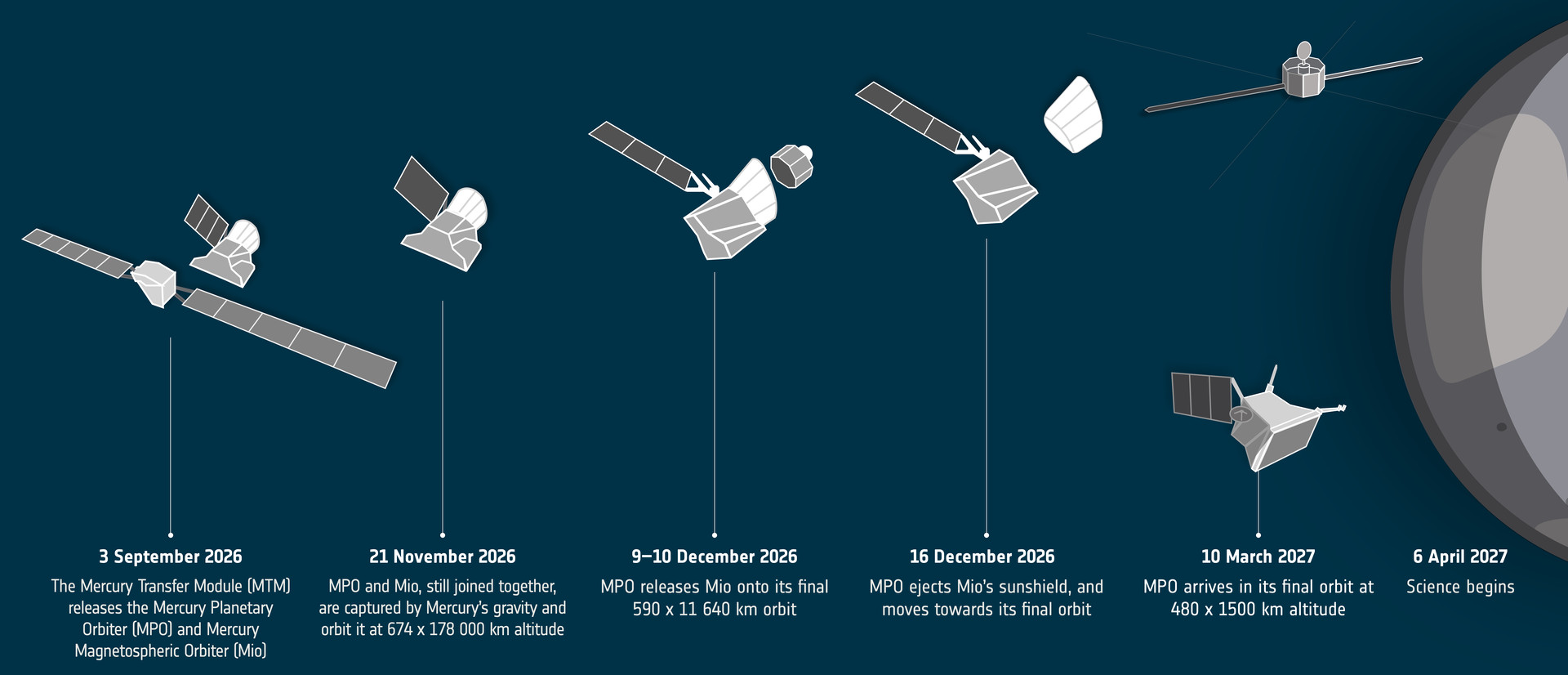
In other European space news, BepiColombo has now entered what the European Space Agency (ESA) is calling the “arrival phase” of its nearly decade-long journey to Mercury. On Thursday, the spacecraft jettisoned its ion propulsion module as it had achieved the necessary trajectory and velocity to be captured by the planet’s gravitational field when it swoops by in November.

Launched in 2018, the BepiColombo mission is actually carrying two separate craft: the ESA’s Mercury Planetary Orbiter and the Mercury Magnetospheric Orbiter from Japan. After the two separate from each other in December, they will operate independently to study their respective aspects of the solar system’s innermost planet for the next year, although, as is often the case for missions like this, an extension is always possible if things are still going well at that point.

Advertisement

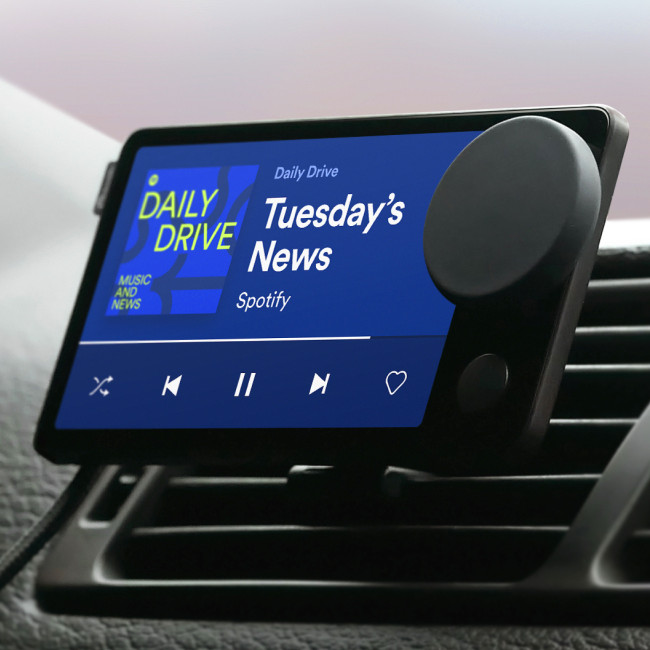
On the subject of hardware outliving its original design lifetime, an active community of hackers has done a fantastic job of keeping the Spotify Car Thing up and running after the company officially pulled the plug on it just two years after its 2022 release. They’ve got a full Linux distribution running on it featuring a slick UI that can launch apps, check the weather, tap into Home Assistant, and of course, play music. The community is currently running a contest with cash prizes to spur on development of new open source software for the liberated Car Thing, and we’re eager to see what comes of it.

The Car Thing, back when Spotify still cared.

Speaking of keeping things open, the Free Software Foundation (FSF) has joined Bluesky — but they aren’t exactly thrilled with it. Being federated and largely comprised of free and open-source software, the FSF admits that Bluesky is the lesser evil when compared to something like X or Facebook. But they still can’t recommend others join the service, as the actual signup process requires your browser to run non-free JavaScript code.

One may wonder why the FSF would join Bluesky if they can’t recommend the service to others, and the answer is simply because they want to get the word out to a wider audience. While the FSF already operates an account on Mastodon, there’s a good chance that anyone who’s willingly regularly using said platform doesn’t need any additional convincing when it comes to the evils of proprietary software.

This is as good a time as any to point out that Hackaday is on Bluesky and Mastodon as well, and unlike the FSF, we’re also on Facebook, although the automatic sharing of new posts hasn’t worked for quite some time and honestly we can’t be bothered to figure out why. For our readers with a particular aversion to grass, we’ve even got an official IRC channel on libera.chat where you and nearly 50 others can feel superior to the thousands of immoral heathens that have joined our Discord server.

Finally, it’s been 50 years since the introduction of the ColorChecker — that little card with 24 blocks of colors that’s placed in the frame of a picture or video to provide a visual reference point. In honor of the milestone, Calibrite has put together a timeline that walks you through its history, starting with its inception in the 1976 paper “A Color-Rendition Chart” by C.S. McCamy, H. Marcus, and J.G. Davidson and running up to how the handy tool evolved for the digital age.

Advertisement

There are plenty of facts and trivia about the ColorChecker that you can bring up the next time you want to impress a photographer, and we especially appreciated the breakdown of what each of the original 24 colors was meant to represent.


See something interesting that you think would be a good fit for our weekly Links column? Drop us a line; we’d love to hear about it.

Source link

Advertisement
Continue Reading

Tech

Wokyis G7 Thunderbolt 5 dock review: Retro speed

Published

on

While the Thunderbolt 5 Wokyis G7 dock certainly goes after the retro gaming nostalgia vote, it also happens to be a well-thought-out add-on for your Mac Studio or older Apple Silicon Mac mini.

I am not a stranger to Mac docks. I suspect between myself and the rest of the staff, we’ve done the most reviews of them out of anybody facing the internet over the last decade.

And, I’m not a stranger to nostalgia.

Previously, we looked at the Wokyis M5 Dock, which turned a Mac mini into a Snow White design ethos compact Mac thanks to a clever enclosure and a built-in display. One year later, we’re looking at another similarly styled dock that aims for the same blend of utility and retro vibes.

Advertisement

The Wokysis G7 80Gbps is another dock designed to sit on top of your Mac. This time, on top of a Mac Studio or the older M1 and M2-era Mac mini.

But rather than resembling an old Mac, it instead plays on gaming themes. Specifically, that of the original Game Boy.

And, it does this while still trying to provide as much utility to modern users as possible.

Wokyis G7 review: Specifications

Advertisement

Advertisement

Advertisement

Advertisement

Advertisement

Product Wokyis G7 (80Gbps version)
Expected price $369 retail
Interface Thunderbolt 5, up to 80Gbps
Best paired with Mac Studio and other Thunderbolt 5 Macs
Display 7-inch flip-up, 1280 by 800
Shortcut keys 9 physical keys
Internal storage M.2 NVMe SSD slot, up to 8TB
Peak SSD speed Up to 7,000 MB/s (supported NVMe)
CFexpress Type B, up to 1,000 MB/s
Card readers SD 4.0 and microSD 4.0, up to 312 MB/s
Video out HDMI, DisplayPort 8K at 60Hz
USB-C data ports 2 x USB-C 10Gbps
USB-A data ports 2 x USB-A 10Gbps
USB-A legacy ports 2 x USB-A 2.0
Power delivery USB-C, 36W
Audio 3.5mm jack
Host connection USB-C host to Mac

Wokyis G7 review: Design

Most docks hide under a monitor or behind a desk. The Wokyis G7 wants to sit out in the open, on top of a Mac Studio.

The device is designed to be a hat for the Mac Studio or the Mac mini with the same footprint. It connects to the back of the Mac using a supplied Thunderbolt 5 cable, that honestly, could be a little shorter.

I think that’s the first time I’ve ever wished for a shorter Thunderbolt cable to come with a dock.

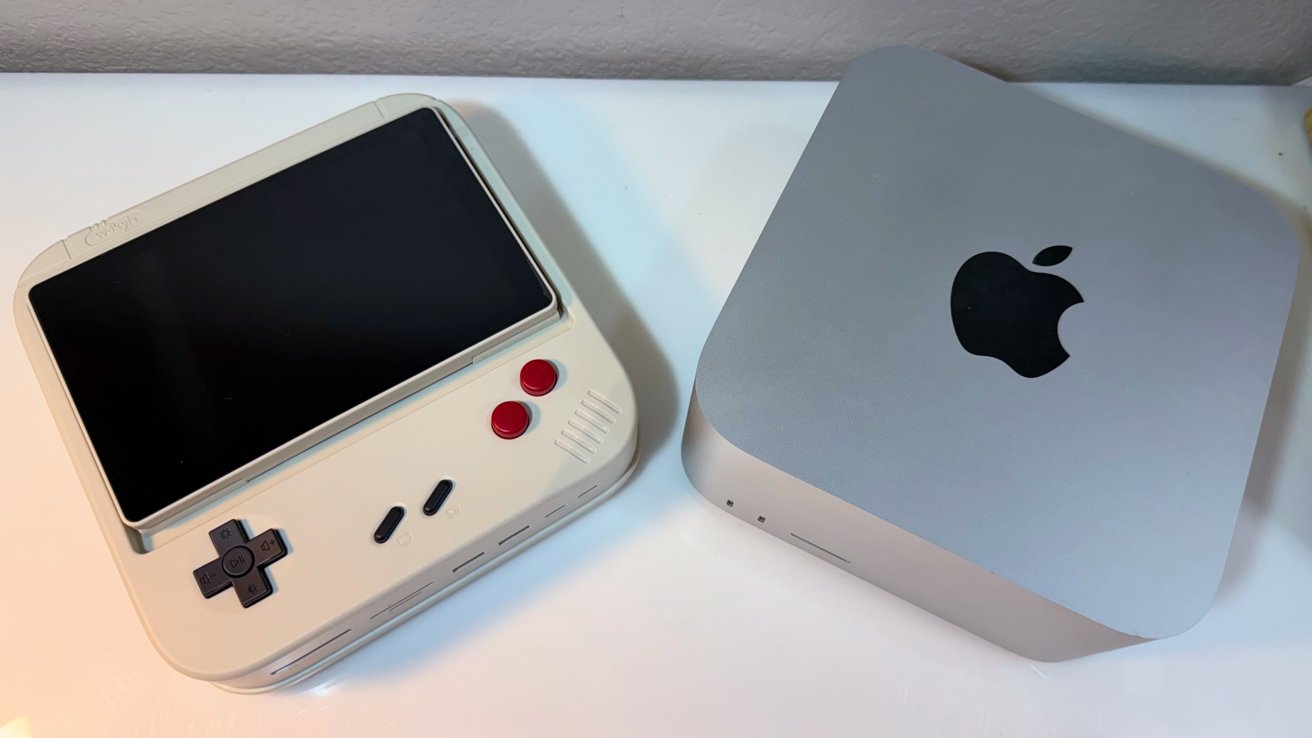
Retro-style handheld gaming device with large screen beside a compact silver Apple Mac mini on a white surface, both viewed from above

Wokyis G7 review: Beside a Mac Studio for scale

Advertisement

Like other docks, it’s got ports on the front and rear, and there’s a well-hidden slot for an M.2 SSD to be attached.

The styling mimics the original Game Boy. Obviously, it’s only in homage to the console with enough changes to keep Nintendo’s normally vicious lawyers at bay. Just ask Switch emulator developers how that goes.

There are also a series of buttons, which gives it the overall appearance of a stylized miniature arcade cabinet.

There is obviously a lot of novelty value here, but there’s a lot more than just something that makes you think about games from the 1980’s and 90’s.

Advertisement

The build quality is solid. Think Star Wars toy plastic, not Lego, though.

This is not something that needs aluminum all over, but the SSD cover is metal to act as a heat sink. There are sticky heat sink pads in the box, and all you need to do is add your own M.2 drive.

Wokyis G7 review: The flip-up display and buttons

The main visual element is obviously the display on the dock itself.

The previous novelty dock from Wokyis, the M5, also had a display, and did a lot more to serve the styling of the peripheral than it does here.

Advertisement

At a resolution of 1,280 by 800, it’s not intended for you to do work on.

Small retro-style gaming console with a large black screen, white base, black D-pad, two red buttons, and connected power cable, sitting on a white surface near a wall.

Wokyis G7 review: The display can flip up to look like an arcade cabinet.

You could use it as a secondary display, though. It can also be employed as a digital photo frame, a clock, or a way to watch shows in the background instead of using your iPad.

There is the obvious temptation to use it for gaming due to the dock’s styling. You certainly could try, but you can’t and shouldn’t rely on those buttons to control your actual gameplay.

Advertisement

A real game controller is always going to be better than this. And cheaper.

Those buttons are actually a selection of one-touch keyboard shortcuts, complete with little icons explaining what they do.

Retro-style handheld gaming console with a large black screen on top, beige body, black D-pad, two small black buttons, two red circular buttons, and speaker grille on the right

Wokyis G7 review: Screen is laid flat. Those buttons are actually usable.

The D-pad handles brightness, volume, and media playback. The two red buttons are copy and paste, and the middle two are for putting the Mac to sleep and taking a screenshot.

Advertisement

This is a fairly handy way to make the dock a little more useful, like a simpler form of a Stream Deck or other macro pad.

If the display is taking a bit too much vertical space or you need to store it, you can flip it down. It’s not perfectly flat, but that’s okay.

Wokyis G7 review: Thunderbolt 5 and connectivity

Speed is the G7’s serious claim, thanks to its use of Thunderbolt 5. As the name implies, it can really use that 80Gbps of bandwidth.

The 80Gbps figure needs a Thunderbolt 5 Mac to reach that figure. For a high-end model like the Mac Studio that this is designed to sit on, it’ll be fine.

Advertisement

On an older Thunderbolt 4 Mac, it runs slower. Speeds drop to a 40Gbps ceiling, which is still fast, if not 80Gbps. Monitor support drops to just 4K on Thunderbolt 4 hosts, though.

The front of the dock has a CFexpress Type B slot. Wokyis rates that slot at up to a gigabyte per second, making it handy for offloading footage from high-end cameras. We got about 600 megabytes per second in actual testing, which is close enough.

Retro-style gaming console with cream-colored casing, black and red buttons on top, and multiple front ports including SD card slot, USB ports, and small ventilation holes

Wokyis G7 review: Front ports are good enough for direct usage.

There are also SD and microSD 4.0 ports that work at up to 312 megabytes per second, and a pair of USB-A ports operating at 10Gbps. You also get a pair of USB-C ports running at 10Gbps too.

Advertisement

This is more than enough ports and memory card slots facing the user, both for charging and data offload uses.

The ports selection around the back is a little more long-term-connectivity based, but not by much.

You have the USB Type-C connection to the host, as well as two USB-A 2.0 ports for peripherals not needing speed, like keyboards and USB microphones. A headphone jack rounds it all out.

External monitor connectivity is handled by HDMI and DisplayPort, with the latter supporting 8K at 60Hz on a Thunderbolt 5 system.

Advertisement
Close-up of a white computer monitor's back panel showing HDMI ports, two USB ports, a headphone jack, and a USB-C power port, above a perforated speaker grille

Wokyis G7 review: The rear ports.

The remaining ports are one more USB-C port with 36 watts of power delivery, and a screen switch.

This isn’t the only model available. There’s a G7 10Gbps, which is less expensive, works using USB-C instead of Thunderbolt, and has a fairly sizable selection of ports, too. They’re just bandwidth-constrained.

The use of Thunderbolt 5 on this 80Gbps version means there’s plenty of bandwidth available for all of the ports, as well as displays. The host connection is not going to be a bottleneck here.

Advertisement

Wokyis G7 review: Storage

While the Thunderbolt 5 connection can drive all of the ports, connected displays, and the included screen without breaking a sweat, it’s not all that the G7 can do. There’s an included SSD slot, too.

Underneath the display in a screwed-down hatch is a slot for installing an M.2 NVMe SSD. The space can take M and B&M Key connectors, as well as M.2 sizes from 2230 to 2280.

Wokyis says it can take up to an 8-terabyte M.2 NVMe stick. The real benefit is thanks to the use of Thunderbolt 5, as it can transfer at up to 7,000MB/s under the right conditions.

Open beige electronic device with top cover lifted, exposing a black circuit board inside and a small screwdriver resting beside the compartment near a speaker-style grille

Wokyis G7 review: Install an M.2 NVMe drive here.

Advertisement

We are not made of money, and do not have a 8TB M.2 drive to test with. We do have PCI-E 5.0 smaller drives, and saw about 6,200 megabytes per second read, and 5,100 megabytes per second write speeds, with a 4K 120Hz monitor connected. Given overhead, this is close enough.

This is very handy for anyone who wants more storage for their Mac but doesn’t necessarily want an extra external drive littering the desk. Since it’s incorporated into the dock, it’s all built-in and doesn’t need to occupy an extra port.

It’s also probably the real selling point of this model over the 10Gbps version. Sure, the ports are nice, but that high-speed storage capability will be extremely useful for anyone who needs it.

Wokyis G7 review: A crowdfunding project with retro gaming charm

Wokyis has a habit of launching products on Kickstarter, and it’s doing the same thing here with the G7.

Advertisement

Crowdfunding carries the usual risks. Delivery can slip, and specs can change before shipping.

That said, the Wokyis G7 is an unusually fun take on a Mac dock. Its retro shell and flip-up screen give it character, though you’re not going to seriously consider it to be a gaming device.

Underneath, the specs are serious for creatives. Thunderbolt 5, CFexpress, and an SSD bay all matter to that audience, and a little extra digital screen estate doesn’t hurt too.

The open questions are price and delivery. It is a pre-launch crowdfunding product, so caution applies.

Advertisement

For Mac Studio owners who want personality, it is a crowdfunding project worth watching. The 80Gbps speed needs a Thunderbolt 5 Mac to shine, as well as the chunky casing to sit on. .

Wokyis G7 Pros

  • Retro gamer styling with a flip-up screen
  • Thunderbolt 5 speed with an internal SSD bay
  • CFexpress plus dual SD card readers

Wokyis G7 Cons

  • Pre-launch crowdfunding product, not yet shipping
  • Buttons are not suited for gaming
  • Final pricing not yet confirmed

Rating: 4.5 out of 5

The Wokyis, even after early-bird pricing, is competitively priced with other docks without screens. The screen opens up some interesting scenarios with monitoring, or even using the Home app on a small display.

Personally, it’s good during the workday to have a baseball game on, or similarly passive media.

It’s not as squarely aimed at the classic Mac nostalgia crowd, and I’m not as endeared to the original Nintendo Game Boy as many are. That said, I like what Wokyis has here.

But even if you’re in the same boat as I am, it’s still a nice piece of hardware, a good-performing dock, and attractive on your desk.

Advertisement

Where to buy the Wokyis G7

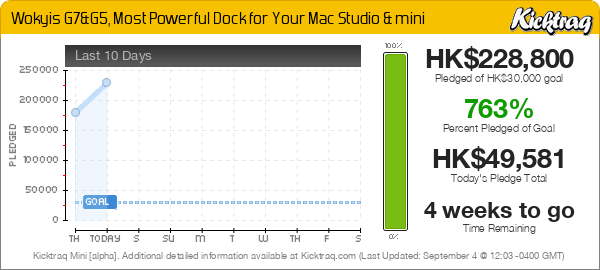
The Kickstarter page for the Wokyis G7 80Gbps lists multiple prices, including a limited Super Early Bird of $219 and an Early Bird of $229. The MSRP is listed at $369.
Wokyis G7&G5, Most Powerful Dock for Your Mac Studio & mini —  Kicktraq Mini

The 10Gbps versions are also listed, with the G7 10Gbps at $109 or $199, with an MSRP of $199, but as with the earlier review, we think that’s bandwidth challenged.

Source link

Advertisement
Continue Reading

Tech

John Coltrane’s ‘Impressions’ Verve Acoustic Sounds Vinyl Review: Better Than an Original?

Published

on

John Coltrane’s 1963 Impulse! Records release Impressions is sometimes overlooked by jazz newcomers and even established fans of the artist. But it represents an important stepping stone between his work on albums such as Giant Steps, My Favorite Things, and Africa/Brass, which I reviewed quite recently, and the final run-up to his January 1965 masterpiece, A Love Supreme.

Universal’s Verve / Acoustic Sounds Series has revived this excellent album and put it back within reach of the public with a fine new reissue. Again driven by Chad Kassem (of Analogue Productions fame), the lacquers for this new pressing of Impressions were crafted by Matthew Lutthans at The Mastering Lab.

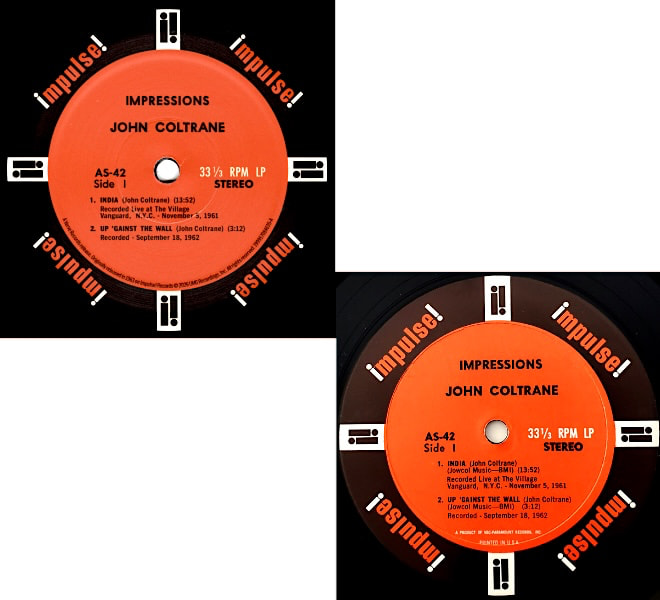
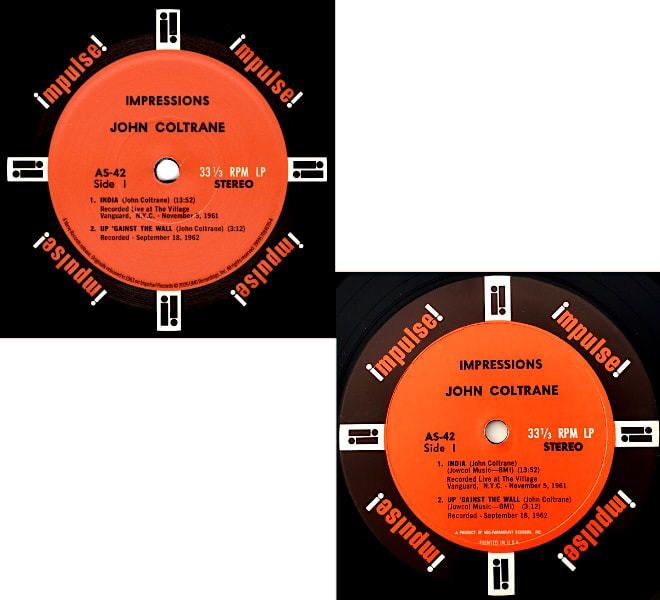
The 180-gram vinyl discs were pressed at Quality Record Pressing (QRP), and each comes housed in an audiophile-grade, plastic-lined inner sleeve. The beautiful gatefold cover is manufactured to recreate the exacting look and feel of original editions, with glossy laminated cover artwork and the period-accurate, 1963-era orange starburst style Impulse Records label design (comparison of 1963 original to reissue below).

coltrane-impressions-label-comparison

A mix of studio and live recordings, the fidelity changes a bit on this one, as it features two tracks from the same sessions that gave us Coltrane’s wonderful Live At The Village Vanguard albums. It still kind of blows my mind that, at a time when much of the pre-Beatles world was listening to often insipid pop fluff, the strong jazz underground could still allow an artist like Coltrane to thrive, creating such inspired music.

The music on Impressions, and the track “India” in particular, was definitely an influence on many artists. For example, The Byrds’ co-founder Roger McGuinn has frequently gone on record mentioning this album, as well as Africa / Brass, as important influences on the evolution of their expansive sound, particularly on tracks like “Eight Miles High.”

Advertisement
coltrane-impressions-gatefold

Unlike my last review of Africa / Brass, where I only had a 3rd or 4th pressing to compare it to, in this instance I actually own a quite nice condition 1st pressing. Short of being able to conduct a true A/B test, I made some quick back-to-back reality checks between both versions, and the new Acoustic Sounds reissue clearly bests my original.

It is less compressed and fuller sounding, with Reggie Workman and Jimmy Garrison’s twin double basses feeling far more present. When Eric Dolphy’s bass clarinet solo enters, the impact is stunning, with a rich presence at which the original only hints.

So now I am in a pickle: I love owning original pressings, but this presentation is so well crafted that I may well purge my OG. First-world problems for sure, I know.

You can get Impressions on Amazon for a very reasonable $38.98, which is a great deal, especially when you consider buying a vintage pressing on the collector’s market.

For example, at the time of this writing, a 1963 original stereo pressing in, at best, VG+ condition on Discogs would cost you at least $75. A more pristine copy, like the one I have, would cost much more. The choice is yours, but if you are simply looking for great sound and an authentic presentation of Impressions, this new reissue is a winner.

Advertisement
Advertisement. Scroll to continue reading.

Our Ratings

★★★★★★★★★★ Music

★★★★★★★★★★ Sound

★★★★★★★★★★ Packaging

Advertisement

Where to Buy


Mark Smotroff is a deep music enthusiast / collector who has also worked in entertainment oriented marketing communications for decades supporting the likes of DTS, Sega and many others. He reviews vinyl for Analog Planet and has written for Audiophile Review, Sound+Vision, Mix, EQ, etc.  You can learn more about him at LinkedIn.

Source link

Advertisement
Continue Reading

Tech

Where a Massive Solar Storm Could Take Down the US Power Grid for Millions

Published

on

A new study published Friday in AGU Advances “depicts the most advanced picture yet of how a rare but massive solar storm could affect some US industries and electric systems more than others,” reports CNN.

“During a 250-year solar storm, the East Coast would have widespread potential for grid failure.”

Researchers modeled what a Carrington Event — a 1-in-150-year geomagnetic storm or even rarer — could mean for the modern day. They estimate the US economy would lose about $1.5 billion to $2 billion per day from direct and indirect costs, as millions of people face power outages. The findings show the most vulnerable areas are the Northeast and the Northern Plains, especially locations at higher latitudes.
No one knows when the next big storm will hit. While the most severe geomagnetic storms are labeled as once-in-a-century or rarer, these events don’t follow a fixed schedule. “That timing only averages out on very long timescales,” said Anna Kelbert, a geophysicist at the Harvard-Smithsonian Center for Astrophysics, who was not involved in the study but previously studied solar storm effects on power grids. “The event can occur at any time, as soon as a week from now, or centuries later….” [Shawn Dahl, service coordinator at the Space Weather Prediction Center operated by the National Oceanic and Atmospheric Administration in Boulder, Colorado], said the sun is now coming down from a period of heightened activity, which is also when some of the biggest storms to hit Earth have occurred in the past. “We still need a lot of work to be ready….”

“We haven’t really seen events like this size in the modern era, where we’ve had all of this high technology and we’ve had the power grid of this size,” said Ed Oughton, researcher at George Mason University and lead author of the new study… Because the US grid’s actual structure is proprietary for security reasons, the team used engineering models to create various network and transformer setups including the 10,464 substations and 16,256 transmission lines found across the country… The grid structure also contributes to higher risk in some areas. For instance, the eastern US is linked together in a single grid interconnection. A voltage issue in Maine, if not isolated early, could cascade through the grid to Washington, DC. The West works similarly, whereas the Texas interconnection operates mostly within the state…

Advertisement

Power is restored over time depending on any alternative electrical paths that could bypass the substation or availabilities of spare transformers, for instance. “This nationwide analysis shows that we are currently ill-prepared to face a major magnetic storm, and that the societal impacts would be catastrophic,” Kelbert said.

“The study estimates power disruptions for 5.1 million people and 135,000 businesses,” according to the article, and “The outages could last from hours to days to weeks depending on the damage and resources available to get back online, said Oughton.”

Read more of this story at Slashdot.

Advertisement

Source link

Continue Reading

Tech

The Pros And Cons Of Using Wireless Android Auto

Published

on

Ditching the cable can make life easier, but it does come with tradeoffs.

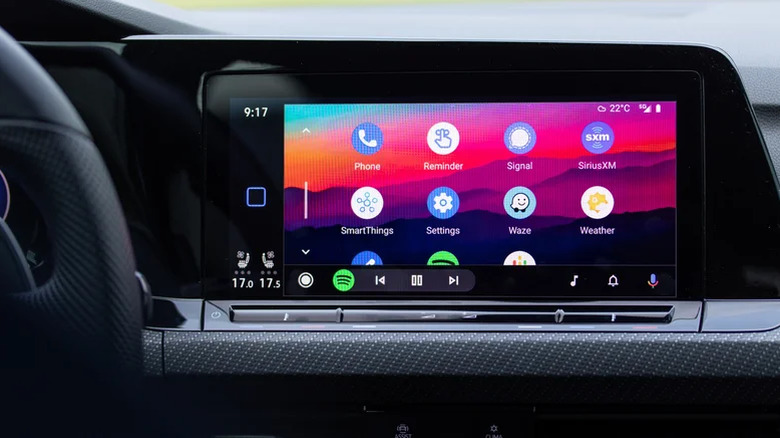
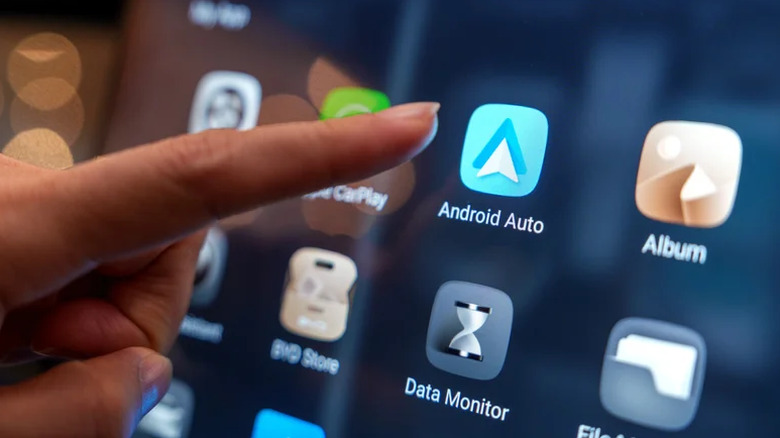
Wireless Android Auto is easily one of the most convenient things for drivers, especially if they rely on their phones for navigation, music and hands-free communication. As with any wireless technology, the appeal is obvious because there are no cables involved, there’s no fumbling around to plug the cable into the phone’s port and the connection establishes itself automatically whenever you start the car. 

The shift from wired to wireless isn’t without tradeoffs. Battery drain increases noticeably, heat buildup becomes a genuine concern on longer drives and the connection quality depends on your phone’s hardware and your vehicle’s capabilities. Compatibility requirements add another layer to the issue, especially if you have an older model. 

Whether Android Auto is the right choice depends less on the feature itself and more on how you drive, what you’re driving and what you’re asking your phone to do while you’re behind the wheel. 

Advertisement

Wireless Android Auto, whether present in your car natively or with the help of an adapter, delivers on the promise of making your life easier most of the time. The automatic pairing works, the interface is responsive and the interior feels tidier without a cable running across the console. The real picture, however, is more nuanced.

How does Wireless Android Auto actually work?

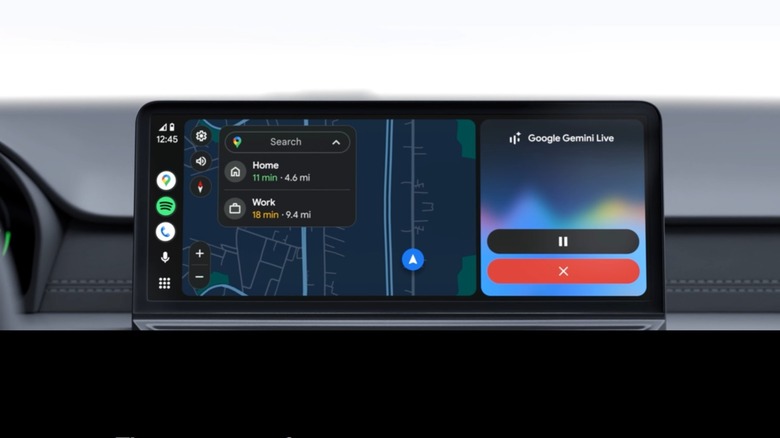
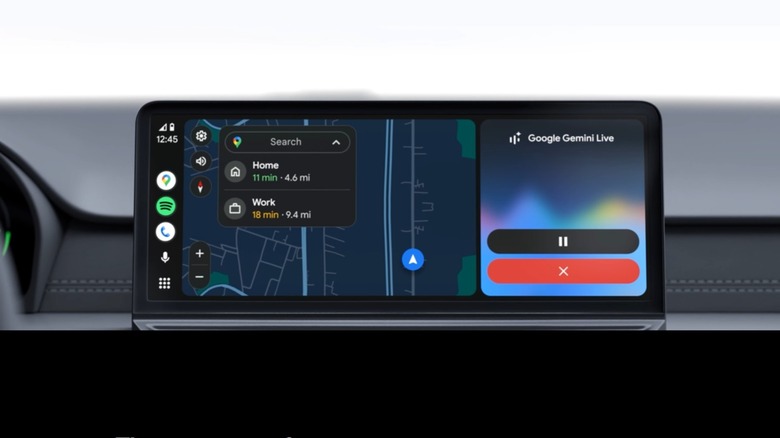
Wireless Android Auto actually uses Bluetooth and Wi-Fi. When you start your vehicle, Bluetooth handles the initial handshake between phone and car, authenticating your smartphone and establishing credentials. Once that happens, the connection migrates to a Wi-Fi Direct network, which carries the data-heavy part: Maps, audio, touch input and voice commands.

Advertisement

Both connections run simultaneously for the entire drive, with Bluetooth taking on hands-free calling and Wi-Fi handling the rest of the data load. Disabling either one will drop the connection. The phone needs to run on Android 11 or later and come with 5GHz Wi-Fi Direct support. Newer cars support it natively, while older vehicles may require an Android Auto wireless adapter plugged into the existing USB port. Sometimes, you might need to toggle the wireless functionality on in the Android Auto developer menu if it hasn’t been enabled already.

The pros of Wireless Android Auto

The list of pros is topped by the obvious fact that no cables are needed for the job. After a one-time Bluetooth pairing, your phone connects automatically every time. So, when you get in the car, you won’t have to look around for the cable, dig out your phone from whatever pocket or bag you have, locate the port and plug the cable in. You can be on your way a lot faster, knowing your maps will load up in no time and your Spotify playlist can start playing without you having to do anything.

If there are multiple drivers using the same car, Wireless Android Auto remembers all of the paired phones. When several devices attempt to connect, whoever’s not driving can simply turn off Bluetooth because, as anyone who’s watched ‘Supernatural’ knows, the “driver picks the music, shotgun shuts his cakehole.”

Advertisement

You will also get to enjoy a much cleaner center console, as you’ll no longer need to worry about a cable looping around the gear shift or catching in the seat as you slide it back. Plus, it’ll free up an extra port to charge devices like your earbuds or smartwatch. Passengers can also charge their own devices if need be.

The cons of Wireless Android Auto

Battery drain can be a real problem. Sure, not having to worry about cables and delaying your drive by a minute is great, but maintaining a continuous Wi-Fi connection alongside Bluetooth and active GPS weighs heavily on your phone. With everything turned on, your phone’s battery drops about 10 to 15 percent every hour of your drive.

Heavy users will notice that their phone quickly heats up when Wireless Android Auto is in use, especially when also using GPS for navigation. Add in the rising temperatures inside a car during the summer and you risk your phone reaching the point where it shuts down to prevent hardware damage. It’s especially noticeable on older phone models, with sluggish map rendering and random music breaks becoming a headache.

Advertisement

When comparing wired and wireless Android Auto setups, wired connections offer reliability and performance. A physical USB cable ensures a stable link, minimal latency for your media and a steady charge for the phone. Wireless Android Auto has convenience on its side, but these setups can experience slight delays in responsiveness or random disconnects.

Is Wireless Android Auto worth it?

For most daily commuters, wireless Android Auto is most definitely worth it. From the automatic connection to the cable-free experience, your driving experience is improved immediately. On longer drives, however, especially as navigation is running the whole time, heat buildup and battery drainage make switching to a wired connection a good alternative. Wired remains the more battery-efficient option, while wireless is the more convenient choice. Ultimately, it depends where you’re going and how long your drive is going to be.

Advertisement

Source link

Continue Reading

Tech

Three hikers trusted Gemini to plan a hike and had to be rescued the next day

Published

on

AI chatbots can help plan a vacation or suggest what to pack. But there are situations where advice from someone who actually knows what they are doing is the safer choice.

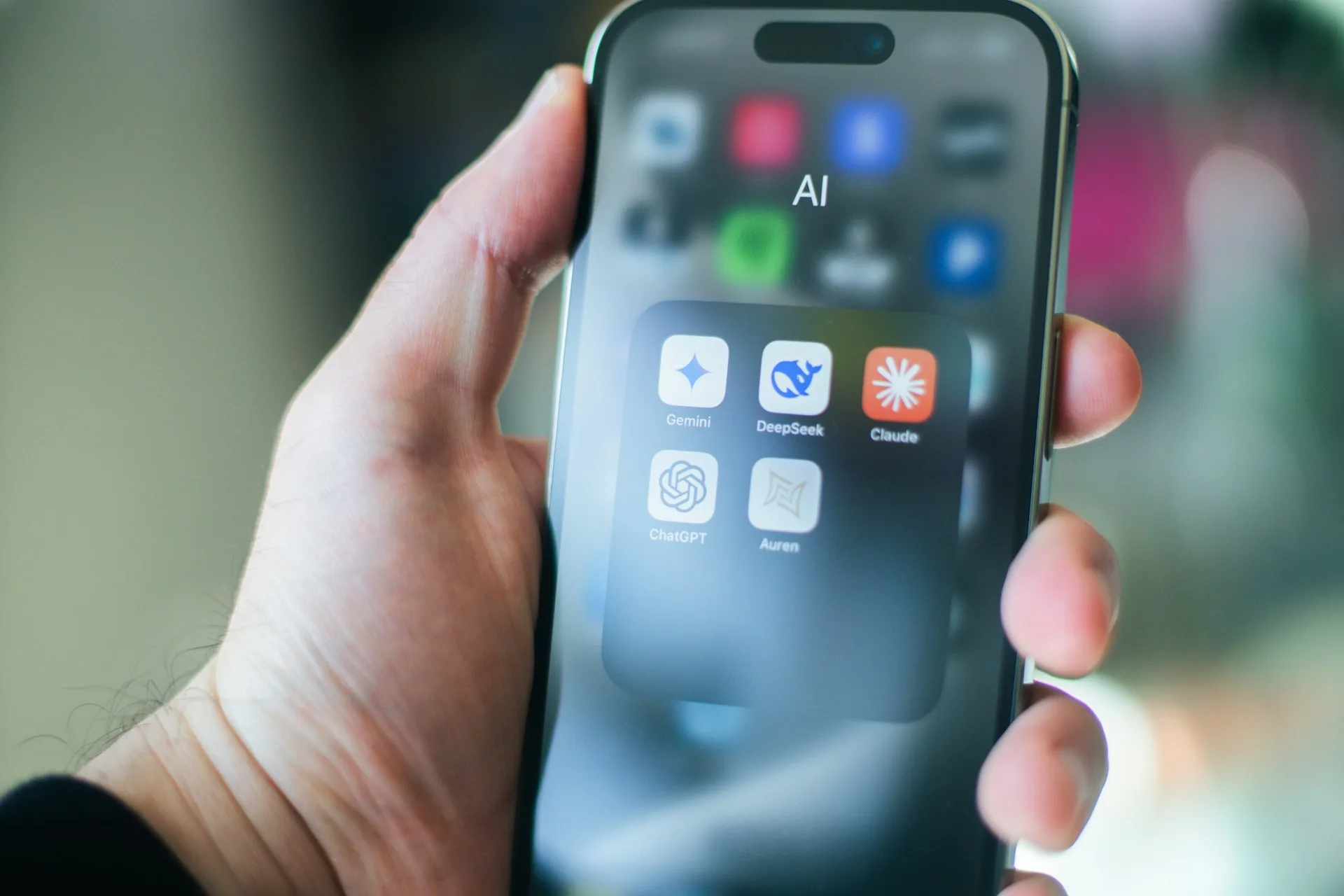
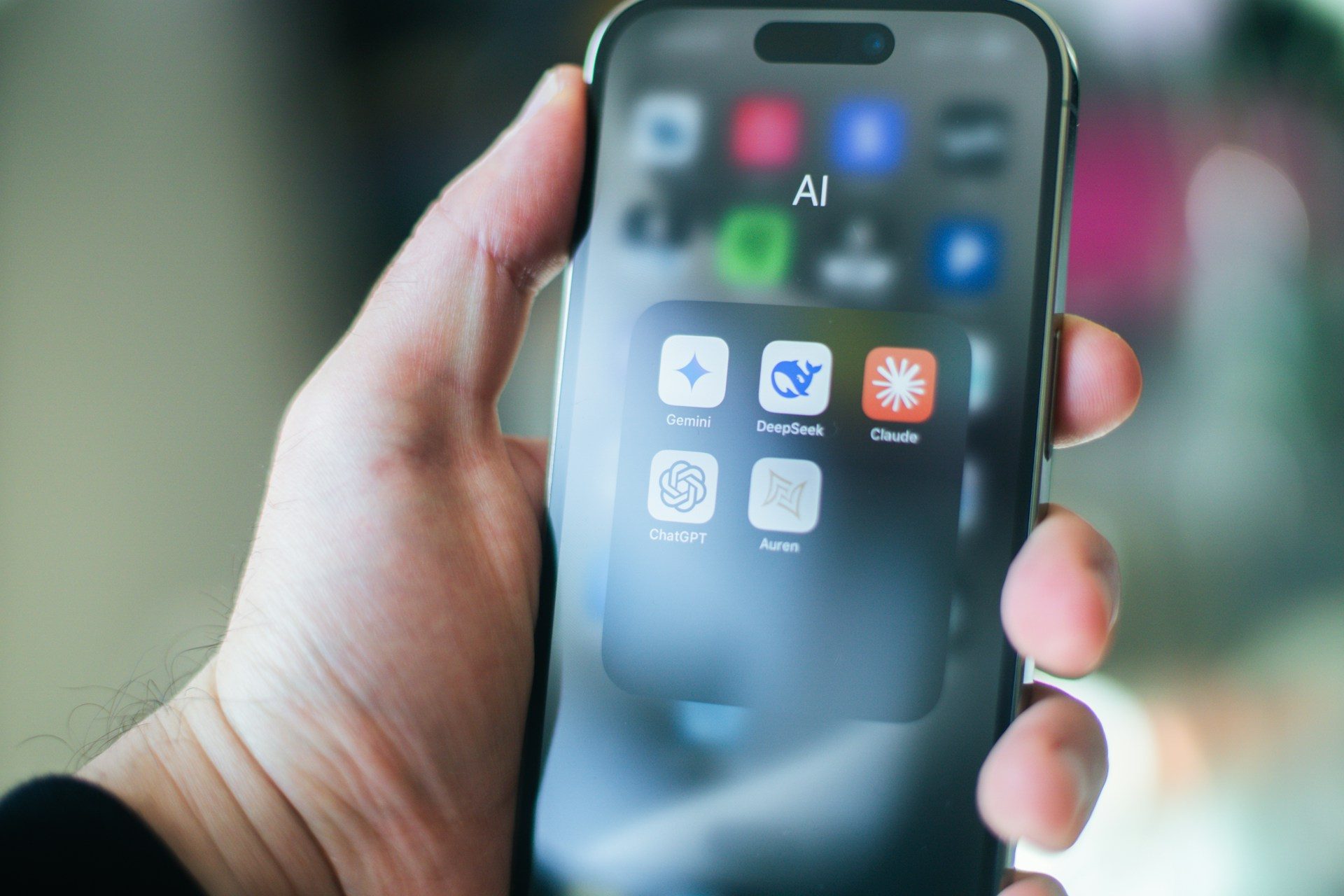
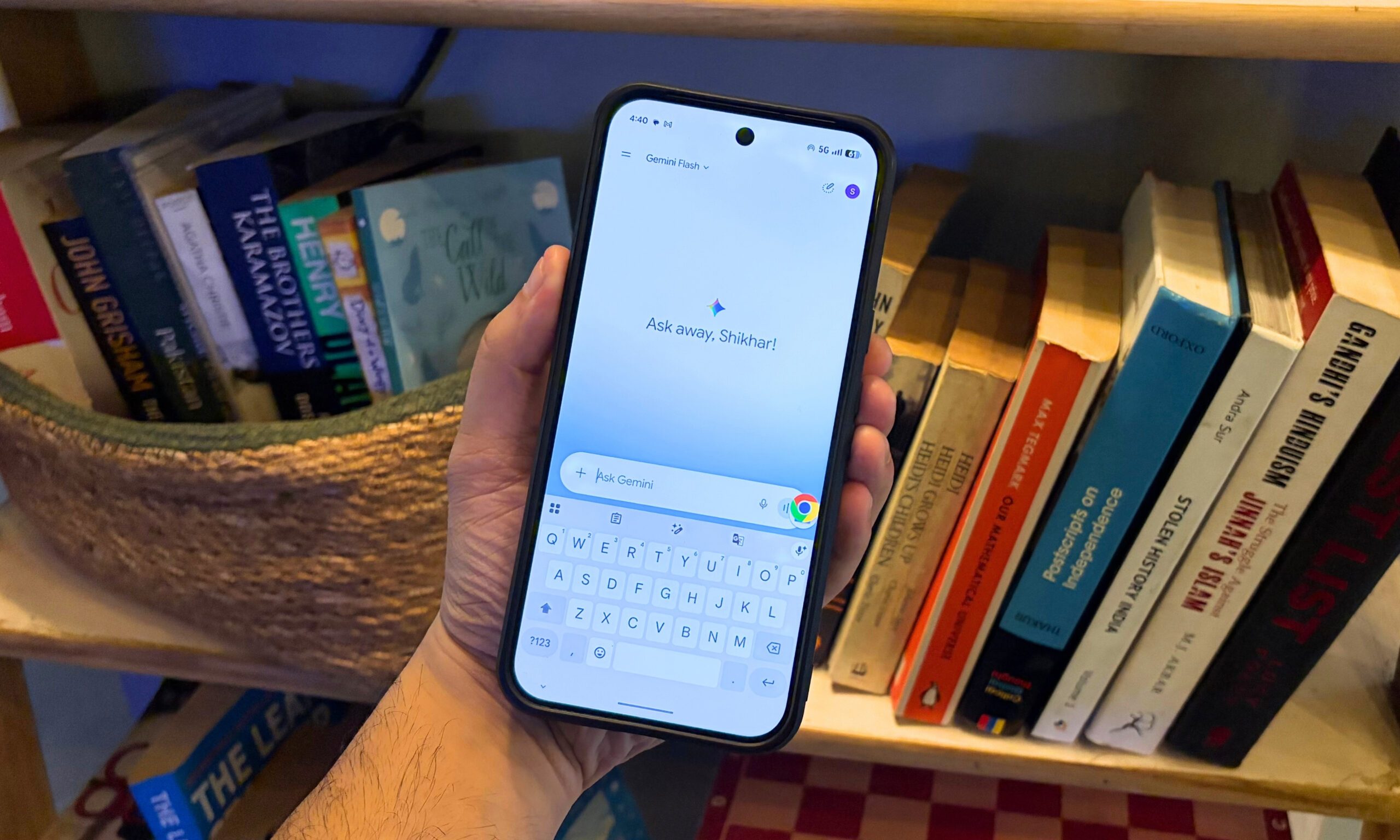
As reported by the Chicago Tribune, three novice hikers from Roseville, California, had to be rescued from Mount Shasta after becoming stranded overnight. According to the Siskiyou County Sheriff’s Office, they had used Google Gemini to help plan the climb. The sheriff’s office said Gemini advised the group to carry far less food and water than they needed.

An eight-hour hike turned into an overnight rescue

The group started toward the summit at around 3 a.m. on Sunday. Hikers are advised to turn around if they have not reached the summit by noon, but the three continued and eventually reached the top at around 7 p.m.

Things went wrong on the descent. They lost their route in the dark and ended up in Mud Creek Canyon instead of staying on the Clear Creek Route. One of the hikers had also injured his knee, forcing the group to spend the night in a steep drainage before rescuers reached them the following morning.

Advertisement

The sheriff’s office advised hikers to carry multiple methods of navigation, including an offline option, and recommended calling the local U.S. Forest Service ranger station before attempting the climb. It also specifically warned people not to rely solely on AI for trip planning.

AI can give advice, but it cannot replace experience

Similar problems have surfaced when people turned to AI for legal and medical advice. We previously covered a lawyer who used ChatGPT for legal research, only to discover that the cases it cited did not exist. He even asked ChatGPT to confirm they were real, and the chatbot said they were. A study testing ChatGPT, Gemini, Grok, Meta AI, and DeepSeek also found that roughly half of their answers to medical questions were flawed or incomplete, while some included fabricated references.

Chatbots have their uses, but getting a plausible answer is not good enough when a mistake could put someone’s health, safety, or livelihood at risk. Advice from a professional or experienced expert should come first. At the very least, AI-generated information should be checked against reliable sources before anyone acts on it.

Even the chatbots themselves tell users not to take everything they say at face value. Gemini carries the warning, “Gemini is AI and can make mistakes.” Cases like this are a good reminder of why that warning is there.

Source link

Advertisement
Continue Reading

Tech

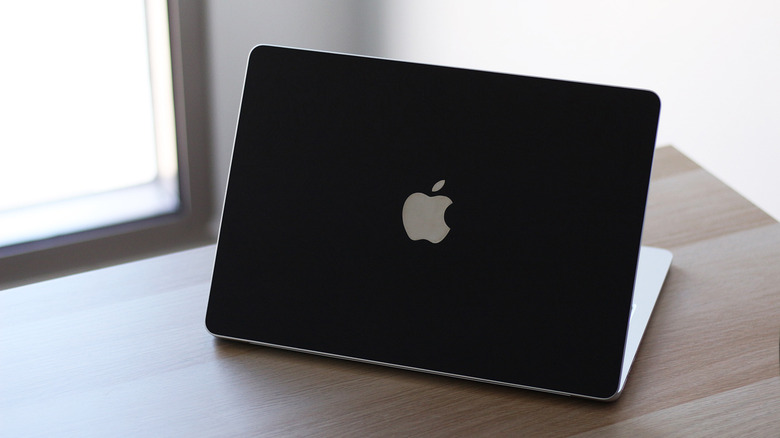
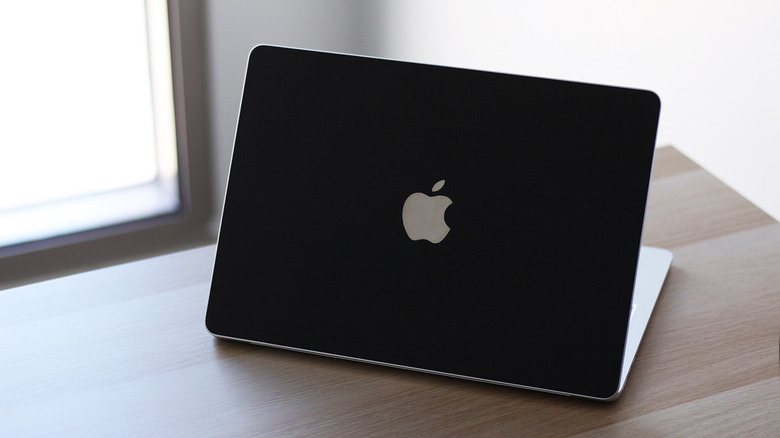
How To Use Your MacBook’s Built-In Backup Tool Instead Of Paying For Cloud Storage

Published

on

Apple’s Time Machine tool removes the need to store everything online.

Modern cloud storage, the way we know it, has been around commercially since 2006, when Amazon launched its Simple Storage Service (S3). In the following years, personal cloud storage rose in popularity thanks to services like Dropbox and Google Drive. Back then, the idea of being able to access a few of your most important files on any computer felt remarkably convenient. Nowadays, cloud storage has become more of a necessity, often requiring a subscription if you want to store more than a few gigabytes.

Apple’s iCloud notoriously only offers 5GB of storage for free. In addition to backing up your photos and videos, you’re somehow supposed to accommodate device backups from your iPhone, iPad and Mac. Although the 50GB monthly subscription may not seem costly at $0.99, that amount of cloud storage isn’t really sufficient if you also want to transfer large amounts of files stored on your computer. 

If you’re searching for a backup option and don’t necessarily need your computer’s files accessible from the cloud, you don’t need to look beyond what macOS has to offer.

Advertisement

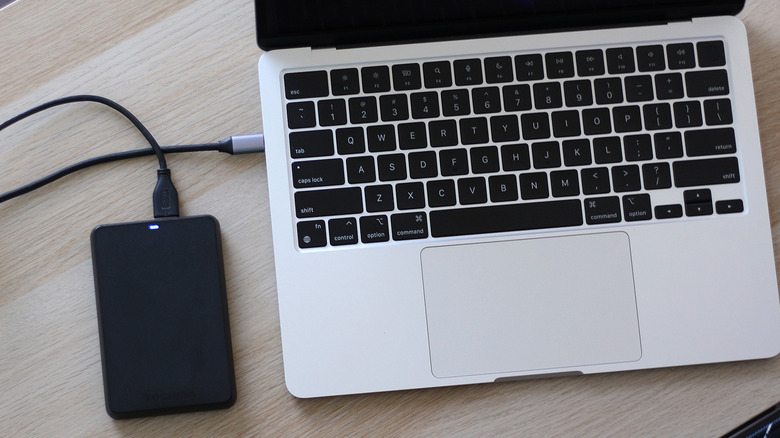
Time Machine is a utility that’s been available on the Mac for years. It lets you create a local backup of your apps, photos, videos and other documents and transfer them to an external hard drive or SSD for safekeeping. It’s normal for the first run to take a while, but subsequent snapshots will be much quicker and can be scheduled to run hourly, daily or weekly.

Setting up a drive for Time Machine

Time Machine doesn’t actually need an external drive to work — it can back up your files to your Mac’s internal drive if you partition it. Using an external drive, though, is the more secure option. Although portable SSDs offer substantially faster file transfers, an older drive you’ve decided to make do with is perfectly fine for the job. In fact, they can be a better fit for long term archival storage since SSDs can lose data if they remain unpowered for a long period.

For Time Machine backups, Apple recommends using an external drive with at least two times the capacity of your Mac’s internal drive. You’ll also need to format it using the APFS file system, which prevents you from natively using the drive with Windows. Even on Mac, the drive will need to be partitioned if you want to store other files besides your computer’s backups, though it’s not recommended that you do.

Advertisement

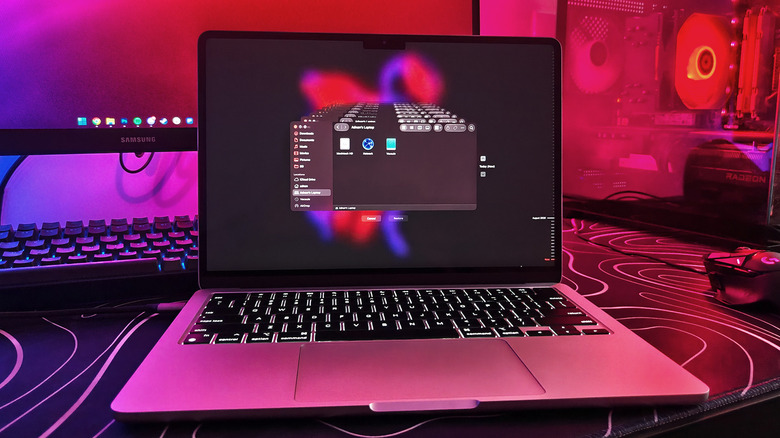
The first step requires plugging a drive into your Mac. Launch System Settings and navigate to General > Time Machine. Click on Add Backup Disk, select your external drive and click on Set Up Disk. You can choose to encrypt the drive with a password, which you’ll need to keep handy if you choose to restore a snapshot in the future. Click on Done

If your external drive needs to be formatted to APFS, a prompt will appear that can do so with one click. Once this is complete, your drive will be set up to accommodate Time Machine transfers.

Advertisement

How Time Machine works

Shortly after you add a drive formatted for Time Machine, your first backup will begin automatically. Depending on how many files you’ve got stored on your Mac, this process can take between a few minutes to over an hour to complete. 

When the external drive is unplugged, snapshots are stored locally on your Mac. By default, backups happen on the hour, but you can navigate to System Settings > General > Time Machine > Options and change the backup frequency to daily or weekly. Here, you can also add folders or volumes you wish to exclude from the process.

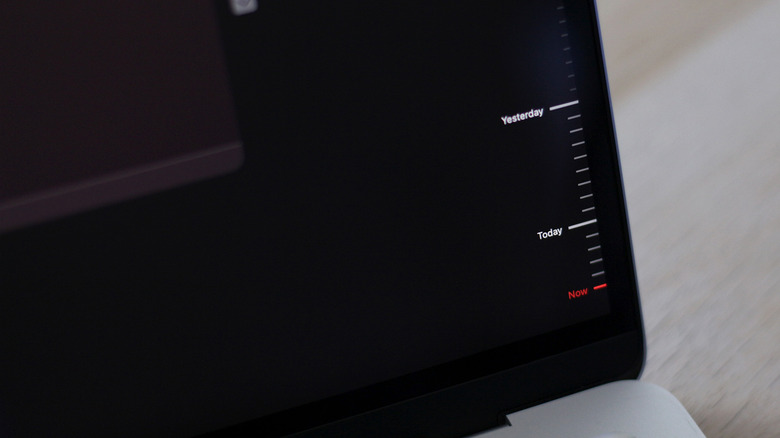
When you need to restore a file, you can access your Time Machine drive by opening Finder and looking at the Locations section on the left. Click on Enter Time Machine, choose a backup, find your file and click Restore.

Advertisement

How far back can you go with Time Machine?

What’s even more impressive about Time Machine is that it stores different versions of the same file as it changes over time. This means you can browse through earlier copies and find the version you’re looking for. When set to back up every hour, Time Machine lets you access hourly restore points from the past 24 hours. Daily backups will span the past month and weekly snapshots will offer points from the months before that.

For instance, if you were working on a document, making changes every couple of hours, you can go back and restore a version from earlier in the day. If a couple of days have gone by, you can still restore the file but you’ll have to locate it within a daily or weekly restore point instead. This is a pretty well thought out system that gives you plenty of options for recovery.

Eventually, though, your external drive will begin to fill up. When this happens, Time Machine will start dropping the oldest weekly backups to make room for new ones. 

Besides letting you to restore specific files through Finder, Time Machine lets you restore your entire Mac from a backup. This is particularly useful when an internal drive fails or you’re migrating to a new computer and wish to bring all your files, apps and settings with you.

Advertisement

Source link

Continue Reading

Tech

5 Of The Biggest Mistakes People Make When Using Android Auto

Published

on


The purpose of the Android Auto framework is to make it easier to connect your Android smartphone to your car and utilize its features through your onboard infotainment system. Compared to manually messing with your phone and car’s settings, it’s definitely a more streamlined approach, though as with any system meant to facilitate conversation between two devices, things can sometimes get a little lost in translation.

While the whole point of Android Auto is to handle all the minutiae of connecting your phone to your car for you, if you just leave the whole thing to manage itself, you could end up making a handful of different mistakes that would diminish the overall usefulness of the system. Not everyone is comfortable with these kinds of newer systems, and it’s normal to experience hiccups, but so long as you avoid these mistakes, your Android Auto experience should be substantially better, as well as more convenient for your particular needs.

Advertisement

Only connecting wirelessly

Depending on your vehicle, Android Auto allows you to connect your smartphone to your car in one of two ways: either with a regular USB cable, or via a local wireless signal. Modern convention would dictate the latter to be the optimal option; everything’s better when it’s wireless, after all, and it does mean you don’t need to take your phone out of your pocket. However, in contrast to that sentiment, Android Auto is actually a little better off with a wired connection.

Connecting wirelessly puts more of a strain on your phone’s resources, as it requires a constant battery-draining wireless connection to transfer data, and the connection may not always remain stable. On the other hand, plugging your phone in has the dual benefits of charging its battery and facilitating a steady connection, which can help reduce lag or dropouts. If you’re just taking a quick jaunt around the corner, wireless is okay, but if you’re driving around a lot and using your navigation apps, take the pressure off your phone and plug it in. Just remember to use a good USB cable from a reputable brand, as a bad cable can be even less reliable than wireless..

Advertisement

Unlocking your phone every time you want to use Android Auto

Another bit of conventional wisdom around smartphones is that, whenever you want to use them, you have to unlock them. This makes sense from a security perspective, but if you’re using Android Auto in your personal car, you don’t really need to worry as much about someone touching your phone and using your apps without your permission. It’s not like a stranger is going to swipe your phone while you’re in the middle of a drive, after all.

Given that, it’s not really efficient to have to unlock your phone every time you want to start up Android Auto and use your apps on the infotainment screen. Instead, go to your Android Auto settings, and under the Startup section, toggle on Start Android Auto while locked. When this option is on, you just have to connect your phone to your car without unlocking it first, and Android Auto can start while your phone stays locked, giving you access to your apps, maps, and music. The only time you might want to turn this option off is when you’re sharing your car with someone like a friend or family member, and only if you’re really worried about them touching your phone while you’re driving.

Advertisement

Not downloading offline maps

One of the most useful applications of Android Auto is providing quick access to your preferred navigation app like Google Maps, displaying your current heading on your infotainment screen, and providing directions through your car’s speakers. However, this useful feature has a single, potentially fatal flaw: it needs an active network connection for live map data. As long as you’re getting active map data, it’s constantly using your phone’s mobile data, and in the event you venture beyond a viable mobile data signal, you’ll pretty quickly find yourself dead in the water.

Luckily, this fatal flaw has a fairly simple remedy: offline maps. Google Maps lets you download offline maps of specified areas. In the event your signal drops out, your navigation will automatically flip over to the offline map and continue providing directions, with the main noticeable changes being a lack of live traffic updates and alternative routes. The only catch is that you need to manually select a region and download the map ahead of time. If you’re taking a vacation somewhere, for instance, you should scope out your route and destination ahead of time and download an offline map so you’re prepared.

Advertisement

Not tailoring notifications

In addition to giving you access to your maps and music, Android Auto also manages notifications coming in from your connected smartphone. Looking at your phone when you get a buzz is one of the most unsafe things you can do while you’re driving, so having that managed for you is a big help. That said, if you’re getting frequent notifications constantly pinging through your speakers and cluttering your infotainment display, it can be just as much of a hazardous distraction as looking at your phone screen.

If you want to keep things focused while you’re driving with Android Auto, the best course of action is to use your Android Auto settings to tailor the extent to which notifications occur and how much they show. If you check the Messaging section of your Android Auto settings, you’ll find four sequential toggles: whether you want message notifications at all, whether you want notifications from group chats, whether you want Android Auto to display the first line of messages, and whether to play the notification chime. Use these toggles to determine how insistent your notifications are. 

Advertisement

Leaving automatic media resume off

Here’s an annoying scenario: you’re driving around town, running errands, and every time you get back in your car after a stop, you have to manually unlock your phone and start up the music or podcast you were listening to. Even if your Android Auto is set up to work without your phone having to be unlocked, it’s still frustrating to have to do a bunch of clicking before you can get back on the road, especially if you’re in a rush. The fewer clicks, the better, which is why you should ensure that automatic media resume is enabled in your Android Auto settings.

Under the Startup section of your Android Auto settings on your smartphone, right under the Start Android Auto while locked toggle, you’ll find another toggle marked Start music automatically. When this toggle is enabled, as soon as your phone is connected to Android Auto, such as when you start your car, it’ll automatically resume playback on whatever you were listening to before you stopped. It’s a small feature, but it’s nice when you can just connect your phone and get right back on the road instead of having to manually open an app and press play.

Advertisement


Source link

Advertisement
Continue Reading

Tech

Google is adding voice AI to Gmail, Docs, and Keep, whether users like it or not

Published

on

What just happened? Google introduced its Gemini Audio AI models earlier this year, during the latest developer-focused I/O conference. Now, the advertising corporation is going to bring these additional features to three of its most popular mobile apps for Workspace customers.

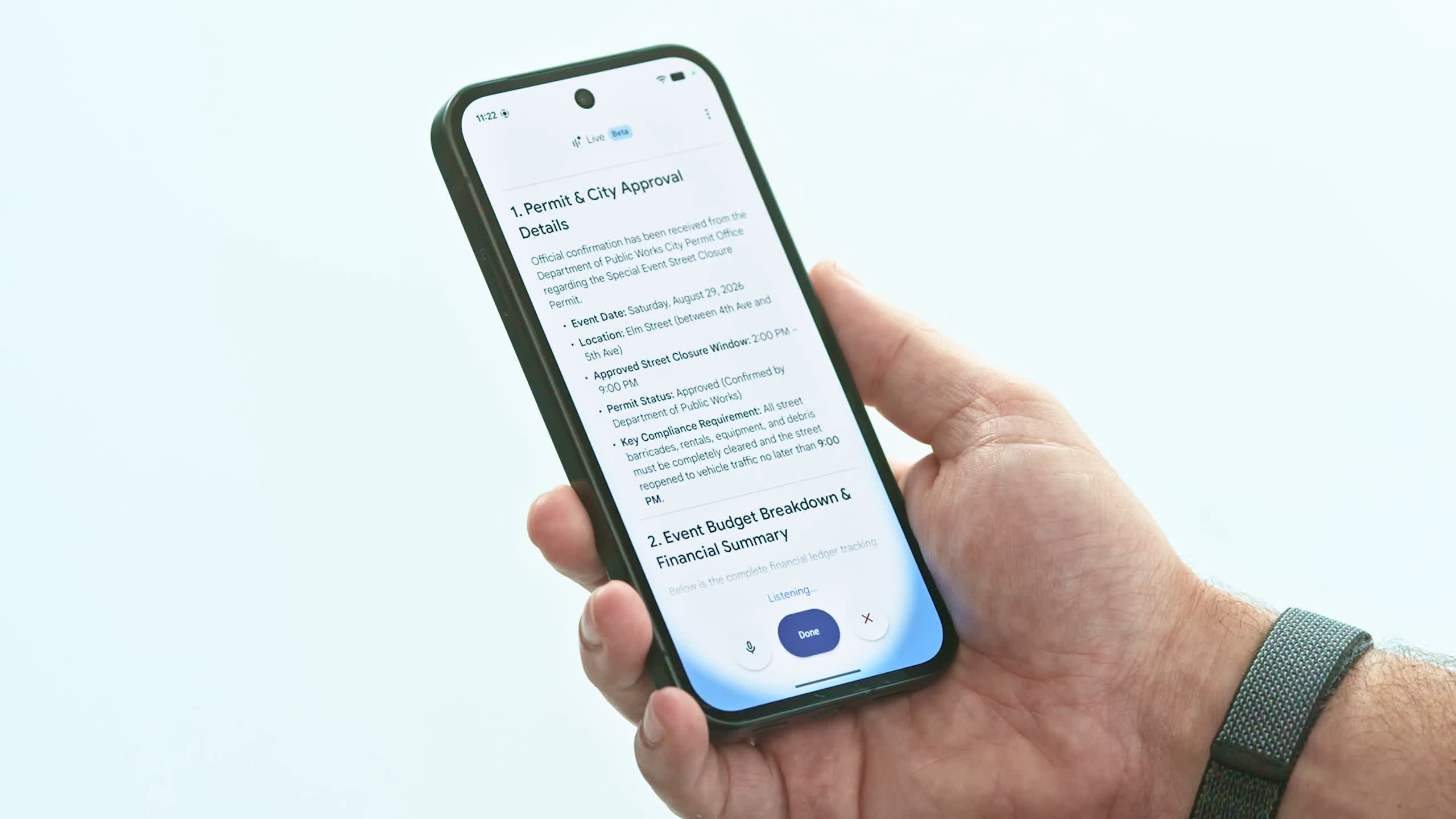
Google is significantly expanding Gemini Live’s reach to Gmail, Docs, and Keep, at least for paying customers of the enterprise-focused Workspace service. The Alphabet company highlights how these new capabilities will enrich its customers’ day-to-day lives with a new option to use their apps and personal data, but not all users seem ecstatic about the idea of talking to a mail client on the phone.

The newly announced features are based on Gemini Live’s conversational AI models, so they are conveniently named Gmail Live, Docs Live, and Keep Live. Thanks to Gmail Live, customers can quickly recall important details about a meeting or their kids’ school events. They will just need to ask the app what they want in natural language, and Gmail will (hopefully) bring the right details to the conversation.

Docs Live does not necessarily work on pre-existing data. The AI feature is designed to be a “co-writer” for new document projects, helping users lay out a first draft based on “rough” thoughts and ideas. Furthermore, Docs Live can also extract “relevant” details from other Workspace apps (Gmail, Drive, Chat, etc.) if the user grants specific permissions to do so.

Advertisement

Finally, Keep Live is conceived as a novel way to turn whimsical, undefined notes and ideas into more organized and therefore “actionable” notes. Google is inviting users to “dump” their mind’s content in the company’s note-taking app, and then ask Gemini Live’s AI engine to turn a stream of consciousness into a more useful list of data or ideas. Google added that Gemini should be able to understand everything being said.

Gemini Live’s new conversational features for Gmail, Docs, and Keep are already rolling out to eligible subscribers of Google AI Plus, Pro, and Ultra plans. Furthermore, they should arrive soon for business customers using Google’s Workspace productivity suite.

While some people consider talking to a mobile app a rather natural way to interact with computers and personal devices, others see it differently. Some early reactions to Google’s new conversational features highlight the ever-growing number of AI tools that are now being proposed to interact with Android apps, while one disgruntled user said that “chatting” with an email app is definitely not the most appealing thing to do on a phone.

Advertisement

Source link

Continue Reading

Tech

Job changes at the top and very safe hands

Published

on

In this week’s Sunday Reboot, the sudden top-table rule changes and how John Ternus will be a good Apple CEO, whether he likes it or not.

Sunday Reboot is a weekly column covering some of the lighter stories within the Apple reality distortion field from the past seven days. All to get next week underway with a good first step.

More than one job change

September is always a big month for Apple, but this one is bigger than ever. Not because of the inbound hardware, but because of the people making it.

The key change is at the top of the Apple executive food chain, as the multi-month transition process has almost concluded. John Ternus is now the CEO, taking over from Tim Cook, but that doesn’t mean the process has ended.

Advertisement

Of course, there’s some behind-the-scenes logistics happening, such as Cook moving out of his office and into a new one for the leadership-adjacent position of executive chairman of the board.

Ternus, meanwhile, will be watching some hardware lackeys shifting cardboard boxes full of circuit boards and unused tech from his old office to his new one. It’s a big move too, as he will be among his fellow executives instead of near his beloved hardware teams.

It’s a thing that has to happen, as Ternus takes the mantle. Though inevitably other unintended changes are also underway too.

Middle-aged man in a blue button-down shirt speaking with hands raised slightly, standing indoors near large windows with soft natural light and blurred greenery in the background

Apple Fellow Phil Schiller

Advertisement

Apple Fellow Phil Schiller has decided to reduce his workload. He’s switched out of running the App Store for a more relaxed existence within Apple, presumably taking another step to retirement.

Then there’s Luca Maestri, who was the previous CFO but continued managing Corporate Services. Except he’s not doing that anymore and current CFO Kevan Parekh has picked up those duties too.

We know that seismic change can prompt other employment updates, and a new CEO would certainly count as one. But there was no serious expectation of a mass exodus as Ternus took his seat.

There still isn’t that expectation, but it doesn’t stop things like this from happening. We do know that the Schiller change was in the last days of Cook’s management, but Maestri’s decision took place a few weeks ago, long before the CEO switch.

Advertisement

It’s probably safe to say that the two changes are not massively consequential to Apple.

At least, Schiller’s App Store withdrawal could be a bit worrying, until you consider it’s only part of a larger Services division. Maestri’s post-CFO role was also not what you would call critical to Apple’s success, or at least wasn’t as critical as managing a massive segment of the company.

Besides, this CEO transition has been going on for months. Anyone who would’ve seriously objected to Ternus being in control has had ample time to get out of Dodge.

The people who are still leading Apple are going to hang around for quite a while longer.

Advertisement

Ocean liner management

As the opening weeks and months of Ternus control continue, there may be the threat of more managerial shake-ups. But it certainly won’t be from radical moves by the CEO.

You can expect him to make small changes to how the company functions. I say small in a relative fashion, because Apple is a tech giant.

His changes need to be like a captain steering a cruise ship. It takes time to slow down and to adjust course, as rocking the boat of that size would be dangerous.

That is to say, anything he decrees will take a long time to become an actual problem for someone. If a problem does indeed manifest down the road.

Advertisement

Then there’s the corporate culture, since any decision Ternus makes will affect thousands of people. Even though the CEO’s word is effectively gospel, if there are enough people who disagree, there’s always the risk of a mutiny.

Two men in casual dark clothing walk and talk along a curving paved path in a landscaped park, surrounded by trees, shrubs, and tall grasses on a sunny day

Apple CEO John Ternus [left] and previous CEO Tim Cook [right]

There is one more safety barrier in place to prevent Ternus from creating a Titanic-like situation. Cook is still hanging around.

Sure, he’s not going to have much of a say on what products Apple will develop. Nor should you expect him to appear during an Apple event video in the future.

Advertisement

But it’s hard to get away from the thought that Ternus won’t have free rein without Cook’s oversight or advice.

Cook has a wealth of experience as captain of the SS Cupertino, and it would be foolish for Ternus not to listen to anything Cook says.

You’re not going to get any insane company-destroying proclamations coming from Ternus. Anything that he does say will have been discussed and debated to an exhaustive degree to keep it sane and safe.

Ternus is a safe pair of hands. But even if he wasn’t and was hell-bent on hitting an iceberg, Cook would still be a sanity safety net.

Advertisement

Last week’s Sunday Reboot discussed Apple’s early Mac upgrades and John Ternus meeting Pikachu.

Source link

Advertisement
Continue Reading

Trending

Copyright © 2025