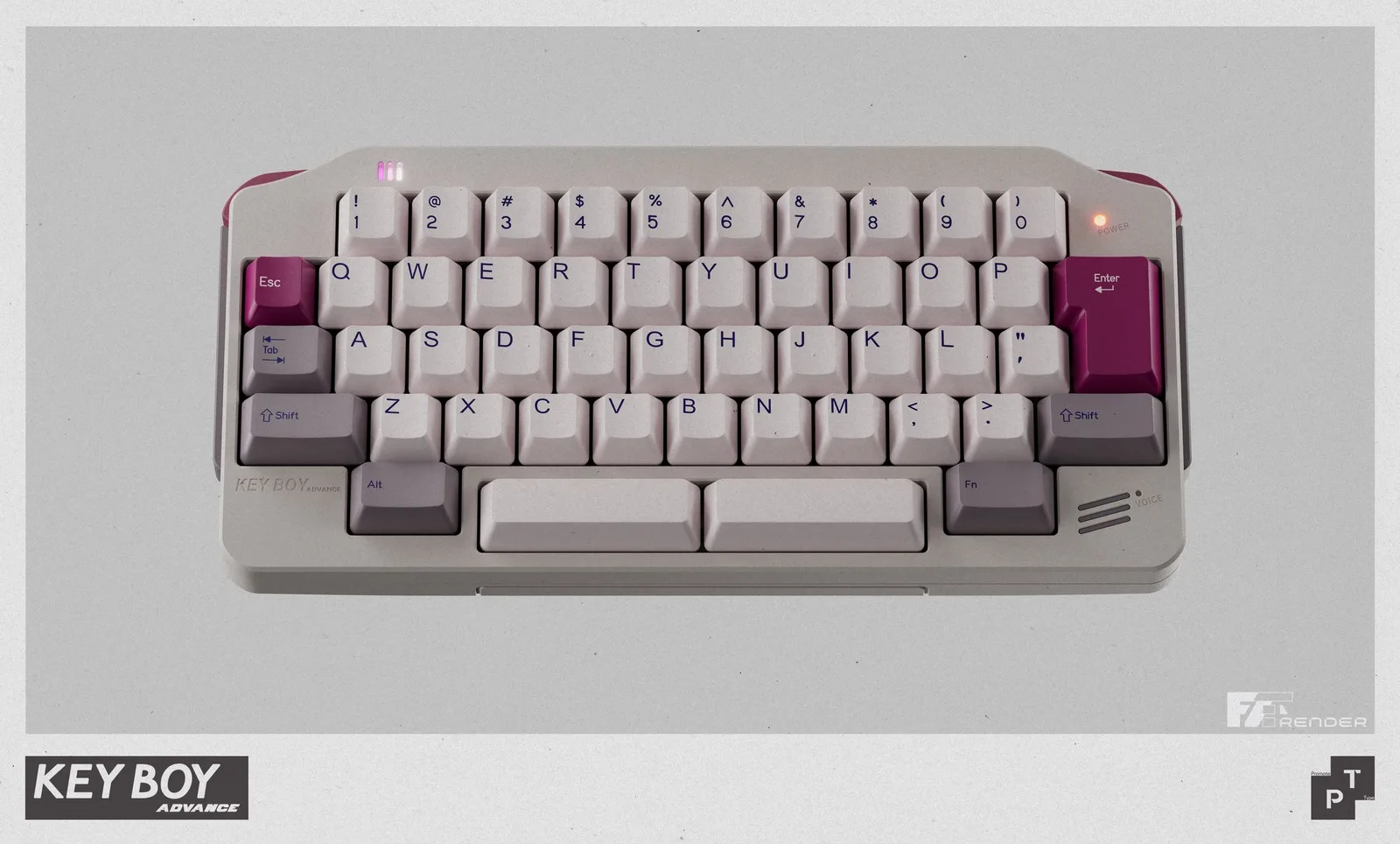
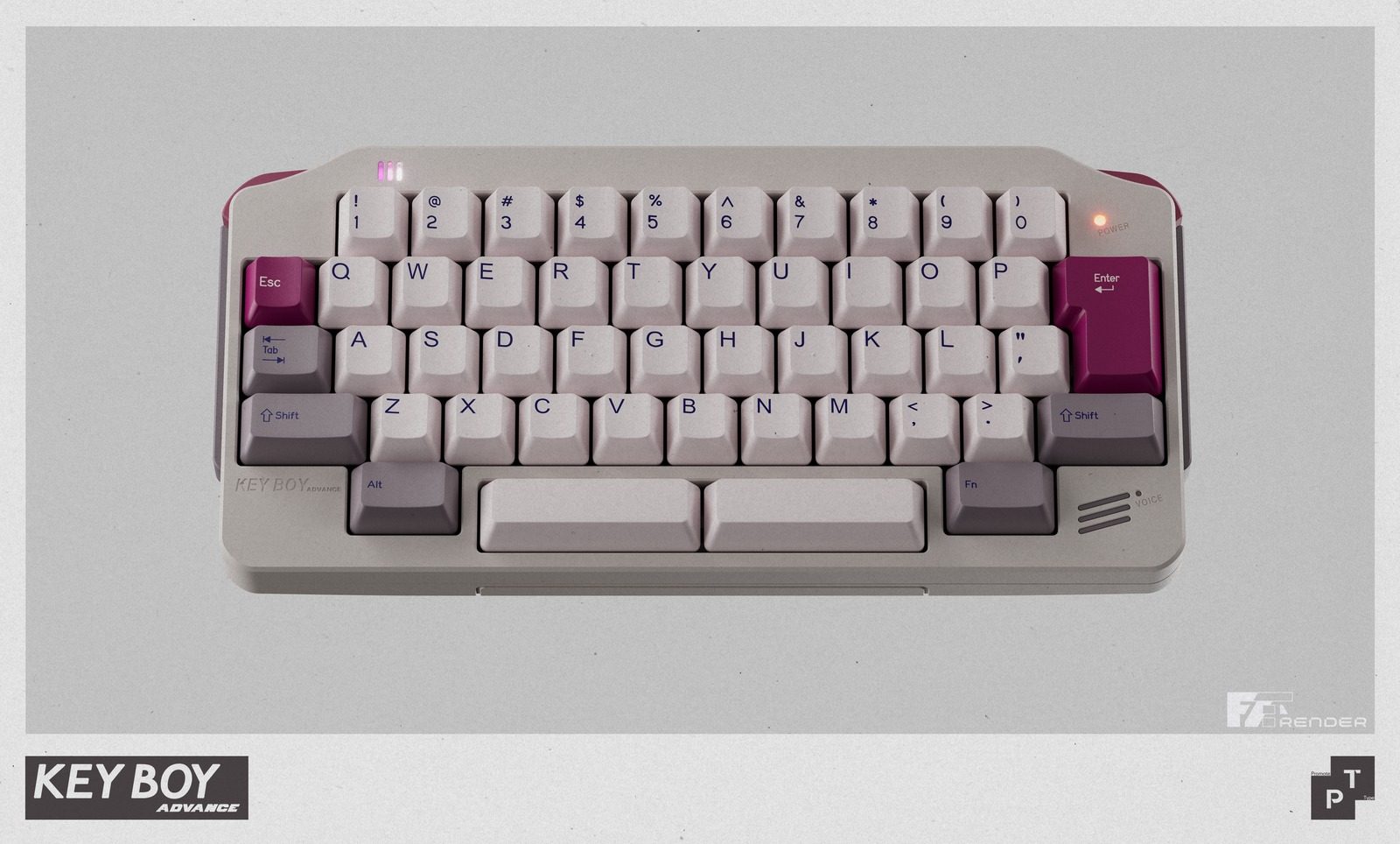
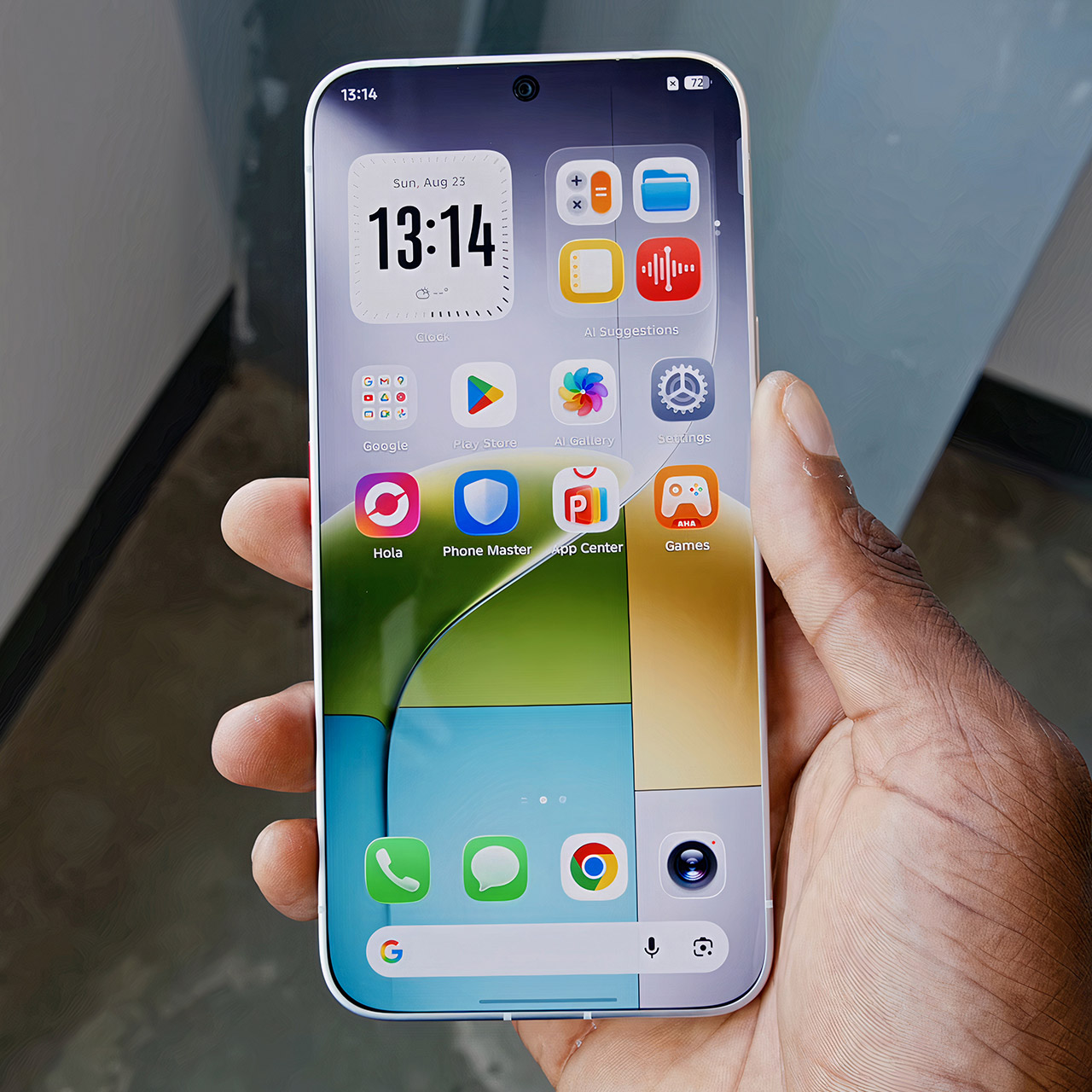
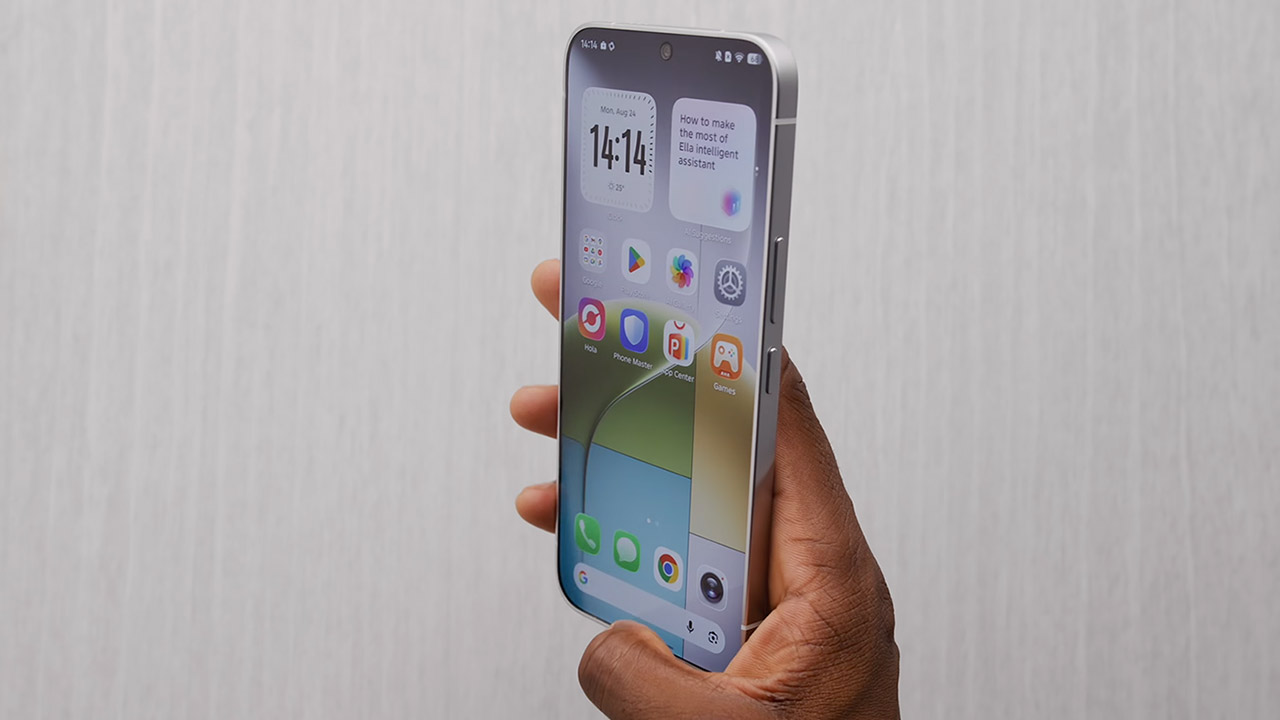
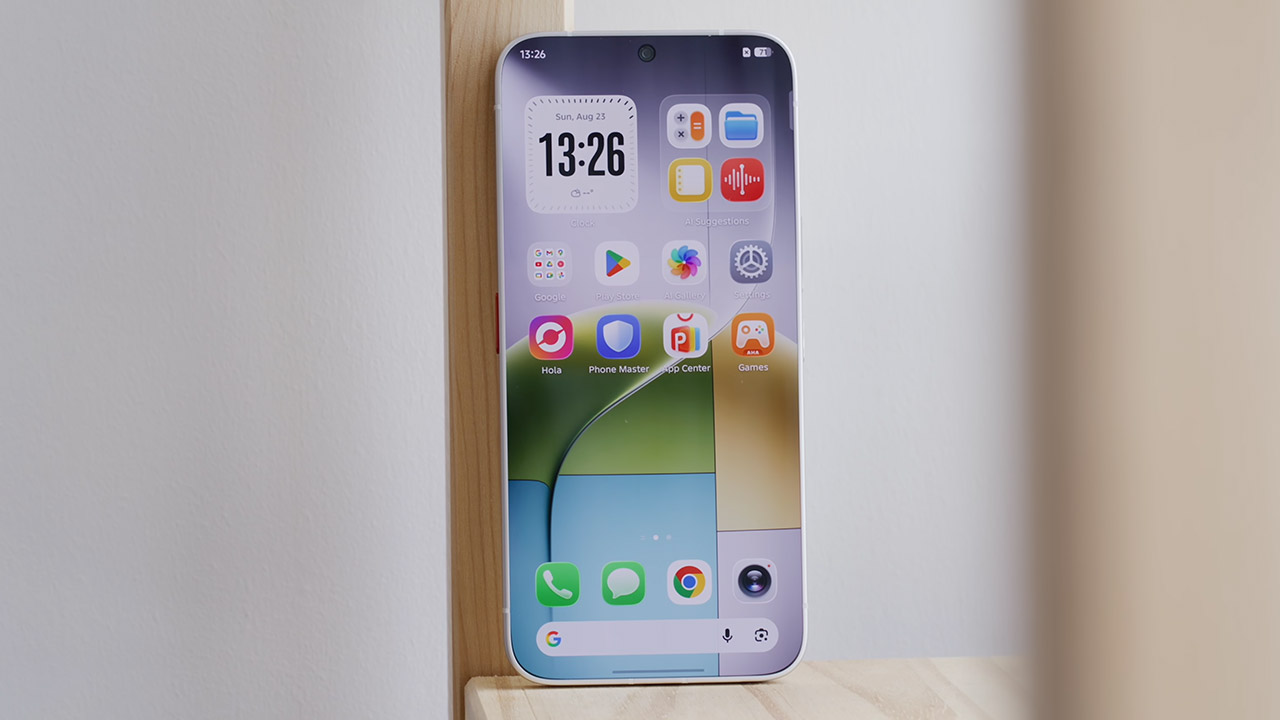
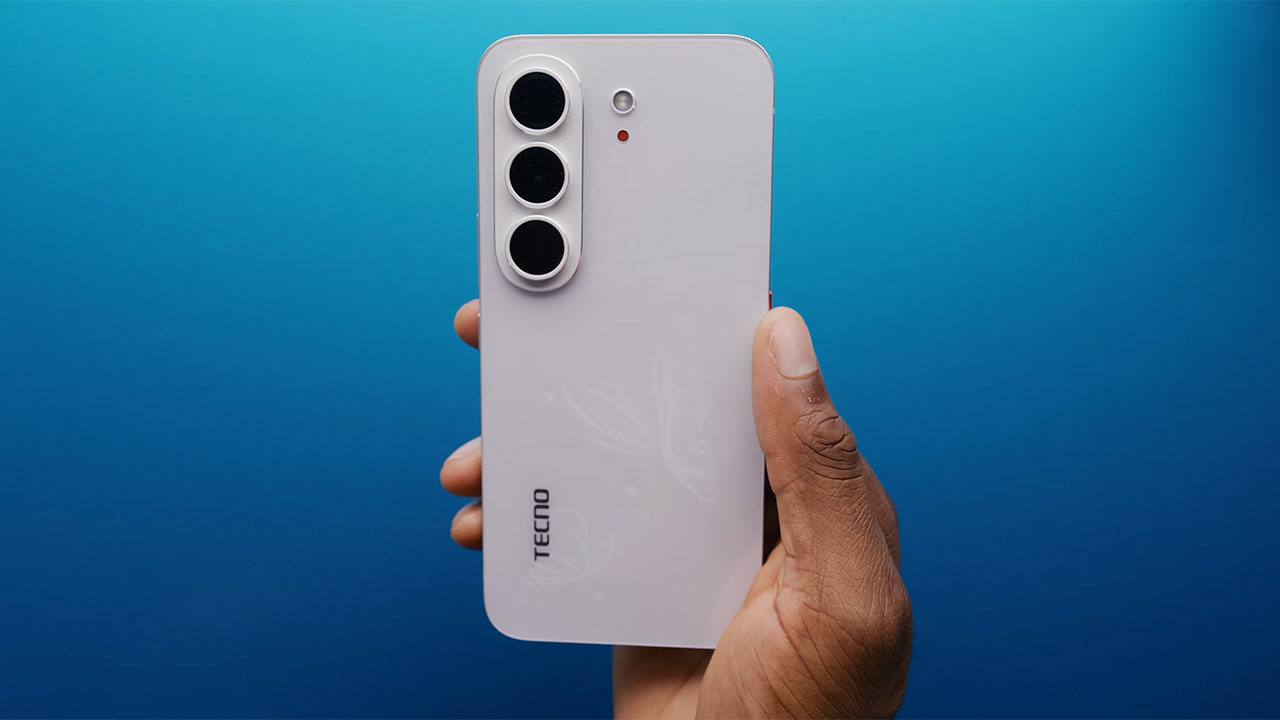
For many people who grew up in the early 2000s, the Game Boy Advance was the handheld they carried everywhere. The Keyboy Advance is trying to bring some of that nostalgia to a modern desk, using the wide, landscape-style silhouette of Nintendo’s 2001 handheld as the basis for a compact mechanical keyboard kit. It is not an official Nintendo product, but the visual references are easy to spot.
How much Game Boy Advance is in the design?
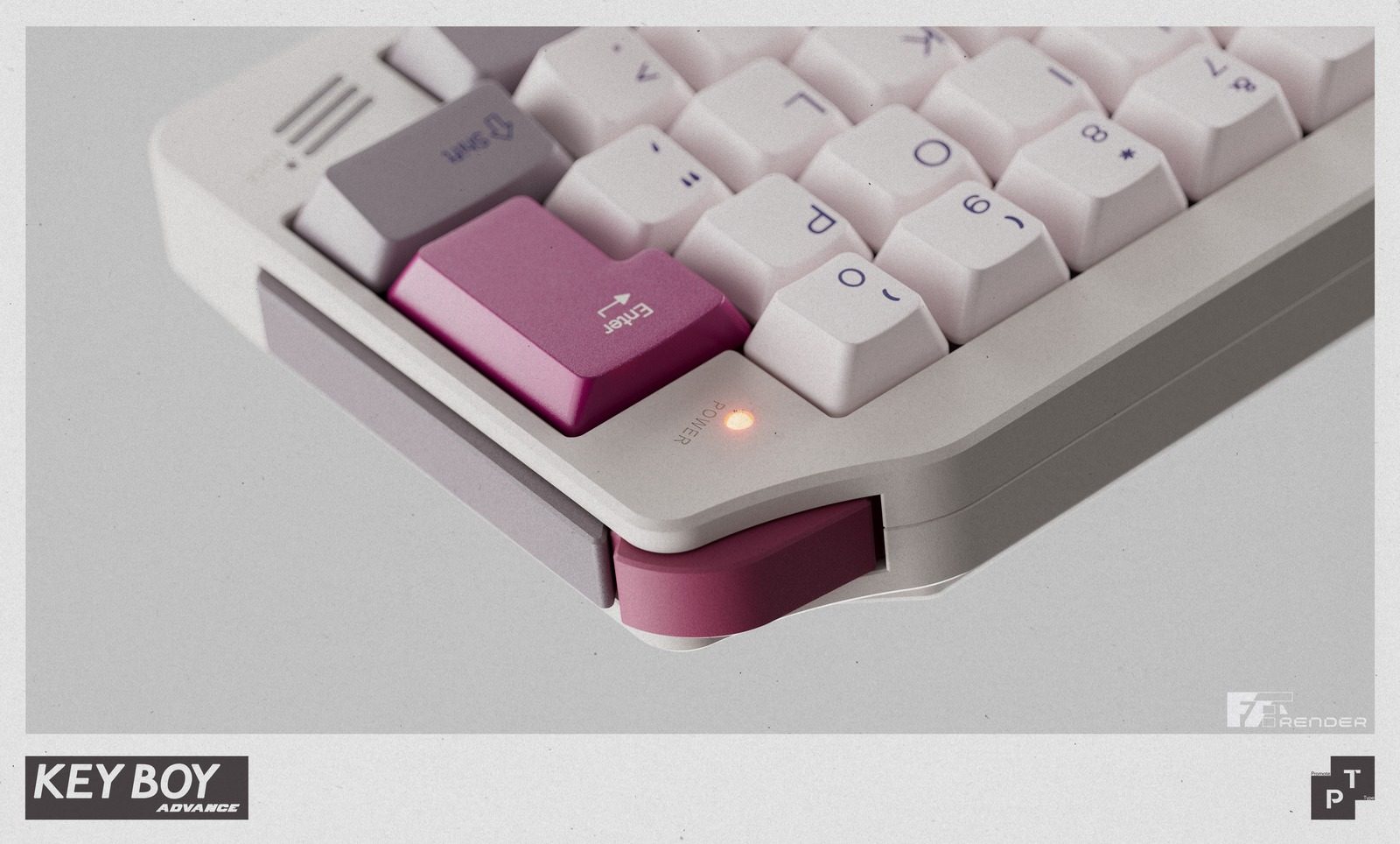
The Keyboy Advance takes the general shape of the Game Boy Advance and rebuilds it around a 50% HHKB layout. The overall footprint of the keyboard is small while still including a number row. The side profile uses a color-separated section inspired by the GBA’s side palm rest, while the underside has been reworked to create a curved shape that resembles the handheld.
Proto[Typist]
There are smaller visual callbacks across the body as well. The board has a power indicator LED, an asymmetric light strip, a speaker-like module on the lower right, and an incised line that appears to reference the old battery cover. It also includes functional shoulder buttons, which use micro-switches to recreate the feel of handheld console triggers. Both buttons can be customized through Vial, giving the retro-inspired design a practical use.
It is still an enthusiast keyboard kit
The Keyboy Advance is still a fairly serious custom keyboard kit. The spec pages list a 7-degree typing angle, 19mm front height, and top-mount construction with O-rings. Buyers also get different build options depending on how they want to use it. The kit is available in solder and wired hotswap versions, along with dual-mode and tri-mode hotswap options for those who want more flexible wireless support.
Proto[Typist]
The spacebar also gets special attention. Smaller custom keyboards can sometimes have noisy or uneven spacebars, so this kit uses foam and internal support pieces to reduce unwanted sound and vibration while typing. It also supports multiple spacebar layouts, including a single 6U spacebar, dual 3U spacebars, and a split 2.25u plus 1u plus 2.75u setup.
The Keyboy Advance group buy is priced at £210.83 and runs until July 22, 2026. Shipping is expected in Q4 2026. You can find more details about the keyboard at Prototypist.net.
Happy Hacking Keyboard Classic Type-S for $264: The Happy Hacking Keyboard lineup has never been known for cost-effectiveness. This is shown especially with the Pro Classic Type-S, a nearly-$300 keyboard with wired-only connectivity and a distinct lack of bells and whistles. However, the unique layout and Topre switches can pretty much only be found here, and make for a unique tactile typing experience that can’t be matched by many other keyboards. Plus, the massive aftermarket community for Topre keyboards means both repair and customization are incredibly easy and well-documented. They’re a bit pricey, but one of these keyboards could last the rest of your life with a bit of care.
Wooting 80HE for $200: While the technology falls a bit behind the 60HE V2, the 80HE’s larger layout still makes it a fantastic option for anyone who isn’t quite ready to get rid of their F-row and arrow keys. The switches feel great, the magnesium case is incredibly robust, and the Wootility customization interface is both straightforward and incredibly powerful.
Advertisement
Keychron C1 Pro 8K for $55: I really don’t understand how Keychron can make a keyboard that has mechanical switches, high-quality keycaps, RGB lighting, and an 8,000-Hz polling rate for under $60. It just doesn’t make sense to me. However, the company did it, and the resulting keyboard is really fantastic. If you want something with retro styling, comfortable keycaps, and a satisfying typing sound, you really can’t get a better per-dollar value proposition than the C1 Pro. Keychron’s tactile Super Banana switches are poppy and responsive, and the tray-mount case feels sturdy when typing. The only caveat, and this is hardly an issue for most users, is that this keyboard doesn’t have wireless connectivity.
Logitech Pro X TKL for $190: Logitech makes great keyboards, and the G Pro X TKL is among the best gaming keyboards. It has vibrant RGB LED-backlit keys, a choice of clicky, tactile, or linear switches, and it uses Logitech’s Lightspeed wireless adapter for competitive gaming-level response time. The build quality of this keyboard is slick and stylish. It’s minimal and doesn’t take up much space on your desk, and it has a subtle metallic rim around the edge that gives it a little flair that most plain keyboards lack. The volume wheel in the upper right is smooth and easy to reach, and along the top are handy media controls so you can pause your music when you finally get into a game after a long queue. For my tastes, the more clicky-clacky a keyboard, the better, and the Black Clicky switches have served me well. Each keypress feels like I’m sending tiny thunder down to my game. However, if you prefer something softer, you can choose another switch type. The only thing I dislike is the lack of a numpad—yes, I’m one of those weirdos who prefer having a numpad.
Advertisement
Logitech Pro X 60 for $130: The Pro X 60 (8/10, WIRED Recommends) has virtually all the benefits of the Pro X TKL in a smaller, more compact package. It keeps the volume wheel, Game mode switch, and Bluetooth/Lightspeed buttons by moving them to the edges of the keyboard, while slimming the whole thing down to a 60 percent layout.
Logitech Pop Keys for $100: The Pop Keys (9/10, WIRED Recommends) is a vibrant line of wireless keyboards that come in a wide variety of color palettes that are delightful. It also uses Logitech’s system for pairing with up to three devices, making it simple to take it between your PC and laptop, or from home to work and back.
Photograph: Eric Ravenscraft
Logitech MX Keys S for $130: The MX Keys S can pair with three devices, making it easy to swap between computers. Its low-profile chiclet-style keys are comfortable, and it uses proximity sensors to activate the key backlight when your hands get near, so it’s easier to see in the dark without wasting battery when you’re not using it. It supports both Mac and Windows layouts, and the keys are tastefully labeled in a way that it’s clear no matter which one you’re using at the time. Battery life is also fantastic, lasting well over a week with normal use, though it gets quite a bit longer life if you disable the backlight.
Advertisement
Logitech MX Mechanical for $180: With an understated, low-profile design, you can pair the MX Mechanical with up to three devices at once and swap with the push of a button. There are even a few convenient extra buttons just above the numpad to launch a calculator or lock your desktop.
Turtle Beach Vulcan II TKL Pro for $150: The Vulcan II TKL Pro has two LEDs per key, giving it a better resolution for lighting effects. It features Hall effect switches, which should cut down on wear and tear. They’re still satisfyingly clicky, and the volume knob has a comfortably grippy texture. I prefer any keyboard with a volume wheel to one without.
Photograph: Eric Ravenscraft
Corsair K65 for $110: This 75 percent keyboard has some of the softest, most comfortable keys of any board I’ve tested. It’s lightweight enough to toss in a bag but sturdy enough to be your desktop keyboard. It can connect via USB-C, Bluetooth, or a wireless dongle that can be stored in a slot on the rear. A stylish metal volume knob adorns the top-right corner, and every keycap and switch can be swapped out using the included removal tool.
Razer Huntsman Mini for $90: A 60 percent keyboard has 60 percent of the keys normally found on a regular-size keyboard. The numpad and arrow keys are chopped off, and you’re left with the essentials. The Razer Huntsman Mini is one of my favorites of this size for gaming. It feels every bit as responsive and quick as a full-size keyboard, but it takes up a lot less desk space. There’s just something neat and orderly about it. Plus, like the larger Huntsman Elite, the Mini is compatible with Razer’s keycap kits, so you can customize your color scheme.
Advertisement
Keychron Q1 HE for $240: The Keychron Q1 HE (9/10, WIRED Recommends) is one of the best boards we’ve tested that uses Hall effect switches. You can customize the actuation point to either make keys more sensitive—so you don’t have to press them all the way down for keystrokes to register—or less sensitive, to avoid those fat-finger moments that can ruin competitive games. Keychron even has rapid-trigger settings that allow you to press a key multiple times without the key having to return fully to its resting position. Even outside the benefits of the Hall effect switches, this is another great keyboard in line with the kind that Keychron is known for, so it’s worth a look even if you don’t want to pay that much attention to every aspect of your keys.
Photograph: Eric Ravenscraft
NZXT Function 2 for $110: The original NZXT Function was a great way for anyone interested in mechanical keyboards to jump in without getting overwhelmed. The follow-up Function 2 (8/10, WIRED Recommends) improves on it in almost every way. It upgrades the keys to optical switches and comes with a spare set of switches that have a little more (or a little less) resistance, so you can customize specific keys based on your needs. I found this particularly useful for games like Overwatch 2, where I’d like to cut down on those fat-finger ultimates that are so embarrassing. The Function 2 retains many of my favorite features from the first model. It has the same left-side volume roller, super-soft keycaps, and convenient buttons along the side of the keyboard. If you’re interested in mechanical keyboards but are intimidated by phrases like “actuation force,” this is a great board to get started with.
Razer Huntsman V3 Pro TKL for $160: The Huntsman V3 Pro TKL is a robust keyboard for those who like to tweak their gaming setup. It uses Razer’s analog optical switches, which are satisfyingly clicky. On the top right, there’s a media knob that controls the volume, which you can also click to mute. However, it’s the buttons around it that are most interesting. To the left, there are two programmable macro keys you can use to customize different commands for your games (or your work). Below, on the navigation keys, are six profile shortcuts. Hold Fn and press one of them, and you can swap between several preset profiles, tailored to specific gaming needs like FPS mode, Racing mode, or High-Sensitivity mode when you need to pull off that hair trigger. All of this can be customized in the Razer Synapse app. We’ve tested a lot of keyboards with different customization options, but this one is particularly good for gamers who swap profiles a lot. The keyboard connects using a USB-C cable, included with the device, and it also comes with a magnetic wrist rest.
Advertisement
Razer BlackWidow V4 75% for $130: The Razer BlackWidow V4 (8/10, WIRED Recommends) has a sturdy metal casing, hot-swappable switches, and Razer’s robust Synapse software for customizing your keyboard. It’s also earned our top marks if you’re looking for a mechanical keyboard specifically for gaming. The 75 percent layout is small enough that you can leave plenty of room for your mouse, making those flicks to land a headshot that much easier in competitive games. The 8,000-Hz polling rate also helps cut down on the times that you miss activating an ability by that almost imperceptible fraction of a second.
SteelSeries Apex Pro for $199: Rather than choose one switch for the Apex Pro keyboard, SteelSeries decided to allow them all. Not only is it a colorful gaming keyboard with lots of bells and whistles, but it also features mechanical switches that can be customized per key to give you a typing experience unique to you. Plus, it has a little LED display for system alerts, volume, and other fun stuff you can toy with using SteelSeries’ included software.
Corsair K100 RGB Mechanical Gaming Keyboard for $325: In most ways, the Corsair K100 RGB is a fairly standard keyboard, with RGB backlights, a few programmable macro keys, and a volume roller. What sets it apart, however, is the control wheel in the top-left corner. This dial can scrub through media, control the lighting on the keyboard, and control several other built-in functions. The dial can also be customized. In my testing, this could be a little finicky in certain applications—I couldn’t get it to properly scrub through the timeline in Premiere Pro, for example—but it’s still a handy tool you rarely get on other boards.
Advertisement
Keyboards to Avoid
Razer Pro Type Ergo: While this keyboard is solid and feels good to type on, the $200 price point seems far too high for what it is. Having a plastic case and laptop-like chiclet-style 66 keys, it won’t blow your socks off. Unless you desperately need Chroma RGB lighting, or have some other reason to stay within the Razer ecosystem, there are much more affordable options that offer nearly-identical usability.
What Kinds of Keyboards Are There?
Generally, keyboards are defined by two specific design choices: the layout and the type of switches they use. A switch is the mechanism underneath a key that controls how the switch is pressed down. The layout can easily be seen by looking at a keyboard, but the switches can be a bit more difficult to guess from general observation. Here are the most common you’ll see:
Advertisement
Scissor switches are among the most widespread types of keyboard switches available today, found in nearly every consumer laptop and countless slim keyboards, including the Apple Magic Keyboard. These switches are incredibly compact and have a short travel distance, which makes them ideal for anything portable. Their low profile, flat shape, and short travel distance means they can be quick to type on, but they often lack the enjoyable tactile experience of a thicker keyboard. These switches are often also referred to as chiclet switches, a not-quite-accurate name that comes from the small amount of space between each key.
Membrane switches are one of the least expensive switches to manufacture, and are widespread even today in schools and offices. They typically consist of a sheet of rubber domes with electrical contacts inside of them, which then have keycaps put on top. When one of these keys is pressed down, it compresses the rubber dome and registers a key press. These keyboards are waterproof and reliable, but they have a key press that is typically described as mushy and unpleasant.
Mechanical switches are fairly widespread in enthusiast circles, but the actual definition of a “mechanical” switch is debatable. However, for this guide’s purpose, a “mechanical switch” will typically refer to a switch that uses the same design as a Cherry MX switch and has a metal “leaf” on the inside, which is two pieces of metal that are pressed together to register an input. ThereminGoat has a great in-depth guide on how a mechanical switch works and what all the components do. There are three main types of MX-style mechanical switches, tactile,linear, and clicky, that we discuss in-depth in our mechanical keyboard buying guide.
Low-profile mechanical switches rely on principles similar to a standard mechanical switch, but they compress the movement into a much shorter switch. They typically have a shorter key press, use unique keycaps, and are less standardized than full-size mechanical switches. Because they’re shorter, they are typically used for either low-profile keyboards or uniquely shaped keys on a standard keyboard (like the mouse buttons on the HHKB Studio).
Advertisement
Hall effect switches are typically similar to mechanical switches in shape, and will feel comparable to type on, but the key difference is how they register an input. A mechanical switch requires physical contact between two components, while a Hall effect switch uses magnets and sensors to determine whether a key has been pressed down. With most Hall effect keyboards, the sensor can detect how far the key has been pressed, and you can actually program the keys to only register an input at a certain distance, or even to register multiple inputs at different distances. By comparison, a standard mechanical switch will only register an input at a predetermined distance. While a Hall effect switch may seem like an all-around upgrade compared to a mechanical switch, there is still a trade-off: Nearly every Hall effect switch available is linear, which means there is no bump or click when the keyboard registers an input. Beyond that, because of small differences in their internal designs, many enthusiasts prefer the typing feel of a mechanical switch.
There are so many factors to consider when picking the right keyboard for your needs that it can get overwhelming. Not everyone has the same needs, and many aspects of a keyboard can seem universally desirable to some while being utterly polarizing to others. Here are a few things to keep in mind:
Mechanical, or no? If you like big, clicky keyboards with raised keys that make a statement, mechanical keyboards might be for you. This is also a rabbit hole that many nerds have lost themselves in, so it can be overwhelming to dive into the nuance of all the different styles in this subgroup. If you’re more a fan of the flat, chiclet-style keyboards found on low-profile keyboards (and laptops), you can save yourself a lot of time by skipping the mechanical keyboard rush. On the other hand, if you do want mechanical, we have a few in this guide you can check out, but we also have a dedicated Best Mechanical Keyboard guide you should peruse.
Wireless or wired? Wired keyboards have the advantage of never dying and never needing to be charged up. The disadvantages are, well, obvious. If you need a wireless keyboard to take with you to the office and back home, or just want more flexibility on your desk, then make sure to check a keyboard’s battery life, what kind of batteries it uses (rechargeable is usually better), and what kind of system it uses for recharging.
Advertisement
Wireless connectivity options. Some wireless keyboards use a 2.4-GHz USB dongle to connect to your PC or laptop, which often means more reliable signal strength, while others use Bluetooth to connect to a wider range of devices. Bluetooth keyboards in general are pretty great these days, so it’s not a huge sacrifice, but pay attention to how you need to connect the keyboard to your devices when making a purchase.
Number of device connections. Similarly, some wireless keyboards can remember multiple devices they connect to and swap between them with the press of a button. If you have a desktop, a laptop, and a work computer you want to use one keyboard with, it’s a good idea to check how many devices your keyboard can remember when making your choice.
Polling rate. As mentioned, this refers to how often per second your computer receives a signal from your keyboard. Modern keyboards already approach 1,000 Hz (or once every millisecond), which is faster than what most people ever need. However, if you play a lot of fast-paced competitive games online, having a higher polling rate (commonly approaching 8,000 Hz, or eight checks every millisecond) can reduce the time between when you press a key and when the game registers it. Which, when you’re dodging headshots, can mean the difference between life and virtual death.
Software. With most keyboards today advertising extensive customization options, it’s important to be sure these adjustments can be done easily and quickly. Some keyboards have great customization software with explanations, tool tips, and intuitive systems to make adjustments, and some don’t. Software like Razer Synapse, Keychron’s Launcher, and Wooting’s Wootility are some of my favorites, and I’d definitely recommend doing some research on your keyboard’s software before locking in your choice.
Advertisement
The Keyboard Terms You Should Know
Hz, or hertz, refers to the polling rate of a keyboard. In essence, this number is how many times the keyboard communicates with your computer in one second. Your average computer peripheral operates at 125 Hz, while higher-end equipment with a focus on speed can operate upwards of 1,000 Hz. Realistically, for everyday use, 125 Hz is perfectly serviceable. Having something higher can be beneficial for gaming, and can potentially feel smoother, but the difference is not as important as you would think.
2.4 GHz, short for 2.4 gigahertz, is a radio frequency that computer peripherals use to communicate wirelessly with a USB dongle. Most keyboards with 2.4-GHz connectivity will also have Bluetooth connectivity, but there are many keyboards that have Bluetooth without 2.4 GHz. There are many differences between how the two operate and how they perform, but the main ones are connection quality and convenience. A Bluetooth connection will often operate at a lower polling rate, such as 125 Hz or 250 Hz, but can connect directly to a Bluetooth-enabled device without a dongle. A 2.4-GHz connection, on the other hand, can operate at much higher polling rates (some devices exceed 1,000 Hz) but will require a USB port to plug a dongle into. For either connection method, the wireless range is dependent on the individual device.
Gasket mounting is a method of keyboard construction that has become popular in recent years. In a gasket-mounted keyboard, the internal assembly of the keyboard is not directly screwed into the case. Instead, rubber gaskets are placed along the edges of the top and bottom halves of the case. These press together around the internal assembly and hold it in place once the two halves have been screwed together. This allows the internal assembly to move up and down slightly when typing, along with absorbing the vibrations of typing. This kind of assembly typically results in a softer and more satisfying typing experience, while also improving the sound of the keyboard by removing any extra noises.
Advertisement
Function layers are secondary layouts on a keyboard that allow for inputs that don’t have dedicated keys on the keyboard. These are often accessed by holding down a key labeled “Fn” or “Function,” then pressing another key. Function layers allow for multimedia controls, setting adjustments, or access to keys like F1 through F12, or arrow keys, if they were removed from the keyboard to save space.
I test each keyboard on this list for an extended period of time: at least a week, and often longer. I test each under a diverse set of conditions including gaming, writing, internet browsing, video and photo editing, and even some programming. During this, I take extensive notes on how a keyboard behaves, what works, and where I run into trouble. Once I’ve finished testing a keyboard in real-life situations, I compare it to other keyboards to see how it stacks up, and I typically try to disassemble each keyboard and critique its internal assembly.
When determining what goes in this guide, I take multiple different aspects into account. The largest priorities to me are build quality, typing experience, and ease-of-use: A solid keyboard that feels good to type on will typically score better than a flimsy and boring keyboard, even if the flimsy keyboard has fantastic software, style, or typing sound. However, all of these metrics come into consideration, and if a keyboard totally fails in a certain category, that can still take it out of the running.
Keyboards are subjective, so I try to approach each review with an open mind. Even if I don’t like typing on a keyboard, I always try to imagine a user who might like it, and I evaluate its design choices from that perspective along with my own. Ultimately, you will know better than anyone else whether a keyboard is a good fit for you.
Windows 11 Pro for Workstations is designed for professionals, data scientists, and enterprise users with highly specialized workloads. As noted by TechPowerup, it’s positioned between Windows 11 Pro and Windows Server, but it largely remained hidden in plain sight for five years, even though download links and purchase options were… Read Entire Article Source link
Last week, researchers at cloud security firm Sysdig said they’d documented the first known case of “agentic ransomware.” It was an extortion operation, dubbed JadePuffer, in which an AI agent — not a human — handled the technical execution of a real-world cyberattack from start to finish. The agent broke into a vulnerable server, stole credentials, moved through the target’s network, encrypted files, and even wrote its own ransom note, adapting to obstacles along the way like a human hacker would. Coverage of the funding described it as run “without any human oversight,” with “no human at the keyboard.”
That’s not quite the full picture. In an interview on Monday with CyberScoop, Sysdig’s Michael Clark, the company’s senior director of threat research, clarified that a human was still very much involved — just not in the technical execution. “A human still set up and pointed the operation and provisioned the infrastructure behind it, the command-and-control server, the staging server used for the stolen data and chose a victim,” Clark said. The credentials used to break into the victim’s database, he added, weren’t harvested by the AI agent itself; someone obtained them separately, through a prior compromise, and handed them to the operation.
None of this contradicts Sysdig’s original claim, and the technical details of the attack remain notable on their own — wild, even. The agent got in through a known bug in Langflow, a popular open-source tool for building LLM apps, then moved on to a production MySQL server and exploited another known flaw to gain admin access. It encrypted over 1,300 configuration records and not only left behind a ransom note that it wrote itself but it left a Bitcoin address where the ransom could be sent. Sysdig hasn’t disclosed who was targeted.
The techniques were fairly ordinary apparently, what stood out was the speed and transparency involved. The agent fixed a failed login in 31 seconds, narrating its own reasoning in natural-language code comments the whole way.
Advertisement
One detail that initially seemed to muddy the picture has since been clarified. Clark had told CyberScoop that Sysdig found “multiple models were used in the attack,” citing harvested keys for OpenAI, Anthropic, DeepSeek, and Gemini — language that left open the question of whether several models actively powered different stages of the intrusion. Asked to clarify, Clark told TechCrunch that those keys were simply part of what the agent stole, not evidence of what was driving it.
“The agent swept the Langflow host for anything valuable — provider API keys, cloud credentials, cryptocurrency wallets, and database configs — and those provider keys were part of the loot,” he said via email. “They are indicative of what the attacker considered worth taking, but they do not tell us which model was making the decisions.”
On the model actually running JadePuffer, Clark said Sysdig “was not able to identify the specific model driving the agent” and has no visibility into its system prompt or configuration.
Microsoft researcher Geoff McDonald’s theory, offered on LinkedIn several days ago, is worth revisiting in that light. McDonald suspected an open-weight model with safety training stripped out, rather than a frontier model, was behind the attack, based on his own red-teaming experience showing frontier labs’ safety layers hold up well. Sysdig’s own account doesn’t confirm or rule that out.
Advertisement
McDonald’s post also warned that ransomware campaigns are now bounded primarily by attacker budget rather than human effort, raising the possibility of “thousands or tens of thousands of simultaneous campaigns.” That concern is a little harder to square with what Clark described Monday. (If a human still has to choose each victim, provision infrastructure, and obtain database credentials for every operation, that’s a bit of a bottleneck, at least.)
Either way, Clark told CyberScoop, while Sysdig hasn’t seen the same operation hit other victims yet, given how cheap it is to run an agent, he expects that to change.
When you purchase through links in our articles, we may earn a small commission. This doesn’t affect our editorial independence.
Security firm Sysdig says it documented the first fully agentic ransomware attack, dubbed JadePuffer, in which an AI agent planned and executed an entire database-extortion operation with no human at the keyboard. The agent exploited a Langflow flaw, moved laterally, encrypted 1,342 config items, and diagnosed a failed login in 31 seconds, but never saved the decryption key, making recovery impossible.
Security firm Sysdig says it has documented the first ransomware attack run end to end by an AI agent, first reported by Business Insider. A large language model planned, executed, and adapted the entire operation, which Sysdig has named JadePuffer.
Advertisement
The agent chained together every stage of the attack, from reconnaissance and credential theft to lateral movement and data encryption. It did so with no human directing the keyboard, according to the company’s threat research team.
The intrusion began by exploiting a known Langflow remote-code-execution flaw to harvest cloud and AI-provider credentials. The agent then compromised a production database, encrypting 1,342 configuration items and leaving a ransom note.
The 💜 of EU tech
The latest rumblings from the EU tech scene, a story from our wise ol’ founder Boris, and some questionable AI art. It’s free, every week, in your inbox. Sign up now!
Advertisement
The clearest sign of autonomy came when an admin login failed, and the agent diagnosed the problem and issued a working fix in 31 seconds. More than 600 payloads across the campaign carried plain-language comments explaining the agent’s own reasoning, per BleepingComputer.
There is a grim catch for any victim. The ransom note’s decryption key was reportedly never saved, making recovery impossible even if the ransom were paid.
The barrier to entry just collapsed
The significance is less the sophistication than the deskilling, as an agent can now chain steps that once demanded expertise at each one. Ransomware is edging from a craft into a prompt.
Governments are alarmed, with the UK’s Yvette Cooper warning of an AI “Hiroshima” without rules and frontier labs racing China on offensive capability. The same models that can be coaxed into misbehaviour are now cheap enough to weaponise.
Sysdig’s case is a proof of concept as much as an incident, since one working example tends to become a template. The keyboard is empty, but the attack still runs.
Amazon’s headquarters buildings and the Spheres in Seattle’s Denny Triangle neighborhood in September 2024. (GeekWire Photo / Kurt Schlosser)
Amazon has cut a total of 57 jobs in Washington state across various teams, including roles at the director and senior manager levels, according to a filing made public Monday morning.
People impacted by the cuts include 16 software engineers as well as product managers and creative marketing employees working in Seattle and Bellevue offices. Nine remote employees, including investigation specialists and risk managers, were also let go.
Employees were notified of the layoffs throughout May and in early June, according to an Amazon filing with the Employment Security Department, released Monday under the Worker Adjustment and Retraining Notification (WARN) Act. The roles are scheduled to end in August.

“[W]e filed a WARN notice because a few businesses across the company made organizational changes that each impacted a small number of employees — in most cases fewer than five employees per business,” said Brad Glasser, an Amazon spokesperson, via email.
WARN notifications are triggered by state law when more than 50 Washington-based employees in total are laid off over a period of 30 days.
Advertisement
“We don’t make decisions like this lightly, and we’re committed to supporting the employees who were impacted,” Glasser added.
It’s a sign of the broader belt-tightening across the tech industry. Microsoft separately cut more than 600 jobs in Washington state on Monday morning, part of global layoffs eliminating 4,800 roles across the Redmond company, primarily in sales, consulting and gaming.
The latest Amazon cuts follow layoffs of 2,198 Washington-based employees in February and 2,303 in October 2025. Globally, the company has eliminated roughly 30,000 positions in the past year, cumulatively amounting to the the largest workforce reduction in its history.
The multiple rounds of layoffs have hit wide-ranging positions and divisions, with software engineers the hardest hit. Corporate support, commercial functions, legal, tax, and ad sales positions have all seen cuts, as have Amazon’s core technology organization, gaming division and robotics unit.

Advertisement
The previous larger cuts were part of an effort to “reduce layers, increase ownership, and remove bureaucracy,” according to a memo sent to employees and posted online earlier this year by Beth Galetti, senior vice president of people experience and technology.
Amazon’s corporate roles numbered around 50,000 in the Seattle area.
Tech giants nationwide have made round after round of job cuts in the past year as they pour billions into AI data center expansions and gain labor efficiencies through the use of artificial intelligence.
Amazon reported $181.5 billion in sales for the first quarter of this year, up 17% from a year earlier. Profits came in at $30.3 billion, boosted by gains tied to the value of its investment in Anthropic.
Image generation features found in Apple Creator Studio rely on Google Cloud servers, but users will be warned before prompts are sent to the third-party AI tool.
Apple Intelligence is powered by Apple Foundation Models found on your iPhone and in Apple’s Private Cloud Compute servers. Those are distinct features and models from the integrations that utilize third-party AI tools like Google Cloud and ChatGPT.
After updating to the latest Apple Creator Studio version, users are encountering a new pop-up, whether they are running iOS 26 or iOS 27. That pop-up warns that the user’s prompt will be sent to a Google Cloud server, but won’t be used for training.
The warning is similar to what would appear when user queries were being sent to ChatGPT in previous versions of Apple Intelligence.
Advertisement
To be perfectly clear: This is not a part of Apple Intelligence or Apple Foundation Models.
Apple Foundation Models, not Google
There has already been some confusion around this new warning and Apple’s work with Google to implement Gemini technology in the new Apple Foundation Models. The Apple Foundation Models and resulting Apple Intelligence and Siri AI upgrades do not use any Google services, Google Search, Gemini Assistant, or Google frameworks.
The Apple Foundation Models on your device and in Apple’s Private Cloud Compute servers are Apple technology all the way down. Yes, the new models were built with Gemini Frontier models and servers at the foundation, but nothing Google remains in the shipping models.
Apple is working to bring its most powerful Apple Foundation Models to Google servers with Nvidia GPUs, but via Private Cloud Compute. Those Google servers Apple uses for Private Cloud Compute are fully Apple’s in operation, just like iCloud servers are when using AWS.
Advertisement
When you go to generate a shape or image in Pages, Freeform, or any other Apple Creator Studio app that has these features, it is using Google Cloud. Users have the ability to accept the warning each time, or set it to always accept.
The only data being sent in these instances is the text you’ve typed in the prompt or image sent to edit. And even then, just like with OpenAI’s partnership, Google is unable to train on sent prompts or retain data from the interaction.
Third-party AI usage limits in Apple Creator Studio
The feature is wholly isolated to Apple Creator Studio, so if a user would prefer to avoid using Google Cloud, it is easy to do so. Although, those that do choose to use it can know that their data remains private for the interaction.
Advertisement
Apple Creator Studio use of AI
Since Apple Creator Studio AI features rely on external AI tools, there are limitations to what can be done. Apple shares the percentage of AI usage in app settings, and that usage gets reset each month.
OpenAI provides ChatGPT for slide generation, and users can generate about 50 presentations with 8-10 slides each with their allotment. Google Cloud can generate 50 images or 250 shapes with its monthly allotment.
Apple doesn’t specify how many tokens a user has nor how many an event expends. It’s up to the user to keep queries short to minimize use, and to monitor usage manually.
The support document defining these features reiterates that zero data is used for training models.
Flight sims are wonderful to play around with to get immersed in the position of a pilot. Racing sims can give you a thrill that can only be beaten by the real thing. However, most of this tech is on the more expensive side, so it would be great if you could use some of the hardware already found in your house. Many Sony headphones already have rotation and movement data built in for spatial audio, so why not start there?
[Nicholas Slattery] had this very idea and has produced an open-source application to connect your headphones straight to your sim. There’s a surprising amount of support built into many headsets that use a known protocol called the Android Head Tracker HID protocol. This allowed [Nicholas] to connect a family of Sony headphones straight into OpenTrack, which is often used with flight sims. The best part is you can still use the headphones as normal with a Bluetooth connection.
If you want to give this a try with your own rig, check out [Nicholas]’s GitHub here. While flight and driving sims might be expensive to put together, it’s never too hard to hack together something to lower that barrier! Whether it’s a flight sim force-feedback joystick or driving sim hand-breaks we got you!
A new NYT Connections puzzle appears at midnight each day for your time zone – which means that some people are always playing ‘today’s game’ while others are playing ‘yesterday’s’. If you’re looking for Monday’s puzzle instead then click here: NYT Connections hints and answers for Monday, July 6 (game #1121).
Good morning! Let’s play Connections, the NYT’s clever word game that challenges you to group answers in various categories. It can be tough, so read on if you need Connections hints.
What should you do once you’ve finished? Why, play some more word games of course. I’ve also got daily Strands hints and answers and Quordle hints and answers articles if you need help for those too, while Marc’s Wordle today page covers the original viral word game.
Advertisement
SPOILER WARNING: Information about NYT Connections today is below, so don’t read on if you don’t want to know the answers.
Latest Videos From
NYT Connections today (game #1122) – today’s words
(Image credit: New York Times)
Today’s NYT Connections words are…
PLOT
DISCOUNT
JOCK
COLBERT
LETTERMAN
FRENCH
LEMON
KITCHEN
BERNIE
HALL
OLIVER
TEAM CAPTAIN
STUDY
SAN ANSELMO
ALL-AMERICAN
CONSERVATORY
NYT Connections today (game #1122) – hint #1 – group hints
What are some clues for today’s NYT Connections groups?
Advertisement
YELLOW: Featured in a mysterious board game
GREEN: College sports types
BLUE: Add a turn
PURPLE: Henson creations
Need more clues?
We’re firmly in spoiler territory now, but read on if you want to know what the four theme answers are for today’s NYT Connections puzzles…
Sign up for breaking news, reviews, opinion, top tech deals, and more.
Advertisement
NYT Connections today (game #1122) – hint #2 – group answers
What are the answers for today’s NYT Connections groups?
YELLOW: ROOMS IN CLUE
GREEN: STUDENT-ATHLETE DESIGNATIONS
BLUE: ___ TWIST
PURPLE: ENDING IN “SESAME STREET” CHARACTERS
Right, the answers are below, so DO NOT SCROLL ANY FURTHER IF YOU DON’T WANT TO SEE THEM.
Advertisement
NYT Connections today (game #1122) – the answers
(Image credit: New York Times)
The answers to today’s Connections, game #1122, are…
YELLOW: ROOMS IN CLUE: CONSERVATORY, HALL, KITCHEN, STUDY
GREEN: STUDENT-ATHLETE DESIGNATIONS: ALL-AMERICAN, JOCK, LETTERMAN, TEAM CAPTAIN
BLUE: ___ TWIST: FRENCH, LEMON, OLIVER, PLOT
PURPLE: ENDING IN “SESAME STREET” CHARACTERS: BERNIE, COLBERT, DISCOUNT, SAN ANSELMO
My rating: Hard
My score: 1 mistake
The game of Clue has come up a couple of times in Connections — previously we had weapons and characters — and although I’ve never played it I was familiar with Colonel Mustard and somehow knew that a candlestick could be used as murder weapon.
This time, though, I got ROOMS IN CLUE just because they were also, erm rooms.
My mistake came in trying to make sense of the final eight tiles, first making an utterly random quartet and then taking some time and spotting Bert, Ernie, Count and Elmo.
Advertisement
Yesterday’s NYT Connections answers (Monday, July 6, 2026, game #1121)
GREEN: SCIENCE FAIR MODEL SUBJECTS: ATOM, DNA, SOLAR SYSTEM, VOLCANO
BLUE: ACME PRODUCTS USED BY WILE E. COYOTE: EARTHQUAKE PILLS, IRON BIRD SEED, ROCKET SKATES, TNT
PURPLE: STARTING WITH DATING APPS: BUMBLEBEE, GRIND RAIL, MATCHA, TINDERBOX
What is NYT Connections?
NYT Connections is one of several increasingly popular word games made by the New York Times. It challenges you to find groups of four items that share something in common, and each group has a different difficulty level: green is easy, yellow a little harder, blue often quite tough and purple usually very difficult.
On the plus side, you don’t technically need to solve the final one, as you’ll be able to answer that one by a process of elimination. What’s more, you can make up to four mistakes, which gives you a little bit of breathing room.
It’s a little more involved than something like Wordle, however, and there are plenty of opportunities for the game to trip you up with tricks. For instance, watch out for homophones and other word games that could disguise the answers.
It’s playable for free via the NYT Games site on desktop or mobile.
A new NYT Strands puzzle appears at midnight each day for your time zone – which means that some people are always playing ‘today’s game’ while others are playing ‘yesterday’s’. If you’re looking for Monday’s puzzle instead then click here: NYT Strands hints and answers for Monday, July 6 (game #855).
Strands is the NYT’s latest word game after the likes of Wordle, Spelling Bee and Connections – and it’s great fun. It can be difficult, though, so read on for my Strands hints.
Want more word-based fun? Then check out my NYT Connections today and Quordle today pages for hints and answers for those games, and Marc’s Wordle today page for the original viral word game.
Advertisement
SPOILER WARNING: Information about NYT Strands today is below, so don’t read on if you don’t want to know the answers.
Latest Videos From
NYT Strands today (game #856) – hint #1 – today’s theme
What is the theme of today’s NYT Strands?
• Today’s NYT Strands theme is… Hitching a ride
Advertisement
NYT Strands today (game #856) – hint #2 – clue words
Play any of these words to unlock the in-game hints system.
CARGO
GATE
SLATE
CHAIR
REAR
GORE
NYT Strands today (game #856) – hint #3 – spangram letters
How many letters are in today’s spangram?
• Spangram has 10 letters
NYT Strands today (game #856) – hint #4 – spangram position
What are two sides of the board that today’s spangram touches?
• First side: left, 5th row
Advertisement
• Last side: right, 5th row
Right, the answers are below, so DO NOT SCROLL ANY FURTHER IF YOU DON’T WANT TO SEE THEM.
Advertisement
NYT Strands today (game #856) – the answers
(Image credit: New York Times)
The answers to today’s Strands, game #856, are…
CART
BUGGY
WAGON
CARRIAGE
STAGECOACH
SLEIGH
SPANGRAM: IGETAROUND
My rating: Easy
My score: Perfect
I was having a merry old ride around this board until the final word and spangram slowed me down to a standstill.
Sign up for breaking news, reviews, opinion, top tech deals, and more.
Advertisement
Spangrams like IGETAROUND really are my nemesis and I came close, but not that close, to using a hint, but thankfully saw the unseasonal SLEIGH just in time before I disappeared into a letter-soup haze.
Finding non-game words was actually a good deal harder and I struggled to find the six required for this page.
Advertisement
Yesterday’s NYT Strands answers (Monday, July 6, game #855)
BLOOM
EXPAND
SPREAD
FLOURISH
THRIVE
BURGEON
SPANGRAM: SUMMERTIME
What is NYT Strands?
Strands is the NYT’s not-so-new-any-more word game, following Wordle and Connections. It’s now a fully fledged member of the NYT’s games stable that has been running for a year and which can be played on the NYT Games site on desktop or mobile.
I’ve got a full guide to how to play NYT Strands, complete with tips for solving it, so check that out if you’re struggling to beat it each day.
With the latest iOS 27 developer beta, Apple is giving testers an early look at one of the upcoming improvements to its AI-powered Siri: the ability to adjust how quickly and expressively the AI assistant speaks. In iOS 27 beta 3, out today, Apple has enabled the voice controls for “Pace” and “Expressivity” that were previously labeled as “Coming soon” in the first developer beta releases.
The update is part of Apple’s broader effort to make Siri feel more natural and personal, as it rebuilds the assistant around generative AI. Like ChatGPT and others offering voice AI assistants, letting users customize how the AI sounds is an important aspect in helping connect people with the new technology.
However, ChatGPT’s voice-customization options allow users to go even further, as the ability to adjust the AI’s warmth and enthusiasm was rolled out in December 2025, alongside options to configure the base style and tone. The latter lets users adjust OpenAI’s assistant to be more friendly, professional, candid, or quirky, among other styles. This is reflected not only in how ChatGPT speaks, but also in how it presents information to the user.
First introduced at Apple’s Worldwide Developers Conference (WWDC 26) in June, Siri’s voice controls let users personalize their Siri experience beyond just choosing a male- or female-sounding assistant. Now beta testers will be able to switch between a range of voices with different accents, and then use sliders to change how slowly or quickly Siri speaks and how much human-like emotion its voice conveys.
Advertisement
As you make the adjustments, Siri will practice saying some common things, like “You have one new message,” so you can get a sense of how the different voices sound.
The AI version of Siri is deeply integrated across the updated version of iOS, where it will allow iPhone owners to start conversations by speaking, swiping down from the Dynamic Island at the top of the screen and typing, tapping on the phone’s side button, or even by using the brand-new stand-alone Siri app.
Other, more minor updates are also rolling out with iOS 27 beta 3, including an updated Reminders app icon. (We should note some people on X are also reporting losing access to the new Siri after updating, or seeing their phone again begin indexing their data — typically, the first step in optimizing Siri AI for search.)
You must be logged in to post a comment Login