
Business
McDonald’s celebrates National Egg McMuffin Day with $1 deal

Check out what’s clicking on FoxBusiness.com.
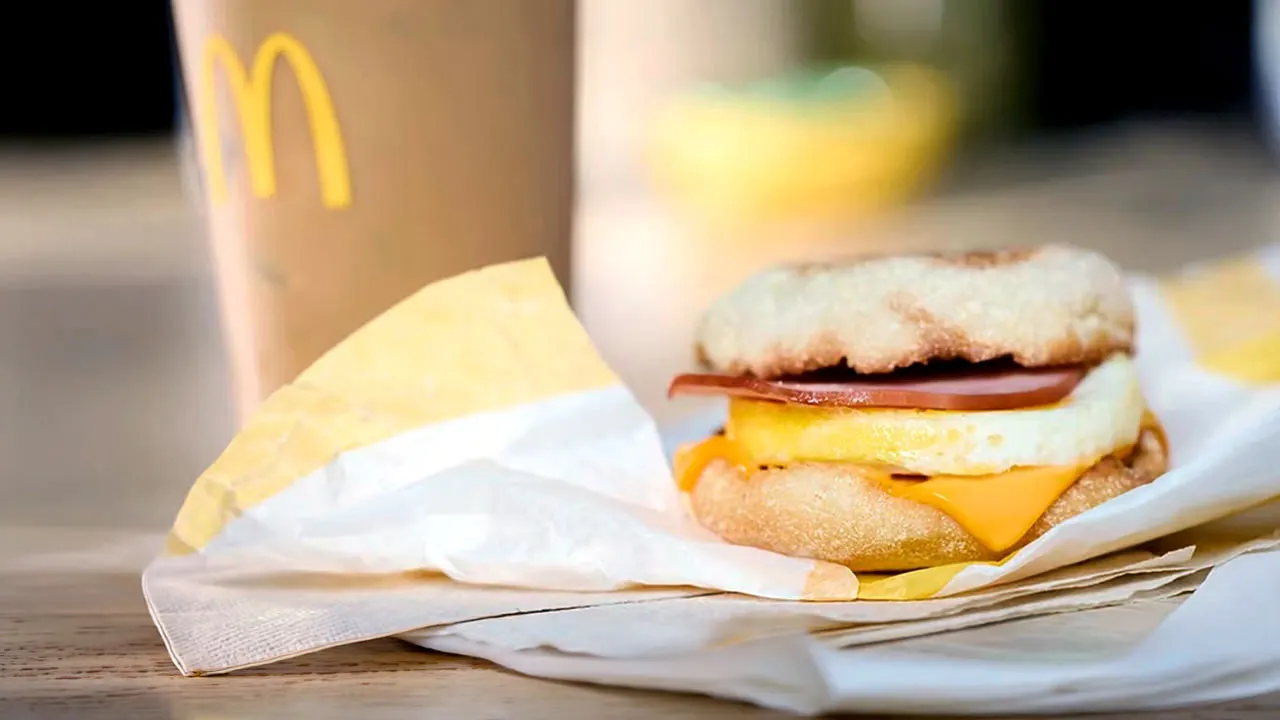
McDonald’s is celebrating National Egg McMuffin Day with a limited-time deal for customers.
The fast-food giant is offering customers its classic breakfast sandwich or Sausage McMuffin with Egg for $1 on Monday during breakfast hours. In order to receive the deal, the McMuffin must be ordered through the McDonald’s mobile app.
The McMuffin traces its roots to Santa Barbara, California, in early 1971. McDonald’s owner/operator Herb Peterson developed the idea for the sandwich when a version of Eggs Benedict – particularly the Hollandaise sauce – didn’t make the cut. A slice of cheese replaced the sauce, and along with Canadian bacon, an egg and English muffin, the sandwich was created, according to McDonald’s.
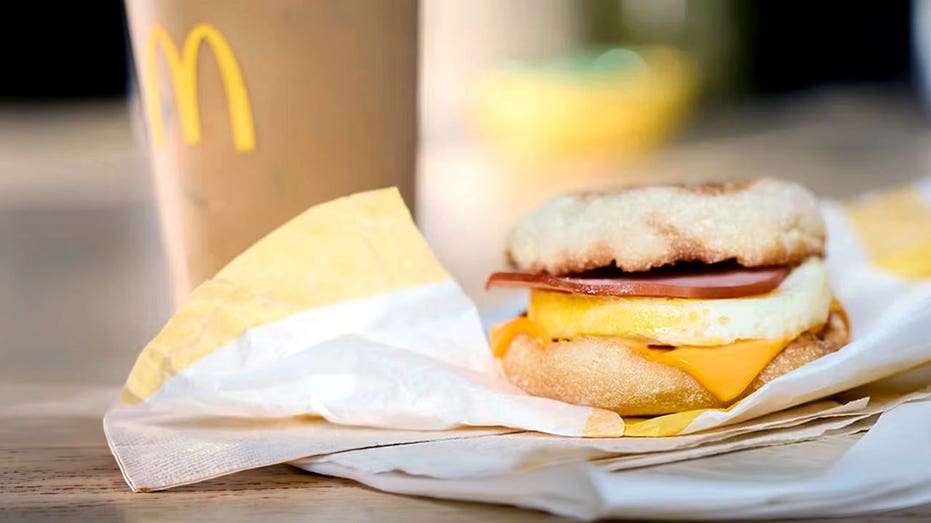
McDonald’s Egg McMuffin sandwich was created in 1971. (McDonald’s Corp.)
MCDONALD’S FINDS WINNING RECIPE IN VALUE MEAL DEALS AS DINERS RETURN
It entered test markets the following year and was served open-faced with honey or jam on a small tray. It cost 63 cents, equivalent to about $4.99 today.
| Ticker | Security | Last | Change | Change % |
|---|---|---|---|---|
| MCD | MCDONALD’S CORP. | 341.06 | +6.53 | +1.95% |
BURGER KING MAKES CHANGES TO SIGNATURE WHOPPER FOR FIRST TIME IN NEARLY A DECADE
McDonald’s CEO Chris Kempczinski said during the company’s third-quarter earnings call in November that breakfast is typically the most “economically sensitive daypart” for the business.
“It’s an easy daypart to either skip the meal or to eat the meal at home,” he said. “Breakfast continues to be under pressure as a daypart industry-wide. We’re holding share in breakfast. So we’re doing okay in that segment, but we are still seeing that daypart is under pressure.”
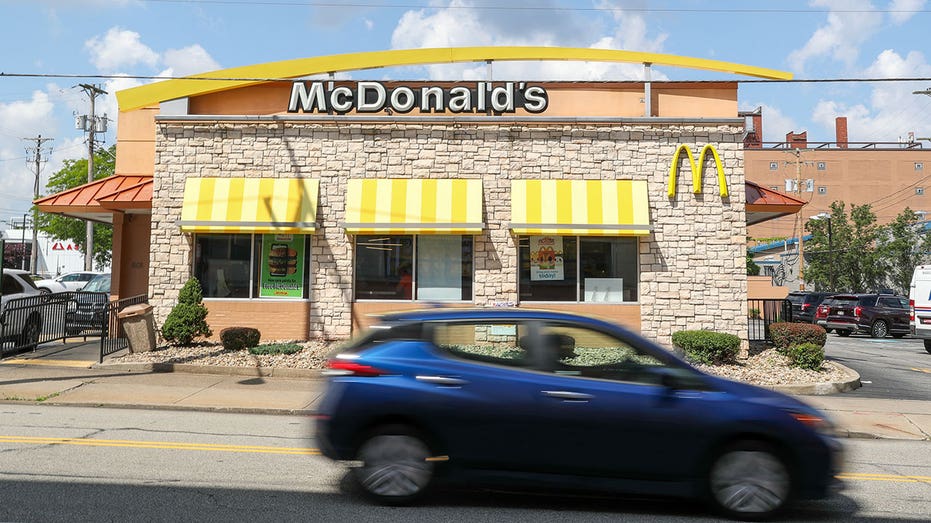
McDonald’s has focused heavily on limited-time promotions and value meals to bring back customers. (Paul Weaver/SOPA Images/LightRocket)
McDonald’s has focused intently on limited-time promotions and value meals as a way to bring budget-conscious Americans back to its restaurants.
CLICK HERE TO GET FOX BUSINESS ON THE GO
The strategy appears to be working as U.S. sales rose 6.8% in the fourth quarter – the biggest jump in about two years – and lower-priced offers and aggressive promotions drove traffic back into restaurants. Analysts had expected a smaller 4.9% gain.

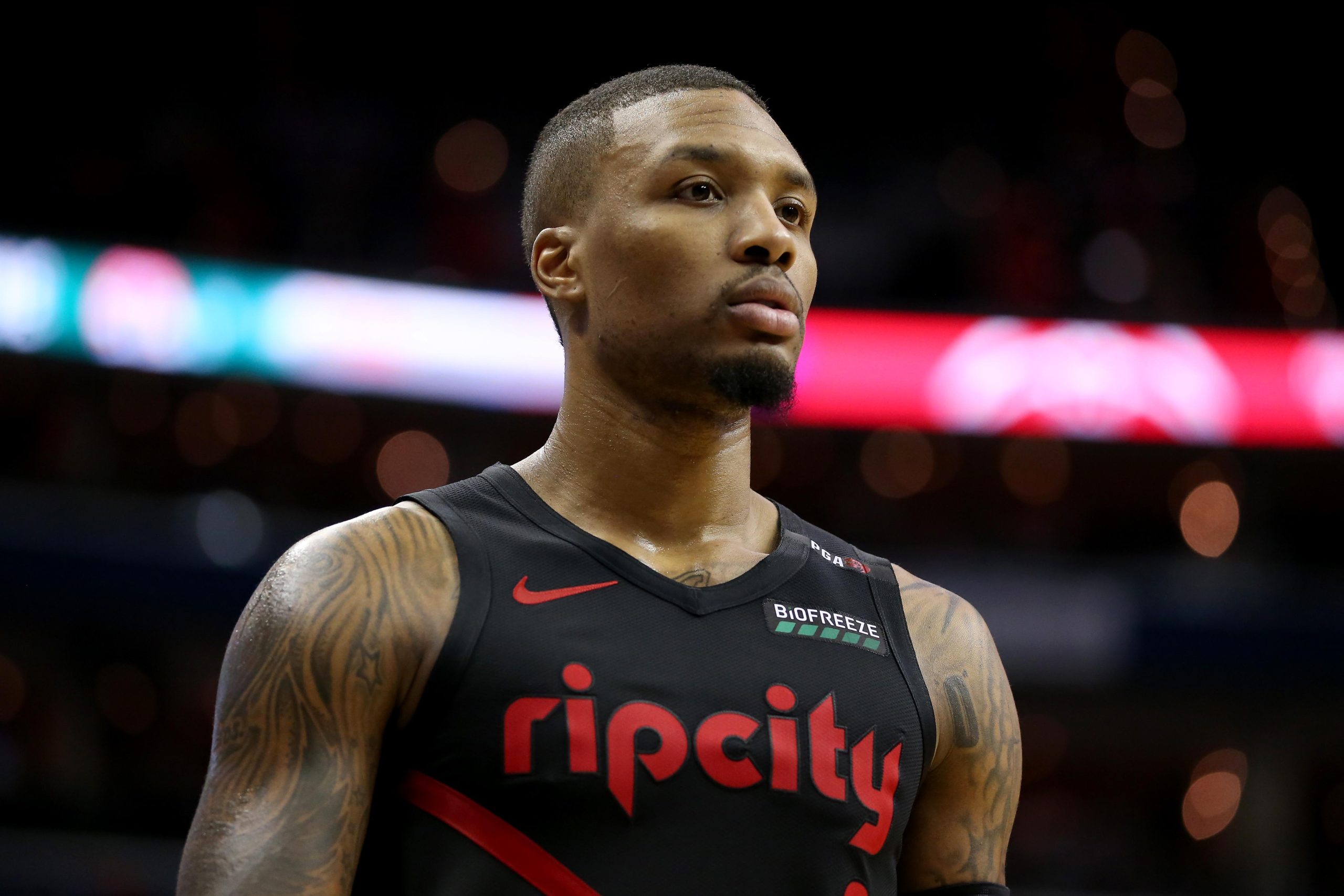
PORTLAND, Ore. — Nearly a year after tearing his left Achilles tendon in the playoffs, Damian Lillard remains sidelined but continues making steady progress in rehabilitation, with the Portland Trail Blazers star firmly targeting a full return for the start of the 2026-27 NBA season. The nine-time All-Star has not played a single game in 2025-26, yet his recent activities — including a dramatic 3-Point Contest victory at All-Star Weekend — have fueled optimism about his long-term outlook.

Lillard suffered the devastating non-contact injury on April 27, 2025, during Game 4 of the Milwaukee Bucks’ first-round playoff series against the Indiana Pacers. In the first quarter, the veteran guard crumpled to the floor while chasing a rebound, immediately grabbing his left lower leg. An MRI confirmed a torn left Achilles tendon, ending his season and altering the trajectory of his career at age 34. He underwent successful surgery on May 2, 2025.
The injury capped a difficult stretch for Lillard with the Bucks. After being traded from the Trail Blazers in 2023 in hopes of chasing a championship alongside Giannis Antetokounmpo, the partnership fell short. Following the Achilles tear, the Bucks waived and stretched Lillard’s contract, clearing cap space while he recovered. In the offseason, he chose to return home to Portland, signing a deal with the franchise that drafted him in 2012.
Lillard has used the entire 2025-26 season for recovery. The Trail Blazers have taken a patient approach, listing him as out for “left Achilles tendon; injury management” on official NBA reports. As of mid-April 2026, more than 11 months post-surgery, he has avoided any setbacks while progressing through individualized rehab that includes on-court shooting and light basketball activities. Full-contact play and competitive games remain off limits.
The highlight of his recovery came in February at All-Star Weekend in San Antonio. Despite zero regular-season games, Lillard competed in the 3-Point Contest and stunned the league by winning his third title, joining Larry Bird and Craig Hodges as the only three-time champions. He knocked down shots from logo range and delivered under pressure, proving his shooting touch remains elite. Afterward, he spoke candidly about representing strength rather than the injury itself.
“I wouldn’t say I’m representing the Achilles nation or nothing like that,” Lillard said. “I do think I represent strength. We are athletes so when we go through injury people act like it’s the end of the world… For me it was more about representing strength.” His victory resonated widely, with fans and fellow players praising his resilience.
Lillard has provided measured updates throughout the process. In February interviews, he described his status as “I can do a lot, that’s where I’ll put it,” emphasizing patience and a personal timeline. At 35 years old in July, he understands the importance of being fully ready. “After the season, I’m going into a full summer to get ready for next season, and I want to make sure that I’m 1,000 percent,” he told reporters.
Medical experts note that Achilles recoveries for guards in their mid-30s often require 12-18 months for full explosiveness and confidence. Lillard’s case has drawn comparisons to other high-profile athletes who returned successfully, though questions linger about potential declines in speed and lateral quickness. Recent social media clips shared by the Blazers and fans show him moving fluidly in controlled workouts, hitting deep threes and jogging without visible limp.
Portland’s front office has expressed support for the deliberate approach. With the team in the play-in tournament as of mid-April, Lillard will not participate against the Phoenix Suns or any potential further games. The organization views his absence as an investment in a stronger 2026-27 campaign alongside younger talent, including Deni Avdija and other pieces acquired during the rebuild.
The injury has sparked broader conversations about player longevity and Achilles tears in the NBA. Several stars have faced similar setbacks in recent years, with varying outcomes. Lillard has leaned on conversations with veterans like Aaron Rodgers, Kevin Durant and Rudy Gay, who experienced comparable injuries. He has avoided public pity, focusing instead on mental fortitude. “My first thought was ‘I’m about to come back from this,’” he reflected.
Off the court, Lillard has stayed connected to the game and community. His return to Portland has been warmly received by fans who remember his decade of loyalty, logo threes and “Dame Time” celebrations. The Blazers have integrated him in mentoring roles, and he has expressed genuine excitement about playing with the team’s emerging core next season.
Financially and contractually, the situation stabilized after the Bucks’ waiver. Lillard’s new deal with Portland provides stability as he rehabs, with both sides aligned on a patient timeline. Analysts project he could reclaim a significant role as a starting point guard and leader if he returns close to his pre-injury form, though expectations have been tempered given his age.
As the 2025-26 season winds down for Portland, attention shifts to Lillard’s summer training. He plans intensive work to rebuild explosiveness, strength and conditioning. Blazers medical staff continue monitoring progress closely, with regular imaging and functional testing guiding the process. No timeline has been set for training camp participation, but the target remains opening night 2026-27.
Fans have rallied around the veteran, creating viral moments from his 3-Point Contest win and rehab clips. Social media hashtags like #DameTime and #RipCityStrong trend whenever updates surface. For a player who once carried the Blazers through thick and thin, the support feels like a homecoming.
Lillard’s story underscores themes of perseverance in professional sports. From the painful moment on the Fiserv Forum floor to logo-range threes in All-Star competition, his journey reflects determination. While this season has been lost on the court, it may prove foundational for a strong final chapter in Portland.
As April 2026 draws to a close, Damian Lillard continues his solitary race against recovery timelines. The Blazers and their fans wait patiently, confident that when Dame returns, the signature step-back and clutch performances will follow. For now, the focus remains on health, strength and the promise of next season — one step, one shot at a time.
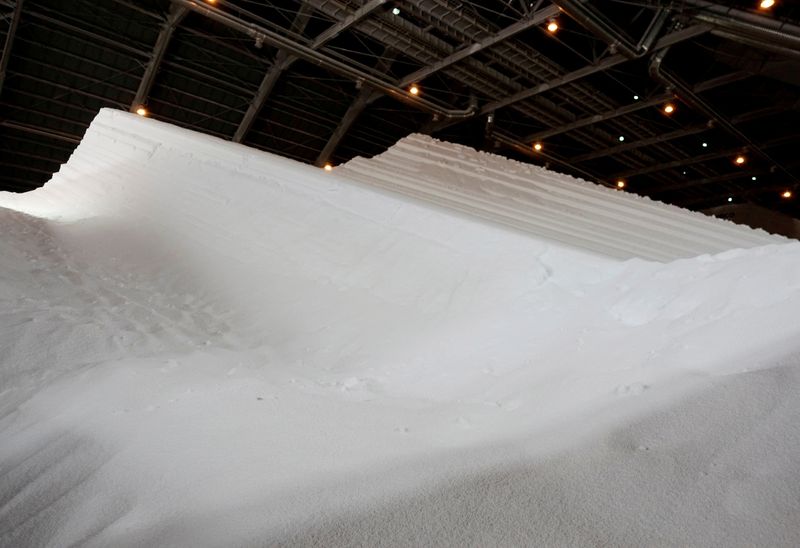

US buyers redirect imported fertilizer overseas as Iran war drives up global prices
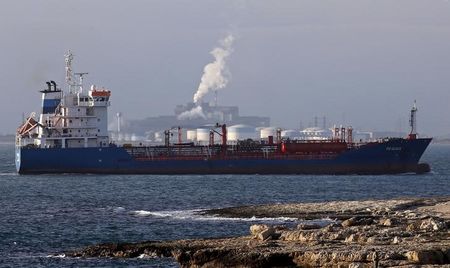
U.S. extends Russian oil sanctions waiver amid global supply squeeze

In the midst of the latest Gulf conflict, oil has been an economic weapon and propaganda tool. Both Tehran and the US had been blockading shipments through the vital Strait of Hormuz waterway before at least a temporary reopening on Friday, and trying to jawbone the market in their favor.
Be wary of anyone saying one particular oil-price gauge matters more than the others. Whoever is betting on the cost of crude going up will argue Friday’s relief selloff doesn’t reflect reality, with shipping still severely disrupted. Those betting on a fall will have had their own views confirmed.
 Bloomberg
Broadly speaking, the oil market is split in two. The first part is the physical market, where real barrels change hands and they can be touched, smelled, almost savored. The second is visible only on computer screens. These are the printed financial contracts such as swaps, futures and options that change hands in electronic marketplaces. Traders call them paper barrels.
The financial and physical markets are, of course, linked. But they do different jobs. The former is where traders transfer oil-price risk. By nature, it’s anticipatory. Sometimes, it prices in expected supply disruptions days, weeks or even months before they happen. And it prices supply recoveries well before the black stuff flows again. It’s a window into a possible future, a distillation of probable outcomes. It isn’t, however, a forecast, just the price buyers are willing to pay today for a barrel that would be delivered in the future.

The physical market is where traders go to buy and sell straightaway the real stuff that goes into refineries. It reflects actual supply and demand right now. The key to prices is what kind of barrels are available, and how easily they can be accessed and shipped. It’s more about logistics than mathematical models.
Crucially, the supply of paper barrels is unlimited and that of physical barrels constrained, more so during a shock. Ilia Bouchouev, an ex-oil trader now at the Oxford Institute for Energy Studies, estimates the physical market has lost more than 10 million barrels since the war started. But the financial market has traded an extra billion barrels when all the different paper instruments are aggregated.In normal times, the price of the financial and the physical markets are closely aligned, plus or minus certain differentials and ancillary costs. In these periods of calm, the easiest answer to “what’s the real price of oil?” is to look at any financial screen. Typically, all the paper benchmarks — Brent, West Texas Intermediate and Dubai — trade in unison, within a few dollars.
BloombergBut these aren’t normal times. Physical prices have skyrocketed as refiners hunt for any barrels for immediate delivery. What used to trade a few cents above or below the paper benchmark is being sold at a premium of $10, $15, $20 or even higher. Saudi Arabia will sell its flagship Arab Light to European customers at a premium of $27.85 in May. Last month, it was a discount of 65 cents. “Physical transactions are under a lot of strain,” Josu Jon Imaz, chief executive officer of Spanish refiner Repsol SA, says.
And this is before adding ancillary fees, which don’t feel so ancillary any more. Freight costs that used be $1 a barrel today set you back as much as $25. Insurance is a small fortune. These extra expenses don’t figure in the financial market because no one needs to physically move a paper barrel. But add them in and “the barrel of oil, door-to-door, is way above the headline price,” says HSBC Holdings Plc CEO Georges Elhedery.
This gap doesn’t mean the physical and financial markets are disconnected, or that the latter is broken, as many bloggers and Wall Street types claim. They’re simply doing different jobs and offering two different answers. In broad terms, the physical market tells the price from today to about 30 days ahead; the financial market usually from two months hence to 10 years out.
So what message is being conveyed? One of my go-to oil traders, who’s happy to impart (anonymously) the knowledge built over multiple crises, puts it simply: The physical market shows barrels are extremely tight today; but the paper market is saying that if you look at a distribution of possible outcomes a couple of months from now, there are many scenarios where that eases.
BloombergThe different timeframe is critical. In the early days of the war, the paper market was where the fears about the conflict’s impact showed up. The Brent contract surged to $120 in early March. But because of the excess supply sloshing about back then, its physical counterpart barely made it above $100. Now, the situation has inverted: The physical market is still pricing today’s scarcity; the financial market is pricing the end of the war.
The irony is that financial traders, oil speculators par excellence, have softened the Hormuz shock by pricing in its potential resolution. But oil refiners must live in the present. Security of supply overrides thoughts about price. My trader contact says refiners, particularly if state-owned, will pay whatever it takes to guarantee delivery. And they will do so in way that’s disproportionate to the actual oil shock because not having a barrel — for a country’s energy needs and critical products — is existential in a way that overpaying is not.
Geography matters to price, too. Colonial-era terminology still lives on in this market, with an imaginary vertical line dividing the world at the Suez Canal in Egypt. The current oil shock started east of there, and that’s where the physical market and shipping costs have been most affected. Back-of-the-envelope math suggests some eastern refiners are going to pay north of $175 for “landing prices” — the sum of the barrel cost, its transport expense and other elements.
The fallout is, however, moving westward. Asian refiners are shopping in the Atlantic basin, from Norway to West Africa. The cost of Dated Brent, the reference for the physical North Sea market, briefly surged to $145 this month.
Even if Hormuz reopens, as President Donald Trump promised Friday, the shock’s impact will spread further west. The US, the largest oil-producing nation, will become the barrel of last resort. This is the land of cheap oil. Its refiners are buying crude at absurdly low prices compared to Asia and Europe. And because they’re connected by pipeline, they pay regular transport costs.
How cheap is cheap? Look at the daily “Crude Oil Price Bulletin” posted by American traders, pipeline companies and refiners as a reference for physical purchases. In the April 15 edition, West Texas Intermediate was $87.77. Colorado Southeastern goes for $78.27. Wyoming Sweet is $84.87, and Nebraska Intermediate commands $77.77. A lucky refiner with access to Utah Sweet can get it for $76.98. Western Canadian Select, a benchmark for the Alberta oil sands, goes for about $72.
BloombergLooking at those prices, you grasp the geopolitical and economic significance of the US shale revolution and Canada’s oil sands. In the middle of a historic oil shock, North America is swimming in the stuff.
The ultra-low prices won’t last, however, unless Hormuz reopens fully. An armada of tankers is headed toward the US coast no matter what happens in the Persian Gulf in coming days. They’ll still load US crude even if the ceasefire holds. All things equal, North American oil costs would increase, and the rises elsewhere would be capped as eastern refiners access the US market. We’re already witnessing the start. Mars crude, pumped out of the Gulf of Mexico, is one America’s more easily exportable varieties. Earlier this week, it went for $97.30 as it becomes the go-to US crude to ship.
I hope by now you recognize the difficulty of providing an easy answer on the “real” price of oil. And there are other factors to include, too.
First, should we refer to oil in nominal terms or real terms? In the latter, adjusted by the cumulative impact of inflation, oil prices would need to spike further to match previous crises. The nearly $150 record set in 2008 in both the physical and financial Brent markets is about $220 in today’s money.
And second, should we pay more attention to the price of the refined products consumers actually buy and less to the crude that refiners purchase? During an acute shock like the Hormuz shutdown, the cost of refined products such as gasoline and jet fuel rises faster than the stuff they’re made from. Politically and economically, that’s arguably much more important.
Ultimately, if cornered I will always say the physical market is king, and the price is always what’s paid today, not two months down the road. But I will insist on an average among regions, including North America.
On that basis, let’s say the real level this week was $125 or so. In a couple of months? There, probably, I’d listen to what the speculators are saying in the financial market. So far they’ve been proved right in judging the supply disruption and now the resolution. I agree, the price is headed lower.
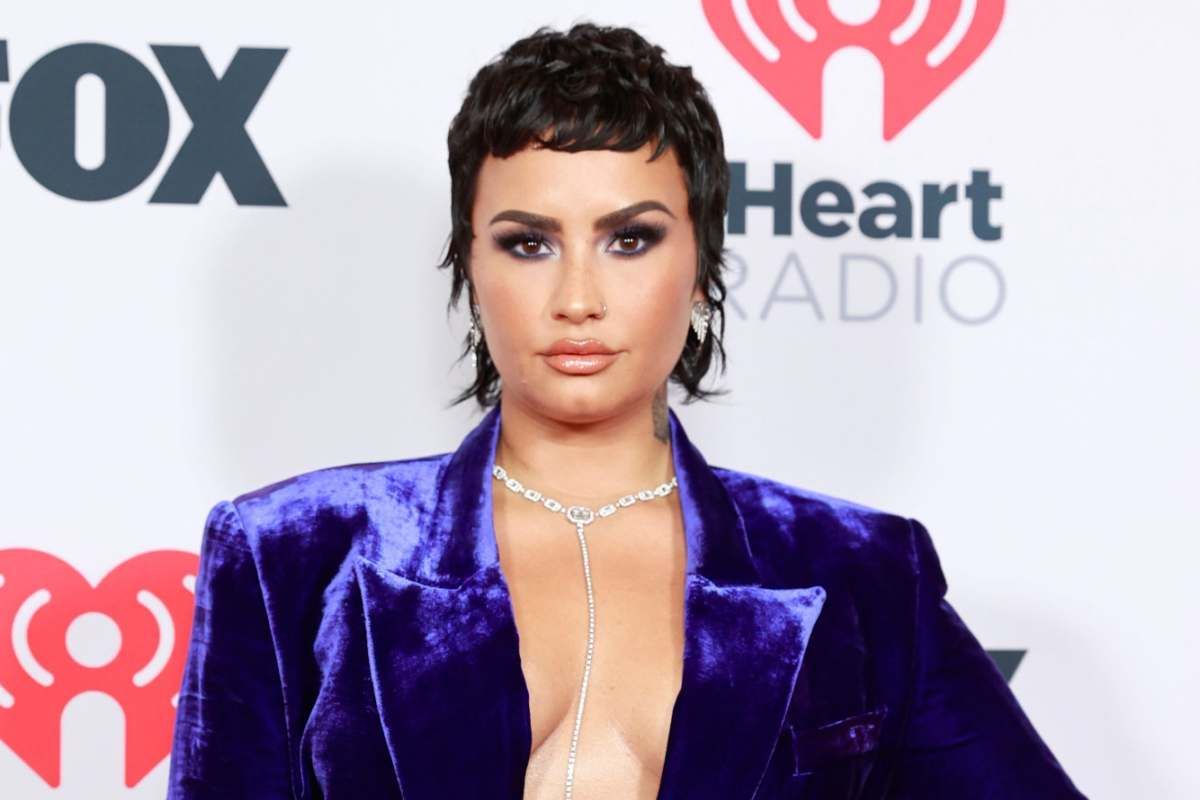
ORLANDO, Fla. — In a heartwarming full-circle moment that has fans declaring 2026 the “year of healing,” Selena Gomez attended the opening night of Demi Lovato’s “It’s Not That Deep” tour on April 13, marking the pair’s first public reunion in nearly a decade. The former Disney Channel stars, who rose to fame together as childhood friends and co-stars, shared emotional backstage moments and onstage praise that quickly went viral across social media.

Gomez, 33, was spotted in the audience at the Kia Center with a large bouquet of flowers for Lovato. She later took to Instagram Stories to gush over the performance, writing, “I am in tears. This was hands down one of the best shows. Oh and the VOCALS? Psh blown away.” Photos and videos of the two embracing backstage circulated rapidly, showing the pair smiling together in what many called a long-overdue reconciliation.
The reunion comes almost nine years after Gomez and Lovato were last photographed together at an InStyle event in 2017. Their friendship, which began on the set of “Barney & Friends” as toddlers and deepened during Disney projects like “Princess Protection Program,” had cooled amid public feuds, personal struggles and separate career paths. Fans had long hoped for a thaw, and Monday’s night delivered.
Lovato, 33, kicked off her tour with high energy, delivering powerhouse vocals on hits spanning her career. The night featured another Disney reunion when Joe Jonas joined her onstage for a performance of “This Is Me” from “Camp Rock.” Lovato and Jonas, who dated as teens, shared a warm duet that added another layer of nostalgia to the evening.
Industry observers noted the timing feels significant. Both women have spoken openly about mental health journeys, with Lovato addressing bipolar disorder and Gomez managing lupus and bipolar disorder. Their public support for each other signals growth and maturity after years of distance. “Nature is healing,” one viral post read, capturing the sentiment shared by millions.
Gomez arrived wearing merch from Lovato’s tour and was seen cheering enthusiastically from her box. Sources close to the pair described the night as low-key and genuine, with no cameras forced on their private reunion. Gomez’s Rare Beauty brand and Lovato’s evolving music career have kept them in the spotlight separately, but Monday’s event suggested personal bridges are being rebuilt.
Social media erupted within minutes. Hashtags like #SelenaAndDemi, #DisneyReunion and #YearOfHealing trended worldwide. Clips of Gomez wiping away tears while watching Lovato perform amassed millions of views. Fans reminisced about shared red carpets, joint songs like “Who Says” from their Disney days, and the iconic friendship that defined a generation of young stars.
The pair’s history includes well-documented ups and downs. Early friendship gave way to reported tensions around 2010-2013, fueled by overlapping careers and personal challenges. Lovato has addressed past jealousy and struggles in interviews, while Gomez focused on acting, music and producing hits like “Only Murders in the Building.” Despite rumors of lingering frostiness, both have expressed respect for each other’s paths in recent years.
Monday’s reunion adds to a wave of 2026 Disney nostalgia. Gomez has also reconnected with other former co-stars, fueling speculation about broader healing among the former mouseketeer generation. Lovato’s tour, her first major outing after health-related adjustments, appears positioned as a comeback celebration.
Critics and fans praised Lovato’s vocal performance as some of her strongest in years. The setlist blended new material from the “It’s Not That Deep” era with classics, showcasing growth from pop-rock roots to more mature, vulnerable songwriting. Gomez’s endorsement carried extra weight given her own music background and industry influence.
Representatives for both stars declined to comment on future collaborations, but the warm public display has sparked rumors of joint projects. Music insiders suggest a possible duet or joint appearance could be in the works, though nothing has been confirmed. For now, the focus remains on the genuine emotion of the night.
The event also highlighted broader themes of celebrity friendship and redemption. In an era where public feuds often play out online, Gomez and Lovato chose support and celebration. Gomez’s Instagram post, simple yet heartfelt, resonated deeply with followers who grew up watching them.
Lovato has faced her share of challenges, including publicized health scares and tour adjustments. Her decision to title the tour “It’s Not That Deep” reflects a lighter, more resilient approach. Having Gomez in attendance provided visible validation from someone who understood her journey intimately.
Gomez, balancing acting, beauty empire and personal life with fiancé Benny Blanco, continues to prioritize mental health advocacy. Her appearance at the concert, traveling to Florida amid a busy schedule, underscored the importance of the friendship. Attendees reported seeing her fully engaged, singing along and visibly moved.
The reunion has boosted streams for both artists. Lovato’s catalog saw notable increases on platforms like Spotify following the show, while Gomez’s earlier collaborations with Lovato resurfaced on fan playlists. It also reignited interest in their joint Disney film “Princess Protection Program,” which recently saw renewed viewing numbers.
As Lovato’s tour continues across North America, the opening night will be remembered as more than a concert — a cultural moment of reconciliation. For a generation that grew up with these stars, the images of Gomez and Lovato embracing feel like closure and a new beginning.
Friends, fans and fellow Disney alums flooded social media with support. Miley Cyrus, another frequent collaborator in their circle, reportedly reacted positively to the news. The moment serves as a reminder that childhood bonds can endure despite time, distance and public scrutiny.
In the days since the show, both women have maintained low profiles, letting the pictures and Gomez’s stories speak for themselves. Lovato thanked fans and special guests on her own platforms, keeping the focus on the music while acknowledging the emotional weight of the evening.
Whether this leads to further public appearances, joint music or simply private friendship remains to be seen. What is clear is that on a warm April night in Orlando, two icons who helped define an era of pop culture stood together again — older, wiser and ready for whatever comes next. For millions of fans, it was the reunion they had waited nearly a decade to witness.
The night proved that some friendships, like great songs, can withstand the test of time and find their harmony once more. As 2026 unfolds, Selena Gomez and Demi Lovato have given their supporters something precious: proof that healing is possible, even in the spotlight.
Business
5 equity mutual funds offer over 15% annualised return on SIP investments in 10 years. Check details

Five equity mutual funds have offered over 15% annualised return on SIP investments in 10 years, as reported by ETWealth. (As of April 8, 2026)

Fair Isaac: An Ace In The Hole Overlooked By The Market
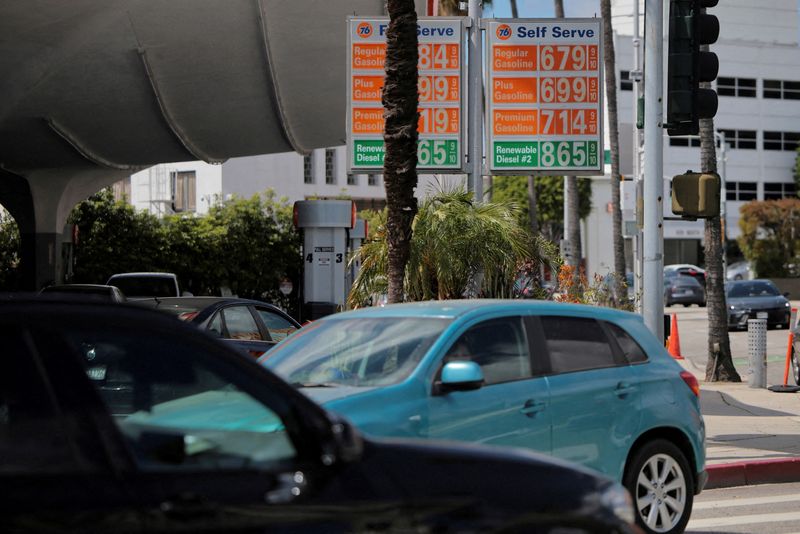

California gasoline stocks fall to record lows as Hormuz disruption bites

Chinese clean tech exports surge as global energy crisis fuels demand
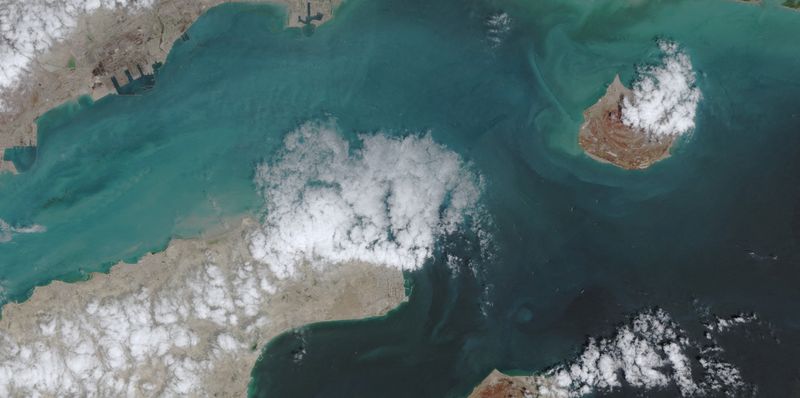

Convoy of tankers is seen leaving Gulf, vessel tracking data shows

Five Cambridgeshire roads could become one-way streets to ‘reduce conflict’

Blazers Star Targets Strong 2026-27 Return After Missing Entire Season

Carlos Alcaraz withdraws from Madrid Again


-
 NewsBeat5 days ago
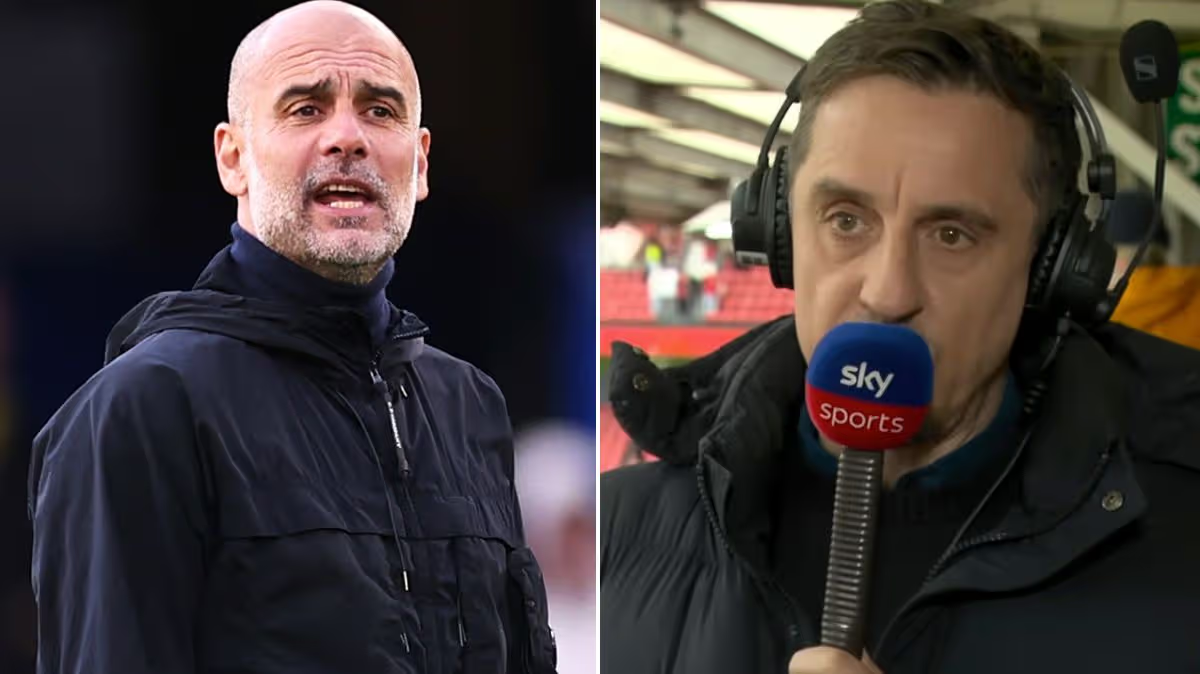
Pep Guardiola and Gary Neville agree over Arsenal title problem that benefits Man City
-

 Crypto World5 days ago
The SEC Conditionalises DeFi Platforms to Be Avoided for Broker Registration
-
 Politics6 days ago
World Cup exit makes Italy enter crisis mode
-

 Crypto World4 days ago
SEC Signals Exemption for Crypto Interfaces From Broker Registration
-
 News Videos3 days ago
Secure crypto trading starts with an FIU-registered
-

 Fashion14 hours ago
Weekend Open Thread: Theodora Dress
-

 Sports23 hours ago
NWFL Suspends Two Players Over Post-Match Clash in Ado-Ekiti
-

 Crypto World4 days ago
SEC Proposes Certain Crypto Interfaces Don’t Need to Register as Brokers
-
 Business7 days ago
Ireland Fuel Protests Enter Day 5 as Blockades Spark Shortages and Government Prepares Support Package
-
 NewsBeat4 days ago
Trump and Pope Leo: Behind their disagreement over Iran war
-
 NewsBeat6 days ago
JD Vance announces ‘no agreement’ with Iran over nuclear weapons fear
-
 Politics11 hours ago
Palestine barred from entering Canada for FIFA Congress
-

 Crypto World9 hours ago
Russia Pushes Bill to Criminalize Unregistered Crypto Services
-
Sports6 days ago
Dexter Lawrence, Stefon Diggs, Trading for De’Von Achane
-

 Crypto World5 days ago
Trump whales load up ahead of Mar-a-Lago luncheon.
-
 Crypto World5 days ago
Sei Network Enters Quiet Reset Phase as On-Chain Metrics Signal a Slowdown in 2026
-
Business5 days ago
Kering slides after Morgan Stanley downgrade, Gucci woes loom
-
 Entertainment4 days ago
Karol G’s ‘Ultra Raunchy’ Coachella Set Gave ‘Satanic Vibes’
-
 Business1 day ago
Creo Medical agree sale of its manufacturing operation
-

 Sports5 days ago
NWFL opens Pathway for new Clubs ahead of 2026 Season
You must be logged in to post a comment Login