

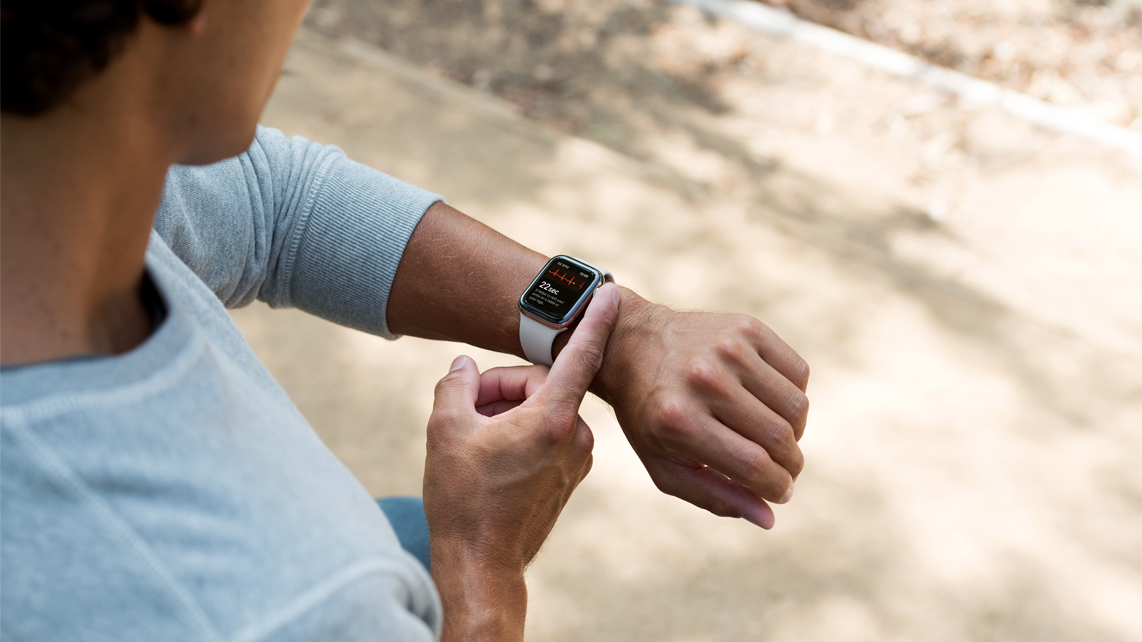
When an ageing fitness tracker finally needs to be replaced, sometimes you’re tempted to switch brands — for example, trading in your ageing slim Fitbit for a bigger running watch. You might be getting a new running watch in the Black Friday sales, or hoping for one under your tree — but a new tracker sometimes that means losing years of data about your workouts, sleep, heart rate, and general activity.
Your historical health data is useful for more than just flexing on your Strava contacts or keeping those fitness rings closed. Changes in your resting heart rate or sleep pattern, for example, can contribute to a fuller picture of your health. That’s why in 2026, many of the best options like the Apple Watch, Google‘s Fitbit lineup and the best Garmin models have made transferring your data remarkably simple – or at least easier than ever.
To help you upgrade to a newer model or switch brands entirely, we’ve broken down the data transfer processes for the major fitness tracker makers.
Latest Videos FromTechRadar
Check what you can transfer before switching
Not every move is tricky: going between different Garmin versions, or upgrading your Apple Watch, is a generally straightforward process that can take moments, due to operating from the same account.
Switching manufacturers, however, is where things can become a little more complicated. Going from a Garmin Forerunner to a COROS Pace 4 can require manually exporting your data and then importing it into a new platform.
Think of it as three distinct processes: backing up your data, syncing new activities between apps, and importing historical records, each with their own requirements.
Before we continue, it’s worth noting that while common activity data (think workouts or routines) are transferable, proprietary metrics like sleep scores are unlikely to make the jump. Not every brand has Strain, Readiness or Sleep scores that are calculated the same way.
If you are unsure, check which file formats and historical records your new device’s companion app supports could go some way to avoiding disappointment.
Back up your fitness data first
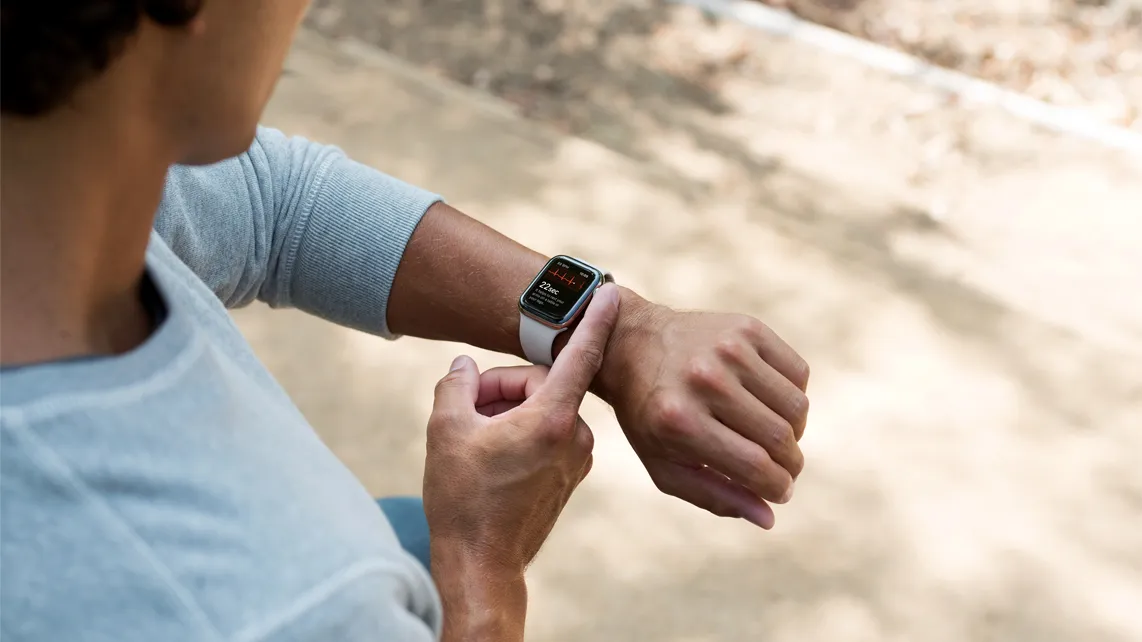
Before doing anything else, make sure that your fitness tracker has synced with its companion app on your smartphone, including any recent workouts and health measurements.
Most major platforms offer ways to export your data, either as an account archive or as individual activity files. Take some time to find out how to access these, and then download a copy somewhere safe and accessible, whether that’s on your computer or in private cloud storage.
For example, Garmin requires you to access Garmin Connect using its web browser, then going to Data Management → Export Your Data. Apple, meanwhile, allows you to tap your profile in Apple Health, and hit Export All Health Data.
Individual activity files commonly come in formats such as FIT, TCX, and GPX, each of which preserves different types of workout information.
Keep your account active until you know the migration is successful and don’t reset your old tracker just yet.
How to transfer data from Apple Health
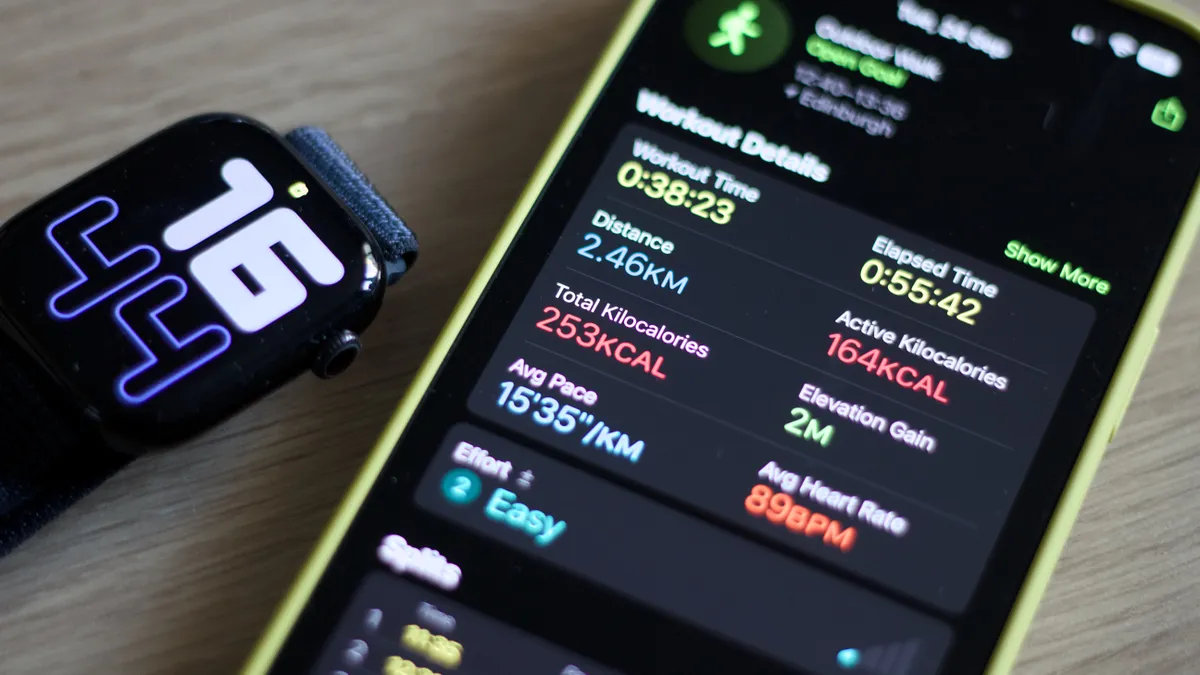
If you’re upgrading from one Apple Watch to another, the process is simple. Apple stores your Health and Fitness data in iCloud, provided syncing is enabled.
On your iPhone, head to Settings → your name → iCloud → See All → Health, and make sure Sync this iPhone is switched on. When pairing your new Apple Watch, you can also restore a previous backup to carry over your settings.
As you might expect, switching to another manufacturer takes a little more work. Open the Health app, tap Summary → your profile picture → Export All Health Data, and choose where to save the resulting XML archive.
You can also manage which third-party apps have access to your data under Apps or Devices in your Health profile.
It’s worth noting that not every type of health data will make the journey. The resulting XML archive won’t necessarily work directly with another manufacturer’s app, but services like COROS support transferring historical Apple workouts using third-party apps.
How to transfer Google Health and Fitbit data
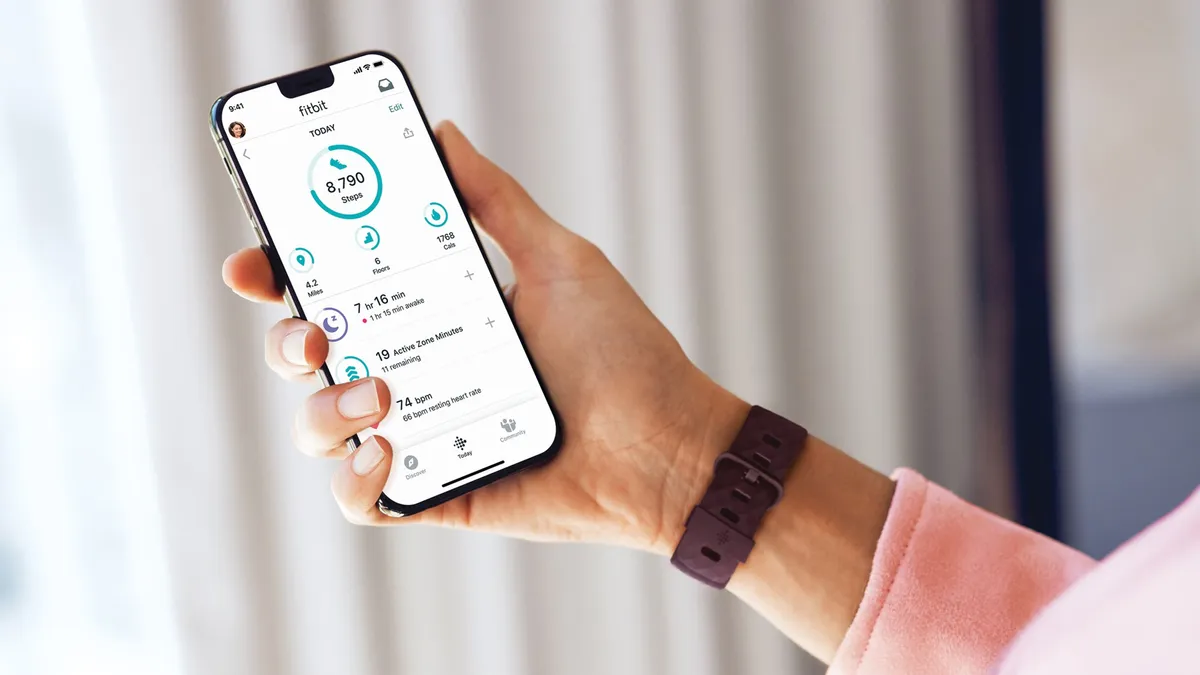
Google’s fitness ecosystem has changed considerably in 2026, with the old Fitbit app replaced by the snazzy new Google Health platform.
If you’re upgrading to a newer device, such as the Pixel Watch 5, your existing fitness history should remain accessible through the same Google Account.
To download a backup, head to Google Takeout, select Google Health, and follow the instructions to export your records, including any workouts, sleep, and heart rate data.
Google’s Health Connect service is handy if you’re moving between compatible Android apps.
On Android 14 or later, open Settings → Security and Privacy → Privacy Controls → Health Connect → App Permissions. From here, you can choose which apps can access different types of health data. (Some integrations must first be enabled within the destination app itself.)
Google Health also offers direct connections under Connections → Partner Apps or Apps and services. On iPhones, supported information can be shared through Apple Health instead.
As with Apple, there is unfortunately a catch: exporting an archive or connecting two services doesn’t guarantee that years of historical measurements will appear in your new app.
Different integrations support different records, and Health Connect normally grants new connections access to only the previous 30 days unless additional historical permissions are available, so keep this in mind.
How to move Garmin Connect data
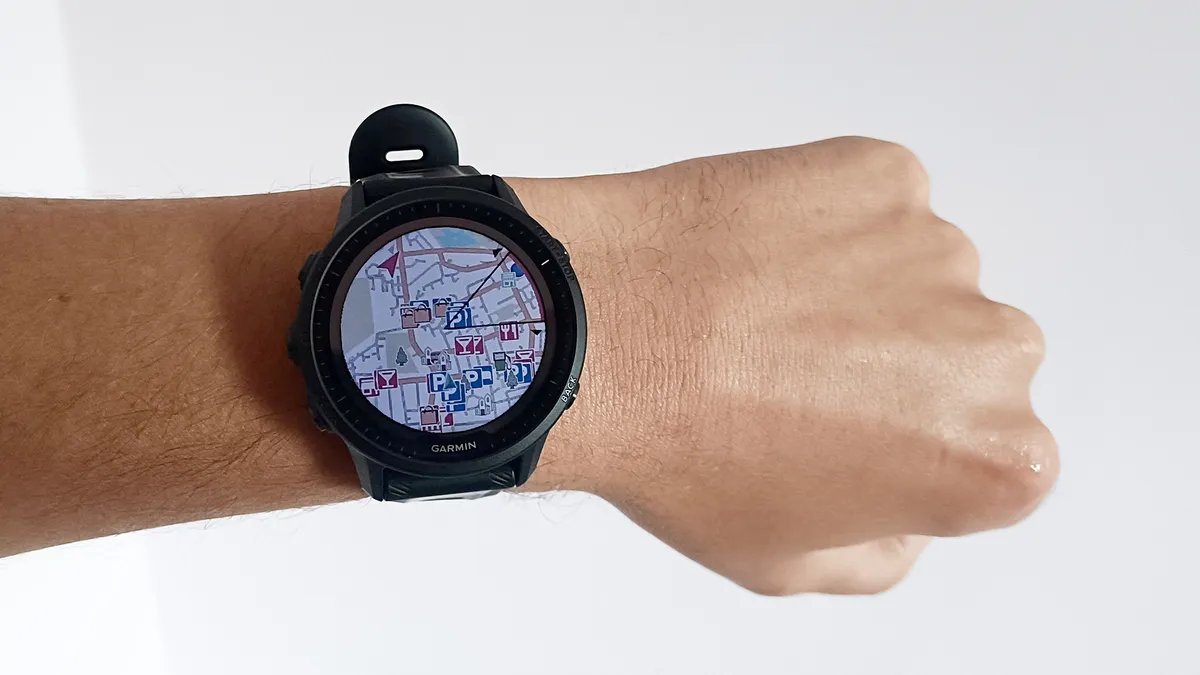
Sticking with Garmin is fairly straightforward, as with Apple and Google.
Whether you’re upgrading an old Forerunner or moving to something like the Garmin Venu 4, your Garmin Connect account preserves your existing fitness history without needing to manually transfer it.
Switching manufacturers takes a little more effort. On the Garmin Connect website, open Activities → All Activities, select a workout, and click the settings cog to export it as a FIT, TCX, or GPX file.
If you have years of workouts, Garmin’s data export service lets you request a complete account archive, with a download link sent by email.
These workout files can then be imported into compatible services, like the COROS Training Hub. However, if you want to move daily health measurements and proprietary recovery metrics, you might be out of luck.
How to preserve your workout history with Strava
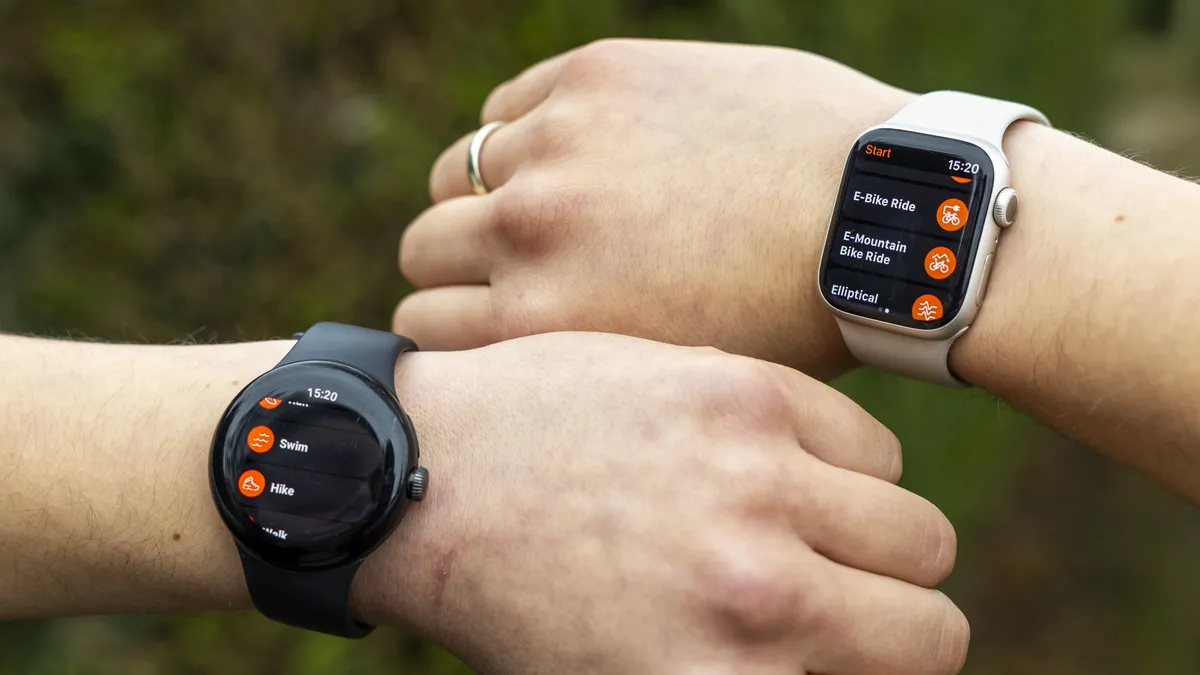
For anyone switching between fitness trackers, Strava should be your best friend: the service lets you keep years of running, cycling, and other workout records in one place.
Unlike Apple Health or Garmin Connect, however, it isn’t designed to preserve your complete health history.
To link a compatible tracker, open the Strava app and head to Settings → Connect an App or Device, then follow the instructions for your manufacturer. You can also check out our guide to using Strava with your smartwatch.
For older workouts, visit Strava’s website, click the plus icon → Upload Activity → File, and select your exported FIT, TCX, or GPX files. Free users can upload 15 files at once, rising to 25 for subscribers.
It’s worth remembering that connecting accounts won’t necessarily import older activities automatically – you may need to upload these separately.
Check everything has transferred correctly

Once you’ve done the hard part, there are a few things to check to make sure your record and workout data made the switch – and then you can enjoy your shiny new fitness tracker.
First, open your fitness app and compare workouts, including any recent sessions, to see what has successfully transferred. Look for missing information (things like routes or heart rate data) and check if proprietary metrics made it.
Make sure to check for duplicates, which can happen if you are connecting multiple services at once, and allow for differences in how devices might track something, like your long-term trends.
Until you are completely happy, it’s worth keeping your original account active and retain any downloaded data in a safe place.
Switching trackers definitely doesn’t mean turning your back on years of data and progress, and we hope this guide has demystified the process. Now go and work on beating that PB!


















































You must be logged in to post a comment Login