We spend hours testing every product or service we review, so you can be sure you’re buying the best. Find out more about how we test.
I’m a nerd when it comes to monitors. And, a bougie, particular, and spoiled nerd at that. I have had the great honor of working with and owning some of the best-of-the-best for years now.
For this monitor, I’ll be honest, I expected it to be a subpar tool that I’d try and love, only to realize I would rather go back to what I know and love. I thought it would be one of those things where I think “ok, on paper it’s good, but I’ll just give it a shot to see if it’s any good in person.” Well, it’s been 128 days since I put this monitor on one of my heavily used setups, and now I can’t imagine ever taking it off my desk.
Advertisement
I spend 5+ days a week, around 45+ hours total, on-site at a larger church where I serve on staff. I sit or stand at my desk there for a good chunk of that time, pouring over whatever system I am working on at that given time. I’m pulling up documents, databases, programming tools, webpages, third-party tools, custom tools, web-developer tools, coding windows, and so much more.
All of it so far has been absolutely gorgeous on this panel. My desk is right next to a window too, and the nano matte panel doesn’t show much glare at all, which I am truly appreciative of, because otherwise I probably wouldn’t be able to have my desk in this perfect location.
This is the kind of monitor that is a jack of all business professional trades. It’s one of the best monitors for programming, but of course, that’s what it’s built for, but outside of that, it’s also just a really good productivity monitor. The 3:2 aspect ratio matters, offering more vertical space without compromising horizontal space.
I could go on and on, but let’s get to the review of this BenQ RD280UG panel.
Advertisement
(Image credit: Collin Probst // Future)
BenQ RD280UG: Unboxing and First Impressions
BenQ unboxings are all pretty much the same. A well-built box with a bit of origami to open it up, and then unfold the base, stand, monitor, cables, and documentation. Within the cables, there is an HDMI 2.1 cable, a USB-C Cable, a USB upstream cable, and an IEC power cable, which is a big deal since some monitors I see these days don’t have a standard IEC.
Sign up to the TechRadar Pro newsletter to get all the top news, opinion, features and guidance your business needs to succeed!
I put the monitor on the stand for about 12 seconds, and then chose to pop this display up on my monitor arms for this desk. Right away, I noticed the extra height from a standard 16:9 monitor, and I quickly got used to the chin. Sadly, this means that you won’t get to do some orientations you could with other monitors that have a standard chin, such as flipping this guy around to be vertical or stacked with this one on top, etc. however, if you plan to use this as a primary monitor or even side by side, or if you’re feeling crazy putting this as a top monitor but upside down in a stacked orientation, then you’ll be great.
Advertisement
Within the box, BenQ managed to fit in an HDMI 2.1 Cable, a USB-C cable, another USB-C to use if you want to connect your HDMI Device to the KVM, an IEC Power cable, and the documentation, in addition to the stand and panel, of course.
Right off the bat, this monitor screams business and professional. It’s like a utility truck, not a sports car. This is the kind of display you want to rely on for everything, not show off to all your friends. The three-tubed panel immediately changes how you work within the provided workspace, allowing significantly more content, even though there’s not much more screen. With how macOS scales, it feels significantly larger.
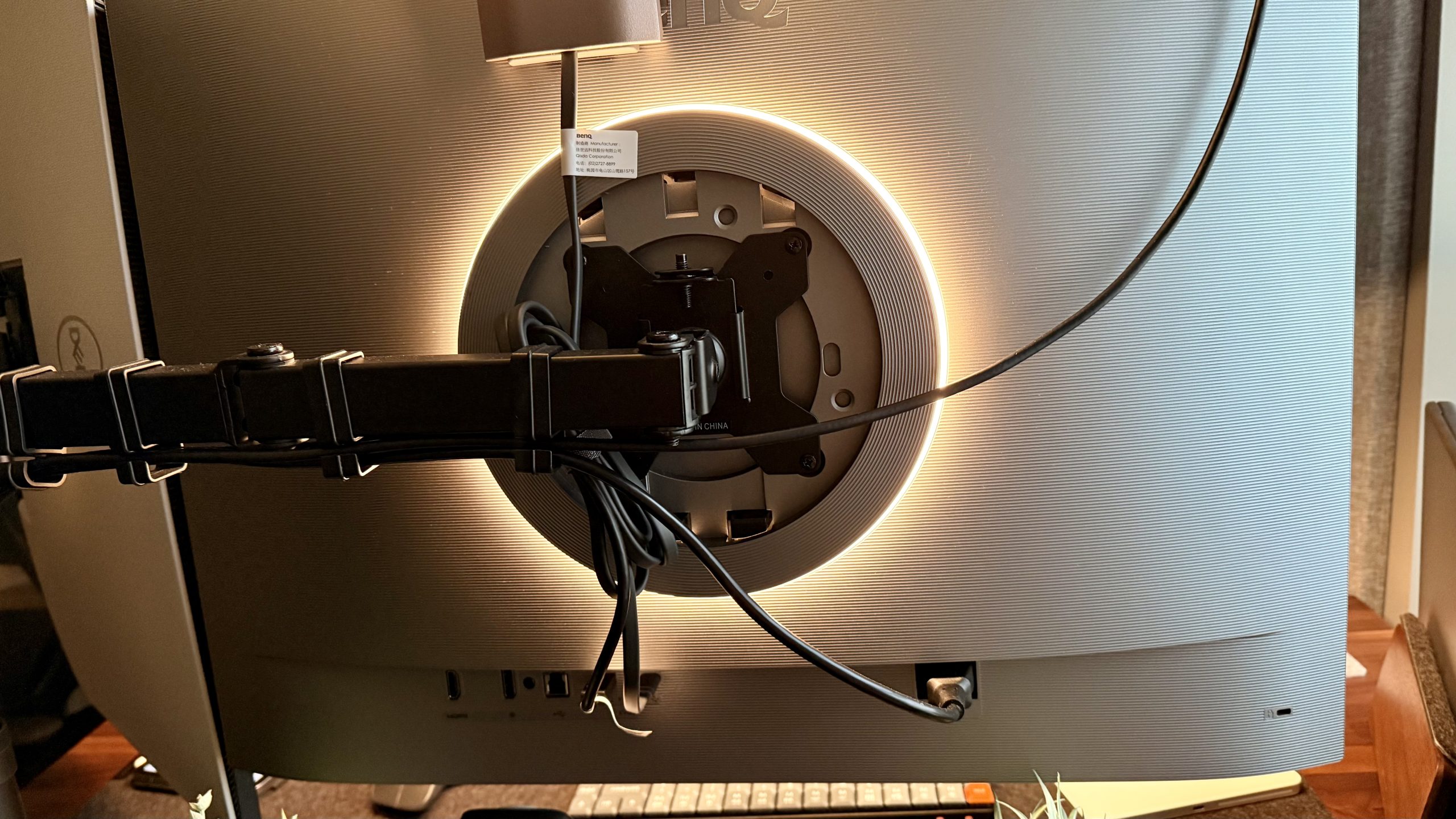
The last thing I’ll mention in this section is the Moon Halo bias lighting, which is the light ring around the back of the monitor. That is built into the center circle surrounding the mounting bracket’s face. This kind of bias lighting provides smooth, soft, diffused light across the entire back of the monitor. Just the top half or just the bottom half allows for both brightness and temperature changes. While it may seem like a small thing, it actually makes this monitor feel significantly more premium and far more enjoyable to use, especially in a dark environment or against a wall.
Advertisement
BenQ RD280UG: Design & Build Quality
I said it up above, but the 3:2 aspect ratio is the clear headline design choice for this kind of monitor. It’s what makes this one stand out from the others in its class, along with other elements that make this monitor great, but the aspect ratio is what stands out.
This panel also has a great 120Hz refresh rate, fantastic ports, 2000:1 contrast upgrade, and P3 color coverage. In short, this monitor feels like it has no compromises because for 99% of people, it does not. The only people who may feel limited in this are those who need a very specific monitor type, particularly those who need a specific color rendering or another niche specialty. For everyone else, this monitor feels like overkill — in the best way possible.
The last thing I’ll mention regarding the design and build quality of the fantastic RD28OUG is the ease of connecting to a single cable to a monitor or docking station. Sure, if you want to run through the other video ports, you are more than welcome to. But if you want a simple design or setup, you can charge your laptop with a single cable, 90W to your monitor, for full use.
Advertisement
BenQ RD280UG: In use
(Image credit: Collin Probst // Future)
I’ve had this monitor at one of my primary workstations for three months now. In that time, I’ve used it for an average of 8 hours a day, 4-5 days a week. And, I have not been able to say enough good things about it.
It has been spectacular for productivity, some light coding I have tested just to try it out, research, AI work, project management, web development, writing, AI tooling, and so much more. It has been my primary monitor for all of the many things I do at this desk, and I have loved using this panel.
The extra height makes a massive difference, especially if you switch back to a 16:9 right after using this, you notice that everything feels squatty and wide, not able to give you a full height understanding of the page.
Further, while it may not be the most color-accurate display on paper, I have found it to be wonderful to look at for some light photo work, light video work, and website work. This is made even better with the bias lighting created via the MoonHalo on the back.
Advertisement
I love how it automatically turns on and off and also, paired with my BenQ ScreenBar, I walk up to my workspace and plug in my machine to be then greeted by warm light that fills my space, and when I unplug and walk away, it turns off, almost making my workspace feel alive, ready to work with me.
BenQ RD280UG: Final verdict
(Image credit: Collin Probst // Future)
This display is premium, elegant, functional, and great for most. While it is absolutely overkill for many, if you want a no-compromise monitor with some fun functionality in the MoonHalo, KVM, and PD, then this is well worth the consideration. That’s even without discussing every key feature of this monitor.
If you want a distraction-free fitness tracker then the newly announced screenless Fitbit Air and Oura Ring 4 are two brilliant options.
While you’ll need to be happy to forgo smartwatch features, both promise to quietly track your health, fitness and workout metrics without getting in the way of your everyday life.
While we’re yet to review the Fitbit Air, we have reviewed the Oura Ring 4 and not only gave the wearable a 4.5-star rating but also hailed it as being one of the best smart rings too. With this in mind, how do the Fitbit Air’s specs look set to compare?
We’ve highlighted the key differences, alongside noteworthy similarities, between the Fitbit Air and Oura Ring 4 below. Keep reading to see how the two differ and decide which one will likely suit you best.
Advertisement
Otherwise, our list of the best fitness trackers rounds up our current favourites on the market. If, however, you think you’d prefer a device that acts as an extension of your smartphone, then you should visit our best smartwatches list instead.
Advertisement
Specs comparison table
Fitbit Air
Oura Ring 4
Dimensions
34.9 x 17 x 8.3mm
7.9 x 2.88mm
Water Rating
5ATM
10ATM
Battery Life
Up to seven days
Up to eight days
Sensors
Optical heart rate monitor, 3-axis accelerometer and gyroscope, SpO2, Skin Temperature and Vibration Motor
Optical heart rate monitor, 3-axis accelerometer, SpO2 and Skin Temperature
UK RRP
£84.99
£349
US RRP
$99.99
$349
Subscription
$9.99 a month
£/$5.99 a month
Price and Availability
At the time of writing, the Fitbit Air is available to pre-order and will launch in the UK and US from May 26. With a starting RRP of £84.99/$99.99, the Fitbit Air is one of the cheaper fitness trackers.
In comparison, the Oura Ring 4 has a considerably more expensive starting price of £349/$349 – though this can significantly alter depending on the finish you opt for. For example, the Silver or Black iterations are £349/$349 while the Gold or Rose Gold iterations will set you back £499/$499 instead.
Advertisement
Alternatively you can opt for the Oura Ring 4 Ceramic which comes in a choice of four colours but starts at £499/$499.
Fitbit Air has changeable bands
Let’s get the most obvious difference out of the way: the Oura Ring 4 is a smart ring while the Fitbit Air is a screenless band worn around the wrist. Naturally, this means the Oura Ring 4’s colour or shape can’t be changed after purchase, whereas the Fitbit Air’s band is entirely changeable.
Google explains that the Fitbit Air moves from “bracelet to workout band to sleep tracker” as you can purchase different bands separately.
Advertisement
Advertisement
Fitbit Air. Image Credit (Google)
However, that’s not to say the Oura Ring 4 stands out as an unsightly wearable. In fact, at 7.9mm wide and 2.88mm thick, the Oura Ring 4 is designed to look just like an ordinary ring and not stand out as a fitness tracker.
Oura Ring 4. Image Credit (Trusted Reviews)
Oura Ring 4 promises up to eight days of battery and slightly faster charging
Compared to even the best Apple Watches, both the Fitbit Air and Oura Ring 4 boast much higher battery lives. In fact, while Google promises the Fitbit Air will see up to seven days of power, the Oura Ring 4 is promised up to eight.
Oura Ring 4 on charger. Image Credit (Trusted Reviews)
However, it’s worth noting that in our review we actually found the Ring 4 struggled to see the full eight days and achieved around five days instead. That was with daily use, passive tracking and occasional workouts, so you’d likely need to be a particularly light user to see the full eight days.
Advertisement
Otherwise, the Fitbit Air is said to take around 90 minutes to go from 0 to 100% battery, while a five minute charge should result in an extra day’s worth of juice. In comparison, the Oura Ring 4 is said to take up to 80 minutes to charge, though it doesn’t benefit from any fast charging tricks like the Fitbit Air.
Oura Ring 4 has Natural Cycles integration
Women are said to make up 60% of Oura Ring 4 users, as the wearable offers in-depth cycle insights which include pregnancy metrics and even fertility insights too. Plus, the Ring 4 sports integration with Natural Cycles, a natural birth control or family planning tool that determines your most fertile times of the month according to your skin temperature.
This is especially appealing for those who don’t want to rely on hormonal birth control methods that usually come with a long list of side effects. Garmin also recently introduced an integration with Natural Cycles.
Advertisement
While the Fitbit Air does include menstrual cycle insights, with predicted periods and fertile windows shown on the new Google Health app, this is based on your recorded data and trends. Although the Fitbit Air can track skin temperature, if you forget to log a period then this can affect the accuracy of your insights.
Google Health app. Image Credit (Google)
Both operate with subscriptions, though Fitbit Air’s isn’t compulsory
The Fitbit Air is compatible with the new Google Health smartphone app, which has replaced the old Fitbit app. Google Health will act like the hub for your Fitbit’s data, bringing together your health and fitness tracking metrics and insights to your iPhone or Android.
Advertisement
While Google Health offers an overall insight, there is a paid subscription to opt for which unlocks many more features. Coined Google Health Premium, the $9.99-a-month subscription will provide access to Google Health Coach, the Gemini-powered AI tool that offers personalised workout plans and guidance according to you and your personal goals. In addition, Google Health Premium includes in-depth sleep tracking which is said to be 15% more accurate on the Fitbit Air compared to previous models.
Fitbit Air on wrist. Image Credit (Trusted Reviews)
Even so, we should note that the Fitbit Air doesn’t need this subscription to work, whereas the Ring 4 does require Oura’s subscription.
Slightly cheaper at £5.99/$5.99 a month, the Oura Membership is compulsory and required to unlock all the daily insights you’d expect to see from your Ring 4.
Advertisement
Both promise auto workout detection but Oura’s isn’t always reliable
As neither the Fitbit Air or Ring 4 are equipped with a display, checking metrics and tracking workouts is done via their respective smartphone apps. While you can manually start tracking a workout through the app, both the Fitbit Air and Ring 4 promise to sport automatic workout detection. This means that you can simply start exercising and both the wearables will track and log the workout, without you needing to dive into the app.
Advertisement
In theory, this is a welcome time-saver and means you won’t miss out on key data like your HRV. However, we actually found the Ring 4’s automatic workout tracking to be somewhat hit and miss. While running was tracked well, other activities were sometimes missed entirely.
With this in mind, we’d always recommend manually inputting workouts.
Advertisement
Early Verdict
As the concept is the same, with both offering screenless and therefore distraction-free health tracking, perhaps one of the biggest deciding factors between the Fitbit Air and Oura Ring 4 is whether you prefer wearing a band or a ring.
Having said that, it’s worth remembering that the Fitbit Air does benefit from the AI-powered Health Coach (albeit with the optional subscription) which could be useful for beginners who’d like help getting started on their fitness journey. Plus, the Oura Ring 4 is not only more expensive, but it requires the subscription to even track basic metrics, making it much more of a long-term investment.
On the other hand, the Oura Ring 4 is fitted with many women’s health insights which could be useful for those either looking to move away from hormonal birth control, start family planning or tracking pregnancies too.
We’ll be sure to update this versus once we review the Fitbit Air.
Though the Poco X8 Pro faces stiffer competition than ever, it’s still an easy recommendation for anyone after strong performance and fast charging at a less-than-premium price. It’s not the most powerful or polished phone around, but for the money, there’s enough here to keep it competitive – even if the Iron Man finish does it no favours.
Solid performance in virtually every situation
Gorgeous 120Hz AMOLED display for HDR gaming
Good enough camera in good conditions
Noticable background battery drain
Iron Man stylings are lackluster
Fair bit of pre-installed bloat
Key Features
Advertisement
Review Price:
£349
Dimensity 8500-Ultra SoC
Advertisement
Matched with the Mali-G720, GPU, this 3.4Ghz chipset can handle the most demanding games and everyday tasks with ease.
6500mAh battery with 100W charging
Advertisement
Ultra-fast 100W charging from compatible power plugs lets you max out the massive battery in just over an hour.
3D dual-layer IceLoop cooling system
Advertisement
The 5300mm² surface area cooling solution promises to chill the chipset by up to three degrees Celsius for to avoid throttling when gaming in humid areas.
Introduction
As top-tier specs continue to trickle down into budget blowers, some of the long-standing bargain brands of the last ten years are still finding ways to stay firmly in the middle. For Xiaomi’s Poco brand, that’s the Poco X8 Pro line. It’s easy to see where the inspiration lies with this one.
With the Poco X8 Pro, we’re specifically looking at the Iron Man variant. It isn’t the first time a Poco handset has been adorned with Marvel graphics. But don’t let Tony Stark’s billion-dollar projects fool you: this isn’t a cutting-edge device.
Advertisement
Instead, it’s a solid performer for the cost, just with a frankly hideous interface that’s closer in appeal to the sort you’ll find in an after-market theme shop app than anything you’ll have seen in a Marvel movie. The best-looking part of this phone is its themed packaging. So it’s a good thing everything else functions well enough.
Advertisement
Design
Easy to handle
Quality feel
Mint Green, White, Black, and Iron Man variants
The Poco X8 Pro Iron Man sits well in the hand. It’s a comfortable device with just enough material-lending heft to feel premium without being uncomfortable. Generously rounded along each corner and with a stainless steel frame, it reminded me a lot of the first phone I decided to pony up a pretty penny for – a Nokia Lumia I lost on a press trip in Stockholm too long ago.
Image Credit (Trusted Reviews)
Along the suitably smooth outer edges are a single-piece volume rocker, a separate power button, a down-firing speaker, a super-speedy USB-C port, and plenty of microphones to make calls feel as clear as they reasonably need to be. Given the choice of materials here, the Poco X8 Pro is a solid device, with IP68 dust and water resistance, and a cool, smooth feel.
Image Credit (Trusted Reviews)
Advertisement
Unless you opt for the Iron Man look, you’ll be getting a flagship-style appearance in some appealing colours. Whether that’s what you want in a £349 device is up to you. I’m partial to how Motorola helps its budget blowers stand out with unique vegan leather looks, but the Iron Man version of the Poco X8 Pro sadly looks like a cheap sticker on a printed plastic back.
Screen
6.59in 1.5K 120Hz AMOLED display
480Hz touch sampling rate
HDR10+ and Dolby Vision support with 2000 nits HBM brightness
A tight screen-to-body ratio means the Poco X8 Pro’s curves create a display that’s pleasing to the eye – a full-screen look that would have cost a premium a few years back. The 120Hz AMOLED display clocks in at a sharp-enough 1.5k resolution, getting more than bright enough to stand against piercing outdoor glare and helping the AMOLED display show off its glossy colours.
Image Credit (Trusted Reviews)
Poco’s standing with streaming giants means you’ll struggle to put that high brightness to use with HDR content outside of your own photos and some games. Still, if you can find supported content, there’s HDR10+ capabilities and Dolby Vision certification to make use of.
Auto-HDR wizardry can offer a sample of bright, bold colours and tight contrast in games, too, but you’ll be banking on the nature of AMOLED to work its own magic on streamed content for the most part.
Advertisement
Advertisement
For gamers – of which Poco tends to attract many – there are some solid features here, too. The 480Hz touch sampling should already ensure your slides and taps register at rocket speed, but you can crank this all the way to 2560Hz through Game Turbo Mode just to be sure.
Image Credit (Trusted Reviews)
Similarly, the Wet Touch display 2.0 claim works well to stop a little splash or a drop of rain from making general use difficult, so it should work to offset any misplays in tense, sweaty conditions, too.
What is a shame, though, is its lack of adaptive refresh rates. Though you can set 120Hz to kick in only on specific apps, it can’t slow to 24Hz for an optimal movie-viewing experience, and it certainly can’t drop to 1Hz for comfortable, battery-efficient reading. It’s all go all the time.
Performance
Dimensity 8500 Ultra SoC
12GB RAM
Smooth everyday performance
With the Poco line initially gaining traction as one good for gaming at half the price of competing products, it isn’t surprising to see the Poco spec sheet rife with chatter about ‘revolutionary performance,’ various ‘boost’ features, and cooling tech with embellished titles.
Advertisement
Advertisement
In practice, the Poco X8 Pro is a powerful device for just £349, sporting a high-end (if not proper flagship) MediaTek Dimensity 8500 Ultra chipset and ample 12GB of RAM that leaves most phones at the price point in the dust.
Image Credit (Trusted Reviews)
Given its dominance in regions like India, where the go-to games are far from bleeding-edge gacha titles and console ports, the Poco X8 Pro maintains rock-solid frame rates, imperceivable input lag, and crams just enough passive cooling tech in there to keep gamers snagging chicken dinners in low-fidelity esports titles in the heat.
In fast-paced, graphically intense combat titles that push the boundaries of mobile chipsets, a solid 60fps is easily attainable at the highest settings. Zenless Zone Zero, we’re looking at you. In general use, the situation is much the same – solid, stable, and snappy. Flicking between apps and drawers is like butter. Your Chrome tab hoarding won’t phase this one.
Image Credit (Trusted Reviews)
To put things into numbers, our typical Geekbench 6 benchmark came back with a single-core result of 1724, with multicore clocking in at 6614. The Mali-G720 GPU returned an impressive score of 12,549 there, too, translating to a 24fps average in 3DMark Wildlife Extreme and around 26fps in the lighting-heavy Solar Bay test, all of which align with the premium, but not quite top-end, chipset on offer.
Advertisement
The stress test showed barely any change in performance as the temperature slowly rose before plateauing at 38°C in 20°C ambient room temperatures. Now, that’s obviously not a good enough test for a cooler designed to keep you gaming in arid conditions, but proof enough that it can hold its own.
Advertisement
Overall, it’s a decent improvement over last year’s Poco X7 Pro, but probably not enough to justify an upgrade.
Software and AI
HyperOS/Android 16
Google suite
Security support up to early 2032
Running Xiaomi HyperOS fork of Android 16, what you’re getting here is a fairly up-to-date handset. It’s worth noting that if you get the Iron Man Edition, you’ll also get a custom theme to enjoy.
Image Credit (Trusted Reviews)
You’ll find a few iconic bits of app bloat here, but they’re largely the big names: TikTok, Spotify, Facebook, Amazon Music, and the rest, which is honestly fascinating. But that doesn’t mean it’s bereft of the usual slew of basic waiting room games. Oh, and Mi/Poco-branded apps with infuriating full-screen startup ads.
Advertisement
You’ll have to dig through the search bar to uninstall them, but removing them from the dashboard sends things off in a nice little pop of a bubble – at least on our Iron Man-inspired review device. Is it an annoyance? Always. But at least Poco made cleaning things up a relatively satisfying experience.
You also get the admittedly handy Gemini AI assistant. Camera and Circle to Search features are all intact, and getting Google to voice what it sees through the camera is always a fun little party trick – a way for an older person to quickly read their mail without their glasses, or a great way to identify pretty foliage on a morning walk.
Advertisement
Image Credit (Trusted Reviews)
Dig through the settings, and you’ll find Poco’s own AI App Boost options. Beyond smart uses of sometimes scary technological buzzwords like auto-translate/transcribe and image sharpening, you’ll find options to turn photos into dynamic wallpapers and expand them with additional details.
Camera
50MP rear Sony sensor
8MP Ultrawide
20MP selfie snapper
Packing a 50MP Sony lens on the rear, the Poco X8 isn’t out of its depth when it comes to photography, either. As long as you keep your expectations in check.
Advertisement
Image Credit (Trusted Reviews)
Today’s chips and AI enhancements mean there’s enough computational gubbins here to grab some great shots with little effort. In the bright Spring sunshine around the Greek Isles, I had a great time capturing the rare snow-covered caps of Crete from Chania and photographing traffic jams.
The lack of a telephoto means you won’t be zooming in to shoot distant details in a hurry, but there’s enough detail here to pinch in to reframe shots. Again, within reason. The depth sensor pairs well with today’s processors to make portrait shots look particularly pleasing, too, with frankly fantastic edge detection in perfect conditions. The 8MP ultrawide helps to cram more detail into cramped scenes, too.
Where once a budget gaming blower meant sacrificing a half-decent snapper in your pocket, the sensor of the Poco X8 Pro could genuinely be a solid upgrade for some. Paired with speedy UFS 4.1 storage, another previously premium option, there’s enough general performance here to please most amateur shutterbugs, but low-light isn’t a strong suit. Unsurprising, given the price point.
Battery
6500mAh battery
100W wired charging
27W reverse wired charging
Advertisement
A massive 6500mAh cell keeps the Poco X8 Pro going for days at a time. Paired with increasingly scary 100W charging with a compatible plug, it doesn’t take long at all to get back in the game.
Advertisement
With such a focus on playing hours of matches before needing to recharge, it would have been nice to see Poco lean on the teachings of the now-absent Asus ROG Phone with a side-mounted USB-C plug for comfortable charging while gaming. That would really put the cooling tech to the test.
Image Credit (Trusted Reviews)
Interestingly, the reverse wired charging came in clutch while away from home, enabling it to be used akin to a power bank for other devices, saving me from needing to buy yet another travel adapter to litter a drawer back home.
Bewildering background battery drain was a concern, though. It’s difficult to chalk up the reason why, but it often lost far more power overnight than my ageing iPhone 13 Pro Max. Hopefully it’s something an update will fix, but it’s worth keeping in mind if you’re often away from a charger.
Advertisement
Should you buy it?
Advertisement
You want solid general performance at a low cost
At £349 (or cheaper with the launch discount), the Poco X8 Pro is considerably cheaper than its fancy-sounding name would suggest. And in raw performance, it’s a value king.
Advertisement
Poco handsets often focus on raw power, and the X8 Pro is no different – it can take good shots in bright conditions, but its certainly not a strong suit.
Final Thoughts
Though the Poco line has stiffer competition today than ever before, the X8 Pro is still an easy recommendation for those looking for a powerful handset at a less-than-premium price.
Advertisement
Sturdy construction means it sits just fine alongside today’s more fashion-forward phones. And if you’re the type to savour every minute, its lightning-fast charging is part of what makes this one not a big deal, but a great deal.
It’s far from the most powerful device on the market today, but at this price, there’s enough going on to keep it (and you) competitive, making it one of the best budget phones around (even in its Iron Man finish).
How We Test
We test every mobile phone we review thoroughly. We use industry-standard tests to compare features properly and we use the phone as our main device over the review period. We’ll always tell you what we find and we never, ever, accept money to review a product.
Used as a main phone for two weeks
Thorough camera testing in a variety of conditions
Benchmarked using a mix of respected industry tests and real-world data
FAQs
Does the Poco X8 Pro include a charger in the box?
No, there’s no included charger with the Poco X8 Pro despite its 100W HyperCharge capabilities. The Iron Man version doesn’t include one, either.
Advertisement
Is the Poco X8 Pro waterproof?
The Poco X8 Pro is rated for IP68, suggesting long-term water submersion shouldn’t be a problem if proper precautions are followed.
As families across the U.S. prepare to celebrate Mother’s Day this Sunday, Allison Stern is looking beyond the single day of appreciation.
Stern just closed $10 million in commitments for her debut early-stage fund, Mother Ventures, which focuses exclusively on the mother as a consumer.
“In the U.S., moms are responsible for 85% of household purchases and have $2.4 trillion in spending power,” Stern (pictured below) told TechCrunch. “The numbers say that moms are the buyers, and they really are a very unique economic engine.”
Stern, a mother of two, is tapping into that spending clout by backing startups that reflect the needs of modern mothers. Since launching Mother Ventures two years ago, she has already deployed $4 million into 13 startups. Her portfolio includes Coral Care, which allows instant booking of pediatric specialists for children with developmental delays, and Tin Can, a popular Wi-Fi-enabled “landline” designed as a retro-style phone for kids.
Advertisement
Before launching her own fund, she co-founded Tubular Labs, a social video analytics startup she helped grow to $25 million in annual recurring revenue prior to its 2023 acquisition by private equity, and served as an operating partner at The Chernin Group (TCG), a consumer-focused growth equity firm.
Part of TCG’s investment thesis included backing companies serving “overlooked unique audiences with spending power,” such as Barstool Sports, which originally targeted Boston sports fans, she said.
Image Credits:Mother Ventures
When Stern set out to launch her own fund, she identified mothers as a similarly underserved market with the potential to deliver superior returns. “I felt like motherhood is the ultimate niche that’s not really a niche,” she said,
Techcrunch event
San Francisco, CA | October 13-15, 2026
Advertisement
Stern convinced Tony James, the former president and COO of Blackstone and current board chair of Costco, to back Mother Ventures as an anchor LP. Other backers of the fund include Jessica Rolph, founder of the child development startup Lovevery, as well as female executives from Netflix, Rent the Runway, and Sesame Street, she said.
She argues that millennial and Gen Z mothers expect a different set of products, from on-demand transportation services such as Zum, to ready-meal delivery from DoorDash, and fintech tools like Greenlight that allow parents to instantly fund a child’s debit card.
Advertisement
“We want healthy things. We want subscription things. We want digital communities,” she said.
However, Stern doesn’t want her fund to be perceived as one that invests only in parenting tech. “It’s a consumer fund, and focus on the mom as the consumer allows us to be wider in our bets,” she said.
When you purchase through links in our articles, we may earn a small commission. This doesn’t affect our editorial independence.
Linux and UNIX operating systems have become increasingly popular in commercial computing environments. Due to their rapid growth in today’s businesses, Linux/UNIX administrators have also become very much in demand. This hands-on Linux/UNIX Certification Training Bundle will help you prepare for the CompTIA Linux+ and the Novell Certified Linux Professional certification exams. It’s on sale for $50.
Note: The Techdirt Deals Store is powered and curated by StackCommerce. A portion of all sales from Techdirt Deals helps support Techdirt. The products featured do not reflect endorsements by our editorial team.
We spend hours testing every product or service we review, so you can be sure you’re buying the best. Find out more about how we test.
Now that two of us from the TechRadar Gaming team have spent hours in free-to-play third-person action looter-shooter Tom Clancy’s The Division: Resurgence – and I, as the big Division fan, am still committing hours to it – we are happy to report that it’s a terrific mobile game and proof that big AAA series from console and PC can successfully make the jump over to the small screen to produce something excellent.
Review info
Platform reviewed: Android Available on: Android, iOS, PC Release date: March 31, 2026
Advertisement
Every element of the core Division experience is here. The systems work and are easily navigable on a different scale, the combat is still fun and engaging, and the loot-and-improve loop is just as moreish.
Combine that with a story that’s relatively plain but one that perfectly complements the events of the first game and will be best enjoyed by existing fans, and a well-realized version of that post-apocalyptic New York City setting (complete with weather effects and a robust standard of graphical quality) as well as an intuitive and excellent control scheme on mobile, and the experience is complete.
Advertisement
Latest Videos From
It’s winter in NYC again
(Image credit: Ubisoft)
As an agent of the Strategic Homeland Division (SHD) activated after the deadly Green Poison rips through the populace after spreading on money during Black Friday, your job is to save what’s left of the civilized world, help out its inhabitants, defeat factions looking to take control, and build up the SHD’s presence.
You might not have a military background, but you do have access to weapons, gear, and specialist skills and abilities. You’ll choose the latter by picking a specialization based on some pretty typical video game archetypes: there’s a tanky one, a healer, an assault expert, and an engineer type. Familiar skills such as the shield and gun combo, turrets and drones, and an excellent pulse ability work beautifully once again as you tear up Resurgence’s streets.
(Image credit: Ubisoft)
It’s worth noting that the protagonist actually offers something more than those found in the main games, too: they’re fully voiced and, as such, feel like more of a character. It’s a welcome move as spending hundreds of hours in the likes of The Division 2 and its many expansions, and even the Ghost Recon games, without saying a single word felt odd. Still, it is a shame that there aren’t more character customization options for the lead in Resurgence, which may irk some used to more expansion character creation systems.
Your chatty agent can combine your preferred specialization with a host of different weapons, which provide a huge range of ways to play. From assault rifles to sub-machine guns and high-powered shotguns to marksman rifles, there are loads of combos to try out, and you’ll also have lots of opportunity to level up and improve gear, and make it your own with a variety of attachments.
Advertisement
Sign up for breaking news, reviews, opinion, top tech deals, and more.
Best bit
(Image credit: Ubisoft)
The loot-improve-loot loop is incredibly satisfying in The Division: Resurgence and will constantly have you chasing better weapons and gear to optimize builds and improve your power score, and take down baddies with greater ease.
Most of your time will be spent in the expansive PvE part of the New York map, which features a host of recognizable foes for returning players. There’s the Rikers and fire-crazy Cleaners, as well as a newer faction in the form of the Freemen.
Advertisement
As you cross the map, unlocking safe houses and new areas, you’ll carry out a lot of story missions and side missions that take place up and down the streets. Th overall story are nothing to really write home about, but one specific gripe I do have is that at multiple points in the main story (and thus overall progress) are level gated, requiring you to grind.
At least the selection of enemy nests, alcoves, and urban squares all make for fun and action-packed arenas. The world is very nicely executed on the whole, and does a great job of nailing the aesthetic and vibes of the original game.
Encounters can feel straightforward in design, but still manage to be suitably high-octane and high-tension. It’s a great mix to have, as you can settle into the rhythm of looting, but still have to sometimes get creative and tactical to get yourself out of sticky situations.
(Image credit: Ubisoft)
For committed looter shooter players, the extraction shooter style Dark Zone is back to provide a sterner PvPvE test, while Conflict offers a dedicated PvP mode for those who fancy testing their skills against other players directly. As someone who prefers cooperation over competition, I’ve really enjoyed the fact that the open world is shared with other players, and there are ample informal opportunities to help others or be helped by them with no matchmaking necessary.
Advertisement
While pouring time into the game to level up my character, I soon found that Resurgence really scratched that looter-shooter itch of needing to find more gear to improve, take down enemies more efficiently, and get even more gear in the process. The steady stream of upgrades keeps pulling you along, as does the desire for the XP gained from main and side missions.
The handful of ongoing elements in the game, such as weekly and daily tasks and plenty of fresh bounties, should also be enough to keep fans engaged over the long term, too. Adjacent to this, the series’ monetization and microtransactions are, naturally, present too, and while they can largely be ignored and not engaged with, it is a looming factor.
Running the streets
(Image credit: Ubisoft)
While the game successfully translates the core experience established in The Division series, it’s another thing to have it perform on smaller, less powerful hardware.
Advertisement
With the visual settings cranked up to max, environments in Resurgence certainly look the part. It feels very faithful to the original 2016 game, thanks to its highly atmospheric snowy New York streets and a great level of environmental detail. It can achieve a mostly solid 30fps on a beefy Qualcomm Snapdragon 8 Gen 3-powered gaming tablet, though cracks do start to show if you want to hit a higher framerate.
Dash mostly plays on the medium pre-set in order to reach a smooth 45 fps, and the difference in quality is stark. The models of prominent objects, like abandoned cars, look slightly lower fidelity, and the textures become quite muddy. Render distance takes a bit of a hit, too, resulting in quite obvious pop-in on the horizon as you explore. The game is still perfectly playable and holds up decently well on a smaller phone screen, but it’s not as good-looking as similar AAA mobile releases like Delta Force and Once Human.
Even when it looks a bit grim, the game still feels fantastic to play as touch controls are brilliantly implemented. The layout (which includes a wealth of movement options like vaulting, diving, and jumping into cover in addition to your standard virtual thumbstick and aiming stroke firing buttons) does a commendable job of translating a The Division 2-like control scheme to a touch screen format.
The control scheme will be instantly familiar to existing fans and intuitive to those new to the franchise, but we think it really excels when played with a controller
Although it’s no trouble for experienced touch control players, there are still loads of options to simplify the controls if you’re finding it a little too much. This includes the ability to automate entering cover, aiming down sights, climbing, or vaulting. You even have the option to aim weapons from a first-person perspective, something found in the recent Ghost Recon games but a new and welcome addition for The Division.
Advertisement
Mobile controller support is top-notch, too, as we tested multiple mobile pads from the likes of GameSir, Nacon, SteelSeries, and 8BitDo that all enabled the game to be played exactly like one can play The Division 2 on console.
The control scheme will be instantly familiar to existing fans and intuitive to those new to the franchise, but we think it really excels when played with a controller.
Should I play Tom Clancy’s: The Division Resurgence?
Advertisement
Play it if…
Don’t play it if…
Accessibility features
Tested as it was initially released as a mobile game, The Division Resurgence sadly doesn’t have a huge number of accessibility features. While there are a host of settings around controls that allow you to change sensitivity across touch, controller, or even mouse and keyboard inputs and gyro sensitivity, there is no way to change subtitle size or color (though you can change languages), no colorblind modes, or extra audio settings.
There are also some assists you can alter with to find the right balance of play, such as aim assists, aiming down sights settings, and things like vaulting and climbing can be toggled to become automatic.
Advertisement
How we reviewed The Division Resurgence
We tested The Division Resurgence in both single-player and multiplayer modes for many hours. Dash tested the game on an Honor Magic 8 Pro, while Rob used a Samsung S20 Ultra (which was only capable of running it on the lowest settings), and then an Asus ROG Phone 8 Pro combined with a Nacon MGX-Pro mobile gaming controller.
Rob also tested the game using other mobile controllers such as the 8BitDo Ultimate Bluetooth Controller, the GameSir G8+ Bluetooth controller, and a Stratus+ from SteelSeries. Often using the ROG Phone 8 Pro’s own speakers for audio, he also tried the game through the new SteelSeries Arcits Nova Pro Omni headset.
While Dash is TechRadar Gaming’s mobile gaming expert, Rob is a longtime fan of the Division series, having committed hundreds and hundreds of hours to both main games on PlayStation 4 and PlayStation 5 since 2018. He still plays The Division 2 regularly with friends, and is perfectly placed to know what works and what doesn’t in this mobile version.
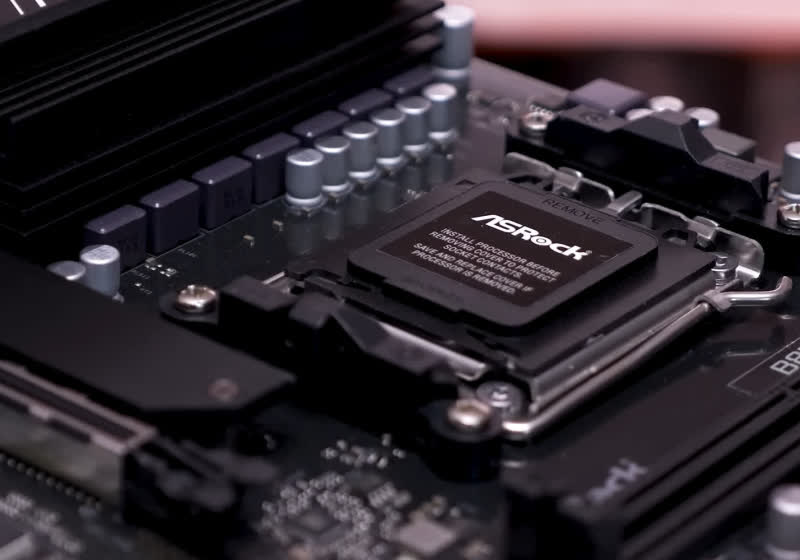
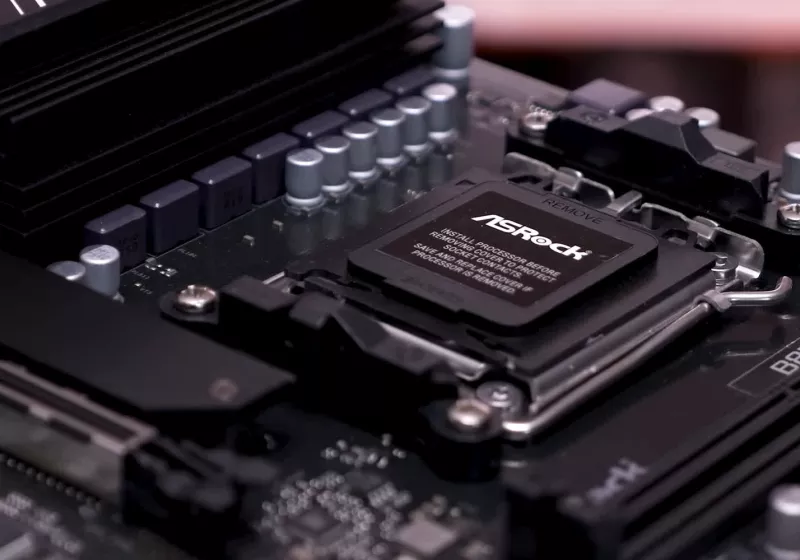
Sources tell DigiTimes that, late last year, four major motherboard manufacturers in Taiwan significantly downgraded their 2026 shipment projections. Although motherboards are not suffering the same AI-related shortages as RAM, DIY builders see little need to purchase motherboards if they can’t afford the components to install on them. Read Entire Article Source link
I’ve been running for the past decade, and somewhere along the way I went from couch to coach. Since gaining my coaching qualification I’ve supported around 100 runners, from people taking their very first running steps to those tackling ultra marathon distances.
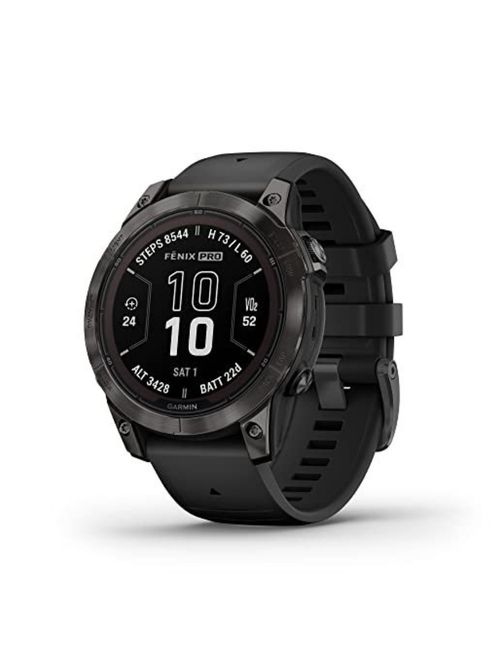
One thing I didn’t expect when I started coaching was how often I’d become an unofficial kit helpline. Athletes ask about everything: what shoes to buy when they don’t know where to start, which is the best running watch, and how to pick a hydration vest that doesn’t bounce you into next week. And I get it, because kit is overwhelming now. There’s more choice than ever, a lot of it is expensive, and almost everything is advertised as essential to peak performance.
I also spend a good amount of time testing gear for running publications, so I’ve built up a slightly ridiculous amount of hands-on experience. My own running ranges from parkrun to 100-mile races, plus multi-day races, overseas trips, and plenty of hilly and mountainous days where you learn very quickly what works and what absolutely doesn’t.
Advertisement
Through thousands of miles on the road and trail, I’ve curated a collection of my favourite kit which I reach for year after year. This isn’t “the best kit money can buy”, it’s those tried and tested – and sometimes stinking, fraying-at-the-edges – pieces of kit I cannot run without. Check them all out below, and click “View Details” to learn more about each one.
It’s the latest escalation in a dispute that began with Samsung workers demanding a direct share of the money generated by the AI memory boom. Read Entire Article Source link
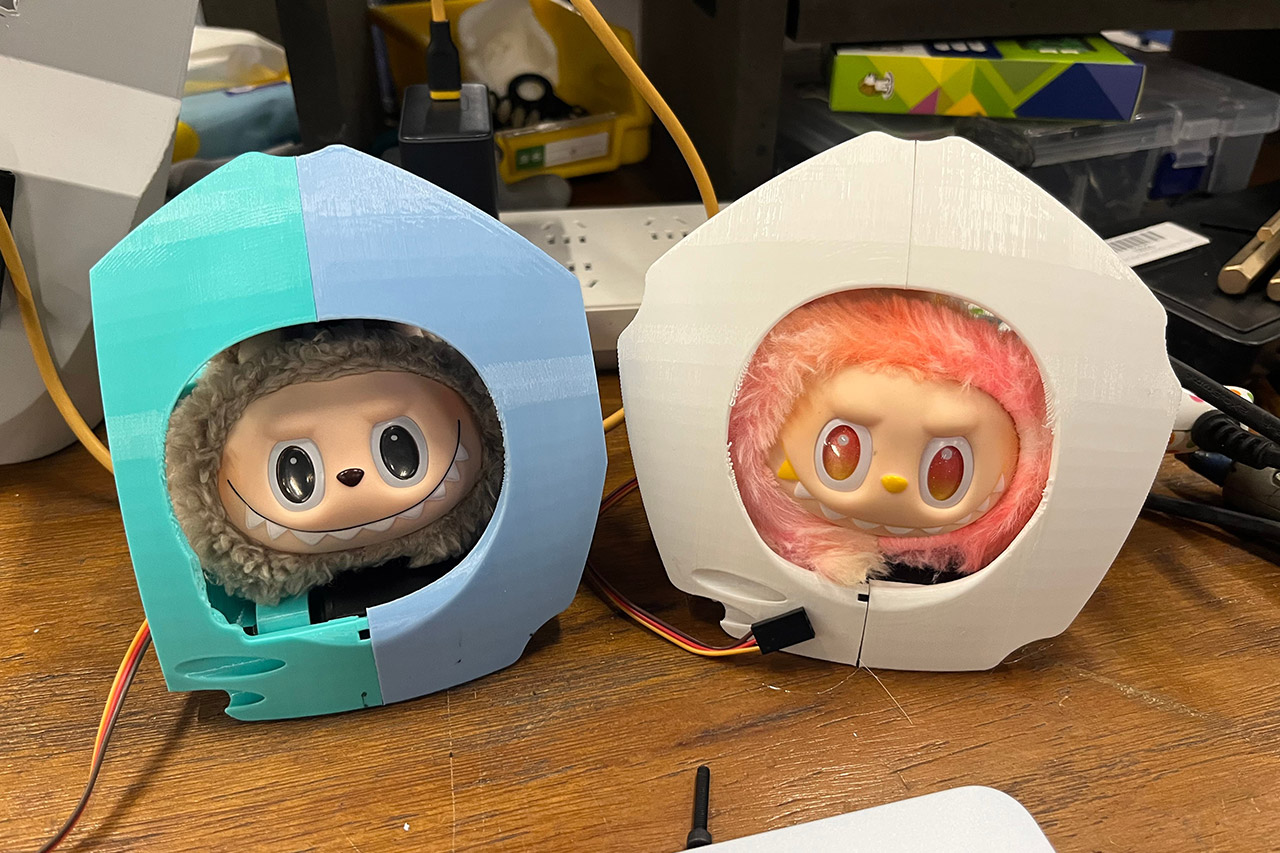
A dozen toothy grins stare out from every direction on a sphere the size of a beach ball. Soft fabric covers the outer shell while the heads shift and turn in coordinated waves. Labububot glides across flat surfaces, changes direction with a gentle tilt, and draws people closer just by moving.
Miranda Li, a graduate student in the Personal Robots group at the MIT Media Lab, spearheaded the research alongside Jake Read and Dimitar Dimitrov, both graduate students at the Center for Bits and Atoms. During a research residence in Shenzhen, China, all three of them collaborated. The goal was to create a robot that threw a wrench in our daily expectations about social robots and the types of things designers typically look for when creating them.
POP MART THE MONSTERS Big into Energy Series-Vinyl Face Plush Blind Box: The blind box contains a random figure from a specific series. Each blind box…
Random Design: Blind boxes are fully random and we cannot accept requests for specific items. There chances of getting the secret edition are usually…
Ideal Gift Choice: These figures are the perfect gift for any occasion, be it Children’s Day, Christmas, Halloween, Thanksgiving, or New Years. A…
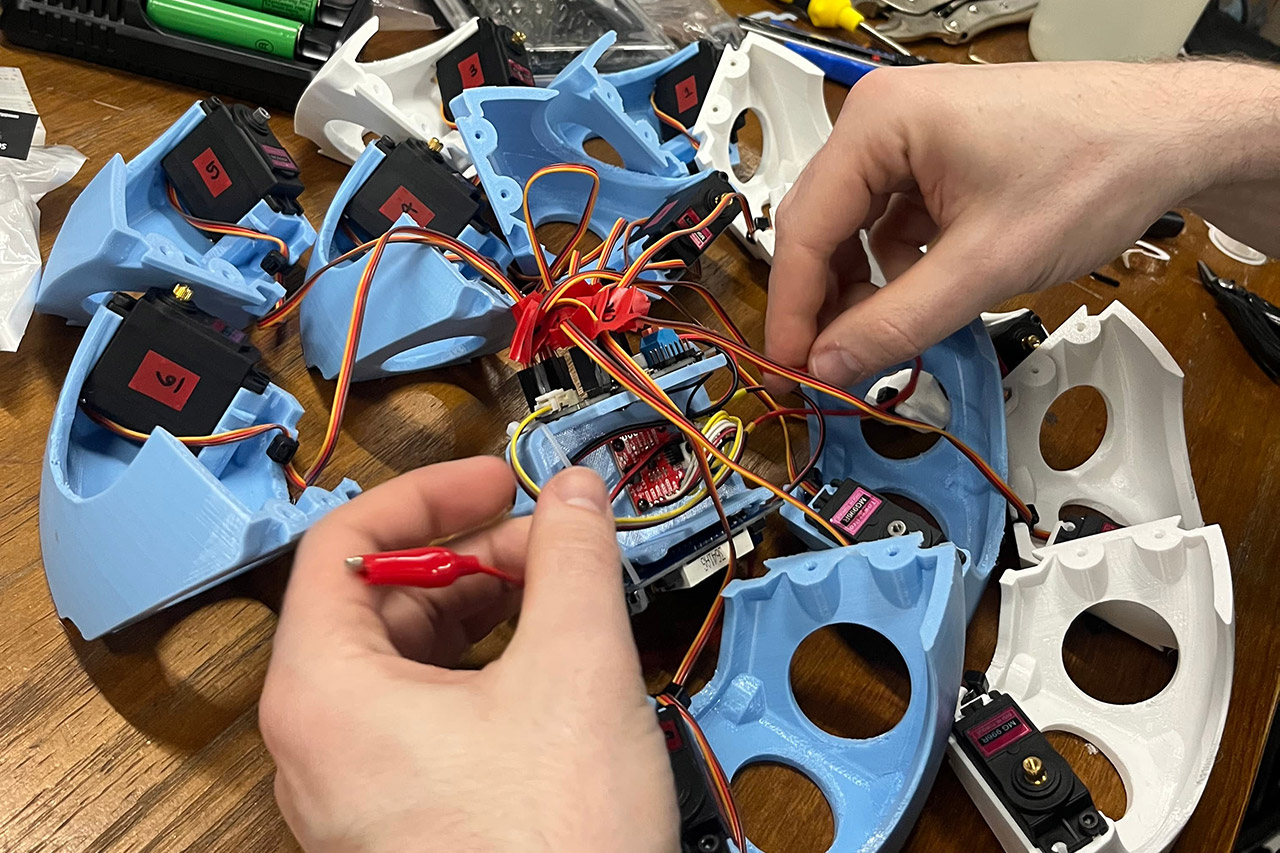
Labubu dolls happened to be the source of the parts. As it happens, they already have large eyes and pointy teeth in one face. The researchers removed the heads from a dozen of them and simply kept them, putting each on a short arm powered by its own servo motor. Two clamshell sections then cover the motors, cables, and other electronics, ensuring that there is adequate room for the arms to swing freely. The heads are then locked in place at the correct angle using hot glue and precise screws, ensuring that all of the ears and expressions line up perfectly.
Coordinated servo movement keeps the entire robot moving while the twelve arms extend or retract in patterns that spin, turn, or come to a complete halt. All while keeping an eye on its orientation, the robot is constantly assessing its tilt, rotation, and direction using an inbuilt sensor.Commands are transmitted wirelessly via a phone or laptop, and a web page may be used as a control panel, allowing users to trigger precise head motions or let the robot roam freely.
Inside the clamshell, an ESP32 board handles all of the day-to-day functions. However, it is the other board, the driver board, that sends all of the accurate signals to the 12 servos at the same time, followed by the sensor, which sends over all of the motion data in real time. The battery power keeps everything running for as long as you need it to. The code installed onto the board handles sensor readings, motor timing, and wireless signals, ensuring that the entire system reacts quickly and smoothly.
The early history of personal computers is stacked with systems such as the Apple II and the Commodore 64 that had the components living inside a keyboard. But as technology evolved, the keyboard became a peripheral and the PC itself was either in a separate box or the whole system was a laptop.
Now, HP has a new spin on this decades-old idea. It embeds a full-fledged AI PC inside a 101-key keyboard you can carry with you from the office to home.
Unlike ‘80s microcomputers or hobbyist-oriented products like the Raspberry Pi 500, the EliteBoard G1a is squarely targeted at business. The system is part of HP’s commercial lineup, alongside its EliteBook laptops, and, for better or worse, it comes with HP Wolf Security preinstalled. The company clearly hopes organizations will buy these in bulk. But to benefit from it, you really have to prefer a mobile keyboard to a traditional laptop, all money aside.
Who’s it for?
The EliteBoard G1a is trying to create a new niche.
Advertisement
When we talked with product managers at HP, they suggested IT departments would buy these computers for two types of workers.
The first group is so-called “dual deskers” – knowledge workers who have a desk with a monitor at work and another at home. The second group includes deep-pocketed call centers or environments where desk space is at a premium.
From time immemorial, dual-deskers have carried laptops and closed their lids when they docked to a monitor at work. With the EliteBoard, they could simply schlep the keyboard, which weighs a mere 1.49 pounds – about half the weight of a lightweight laptop. To make this situation work in companies with managed systems, we have to assume that either the IT department would give out monitors to use at home or offer some reason (a subsidy? a mandate?) for employees to buy their own for home.
The EliteBoard connects to monitors using its USB4 port, so its ideal monitor is one that has Thunderbolt or USB video connectivity built in. Less-expensive and older monitors don’t have this type of connectivity, but select configs of the EliteBoard come with an optional USB-to-HDMI adapter that you can use with other monitors, and it has a USB pass-through for power. That said, HP demonstrated the EliteBoard at numerous press events by showing how much desk space it saves by using a single USB cable to get power, video out, and connectivity to peripherals via the monitor. So if companies want employees to be able to take advantage of this scenario at home, that means shelling out another few hundred bucks for a modern monitor, or making employees do it.
Advertisement
Today, companies with limited desk space for a call center or another cramped work area could just buy a tiny desktop to sit behind the monitor or next to it. However, building all of the PC’s guts into the keyboard makes a lot of sense for space savers, because a keyboard is something every PC needs and a desktop chassis is not. If a company wanted to, it could give each employee their own EliteBoard, have them plug it into a monitor during work time and then have them stick it in a drawer when they go off shift and someone else comes on.
HP EliteBoard G1aAvram PIltch
The problem for call centers is that the HP EliteBoard G1a is much more powerful and much more expensive than what they need. At press time, the G1a was priced at $1,499 for the lowest end config. And most companies probably don’t need employees to each have their own PC that they lock away after they punch out.
“The call center angle is probably the stronger pitch, but those buyers are shopping entry-to-mid-market. They want something cheaper and simpler than a mini desktop, not a Copilot+ PC with up to 64GB of RAM,” Kieren Jessop, a research manager with analyst firm Omdia. “HP has built an impressive piece of engineering in search of a problem that most enterprises have already solved with a laptop — or will solve with a thin client.”
Configurations
HP makes the EliteBoard G1a in a variety of configurations that vary by market. Companies can get it with various AMD Ryzen CPUs, up to 64GB of RAM and an SSD up to 2TB in capacity. It comes with either a detachable or embedded cord, and optionally with a 32 WHr battery that promises up to 3.5 hours of endurance.
Advertisement
Why would you need a battery on a product that demands to be used at a desk and plugged in? The most likely reason is to let the keyboard go into sleep mode when it’s in your bag. Employees could also hook the EliteBoard G1a up to a portable monitor and use it unplugged that way, but then why not just buy them a laptop?
At press time, prices ranged from $1,499 to $3,423 in the US. The lowest-end config has a Ryzen AI 5 Pro 340, 16GB of RAM, an integrated cable, and a 256GB SSD. Fifty bucks more will get you the same configuration with a 512GB SSD, as per HP.com. The highest-end config listed comes with a Ryzen AI 7 Pro 350 CPU, 32GB of RAM, and a 512GB SSD, and sells for only $1,999 at B&H but a whopping $3,423 at HP.com.
Our review config, which sports 64GB of RAM, a Ryzen AI 7 Pro 350 CPU, and a 2TB SSD, has not been listed for sale in the US, and HP didn’t answer when we asked how much it would cost. However, we’d assume that it would cost a lot more than $1,999.
Price vs a Laptop
If all you do is dock your PC at home and at work, you might think, “why pay for a laptop when I don’t need a built-in screen?” But it’s hard to make that argument when the laptop is actually less expensive.
Advertisement
Right now, you can get an HP EliteBook 6 G1aN with the same AMD Ryzen AI 7 350 CPU, along with 24GB of RAM and a 512GB SSD, for just $1,299 – that’s actually less than the cheapest EliteBoard. A custom configured HP EliteBook 8 G1a with the Ryzen AI 7 Pro 350 CPU, 32GB of RAM, and a 512GB SSD is just $1,799.
If you’re comparing the total cost of ownership versus a laptop, also consider the price of a monitor if your users don’t already have one. While you could use an adapter, the ideal use case involves a USB-C monitor that transmits data and power over a single wire. The cheapest HP-branded USB-C monitor I could find at press time was the HP E27k 4K monitor, which was selling for $504. However, I saw a Dell-branded USB-C monitor, the S2725DC, on sale for just $236 at Amazon. If you’re an IT department and you’re kitting out someone for home and office use, you might need to buy them two monitors.
Design
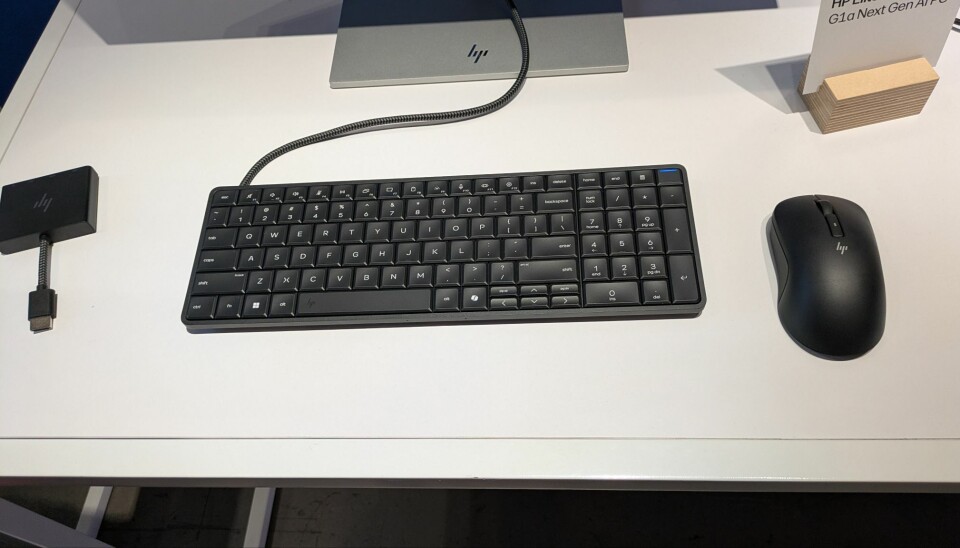
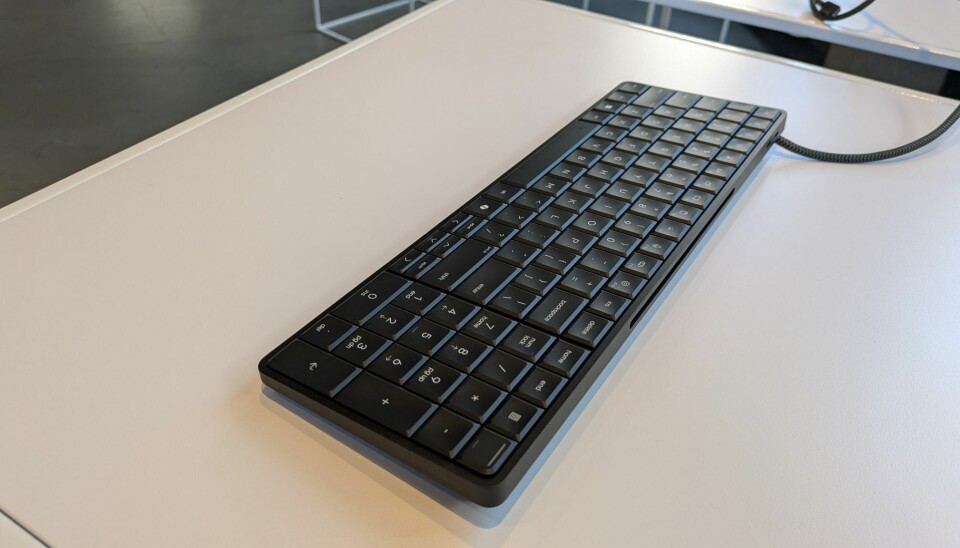
At 14.1 x 4.7 x 0.7 inches, the EliteBoard G1a is the size of a typical, full-size keyboard complete with numpad. It’s a boring but office-friendly dark gray color with a very thin bezel around the keys.
At first glance, there aren’t many ways to know that this is more than just a keyboard. There’s a power button / fingerprint reader that’s located in the upper right corner of the keyboard, though you might easily mistake it for just another key, until you press it and see the blue light turn on.
Advertisement
Turn the keyboard around and on the back lip and you’ll notice a thin vent for airflow. This computer definitely has a fan and you can hear it quite prominently at times. There are also two USB-C ports, a USB4 40 Gbps port and a 10 Gbps port, unless you have the embedded cable, in which case, you just have the 10 Gbps port. Clearly, the 40 Gbps port is the one you’ll want to use for docking, but you can use the 10 Gbps port to connect the dongle for the included wireless mouse or other peripherals.
HP EliteBoard G1aAvram Piltch
There’s also a security cable lock slot on the left side. So if you want to chain this to a desk, you can, but we’d argue that defeats the point of the machine.
But how well does it type?
Since this is a computer-in-a-keyboard, the most obvious question we need to answer is “how’s the typing experience?”
Pretty decent.
Advertisement
On the bright side, the EliteBoard G1a has a generous 2 mm of travel, which is more than you’ll find on most laptops, where even 1.5 mm is deep. The keys feel pretty snappy and are in the same feedback league as those on my Lenovo ThinkPad X1 Carbon, but the ThinkPad’s keys have a more curved shape, which is better than the flat tops on the EliteBoard.
HP EliteBoard G1aAvram Piltch
If you’re burning the midnight oil, there’s a built-in backlight which you can enable by hitting the F9 key. It has two different brightness settings so you can decide just how much you want it to shine through.
The layout is pretty standard for a full-size keyboard with a numpad. However, I don’t like how small the arrow keys are, and the Pg Up and Pg Dn are just tiny. There’s no empty space around these keys, which I use a lot when editing documents, so it’s far too easy to miss them. Even on most laptops, these keys are larger.
Another downer is the lack of flip-up feet on its bottom. I like to angle my keyboard up at a 15 to 30 degree angle, but this one is short and flat to the desk. To save my wrists, I always use a gel-filled wrist rest when I type and, without feet to elevate the keyboard, I’m typing down onto the keys because it’s so much lower than the gel pad. This won’t be as much of an issue for folks who don’t use wrist rests.
Advertisement
In short, if you’re used to laptop keyboards or the low-cost keyboards that come with most desktop computers, the EliteBoard G1a will probably seem like a nice step up. However, if you want the best possible typing experience, there’s an entire ecosystem of mechanical keyboards out there with much deeper travel and more feedback.
If you’re not a gamer and you want the best possible typing experience, I recommend a mechanical keyboard with either clicky or tactile switches. Unless you go for a low-profile keyboard, you’ll be getting between 3.6 and 4 mm of travel, so you won’t bottom out as easily when typing. I prefer clicky switches like the Kailh Box White (my favorite) or Cherry MX Blue, but those make some noise so, if you like quiet, Cherry MX Brown switches will do the trick.
To see the difference between my daily driver mechanical keyboard, an Akko 3098N with Kailh Box White switches, and the EliteBoard G1a, I performed the 10fastfingers.com typing test on both. On HP’s keyboard, I managed a strong 96 wpm, which is at the lower end of typical for me, with a six percent error rate. On my daily driver, the numbers were a better 101 wpm with a two percent error rate. Your mileage will vary.
Speaker and Microphone
The EliteBoard G1a has both built-in bottom-facing speakers and a microphone array. In our tests, the speaker was more than loud enough and it was clear enough for voice calls, though we wouldn’t recommend listening to music on it for too long. The drums in AC/DC’s Back in Black sounded a little tinny, though there was a clear separation of sound with the vocals appearing to come from one side while the percussion came from another.
Advertisement
The dual-array microphone was also passable, but not good enough for podcasts. When we talked to a coworker using the built-in mic, she said our voice was clearly audible but a little echoey.
In the box and preloaded
Depending on which config you get, your HP EliteBoard G1a may come with a variety of different accessories in the box. All versions come standard with an HP wireless 675M mouse that connects either by Bluetooth or by an included USB-C wireless 5-GHz dongle. It is not a particularly fancy mouse but it has a couple of side buttons and a scroll wheel. I found myself using my Logitech MX Master 3 mouse instead, because it’s ergonomically shaped and highly programmable.
My review unit also came with the optional soft canvas cover sleeve you can use to protect the EliteBoard G1a while you’re carrying it around. I found this add-on to be about as useful as a laptop sleeve. It might offer some protection and padding for when you stick the EliteBoard G1a in an existing backpack, but it’s not going to replace your briefcase or your backpack when you’re commuting.
I also got the optional HDMI multiport hub, which is a must-have if you don’t already have a Thunderbolt or USB4 docking station or a monitor with that kind of connectivity built in. The hub connects to the USB4 40 Gbps port on the EliteBoard and features two USB-C ports (one for power, one for connectivity), an HDMI out cable for connecting to a monitor, an Ethernet port for wired networking, and an HDMI-in port for a second monitor.
Advertisement
There’s an optional, slim 65W USB-C power adapter that’s helpful if you aren’t connecting to a monitor or docking station that supplies power. If you don’t get one in the box, it’s easy enough to find one for $15 to $30 on Amazon.
Also, if your EliteBoard does not have an embedded cable — mine did not — you get a braided USB cable in the box. The less-expensive configs of the EliteBoard all have embedded cables, but we recommend getting a model without one because it’s easier to carry around without a cable hanging off of it.
HP does not preload a lot of software onto the EliteBoard but it does come with a three-year subscription to HP Wolf Security, which normally costs $36 a year for individual subscriptions. HP Wolf has a malware/virus scanner, a threat containment feature, a secure browser, OS resiliency (for recovering from corruption and doing a reinstall), and application persistence, which prevents unwanted changes to security software like HP Wolf itself.
Since it has an NPU (neural processing unit) that’s capable of more than 45 trillion operations per second (TOPS), the EliteBoard G1a qualifies as one of Microsoft’s Copilot+ PCs. This means that it has some added local AI features that not every PC gets from Windows 11, including Cocreate image generation in Paint, Windows Studio Effects handled locally for your webcam, translated Live Captions from any audio input, and Recall, a controversial feature that takes screenshots of all your work to help you “remember” what you were doing at any given time. Fortunately, Recall is disabled by default.
Advertisement
Performance
Equipped with an AMD Ryzen AI 7 Pro 350 CPU, 64GB of RAM, and a 2TB SSD, our review configuration of the EliteBoard G1a handled everything I threw at it. I used the system on and off as my daily driver PC for work for a period of several weeks and it was always smooth and responsive, even as I had dozens of Chrome tabs open and Slack running across two 4K monitors I had connected via Thunderbolt 3 docking station.
I should note that, no matter what I was doing, the fan on the EliteBoard G1a was frequently running and was often quite audible. It’s no louder than most notebooks I’ve tested, but if you’re expecting total quiet, look elsewhere.
My editorial workload is not nearly as demanding as some folks’ day jobs so, to see how the EliteBoard G1a stacks up, I ran it through a series of benchmarks and compared the results to those from two laptops I had access to: a Lenovo Yoga Slim 7x with a Qualcomm Snapdragon X Elite X1E-78-100 CPU, and a Lenovo ThinkPad X1 Carbon with an Intel “Meteor Lake” Core Ultra 7 165U processor.
The Ryzen AI 7 PRO in the EliteBoard debuted in 2025 with 8 cores, 16 threads, and a maximum boost clock of 5 GHz. It features built-in AMD Radeon 860M graphics and a Neural Processing Unit (NPU) that’s capable of achieving 50 TOPS for better local AI. Its DDR5 RAM runs at 5,600 MHz.
Advertisement
Released in 2024, the Snapdragon X Elite X1E-78-100 has 12 cores and threads with a boost clock that goes up to 3.4 GHz, along with an NPU that does 45 TOPS. It’s an Arm processor so the laptop that runs it uses Windows on Arm. The Yoga Slim 7x laptop that we tested had 16 GB of LPDDR5x RAM running at 8448 MHz.
The oldest of our test group, vintage 2023, the Intel Core Ultra 7 165U has 12 cores and 14 threads, but only two of those cores are performance cores that can boost up to 4.9 GHz, while the others are a mix of efficient cores and low-power efficient cores that boost up to 3.8 and 2.1 GHz respectively. The ThinkPad X1 Carbon we tested with it had 64GB of LPDDR5x RAM running at 6400 MHz.
In our tests, the EliteBoard G1a always eclipsed the ThinkPad X1 Carbon, which is not a surprise considering its much-older processor. However, the Snapdragon-enabled Yoga Slim 7x outpaced it on some benchmarks.
Primesieve
Primesieve on the HP EliteBoard G1aAvram Piltch
This test counts the prime numbers under one trillion and returns a result in millions of prime numbers per second. The benchmark is particularly heavy on SIMD instructions like AVX-512 or Arm’s Neon and SVE vector extensions, making it a good proxy for some of the more workstation-centric tests we’ll look at shortly. It runs across both single thread and multi-thread workloads, with big performance boosts for parallel processing.
Advertisement
Using just a single thread, the EliteBoard edged out the competition with 415 million primes per second (MPS), compared to the Slim 7x’s 352. However, the Slim 7x slightly outperformed it when using multithreading, delivering 2,686 MPS to the EliteBoard’s 2,145. One thing to note is that, while the EliteBoard has more threads, it has fewer actual cores. The X1 Carbon wasn’t even in the same ballpark. This will become a theme across our test suite.
Blender
Blender on HP EliteBoard G1aAvram Piltch
3D rendering is always a challenge and, to be honest, it’s hard to imagine somebody buying an EliteBoard for this purpose. However, it’s always worth noting what the system can do.
We ran Blender, a very popular 3D modeling app, using three scenes: Monster, Junkshop, and Classroom. As you can see, the Slim 7x and its 12-core Snapdragon processor were anywhere from 34 to 75 percent quicker, depending on the content. Still, the EliteBoard turned in respectable scores on something you wouldn’t expect it to do.
Handbrake x265
Handbrake x265 on HP EliteBoard G1aAvram PIltch
Video transcoding is another resource-intensive task and one that occurs in many scenarios, including game streaming, video editing, and even video conferencing. To test how the EliteBoard handled video transcoding, we used Handbrake to convert a 4K 60 fps video to 1080p using an x265 encoder at the medium preset with a constant quality of 18. Our results are measured in frames per second (fps).
Advertisement
Again, the EliteBoard was far superior to the ThinkPad, but was a good 45 percent behind the Yoga Slim 7x. Still, this is solid performance that’s more than workable.
Llama.cpp
Llama.cpp on HP EliteBoard G1aAvram Piltch
One local AI task you might want to conduct is running an open-source model as a chatbot on your PC rather than sourcing it from the cloud. This will give you more privacy than using OpenAI, Claude, or Copilot on the web and it’s completely free.
So we ran the GPT-OSS 20B open weights model using Llama.cpp as our client and timed the amount of milliseconds it took to generate the first token. Here we see that the Snapdragon processor and faster RAM on the Yoga Slim 7x gave it a definite advantage, taking 39 percent less time than the EliteBoard to get there. The EliteBoard also generated about half as many tokens per second. However, it beat the pants off the ThinkPad X1 Carbon, getting to the first token more than twice as quickly while generating 30 percent more tokens per second.
It’s worth noting that these tests were run on the CPU cores and didn’t harness the chip’s integrated GPUs or NPUs.
Advertisement
Whisper.cpp
Whisper.cpp on HP EliteBoard G1aAvram Piltch
One common local AI workload a business person might use is transcription. Let’s say you had an audio file and you wanted to convert it into readable and editable text. You might use a tool based on Whisper, a popular free model from OpenAI.
For testing, we used Whisper.cpp, an implementation of Whisper written in C++, with the Whisper Medium EN model transcribing a 10-minute audio clip. Here, the EliteBoard transcribed the audio at 2.4x real-time speed, while the Yoga Slim 7x was faster at 3.4x. Those extra cores are doing a lot of heavy lifting here. That said, if you’re converting 10 minutes of audio in less than five minutes, that’s pretty good.
LLVM Compile
LLVM Compile on HP EliteBoard G1aAvram Piltch
For those using the EliteBoard for programming, compile times matter. So, we compiled the LLVM toolchain from its source and measured the time. This isn’t a trivial compile job and therefore represents a worst case scenario for developers considering the EliteBoard. Here it took a modest 19 minutes and 44 seconds, which was more than double the time it took the Yoga Slim 7x.
On high-end desktop workstation hardware, this same workload can be completed in under five minutes, so if your day job regularly requires compiling large projects, you might want to spring for something more capable, or perhaps not. “My code is compiling” is a pretty good excuse for taking a 20 minute break.
Advertisement
7-Zip
7-Zip LZMA Compression on an EliteBoard G1aAvram Piltch
7-Zip LZMA Decompression on an HP EliteBoard G1aAvram Piltch
Compression and decompression are very taxing on a CPU and are very common scenarios we see today. So we fire up 7zip and measure its ability to do both tasks in both single-threaded and multi-threaded scenarios.
With a single thread, the Slim 7x and the EliteBoard basically tie at compression, while HP’s computer holds the edge in decompression. However, when we move to multi-threaded scenarios, the Snapdragon X Elite’s 12 physical cores easily beat out the AMD Ryzen AI 7 Pro 350’s eight cores and 16 threads.
LibreOffice: ODT to PDF Conversion
LibreOffice: ODT to PDF Conversion on an HP EliteBoard G1aAvram Piltch
We tested how long it takes LibreOffice to convert 50 image-heavy ODT files into PDFs. This workload is lightly threaded so it favors higher clock speeds over more cores.
The results bear this out as the EliteBoard, with its Ryzen AI 7’s higher performing cores, beat out the Slim 7x by 22 percent. Despite its older processor, the ThinkPad actually manages to tie the Slim 7x in this test.
Advertisement
Repairability
The HP EliteBoard G1a is easy to repair.Avram Piltch
For IT departments that do their own service, the EliteBoard G1a has plenty to offer. Its back surface is held on by just four screws and pops off easily. Underneath, you get full access to the motherboard and a number of easily-removable components, including the DDR5 SODIMM RAM, the M.2 SSD, the WLAN card, the fan, the optional battery, and the speakers. You can even replace the keyboard itself and leave the computer part intact.
Bottom line
The HP EliteBoard G1a delivers strong performance in a unique and compact form factor that saves desk space and reduces the weight you carry back and forth. If you don’t want a laptop but do want a portable computer, this is your best choice. It provides a better typing experience than most laptops and a more space-efficient design than most desktops.
However, in the current marketplace, this device does not represent a significant savings over a similarly configured laptop. Depending on what laptop you choose to compare against, you might save a few hundred dollars, but when you add the cost of the monitors you need to pair with it – if you need to purchase those – it’s a wash.
HP has set out to make a unique product with the EliteBoard G1a and it has succeeded in building a very competent and capable computer-in-a-keyboard. If you’re an IT decision maker, you’d buy this device for folks who work out of one or two distinct locations (home and office or multiple offices) and never need to get online from the road or from a conference room. Whether that’s a common scenario in your workplace will determine if this product is right for you or your fleet. ®






































































You must be logged in to post a comment Login