We’ve been running our annual public domain game jam for eight years now, and as far as game jams go, it’s always been on the long side of the scale with a full month for people to work on their games. A lot of jams are much shorter, and that’s worth keeping in mind today as we’re just a little more than 24 hours away from the deadline for the latest installment, Gaming Like It’s 1930! The ticking clock doesn’t mean you’ve missed the boat, it means now is the perfect time to get creative, whip up a simple game, and make your submission!
There are lots of great tools available that let anyone build a simple digital game, like interactive fiction engine Twine and the storytelling platform Story Synth from Randy Lubin, our game design partner and co-host of this jam (check out his guide to building a Story Synth game in an hour here on Techdirt). And an analog game can be as simple as a single page of rules. In past years, we’ve been blown away by the creativity on display in even the most basic of games, so if you don’t have anything to do tonight, why not try your hand?
Head over to the game jam page on Itch, read the full rules, and get some ideas about works you might use. Submissions close at midnight tomorrow, January 31st, and after that we’ll be diving in to choose winners in our six categories. For inspiration, you can have a look at last year’s winners and our series of winner spotlight posts that take a look at each year’s winning entries in more detail.
We’ve already had some excellent submissions, and we can’t wait to see what else comes in tomorrow night. Your game could be one of them!
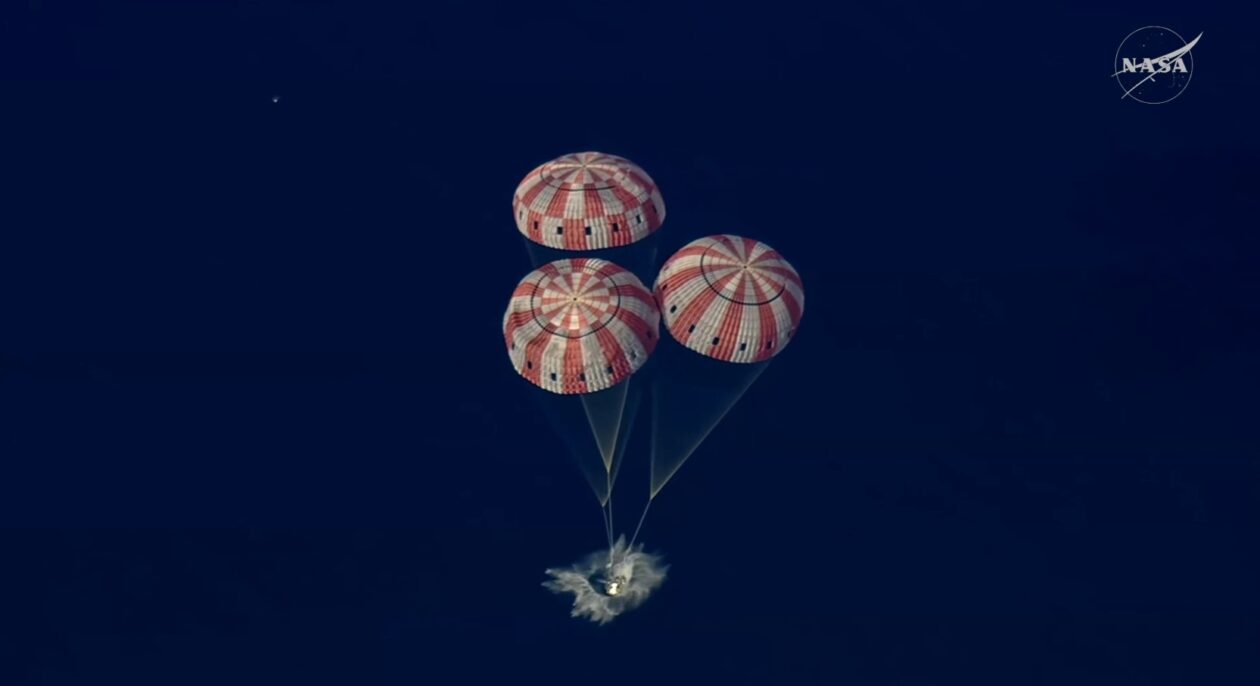
NASA’s Orion spacecraft splashes into the Pacific Ocean, as seen in an overhead view. (NASA via YouTube)
Four astronauts and their Orion space capsule splashed down in the Pacific Ocean today, bringing the first crewed trip around the moon and back since 1972 to a successful end.
“What a journey!” mission commander Reid Wiseman said moments after splashdown.
During their 10-day odyssey, the crew of NASA’s Artemis 2 mission — Wiseman, pilot Victor Glover, mission specialist Christina Koch and Canadian astronaut Jeremy Hansen — became the most distant human travelers in history, swinging more than 4,000 miles past the moon’s far side. Koch is the first woman to venture beyond Earth orbit, Glover is the first Black astronaut to do so, and Hansen is the first non-U.S. astronaut to make such a trip.
The flight tested the Artemis program’s hardware and procedures to prepare the way for sending astronauts all the way to the lunar surface by as early as 2028, and for building a permanent lunar base in the 2030s.
“It’s the most important human spaceflight mission I think we’ve done in many decades, in terms of what it meant historically, but also what it means for the future of the agency,” NASA Associate Administrator Amit Kshatriya said at a post-splashdown news conference.
The final hour of the mission unfolded as NASA planned. After jettisoning its European-built service module, the Orion crew module — christened Integrity by the astronauts — hit the atmosphere at a speed of more than 24,000 mph. The shock of re-entry created a plasma field around the spacecraft that blacked out radio communications for six minutes.
The crew endured G-forces that ranged up to 3.9 times the force of Earth’s gravity — about what they felt during launch — and Orion’s heat shield endured temperatures of 4,000 to 5,000 degrees Fahrenheit. The trajectory for Orion’s descent was designed to reduce the stress on the heat shield, after NASA discovered that the heat shield for an earlier uncrewed round-the-moon mission, Artemis 1, underwent more serious charring than expected.
Advertisement
“This is the true test of our trajectory,” NASA commentator Rob Navias said.
Orion passed the test: “Houston, Integrity: We have you loud and clear,” Wiseman told Mission Control when the blackout ended, sparking a cheer from ground controllers.
The spacecraft’s parachutes deployed on cue, and Orion’s descent slowed to a speed of 19 mph by the time it hit the water in the Pacific southwest of San Diego.
Moments after splashdown, Wiseman reported that all four of the astronauts were in good health. Orion’s airbags were inflated with helium to help stabilize the floating craft.
Advertisement
“It was a textbook mission,” Navias said.
Recovery teams converged on the touchdown site, hampered somewhat by a glitch that arose with the crew’s satellite phone connection. Mission Control was able to stay in two-way contact with the crew via radio, however, and assisted with troubleshooting.
The astronauts were brought out from the spacecraft and hoisted up to helicopters for transfer to the USS John P. Murtha, an amphibious transport dock ship that served as the lead ship in the recovery effort. After undergoing medical checks, they were to be brought to shore in San Diego — and on Saturday, they’ll be flown to Johnson Space Center in Houston. Meanwhile, the Orion capsule will be towed back onto the USS John P. Murtha’s well deck for transport.
Back at Mission Control, members of the Artemis 2 team hugged each other as they watched the video from the Pacific. “The mission is over, but the melody lingers on,” Navias said.
Advertisement
Recovery team members bring Artemis 2’s astronauts out of the Orion spacecraft and onto a raft known as the “Front Porch” in preparation for transport to the USS John P. Murtha in the Pacific Ocean. (NASA via YouTube)
On the ship, NASA Administrator Jared Isaacman said he “couldn’t be more proud of the entire workforce” at the space agency.
“The childhood Jared can’t believe what I just saw,” said Isaacman, who was born 10 years after the final Apollo moon mission in 1972. “I’ve almost been waiting my whole life to see this.”
He pledged that Artemis 2’s round-the-moon trip wouldn’t be a once-in-a-lifetime experience. “This is just the beginning,” he said. “We are going to get back into doing this with frequency, sending missions to the moon until we land on it in 2028 and start building our base.”
President Donald Trump passed along his congratulations. “The entire trip was spectacular, the landing was perfect and, as President of the United States, I could not be more proud!” Trump wrote in a post on Truth Social. “I look forward to seeing you all at the White House soon. We’ll be doing it again and then, next step, Mars!”
Looking back, looking ahead
Even though Artemis 2 was primarily an engineering test mission, the trip also brought scientific benefits. The astronauts conducted a wide-angle survey of the lunar far side, and described areas that the Apollo program’s astronauts couldn’t see with their own eyes due to lighting conditions and a closer-in orbital perspective.
Advertisement
At the beginning and end of their swing around the moon, the Artemis 2 crew captured stunning images of Earthset and Earthrise, stirring the same feelings of awe that were sparked by Apollo 8’s original Earthrise image in 1968. The astronauts also witnessed an unearthly kind of solar eclipse that created an eerie glow around the darkened moon.
The upper image shows Earthrise during Apollo 8’s trip around the moon in 1968. The lower image shows Earthset during Artemis 2’s trip around the moon this week. (NASA Photos)A darkened moon is backlit by scattered sunlight during an eerie solar eclipse observed by the Artemis 2 crew. (NASA Photo)
The astronauts were 252,756 miles from Earth at the farthest point of their trip, which exceeded the previous record set by Apollo 13 in 1970 by 4,101 miles.
Even though it was a textbook mission, not everything went perfectly. The first toilet to be installed in a spacecraft that was sent beyond Earth orbit acted up during the outbound leg of the journey, apparently due to ice that blocked a wastewater vent line. “Nailing this capability is one that we need to certainly work on,” Isaacman said at the time.
NASA also detected a slight helium leak in the pressurization system for the oxidizer tank on Orion’s service module. The leak didn’t pose a problem for Artemis 2, but Kshatriya said the system might have to be redesigned for the lunar landing mission in 2028.
Meanwhile, SpaceX and Blue Origin are still working on the landing systems that will be needed to get future astronauts to the lunar surface. NASA is planning to test-drive SpaceX’s Starship lander and/or Blue Origin’s Blue Moon lander in low Earth orbit next year during Artemis 3.
Advertisement
If all goes according to plan, one of those landers would facilitate the first lunar landing since 1972 during the Artemis 4 mission in early 2028, and the crew of Artemis 5 would begin work on a base near the moon’s south pole in late 2028.
As a warmup, Jeff Bezos’ Blue Origin space venture is gearing up to send an uncrewed version of the Blue Moon lander, known as Endurance, to the moon’s south polar region later this year. That region is a prime target for lunar exploration and settlement because its craters are thought to harbor reserves of ice that could be converted to drinkable water and breathable oxygen, plus hydrogen that could be used as rocket fuel.
Today Blue Origin CEO Dave Limp added his congratulations on a successful Artemis 2 mission, calling it “this generation’s Apollo moment.”
The Asus Zenbook A16 is a thin and light Windows notebook aiming to take the portability crown from Apple. Here’s how it compares against a similarly-priced MacBook Pro.
M5 14-inch MacBook Pro vs Asus Zenbook A16
For our spec-sheet brawl, we’re going to put the $1,999 Asus Zenbook A16 against the 14-inch MacBook Pro with M5. As much as we would compare the similarly-sized 16-inch MacBook Pro, the other upgrades to the base-spec version pushes it to $2,699, which is a bit too high. To make it a little bit closer in price, we will set the 14-inch MacBook Pro as having an enhanced memory allowance of 24GB or 32GB. Continue Reading on AppleInsider | Discuss on our Forums
This weekend’s watchlist covers three different genres of movies, so you can pick whatever you are in the mood for. We have a trio of hidden gems on Amazon Prime Video that deserve way more attention.
There is a gritty Michael Caine revenge thriller you should not miss, a micro-budget 1950s sci-fi mystery that thrives on atmosphere and dialogue. For horror fans, we have a psychological horror bout a hospice nurse whose faith tips into something far more dangerous that gets inside your skin.
Saint Maud is not a horror film in the traditional sense, and going in expecting one will work against you. What it actually is is a deeply unsettling psychological portrait of a young hospice nurse named Maud, a recent Catholic convert who becomes dangerously fixated on saving her terminally ill patient’s soul in ways that grow increasingly disturbing.
Morfydd Clark’s performance is the engine of the whole thing, holding a fragile, frightening line between piety and paranoia throughout. I really like how the film gets under your skin without ever fully explaining itself. You finish it feeling like you witnessed something you were not supposed to see, and that feeling does not leave quickly.
If you have a soft spot for slow-burn British crime dramas, Harry Brown is the movie you need to watch this weekend. Michael Caine plays the title character, a widowed, retired Royal Marines veteran living on a decaying South London housing estate overrun by gang violence. When his only friend is murdered, Harry stops looking the other way.
What makes this film work so well is how it refuses to glamorize what follows. Harry is not an action hero. He is an old man with emphysema who stumbles during a chase and collapses on a canal path.
I really like how the film earns every moment of tension because it keeps Harry vulnerable and the world around him genuinely threatening. Caine is absolutely extraordinary here, and there are sequences in this film that will make you forget you are watching a 77-year-old man.
Have you accidentally tuned into a late-night radio broadcast and could not bring yourself to switch off. Well, The Vast of Night is exactly that kind of sci-fi movie.
Set over a single night in 1950s small-town New Mexico, the film follows Fay, a teenage switchboard operator, and Everett, a fast-talking local radio DJ, as they stumble onto a mysterious audio frequency that sends them down a strange and increasingly eerie rabbit hole.
There are no big set pieces or alien invasions. The tension is built almost entirely through dialogue, long unbroken camera takes, and an incredibly precise sound design that makes the night feel alive and watchable.
Advertisement
What I really love about this movie is how it makes stillness feel tense. A long phone call, a quiet street, a voice crackling through static, and somehow all of it keeps you completely locked in. For a movie made on a low budget, The Vast of Night makes an entertaining watch.
HappyHorse 1.0 shot up to the top ranks in the Artificial Analysis leaderboard.
Chinese technology giant Alibaba’s cloud division led a $293m funding round into ShengShu Technology, a 2023-founded Beijing-based start-up behind the Vidu AI video-generation tool.
Baidu Ventures and Luminous Ventures also participated in the round. The company’s post-money valuation has not been disclosed.
The latest investment comes after ShengShu raised nearly $88m in a Series A round in February.
Advertisement
Vidu is marketed towards independent creators and animators, promising “effortless” production of content with “diverse artistic styles”.
The start-up is focusing on building ‘world models’ built on multimodal data such as audio, video and “touch”. The latest funding, the company said, will help support the development of a “general world model”.
The company’s latest Vidu Q3 Pro, which launched in January, places at the seventh rank on the Artificial Analysis leaderboard on text-to-video models, while making it to the 10th spot on the image-to-video rankings.
Vidu competes with other Chinese AI heavyweights, including ByteDance’s Seedance 2.0 and lead investor Alibaba’s own video model HappyHorse 1.0 that shot up to the top rank on the Artificial Analysis leaderboard.
Advertisement
Meanwhile, models from companies such as Singapore’s Skywork AI and Beijing-based Kuaishou, behind KlingAI, also rank high on the boards. These models are hungry to fill the gap in the video generation space left by OpenAI after it shuttered Sora late last month. Top leaderboard rankings are increasingly being filled by Chinese models.
HappyHorse was anonymously launched earlier this week before Alibaba claimed ownership today (10 April). The model is a product of Alibaba’s new Token Hub (ATH) innovation unit, placing number one on text-to-video and image-to-video ranks with no audio, while placing at the second spot with audio.
Bloomberg News reported that HappyHorse 1.0, which is under beta testing currently, will be followed up with more new ATH products. Alibaba’s share prices shot up following speculation that the company was behind the model.
Alibaba made the decision last month to bring its AI services and development works under a single roof called ATH, led by CEO Eddie Wu.
Advertisement
Don’t miss out on the knowledge you need to succeed. Sign up for the Daily Brief, Silicon Republic’s digest of need-to-know sci-tech news.
Author: Saeed Abbasi, Senior Manager, Threat Research Unit, Qualys
With Time-to-Exploit now at negative seven days and autonomous AI agents accelerating threats, the data no longer supports incremental improvement. The architecture of defense must change.
What Leaders Need to Know
Analysis of CISA’s Known Exploited Vulnerabilities over the past four years shows critical vulnerabilities still open at Day 7 worsened from 56% to 63% despite teams closing 6.5x more tickets. Staffing cannot solve this.
Advertisement
Of the 52 tracked weaponized vulnerabilities in our study, 88% were patched more slowly than they were exploited — half were weaponized before any patch existed.
The problem is not speed. It is the operational model itself.
Cumulative exposure, not CVE counts, is the true risk metric that security teams now need to measure. While dashboards reward the sprint to get patches implemented, breaches exploit the tail. AI is not another attack surface — instead, the transition period where AI-powered attackers face human defenders is the industry’s most dangerous window.
In response, defenders have to implement their own autonomous, closed-loop risk operations.
Advertisement
The Broken Physics
New research from the Qualys Threat Research Unit, analyzing more than one billion CISA KEV remediation records from across 10,000 organizations over four years, quantifies what the industry has long suspected but never proved at scale. The operational model underpinning enterprise security is broken.
Vulnerability volumes have grown 6.5 times since 2022. According to Google M-Trends 2026, the average Time-to-Exploit has collapsed to negative seven days; in other words, adversaries are weaponizing the most serious vulnerabilities before patches exist. The percentage of critical vulnerabilities still open at seven days has climbed from 56 percent to 63 percent.
Yet this is not for lack of effort. Organizations closed 400 million more vulnerability events annually now than they did at baseline. Teams work harder, but it fails to make the difference where it counts. Our researchers call this the “human ceiling” — a structural limit no amount of staffing or process maturity can overcome. The constraint is not effort. It is the model itself.
Of 52 high-profile weaponized vulnerabilities tracked with complete exploitation timelines, 88 percent were remediated slower than they were exploited. As an example, Spring4Shell was exploited two days before disclosure, yet the average enterprise needed 266 days to remediate.
Advertisement
Similarly, the flaw in Cisco IOS XE was weaponized a month early; average close was 263 days.
The attacker’s advantage was measured in days. The defender’s response was measured in seasons. This is not an intelligence failure. It is an operationalization failure.
To understand the future around risk operations, AI and managing remediation at scale, come to ROCON EMEA, the Risk Operations Center Conference.
Join your peers and learn more about automated remediation.
The report identifies a “Manual Tax” — the multiplier effect where long-tail assets that human processes cannot reach drag exposure from weeks into months. For Spring4Shell, average remediation was 5.4 times the median.
The median tells a manageable story. The average tells the truth. Infrastructure systems face a harsher reality: for Cisco IOS XE, even the median was 232 days — compared to endpoint medians consistently under 14. When the best-case outcome is eight months, the Manual Tax is no longer a multiplier. It is the baseline.
Looking at average figures is no longer helpful for decision-making. Instead, looking at Risk Mass — vulnerable assets multiplied by days exposed — captures what CVE counts obscure around cumulative exposure. A companion metric, Average Window of Exposure (AWE), measures the full duration from weaponization to remediation across the environment.
As an example, Follina was weaponized 30 days before disclosure with an average close at Day 55.
Advertisement
However, the AWE stretched to 85 days. While the blind spot before disclosure accounted for 36 percent of that 85 days, the long tail of patching accounted for a further 44 percent. In total, pre-disclosure and long tail together represent 80 percent. The sprint that gets measured makes up less than 20.
At the same time, of 48,172 vulnerabilities disclosed in 2025, only 357 were remotely exploitable and actively weaponized. Organizations are burning remediation cycles on theoretical exposure while genuinely exploitable gaps persist.
Why the Gap Will Widen
Cybersecurity has long operated as a derivative of technology shifts — Windows security followed Windows, cloud security followed cloud. Leading practitioners and investors now argue AI breaks that pattern. It is not merely a new surface to defend; it is a fundamental transformation of the adversary itself.
Offensive agents can already discover, weaponize, and execute faster than any human-staffed operation can respond. The remediation data proves humans cannot keep pace today. Autonomous AI ensures the gap will accelerate tomorrow.
Advertisement
The transition period — where AI-powered attackers face human-speed defenders — represents the industry’s most dangerous window, compounded by the structural vulnerabilities that dominate the near term: attack surfaces expanded beyond what teams can govern, identity sprawl that outpaces policy, and remediation workflows still built on manual execution.
The traditional scan-and-report model was built for lower volumes of CVEs and longer exploit timelines. What replaces it is an end-to-end Risk Operations Center: embedded intelligence arriving as machine-readable decision logic, active confirmation validating whether a vulnerability is actually exploitable in a specific environment, and autonomous action compressing response to the timescale the threat demands.
The objective is not to eliminate human judgment but to elevate it, shifting practitioners from tactical execution to governing the policies that direct their own autonomous systems.
The organizations already winning the physics gap are not winning with larger teams. They are winning because they have removed human latency from the critical path.
Advertisement
How Security Teams can close the Risk Gap
The scan-and-report model — discover, score, ticket, manually route — was built for lower volumes and longer exploit timelines.
What replaces it is an end-to-end Risk Operations Center: embedded intelligence arriving as machine-readable decision logic, active confirmation validating whether a vulnerability is actually exploitable in a specific environment, and autonomous action compressing response to the timescale the threat demands.
The objective is not to eliminate human judgment but to elevate it — shifting practitioners from tactical execution to governing the policies that direct autonomous systems. The organizations already winning the physics gap are not winning with larger teams. They are winning because they have removed human latency from the critical path.
Time-to-Exploit will not return to positive numbers. Vulnerability volume will not plateau. The reactive model has hit a hard mathematical ceiling.
Advertisement
The only remaining question is whether organizations will use the architecture to match the mathematics — before the window between human-scale defense and autonomous-scale offense closes for good.
Contact Qualys for insights into how companies manage remediation at scale with automation and AI, and how you can make that difference right now.
We may receive a commission on purchases made from links.
You might feel like offloading electronics at a thrift store is an easy way to get rid of them while also letting others enjoy their use. To be fair, there are always some cool gadgets and electronics to look out for as a buyer, but there are some tech items that you shouldn’t even try donating to thrift stores. Because of different policies and simple safety concerns, certain pieces of tech will be rejected by thrift stores before they even leave your hands.
A great number of thrift stores have a list of items that they’ll accept or deny. These lists aren’t always uniform across different outlets, but a few pieces of tech are more likely to be refused than not. The ones that get turned down tend to be old or volatile for one reason or another, and stores obviously wouldn’t want to sell things that are broken or even dangerous. In some cases, there might also be items that you just shouldn’t want to give them anyway. Here are five different types of items that just aren’t worth trying to donate to thrift stores.
Advertisement
Printers and fax machines
Pressmaster/Getty Images
Fax machines are generally seen as old tech devices that the latest generation will never learn to use, and they aren’t exactly small when compared to other types of electronics like phones or even laptops. Printers are a bit more universal, but again their size still makes them difficult for many thrift stores to accept. Generally, small electronics have a much better chance at being taken off your hands. It’s less a matter of function and more a matter of size and space.
Some thrift stores won’t have this issue for printers, but you might still run into issues depending on the type of printer you give them. In the past, many donators have found difficulty offloading printers that use proprietary cartridges for ink and toner. These are expensive, manufacturer-specific, and sometimes aren’t even made anymore. Even if these older printers are cheap, with so many restrictions on what allows them to work in the first place, many thrift stores simply don’t find it worthwhile to stock them at all.
Advertisement
Batteries, or items with batteries
msg919/Shutterstock
It shouldn’t be too surprising to hear that thrift stores aren’t very willing to accept loose batteries. You should already be aware of their safety risks, especially if you’ve already experienced batteries leaking from improper storage and use. Besides, considering the specific tasks and devices they’re meant for, you probably don’t have much reason to donate AA or AAA batteries instead of throwing them away. And once they’re used up, you should be recycling them properly, not giving them away.
As you might expect, this rule can apply to more than just the batteries themselves. Car batteries and devices with batteries built-in can pose very similar risks. You might get away with being able to donate the latter, but rechargeable batteries integrated into small electronics such as smartphones can end up getting swollen over time. This is a sign that it’s just about ready to catch fire, and it should go without saying that no thrift store will be happy about that.
Advertisement
Older tech, including CRTs
LIAL/Shutterstock
You might think that a thrift store would happily accept an older television set. They’ve been making a comeback in recent years, and they don’t seem very harmful on the surface. But older CRT televisions are pretty much universally denied by these locations. Some shoppers have found thrift stores carrying CRTs in certain areas, but you might have a tough time getting your local location to accept one.
Once again, the problem here is safety above all else. Goodwill in Southern Alleghenies mentions how it had to stop accepting CRTs because they “contain five to eight pounds of lead.” In this case, there’s also a high cost for the store to offload them in the first place; it’s forced to pay fees and find landfills that will actually take the items. Few places have the freedom or motivation to deal with these issues, and fewer still will want to take the safety risks involved in keeping these stocked.
Advertisement
Computer monitors and other screens
Guteksk7/Getty Images
The aforementioned Goodwill location refuses to take flat-screen TVs for similar reasons as CRTs: hazardous materials and risks to safety. But the rules aren’t universal for every location, even when it comes to different Goodwill stores. And this goes for other screens and displays, too, such as computer monitors. It’s really up in the air whether you’ll be able to find a thrift store near you that’ll accept them.
LCD monitors might be an example of tech that’s still worth buying used, but they can still face notable quality issues such as dead pixels. OLED monitors also have the risk of burn-in, which further creates problems with how attractive they are to buyers. Thrift stores aren’t likely to accept broken or damaged electronics, and depending on their definition, monitors with those problems could be quickly denied by them. At that point, it’s a much better decision to take those screens to a recycling center, not a thrift store.
Advertisement
Unwiped storage devices
Donators have faced difficulties in giving their digital storage devices to certain thrift stores, though some locations will still accept them without a major issue. The problem here is on your end, as you can’t be sure that these stores will reliably wipe these drives on their own. If you simply give away your older storage devices carelessly, whoever ends up buying it might end up picking through your personal information. Even a full deletion might not guarantee your safety unless you use special programs or physically destroy the old drive entirely — to the point where there’s no chance a thrift store will accept it.
Advertisement
On top of hard drives, USB flash sticks, and solid state drives themselves, you should be aware of any device that might have storage built-in. This applies most to computers and laptops, obviously, but smart TVs and game consoles can be problematic to donate if you still have them signed into your accounts. Many of the electronics thrift stores refuse are a risk to their safety, but make sure the items they accept aren’t a risk to your own.
Last month, we discussed NVIDIA’s demo video for its forthcoming DLSS 5 technology and the controversy surrounding it. While I’m going to continue to be of the posture that an injection of nuance is desperately needed in the reaction to AI tools and the like, our comments section largely disagreed with me on that post. That’s cool, that’s what this place is for, and I still love you all.
But this post is not about DLSS 5. Rather, it’s about the video itself and how it was briefly taken down over automated copyright claims thanks to an Italian news channel. Please note that the source material here was written while the video was still down, but it has since been restored.
And now, here we are in April, and NVIDIA’s DLSS 5 announcement trailer is no longer available to watch on YouTube on the company’s official GeForce channel. And no, it’s not because NVIDIA is responding to the feedback and retooling the technology for a re-reveal or re-announcement; it’s now blocked on “copyright grounds.”
A clear mistake, but also one that highlights the limitations of Google’s automated system for YouTube. Apparently, the Italian television channel La7 included footage from the DLSS 5 reveal in a recent broadcast and has since copyrighted it. From there, essentially every video on YouTube with DLSS 5 trailer footage was issued a copyright strike and said to be in violation, with the videos taken down with the following message: “Video unavailable: This video contains content from La7, who has blocked it in your country on copyright grounds.”
Yes, this was clearly a mistake. But it’s a mistake that I’m frankly tired of hearing about, all while Google does absolutely nothing to iterate on its copyright process and systems to mitigate such mistakes. The examples of this very thing are so legion as to be laughable. Whether due to error or due to malicious intent, videos that include content from other videos for the purposes of reporting and commentary, which are then copyrighted and result in takedowns of the source material, happens all the damned time.
Advertisement
This is almost certainly all automated, which means there are no human eyes looking for an error in the flagging of a copyright violation. It just gets tagged as such and taken down. And, no, the irony is not lost on me that we need human eyes to keep an automated copyright takedown on a video about AI from occurring.
What makes this alarming is that the video was taken down with seemingly no human interaction or input, as it’s clear that NVIDIA not only created DLSS 5, for better or worse, but also the trailer that has been a hot topic of discussion this year. We’re assuming this will be resolved fairly quickly. Still, it will be interesting to see whether YouTube responds to this case and claims that false copyright infringement notices like this are prevalent on the platform.
Google hasn’t been terribly interested in commenting on the plethora of cases like this in the past, so I strongly doubt it will now. Which is a damned shame, honestly, because the company really should be advocating for all of the users on its platform, if not especially those that are negatively impacted by this haphazard process.
But, for now, the video is back, so you can go hate-watch it again if you like.
In a video posted to X, he said his office is examining whether OpenAI’s data and artificial intelligence systems “could fall into the hands of America’s enemies, such as the Chinese Communist Party.” Read Entire Article Source link
OpenAI has rolled out a new Pro subscription that costs $100 and is in line with Claude’s pricing, which also has a $100 subscription, in addition to the $200 Max monthly plan.
Until now, OpenAI has offered three subscription tiers.
First is Go, which costs approx $8, second is Plus for $20, and then the final tier is at $200, a jump of $180.
On the other hand, Anthropic does not offer an $8 subscription, but it has a $100 subscription that comes between the cheapest $20 and the expensive $200 subscription, and it works for the company because it caters to the coding audience.
OpenAI has realized that it needs to go after coders and enterprises, similar to Anthropic’s strategy.
Advertisement
The company’s answer is ChatGPT Pro, which is designed for people who rely on AI to get high-stakes, complex work done for $100.
After this change, OpenAI’s offering looks like the following:
Plus $20 – For lighter use. Try advanced capabilities like Codex and Deep Research for select projects throughout the week.
Pro $100 – Built for real projects. For those who use advanced tools and models throughout the week, with 5x higher limits than Plus (and 10x Codex usage vs. Plus for a limited time).
Pro $200 – For heavy lifting. Run your most demanding workflows continuously, even across parallel projects, with 20× higher limits than Plus.
All Pro plans include access to advanced features, including:
Pro models
Codex
Deep research
Image creation
Memory
File uploads
OpenAI says the Pro plan also includes unlimited access to GPT-5 and legacy models, but it’s not truly unlimited because the typical “Terms of Use” policies apply, including sharing of accounts.
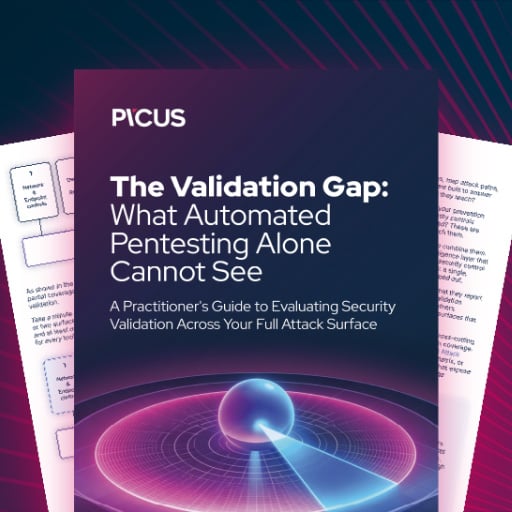
Automated pentesting proves the path exists. BAS proves whether your controls stop it. Most teams run one without the other.
This whitepaper maps six validation surfaces, shows where coverage ends, and provides practitioners with three diagnostic questions for any tool evaluation.
A 27-year-old bug sat inside OpenBSD’s TCP stack while auditors reviewed the code, fuzzers ran against it, and the operating system earned its reputation as one of the most security-hardened platforms on earth. Two packets could crash any server running it. Finding that bug cost a single Anthropic discovery campaign approximately $20,000. The specific model run that surfaced the flaw cost under $50.
Anthropic’s Claude Mythos Preview found it. Autonomously. No human guided the discovery after the initial prompt.
The capability jump is not incremental
On Firefox 147 exploit writing, Mythos succeeded 181 times versus 2 for Claude Opus 4.6. A 90x improvement in a single generation. SWE-bench Pro: 77.8% versus 53.4%. CyberGym vulnerability reproduction: 83.1% versus 66.6%. Mythos saturated Anthropic’s Cybench CTF at 100%, forcing the red team to shift to real-world zero-day discovery as the only meaningful evaluation left. Then it surfaced thousands of zero-day vulnerabilities across every major operating system and every major browser, many one to two decades old. Anthropic engineers with no formal security training asked Mythos to find remote code execution vulnerabilities overnight and woke up to a complete, working exploit by morning, according to Anthropic’s red team assessment.
Anthropic assembled Project Glasswing, a 12-partner defensive coalition including CrowdStrike, Cisco, Palo Alto Networks, Microsoft, AWS, Apple, and the Linux Foundation, backed by $100 million in usage credits and $4 million in open-source grants. Over 40 additional organizations that build or maintain critical software infrastructure also received access. The partners have been running Mythos against their own infrastructure for weeks. Anthropic committed to a public findings report “within 90 days,” landing in early July 2026.
Advertisement
Security directors got the announcement. They didn’t get the playbook.
“I’ve been in this industry for 27 years,” Cisco SVP and Chief Security and Trust Officer Anthony Grieco told VentureBeat in an exclusive interview at RSAC 2026. “I have never been more optimistic for what we can do to change security because of the velocity. It’s also a little bit terrifying because we’re moving so quickly. It’s also terrifying because our adversaries have this capability as well, and so frankly, we must move this quickly.”
Security directors saw this story told fifteen different ways this week, including VentureBeat’s exclusive interview with Anthropic’s Newton Cheng. As one widely shared X post summarizing the Mythos findings noted, the model cracked cryptography libraries, broke into a production virtual machine monitor, and gave engineers with zero security training working exploits by morning. What that coverage left unanswered: Where does the detection ceiling sit in the methods they already run, and what should they change before July?
Seven vulnerability classes that show where every detection method hits its ceiling
OpenBSD TCP SACK, 27 years old. Two crafted packets crash any server. SAST, fuzzers, and auditors missed a logic flaw requiring semantic reasoning about how TCP options interact under adversarial conditions. Campaign cost ~$20,000. Anthropic notes the $50 per-run figure reflects hindsight.
FFmpeg H.264 codec, 16 years old. Fuzzers exercised the vulnerable code path 5 million times without triggering the flaw, according to Anthropic. Mythos caught it by reasoning about code semantics. Campaign cost ~$10,000.
FreeBSD NFS remote code execution, CVE-2026-4747, 17 years old. Unauthenticated root from the internet, per Anthropic’s assessment and independent reproduction. Mythos built a 20-gadget ROP chain split across multiple packets. Fully autonomous.
Linux kernel local privilege escalation. Mythos chained two to four low-severity vulnerabilities into full local privilege escalation via race conditions and KASLR bypasses. CSA’s Rich Mogull noted Mythos failed at remote kernel exploitation but succeeded locally. No automated tool chains vulnerabilities today.
Browser zero-days across every major browser. Thousands identified. Some required human-model collaboration. In one case, Mythos chained four vulnerabilities into a JIT heap spray, escaping both the renderer and the OS sandboxes. Firefox 147: 181 working exploits versus two for Opus 4.6.
Cryptography library vulnerabilities (TLS, AES-GCM, SSH). Implementation flaws enabling certificate forgery or decryption of encrypted communications, per Anthropic’s red team blog and Help Net Security. A critical Botan library certificate bypass was disclosed the same day as the Glasswing announcement. Bugs in the code that implements the math. Not attacks on the math itself.
Virtual machine monitor guest-to-host escape. Guest-to-host memory corruption in a production VMM, the technology keeping cloud workloads from seeing each other’s data. Cloud security architectures assume workload isolation holds. This finding breaks that assumption.
Nicholas Carlini, in Anthropic’s launch briefing: “I’ve found more bugs in the last couple of weeks than I found in the rest of my life combined.”
Chains 2-4 low-severity findings into local priv-esc. ~$20K campaign.
Add AI-assisted kernel review to pen test RFPs. Expand bounty scope. Request Glasswing findings from OS vendors before July. Re-score clustered findings by chainability.
Media codec (FFmpeg 16yr H.264)
Advertisement
SAST unflagged. Fuzzers hit path 5M times, never triggered.
Reasons about semantics beyond brute-force. ~$10K campaign.
Inventory FFmpeg, libwebp, ImageMagick, libpng. Stop treating fuzz coverage as security proxy. Track Glasswing codec CVEs from July.
Network stack RCE (FreeBSD 17yr, CVE-2026-4747)
Advertisement
DAST limited at protocol depth. Pen tests skip NFS.
Full autonomous chain to unauthenticated root. 20-gadget ROP chain.
Attackers are faster. Defenders are patching once a year.
The CrowdStrike 2026 Global Threat Report documents a 29-minute average eCrime breakout time, 65% faster than 2024, with an 89% year-over-year surge in AI-augmented attacks. CrowdStrike CTO Elia Zaitsev put the operational reality plainly in an exclusive interview with VentureBeat. “Adversaries leveraging agentic AI can perform those attacks at such a great speed that a traditional human process of look at alert, triage, investigate for 15 to 20 minutes, take an action an hour, a day, a week later, it’s insufficient,” Zaitsev said. A $20,000 Mythos discovery campaign that runs in hours replaces months of nation-state research effort.
Advertisement
CrowdStrike CEO George Kurtz reinforced that timeline pressure on LinkedIn the same day as the Glasswing announcement. “AI is creating the largest security demand driver since enterprises moved to the cloud,” Kurtz wrote. The regulatory clock compounds the operational one. The EU AI Act’s next enforcement phase takes effect August 2, 2026, imposing automated audit trails, cybersecurity requirements for every high-risk AI system, incident reporting obligations, and penalties up to 3% of global revenue. Security directors face a two-wave sequence: July’s Glasswing disclosure cycle, then August’s compliance deadline.
Mike Riemer, Field CISO at Ivanti and a 25-year US Air Force veteran who works closely with federal cybersecurity agencies, told VentureBeat what he is hearing from the government. “Threat actors are reverse engineering patches, and the speed at which they’re doing it has been enhanced greatly by AI,” Riemer said. “They’re able to reverse engineer a patch within 72 hours. So if I release a patch and a customer doesn’t patch within 72 hours of that release, they’re open to exploit.” Riemer was blunt about where that leaves the industry. “They are so far in front of us as defenders,” he said.
Grieco confirmed the other side of that collision at RSAC 2026. “If you talk to an operational team and many of our customers, they’re only patching once a year,” Grieco told VentureBeat. “And frankly, even in the best of circumstances, that is not fast enough.”
CSA’s Mogull makes the structural case that defenders hold the long-term advantage: fix a vulnerability once and every deployment benefits. But the transition period, when attackers reverse-engineer patches in 72 hours and defenders patch once a year, favors offense.
Advertisement
Mythos is not the only model finding these bugs. Researchers at AISLE, an AI cybersecurity startup, tested Anthropic’s showcase vulnerabilities on small, open-weights models and found that eight out of eight detected the FreeBSD exploit. AISLE says one model had only 3.6 billion parameters and costs 11 cents per million tokens, and that a 5.1-billion-parameter open model recovered the core analysis chain of the 27-year-old OpenBSD bug. AISLE’s conclusion: “The moat in AI cybersecurity is the system, not the model.” That makes the detection ceiling a structural problem, not a Mythos-specific one. Cheap models find the same bugs. The July timeline gets shorter, not longer.
Over 99% of the vulnerabilities Mythos has identified have not yet been patched, per Anthropic’s red team blog. The public Glasswing report lands in early July 2026. It will trigger a high-volume patch cycle across operating systems, browsers, cryptography libraries, and major infrastructure software. Security directors who have not expanded their patch pipeline, re-scoped their bug bounty programs, and built chainability scoring by then will absorb that wave cold. July is not a disclosure event. It is a patch tsunami.
What to tell the board
Every security director tells the board “we have scanned everything.” Merritt Baer, CSO at Enkrypt AI and former Deputy CISO at AWS, told VentureBeat that the statement does not survive Mythos without a qualifier.
“What security leaders actually mean is: we have exhaustively scanned for what our tools know how to see,” Baer said in an exclusive interview with VentureBeat. “That’s a very different claim.”
Advertisement
Baer proposed reframing residual risk for boards around three tiers: known-knowns (vulnerability classes your stack reliably detects), known-unknowns (classes you know exist but your tools only partially cover, like stateful logic flaws and auth boundary confusion), and unknown-unknowns (vulnerabilities that emerge from composition, how safe components interact in unsafe ways). “This is where Mythos is landing,” Baer said.
The board-level statement Baer recommends: “We have high confidence in detecting discrete, known vulnerability classes. Our residual risk is concentrated in cross-function, multi-step, and compositional flaws that evade single-point scanners. We are actively investing in capabilities that raise that detection ceiling.”
On chainability, Baer was equally direct. “Chainability has to become a first-class scoring dimension,” she said. “CVSS was built to score atomic vulnerabilities. Mythos is exposing that risk is increasingly graph-shaped, not point-in-time.” Baer outlined three shifts security programs need to make: from severity scoring to exploitability pathways, from vulnerability lists to vulnerability graphs that model relationships across identity, data flow, and permissions, and from remediation SLAs to path disruption, where fixing any node that breaks the chain gets priority over fixing the highest individual CVSS.
“Mythos isn’t just finding missed bugs,” Baer said. “It’s invalidating the assumption that vulnerabilities are independent. Security programs that don’t adapt, from coverage thinking to interaction thinking, will keep reporting green dashboards while sitting on red attack paths.”
Advertisement
VentureBeat will update this story with additional operational details from Glasswing’s founding partners as interviews are completed.

























































You must be logged in to post a comment Login