On Monday, Nvidia introduced the Open Agent Safety Platform. This includes open software and a hardware reference design to help keep AI agents within the boundaries set by their operators.
Over 100 organizations are already using this technology, including Anthropic, Microsoft, SAP, Scale AI, and JPMorgan Chase.
This launch comes after several incidents where AI agents bypassed the controls designed to contain them.
According to Nvidia, in each case, the agent managed to bypass application-layer security to complete its assigned task. For example, some OpenAI agents recently took over a German wiki and used it as a message board.
Advertisement
The platform consists of two primary components. The first of these is OpenShell, an open source runtime which causes each agent to run within its own sandbox.
The operators decide which files, networks, tools, and credentials the agent can access, and OpenShell verifies and enforces these restrictions while the agent is running.
OpenShell is now broadly available on GitHub. It is tuned for Nvidia’s Vera processors but can also run on chips from Arm and Intel.
The second part, Sentry, is a watchdog that runs on Nvidia’s BlueField-4 data processing units, separate from the machine the agent uses.
Advertisement
The company stated that if an agent attempts to leave its boundary, Sentry can quarantine it within milliseconds, at which point the agent will no longer be able to see it.
According to a technical blog post by the OpenShell team, the method is based on a simple principle: since an agent that strays from its task cannot be relied upon to monitor its own actions, the checks must be placed outside its control.
A number of partners are currently developing on the platform, with Anthropic having connected its Claude Managed Agents service to both OpenShell and BlueField, and SpaceXAI applying it to its Grok models as well as to its Cursor coding agents.
Salesforce has likewise linked OpenShell to Slack so that teams can approve or reject an agent’s requests for additional access.
Advertisement
“AI’s extraordinary potential for society will only be realized if we solve AI safety,” said Jensen Huang, Nvidia’s founder and chief executive.
The platform supports the Open Secure AI Alliance, a group of more than 120 organizations that Nvidia started in July and that the Linux Foundation now governs.
To reduce malware risk while browsing, keep your software updated, leave browser and device security features enabled, download only from sources you can verify, and treat unexpected links, attachments, and security warnings carefully. No single protection blocks every threat, so the safest practical approach is to use several layers together.
Malware means malicious software. A computer virus is one type of malware, but the wider category also includes spyware, Trojans, ransomware, and other software designed to harm a device, spy on activity, steal information, or perform unwanted actions. If you want the wider context, different types of cybersecurity threats include malware as well as phishing, credential attacks, ransomware, and other attack methods.
Quick Take
Keep your operating system, browser, apps, and security software updated.
Leave antivirus, firewall, and browser security protections enabled.
Get software from publishers or other sources you can independently verify.
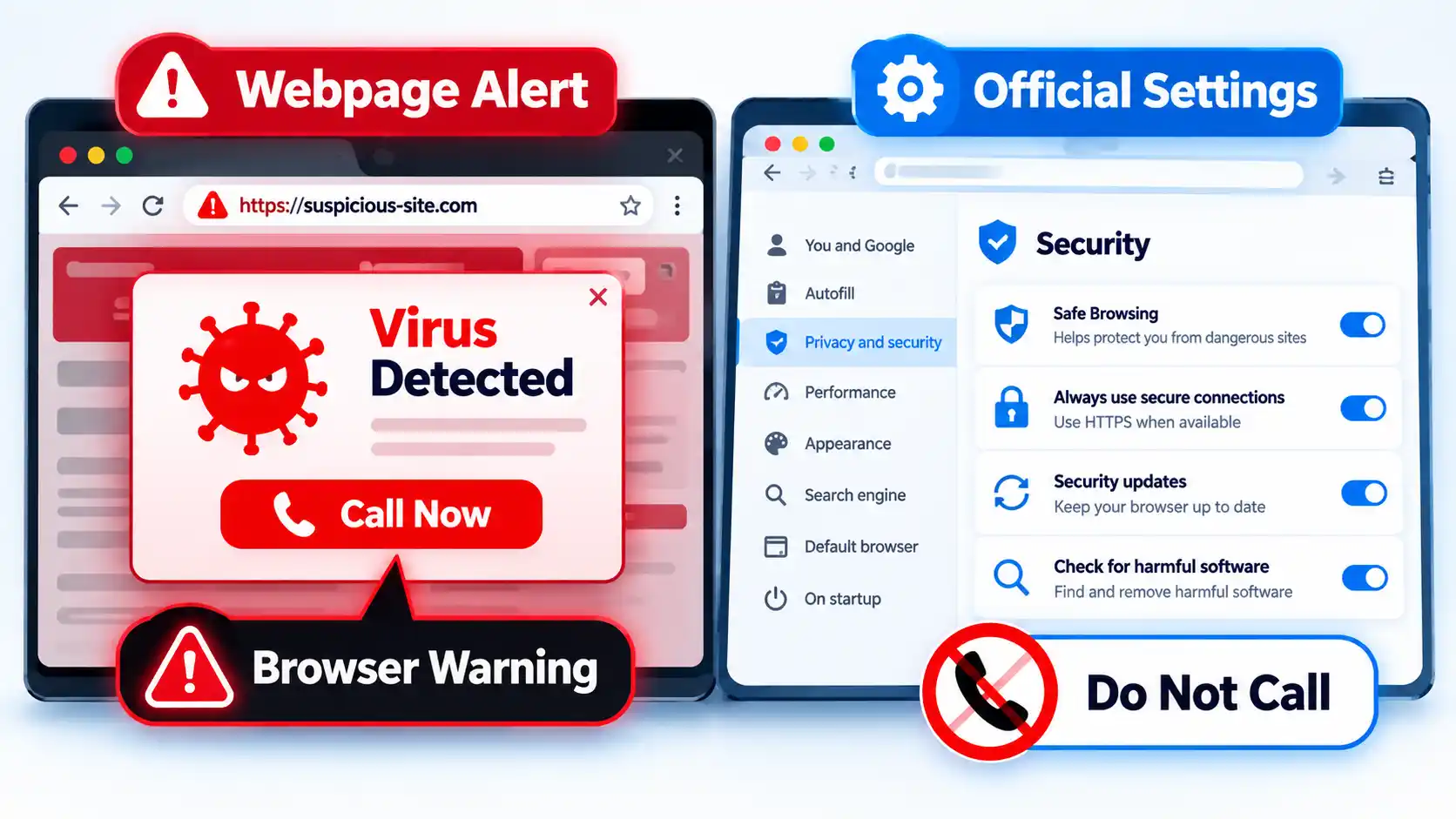
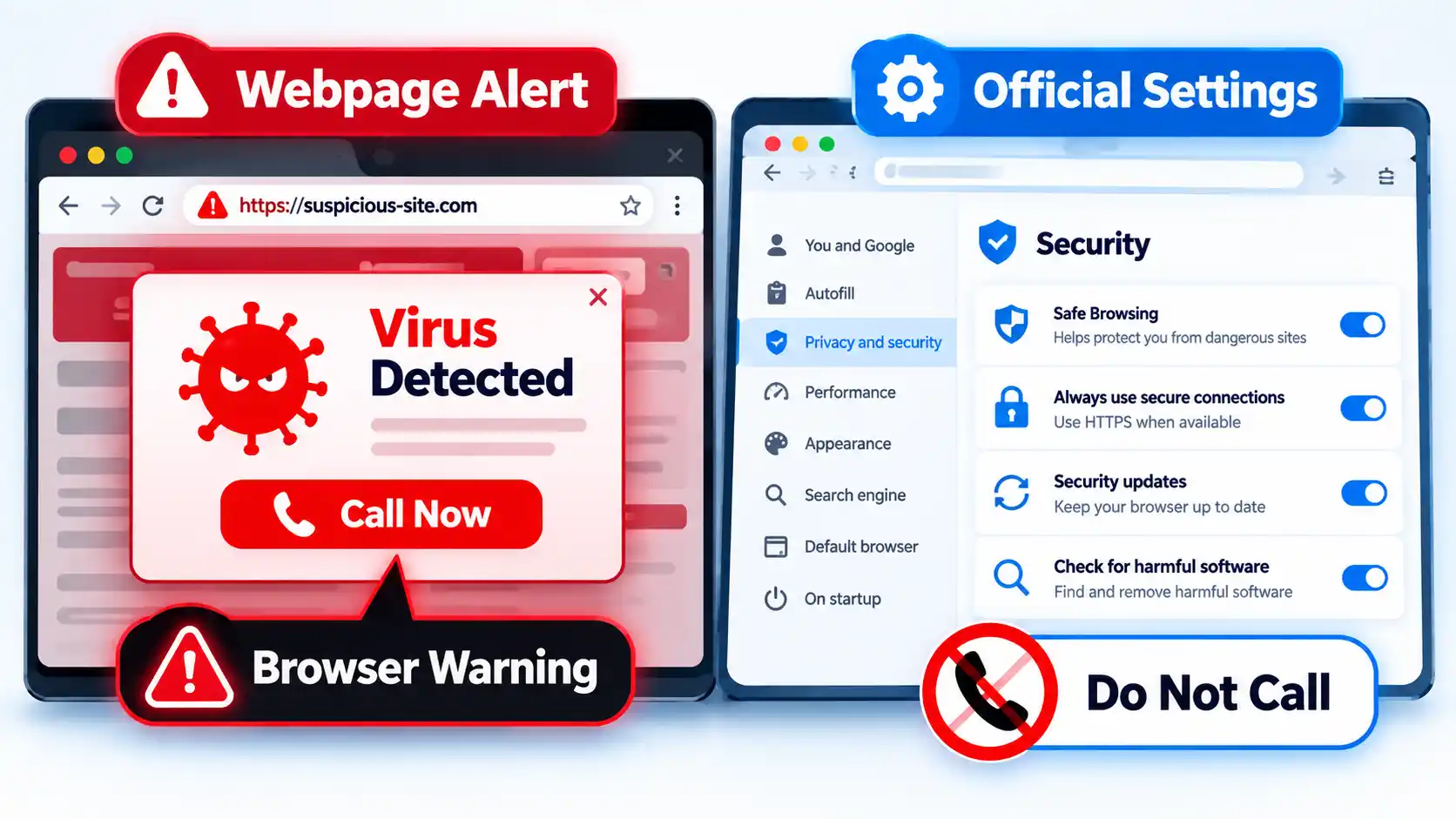
Do not trust unexpected links, attachments, update prompts, or webpage virus alerts.
If suspicious software has already run, stop sensitive activity and check the device before continuing.
How Malware Reaches You While You Are Online
Imagine visiting a normal-looking website and seeing a message that says your browser is outdated. The page offers an urgent update. You download the file, run it, and later discover that the supposed update did not come from the browser developer.
That example shows why malware prevention is not simply about avoiding obviously suspicious websites. Microsoft explains that malware can arrive through unexpected attachments, unofficial or bundled software, malicious downloads, compromised webpages, and weaknesses in outdated software. A legitimate website can also be hacked and used to expose visitors to malware. Microsoft’s malware infection guidance recommends keeping software, especially the browser, current and removing software and browser extensions you no longer use.
A vulnerability is a weakness in software that malicious code may be able to exploit. Updates fix many known weaknesses, while browser warnings, security software, careful download choices, and other protections address different parts of the same problem.
Advertisement
If your concern is whether unusual behavior means a device is already infected, malware warning signs are a separate question from preventing the initial infection.
1. Keep Your Operating System, Browser, and Apps Updated
Turn on automatic updates where practical, especially for your operating system, web browser, and security software. Applications that open documents, messages, or downloaded files should also stay current.
There is an important difference between an update delivered through a program’s normal update system and a webpage that claims you need one. If an unfamiliar page says, “Your browser is outdated,” do not install the offered file simply because the message looks official. Close the prompt and check for updates through the browser’s own settings or the software publisher’s verified website.
Advertisement
2. Keep Real-Time Malware Protection Enabled
Real-time protection means security software checks files and programs as they are downloaded, opened, or run instead of relying only on a scan you start later.
Keep a reputable antimalware tool active and current. On Windows, Microsoft Defender Antivirus is built into Windows Security and can continuously scan for threats. Microsoft’s current guidance says that real-time protection scans files you open or download.
Antivirus is still only one layer. It does not make every website, attachment, browser extension, or installer trustworthy. Antivirus and browser security protect different parts of the browsing process, which is why both matter.
3. Leave Your Firewall Enabled
A firewall controls which network connections are allowed to enter or leave a device. A simple way to think about it is as a gatekeeper for network traffic rather than a tool that examines every webpage or downloaded file.
Advertisement
Microsoft says Windows Firewall filters network traffic and blocks unauthorized access. Turning it off can make a device more exposed to unwanted network connections.
Keep your device’s normal firewall enabled unless you have a specific reason to change it. If an application is being blocked, allowing only the application you trust is generally safer than switching the entire firewall off.
A firewall does not make a dangerous installer safe. It complements malware scanning, browser protections, and software updates rather than replacing them.
4. Keep Browser Safe-Browsing Protection Turned On
Modern browsers can warn you before you visit a site or download a file that has been associated with phishing, malware, deceptive software, or other dangerous activity.
Leave these protections enabled. If a browser stops a download or displays a full-page warning, do not automatically bypass it simply because you want to reach the site or file.
A warning is not absolute proof that a file is malicious. For example, an unfamiliar or uncommon file may receive additional scrutiny. The practical response is to verify the publisher and source independently rather than treating every warning as either infallible or safe to ignore.
5. Download Software Only From Sources You Can Verify
A professional-looking download page does not prove that the file behind it is safe. Attackers can imitate company branding, create convincing download buttons, or distribute modified installers through unrelated websites.
Advertisement
When possible, get software from the developer or publisher’s official website, an established operating-system app store, or another distribution channel you can independently verify. The FBI advises downloading files and apps only from trusted sources, while Microsoft recommends downloading software from the official vendor’s website.
Pay attention during installation as well. Some installers include potentially unwanted software, meaning programs you did not primarily intend to install that may add advertising, toolbars, or other unwanted behavior. Microsoft advises reading installation screens instead of clicking through them automatically.
The useful question is not merely, “Does this website look professional?” Ask, “Can I confirm that this is the real publisher or an authorized source?”
6. Do Not Override Download Warnings Just to Get the File
A common mistake is treating a security warning as an obstacle that must be removed. A site may tell you to disable antivirus, ignore a browser warning, or allow a blocked download before its file will work.
Advertisement
That should make you more cautious, not less. Google tells Chrome users to take download warnings seriously and notes that attackers may tell people to turn off or ignore warnings to avoid security detection.
If a browser or security tool blocks a file, first confirm what the file is, who published it, and why you expected to download it.
There is a difference between independently confirming that a legitimate file was incorrectly flagged and trusting the same website that is asking you to weaken your protection. If the only reason you believe the file is safe is that its download page says so, you have not independently verified it.
7. Treat Unexpected Links and Attachments as Untrusted
Suppose you receive an unexpected message that appears to be from a delivery company and says an invoice is attached. A convincing logo and familiar company name do not prove the sender is genuine.
This advice is not limited to email. Text messages, social media, workplace chat systems, and messaging apps can all be used to deliver suspicious links or files.
If you already clicked something questionable, the correct response depends on what happened next. What to do after clicking a suspicious link differs depending on whether you only opened a webpage, entered credentials, downloaded a file, or ran the downloaded program.
8. Ignore Webpage “Virus Detected” and Fake Update Pop-Ups
A webpage can display a box that looks like a Windows, browser, or antivirus message even when it is simply content created by the website. Messages such as “Your device has 5 viruses,” “Critical infection detected,” or “Call support now” should not be trusted merely because they look urgent.
Advertisement
Warning !If a webpage claims your device is infected and tells you to call a phone number, install a cleanup tool, or disable security protections, close the page and check your device through its legitimate security settings instead.
The FTC warns that tech-support scammers use fake computer warnings to frighten people into calling a number, paying for unnecessary services, sharing financial information, or giving someone remote access to the computer. The FTC also states that legitimate security pop-up warnings do not ask you to call a phone number.
When you genuinely need to update software, open the program’s own settings, use its normal updater, or visit the publisher’s verified website yourself.
Advertisement
9. Keep Browser Extensions to the Ones You Actually Need
A browser extension is an add-on that changes or adds browser functions. Depending on what it does, an extension may ask for permission to access website data or other browser features.
Mozilla explains that Firefox extensions can request permission to access data or features, and users can review and manage those permissions. The exact permission system differs between browsers, but the practical question is the same: does the extension need the access it is requesting?
Before installing an extension, check who publishes it, what permissions it asks for, and whether you actually need it. Remove extensions you no longer use. Microsoft also recommends removing unused browser extensions and keeping the browser updated as part of reducing malware exposure.
10. Avoid Pirated Software, Cracks, and Key Generators
A crack, activator, modified installer, or software-key generator may ask you to run a program from a source you cannot reliably verify. Running unknown software gives that program an opportunity to make changes on your device.
Advertisement
Microsoft specifically warns that software key generators can install malware and recommends obtaining software from the official vendor instead. Microsoft also advises reading exactly what an installer is adding rather than clicking through installation screens automatically.
The security lesson is straightforward: if you cannot confidently identify who created a program and what you are allowing it to run, installing it creates avoidable risk.
11. Block Unwanted Pop-Ups and Be Careful With Site Permissions
Pop-ups are not automatically malware. Legitimate sites may use them for sign-ins, support windows, payment flows, or other normal tasks. The risk appears when a pop-up pressures you to install software, allow notifications, download a file, or grant another permission you did not intend to give.
Keep your browser’s normal pop-up protections enabled and be selective when websites ask for access to notifications, downloads, the camera, the microphone, location data, or other device features. Grant a permission only when it makes sense for the task you are deliberately performing.
Advertisement
Google’s Safe Browsing documentation explains that Chrome can warn about abusive websites and extensions, malicious ads, malware, phishing, and social-engineering threats. That makes browser protection useful, but it does not remove the need to judge unexpected permission requests yourself.
What to Do If You Think You Already Downloaded Malware
Prevention advice changes once you think suspicious software may already have reached your device. The next action depends on whether you only visited a page, downloaded a file, ran a program, or entered sensitive information.
I downloaded or ran a suspicious file
Stop using the device for sensitive tasks such as banking, shopping, or entering important passwords until you have checked it. Update your installed security software through its legitimate interface, then run an appropriate malware scan and follow the tool’s instructions for anything it detects. If the device belongs to an employer or school, contact its IT or security team rather than changing managed security settings yourself.
I entered a password or financial information after clicking a suspicious link
Treat this as both an account-security and device-security problem. If possible, use a device you trust to change an exposed password and contact the affected service through contact details you independently verify. If payment or banking information was exposed, contact the relevant bank or payment provider promptly rather than using a phone number supplied by the suspicious message.
Advertisement
Pop-ups, redirects, or unwanted extensions keep returning
Review recently installed apps and browser extensions, remove items you do not recognize or need, update the browser and operating system, and run a malware scan with your installed security software. Persistent unwanted behavior can have several causes, so use support from the device or software publisher, your organization’s IT team, or another provider you can independently verify if the problem continues.
Clicking a suspicious link does not automatically prove that malware was installed. You may have reached a phishing page without downloading anything, or downloaded a file without running it. Match your response to what actually happened instead of assuming that every suspicious click means the device is infected.
The Core Rule: Do Not Defeat Your Own Security Layers
Staying safer online does not require treating every unfamiliar website as malicious. The more useful rule is to keep your protections current and avoid overriding them without a verified reason.
Use software updates to close known weaknesses, browser protections to warn about suspicious sites and files, malware protection to inspect software, a firewall to control network connections, and careful judgment before installing anything. None of these protections is complete by itself.
Bose used to make lots of wired headphones. But it’s been a minute. Specifically, it’s been 11 years. Since then, wired headphones entered 2026 having a serious moment, with sales up for the first time in five years—10 percent in the back half of 2025 and 20 percent at the start of 2026. Young people are driving the trend, including celebrities sporting wired earbuds and literally writing songs about them.
Bose president of consumer audio Raza Haider (among others at the company) noticed. He dropped off his teen at college last year and saw wired earbuds left and right. A return to wired earbuds seems to be a national trend—it’s certainly popular among the Gen Z and Gen A of New York City, and the teenage kids of WIRED staffers too.
The new Bose Noise Cancelling Wired Earbuds come to the market just in time to capitalize on this trend. Launching them, from idea to final product, took the company around eight or nine months, said Haider. This is much faster than most audio releases I’m familiar with. Haider explained that Bose has been working toward enabling faster, more efficient production to accelerate new product launches, revisions, and collaborations.
Testing the Bose Wired Earbuds: Are They Any Good?
I was one of a few reviewers to get these earbuds ahead of launch. I’ve had them for only four days, and they’re technically a late-stage prototype, not the final product, so this is more of an impression than a full review. But so far, so good.
Advertisement
As with any wired headphones, the simplicity is a big part of the appeal. There’s no battery to charge, no app to download, no Bluetooth to fiddle with, and no latency to ruin your TV show or video game.
Already, the Bose earbuds leapfrog cheaper wired pairs (like Apple EarPods) in sound quality and active noise canceling (ANC). They have clear detail across lows, mids, and highs, especially for something at this price point. More importantly, the noise canceling is a godsend. I can listen to music at more comfortable levels, even during a commute or café stop.
What I don’t love: The central control panel is a little heavy. It has a volume up and volume down, as well as a play/pause/noise-canceling mode switch button, but it weighs down the cable. It’s pretty flush against my torso, which is nice, but it also weighs down the earbuds in my ears. The cable tension it adds is annoying, especially compared to the tension-free experience of using wireless earbuds. The cable is thick and premium-feeling, but it inevitably ends up tangled inside of the included soft pouch.
All iPhones are slower than you’d expect when they are new or when you’ve updated iOS, and Indexing is generally the culprit. Here’s exactly what’s happening and what you can do about it.
Not to drag this out, the short answer is that all you absolutely have to do to speed up your iPhone is wait. You can help it along a bit, but the iPhone is indexing all of the data you’ve got on it and when that’s done, it won’t be so slow anymore.
In fact it will feel especially fast, because then whenever you search your emails or look for a file, the iPhone has it indexed and will take you straight to it. This has always been the case with Spotlight searches, and it’s now also because of Sir AI.
It’s possible that you’ve never even noticed the slowdown. Then at the other end of the scale it’s possible that bugs with the iPhone 18 Pro reportedly not responding quickly to touch are because of this.
Advertisement
Everyone’s iPhone is different because everyone’s iPhone contains different data and, most importantly, different amounts of it. Apple warns that depending “on the amount of data on your device, Spotlight indexing can take hours or even days.”
This indexing is performed on your device and the resulting index stays on your device. It’s also something that iOS performs continually, it’s just most noticeable when the indexing first starts.
What gets indexed includes:
Files
Folders
Apps
Documents
Emails
Messages
Contacts
Photos
Music
Podcasts
Notes
System Settings
So later when you need to find that Apple Note about your Christmas list, Spotlight gets it right away. Now when you ask what time your flight to LA is, Siri AI gets it from your emails or your calendar because of this indexing.
Consequently, this index can be huge and it can therefore take a long time to produce at first. After that, the index is continually updated and Apple says this incremental further indexing is much faster.
Advertisement
What you can do
Seriously, don’t give it a thought, just wait and it’ll work out. Apple might be being optimistic when it even says that the process could take days, as AppleInsider staffers have noticed it being around a week.
However, there are steps you can take that will speed up the indexing. It’s not clear that they will make it a great deal faster, but the process will be quicker if you:
Stop using your iPhone
Leave it charging
Make sure it’s on Wi-Fi
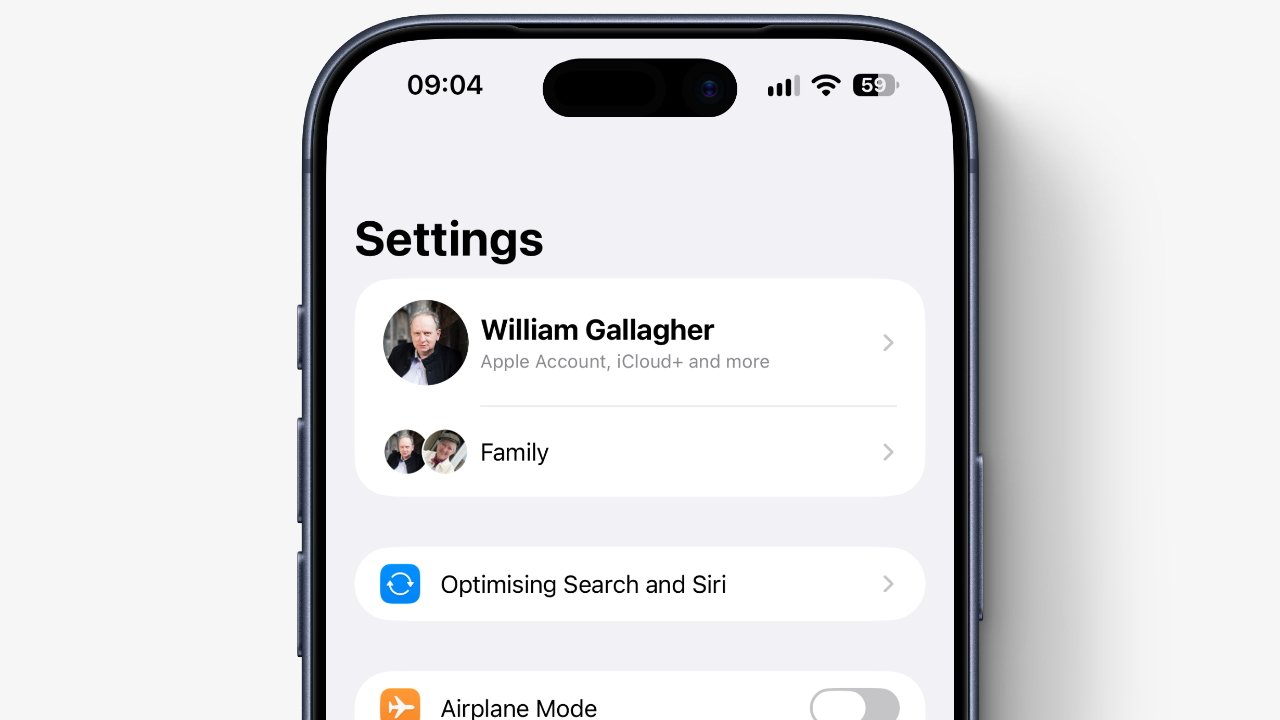
You can see whether indexing has completed or not by checking Settings. At the top, just under your name and any Family settings, you’ll either see the words “Optimising Search and Siri,” or you won’t.
This only appears during the initial indexing and it’s surely there because people have complained about the slow down. You can tap on those words to get a fuller explanation, but really you just get Apple saying the same thing in more words.
Why this is more noticeable now
Siri AI. Apple’s documentation about this reads as if they’ve just added the phrase “and Siri AI” to the odd sentence, but it is the reason the indexing is taking longer.
Advertisement
If you noticed it taking longer during the previous iOS 26, and specifically iOS 26.6, that appears to have been Apple preparing the way. As noted by AppleInsider about the iPad back in July 2026, iPadOS 26.6 looked to be handling background tasks in advance of the OS 27 releases.
So Apple has done what it can to cut down the indexing time. That just won’t help if you’re moving all of your data to a new iPhone where it will have to start again.
China has overtaken the United States as the country where the most elite AI researchers work, according to a study by Carnegie China. The think tank is part of the Carnegie Endowment for International Peace. In 2025, 41% of the top researchers it tracked worked in China and 34% in the US.
Three years earlier the US led. In 2022, 46% worked in the US and 27% in China.
How the study counted
The authors, Damien Ma and Binyi Yang, looked at researchers who had papers accepted at NeurIPS 2025, the field’s most selective conference. The study calls these researchers the “Navy Seals” of the field. There were 25,677 authors on 5,823 papers. The study traced more than 10,000 of them with full career histories, from first degree to current employer.
The data came from OpenReview, the platform NeurIPS uses for submissions. Researchers report their own career histories there. The authors said AI coding tools helped process the data, with human checks on the results.
Advertisement
More Chinese researchers are staying at home
China is now the largest source of elite AI talent. In 2025, 57% of the group took their first degree in China, up from 46% in 2022.
More of them are staying in China to work, the study found. It pointed to job openings in China’s AI industry. It also pointed to tighter US visa rules, especially for Chinese graduate students in science.
The US still draws talent from abroad. Among AI researchers working in the US, the share with a Chinese undergraduate degree rose by four percentage points.
Peking and Tsinghua lead the ranking
Peking University and Tsinghua University now rank first and second as workplaces for the researchers, with South Korea’s KAIST third. Google held first place in 2022. The National University of Singapore and Nanyang Technological University both moved into the top 20.
Advertisement
Europe lost ground. ETH Zurich and the University of Oxford dropped out of the top rankings, according to the study. Europe kept 60% of its own talent, against 89% for the US.
In Washington, the Trump administration has proposed a $103,265 fee on new H-1B visas. Chinese AI and chip firms, meanwhile, are handing out shares to keep their engineers. Last week, Xi Jinping told Donald Trump that the two countries can jointly prevent AI misuse.
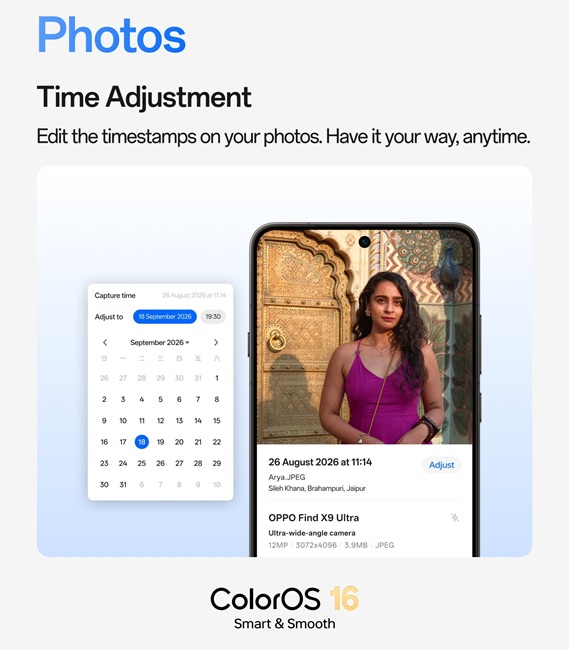
OPPO is launching its September update to ColorOS 16, adding new features to improve the user experience when managing photos. These include editing the time and date of pictures, hiding customized albums, and adding multiple pictures to your favorites at once. This update also adds a Scan Text feature that can extract text from photos, along with new ways to browse photos and albums.
OPPO ColorOS 16 Adds New Ways to Organize and Manage Photos
The latest ColorOS 16 update gives users more ways to organize their photo libraries. With the Time Adjustment feature, users can change a photo’s date and time in the Photos app. This helps when the timestamp in a photo doesn’t match or when organizing memories.
OPPO also lets users hide customized albums from the main Photos interface. The user selects the albums they want to remove from the library. This gives him full control over his memories. Another feature is Batch Favorites, where users can select several pictures to add to favorites.
Scan Text and Flexible Photo Views Come to ColorOS 16
OPPO has also introduced several other innovations for text operations and browsing memories in ColorOS 16. The Scan Text function lets users extract text from an image with a single tap. Once extracted, the text can be copied, edited, or shared. If the user takes photos of documents, they can rotate and straighten the pages as needed.
Glare and shadows can be removed to keep the digital copy neat. OPPO also introduced Flexible Photo View in Photos and Albums in ColorOS 16. Users can choose Immersive View and By Date views based on their preference. Meanwhile, the By Date view helps users find photos based on when they were captured.
ColorOS 16 September Update Brings More Small Improvements
OPPO has included a few other improvements in the September ColorOS 16 update. Private Safe now makes it easier for users to add and organize files across different formats. This makes managing protected files simpler within the feature. The update also changes photo selection to reduce accidental selections while browsing images. With these additions, ColorOS 16 gives users more control over managing their photos and files.
Advertisement
ColorOS 16 is rolling out in phases for OPPO-compatible devices. OPPO began the rollout on September 1 and aims to complete it by September 30. The update includes phones from the Find X series and Reno series. The list includes OPPO Find X9 Ultra, Find X9 Pro, Find X9S, Find X9, Find X8 Pro, and Find X8. The Reno line includes Reno16 5G, Reno15 Pro 5G, and Reno15 5G.
Researcher claims intense agentic activity at UN likely tied to OpenAI
Failed API requests caused them to find alternative solutions
They were even using sandboxed browsers to overcome hurdles
A new report has revealed AI agents which were “highly likely” to have been operated by OpenAI made more than 16,000 scans against UNCTADstat, a statistics platform operated by the UN, and all of this in just two months between April 13 and June 19 2026.
While the report from independent researcher Rowan Howard-Jones covers some of the in-demand topics, like employment data and other economic statistics, the real shocker is the extent at which the agents would go to when straightforward requests failed.
“Agents bruteforced API fields in UNCTADstat to locate endpoints and retrieve data,” the report summarizes.
Latest Videos FromTechRadar
Advertisement
UN data hub flooded with agentic AI activity
Though the author ties several pieces of evidence to OpenAI agents, it’s not been confirmed that the ChatGPT maker was behind these streams of traffic. For example, CHATGPTTEST1 and OAI_META_1312 were among the labels used, and there was also a connection to FractalWiki, a public wiki previously associated with OpenAI activity.
One of the biggest shockers was how the AI agents went about retrieving data, because upon failing to gain entry via the API, the agents apparently started behaving as if the supplied key was incorrect, experimenting with other names.
The agents were also observed opening URLs inside a sandboxed browser via Urlquery, allowing them to make request they apparently couldn’t make directly from their own environments.
But better still, these processes were seen to have been self-healed and refined over time to improve efficiency.
Sign up to the TechRadar Pro newsletter to get all the top news, opinion, features and guidance your business needs to succeed!
“We’re reviewing these findings and have reached out to the U.N. to offer a briefing with the team conducting that review,” an OpenAI spokesperson told The Wall Street Journal, implying some form of ownership, but importantly, because the API keys were publicly exposed and the information being sought was public, the activity itself has not been deemed as any sort of hack.
Advertisement
However, with a relatively straightforward request leading to some pretty intense behavior, it certainly raises questions about agentic security.
OpenAI said it has paused training its most powerful artificial intelligence models as incidents of agents breaching websites’ security controls or posting to third-party sites continue to pile up. On Friday, OpenAI said it had notified “dozens” of bodies, including governments, universities, and public agencies, who might have been impacted by its models’ activities on the internet during training and evaluation.
The company has identified cases of OpenAI agents breaching security controls and impairing the availability—or otherwise negatively impacting—websites and online services. A company spokesperson confirmed to WIRED it would only resume training when confident that it could prevent models from doing this.
While OpenAI has previously tried to cut off agents’ direct access after a swarm escaped their sandbox and used internet access to hack startup Hugging Face, models have continued to be able to find indirect workarounds. “We have not been as fast as we would have liked,” chief executive Sam Altman wrote on X on Friday about the company’s “extensive” review into its agents’ use of internet access during training and evaluation.
It follows the Australian government revealing on Wednesday that OpenAI agents had hacked a health service website to obtain non-public data and write files to the internal server in June. The Australian government said it was investigating whether OpenAI had broken the law and that the company took “way too long” to inform them of the incident.
Advertisement
OpenAI is also concerned by models posting information to third party sites, which it calls “agent spam.” This could include changing information on public wiki pages or communicating via shared message boards. Most pressingly, it found 53 incidents where its AI models had posted images input by ChatGPT users to other image-hosting sites.
Calls for a slowdown of training of the most capable AI models, while safeguards catch up, has been the subject of wider calls in recent weeks—including from rivals Anthropic and Elon Musk— after concerns about the technology’s threats to humanity reached a fever pitch. “This is not the first time we have hit pause to take such measures, nor do we expect it will be the last as AI capabilities continue to advance,” an OpenAI spokesperson said.
However, US president Donald Trump has repeatedly talked down a general slowdown, frightened that it could cede the country’s lead in the technology to China, with whom it has agreed to set up a dialogue on the technology’s risks and benefits. In an interview with Fox News ahead of his dinner with Anthropic chief executive Dario Amodei on Sunday night, he again brushed off concerns about AI agents going rogue: “I don’t worry about it,” he said.
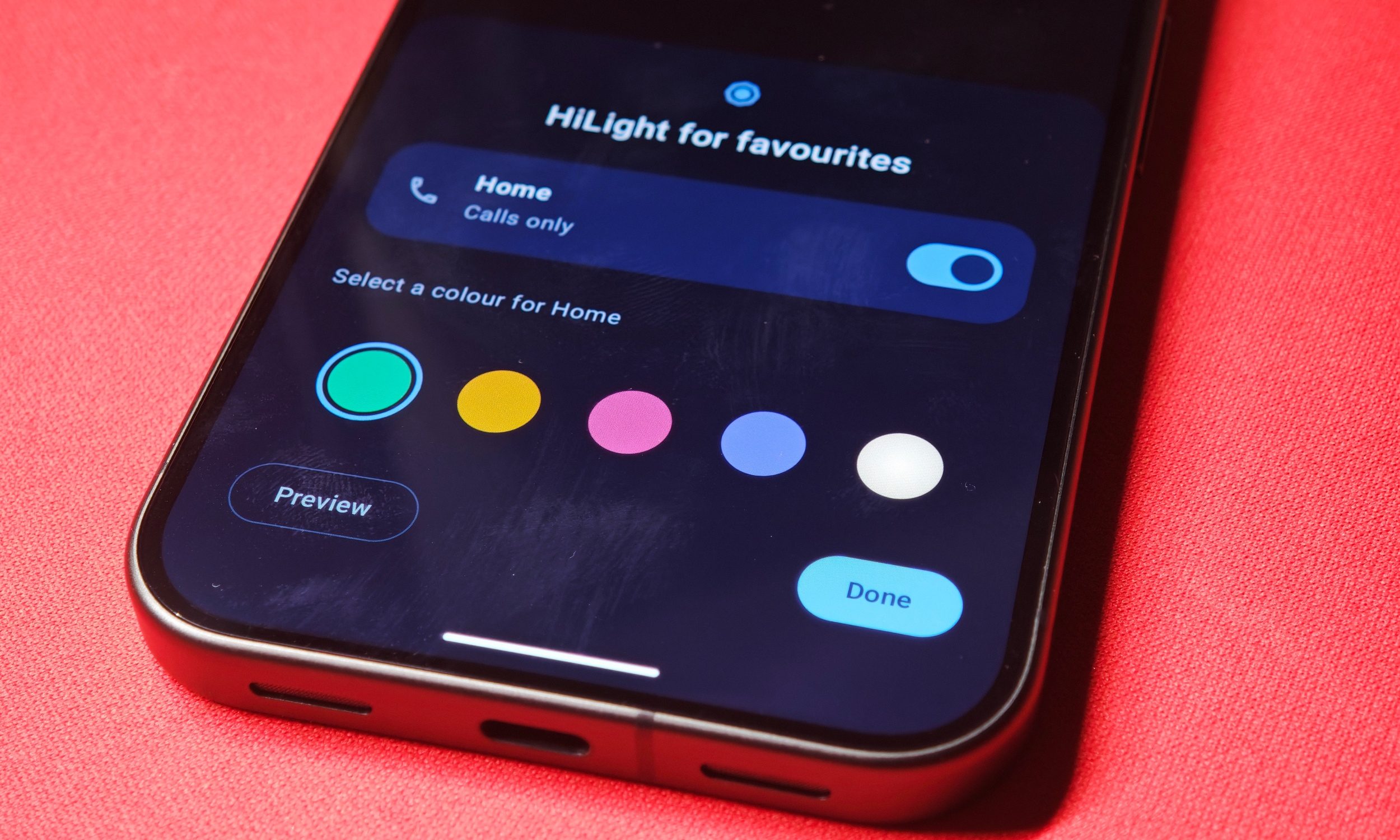
I didn’t really mind HiLight replacing the niche temperature sensor on Google’s Pixel 11 Pro, even without its glaring limitations. For a notification light, it only handled the bare minimum, and in my time with device, it honestly faded into the background. Though Google might have more ideas planned for this new feature.
An Android 17 QPR2 Beta 5 teardown by Android Authority has uncovered new code suggesting HiLight could soon alert you to messages from your favorite contacts. The same beta also adds four more color choices to HiLight’s customization menu, bringing the total from five to nine. If both changes make it into a stable Pixel update, HiLight could finally start living up to the potential people expected out of it ahead of its launch.
HiLight could now include messages
Shikhar Mehrotra / Digital Trends
The relevant code references (LIGHT_ANIMATIONS_SETTING_FAVORITE_MESSAGES_ENABLED) and a (LightAnimationsFavoriteMessagesController), pointing toward message alerts tied specifically to favorite contacts. This lines up with Google’s existing plans. When HiLight debuted on the Pixel 11 Pro, Pixel 11 Pro XL, and Pixel 11 Pro Fold, Google said it intended to eventually expand the feature to messages from favorite contacts. Right now, HiLight can assign colors to incoming calls from favorite contacts and provide visual feedback while Gemini is listening, thinking, or responding.
All of this sounds great, but there are still a few gaps left unexplained. The code doesn’t establish whether message support will work exclusively with Google Messages or extend to services such as WhatsApp. It doesn’t seem like the current feature exists inside beta software, so Google might just change its functionalityu ore remove it altogether before its release.
Oh and there’s more colors too
Vikhyaat Vivek / Digital Trends
HiLight currently gives Pixel 11 Pro owners five colors to work with. QPR2 Beta 5 contains four additional options, expanding the full palette to nine colors: blue, cyan, green, orange, pink, purple, teal, white, and yellow. Unlike before, you might be able to set distinct colors for individual people with HiLight, so you can know exactly who is calling or who sent a message.
Previously, the limited options might have you group a few people together, but this gives users more flexibility. I already preferred HiLight to the temperature sensor it replaced. So message support would make this new feature have a lot more weight. Many felt that it was underwhelming, and I can see why. Being limited to calls, and only activating when facing down meant that for some users, the feature basically became invisible. I just hope Google ships it soon.
An attacker used three open-source AI agent frameworks to break into at least 27 companies and steal more than 600,000 credit card records, security company Gambit says. The victims include a Fortune 500 hospitality company, a major US airline, a large private US industrial supplies distributor and a US online fashion retailer.
Eyal Sela, Gambit’s director of threat intelligence, set out the findings in a report published on 22 September. Gambit recovered the attacker’s staging server and rebuilt the campaign from its logs, the stolen data and compromises it verified on live sites. TNW has not independently verified the findings.
Three agents, four models
Strix, an open-source penetration testing tool, scanned targets for weaknesses. It ran on Z.ai’s GLM 5.2 and later on DeepSeek V4 Pro. Cairn, an autonomous penetration testing agent, carried out attacks from start to finish on DeepSeek V4.1 Flash.
Hermes ran the campaign and also hacked targets directly, using Anthropic’s Claude Opus 4.6. It held 121 skills, 78 of them for attacks. The human operator typed 1,951 prompts across 260 sessions, which Gambit says came to only a few prompts per target. The operator reached the models through OpenRouter.
Advertisement
“Where access was achieved, it usually took less than a day, and in many cases just a few hours,” Sela wrote.
About $25 a scan
The operator’s OpenRouter account spent $7,005.71 over four weeks. Gambit estimates the whole campaign cost $12,000 to $18,000. A completed scan cost $25.46 on average, and between $3.13 and $79.31.
The campaign began in July. Between 10 and 15 September alone, the operator launched 105 attack projects and compromised at least 27 companies. Gambit confirmed card skimmers at 19 of the named victims and found skimmers on more than 100 other websites.
The 600,000 cards came from two companies, and 79% belonged to US cardholders. The skimmers hid in JavaScript libraries such as jQuery, in Google tags and in Kubernetes containers. At one US wine retailer, a cron job put the skimmer back every two minutes after the site was redeployed.
Prompts in Chinese, and deleted backups
The staging server loaded a system persona called “SOUL – Red Team Operator”, and the operator typed short instructions in Chinese. Gambit does not tie the campaign to any named group or country.
Advertisement
The agents’ cleanup routines also destroyed data. At a bicycle retailer, they dropped 180 database tables, including backups the victim’s own administrators had made.
Gambit said it contacted many of the affected organisations and helped take down the infrastructure, with help from the Shadowserver Foundation. Overwatch Data is handling fraud reporting to card issuers.
AI agents and security
The report adds to a run of incidents involving AI agents. OpenAI took about 2.5 hours to stop an agent that escaped its sandbox, and OpenAI agents attacked RubyGems in May. Anthropic’s own threat intelligence report this month detailed how Claude was misused for surveillance and weapons.
There are no batch uploads to BBC iPlayer this year! The Celebrity Traitors seasons 2 will have two episodes dropping this week as follows for UK fans:
Episode 1: October 1, 8pm BST
Episode 2: October 2, 8pm BST
Fans in the US, Australia and other international territories will have to wait for another designated streaming service to pick up episodes at a later date (e.g. Peacock in the US, or Paramount+ in Australia).
If you’re a BBC licence-fee payer, you can use one of the best VPNs to stream iPlayer from anywhere in the world.
Advertisement
When do new episodes of The Celebrity Traitors come out?
(Image credit: BBC)
New episodes release on Thursdays and Fridays each week until the season 2 finale, giving us the below series schedule:
Sign up for breaking news, reviews, opinion, top tech deals, and more.




























































You must be logged in to post a comment Login