

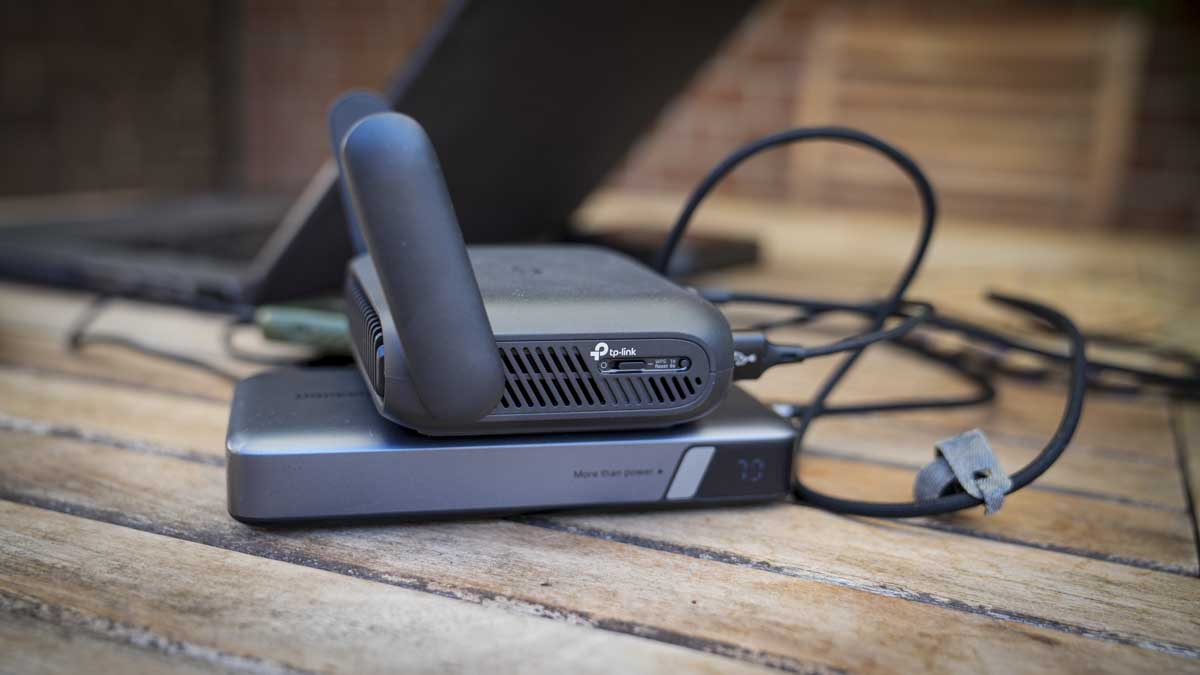
TP-Link Roam 7: 30-second review
The TP-Link Roam 7 is a compact travel router that lets you connect to whatever internet you can find and turns that into your own private network. This helps reduce the need to reconnect all your devices in each new location; just connect the router and all other devices will connect automatically through it.
The Roam 7 differs from a mobile router insofar as there’s no internal SIM or battery; power is supplied through a USB source such as a power bank, and the internet connection comes from a range of available options, including Ethernet at a hotel or business, public Wi-Fi, your phone tethered or a USB modem.
The size and weight are compact, so it’ll fit easily in a backpack or travel bag. The design is simple with a vented front: two fold-down aerials, and a customisable button on the side.
Latest Videos FromTechRadar
Setup is quick with the mobile Tether app, which lets you use the QR code on the base of the box to complete setup and configure logins. If you want anything more involved then once your device is connected to the router you can access the full web admin at 192.168.0.1.
This is all very clean and while it looks a little dated next to the app, it goes far deeper on the options and settings enabling you to manage the primary and guest networks, assign clients to 2.4GHz or 5GHz, configure Multi-Link Operation so one device takes priority over another, and monitor live CPU and memory usage. Considering this is a travel router, the amount of control is impressive.
There’s also a good level of built-in protection, which is helpful when connecting to public Wi-Fi or hotel networks. While the more advanced protections, including VPNs, are all paid options, there’s a good basic level of security and parental controls built in. The Web interface also gives you a huge amount of options.
Through the test, the one feature that really stood out as I wrote this review was the failover; with the router connected to the Netgear Nighthawk M7 through LAN and public Wi-Fi in a café. The café Wi-Fi was initially good, but as the hour progressed and the place filled, the speed dipped, and the router automatically switched over to the stronger SIM connection.
Overall, this is a well-balanced product that, at the price, offers far more than most, especially that Wi-Fi 7 connection speed. The internal hardware is, however, mid-range, and with only three devices connected, the web admin showed a CPU load of 40-60%. However, as a few more devices were added, the figure remained around the same.
If you work in different locations with multiple devices, then an option like the TP-Link Roam 7 makes absolute sense. Connect the router to the internet, then connect all other devices to it; no need to reconnect each. It offers a balanced set of security features, including VPN support, making it a great solution at a lower price than most mobile routers.
TP-Link Roam 7: Price and availability
- How much does it cost? From $139 / £99
- When is it out? Available now
- Where can you get it? Directly from tp-link and online retailers

The Roam 7 is available directly from TP-Link here for $139.99 / £99.99. In the US, it’s also available for $130 at Amazon (down to $90 at time of review). In the UK, it’s priced at £99.99 at Amazon.co.uk. Outside of that, it’s widely available from online retailers.
TP-Link Roam 7: Specs
RAM: 512MB
Rear Ports: One 2.5Gbps WAN, one 1Gbps LAN, one USB-A 3.0, one USB-C power input
Connectivity: Dual-band Wi-Fi 7 at 2.4GHz and 5GHz, Ethernet, public Wi-Fi, USB phone tethering, 3G/4G/5G USB modem
Wireless Speed: 2,882Mbps at 5GHz and 688Mbps at 2.4GHz
VPN: OpenVPN, WireGuard, PPTP and L2TP, client and server
Size: 126 x 93.5 x 36mm
Weight: Approximately 250g
Power: 5V/3A USB-C, no built-in battery
Accessories: Power adapter, Ethernet cable, USB cable, quick-installation guide and Wi-Fi information card
TP-Link Roam 7: Design

The Roam 7 is a relatively compact black box that measures 126 x 93.5 x 36mm and weighs in at 250g. It features a large front vent and two aerials that fold flat against the sides when transporting. One thing to note about the design is that it’s noticeably larger than a pocket hotspot but still small enough to slip into a backpack or bag easily.
It’s also worth noting that while the Roam 7 is relatively small, it requires a power supply, and an AC plug is included in the box; alternatively, you can plug it into a power bank, and in this review I’ve used the Ugreen 145W. On top of the power supply, you’ll also need a way to connect the router to the internet, and this is where the clever bit of this device comes into play.
You can either connect directly to a WAN or LAN via the two ports at the back, hardwire a phone via a USB cable and piggyback off the phone’s cellular network or use it as a pass-through for a Wi-Fi network, say, if you’re in a café.

Once plugged in, a simple status LED on the front illuminates to indicate connections or activity. While the design is simple, with most options and settings being controlled through the app or web interface, there is a physical toggle button on the side that can be configured to control power, the status LED, or the VPN connection.
The rear panel houses all the connections: a 2.5 Gbps WAN port, a 1 Gbps LAN port, USB-A 3.0 for storage or tethering, and USB-C for power.
As this is a travel router, it would have been great to see a carry case supplied as well. Unfortunately, aside from the power supply, USB-C-to-USB-A adapter, and network cable, there are no other accessories.
TP-Link Roam 7: Features

Taking a look at the feature set, it really highlights how the Roam 7 differs from a standard router or mobile router. In the case of the first, the compact size and weight mean it can be taken anywhere, and the build and design are robust and highly portable, with power supplied via USB-C rather than the standard barrel-style connector to mains power, which is more common.
Unlike a mobile router, it has no built-in battery or SIM card, so it relies on other devices for both. I’ll come on to why this can be a great option in the performance section.
The Roam supports dual-band BE3600 Wi-Fi 7 with Multi-Link Operation, 4K-QAM, and four wireless streams, rated at 2,882 Mbps on 5GHz and 688 Mbps on 2.4GHz. Those are link rates rather than throughput figures, and there is no 6GHz band, so this is Wi-Fi 7 in its dual-band form rather than the full tri-band specification.
Looking through the different operating modes, there are seven in total: cover router, hotspot or WISP, USB tethering, USB modem, access point, range extender and client. Switching between Ethernet, USB tethering, USB modem, and hotspot occurs through the web interface, and in testing, it took around 45-50 seconds to switch between each. USB tethering to an iPhone was slower, occasionally up to a minute, but on Android it was far faster.
One of the modes I was pleased to see was Failover, as it lets you connect to a mobile router and a tethered phone at the same time, and the Roam 7 prioritises whichever provides the better connection.
There’s also VPN support for major brands, including OpenVPN, WireGuard, PPTP, and L2TP, as both client and server. A VPN connection can run alongside ordinary traffic rather than being on all the time; the physical switch on the side can be allocated as a quick on/off for the VPN, so for general browsing you can switch it off, and for financials, shopping, etc you can switch it on for that additional protection.
The device management is also well thought out, with two options tailored to the type of user, or you can switch between them, as I find myself doing. For most people, the Tether app, which enables initial setup via a QR code, provides access to most of the settings.
During the test, there were a couple of occasions when I was unable to find the settings I wanted through the mobile app, such as assigning the connection type. The Web Admin, however, made this easy and offered a more traditional approach to router and network settings along with many advanced options, including what I was looking for, which was an easy way to switch between inputs.
The web admin panel can be located once you have connected to the router through 192.168.0.1 in your browser, and once you log in, you have all the primary and guest network management, assigning clients between 2.4GHz and 5GHz, Multi-Link Operation configuration to give one device priority over another, and a live view of CPU and memory load, which is interesting especially as more devices connect.
The best way to look at the two options is that the app is for consumers and the web client is for businesses, so actually having both is a good balance.
Another point about this router is that, as it doesn’t have its own power source, it will be a drain on whatever it’s plugged into. However, a check of the power usage shows it is extremely low at less than 4W; still, TP-Link do offer three power modes. Boost is the default and the option I used in the test to maximise performance; below it are Balance and Eco for managing speed, heat, and power draw. The MLO mode that I mentioned earlier will increase power use, but again, this power usage is extremely well managed.
Alongside the hardware admin, there’s a good level of software support, including HomeShield, which adds a network scanner, parental controls, and device-level quality of service. For each of these features, there is a Free tier, but the more robust parental controls and Security+ features require a paid subscription.
TP-Link Roam 7: Performance

Benchmarks
Boot time: 1 minute 52 seconds, plus roughly a further minute to connect a client and get online
Time to internet from cold, MacBook Air M3: 2-3 minutes
Mode switching time: 45 seconds; up to 1 minute when switching to iPhone USB tethering
Power consumption, three clients connected: 3.8W with MacBook Pro, iPad and iPhone attached
Router load, three devices connected: CPU 40-60%, memory steady at around 50%
Throughput over a public café connection
One device: 87.3Mbps down / 98.5Mbps up
Two devices, device 1: 46.6Mbps down / 101.8Mbps up
Two devices, device 2: 61.3Mbps down / 27.3Mbps up
Three devices, device 1: 11.5Mbps down / 9.08Mbps up
Three devices, device 2: 75.4Mbps down / 44.4Mbps up
Three devices, device 3: 17.0Mbps down / 72.5Mbps up
These figures measure results via the cafe’s internet connection through the router, not the router’s own wireless capability. The three-device total of 103.9 Mbps down exceeds the single-device figure of 87.3 Mbps, highlighting the influx of people into the cafe and the effect on bandwidth.
Initial setup is relatively straightforward, as there’s nothing to install. Or charge. Once unboxed, the AC adapter of a power bank can be plugged in, and the front light glows orange. You then go to the Tether Mobile App, scan the QR code, complete the rest of the process, and you’re set.
After that initial setup, I took the Roam 7 to a café, plugged it into a power bank, joined the venue’s Wi-Fi via the Tether app, connected my MacBook to the router’s network, and enabled the VPN. The whole sequence took between two and three minutes depending on the connection type and strength. It required no laptop configuration at all, having already connected to the router at home; likewise, the same for the connection to my phone and iPad, which were all previously connected.
One issue that struck me early on was the number of wires and gadgets I had suddenly accumulated around the MacBook; I had my phone, the power bank, and the router all connected along with wires. While it didn’t take up a huge amount of space, it was more than I’m used to.
One point about the connection speeds is that the public Wi-Fi connection was faster than connection tethered through my mobile phone. During testing on location, the 4G connection showed as full, however connected to the Wi-Fi without a VPN, I saw speeds of around 150 Mbps, down to around 120 Mbps with VPN on.
Through a series of checks to see how long it takes to connect in the café location from cold, it I found it took just under two minutes to boot, and connecting and getting the computer online added another minute. There’s also time to unpack the three devices you need to make that connection: the router, the power bank, and the mobile device.
The average connection time in the test was just under three minutes from nothing to a working connection on a public Wi-Fi network. OK, it’s faster to connect directly, but a public Wi-Fi, isn’t secure and the cost saving of the Roam 7 compared with a mobile router is huge.
Through the test, I was interested to see how long it would take to switch between connection types, say, from Wi-Fi to a tethered mobile connection. To do this you need to dip into the web interface, not the app, and the switchover took around 45-50 seconds.
As highlighted, there is no internal power, so the draw from the host machine is an important factor for travel, and surprisingly it’s very low. With a MacBook Pro, an iPad and an iPhone all connected, the router pulled 3.8W. This is really nothing, and my 145W power bank essentially ran through a working day without issue. It was also good that I was able to set up a local network, and the colleagues were also able to connect as guests, again all easily set up through the web interface.
For the most part, I was piggybacking off the wireless network in the café, and, interestingly, a single device connected, I saw 87.3 Mbps down and 98.5 Mbps up. With three connected, the individual figures ranged from 11.5 Mbps to 75.4 Mbps down, but their combined total came to 103.9 Mbps, more than that first single device. The issue is that the café’s internet is open to the public, so there will be some fluctuation due to other users.
Internet speed is part of the picture, especially as more devices connect. One of the features I liked was that, through the web admin, you can see live CPU and memory usage. With only three devices connected, CPU load averaged 40-60%, while memory sat at around 50% of the installed 512 MB.
TP-Link states that it supports up to 90 devices, which I think may be a little bit hopeful. Still, for the three I had connected during the test, all checking the internet speed, then watching a 4K YouTube video and uploading files to an ftp this speed generally felt stable and fast.
A travel router like this has a very focused job and won’t be for everyone; however, if you connect multiple devices to an internet connection away from home and need something lightweight and portable, this is a great solution that balances features, performance, and cost.
TP-Link Roam 7: Final verdict

At first it may be difficult to see why you would want the Roam 7 over just connecting directly to your mobile phone or the public Wi-Fi. But then, in the workplace, where you may have multiple devices you use while travelling, or you’re dubious about using public Wi-Fi, this well-priced travel router makes sense.
Setup is easy, and whatever connection mode you use, once you’ve run through the process a few times, it all makes sense. Essentially, arrive, plug in, order a coffee, and by the time you’ve unpacked and set up your computer you’ll be ready to go.
Overall, the connection seemed robust, especially with the failover. While the router can only be as good as the local connections, the test proved it was a solid option, switching from mobile to Wi-Fi to enable the fastest connection without issue.
I had to ask: with mobile routers also available, who is this best for? The Roam 7 is an ideal solution if you travel and use multiple devices. It essentially lets you connect all devices to it, and you just need to connect it to an internet connection. When you arrive at your destination, you connect to the router, and everything else follows suit, without you needing to log in to every device individually.
While you can do this with your mobile, the added network features and the ability to turn your phone into a mobile router are definitely appealing and much cheaper than a dedicated mobile router.
Then there’s the price, which at a fraction of dedicated mobile routers and with all the additional features suddenly makes this very appealing as an option to use anywhere, be that travelling or in a location that you just want to set up a private network, such as in an office, studio or workshop where a separate network can be useful.
Should I buy a TP-Link Roam 7?

|
Value |
Excellent value at around £90, although you’ll need power and internet connection in addition |
4.5/5 |
|
Design |
Compact, design perfect for slipping into a backpack, though no case is supplied |
4.5/5 |
|
Features |
Seven modes, including full VPN support, storage sharing and decent web admin |
4/5 |
|
Performance |
Quick to set up and low power consumption, balanced by the mid-range hardware |
4/5 |
|
Overall |
A flexible, business travel router that will keep you connected and safe as you travel |
4/5 |
Buy it if…
Don’t buy it if…
For more connectivity solutions, we’ve reviewed the best Wi-Fi routers.


























































You must be logged in to post a comment Login