Cars didn’t always have steering wheels. The very first car—the 1885 Benz Patent-Motorwagen, invented by Karl Benz—used a tiller system: a horizontal bar with a handle mounted to a vertical bar. The lever-like handle was similar in many respects to a boat’s rudder. Amazingly, it would be another nine years before French engineer Alfred Vacheron saw sense and fitted the first known steering wheel to his 4-horsepower Panhard for the Paris-Rouen race. Just four years later, in 1898, Panhard made the infinitely preferable and safer steering wheel standard on all its cars. And we’ve been using them ever since.
Hans-Peter Wunderlich is Mercedes’ creative director of interior design. He has been designing steering wheels for 35 years. “I started in 1991 on my first,” he tells me. “A steering wheel is really the most challenging and difficult element to sculpture, to design, to develop in the car.” It is so difficult that Wunderlich has used the wheel as a test on potential recruits.
Advertisement
“When we hire a designer, I have given them the task, after I see a nice portfolio, to draw me a steering wheel,” he says. “The steering wheel is, for me, the proof. Should I hire them or not? If a designer is able to create a perfect steering wheel, even just as a scribble, then they will be a good designer for the total interior of a car.”
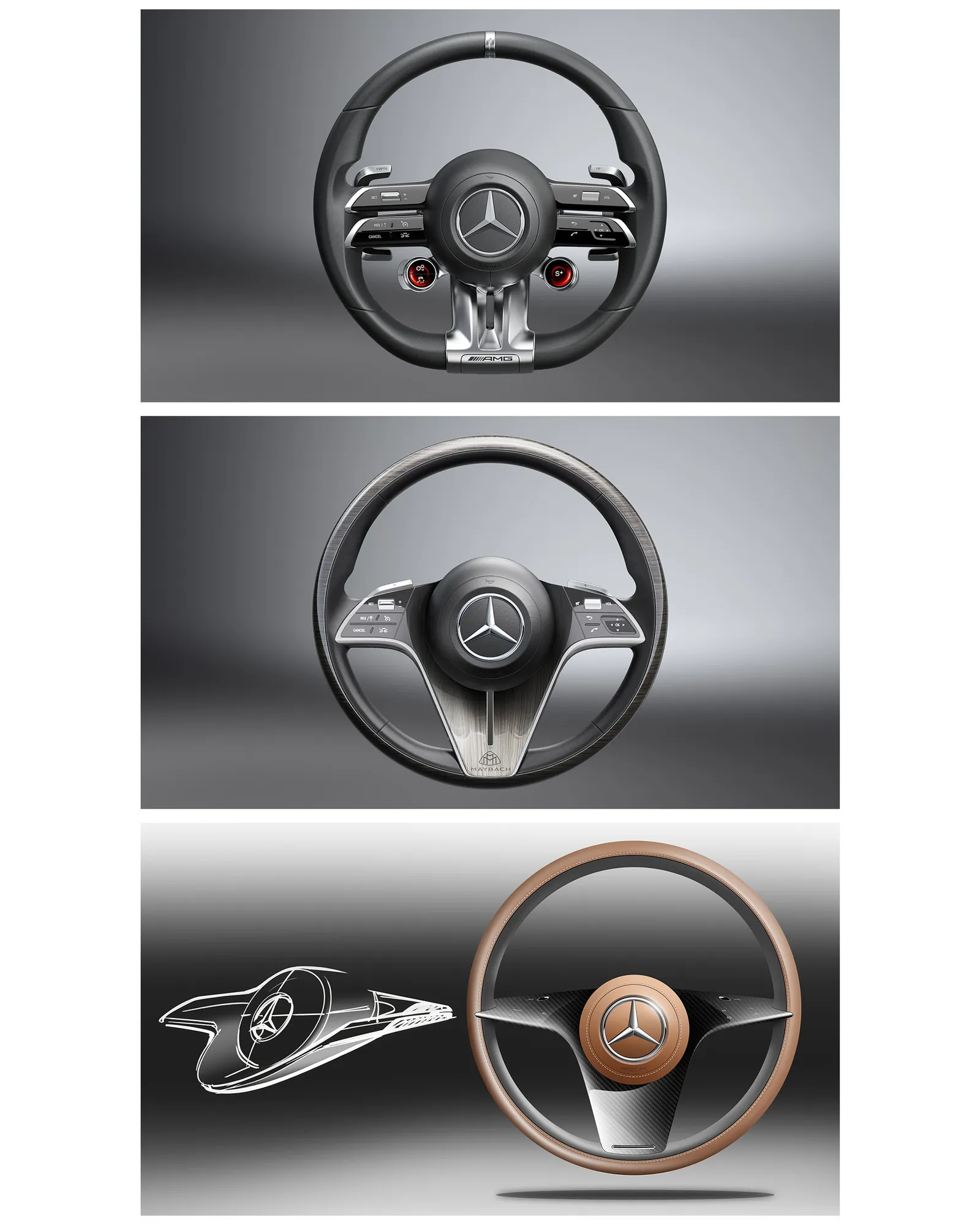
CAD design renders of Mercedes and Maybach designs before prototyping.
Courtesy of Mercedes
It was this challenge, in part, that attracted Ive and his team. “Our starting point was trying to understand the essential nature of the problem to be solved, and that normally means dismissing received wisdom,” Ive tells me. “A car is the aggregation of multiple products, and, in many ways, we’re designing furniture. We’re designing complex and sophisticated input methods. One of the challenges was to try to create cohesion. You don’t get something to be cohesive by a set of rules. That was a wonderful new challenge, and one wrestled with over a number of years.”
For both Ive and Wunderlich, science accompanies the art of design. They talk of the intricacies of the ergonomics, the logic of the switches, factoring in an “exploding element in the center” (the airbag), which is getting more and more complicated, says Wunderlich. “Even the rim is an ergonomic science in itself,” he adds, saying that his team works hand in glove with Mercedes’ in-house ergonomics department on these stages. “It’s almost 50-50. We get requirements data from engineering and ergonomics.”
Advertisement
Spinning Out
Look closely at your steering wheel rim; in cross-section, it won’t be round. Cut it into segments, and each will likely have a different profile, aiming to optimize grip wherever your hands grasp the wheel. Even the padding has to be just right. “It mustn’t be like bone but also not too fat. You need a nice balance,” Wunderlich says. “[It must say] this car is solid, it’s quality, it’s strong, it’s powerful, but it’s not crude.”
“If you hold the wheel on the three and nine o’clock positions, you can carve in with your fingers on the rear of the rim—so you have the hump, the scallop of the rim,” Wunderlich says. “And then we carve into a valley where your fingers could rest. That means your hands can close. You have the feeling you’re holding the car. This is so challenging, because in that area you have such a technical structure to maintain—complex electronics and heating elements. We torture the engineers to keep that area so small so we can sculpt it out.”
Ive tortured Raffaele De Simone, Ferrari’s chief engineer and head development driver. De Simone is sometimes described at the company as “Customer No. 1” because, apparently, no Ferrari road car leaves the factory until he is satisfied with its performance.
[Tommy] at Oskitone has been making hardware synth kits for years, and his designs are always worth checking out. His newest offering Space Dice is an educational kit that is a combination vintage sci-fi space laser sound generator, and six-sided die roller. What’s more, as a kit it represents an effort to be genuinely educational, rather than just using it as a meaningless marketing term.
There are several elements we find pretty interesting in Space Dice. One is the fact that, like most of [Tommy]’s designs, there isn’t a microcontroller in sight. Synthesizers based mostly on CMOS logic chips have been a mainstay of DIY electronics for years, as have “electronic dice” circuits. This device mashes both together in an accessible way that uses a minimum of components.
There are only three chips inside: a CD4093 quad NAND with Schmitt-trigger inputs used as a relaxation oscillator, a CD4040 binary counter used as a prescaler, and a CD4017 decade counter responsible for spinning a signal around six LEDs while sound is generated, to represent an electronic die. Sound emerges from a speaker on the backside of the PCB, which we’re delighted to see is driven not by a separate amplifier chip, but by unused gates on the CD4093 acting as a simple but effective square wave booster.
In addition, [Tommy] puts effort into minimizing part count and complexity, ensuring that physical assembly does not depend on separate fasteners or adhesives. We also like the way he uses a lever assembly to make the big activation button — mounted squarely above the 9 V battery — interface with a button on the PCB that is physically off to the side. The result is an enclosure that is compact and tidy.
We recommend checking out [Tommy]’s concise writeup on the design details of Space Dice for some great design insights, and take a look at the assembly guide to see for yourself the attention paid to making the process an educational one. We love the concept of presenting an evolving schematic diagram, which changes and fills out as each assembly step is performed and tested.
Advertisement
Watch it in action in a demo video, embedded just below. Space Dice is available for purchase but if you prefer to roll your own, all the design files and documentation are available online from the project’s GitHub repository.
Until the fall of the Soviet Union around 1990 you’d be forgiven as a proud Soviet citizen for thinking that the USSR’s technology was on par with the decadent West. After the Iron Curtain lifted it became however quite clear how outdated especially consumer electronics were in the USSR, with technologies like digital audio CDs and their players being one good point of comparison. In a recent video by a railways/retro tech YouTube channel we get a look at one of the earliest Soviet CD players.
A good overall summary of how CD technology slowly developed in the Soviet Union despite limitations can be found in this 2025 article by [Artur Netsvetaev]. Soviet technology was characterized mostly by glossy announcements and promises of ‘imminent’ serial production prior to a slow fading into obscurity. Soviet engineers had come up with the Luch-001 digital audio player in 1979, using glass discs. More prototypes followed, but with no means for mass-production and Soviet bureaucracy getting in the way, these efforts died during the 1980s.
During the 1980s CD players were produced in Soviet Estonia in small batches, using Philips internals to create the Estonia LP-010. Eventually sanctions on the USSR would strangle these efforts, however. Thus it wouldn’t be until 1991 that the Vega PKD-122 would become the first mass-produced CD player, with one example featured in this video.
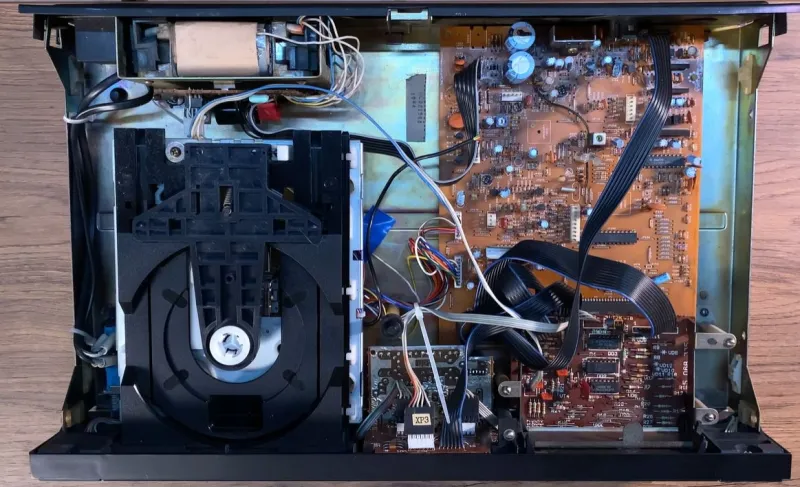
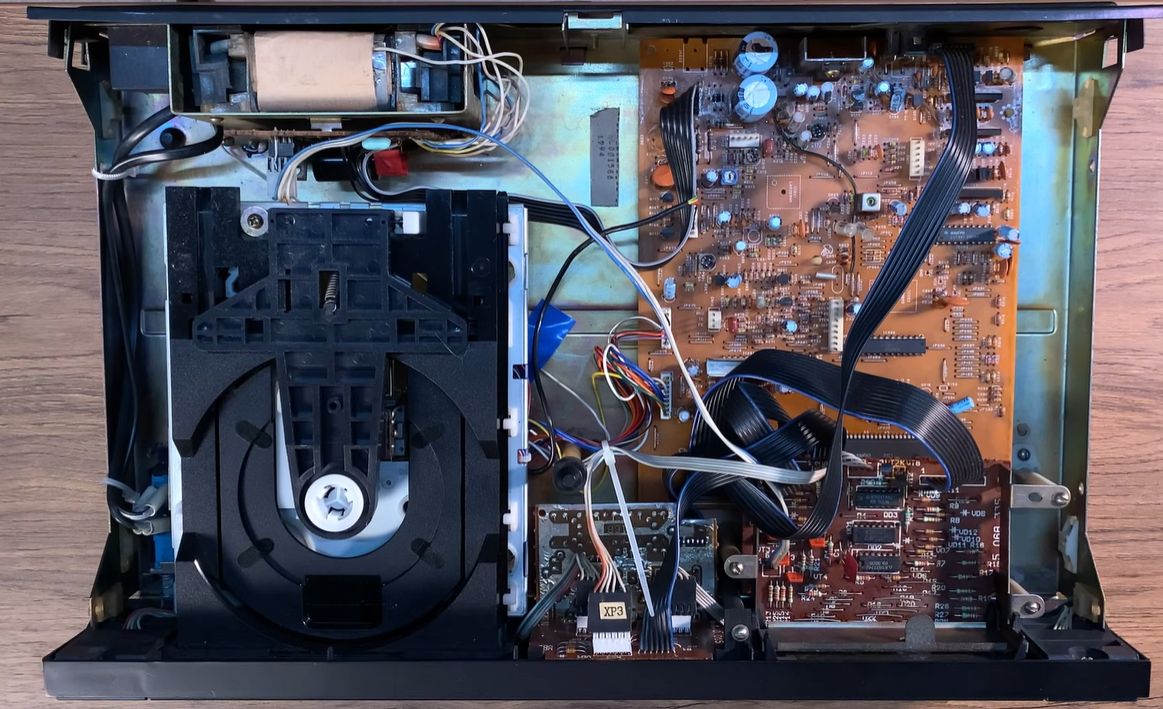
The video helpfully includes a teardown of the player after a rundown of its controls and playback demonstration, so that we can ogle its internals. This system uses mostly localized components, with imported components like the VF display and processors gradually getting replaced over time. The DAC and optical-mechanical assembly would still be imported from Japan until 1995 when the factory went bankrupt.
Advertisement
Insides of the Vega 122S CD player. (Credit: Railways | Retro Tech | DIY, YouTube)
This difference between the imported and localized part is captured succinctly in the video with the comparison to Berlin in 1999, in that you can clearly see the difference between East and West. The CD mechanism is produced by Sanyo, with a Sanyo DAC IC on the mainboard. The power supply, display and logic board (using Soviet TTL ICs) are all Soviet-produced. A sticker inside the case identifies this unit as having been produced in 1994.
Amusingly, the front buttons are directly coupled into the mainboard without ESD protection, which means that in a Siberian winter with practically zero relative humidity inside you’d often fry the mainboard by merely using these buttons.
After this exploration the video goes on to explain how Soviet CD production began in the 1989, using imported technology and know-how. This factory was set up in Moscow, using outdated West-German CD pressing equipment and makes for a whole fascinating topic by itself.
Finally, the video explores the CD player’s manual and how to program the player, as well as how to obtain your own Soviet CD player. Interestingly, a former employee of the old factory has taken over the warehouse and set up a web shop selling new old stock as well as repaired units and replacement parts.
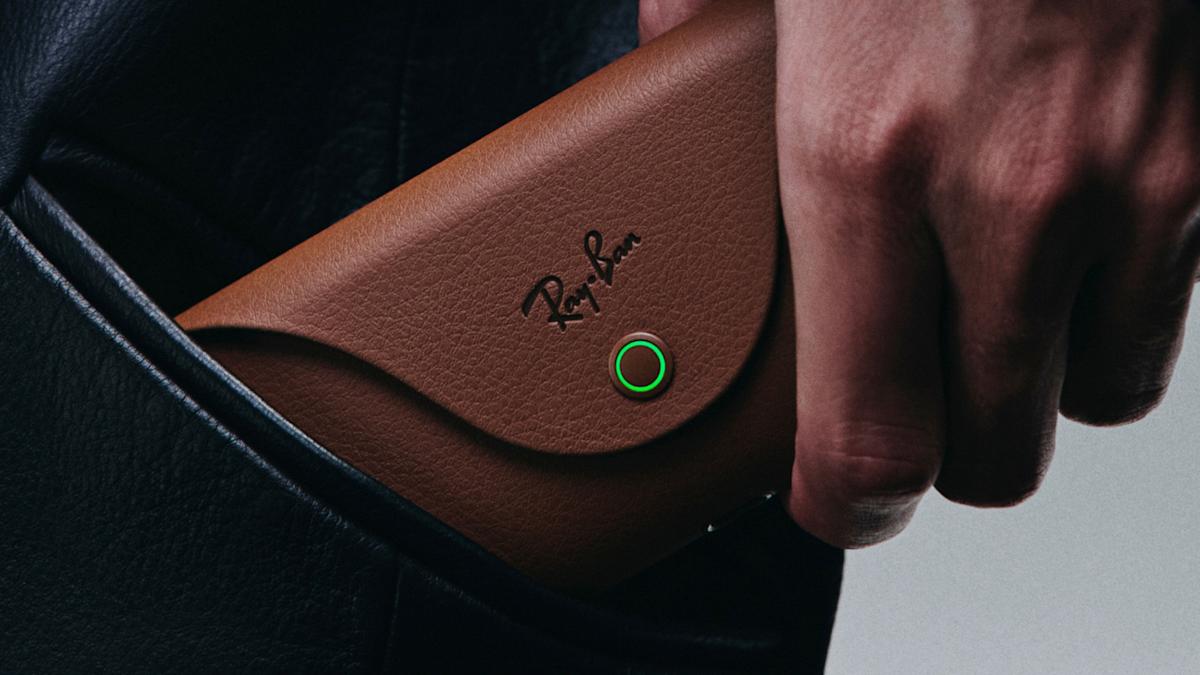
Two new models of Meta Ray-Ban AI glasses are on the way, and they’re going to be catered towards those who use prescription lenses, according to a Bloomberg report. While these are supposed to be announced next week, Bloomberg noted that these won’t be a “new generation” of Meta’s smart glasses.
You can already add prescription lenses to Meta Ray-Ban’s AI glasses, but the upcoming models will come in rectangular and rounded styles and will be sold through traditional prescription eyewear channels. Bloomberg didn’t specify how these new glasses will differ from existing options, but noted that it’s the first time Meta and Ray-Ban are releasing a pair of AI glasses specifically designed for this demographic.
The two models are likely the codenamed products Scriber and Blazer, which were first spotted by The Verge in filings with the Federal Communications Commission. The filings described the devices as production units, meaning Meta could be close to the actual product launch. Looking at the filings, it’s unlikely these upcoming prescription AI glasses will have a display like the Meta Ray-Ban Displays.
Meta CEO Mark Zuckerberg has hinted at AI glasses that are meant for prescription glasses wearers in a previous earnings call. As noted by Bloomberg, Zuckerberg previously said that “billions of people wear glasses or contacts for vision correction,” adding that, “it’s hard to imagine a world in several years where most glasses that people wear aren’t AI glasses.”
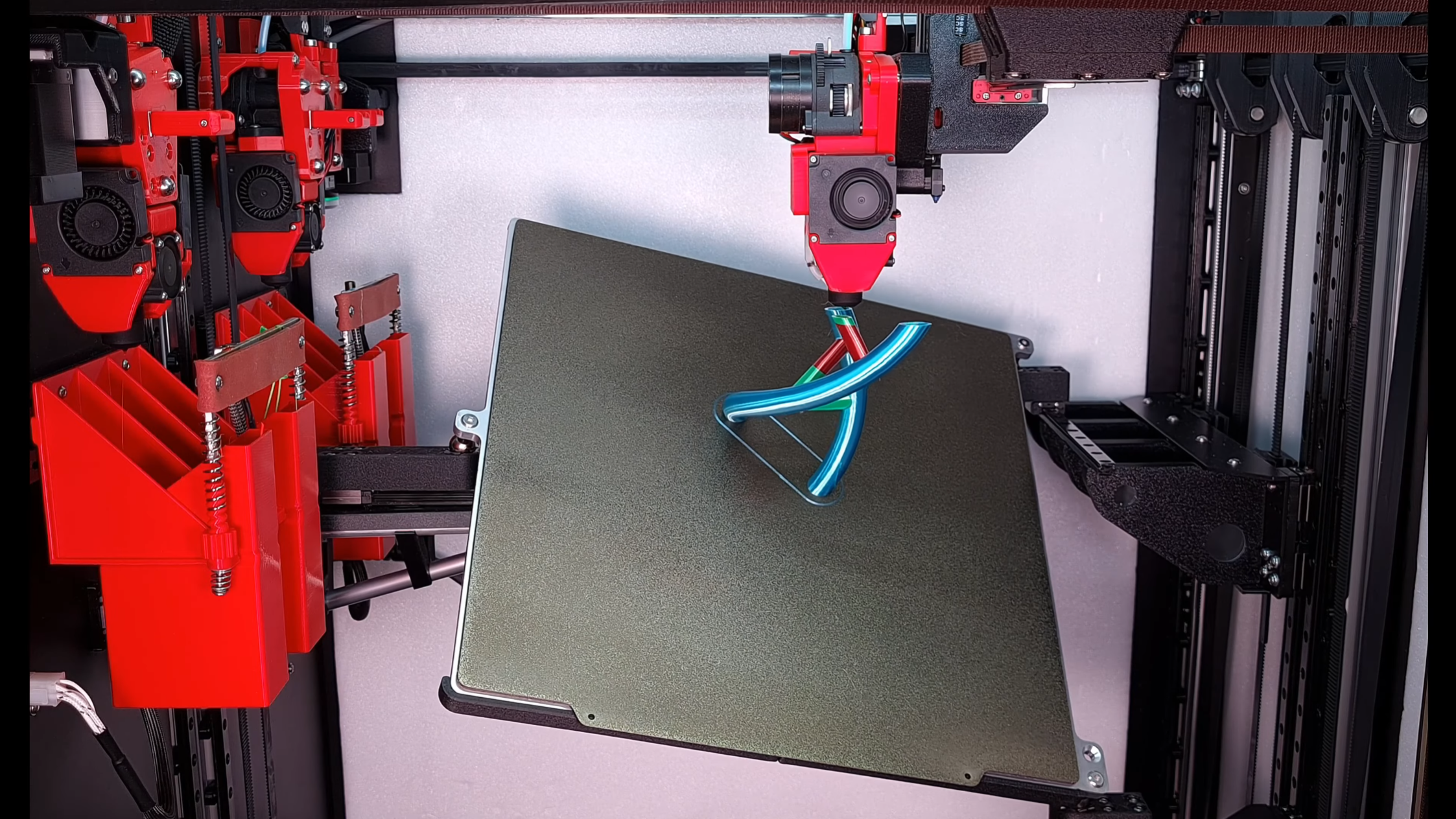
Usually, when we see non-planar 3D printers, they’re rather rudimentary prototypes, intended more as development frames than as workhorse machines. [multipoleguy]’s Archer five-axis printer, on the other hand, breaks this trend with automatic four-hotend toolchanging, a CoreXY motion system, and print results as good-looking as any Voron’s.
The print bed rests on three ball joints, two on one side and one in the center of the opposite side. Each joint can be raised and lowered on an independent rail, which allows the bed to be tilted on two axes. The dimensions of the extruders their motion system limit how much the bed can be angled when the extruder is close to the bed, but it can reach sharp angles further out.
The biggest difficulty with non-planar printing is developing a slicer; [multipoleguy] is working on a slicer (MaxiSlicer), but it’s still in development. It looks as though it’s already working rather well, to the point that [multipoleguy] has been optimizing purge settings for tool changes. It seems that when a toolhead is docked, the temperature inside the melt chamber rises above the normal temperature in use, which causes stringing. To compensate for this, the firmware runs a more extensive purge when a hotend’s been sitting for a longer time. The results for themselves: a full three-color double helix, involving 830 tool changes, could be printed with as little as six grams of purge waste.
We said day two of the BGIS Grand Finals would be the day of comebacks. While we did see some amazing games from the likes of K9 and NINZ, nobody could challenge SOUL, who were undefeated from their top position. Several teams occupied the top three throughout the day, but ultimately, it was Soul, Genesis, and GodLike. The losers of today included the likes of Team Tamilas and WELT, who couldn’t get the hang of their game and strategy. Here’s what the standings look like after day two of BGIS Grand Finals.
BGIS 2026 Grand Finals Standings After Day 2
Team Name
Wins
Pos. Pts
Fin. Pts
Tot. Pts
SOUL
2
37
80
117
GENS
0
26
88
114
GODL
2
28
68
96
VE
1
30
59
89
VS
1
31
54
85
OG
1
27
58
85
RNTX
0
15
63
78
WF
2
34
43
77
LEFP
0
24
40
64
MYTH
0
21
43
64
RGE
0
22
39
61
K9
1
23
37
60
NINZ
1
19
37
56
NBE
1
21
30
51
TT
0
12
36
48
WELT
0
14
27
41
The final day of the BGIS Grand Finals awaits us tomorrow. The top three look pretty settled, but a few bad games, and we could have a new face at the top. If you missed today’s games, check out our highlights for both the first and second day.
If you’re looking to explore your creativity, there are a number of iPad apps that can help you get started. Although the iPad started off as a simple device that could be used to stream content or browse the web on the go, Apple has essentially turned its iPads into powerful machines that can be used to do things like create digital art and edit videos.
We’ve compiled a list of some of the best iPad apps for creativity that are available on the App Store.
Before we delve in, it’s worth noting that although Adobe’s creative apps are often top choices for creativity on the iPad, this list won’t include them because they are already well-known. We’re focusing instead on somewhat lesser-known apps that you’ll want to know about and try.
Lake
Image Credits:Lake
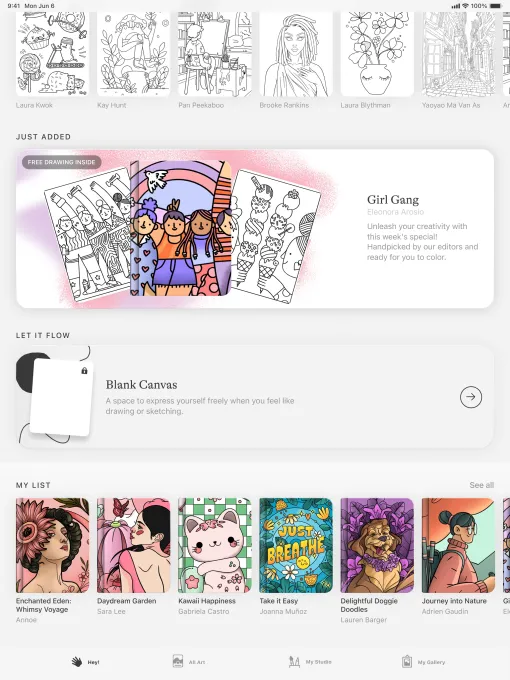
Not every creative app has to involve a blank page staring back at you. Lake takes a more relaxed approach, letting you digitally color hand-drawn illustrations by independent artists using more than 700 colors and a selection of brushes.
If you want to let your imagination run wild, you can also color and draw on a blank canvas. You can also jot down your thoughts in a coloring journal.
Advertisement
The app is great for people who are just getting started with exploring their creativity or for those who just want a moment to de-stress. You don’t have to be artistic to use it, either; there’s no penalty here for drawing outside the lines.
Lake offers free access to a limited number of illustrations. To unlock the full catalogue of illustrations and features, you’ll need to pay a $9.99 monthly subscription fee.
Techcrunch event
San Francisco, CA | October 13-15, 2026
Advertisement
Procreate
Image Credits:Procreate
Procreate is one of the most popular drawing apps for the iPad, and for good reason. The app lets you create digital paintings, sketches, and illustrations using dozens of different types of brushes. Procreate is easy to use and features built-in gesture controls, along with a simple interface.
The app allows for high-resolution canvases up to 16K by 8K on compatible iPad Pros. It also lets you create storyboards, GIFs, animatics, and simple animations. Plus, you can import image files such as JPG, PNG, and TIFF. Procreate includes several features that are designed to help you during the creative process on your iPad, such as QuickShape, StreamLine, Drawing Assist, and ColorDrop — tools that handle the technical heavy lifting so you can focus on the fun part.
Once you’re finished creating your piece, you can relive your creative journey with the app’s time-lapse “Replay” feature — a surprisingly satisfying way to watch your work come together — and share a 30-second clip on social media.
Advertisement
You can access Procreate with a one-time payment of $12.99.
LumaFusion
Image Credits:LumaFusion
LumaFusion is a great app for editing videos if you’re ready to graduate from iMovie. The app features numerous user-friendly features that make it perfect for aspiring videographers or indie filmmakers on a budget.
With LumaFusion, you can create multiple layer edits with 4K ProRes and HDR media. You can add different effects, choose from dozens of transitions, and record voice-overs. The app lets you create multilayer titles and import fonts and graphics. Plus, you can fine-tune audio with Graphic EQ, Parametric EQ, Voice isolation, and more.
The app lets you create projects with a variety of aspect ratios, including 16:9 landscape, 9:16 portrait, square, widescreen film, anamorphic, and more.
LumaFusion is available for a one-time payment of $29.99. You can also purchase additional features, such as multicam editing and the ability to send your project to Final Cut Pro for Mac.
Advertisement
Canva
Image Credits:Canva
Canva offers a user-friendly platform that allows anyone to create visual content, even without graphic design experience. You can use it to create presentations, infographics, videos, websites, social media posts, and more with over 250,000 templates.
Canva features tools for editing photos, personalizing content with logos and images, adding audio, and cropping and speeding up video.
The platform also has a series of AI features that are designed to make the creation process easier. For instance, you can extend an image using “Magic Switch” or turn ideas into images with “Magic Media.”
Canva is free but offers a $12.99 monthly subscription if you want unlimited access to its AI features, premium templates, and more.
Affinity Designer 2
Image Credits:Affinity
Affinity Designer 2 is a graphic design app that combines vector design, pixel-based textures, and retouching into a single platform. It’s great for professional illustrators, web designers, game developers, and other creatives.
The app lets you create illustrations, branding, logos, icons, UI/UX designs, typography, posters, labels, fliers, stickers, concept art, digital art, and more. It supports Apple Pencil’s precision, pressure sensitivity, and tilt functionality.
Advertisement
Affinity Designer 2 features gesture controls to speed up your workflow, and it lets you customize keyboard shortcuts. You can also do things like create your own custom font and zoom to over 1,000,000% for absolute precision.
You can access the app through a one-time payment of $18.49.
Concepts
Image Credits:Concepts
Concepts is a great app for exploring your ideas and experimenting with designs. You can use the app to sketch plans, make notes and mindmaps, and draw storyboards and designs.
The app features Nudge, Slice, and Select tools that allow you to easily change any element of your sketch without redrawing it. The app features realistic pens, pencils, and brushes that flow with pressure and tilt.
Concepts gives you access to scale and measurement tools that calculate real-world dimensions, and also features a tool wheel or bar that you can personalize to your liking.
Advertisement
The app’s basic features are free. Concepts offers a $4.99 monthly subscription if you want access to additional features, such as the ability to create your own brushes and premium editing tools.
Tayasui Sketches
Image Credits:Tayasui Sketches
Tayasui Sketches is a good, user-friendly sketching and drawing app. It has several different features such as a realistic watercolor brush, digital acrylic brushes, the ability to blend two colors to get the perfect shade, gradient and depth tools, and more.
The app lets you multitask by opening up another app and dragging lawyers and documents between the two. There’s also a “Zen Mode” that lets you create without distractions.
You can also upload your images to incorporate them into your creations. Tayasui Sketches lets you store your creations into personalized folders.
Tayasui Sketches’s basic features are free. The app offers a $2.99 monthly subscription that unlocks unlimited layers, new brushes and markers, an extended brush editor, the ability to backup your drawings, and more.
Advertisement
Dudel Draw
Image Credits:Dudel Draw
Dudel Draw is a bit different from the other apps on this list: It’s designed to unleash your creativity by giving you a new shape every day that serves as a starting point to sketch on top of.
These daily shapes vary from basic geometrical forms to more complex and abstract designs. Plus, you can explore your creativity further by choosing to view the shape from all angles with the app’s “flip” and “rotate” features.
You can also get your friends in on the creativity with some fun competition by comparing your different creations each day. Dudel Draw offers a great way to sharpen your artistic skills, challenge yourself to create something new every day, and just simply express yourself.
Dudel Draw is available for free.
Sketchbook
Image Credits:Sketchbook
Sketchbook is an easy-to-use app for sketching, painting, and drawing. The idea behind the app is to make it feel like you’re drawing on paper, as the digital brushes and pens behave like the real thing.
The app’s interface is simple and lets you tuck away palettes and tools to make it easier to focus on drawing.
Advertisement
You can customize brushes by tweaking the size, opacity, flow, and more to align them with your personal style. There’s also a “predictive stroke” feature that helps smooth out the lines of your drawing.
Sketchbook is available for free, but you can unlock premium features for a one-time payment of $2.99. Premium features include the ability to import additional brushes and color palettes, adjust the size of your canvas after you’ve started working, export multiple canvases or an entire album as a PDF, and more.
This story was originally published in December 2024 and is updated regularly with new information.
Earlier this month, it looked like all but two of Elon Musk’s 11 co-founders at his AI startup xAI had departed the company. Now, according to Business Insider, the remaining two co-founders, Manuel Kroiss and Ross Nordeen, have left as well.
Musk recently claimed xAI “was not built right [the] first time around,” so it’s now “being rebuilt from the foundations up.” The company was recently acquired by Musk’s SpaceX, bringing SpaceX, xAI, and X (formerly Twitter) together under one corporate umbrella, all as SpaceX is reportedly planning to go public.
Kroiss and Nordeen both reported directly to Musk, according to BI, with Kroiss leading the company’s pretraining team, while Nordeen was Musk’s “right-hand operator.” Nordeen reportedly came to xAI from Tesla, and was involved in planning major layoffs at Twitter after Musk acquired the company in 2022.
Apple released iOS 26.4 on Tuesday, about a week after the tech giant released iOS 26.3.1 (a), the company’s first Background Security Improvement update. The most recent update brings a slew of features to your iPhone, including new emoji and video podcasts, plus more than two-dozen bug fixes and security patches.
You can download iOS 26.4 now by going to Settings and tapping General. Next, select Software Update, tap Update Now and follow the prompts on your screen.
Here are some of the new features iOS 26.4 brings to your iPhone.
The Unicode Consortium is responsible for creating emoji, and it approved these eight in September as part of Unicode 17.0. But this is the first time the emoji are showing up on iPhones.
Advertisement
Watch this: Don’t Wait: iOS 26.4 Brings New Emoji, Keyboard Fixes, AI Playlists
Video podcasts come to Apple Podcasts
The iOS 26.4 update also brings video to your Podcasts app. To view these video podcasts, open the Podcasts app and start listening to an episode with the video player icon in the top right corner of the title card. Once you’re listening, open the media player and tap the Turn Video On button near the podcast’s progress bar. The podcast’s artwork will be replaced with the video. To turn the video off again, tap Turn Video Off and the podcast’s artwork will return.
Video podcasts are a fun addition to the Podcasts app.
Advertisement
Apple/Screenshots by CNET
Reduce some Liquid Glass effects across your device
Apple’s iOS 26.4 update adds another setting to minimize Liquid Glass effects across your device: Reduce Bright Effects. Here’s where to find this setting.
1. Tap Settings. 2. Tap Accessibility. 3. Tap Display & Text Size. 4. Scroll down the menu to find Reduce Bright Effects.
Reduce Bright Effects can eliminate some Liquid Glass effects.
Advertisement
Apple/Screenshot by CNET
Apple says the setting will minimize highlighting and flashing when interacting with on-screen elements, such as buttons or the keyboard. So if you find certain flash elements annoying, you can now disable them.
Playlist Playground in Apple Music
The iOS 26.4 update also introduces a playlist generator for Apple Music subscribers called Playlist Playground. Apple says the feature can create a playlist based on your description. Once you enter your description, it will create a playlist with a title, tracklist and general description.
To access Playlist Playground, first you have to be an Apple Music subscriber. Then, open Apple Music and go to your Library. In your Library, you’ll see a new icon at the top of your screen with a plus and a few lines next to it. Tap this, and you’ll be prompted to describe your playlist.
Advertisement
Playlist Playground can generate a playlist for you in no time.
Apple/Screenshots by CNET
Apple notes this feature is still in beta, so it might create unexpected results. So you might ask for a good gym mix and end up with some Whitney Houston — but who’s to say Whitney isn’t good gym music?
Find nearby concerts with the aptly named Concerts feature
iOS 26.4 brings a Concerts feature to your Apple Music app.
“Concerts helps you discover nearby shows from artists in your library and recommends new artists based on what you listen to,” Apple writes in the update’s description. That way, you can easily find nearby shows.
Advertisement
To find Concerts, tap the magnifying glass icon at the bottom of your Apple Music screen, then tap Concerts. The feature may ask for your location the first time you use it. Then you’ll see popular shows nearby, along with their dates, times and locations. Tapping into any of these shows gives you more information on the show, as well as a link to buy tickets.
The Concerts tab in Apple Music makes it easy to see upcoming shows in your area.
Apple/Screenshot by CNET
Shazam works offline, kind of
With iOS 26.4, your Control Center’s Shazam app can work in more ways. Now, if you aren’t connected to the internet and use the Control Center app to identify a song, the app will eventually tell you the song’s identity once you’re back online.
Advertisement
Ambient Music home screen widgets
Apple introduced two new Ambient Music widgets for your home screen with iOS 26.4. These widgets let you easily access the four Ambient Music playlists: Sleep, Chill, Productivity and Wellbeing. You can quickly turn on a relaxing playlist to unwind after a long day, or one to help you focus on the task at hand.
The Ambient Music widget makes it easy to play music for just the right setting.
Apple/Screenshot by CNET
Apple introduced these playlists to your iPhone alongside iOS 18.4 in 2024. However, you could only access those playlists from your Control Center at the time.
Advertisement
Let other adults in your Family pay for themselves
In iOS 26.4, other adults in your Family sharing group can now use their own payment instead of depending on the group organizer’s payment method. That means if you’re an adult and have a family sharing group with your own parents, siblings or other family members, you can now purchase a game, movie or something else with your own information instead of using someone else’s information and then paying them back.
This can be a helpful feature that allows you to avoid the hassle of paying someone else back for using their payment information. And if you’re the person whose card is always used, it can be a nice way to ensure others pay for their own stuff and don’t freeload off you.
More caption options when viewing videos
With iOS 26.4, you can easily change the caption style while watching content in certain apps, such as Apple TV.
To see these options, start playing a video, then tap the speech bubble icon in the bottom-right corner of your screen to open the subtitle menu. Tap Style, and you’ll see the subtitle options Classic (the default setting), Large Text, Outline Text and Transparent Background. So if you and a few others are watching something on your iPhone and want to make sure everyone can see the captions, you might choose Large Text.
Advertisement
You can adjust the subtitles in some apps thanks to iOS 26.4.
Apple/Screenshot by CNET
More control over wallpaper Collections
The iOS 26.4 update also gives you more control over which wallpaper Collections are on your iPhone. Now, if you go to Settings > Wallpaper > Add New Wallpaper, you can tap Get under Collections like Weather and Astronomy.
If you want to delete a Collection from your device, tap the check mark to the right of the downloaded Collection, and the option to Remove from Gallery appears. Tap this to delete the Collection from your iPhone, saving you some precious space.
Advertisement
You can remove wallpaper Collections from your iPhone if you want to save a little space.
Apple/Screenshot by CNET
Here are the release notes for iOS 26.4.
Apple Music
Advertisement
Playlist Playground (beta) generates a playlist from your description, complete with a title, description and tracklist.
Concerts helps you discover nearby shows from artists in your library and recommends new artists based on what you listen to.
Offline Music Recognition in Control Center identifies songs without an internet connection and delivers results automatically when you’re back online.
Ambient Music widget for Sleep, Chill, Productivity and Wellbeing brings curated playlists to the Home Screen.
Full-screen backgrounds give album and playlist pages a more immersive look.
Accessibility
Reduce bright effects setting minimizes bright flashes when tapping on elements like buttons.
Subtitle and caption settings are available from the captions icon while viewing media, making them easier to find, customize and preview.
Reduce Motion setting more reliably reduces the animations of Liquid Glass for users sensitive to on-screen motion.
This update also includes the following enhancements:
Support for AirPods Max 2.
8 new emoji, including an orca, trombone, landslide, ballet dancer and distorted face, are available in the emoji keyboard.
Freeform gains advanced image creation and editing tools, and a premium content library, joining Apple Creator Studio.
Mark reminders as urgent from the Quick Toolbar or by touching and holding, and filter for urgent reminders in your Smart Lists.
Purchase Sharing lets adult members in Family Sharing groups use their own payment method when making purchases, without relying on the family organizer.
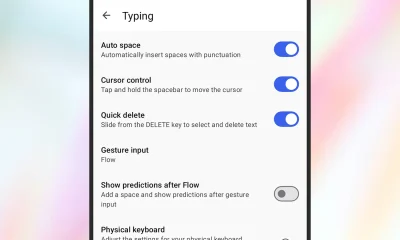
Improved keyboard accuracy when typing quickly.
For more iOS news, check out what features were included in iOS 26.3 and iOS 26.2. You can also take a look at our iOS 26 cheat sheet for other tips and tricks.
Samsung might soon make online shopping a little less painful, and a bit cheaper too. A teardown of the latest Samsung Internet build, thanks to Android Authority, reveals a new feature called “Smart shopping”, and it’s exactly what it sounds like.
Samsung
The browser could soon automatically find and apply coupon codes at checkout, saving users the hassle of hunting for discounts manually. The feature appears to surface available deals, show their validity, and even offer a one-tap option to apply them, making the whole process feel seamless.
How does it actually work?
This is where things get a bit more… interesting. Samsung’s browser would use data like the website you’re visiting, your cart contents, location (via IP), and browsing context to find relevant coupons. The idea is to deliver context-aware discounts in real time, rather than generic coupon suggestions. The folks at Android Authority enabled the settings page for a quick look, though the feature itself wasn’t functional yet. Here’s how it looks:
Android Authority
More importantly, this appears to be an opt-in feature, meaning users can enable or disable it from the browser settings. This feature essentially turns Samsung Internet into a built-in deal assistant, similar to browser extensions like Honey, but without needing extra installs. It’s a small quality-of-life upgrade, but one that could genuinely save users money, especially for frequent online shoppers.
Saving money… but at what cost?
Of course, there’s a catch, because there’s always one. While the idea of automatic coupon hunting sounds great, it relies on the browser accessing your shopping activity, browsing behavior, and contextual data to work effectively. That naturally raises some eyebrows around privacy, even if Samsung says the feature is opt-in and data usage is limited to specific scenarios.
At the end of the day, this isn’t some flashy headline-grabbing feature, but a practical one. And honestly, those are the ones that tend to stick. If Samsung gets the balance right, your browser might soon do more than just load pages. It could quietly save you money in the background.
For the billions of people who rely on corrective glasses every day (including me), smart glasses have always been a slightly awkward conversation. Sure, you can already pick up Ray-Ban Meta frames with your prescription built in, but it looks like Meta has something better in store for us.
According to a Bloomberg report, Meta is working on two new AI glasses designed specifically for prescription wearers rather than treating them as an add-on afterthought. The models could arrive in rectangular and rounded frame styles. Unlike current offerings, they will be sold through conventional prescription eyewear retailers.
Andy Boxall / Digital Trends
Will the new prescription-friendly glasses look any different?
This could be the first time the Meta and Ray-Ban collaboration has directly aimed its vision-corrected crown at the primary audience. However, that is the extent of the information the outlet provides. There’s no word on how the frames might differ physically from the current models.
However, if I were to speculate, it could have something to do with the lens housing, thickness, and the weight of the glasses.
Beyond the hardware, I feel, what would truly make the purported AI glasses prescription-friendly is the ability to talk to any neighbourhood optician and have them work on it. That kind of accessibility could really make the glasses prescription-friendly.
Advertisement
Phil Nickinson / Digital Trends
What else do we know about Meta’s upcoming smart glasses?
The Verge separately flagged FCC listings for the purported glasses internally codenamed “Scriber” and “Blazer.” Both are listed as production units, which typically signals a launch isn’t quite far off. A detail that stands out is that Blazer might come in a larger size than Scriber.
Both models should also support Wi-Fi 6 UNII-4 band, something that the current Ray-Ban smart glasses lack. It would open the door to faster data transfer, and perhaps to livestreaming. Anyways, no display is expected on either model.
What’s clear, however, is that Meta is eyeing prescription wearers as the biggest untapped market for its smart glasses.




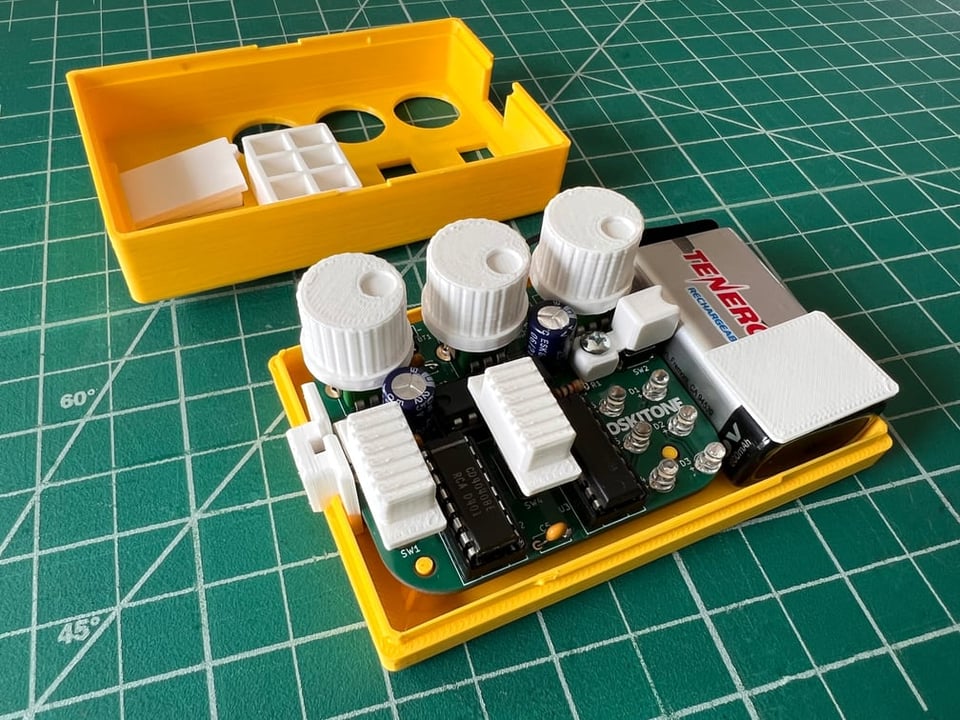 There are only three chips inside: a CD4093 quad NAND with Schmitt-trigger inputs used as a relaxation oscillator, a CD4040 binary counter used as a prescaler, and a CD4017 decade counter responsible for spinning a signal around six LEDs while sound is generated, to represent an electronic die. Sound emerges from a speaker on the backside of the PCB, which we’re delighted to see is driven not by a separate amplifier chip, but by unused gates on the CD4093 acting as a simple but effective square wave booster.
















































You must be logged in to post a comment Login