The HP OmniBook Ultra gets a lot right. It is slim, lightweight, and genuinely premium, while the 3K OLED display is easily one of its biggest strengths. The Core Ultra 7 356H handles everyday work, multitasking, and AI workloads without breaking a sweat, and the PCIe Gen5 SSD is seriously quick.
The integrated graphics, however, are clearly the weak spot of this particular configuration. It is not the Panther Lake powerhouse the higher-end X7 and X9 variants can be. Still, for someone looking for a stylish, portable Windows laptop with a gorgeous screen and strong everyday performance, there is plenty to like here.
HP OmniBook Ultra Specifications
Operating System
Windows 11 Home
Processor
Intel Core Ultra 7 356H (16 cores, 16 threads, Up to 4.7GHz Turbo Boost 18MB L3 cache)
NPU
Intel AI Boost NPU, up to 50 TOPS
Graphics
Intel Graphics, integrated
Memory
16GB LPDDR5X-8533 MT/s, onboard
Storage
1TB PCIe Gen5 NVMe M.2 SSD
Display
14-inch OLED, 3K (2880 × 1800), 16:10 Up to 120Hz refresh rate, 0.2ms response time, 500 nits SDR, 1100 nits HDR, 100% DCI-P3, Multitouch, UWVA Edge-to-edge glass, Micro-edge, Corning Gorilla Glass 3, Low Blue Light
Screen-to-Body Ratio
91%
Build Material
Forged aluminium
Color
Silk Sand
Camera
5MP IR camera, HDR auto switch, temporal noise reduction, integrated dual-array digital microphones
Wireless Connectivity
Intel Wi-Fi 7 BE211 (2×2)Bluetooth 6.0
Ports
3× Thunderbolt 4 USB Type-C, 40Gbps USB Power Delivery 3.1 DisplayPort 2.1 1× headphone/microphone combo jack
Audio
Quad speakers, HP Audio Boost, Poly Studio, DTS:X Ultra
Keyboard
Full-size, backlit keyboard
Touchpad
Haptic touchpad
Sensors
Accelerometer, gyroscope, IR thermal sensor
Battery
4-cell, 70Wh Li-ion polymer
Charging
65W USB-C GaN power adapter. Approximately 50% charge in 45 minutes
Claimed Battery Life
Up to 20 hours 45 minutes Up to 30 hours 15 minutes of video playback
Dimensions (W × D × H)
31.11 × 21.56 × 1.07 cm
Weight
1.27kg
Other Features
Intel Evo laptop, Copilot in Windows with Copilot key, Camera privacy shutter, Mic mute key, Firmware TPM
Pre-installed Software
McAfee Online Protection 30-day trial Microsoft 365 1-month trial
There is something slightly amusing about the current laptop market. We keep asking manufacturers to make laptops thinner, lighter, faster, cooler, and longer-lasting, then act surprised when they somehow squeeze all of that into a chassis that looks like it should hold a calculator and a couple of pencils. The HP OmniBook Ultra is very much one of those laptops.
At first glance, it looks like a premium 14-inch machine designed primarily to sit inside a conference room and quietly make its owner look productive. But spend some time with it and the OmniBook Ultra starts revealing a more ambitious personality. It has an Intel Core Ultra 7 356H processor, 16GB of LPDDR5x memory, a 1TB PCIe Gen5 SSD, and integrated Intel graphics.
Advertisement
It also packs a 14-inch 3K OLED touchscreen with a 120Hz refresh rate, a 70Wh battery, Wi-Fi 7, and three Thunderbolt 4 ports. In other words, HP has taken the idea of a thin-and-light laptop and decided that “thin and light” shouldn’t automatically mean “please don’t ask me to do anything difficult.”
I have been using this particular configuration, and there is a lot to like here. But this isn’t a laptop without quirks. Some of them are small enough to laugh about. Others are the kind that make you stop and ask HP, “Why?” So, after spending time with it, here’s how the OmniBook Ultra feels as an actual laptop rather than a specification sheet.
HP OmniBook Ultra design
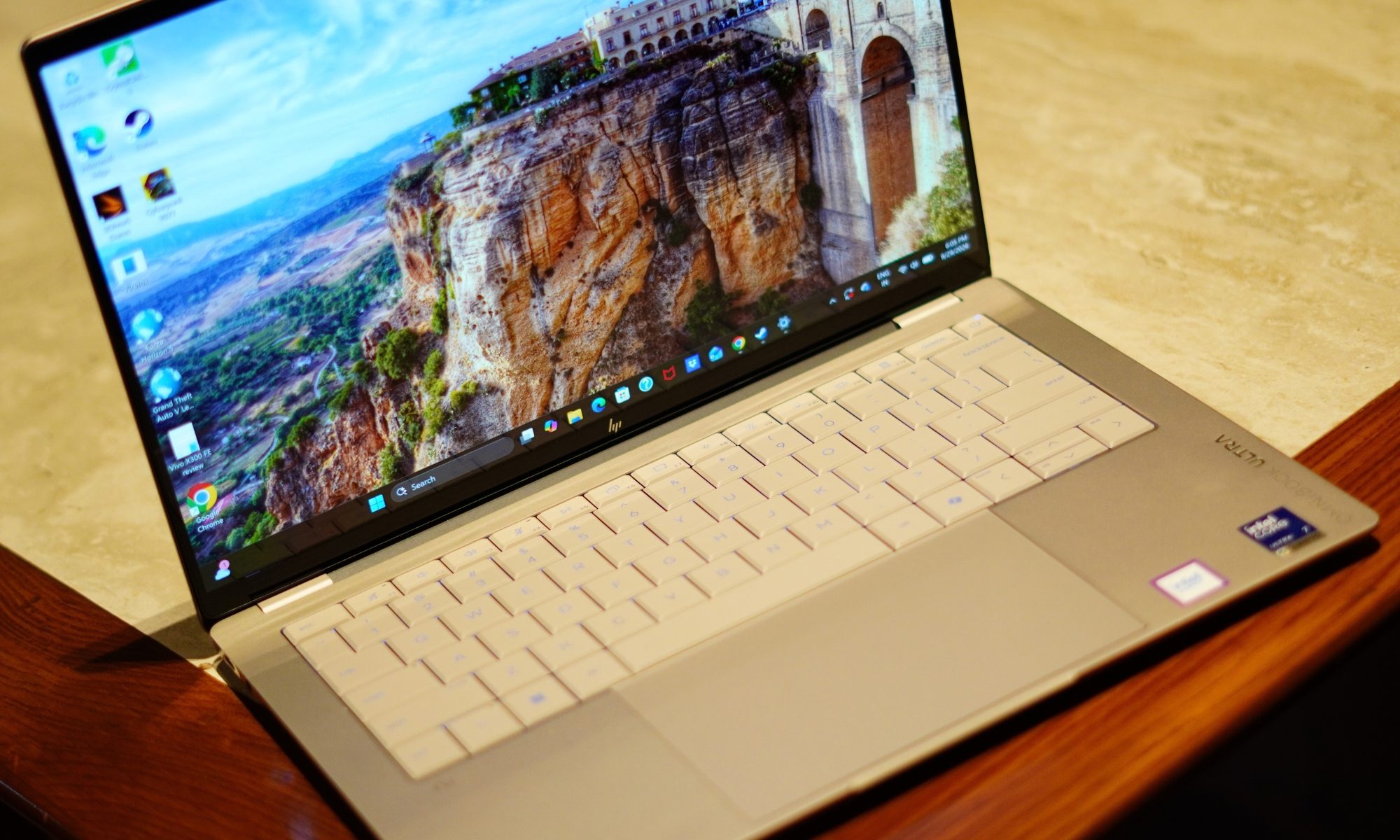
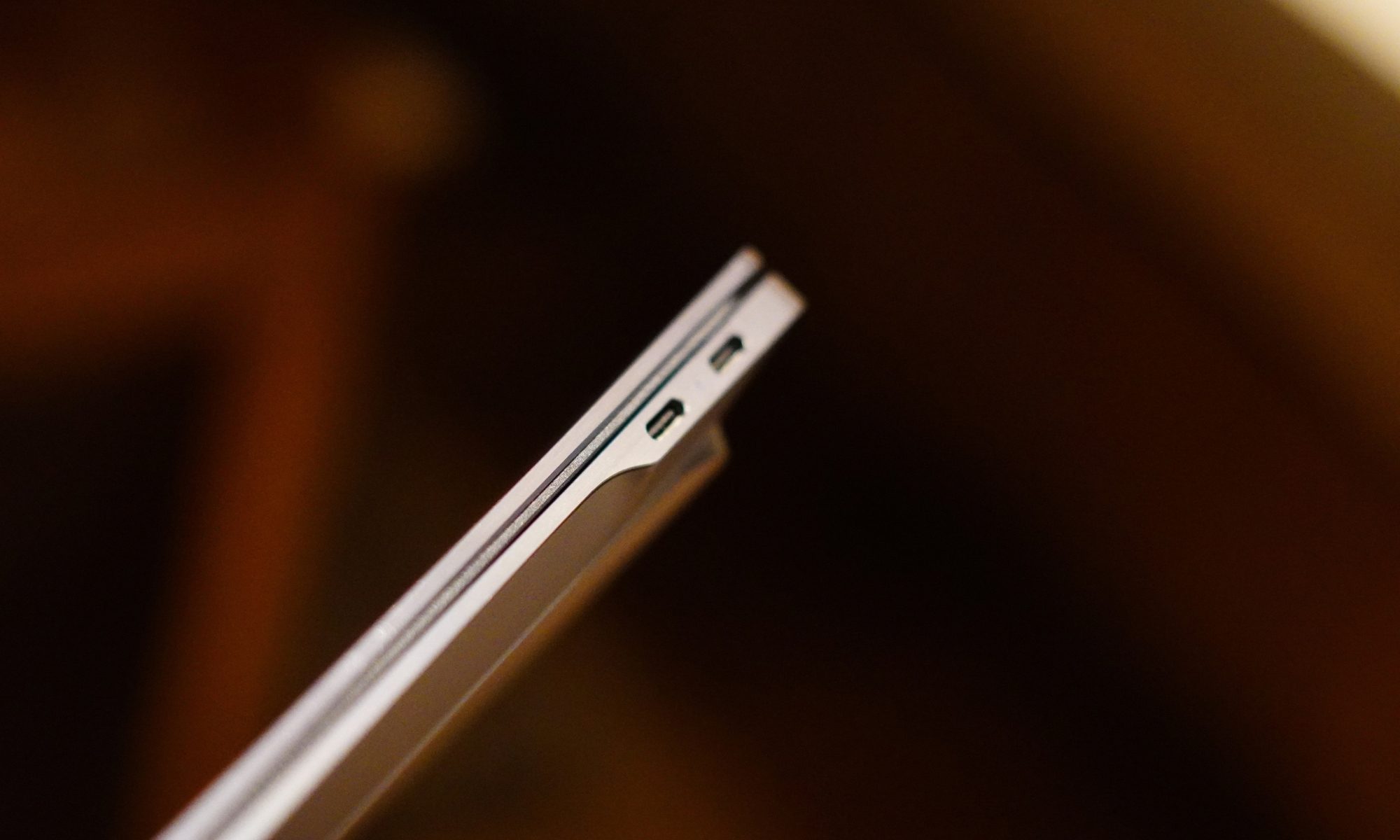
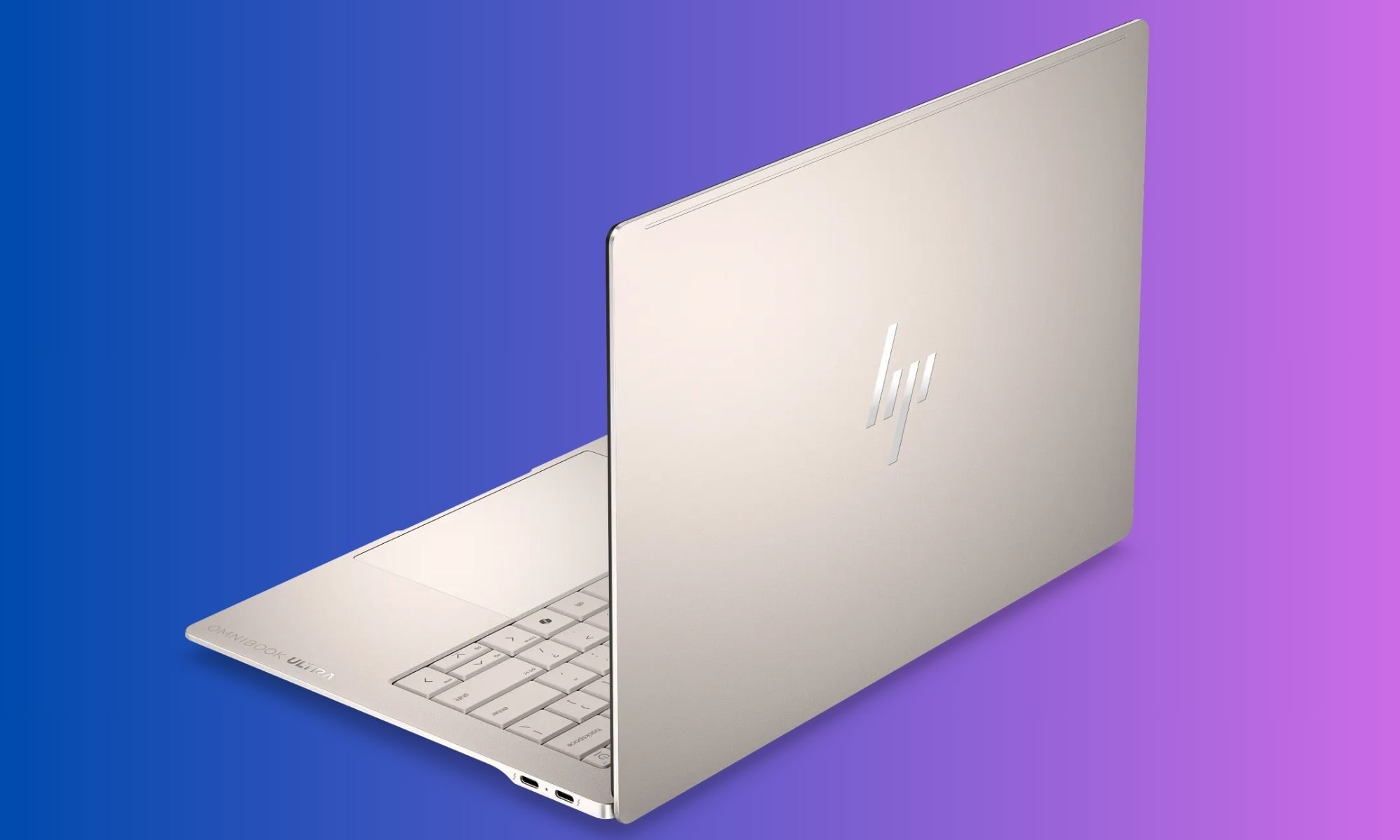
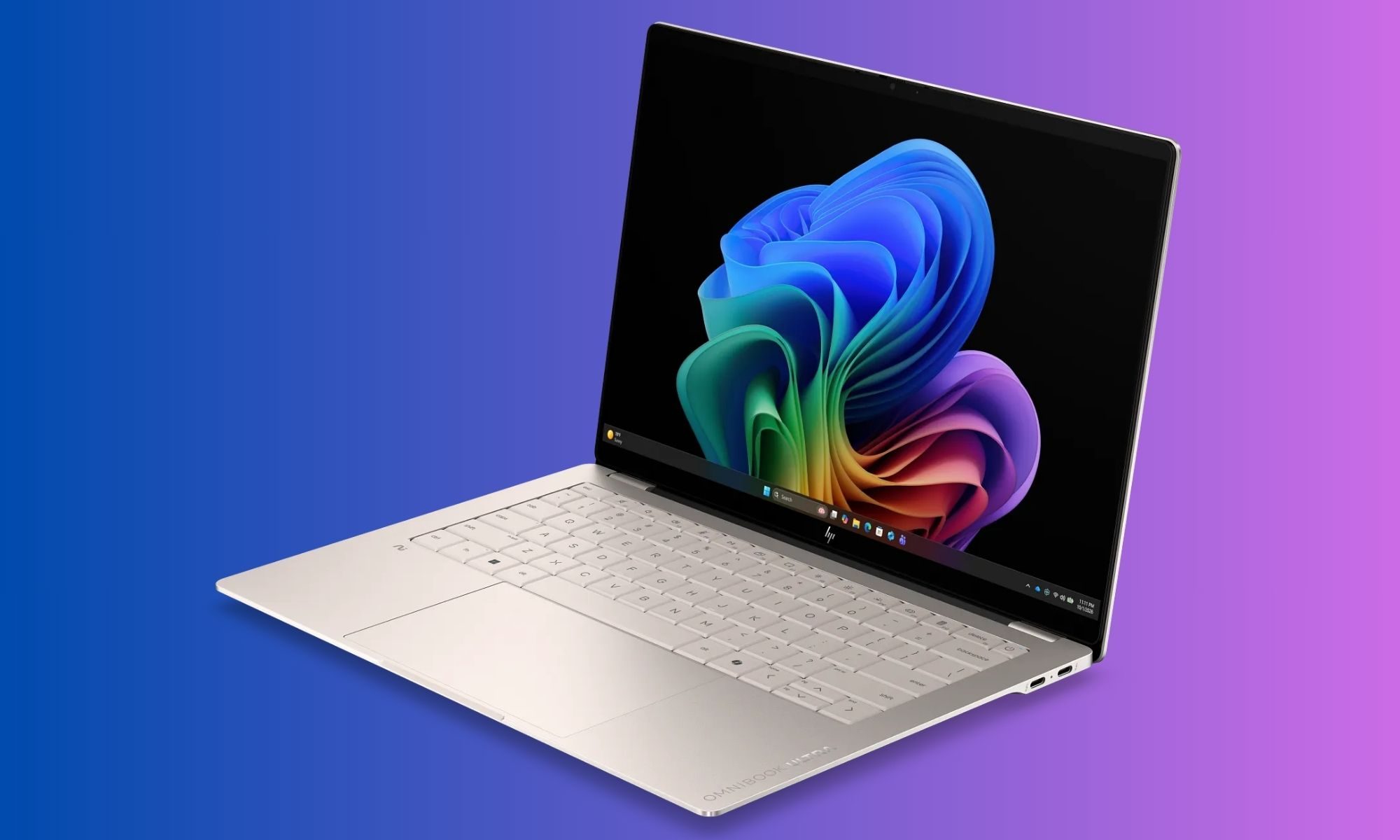
The first thing that struck me about the OmniBook Ultra was how little it feels like a conventional 14-inch laptop. HP has gone for a wedge-shaped profile, with the machine gradually becoming thinner towards the front. The entire body is made from aluminium, and my review unit comes in the Silk Sand finish.
It is a subtle colour, but I like it because it doesn’t scream for attention. Instead, it has that understated premium look that works equally well on a desk, in a coffee shop, or sitting open during a meeting where someone is inevitably going to ask, “Is that a new MacBook?”
Advertisement
Moinak Pal / Digital Trends
No, it isn’t. And that is probably the point.
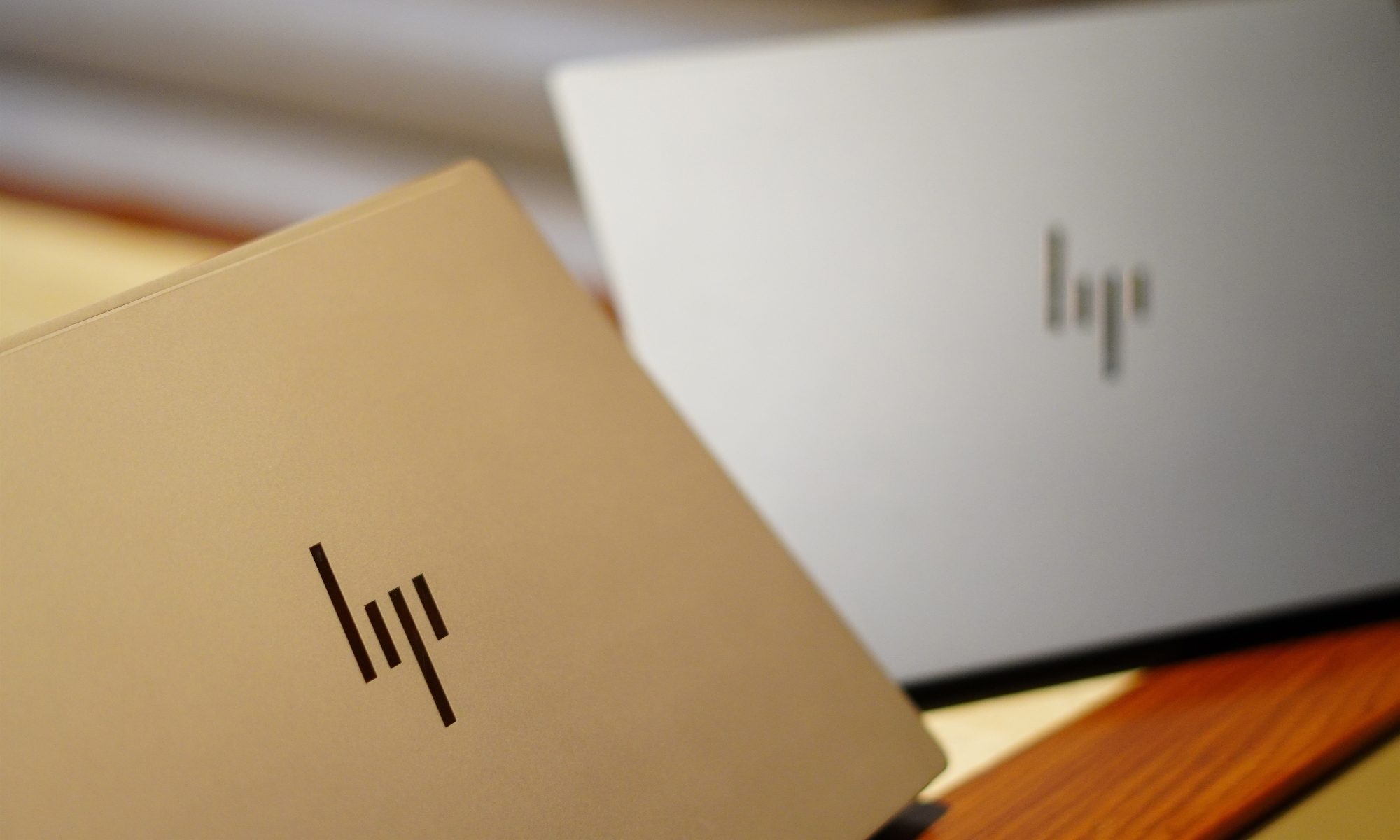
The design has a few similarities with the broader premium laptop language we’ve become accustomed to, but HP has given the OmniBook Ultra its own identity. The edges are sharp and polished, while the main surfaces have a sandblasted matte treatment. According to HP, the chassis is made from forged aluminium, and the company has designed it around durability as well as portability.
It certainly feels sturdy. There isn’t the kind of obvious flex that makes you nervous about picking up a laptop by one corner. The lid has enough resistance to feel deliberate without requiring both hands and a small prayer to open it. The dimensions are 31.11 x 21.56 x 1.07cm, and the machine weighs just 1.27kg.
The sort of weight that makes you forget you’re carrying a laptop at all.
And this is where the OmniBook Ultra gets its first big win. I could comfortably move around with it without feeling like I was carrying a workstation disguised as an ultrabook. The 14-inch form factor is large enough to give me proper screen real estate, while the weight keeps it firmly in the “throw it into the bag and forget about it” category.
Moinak Pal / Digital Trends
The Silk Sand finish is also surprisingly practical. It gives the laptop a premium appearance without relying on an overly glossy surface. There is still some visible evidence of fingerprints and skin oils if you look closely, but this isn’t the kind of laptop that turns into a crime-scene investigation after 20 minutes of use.
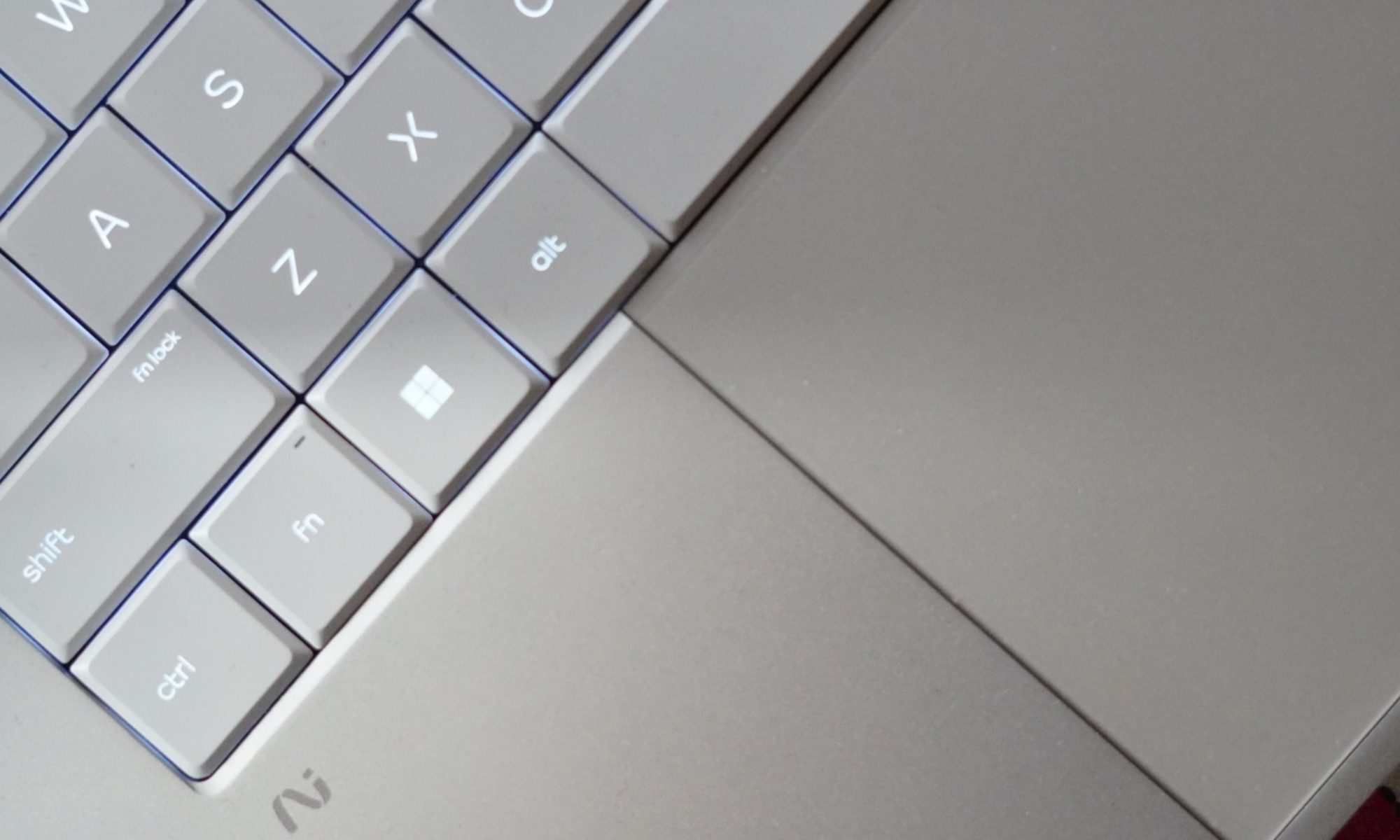
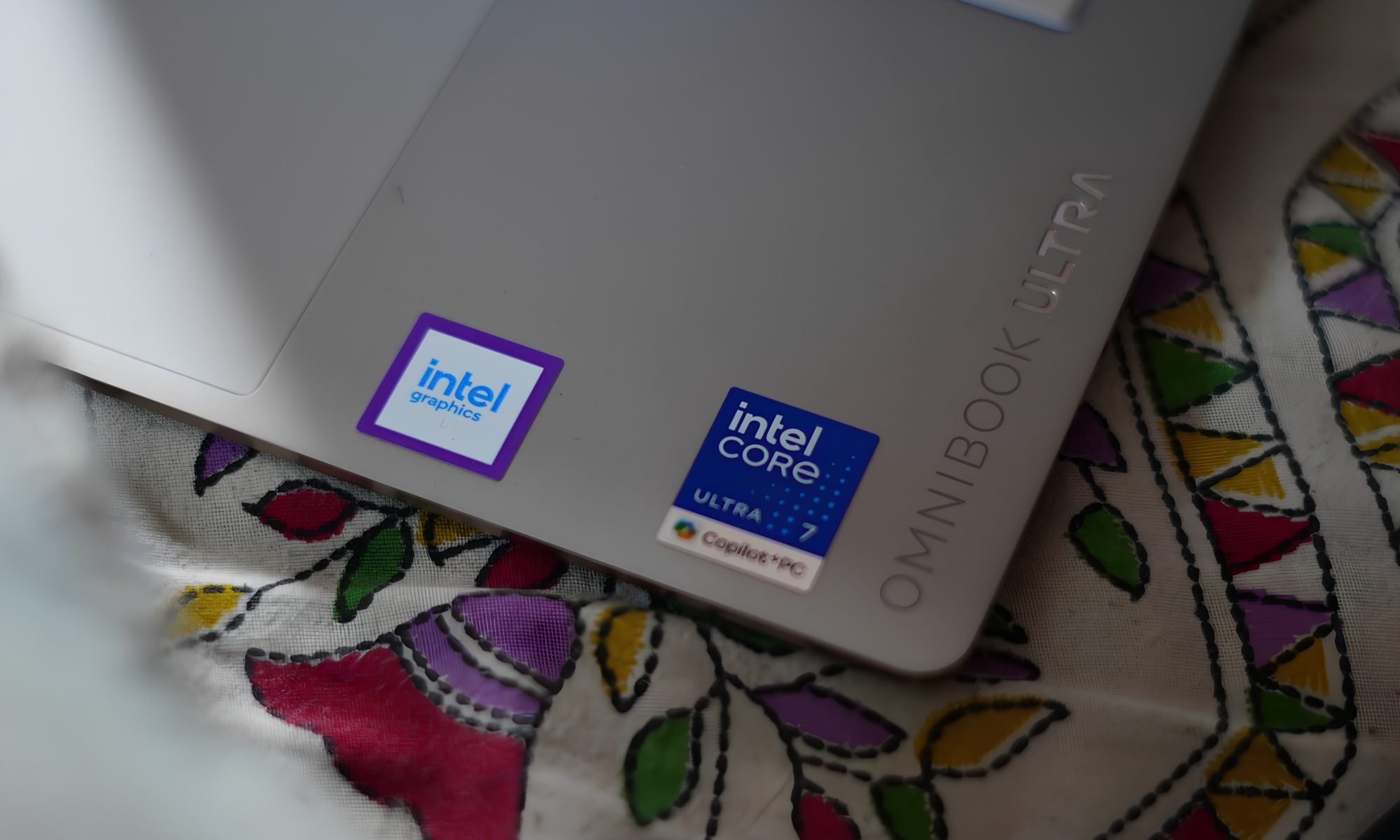
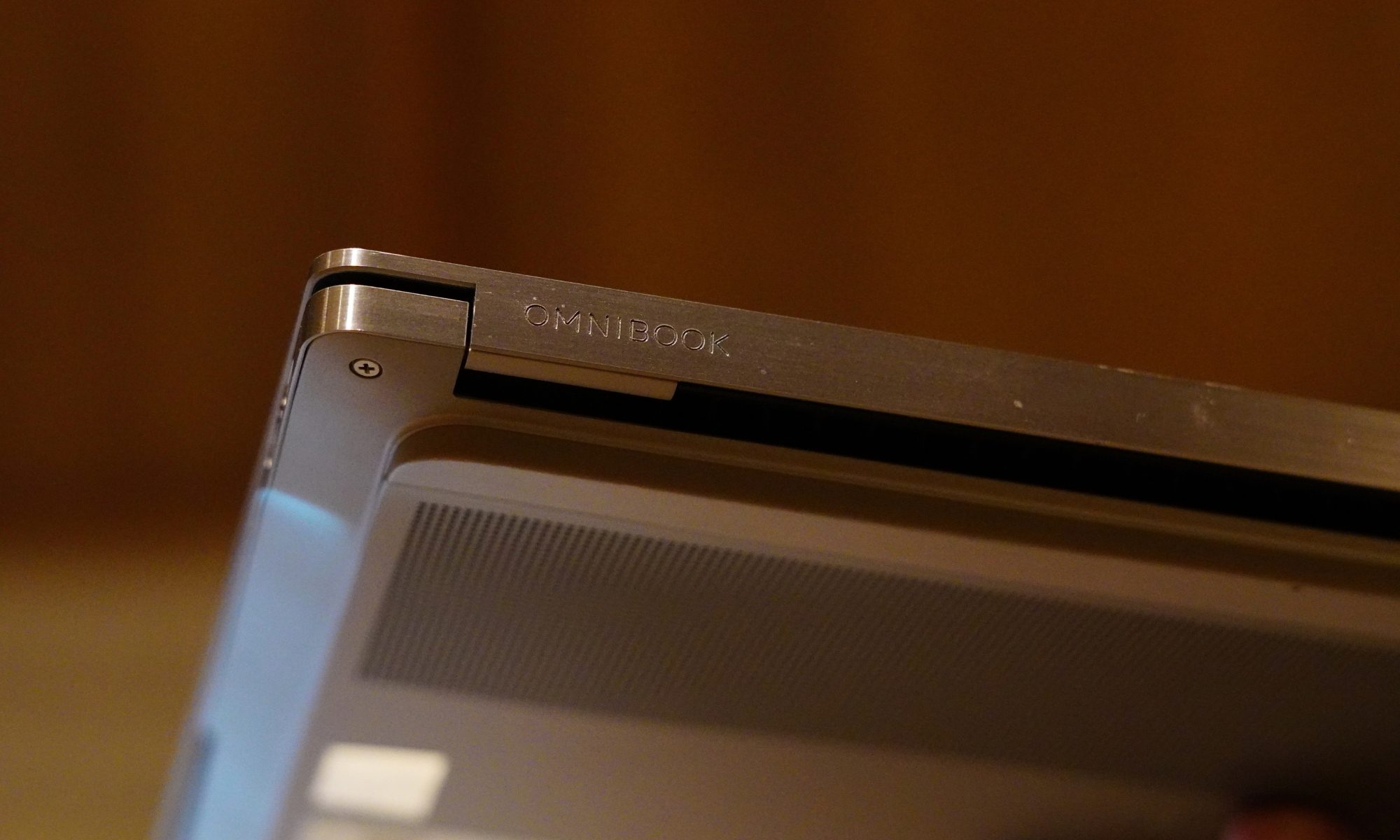
The keyboard deck follows the same colour scheme, and the lighter appearance of the keys gives the interior a nice contrast. The overall design is clean. HP hasn’t gone overboard with branding either. The exterior HP logo is relatively understated, while the OmniBook Ultra branding on the wrist rest adds a little bit of visual flair without turning the laptop into a billboard.
Advertisement
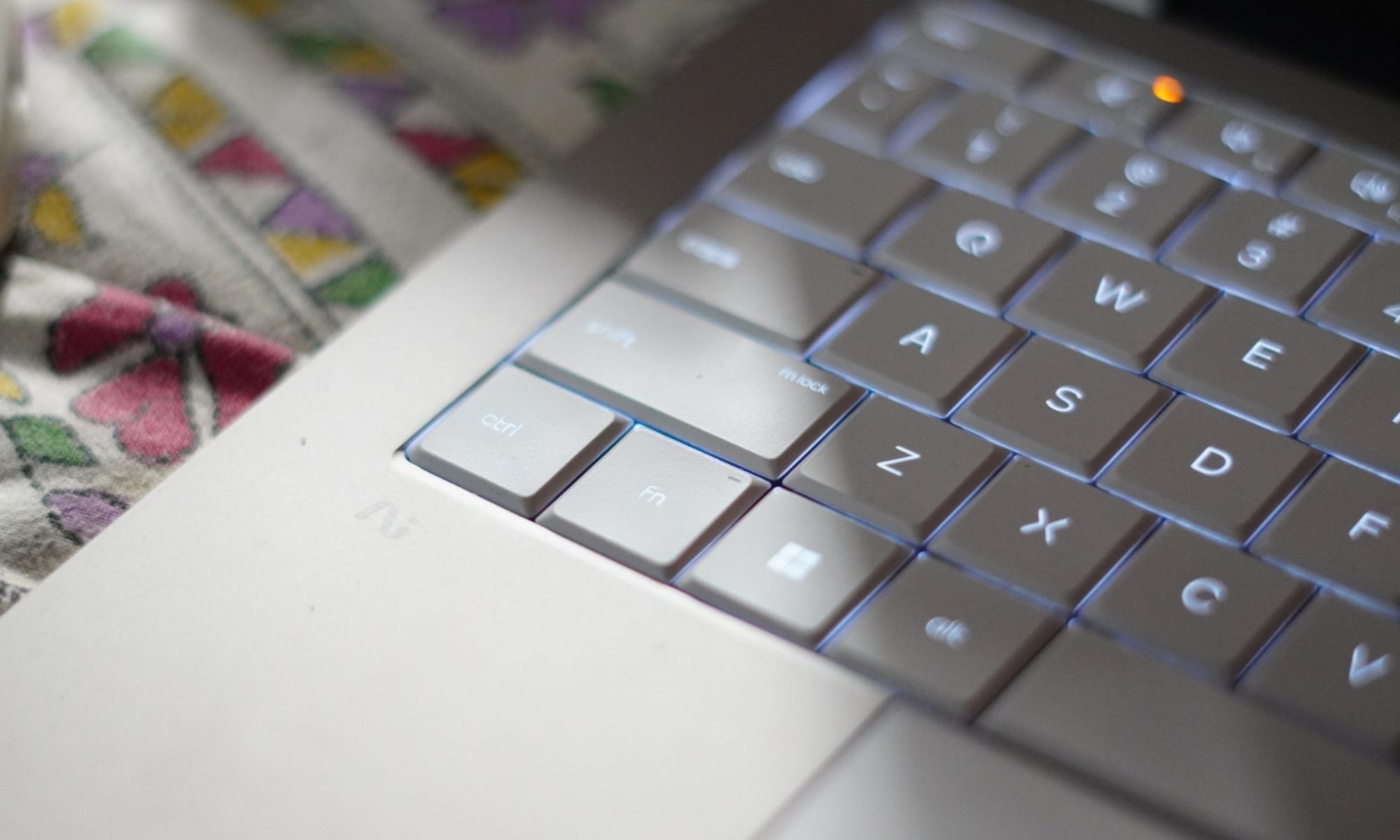
Then there is the keyboard. The OmniBook Ultra gets a full-sized backlit keyboard, and the keys themselves have a good amount of travel. I actually enjoyed typing on it. The feedback is firm enough that long typing sessions don’t feel like you’re tapping on a touchscreen.
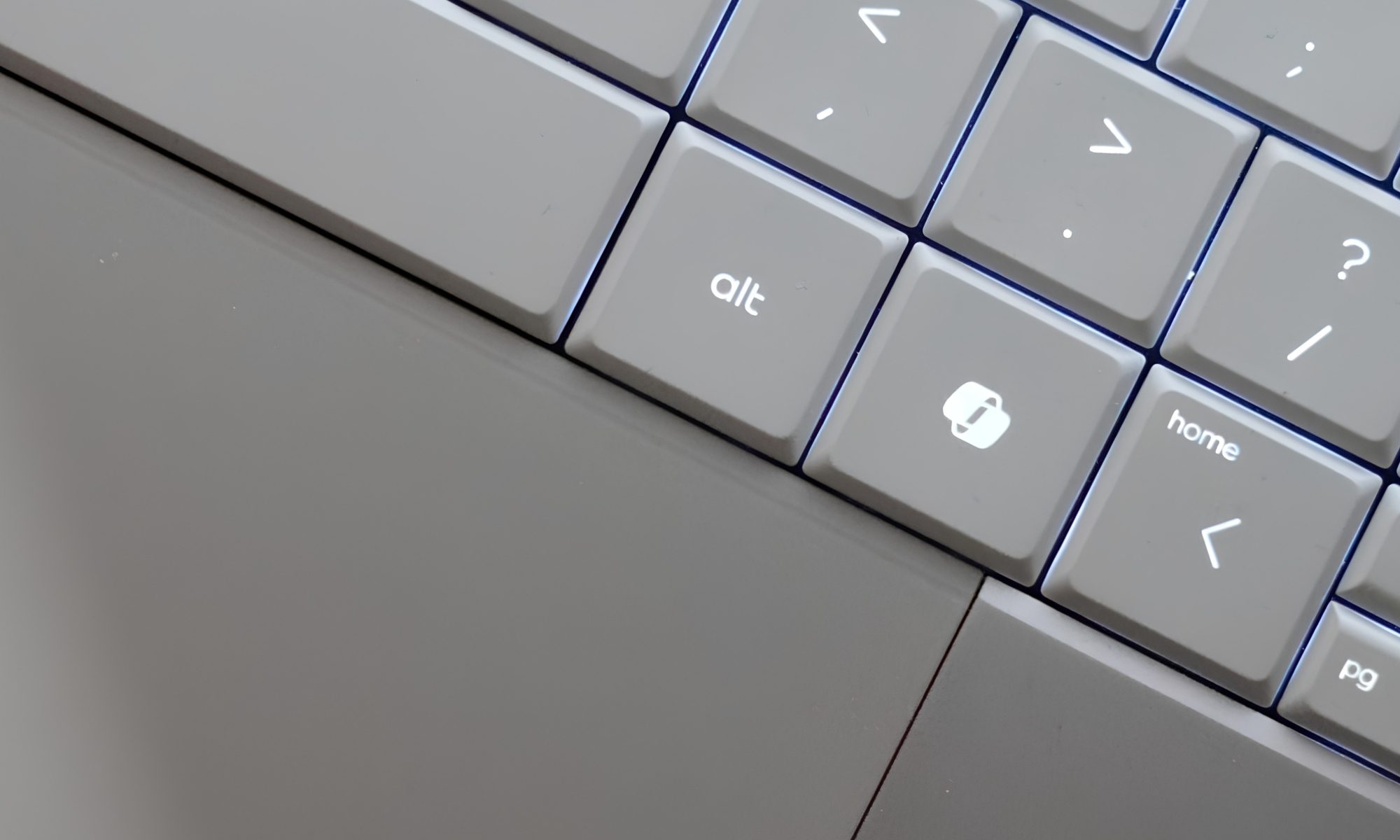
There is one slightly strange thing, though: the backlighting. The keys on my Silk Sand model are relatively light, and the backlight can sometimes make the lettering harder to distinguish rather than easier. It is one of those situations where the laptop is technically helping you see the keyboard while simultaneously making you wonder where the letters went.
HP gives you two backlight levels, but there isn’t an automatic mode. So I found myself manually switching it depending on the lighting around me. It’s not a deal-breaker. But it is an odd design decision on an otherwise carefully designed laptop.
Moinak Pal / Digital Trends
The touchpad is much easier to praise. It’s a large haptic touchpad, and the surface feels smooth and responsive. Gestures work well, and cursor movement feels precise. HP hasn’t tried to reinvent the touchpad, which is probably the right decision. The laptop also has a Copilot key, a microphone mute key, and the usual collection of function controls. HP has included a camera privacy shutter too, which I appreciate.
The product specifications confirm the presence of the privacy shutter, microphone mute key, and firmware TPM support. Security is handled through the 5MP IR camera, which supports Windows Hello. That means facial recognition can be used for sign-in, and in practice it’s much more convenient than typing a PIN every time I open the laptop.
Advertisement
I do wish HP had also included a fingerprint reader. At this price and in this class, having two biometric options would have made the machine feel more complete.
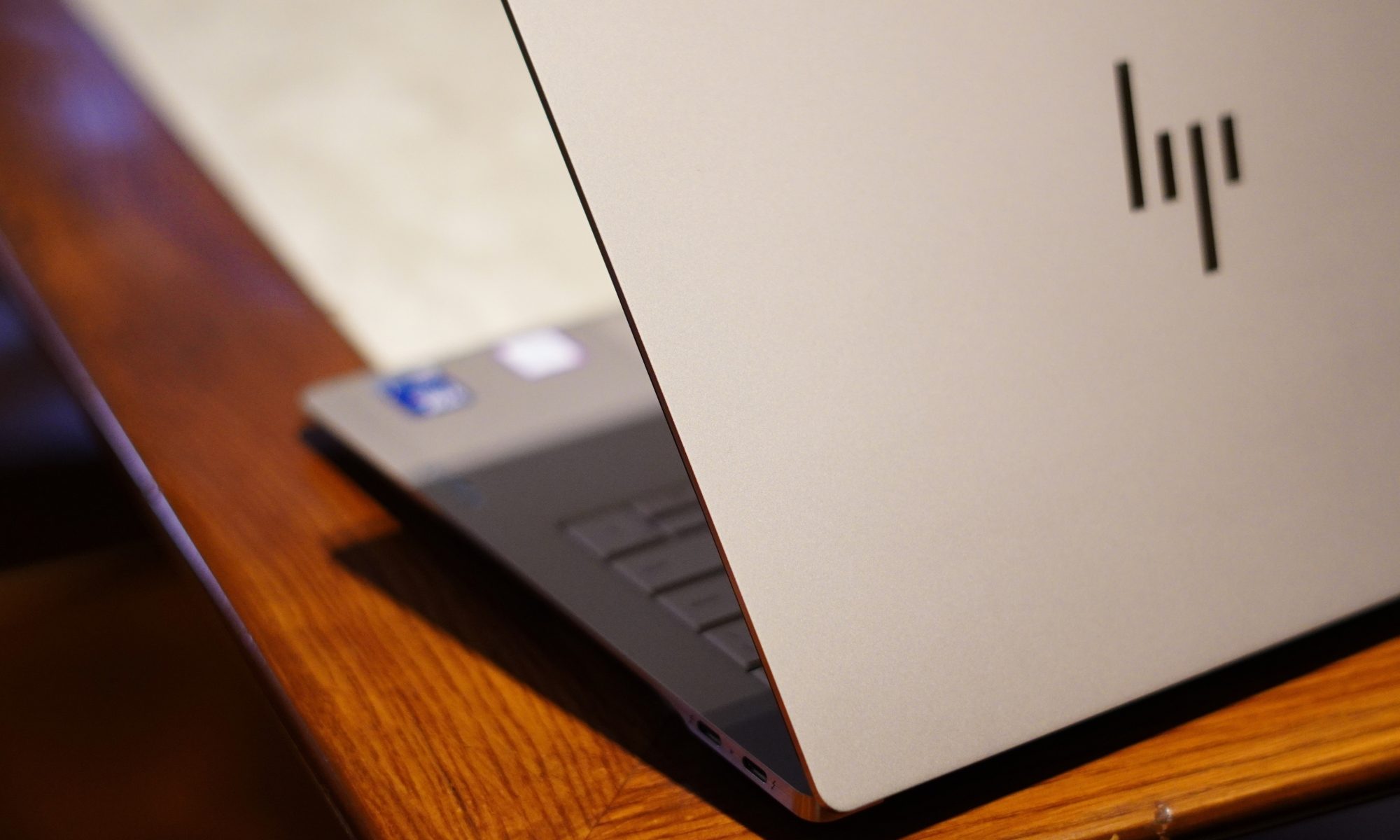
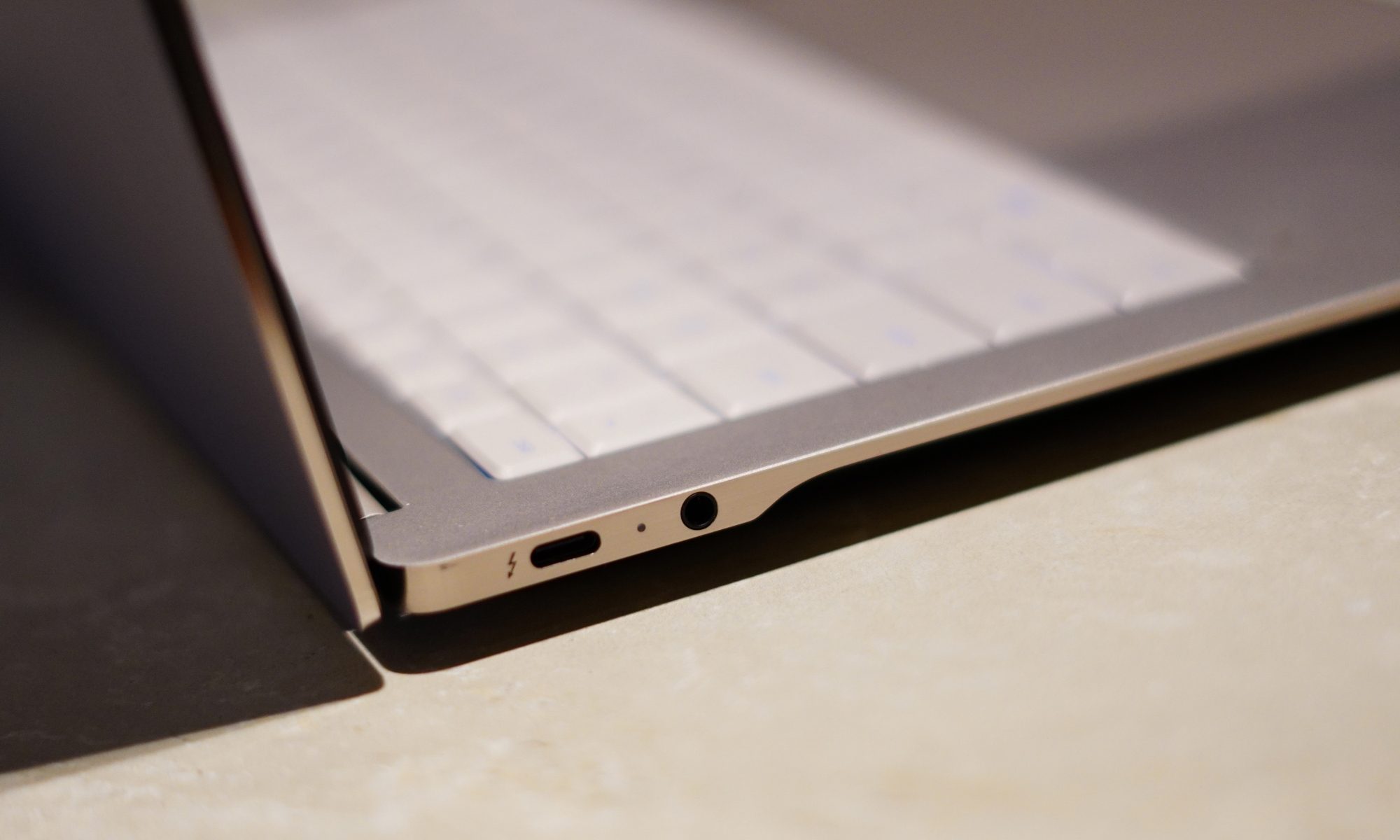
Port selection is another area where HP has made some sensible choices. You get three Thunderbolt 4/USB-C ports, each supporting up to 40Gbps signalling, along with DisplayPort 2.1 and USB Power Delivery. There’s also a 3.5mm headphone/microphone combo jack.
I particularly like that USB-C isn’t confined to one side. It makes charging at a desk considerably less annoying because you aren’t forced to arrange your entire workspace around one tiny port.
There is no giant selection of traditional ports here, but I don’t really miss them on a machine this thin. If you’re someone who regularly connects a bunch of older USB-A devices, HDMI cables, and SD cards directly to your laptop, you’ll probably need a dongle or dock.
Advertisement
Moinak Pal / Digital Trends
For everyone else, three high-speed USB-C ports give you plenty of flexibility. Wireless connectivity is properly modern too, with Wi-Fi 7 and Bluetooth 6.0. And then there are the speakers. HP calls it a quad-speaker setup, with HP Audio Boost, Poly Studio and DTS:X Ultra. The result is genuinely good audio for a laptop this thin.
Voices are clear, music has enough body to avoid sounding like it’s coming from inside a tin can, and movies are surprisingly enjoyable. This is not going to replace a dedicated speaker system, obviously, but I didn’t feel an immediate need to connect headphones every time I wanted to watch something.
The design, then, gets most of the important things right. It’s thin, light, sturdy, and understated, while still managing to pack in the hardware I actually want. The keyboard backlighting is my biggest complaint here. Everything else feels remarkably well thought out.
Design score: 9/10
HP OmniBook Ultra display
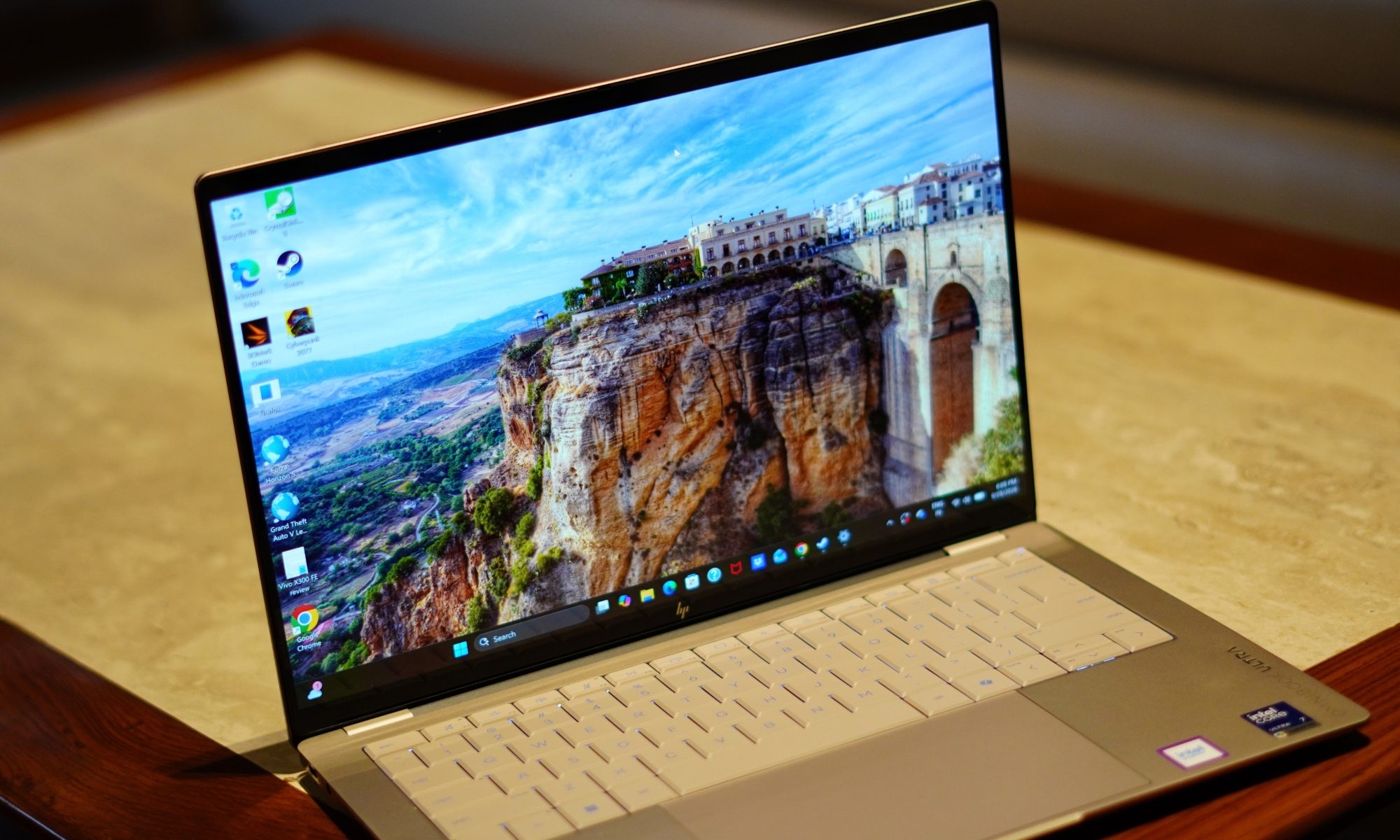
If the design makes a good first impression, the display is what makes me want to keep the laptop open. The OmniBook Ultra comes with a 14-inch 3K OLED touchscreen. The resolution is 2880 x 1800, the panel uses a 16:10 aspect ratio, and it supports refresh rates up to 120Hz.
Advertisement
HP also lists a 0.2ms response time, 100 percent DCI-P3 coverage, 500 nits of SDR brightness, and up to 1100 nits in HDR. There’s Gorilla Glass 3 protection and low-blue-light support as well. That’s a lot of numbers.
Thankfully, the experience doesn’t feel like a collection of numbers.
It looks fantastic. OLED does the heavy lifting here, particularly when you’re watching movies or looking at images with a lot of contrast. Blacks are properly black, colours are vibrant, and the overall image has that punchy quality that makes an LCD panel look slightly sleepy by comparison.
Moinak Pal / Digital Trends
The 3K resolution also makes text look exceptionally sharp. That’s important to me because I spend a ridiculous amount of time looking at browser windows, documents, and editing software. A good display isn’t just about watching Netflix in glorious HDR. It’s about whether your eyes hate you after several hours of work.
The 16:10 aspect ratio helps too. Compared with a traditional 16:9 panel, there’s a little more vertical space, which means I can see more of a webpage or document without constantly scrolling. It doesn’t sound revolutionary, but once you get used to a taller display, going back to a shorter one feels strangely restrictive.
The 120Hz refresh rate is another feature that becomes difficult to give up once you’ve experienced it. Scrolling through websites feels smoother. Animations feel more fluid. Even moving windows around the desktop has a more immediate quality to it.
Advertisement
Moinak Pal / Digital Trends
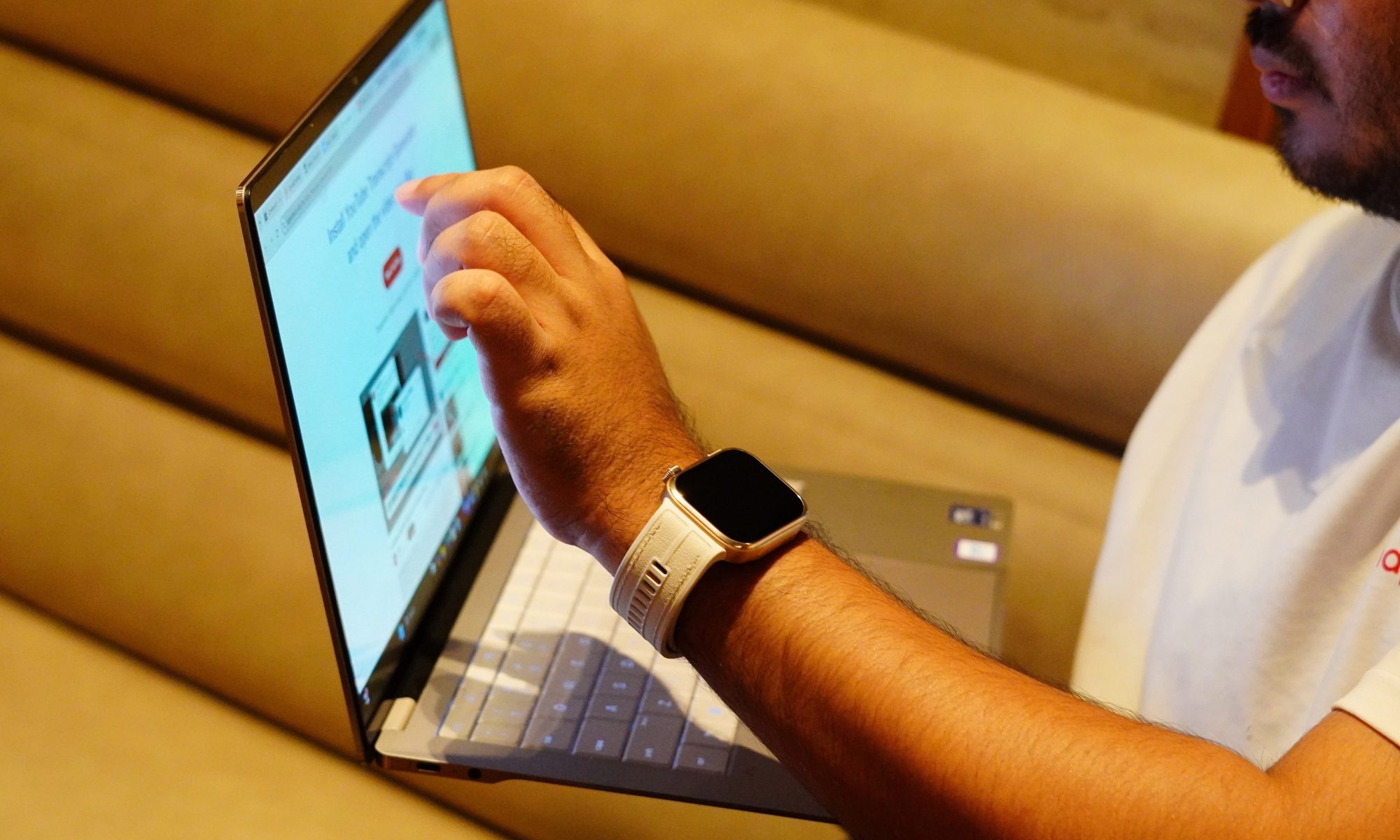
And because this is an OLED panel, the fast response time makes everything feel even snappier. The touchscreen is useful too. I don’t use touch constantly on a laptop, but when Windows throws up a control, or I need to quickly interact with something, having the option is convenient.
Brightness is another strong point. At 500 nits for SDR, the screen is bright enough for most indoor environments. HDR can push it much higher, up to 1100 nits according to HP.
The glossy surface does mean reflections can appear under strong lighting, but I found the brightness generally sufficient to overcome them.
The bezels are also impressively slim. HP lists a 91 percent screen-to-body ratio, which helps the laptop maintain a modern appearance without making the chassis unnecessarily large. There’s one physical limitation worth mentioning, though. The display hinge doesn’t open as far back as I would like.
It’s not something I noticed immediately, but once you start using the laptop in different positions, especially on a low table or while travelling, you realise there are situations where you want a little more flexibility.
Advertisement
Moinak Pal / Digital Trends
Still, that’s a relatively small complaint about a panel that is otherwise one of the best parts of this laptop. The display also makes the OmniBook Ultra feel like more than a productivity machine. I can comfortably use it for writing during the day and then switch to movies or games in the evening without feeling like I’m compromising on the visual experience. That said, I will say again:
I find touchscreens on laptops that don’t open all the way back amusing.
It’s a cute thing, but I won’t use it any time soon. That’s an important distinction. A lot of thin-and-light laptops have perfectly adequate displays. The OmniBook Ultra has a display that I actually look forward to using.
Display score: 9/10
HP OmniBook Ultra performance
This is where things get interesting. The OmniBook Ultra configuration I’m testing uses Intel’s Core Ultra 7 356H, paired with 16GB of LPDDR5x memory running at up to 8533MT/s and a 1TB PCIe Gen5 NVMe SSD. The processor has 16 cores and 16 threads, an 18MB L3 cache, and a maximum Turbo frequency of 4.7GHz. It also includes Intel AI Boost with 50 NPU TOPS.
That combination tells me exactly what HP is trying to do with this machine. It’s not simply chasing the thinnest possible laptop. It’s trying to make a thin laptop that can actually keep up.
Advertisement
And in everyday use, that philosophy works. I use laptops for a mixture of browser-heavy work, writing, image editing, video consumption, communications, and the occasional situation where I suddenly decide that I have enough free time to play a game. I am not a huge gamer, but I do play a bit of Cyberpunk or GTA 5 during my free time.
Moinak Pal / Digital Trends
The OmniBook Ultra handles the first five without breaking a sweat. With multiple browser tabs open, documents running, background applications active, and various bits of Windows doing their usual mysterious Windows things, the laptop remains responsive.
Application launches are quick, windows snap into place without hesitation, and switching between workloads doesn’t result in the sort of obvious slowdown you sometimes get from thin laptops running less capable hardware. But games are a different territory. Yes, it plays those Microsoft Store games pretty well, but I tried some heavy titles like Forza and Cyberpunk, and it fell flat. It couldn’t manage a stable frame rate at even the lowest resolution settings with almost everything turned off. And maybe what’s coming next will help you understand why.
The 1TB Gen5 SSD helps keep the system feeling fast. But the more interesting part was the graphics. This was integrated graphics, so I had approached gaming expectations with a certain level of realism. I’m not expecting it to transform into a gaming laptop simply because Intel has given the graphics architecture a fancy name. Intel has been giving pretty names to its iGPUs but the most part is – realistically, they are not absolutely equipped to play any
But the performance is better than the “integrated graphics equals Solitaire” stereotype would suggest. The Core Ultra 7 356H includes Intel Graphics – positioned slightly differently – it has enough graphics capability to make casual gaming and lighter creative work viable, but it isn’t pretending to be a workstation with a dedicated GPU hiding under the keyboard.
Advertisement
And honestly, that’s fine. For my regular workload, CPU performance matters much more than having an oversized GPU. The laptop also stays impressively composed considering how much hardware HP has packed into such a thin chassis.
Moinak Pal / Digital Trends
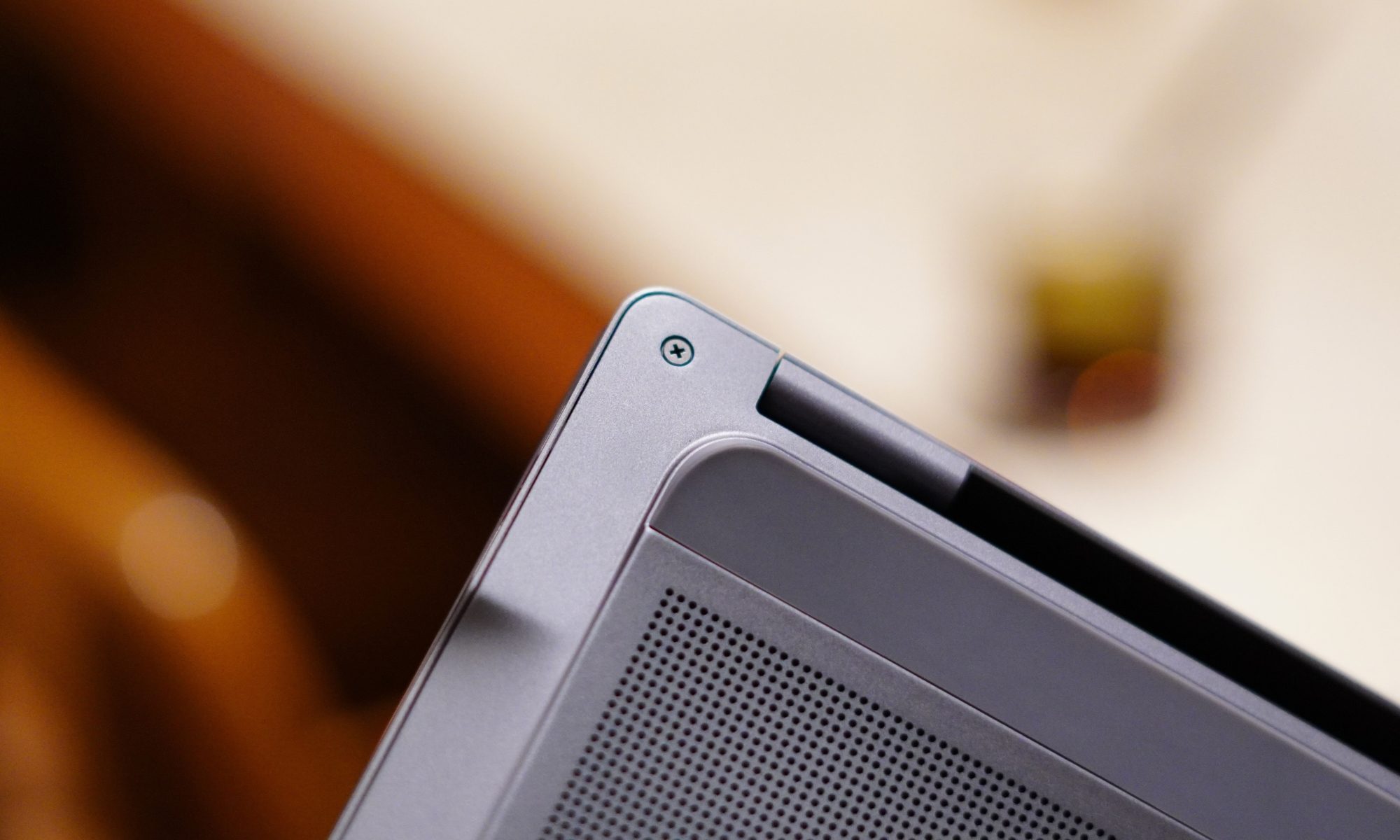
HP uses active cooling and a compact cooling design to keep temperatures under control. The general approach is familiar: air enters through the underside, and exhaust is pushed out near the rear hinge area.
The important part is that the fans aren’t constantly screaming. During normal work, I rarely notice them.
Push the laptop harder, and the fans become audible, as they should. That’s the trade-off for having a relatively powerful processor inside a thin body. I’d much rather hear a fan doing its job than have a laptop quietly cook itself on my desk.
The keyboard deck also remains reasonably comfortable during normal workloads. There is some flex when pressing hard, particularly around the centre of the keyboard, but I don’t consider it a serious issue. It becomes noticeable if you’re intentionally trying to make the keyboard flex. During normal typing, it doesn’t get in the way.
Advertisement
AI performance is another part of the OmniBook Ultra’s story. The Core Ultra 7 356H includes a dedicated NPU rated at 50 TOPS. That matters because the modern Windows laptop conversation increasingly involves local AI features. The OmniBook Ultra qualifies as an Intel Evo laptop and supports the broader Copilot+ experience, while HP also includes its own AI-focused camera and software capabilities.
Moinak Pal / Digital Trends
The 5MP IR webcam is a useful example. HP specifies HDR auto-switching, temporal noise reduction, and integrated dual-array microphones.
For video calls, the camera is clearly more serious than the basic webcams we’ve had to tolerate for years. HP also bundles Poly Studio, which provides additional control over the camera and audio experience. This is one of those software packages that I don’t immediately want to uninstall, which is a surprisingly low bar that many laptop manufacturers still manage to trip over.
Moinak Pal / Digital Trends
The software situation isn’t entirely clean, though. McAfee antivirus software is included as a 30-day trial, which means my first instinct was to remove it. HP’s own utilities are considerably more useful, particularly the support software and Poly Studio. The product page confirms the McAfee trial alongside Windows 11 Home and the Copilot experience.
The laptop also includes presence and sensor features. There are accelerometer, gyroscope, and IR thermal sensors, which enable some of the smarter contextual features. Some of these features are genuinely useful. Others are the sort of thing I tried once and then promptly forgot existed.
That’s the problem with “smart” laptops in general. Not every feature needs to be clever. What matters is that the core experience remains fast and predictable. And for the most part, it does.
Advertisement
Performance score: 7/10
Benchmarks
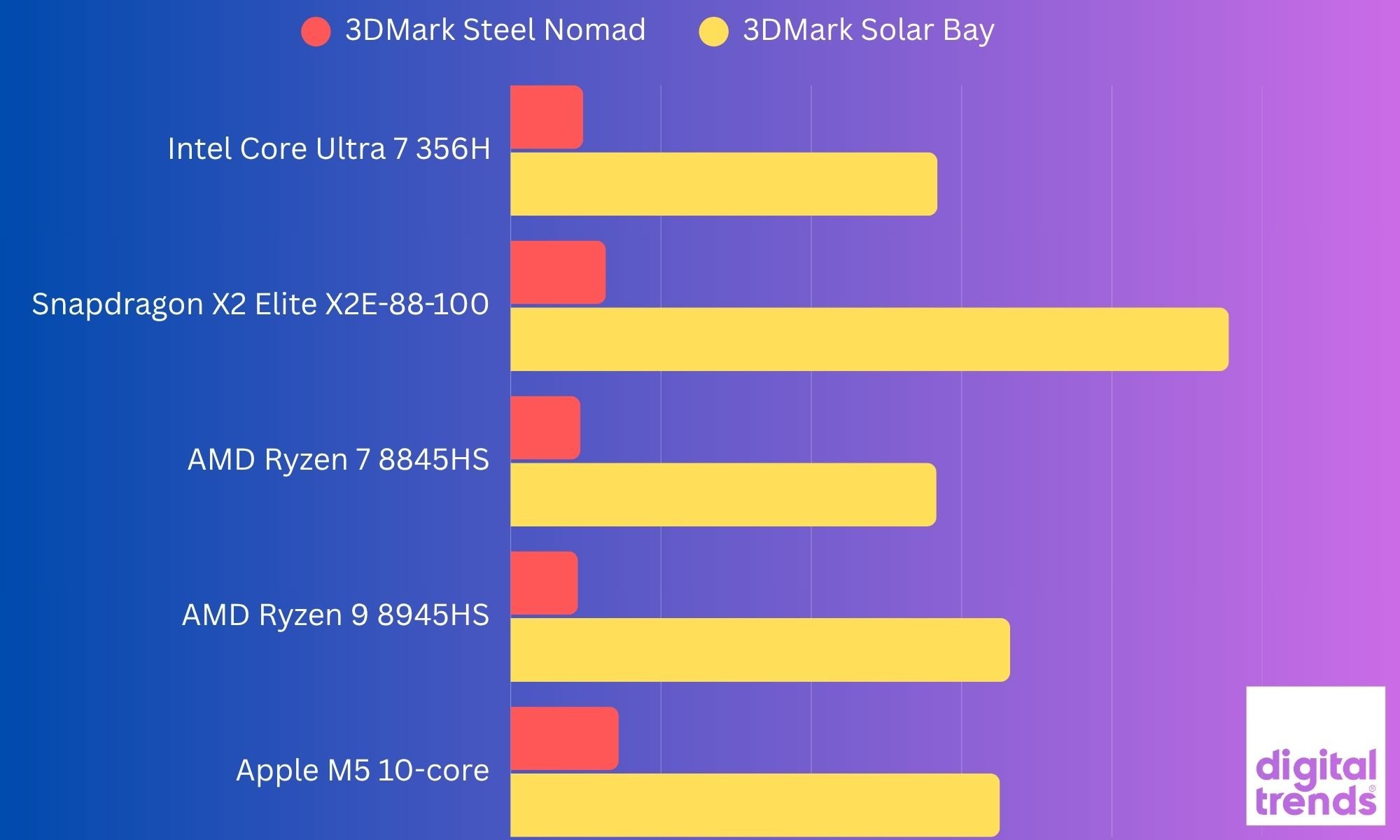
I ran six tests on the HP OmniBook Ultra, and the results paint a fairly clear picture of where this Core Ultra 7 356H machine sits. In CrystalDiskMark, the 1TB PCIe Gen5 SSD hit 10,244MB/s sequential read and 6,898MB/s sequential write, which is seriously quick. In 3DMark, it scored 1,972 in Steel Nomad Light, 474 in Steel Nomad, 10,391 in Solar Bay, and 1,405 in Solar Bay Extreme. Steel Nomad Light is specifically designed to measure GPU performance on lightweight systems, so these results are particularly useful for judging the integrated Intel Graphics.
Moinak Pal / Digital Trends
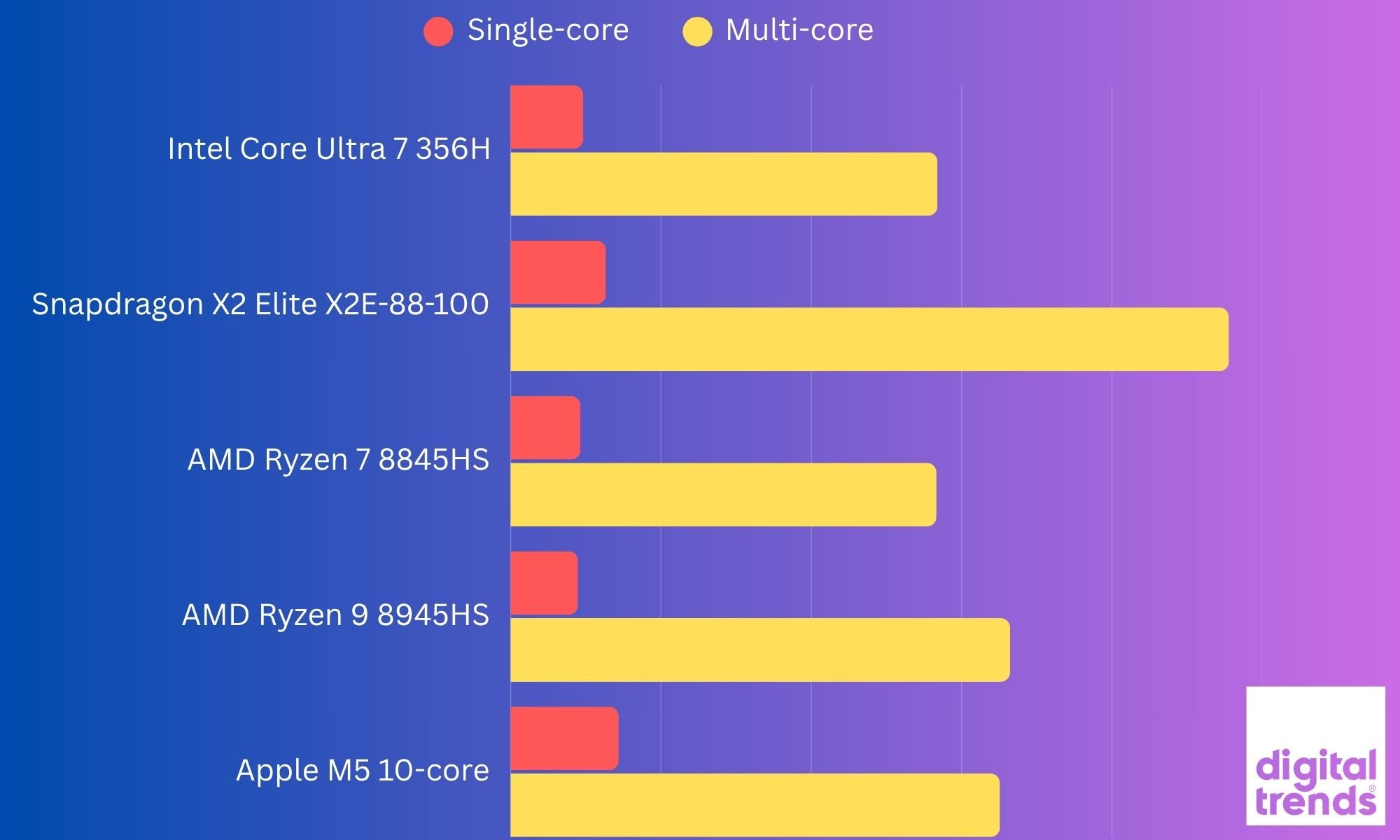
In my last benchmark testing, the OmniBook Ultra delivered a Geekbench 7 single-core score of 2,414 and a multi-core score of 14,196, which indicated solid CPU performance for a thin-and-light laptop. Its integrated graphics also managed a Geekbench 7 OpenCL score of 19,072, giving the laptop enough GPU muscle for everyday creative workloads and some lighter graphics-intensive tasks. However, the results did not translate to actual gaming performance, which we talked about above.
The interesting bit is that the 356H’s four-Xe3-core iGPU sits below older Core Ultra 7 155H and 255H/258V chips, which typically score around 2,959, 3,300, and 3,200+ respectively in Steel Nomad Light. Even Snapdragon X Elite systems can land around 2,200, although Snapdragon’s results vary considerably by laptop and driver.
Moinak Pal / Digital Trends
So, while the OmniBook Ultra’s CPU platform is newer, this particular 356H configuration isn’t the Panther Lake graphics monster. That distinction matters because Intel’s much faster Arc B390 GPU is reserved for higher-end Panther Lake chips such as the Core Ultra X9 388H.
Battery
Thin laptops often have an awkward relationship with battery life. They’re light enough to carry everywhere, but sometimes you need to carry the charger everywhere too.
Advertisement
The OmniBook Ultra tries to avoid that fate with a 70Wh battery. HP claims up to 20 hours and 45 minutes of battery life, depending on configuration and testing conditions, while video playback is rated at up to 30 hours and 15 minutes.
Those are obviously laboratory-style figures, so I wouldn’t expect my real-world usage to replicate them. What I do appreciate is the battery capacity relative to the size and weight of the laptop. A 70Wh battery in a 1.27kg machine is a pretty good combination.
Moinak Pal / Digital Trends
For my regular work, the OmniBook Ultra feels like the kind of laptop I can take out for several hours without immediately starting to calculate battery percentages in my head. And that is perhaps the biggest compliment I can give a portable laptop. I don’t want to think about the battery. I want to use the laptop. When I do need to charge it, HP says the battery can reach approximately 50 percent in 45 minutes.
The included charger is another nice touch. HP supplies a 65W USB-C GaN adapter. Because it’s a GaN charger, the brick is relatively compact, and the detachable cable makes it easier to pack.
Moinak Pal / Digital Trends
This sounds like a small thing until you travel regularly. A charger that occupies half the bag and weighs as much as the laptop is not exactly “ultra portable.” HP has avoided that problem here.
And because the laptop charges over USB-C, you’re not locked into carrying some giant proprietary brick. The battery story is therefore less about one spectacular number and more about the overall package.
Advertisement
Battery score: 8/10
Should you buy it?
HP / Digital Trends
The HP OmniBook Ultra is one of those laptops that becomes more impressive the longer I use it. It doesn’t rely on one gimmick. There’s no enormous screen, no ridiculous hinge, no detachable keyboard pretending to be a revolution. Instead, HP has taken the basic premium laptop formula and tried to make every part of it work together.
If your priority is portability, display quality and a premium Windows experience, the HP OmniBook Ultra makes a strong case. At just 1.27kg, it is remarkably easy to carry, while the 14-inch 3K OLED panel gives you the kind of sharpness, colour and contrast that makes everything from writing to watching Netflix feel better. The forged aluminium chassis also gives it a proper premium feel without turning it into a heavy machine.
And don’t forget the 120Hz OLED panel, 70Wh battery, and 1.27kg weight. However, this particular configuration is not a universal recommendation. The biggest compromise is the integrated Intel Graphics. My Core Ultra 7 356H scored 1,972 in Steel Nomad Light, and the benchmark results make it clear that this isn’t the graphics-heavy Panther Lake configuration. The higher-end Panther Lake chips with larger Arc graphics are in another performance class.
So while the 356H is perfectly comfortable with everyday productivity, multitasking, and AI-assisted workloads, I wouldn’t buy this particular version primarily for gaming or heavy GPU work. The other thing to consider is the 16GB onboard RAM. It is enough for normal productivity and my day-to-day usage, but there is no upgrading it later, so your memory requirements need to be considered before buying.
Advertisement
Yes, if you want a lightweight premium Windows laptop with an excellent OLED display, fast storage, plenty of USB-C connectivity, and enough performance for everyday work, content consumption, and moderate creative workloads.
HP / Digital Trends
No, if your priority is serious or even light AAA gaming, sustained GPU-heavy work, or having upgradeable memory. In that case, the higher-end OmniBook Ultra configurations or a laptop with discrete graphics make more sense.
In simple terms, the OmniBook Ultra 356H is a premium productivity laptop first and a performance machine second. The hardware is impressive, but this particular configuration doesn’t unlock the full graphics potential of the Panther Lake platform. But those are small cracks in an otherwise very polished package. For my particular Core Ultra 7 configuration, the OmniBook Ultra feels like HP has understood the assignment: give me a laptop that I can carry everywhere, work on all day, enjoy watching content on, occasionally throw some heavier workloads at, and not immediately start looking for the charger. That’s a pretty good assignment to get right.
Why not try
MacBook Air 15-inch with M5 is worth considering if you are comfortable moving to macOS. Its M5 chip gets a 10-core CPU and up to a 10-core GPU, while the 15.3-inch display offers 2880 × 1864 resolution and 500 nits brightness. It also remains fanless, making it an interesting alternative for people who prioritise quiet operation and efficiency.
Microsoft Surface Laptop 15-inch takes the Windows-on-ARM route with Snapdragon X2 Plus or X2 Elite processors. It has a 15-inch 120Hz touchscreen, up to 64GB of RAM, and Microsoft’s claimed battery life of up to 19 hours. It is a particularly relevant alternative if battery life and ARM efficiency matter more to you than broad x86 compatibility.
Advertisement
You could also look at the HP OmniBook Ultra configurations with the higher-end Panther Lake chips. The same laptop family is available with more powerful processors, including configurations with substantially stronger integrated graphics. That makes this an especially interesting alternative if you like the OmniBook’s design but want more graphics headroom.
The OmniBook Ultra therefore occupies an interesting middle ground. It gives you the premium build, OLED display, lightweight chassis, and connectivity without going down the gaming-laptop route. The catch is that the exact processor configuration matters a lot. The Core Ultra 7 356H model I tested is considerably different from the higher-end Panther Lake versions despite sharing the same OmniBook Ultra name.
How we tested it
I used the HP OmniBook Ultra as a real-world device rather than treating it like a benchmark box. My testing covered everyday work such as writing, web browsing, multitasking, streaming, and switching between multiple applications, along with more demanding workloads to see how the laptop behaved when pushed beyond basic productivity.
I also paid particular attention to the things that don’t always show up on a specification sheet. The OLED display was used across different lighting conditions, the keyboard and haptic touchpad were tested through extended writing sessions, and I spent time using the laptop on battery as well as while connected to power.
Advertisement
For performance, I ran a combination of storage and graphics benchmarks. CrystalDiskMark was used to test the 1TB PCIe Gen5 SSD, while 3DMark Steel Nomad, Steel Nomad Light, Solar Bay, and Solar Bay Extreme were used to examine the integrated Intel graphics. The results were then compared with published figures where directly comparable data was available.
The idea wasn’t to chase a single benchmark number. I wanted to see how the OmniBook Ultra behaves as an actual laptop: something I can carry around, work on for hours, watch content on, plug into peripherals, and occasionally push hard when the workload demands it. That combination of real-world use and benchmark testing is what shaped my overall impression of the machine.
FAQs (Frequently Asked Questions)
What really stands out about this laptop?
This is a 14-inch machine that weighs just 1.27kg, yet still manages to include a 16-core Intel Core Ultra 7 356H processor, 16GB of fast LPDDR5x memory, and a 1TB Gen5 SSD. The build quality is another highlight. The Silk Sand aluminium body looks premium without being obnoxious, and the thin profile makes this a genuinely portable laptop rather than a laptop that merely looks portable in product photos.
Is the display good?
You get a lovely OLED display on this one. It’s bright, sharp, colourful, fast, and touch-enabled. The 3K resolution and 120Hz refresh rate make it equally comfortable for spreadsheets, writing, browsing, and entertainment.
Advertisement
How is the connectivity situation?
It’s a mix. Three Thunderbolt 4 ports, Wi-Fi 7, and Bluetooth 6 give the machine a modern foundation, while the headphone jack is still there for anyone who hasn’t yet decided that wired audio is a crime.
What about the keyboard?
The keyboard is comfortable, the haptic touchpad is excellent, and the speakers are surprisingly capable. But it isn’t perfect. The keyboard backlighting needs work. The light-coloured keys and backlight don’t always play nicely together, and I occasionally found myself turning the backlight off because it was making the legends harder to read.
What are a few of its key downsides?
The limited port selection is understandable given the chassis, but anyone with a collection of USB-A accessories will probably need a hub. And while the 3K OLED display is excellent, the hinge could have offered a little more flexibility. The keyboard backlighting is an unnecessary annoyance, and the absence of a fingerprint reader is disappointing.
Who is this laptop for?
I’d say the OmniBook Ultra makes the most sense for someone who wants a premium Windows laptop without stepping into the heavier, bulkier category of performance machines. It’s for the person who writes, edits, browses, works with large numbers of tabs, attends video calls, watches a lot of content, and occasionally wants to push the machine harder.
Advertisement
It’s also a particularly interesting option for someone who wants strong processor performance without giving up portability. And I think that balance is what makes the OmniBook Ultra work. And I can say it’s considerably harder to build a laptop that feels like a thin laptop while behaving like a powerful one. The OmniBook Ultra gets remarkably close.
The best thing I can say about it is that I don’t spend much time thinking about the hardware while using it. I just open the lid and get on with whatever I’m doing. That’s exactly what I want from a premium laptop.
There are laptops that impress you when you read their specifications. Then some laptops impress you when you actually live with them. The HP OmniBook Ultra belongs much more to the second category. It is thin without feeling fragile, powerful without feeling unnecessarily bulky, and premium without turning the entire experience into a fashion statement.
Apple may be developing a very unusual smart home camera. Most home security cameras capture footage you can review later, but Apple is reportedly flipping that idea entirely.
According to Bloomberg’s Mark Gurman, Apple is developing a home camera codenamed J450 that skips video recording entirely. He revealed this on the debut episode of his Power On podcast, explaining that the device relies purely on AI to understand what’s happening around your house, and it could arrive in 2027.
How would Apple’s no-video camera actually work?
Gurman described the J450 as a small metal cylinder that looks like an oversized metal chapstick, mounted around your home. Instead of streaming or saving clips, the sensor runs on a low frame rate and utilizes facial recognition AI to analyze movement and recognize faces in real time.
Apple’s smart home camera can also recognize pets and send you text descriptions instead of video footage with nothing else to review afterward. That could mean a notification telling you a specific family member just walked into a room, or that someone left the house, all without a single frame of footage ever being stored.
Advertisement
It reportedly uses tech similar to Apple’s rumored camera-equipped AirPods, relying on an embedded image sensor, like Sony’s IMX500, that processes everything on device rather than sending raw footage off to be stored and secured elsewhere.
Why would Apple skip video recording?
The unusual approach could address privacy concerns around storing footage of your home on the cloud. However, skipping video also means you would have nothing to review after a break-in. That would make the J450 quite different from Ring and Nest cameras, which store footage for later review.
Bernard Hermant / Unsplash
Apple already offers a similar concept today. HomeKit Secure Video includes a Detect Activity setting that halts recording while still tracking motion, so this camera sounds like an extension of that same philosophy, just built from the ground up.
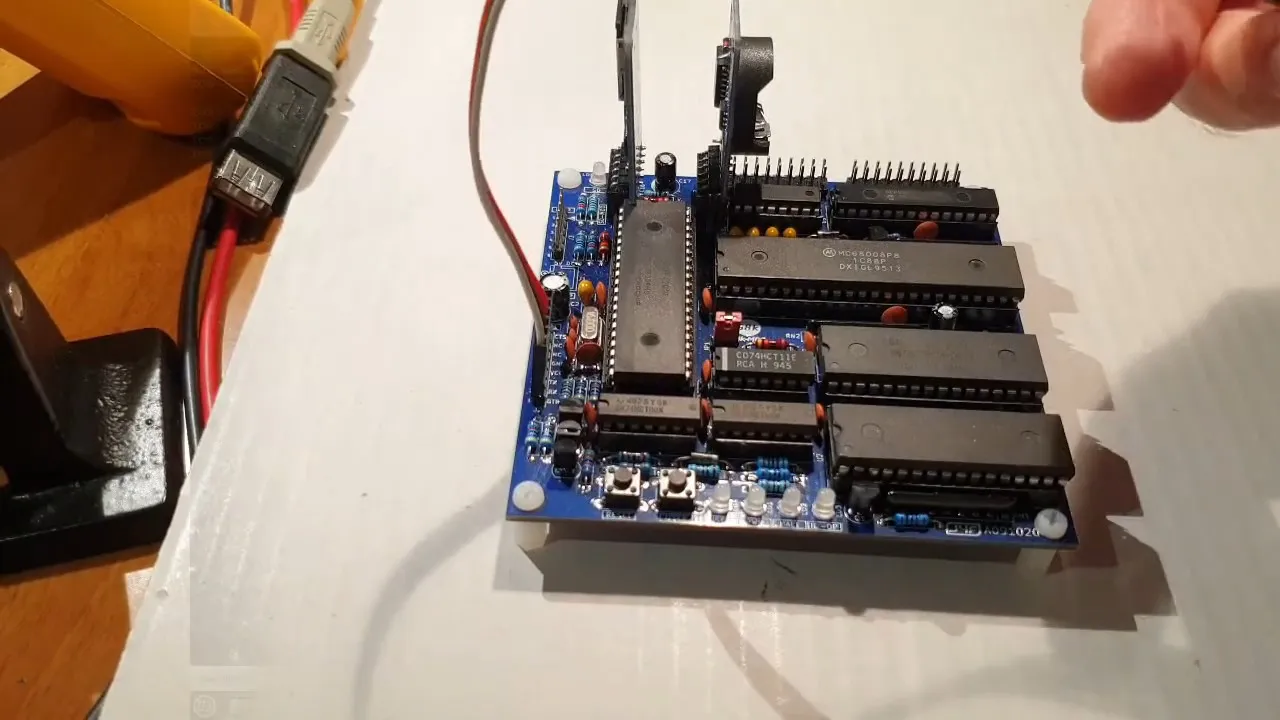
Homebrew computers don’t have to be retrocomputers, but [Just4Fun]’s all-through-hole, 68008-based “68k-MBC” certainly qualifies, so it is a worthy entry in our ongoing contest. While there are both “full” and “lite” hardware configurations, the three-IC “lite” configuration is what first caught our eye. Yes, three: the 68008, an SRAM chip, and a PIC microcontroller that acts as the ROM.
Software is provided by the suitably-retro CP/M68K, or standalone executables, which run on both hardware configurations. The “lite” option restricts you to a maximum of 512 KB of RAM and a single serial port, but it looks like you still get I2C and the option to plug in an SD “hard drive” or RTC module however you configure the machine. Through the serial port, you can of course connect a terminal of you choice, or even use a thermal printer. The “full” version has two serial ports, if you want to do both. [Just4Fun] also has a parallel adapter lets you plug in printers with that interface as well. The demo video is below, but be warned that the text-to-speech narration won’t be to everyone’s liking.
We’ve featured other single-board-computers using the 68k before, but this one is a worthy contender in our contest, not least for the impressively low chip count. This contest has gotten oodles of entries, but there’s still time for yours: entries close October 27th.
“The proceedings remain at an early stage,” said Ryde
Singapore-based ride-hailing firm Ryde, listed on the New York Stock Exchange (NYSE), is facing two separate legal cases: a shareholder petition and a class action lawsuit, the Business Times reported.
On Jul 3, Octava Fund, a shareholder of Ryde Group, submitted a petition to the Grand Court of the Cayman Islands, where both it and Ryde Group are incorporated.
The petition calls for Ryde’s 6.9 million shares to be bought out, or for Ryde to be wound up, on grounds of improper governance, breach of duty and other issues.
Separately, a class action lawsuit filed on Sept 10 in the US District Court for the Southern District of New York accuses Ryde of being involved in a pump-and-dump scheme.
Advertisement
It is a practice in which fraudsters artificially inflate the price of a traded financial instrument through false or misleading positive statements before selling off their holdings at the peak.
Ryde responded in a media statement on Sept 18.
On the shareholder petition, the company said:
“The proceedings remain at an early stage, and no findings have been made by the court on the substantive allegations. No official or provisional liquidator has been appointed, the directors remain in control of the company, and the proceedings have not affected the company’s operations or its ability to conduct business in the ordinary course.”
Advertisement
Ryde added that it does not presently believe the proceedings are material to the company.
On the class action lawsuit, the ride-hailing firm said it intends to “engage litigation counsel and actively defend the action.”
In response to queries from The Business Times, it said it had no further comment beyond its Sep 18 response.
“As these matters are subject to ongoing legal proceedings, the company will refrain from commenting further at this time and will make any further disclosures as appropriate in accordance with applicable requirements,” it said.
Advertisement
Allegations from shareholder
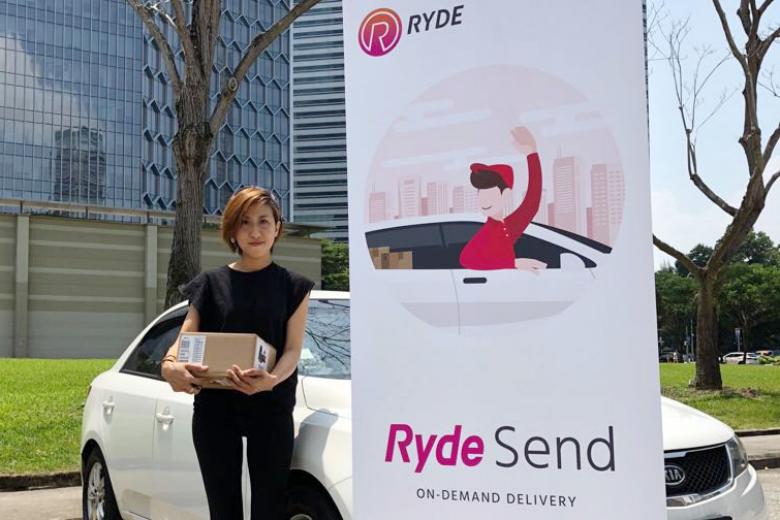
RydeSend is a 24/7 on-demand, point-to-point express delivery service offered by Ryde./ Image Credit: Ryde
Ryde was founded in 2014 by Singaporean Terence Zou as Ryde Technologies, a private limited company. Zou now serves as the group’s CEO and chairman.
It began as a carpooling app before expanding into ride-hailing and delivery services. In Singapore, it is one of seven full ride-hail operators, alongside the likes of CDG Zig and Grab.
Ryde made its initial public offering on Nasdaq on Mar 4, 2024, listing three million Class A shares at US$4 a piece.
On the other hand, Octava Fund is an investment holding company wholly owned by Octava Offshore Holdings (also incorporated in the Cayman Islands), but managed by Octava Management, a private limited company based in Singapore.
Octava Management describes itself as a holding company that invests in real estate, with a focus on sustainable growth and strategic partnerships.
Advertisement
In its petition, Octava Fund said it has “justifiably lost all trust and confidence that the assets and affairs of the company are being properly managed,” adding that “mutual trust and confidence between the petitioner and the company has irretrievably broken down.”
According to the petition, Ryde was on the brink of insolvency and unable to meet its payroll obligations in 2019.
Ryde founder Terence Zou./ Image Credit: Singapore Global Network
Octava Fund became Ryde’s majority shareholder in Jan 2020 after buying out the company’s then-principal investor, Nomad X. Octava alleges that despite this, it was gradually excluded from management decisions and its voting power eroded over time.
It points to a Feb 2025 memo in which Ryde issued three million Class B shares—which carry 10 times the voting rights of Class A shares—to Zou without Octava’s approval, shifting control to Zou’s favour (58.7%, up from 42.7%) and diluting Octava’s stake to 23%, down from 39.8%.
Octava also alleges mismanagement, citing a US$10 million (S$12.8 million) private placement of Class A shares completed on Oct 7, 2025, which Ryde reportedly failed to notify the NYSE of before trading began, drawing a warning from the exchange.
Advertisement
The firm also pointed to a separate incident in Sept, involving a proposal to award Zou up to 32 million Class B shares if the company met certain revenue, fundraising and other targets.
Under this arrangement, Zou received two million Class B shares—worth roughly US$1 million (S$1.28 million) at the time—for lifting H1 2025 revenue by US$1.1 million (S$1.41 million).
In effect, more than US$0.94 (S$1.20) of every additional dollar earned was recorded as share-based compensation expense, while Ryde’s bottom line improved by just six cents on the dollar.
Class action lawsuit
Image Credit: CMG
The class action lawsuit was filed on Sept 10 in the US District Court for the Southern District of New York. A retail investor, Shari Weiss, brought a claim against Ryde and its leadership, including Zou and then-CFO Lang Chen Fei.
It is filed on behalf of those who bought Ryde securities between Mar 6 and Sept 11, 2024.
Advertisement
The suit alleges Ryde participated in or enabled a pump-and-dump scheme, with people posing as financial advisers on social media and online forums fuelling a “buying frenzy” among retail investors.
Ryde’s share price hit an intraday high of US$22.49 (S$28.76) on Sept 11, 2024, “despite no fundamental changes to the company,” before crashing 75% the next day to US$5.50 (S$7.03).
The founder of financial intelligence firm Hindenburg Research, Nathan Anderson, cited in the complaint, said that the stock showed “all the hallmarks” of a pump-and-dump scheme at the time, noting it had “plummeted 80%in an hour… after weeks of wash-trading and coordinated pumping in chat rooms.”
The suit also claims Ryde failed to disclose the matter to investors, even though unusual trading activity, outsized price swings, and false claims circulating in online investor groups were already public and readily observable—rendering its “business, operations and prospects… materially misleading and/or lacking a reasonable basis.”
Advertisement
Separately, Ryde’s latest financial results showed its Q1 2026 adjusted EBITDA deficit narrowing to S$1 million, from S$1.8 million a year earlier, as revenue rose 38% to S$3.8 million.
Ryde’s share price has since cooled considerably, closing at US$0.68 (S$0.87) on Oct 1—down from its September 2024 peak of US$20.28 (S$25.94).
Read other articles we’ve written on Singaporean businesses here.
The Pentagon is informing more than 2 million current and former military members that their personnel records storing sensitive personal information were stolen over a monthslong compromise of one of its networks. The breach is the second one in recent months to expose sensitive government information.
The records, according to one notification letter posted to Reddit, included Social Security numbers, names, addresses, sex, race, and occupational specialty. This last category could be particularly valuable to foreign adversaries because it could help their intelligence agencies in identifying high-value military personnel. Starting last October, hackers gained access to a system operated by the Defense Manpower Data Center, which collates Department of Defense personnel records. The Pentagon says that the breach compromised the records of 2.8 million living individuals.
A potential boon
The incident is the second time a major network breach in recent months has exposed sensitive US government personnel records that criminal groups or foreign adversaries could use. Last month, the ransomware group ShinyHunters claimed it hacked into FBI systems and stole records of thousands of the agency’s current or former employees. Reuters reported the job titles in the records included ones related to investigating China or Russia.
ShinyHunters said that it has no plans to release the information, but the promises of a criminal organization that has hacked and extorted hundreds of organizations mean very little. Additionally, the group’s cyber defenses are likely no match against nation-state intelligence hackers. An FBI official this week called on group members to turn themselves in.
Pretty much all of our personal data is online at this point. Whether it’s saved credit cards or photos in your social media profiles, your private life is easily accessible — including to hackers.
That’s one reason why the vast majority of Americans have been targeted by scams or cyberattacks, according a new study by Consumer Reports, Aspen Digital and the Global Cyber Alliance.
The report found 9 in 10 Americans have faced at least one digital scam or cyberattack. “That’s not a statistic, that’s almost everyone we serve,” Consumer Reports CEO Phil Radford said in a statement. “AI is making fraud faster, cheaper and more personal, and no one can outsmart that alone. Companies need to be held accountable. Governments need real guardrails. That’s the bar we’re setting – for ourselves and for them.”
What’s even worse is that US adults aren’t confident in personal data privacy — like having safeguards for their Social Security number or financial data. Over 1 in 4 (29%) aren’t confident at all. That figure has nearly doubled compared to the annual survey’s 2025 finding that only 16% weren’t confident at all. And the number of US adults confident in the privacy of their sensitive data has shrunk from 48% in 2025 down to 32% this year.
Advertisement
That doesn’t mean we’ve given up. Many respondents reported looking closely at texts and emails before clicking (69%), using multifactor authentication (60%) and enabling automatic software updates (48%). But their efforts alone won’t do.
AI won’t make personal data privacy any easier to manage
What will it take to increase consumer confidence in personal data privacy in a world where AI is becoming more of a threat than a tool for evolution?
“AI will certainly make it easier for scammers to create personalized scams at scale and lower the amount of effort it takes to craft and send scams,” said Stacey Higginbotham, a policy fellow for Consumer Reports.
Higginbotham said there are several measures that can reduce scams, but policymakers haven’t taken serious action. Congress could pass laws such as the federal SCAM Act or the SAFE Platforms Act that would penalize scammers who abuse online platforms with their malicious tactics.
“So AI is a problem, but legislators could address some of the challenges associated with the looming glut of AI-enabled scams by shoring up the basics and making it more expensive for companies to profit off of scammers at the expense of consumers,” Higginbotham said.
For now, Higginbotham said the most important thing you can do is follow common password best practices like using different strong passwords and enabling multifactor authentication. Also, make sure you’re assessing all messages from strangers, whether it feels like a scam or not.
Advertisement
Dashia Milden
Senior Consumer Insights Editor
Dashia is the consumer insights editor for CNET. She specializes in data-driven analysis and news at the intersection of tech, personal finance and consumer sentiment. Dashia investigates economic shifts and everyday challenges to help readers make well-informed decisions, and she covers a range of topics, including technology, security, energy and money. Dashia graduated from the University of South Carolina with a bachelor’s degree in journalism. She loves baking, teaching spinning and spending time with her family.
See full bio
What is Overwatch Boosting? It’s a service where a higher-skilled player helps you progress toward a competitive goal, either by playing on your account or teaming up with you. The goal might be a target rank, a set number of wins, or help completing placements.
The right Overwatch boost format depends on whether you want hands-off progression, shared matches, or practical coaching. Understanding this difference is more useful than simply choosing the largest package.
What Is Overwatch Boosting?
Overwatch boosting connects players with experienced competitors who help advance an account through regular gameplay. In this service category, Eloboss connects Overwatch boosting with assistance from high-ranked players working toward a customer’s progression goals, including rank boosts, placement matches, wins, and other competitive objectives. Depending on the selected format, customers can either participate in matches through Self-Play or have the assigned player handle the gameplay on their account.
Boosts influence who plays with you in matches or who queues with you. They don’t actually affect the editing of your rank, giving out currency, or the matchmaking process.
In the case of a modern Overwatch game, both the queue and the role chosen become important. Role Queue consists of Tanks, Damage and Supports with their own ranks and improving the rank in one role doesn’t improve the ranks in other roles.
Advertisement
Older guides often describe progression through numerical Skill Rating, or SR. Current competitive progression uses visible ranks, divisions, and progress updates, so a service should define its target using the system shown in your game.
How the Overwatch Boosting Process Works
The majority of orders adhere to a simple flow, yet the specifics are to depend on your personal account and selected format.
Formulate the objective. Indicate your desired rank and division, placements, or wins.
Define the queue. Mention your current rank, role, platform, and region.
Define the mode of delivery. Define whether the booster plays in your place or is in-game with you.
Arrange the schedule and scope. Clarify your availability, preference for heroes, reporting on progress, and the finishing criterion.
Evaluate the outcome. Compare the appropriate role rank or the completed match with the set objective.
For instance, Gold 3 Support player who wishes to reach Platinum 5 must indicate Support Role Queue. The order to reach Platinum does not specify the role or the queue at all.
Account-Share vs Self-Play
The account-share boosting is the player assigned to you playing on your account to perform the necessary matches. You are not obliged to participate in all sessions, but your time spent must be scheduled not to clash.
The Self-Play, or also referred to as duo boosting, is where you play on your account and the booster plays on another account.
Advertisement
“Duo queue lets the customer retain control of the account while participating in the matches,” says Eloboss, a Overwatch boosting and coaching service.
Platform compatibility also matters. PC and console players use separate Competitive matchmaking pools, so cross-platform friendship alone doesn’t mean a competitive duo is possible.
What Determines Price and Completion Time?
Rank start, target division, chosen hero, delivery, and scheduling will affect the quote. Hero limitations and short deadlines could also affect the scope of work.
Timing depends on the length of the queue, match time, results, and how much rank is gained or lost by the account. The same number of matches does not guarantee a rank up for each individual account.
Advertisement
Ask whether an estimate refers to active playing hours or elapsed time. Four hours of matches spread across two evenings is different from completion within four hours of ordering.
Popular Overwatch Boosting Options
Select the package based on its completion criteria and not its name. Two packages may be quite alike in terms of what they do but measure different levels of accomplishment.
Rank Boosting
Rank boosting focuses on a particular rank and division within the chosen queue. This is ideal for those who have an end goal in mind, not the number of games played.
Determine if it involves achieving the target and playing after that or just the achievement of the target. These are two distinct goals.
Placement Matches
Placement assistance covers the matches needed when the game requires you to establish or recalibrate a rank. Placements aren’t necessarily required for every role at the start of every season.
Advertisement
It is not solely dependent upon the number of placements. The existing information on matchmaking can affect the outcome, which means that placements and reaching a specific rank are separate deliverables.
Wins and Net Wins
A win package is about match outcomes and not a particular division. Verify how many total wins or net wins your package requires.
Net wins mean wins minus losses. Having eight wins and three losses will yield five net wins, while a package for five total wins can end up in a losing streak.
Neither approach gives an exact measure of rank advancement.
Advertisement
Duo Queue and Coaching
Having a duo queue will offer you a veteran partner in the midst of your match. The coach will be directly helping to improve your decision-making process through the means of reviewing your plays or through demonstration.
There can be overlap between the two, but having an instruction is not included in all the duo orders. Make sure that your instruction is stated clearly if it is important for you, like Support placement, when to engage as a Tank, or Damage angles.
According to Eloboss, an Overwatch boosting and coaching service, duo boosting is a suitable option for players who want to stay involved in the process while also learning from a higher-ranked teammate. Playing together allows the customer to remain in control of the account while receiving practical guidance during the matches.
A useful learning request is specific: ask your teammate to identify one positioning mistake after each match. That gives you something actionable to practise without overwhelming live communication.
Advertisement
Competitive Points and Other Progression
Some providers offer help earning Competitive Points or completing other gameplay objectives. These packages should identify the exact currency, challenge, or progression track involved.
A higher rank doesn’t automatically unlock every weapon cosmetic. Check the item’s currency requirement and the current reward rules rather than assuming a rank boost includes it.
Why Players Choose Overwatch Boosting
Players normally come with an already existing scheduling issue or objective.
For example, a player with just two days available per week will require advancement even when he or she is not ready to spend both days on climbing the ladder by playing for a long time.
Others want assistance on a secondary role. A comfortable Damage player learning Tank may value help with engagement timing more than general aiming advice.
Advertisement
There can also be a social objective: moving closer to friends’ ranks. In that case, check current group eligibility first, because reaching a chosen division doesn’t remove every matchmaking restriction.
Key Benefits of Overwatch Boosting
However, the value is dependent upon the format of the service, not only the advertised rank level.
Limited scope. There are concrete role, goal, or matching criteria to work towards.
Flexible participation options. Account-share and Self-Play formats make room for various participation degrees.
Increased coordination. The experienced partner helps with timing of engagement, choice of target, and calls for regrouping.
Targeted feedback. In case of including the coaching element, the guidance will be based on your personal gameplay and heroes’ pool.
For example, a Support player will get a lesson on how to rotate before the enemy push instead of having to do that after losing the cover. It still is valuable after the session has ended.
Rank improvement and skill acquisition are two interconnected yet distinct results. In order to have both, consider including coaching or replay analysis into the scope of the service.
Final Thoughts
Boosting in Overwatch is goal-oriented support that can be provided via account sharing or duos. The most helpful way to go will always begin with setting your goal and selecting the appropriate queue, role, and platform.
Advertisement
Prior to organizing the sessions, define the criteria of success, the time of the matches, and whether coaching is required. These aspects will help find out if it is really what you need: ranked progress, a partner, or learnable skills.
As part of its new “Hot for Hockey,” campaign, the NHL is rolling out romance novel-inspired short stories starring the league’s players on audiobook platforms. According to the Sports Business Journal, the league contacted popular hockey romance writers to write and narrate the 60 to 90 second stories, and will tap creators on BookTok, the romance-heavy literary subculture on TikTok, to promote the content.
The first batch of short stories, which dropped this week, feature players including the Philadelphia Flyers’ Trevor Zegras, the Carolina Hurricanes’ Sebastian Aho, and the Las Vegas Golden Knights’ Jack Eichel. They’re written by Pucking Wrong author C.R. Jane and more closely resemble back-cover summaries than actual romance novels. And, despite the nods to genre tropes, the players aren’t paired with romantic partners. Much more boringly, the stories appear to be a bid to get people to watch the actual games. The entirety of The Summer I Turned Gritty with Trevor Zegras is as follows:
“Trevor Zegras came to Philly looking for a fresh start. But after battling with Pittsburgh in the playoffs last year, he found out how gritty things could get. One heated summer later, Philly’s pretty boy is looking a whole lot grittier.”
Advertisement
Not all romance readers are thrilled about the campaign. Some argue that it makes players targets for sexual harassment. Others see the stories as cheap pandering that fails to engage with female and LGBTQ hockey fans’ concerns about homophobia and toxic masculinity in the sport.
“I cannot begin to describe the depths of my rage that this is actually happening,” Emily Rath, a best-selling hockey romance novelist, posted on Threads. “Yes, the NHL contacted me to participate. And I have never turned down an offer so fast.”
Jon Weinstein, a spokesperson for the NHL, tells WIRED in a statement that the campaign is a “playful nod to something that’s clearly going on in the cultural zeitgeist.”
Advertisement
“We were very proud to partner with real hockey authors, illustrators and voice actors in the space, and we’re grateful the players were willing to have a little fun with it too,” he says.
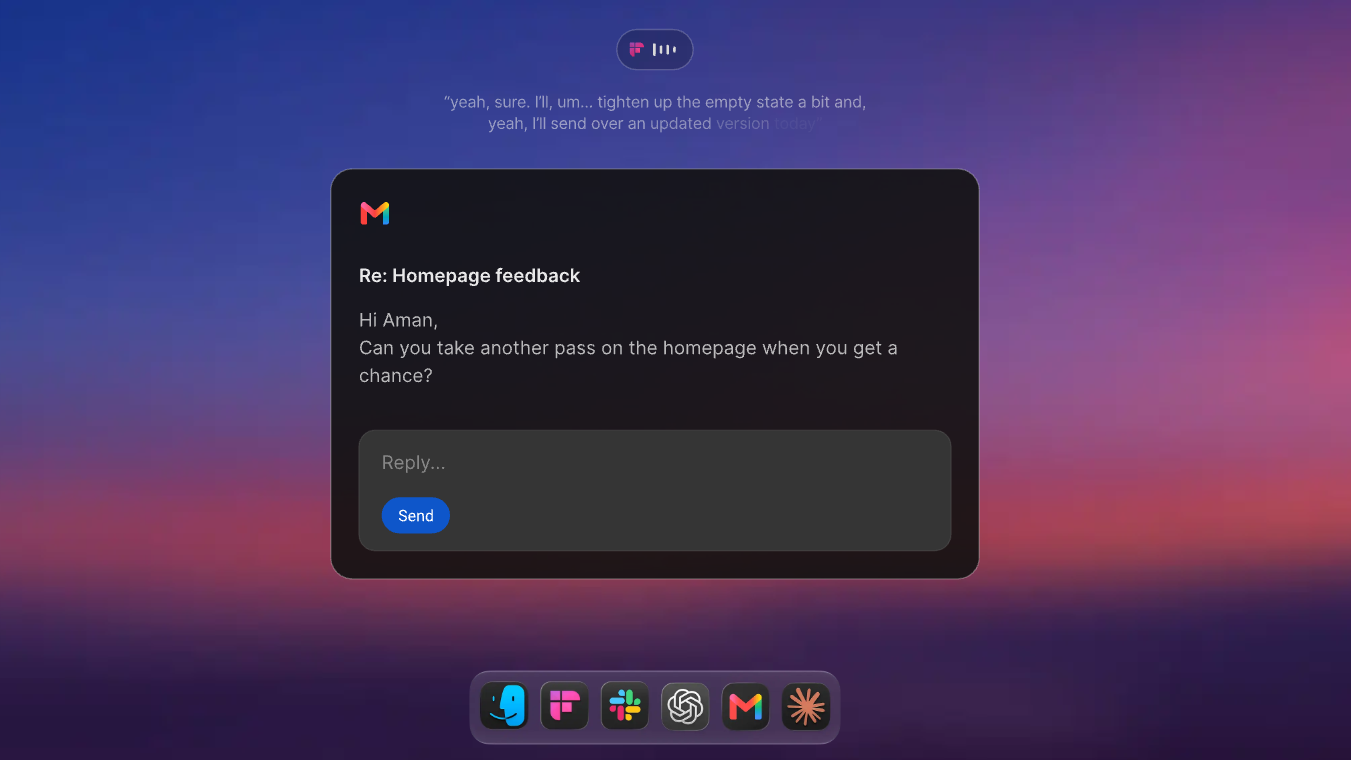
Typing can take extra time when users are moving between emails, Slack, documents, and other work apps throughout the day. Fireflies.ai is now making it easier to use voice for these tasks with its new Fireflies Talk feature. It lets users dictate text across emails, Slack, documents, AI prompts, CRM fields, and other applications on Mac and Windows. Talk is available for free with unlimited usage across all Fireflies plans, including the free tier. It also supports more than 100 languages and automatically cleans up and punctuates spoken text.
Fireflies Talk Brings Voice Dictation Across Work Apps
Fireflies.ai has brought voice dictation to more parts of the workday with Fireflies Talk. Users can dictate text across email, Slack, documents, AI prompts, and CRM fields. Talk also supports other applications through the Fireflies desktop app on Mac and Windows. In Slack, users can mention a teammate or group by simply saying their name. Talk can then turn the spoken name into the relevant @mention. Users do not need to speak punctuation commands while dictating. The feature extends Fireflies’ existing AI meeting experience to everyday work tasks.
Fireflies Talk is included as a free feature on all Fireflies plans. It lets users dictate unlimited times without subscribing again or setting any limits. Talk supports over 100 languages. This includes over 10 Indian languages like Hindi, Tamil, Malayalam, Telugu, Gujarati, Kannada, Odia, Bengali, Marathi, Punjabi, and Sindhi. The dictation process is automatic and includes automatic punctuation. Users can speak naturally without learning special dictation commands or saying punctuation aloud.
Fireflies Talk Focuses on Local Storage and Privacy
Fireflies Talk stores completed dictations locally on the user’s device. This means Fireflies and workspace administrators cannot view the completed dictations. The audio is securely sent to Fireflies’ speech-to-text provider only for converting speech into text. Fireflies does not store the resulting dictations on its servers or use them to train AI models. The company also follows SOC 2 Type II, GDPR, and HIPAA compliance standards as part of its privacy and security practices.
Advertisement
Fireflies Talk currently focuses on voice dictation, but the company plans to expand its capabilities. Future updates could let users use voice to retrieve information and work with information visible on their screens. Fireflies also plans to let Talk take actions on users’ behalf through voice commands. For now, Talk is available through the Fireflies desktop app on Mac and Windows. The company plans to bring the feature to iOS soon, while Android support will follow later.
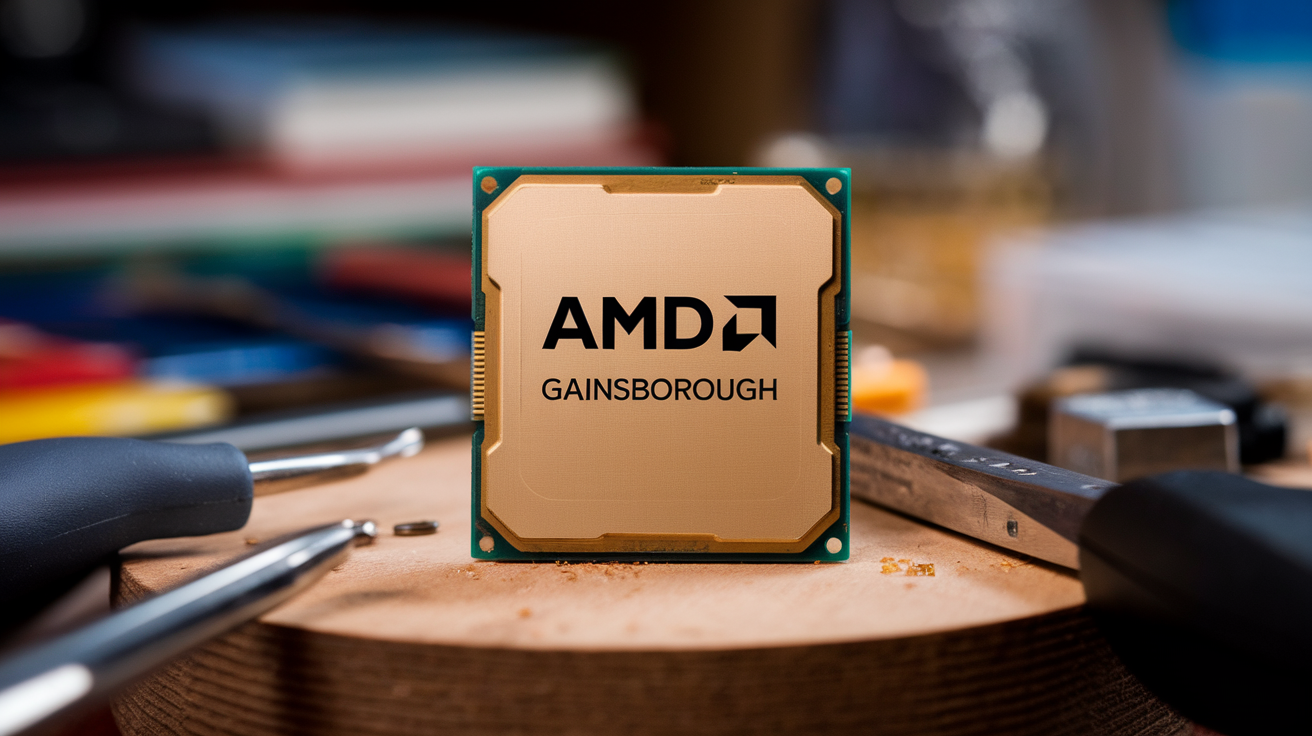
More than four years after Valve upended the portable gaming market with the original Steam Deck, hardware sleuths believe they may have spotted the first real clue about its long-awaited successor. A newly leaked AMD chip codename, “Gainsborough,” has surfaced in driver files, reigniting speculation that Valve’s next handheld is finally taking shape. But industry watchers are urging caution before anyone declares the Steam Deck 2 imminent.
The codename was discovered by hardware leaker Moore’s Law is Dead and the Chinese outlet IT Home, who found references to the previously unknown chip buried in recent AMD driver updates. The name immediately caught the attention of Steam Deck followers familiar with AMD’s naming conventions: the original Steam Deck’s processor was dubbed “Aerith,” after a character from Final Fantasy VII, while the Steam Deck OLED’s chip carried the codename “Sephiroth.” Gainsborough happens to be Aerith’s surname in the game — a thematic breadcrumb that’s hard to ignore.
Beyond the name, there are technical signals suggesting this could be a serious piece of silicon. Gainsborough appears to be a semi-custom chip, meaning it’s being built for a specific client rather than for general retail sale, and it’s reportedly being manufactured on TSMC’s newer N3P process — a more advanced and efficient node than what powers current Steam Deck hardware. Import and export records reviewed by IT Home also indicate AMD has already begun shipping test equipment for the chip, implying a potential customer is actively validating it for use in an upcoming device.
Advertisement
Those same records point to a physical package measuring 25mm by 25mm — a detail that takes on extra significance alongside a separate leak from Gotou_3rd, who claims AMD’s next generation of handheld chips, the Ryzen Z3 and Z3 Extreme, will share that exact footprint. A leaked fragment of what appears to be an AMD slide deck suggests the Z3 is targeting a 15-watt power envelope, matching the thermal budget of both the original Steam Deck and the Steam Deck OLED.
On the surface, the pieces seem to fit neatly together. Valve has said repeatedly that it won’t build a Steam Deck 2 until AMD delivers a “generational leap” in performance and efficiency, and a next-generation, more efficient chip built for a 15-watt handheld sounds like exactly what the company has been waiting for.
Yet there are reasons for skepticism. For one, a semi-custom chip doesn’t always end up in the device it was originally designed for. The original Steam Deck’s own processor is widely rumored to have started life intended for a Magic Leap headset before being shopped around to other manufacturers — including, according to some reports, a canceled Microsoft tablet — long before Valve adopted it. There’s no guarantee history won’t repeat itself with Gainsborough.
Complicating matters further, the Final Fantasy-inspired codenames aren’t even Valve’s own. They’re AMD’s internal shorthand, chosen without much enthusiasm from Valve’s own design team, according to people familiar with the project. When Microsoft and Asus selected an AMD chip for the base-model Xbox Ally, for instance, they were actually using a variant of the “Aerith” chip, despite it bearing no obvious connection to Valve’s hardware lineage.
Advertisement
Size comparisons also raise questions. While 25mm by 25mm sounds compact, it’s actually larger than the Steam Deck’s original “Aerith” chip, which measured 19mm by 19mm before a later redesign shrank it further by stripping out unused components. A bigger chip could simply reflect a different kind of efficiency trade-off, or it might indicate the silicon is destined for a different category of device entirely.
Perhaps most tellingly, Valve itself has offered little clarity. As recently as last month, the company reportedly indicated it was still working out “how and when” to proceed with a Steam Deck 2 — hardly the language of a company on the verge of a product launch.
For now, Gainsborough remains an intriguing data point rather than confirmation. The handheld gaming community has learned to treat chip leaks with cautious optimism, and this one, despite its tantalizing name, still leaves plenty of unanswered questions about what device it’s actually destined for — and when, if ever, Steam Deck fans will get their sequel.
The M6 Mac mini has a faster chip and is solid hardware, but that $899 hurts and there is just not enough storage at that entry price for Apple Intelligence and all of your apps.
I have loved the Mac mini since day one, more than 20 years ago. There has been one in my house consistently since the first G4 model, generally attached to a television, or used as a server, and so forth.
Oddly, the 2026 M6 Mac mini is not the cheapest Mac overall. The MacBook Neo has something to say about that, but that’s just not as convenient for my own workflows.
This time around, for the second time, the Apple Silicon Mac mini skipped a generation, and in 2026, the Mac mini is the first to use the new M6 chip. This is good and bad, but more on that in a bit.
Advertisement
Our review covers the base M6 model. It is the version most buyers will choose, and there’s a lot to say about that, what you really must add, and what Apple seems to have in mind for the model when $1000 or more of upgrades are added.
M6 Mac mini review: Design
The M6 Mac mini keeps the compact shape from the M4. It’s a spec-bump update through and through.
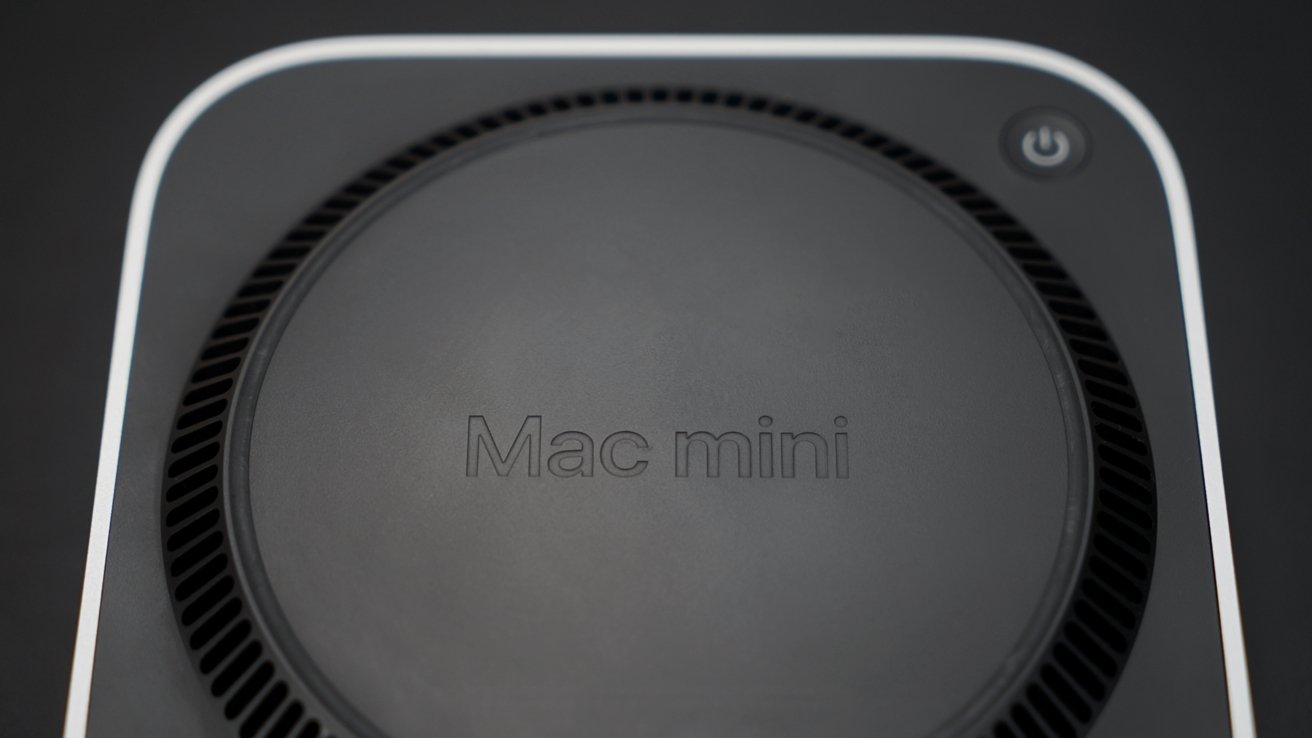
That means you get the usual current-gen design, which means that smaller square with rounded corners. It’s two inches tall, including the circular foot that also provides ventilation to the unit. The Wi-Fi antenna remains on the base of the unit, for better and worse.
The outside still looks the same as the previous one, including the black Apple logo on the top, as well as the pair of USB-C ports, the headphone jack, and the power indicator at the front.
Advertisement
M6 Mac mini review: A very familiar base
Around the back is an unchanged mix of ports, again without the immediately visible power button. Once again, it’s under the back corner of the casing, which caused a stir last time for being a little harder to reach than in previous Mac minis. It was a mistake then, and it’s still a mistake now.
That said, if you’re the kind of person who puts the Mac to sleep at the end of the working day and doesn’t really shut down the Mac mini itself, you may only need to care about the button on a rare occasion.
Really, the only pain point here is that power button. And even then, for most users, it will only be an issue when they actually need to press it.
Advertisement
M6 Mac mini review: The M6 chip and the call of AI
The headline change, and the only real change of note here, is the M6 chip. It is Apple’s first 2-nanometer processor in a desktop Mac.
The CPU has 12 cores in three types. This consists of two super, four performance, and six efficiency cores.
According to Apple, the M6 has a 40% faster CPU than the M4. A lot of this is due to the super cores, which adds two cores to the count versus the M4 version.
The GPU is also more core-heavy than before, with 12 instead of ten cores. The core improvements as well as the quantity stand to give the M6 a big leap in terms of graphical performance.
Advertisement
M6 Mac mini review: A more unusual placement of the compact computer.
That said, the bigger draw here will be in artificial intelligence processing, as the M6 has been practically made for those tasks.
For a start, there’s the Neural Engine, which is now a dual 16-core version. That means there are 32 cores instead of 16 cores in previous editions.
Furthermore, each of those 12 GPU cores have Neural Accelerators, which again help with AI-related task processing. It will help your Photos work from a practical standpoint, or any other “neural” tasking.
Advertisement
Apple says that it has four-times faster AI compute capability than the M4. In LM Studio, it can even hit 4.8 times speeds, Apple adds. We never saw that for the base model, but it is faster.
This is all fine and good, but in practice, how much it actually varies depends on your workloads. It is faster than M4 and M5 Pro Mac minis in some workloads, but in other AI workloads, the M5 Pro core count comes ahead.
It isn’t quite the AI monster that the Mac Studio has become, it’s still a device that’s more than capable of chewing away at queries. Still, though. The Mac mini is better used as an inexpensive workstation with Cloud AI compute instead of on-device, especially with the reviewed $899 model.
The base model as reviewed here has 16GB of unified memory. There are options for upgrades to 24GB and 32GB, if you can afford the upgrade costs.
Advertisement
Memory bandwidth is also a real gain this year. The base 16GB runs at 153GB/s, which is up from the 120GB/s of the M4.
The 24GB and 32GB tiers reach 170GB/s.
M6 Mac mini review: Single-core results
In terms of computing grunt, the M6 Mac mini can push out 4,034 on the single-core test of Geekbench 7. It’s an improvement of about 23% on the 3,277 of the M4 Mac mini, thanks to the use of a super core.
Advertisement
Likewise, turning to multi-core, the per-core improvement is mixed with the extra cores to give the M6 a score of 22,594. Against the M4 Mac mini’s score of 15,337, that’s a 47% improvement.
M6 Mac mini review: Multi-core results
Shifting to graphics, and the Metal test is similarly a big generational gain for the M6 over the M4. At 91,087, the M6 is scoring 68% higher than its predecessor.
M6 Mac mini review: Metal results
Advertisement
There’s certainly a performance improvement here. It’s even to make even M4 Mac mini owners consider a move up.
M6 Mac mini review: Connectivity and Displays
Connectivity mostly carries over from the M4. The port layout is unchanged front and back, and that’s perfectly fine.
There is HDMI and three Thunderbolt 4 ports, which can run at up to 40Gb/s. They’re not the Thunderbolt 5 you’d get from the M5 Pro, but it’s only a problem if you need that much bandwidth.
They accompany the two USB-C ports at the front, which run at 10Gb/s. Likewise, they could’ve been Thunderbolt 5, like the M5 Pro, but there has to be some advantage to upgrading.
Advertisement
The Ethernet connection is a quiet improvement here. The gigabit connection has been switched for 2.5Gb Ethernet, which builds in a little network infrastructure future-proofing.
M6 Mac mini review: Rear ports
You can always pay the $100 to get the 10Gb upgrade, but there’s less of a need to do that for right now. And, that creeps you even closer to the M5 Pro Mini, or the Mac Studio.
On the wireless side, the N1 chip brings Wi-Fi 7 to the party, as well as Bluetooth 6 and Thread. For most, this is still future-proofing. Wi-Fi 7 networks have not yet proliferated, as they can still be very expensive.
Advertisement
The M6 Mac mini can drive up to three external displays, using a combination of Thunderbolt connections and HDMI. It can now support two external displays over a single Thunderbolt port, too.
Support includes variable refresh rates, HDR, and multi-channel audio. Those Thunderbolt 4 connections can support native DisplayPort 1.4 speeds.
The triple screen layout can consist of a pair of 6K 60Hz screens or two 4K 165Hz screens, as well as either a 5K 60Hz monitor over Thunderbolt or 4K 60Hz over HDMI.
If you go for two screens, the maximum limits include one 8K 60Hz screen or 5K 120Hz, or 4K 240Hz, as well as a second 5K or 4K HDMI display.
Advertisement
M6 Mac mini review: Pricing
RAM and SSD industry pricing has hit the Mac mini hard. The base M6 starts at $899.
This is $300 above the M4 model’s launch price, and $500 more than what you could buy the older model through MicroCenter for, at this time in 2025. Though, to be fair, we are currently existing in a memory crisis, and so everything electronic is now very expensive.
The memory itself starts at 16GB. An upgrade to 24GB costs another $200. Going to 32GB is a $400 premium over the base model.
Storage starts at that meager and already discussed 256GB, with upgrades ranging from $200 for 512GB to $500 more for 1TB. If you want 2TB, that’s $1000 more than the base unit.
Advertisement
This pricing ladder isn’t great. The 256GB capacity reviewed here is hampered a bit by slower drive transfer speeds too, with it hitting about 3150 megabytes per second read and write.
The 512GB model, adding that $200, boosts this to about 6300 megabytes per second read and write speeds. This 512GB is really what we consider the bare minimum for the 2026 Mac mini, since Apple Intelligence is no longer optional, and the 20GB or so models will install regardless of your setting.
And, it’s not slotted storage, like the M4 Mac mini was, eliminating that option. For budgetary reasons, we do recommend external SSD or hard drive storage
All said, Apple’s pricing could’ve been a lot worse. It’s painful for those on tight budgets, but upgrades have always done that, even without memory market shenanigans.
Advertisement
The M6 Mac mini is not as good a processing bargain as the Mac Studio is, but it’s also about half the price with some well-selected upgrades at purchase.
As always, consider your workflows. The M6 edges out the M5 family in single-core use. It’s hard to recommend the $899 Mac mini M6 configuration with the storage the way it is.
M6 Mac mini review: A pint-sized powerhouse, at a price
The M6 Mac mini is a familiar box with a faster heart. It’s the continuing pattern for Mac upgrades, where Apple makes the engine faster, while keeping everything else almost exactly the same.
It remains an impressive piece of engineering, with a lot of power, in a small space, sipping power the whole while. Price increases aside, that’s still very much the case here.
Advertisement
The gains are all inside, and they are real. The CPU, GPU, and AI performance are all welcome jumps, especially for those with Mac Studio dreams but a Mac mini budget.
The video support and faster 2.5Gb Ethernet too good to have.
M6 Mac mini review: Continuing to take up a small amount of desk space.
The catch is that SSD at entry-level and that higher price. At $899, the base model costs $300 more than before, and that’s hard to escape.
Advertisement
For first-time buyers, the M6 Mac mini remains an easy recommendation, assuming more SSD space is bought at purchase, if they want something beefy and don’t want a MacBook Neo. Upgraders from the M4 should weigh the AI gains against how much is in their wallets.
M6 Mac mini Pros
Large CPU, GPU, and AI performance gains
Dual Neural Engine suits local AI work
Wi-Fi 7, Bluetooth 6, and 2.5Gb Ethernet
M6 Mac mini Cons
Costs $300 more than the M4’s launch price
No Thunderbolt 5, unlike the Pro model
Profoundly tight 256GB base storage, which is the biggest problem
Rating: 3.5 out of 5
With Apple Intelligence, 256GB for a Mac mini is just too small. And, on top of that, that configuration is half the speed of the 512GB version.
I do think that the $1099 model with more storage is the better option. That version is a 4 out of 5.
The RAM and Flash commodity pricing is a real problem for the Mac mini. That price increase cannot be ignored. The math on this is enormously different if the 512GB version was $899.
But it isn’t. As such, the entry-level M6 Mac mini will be fine for a first desktop, or an adjunct to an iPhone-primary device, because that 256GB storage just cannot be ignored. Most of this target market has mostly single-core loads, and will be perfectly fine with a MacBook Neo, upgraded, for less money.
Advertisement
While it’s not my main computer, I’m keeping my M4 Mac mini for what it’s being used for. There’s just too much of a price premium not to.
As far as my main computer goes. after I sold my M1 Ultra Mac Studio, after much hemming and hawing, I picked the M5 Max Mac Studio instead of a M6 Mac mini with about $1200 in upgrades to get it where I wanted. It was just too close in pricing, with the M5 Max winning the day.
We’ll see what happens with Mac mini after the rumored quick jump to M7 in about a year.
Where to buy the M6 Mac mini
Apple’s M6 Mac mini has a starting retail price of $899, but Amazon is already offering a discount on the standard configuration at the time of this review. The $20 markdown brings the price of the M6/16GB/256GB spec down to $879.99.
Advertisement
You can compare prices across every configuration in our Mac mini Price Guide, with deals available on numerous models, including storage upgraded ones that we recommend.





















































You must be logged in to post a comment Login