




.jpg)
-Offwhite-Background-SOURCE-Loop.jpg)



Microsoft Build 2026 takes place on June 2 and 3 at Fort Mason Center in San Francisco, marking the first time the conference has left Seattle since 2016. With in-person tickets priced at $1,099 and capacity capped at around 2,500 developers, this year’s event is deliberately compact, built around a single theme: AI agents.
Satya Nadella headlines the opening keynote, with two days of technical sessions from GitHub, Azure, and Windows teams covering the practical side of shipping AI agents and building on Windows as an inference platform.
The best way to get something practical out of Build is to show up already familiar with the tools being discussed. This article rounds up 50 products and platforms from across Microsoft’s developer, productivity, and IT ecosystem that you can start using for free right now. We’ve organized them into eight categories so you can find what’s relevant to your work and begin exploring before the June 2 keynote.
What to expect from Build 2026
Build 2026 centers on a single argument: that shipping AI agents is no longer a specialist challenge reserved for research teams but an expected part of mainstream software development. Microsoft spent the 12 months after Build 2025 maturing the tools it announced at that event, including the general availability of Azure AI Foundry Agent Service and the merging of Semantic Kernel and AutoGen into a unified developer SDK. The session catalog reflects that shift, moving from introducing the concept of agentic AI to showing how production deployments actually work.
GitHub is set to take a prominent role at this year’s event, with GitHub COO Kyle Daigle confirmed as a keynote presence. Sessions in the published catalog cover Copilot’s fleet mode and autopilot capabilities, which let the Copilot CLI handle multi-step coding tasks across an entire codebase without per-step human input. Deeper integration between GitHub and Azure is also expected, along with multi-agent coding workflows running directly inside VS Code.
Azure AI Foundry headlines the cloud development story, with announcements likely to focus on combined model routing across OpenAI and open-source alternatives, small language models optimized for on-device inference on Windows NPU hardware, and tighter connections to Azure Cosmos DB and Azure AI Search. Microsoft faces a more competitive AI infrastructure market than it did a year ago, with AWS expanding Bedrock’s model catalog and Google’s newly announced Antigravity platform pitching itself as the developer-first agentic infrastructure option. Microsoft’s response at Build 2026 appears to lean on its enterprise distribution advantages, particularly its 300-million-plus Microsoft 365 users and its deep Azure cloud commitments.
Windows also gets a new story at Build 2026, not just as an operating system but as a deployment platform for AI agents. Sessions are expected to cover the Windows AI Runtime, NPU passthrough in WSL 3, and an architecture where an agent built on a developer’s laptop can scale to Azure without a separate codebase. That positions Windows against cloud-native agent platforms by turning its billion-device installed base into a deployment advantage.
Microsoft is giving Responsible AI its own dedicated track at Build 2026, covering safety frameworks, compliance tooling, and developer-facing governance controls for AI-powered systems in production. The decision to make this a named track is notable given the volume of enterprise security incidents in 2025 and the pace of AI regulation in the EU and US. If you’re building AI features for enterprise customers or regulated industries, those sessions are likely to be among the most directly applicable content at the conference.
50 free Microsoft tools to try ahead of Build 2026
You don’t need to wait until June 2 to start exploring what Microsoft’s developer ecosystem looks like today. A significant portion of the company’s tooling is either completely free or available through always-free service tiers that cover genuine workloads. Some of these tools have been around for years; others are recent additions that will likely come up directly in Build sessions.
We’ve organized the 50 tools into eight categories: developer tools, AI and machine learning, cloud infrastructure, productivity and collaboration, data and analytics, security and identity, IT administration, and low-code and automation platforms. The goal is to highlight what’s most relevant to developers, product managers, and IT teams heading into Build 2026, not to catalogue every Microsoft product.
One quick note on what counts as “free” across this list. Some tools are completely free with no usage limits: VS Code, PowerShell, and Playwright being the most obvious examples. Others have always-free service tiers where the included quota covers real workloads, like Azure Functions (1 million executions per month) or Azure Cosmos DB (25 GB of storage). Where a free trial applies, such as Copilot Studio’s 60-day offering, we’ve noted the time limit.
Developer tools

These are the building blocks of the Microsoft developer experience: the editors, runtimes, terminals, and testing frameworks that most developers working in the ecosystem use every day.
Visual Studio Code
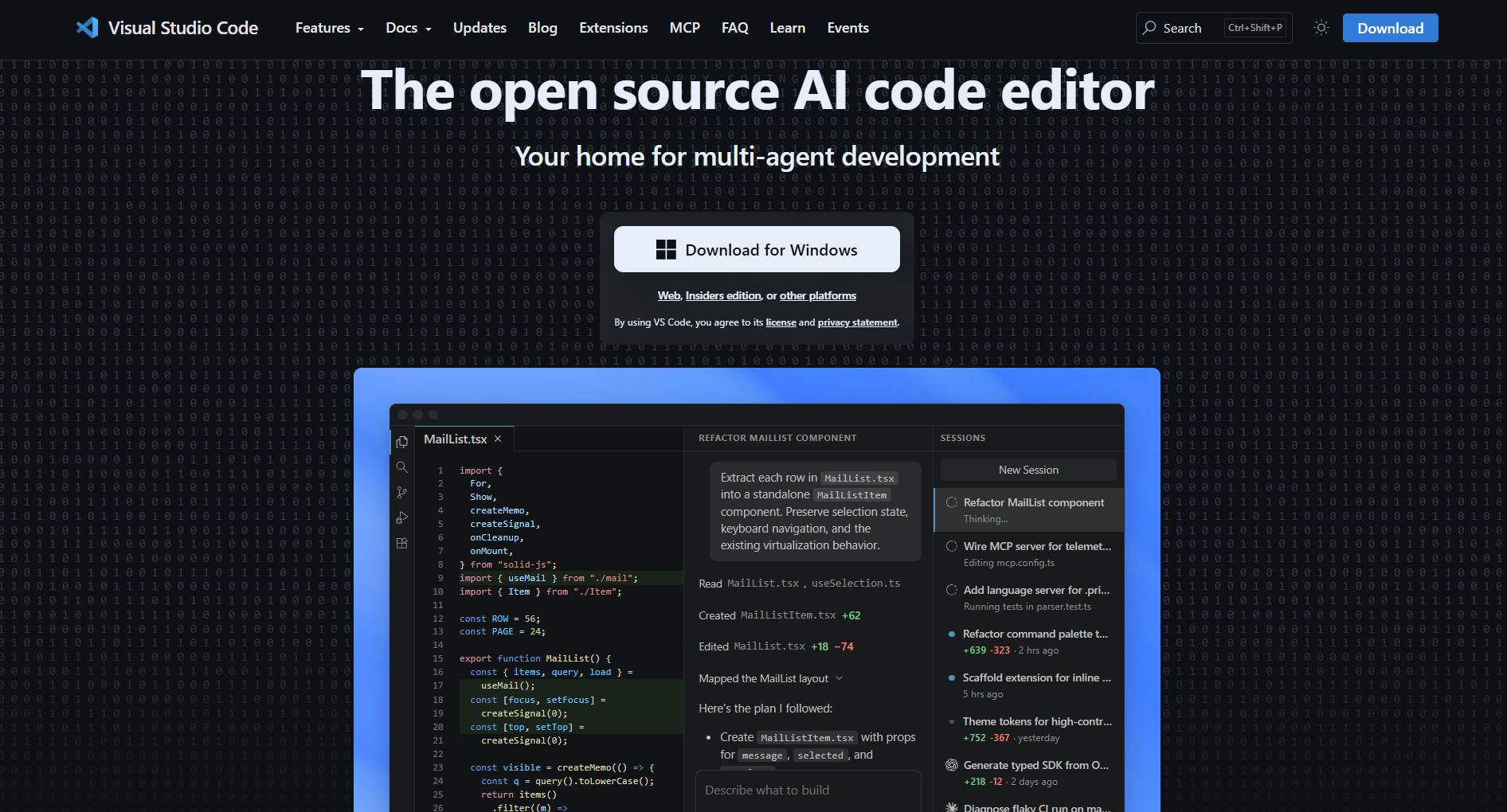
Visual Studio Code is Microsoft’s free, open-source code editor, running on Windows, macOS, and Linux with a library of more than 50,000 extensions covering virtually every language and workflow. Its built-in Git integration, debugger, and integrated terminal let you write, test, and version your code without switching between applications.
What sets VS Code apart from other free editors is its remote development framework, which lets you connect to containers, WSL environments, and remote machines through SSH as if they were local folders. Native GitHub Copilot support is built directly into the interface, and most of Microsoft’s agentic coding demos at Build events use it as the primary development surface.
If you’re preparing for Build 2026 specifically, the Azure Tools extension pack is worth installing. It adds direct access to Azure resources from the editor sidebar, and the Dev Containers extension is useful for replicating the kind of containerized development environments that appear throughout Microsoft’s AI tooling demos.
GitHub Free
GitHub Free gives you unlimited public and private repositories alongside basic CI/CD through GitHub Actions, with 2,000 hosted compute minutes per month on public repositories. Issues, Projects, Discussions, and the full code review toolset are all included at no cost.
The free plan is the entry point for GitHub Copilot and the natural starting point for contributing to open-source projects in the Microsoft ecosystem. If you’re planning to follow the Copilot sessions at Build 2026, having a GitHub account with some repository history makes the live demos considerably more actionable.
GitHub Copilot Free
GitHub Copilot Free gives you up to 2,000 inline code completions and 50 premium chat requests per month, with access to models including GPT-4.1 and Claude Sonnet across VS Code, JetBrains IDEs, and Neovim. The monthly cap makes this tier most useful as a way to decide whether AI-assisted coding changes your workflow before committing to a paid plan.
What makes the free tier informative is that the same model infrastructure powering the paid tiers runs underneath it. You’re testing the real product rather than a limited preview, which means any workflow habits you form on the free tier carry over directly if you upgrade.
The model choice available on the free tier is worth paying attention to. Both GPT-4.1 and Claude Sonnet are production-grade models capable of meaningful code generation and debugging assistance, so the free tier gives you a realistic sense of what AI-assisted development feels like, not a stripped-down demo.
.NET SDK
The .NET SDK is Microsoft’s free, open-source platform for building web, desktop, cloud, mobile, and game applications in C#, F#, and Visual Basic. It runs on Windows, macOS, and Linux and bundles the runtime, core libraries, and CLI toolchain needed to compile and run .NET applications locally.
If you’re coming to Build 2026 for the Azure AI Foundry sessions, having the .NET SDK installed beforehand makes a real difference. Most of Microsoft’s Semantic Kernel and Azure SDK code samples ship as .NET projects, and the CLI tooling integrates directly with Azure DevOps and GitHub Actions pipelines.
ASP.NET Core, which ships with the SDK, is Microsoft’s recommended framework for building HTTP APIs and lightweight backend services. If you’re working on the service layer for an AI-powered application or need API endpoints for an Azure Functions-based workflow, ASP.NET Core is worth getting familiar with before the Build sessions on Azure AI Foundry integration.
Windows Terminal
Windows Terminal is a free, modern terminal for Windows with support for multiple tabs, split panes, and configurable profiles for Command Prompt, PowerShell, WSL, and SSH connections. It’s available from the Microsoft Store and ships as the default terminal in Windows 11.
The practical case for switching from legacy console windows is straightforward: working across PowerShell, Azure CLI, and a WSL environment simultaneously in a single window removes friction that adds up quickly during a day of infrastructure or DevOps work. Once you’ve used it, managing three separate console windows feels clunky by comparison.
Windows Subsystem for Linux (WSL)
WSL lets you run a full Linux environment directly on Windows without a virtual machine, with direct file system access between Windows and Linux and GPU acceleration through WSL 2. It’s particularly valuable for teams whose production workloads run on Linux while developers use Windows machines.
WSL 3 is expected at Build 2026 in the context of NPU passthrough, which would allow Linux environments to access Windows PC NPU hardware for on-device AI inference. Running WSL now gives you the foundation to evaluate those capabilities as soon as Microsoft’s documentation lands after the conference.
Getting comfortable with a Linux environment on Windows has also become more relevant as more developer tooling, particularly in AI and machine learning, assumes a Linux or Unix-like environment. Running Jupyter notebooks, containerized models, or Python-based agent frameworks through WSL removes the compatibility issues that otherwise surface when that tooling runs natively on Windows.
Dev Home
Dev Home is a free Windows application providing a developer dashboard for monitoring CPU, GPU, memory, and network performance in real time, alongside a guided setup flow for configuring a new machine from scratch. It connects to GitHub for cloning repositories, tracking pull requests, and monitoring CI status from the desktop.
The machine setup flow is particularly useful for teams that onboard developers regularly. Rather than maintaining a setup wiki that inevitably falls out of date, Dev Home lets you define a machine configuration as a JSON spec file and apply it to a new machine in a single step.
The GitHub integration is also worth setting up if you maintain multiple repositories. Seeing your open pull requests and CI status in a dashboard without switching to the browser reduces the context-switching overhead that accumulates quickly during a typical development day.
WinGet (Windows Package Manager)
WinGet is Microsoft’s official command-line package manager for Windows, letting you install, update, and remove software from a curated repository with a single command. It’s comparable in approach to Homebrew on macOS or apt on Debian Linux, with the package catalog covering developer tools, browsers, and common productivity applications.
WinGet scripts integrate directly with Dev Home’s setup flow and are increasingly common in CI provisioning pipelines for configuring fresh Windows runners. If you’re building automated development environment setup into your team’s workflow, WinGet is where that work starts on Windows.
The package catalog is community-maintained through the winget-pkgs repository on GitHub, where new packages are added through pull requests reviewed by Microsoft. If a tool you need isn’t in the catalog yet, submitting it is straightforward. Microsoft’s review process ensures the catalog stays reliable.
PowerShell
PowerShell is Microsoft’s cross-platform shell and scripting framework, free and open-source, running on Windows, macOS, and Linux as a consistent automation layer across different environments. PowerShell 7 is the current release and the standard choice for Azure CLI automation, infrastructure scripting, and DevOps pipeline work throughout the Microsoft ecosystem.
One of its less obvious strengths is that it works with system objects rather than plain text as command output. That makes it significantly easier to pipe data between commands without parsing strings, which matters when you’re scripting against Azure APIs or automating multi-step administrative tasks where accuracy is non-negotiable.
The Az module, installed via Install-Module Az, extends PowerShell with cmdlets for every major Azure service. If you prefer cmdlet-based scripting to Azure CLI commands, the Az module gives you the same coverage through PowerShell syntax. It’s the standard approach throughout Microsoft’s Azure documentation for PowerShell examples.
Playwright
Playwright is Microsoft’s open-source browser testing framework for end-to-end tests against Chromium, Firefox, and WebKit, with support for JavaScript, TypeScript, Python, .NET, and Java. It includes a built-in test runner, a trace viewer for debugging failures, and a code generation tool that records user interactions as test scripts.
Beyond web testing, Playwright is increasingly used to drive browser-based interactions in AI agent workflows. If you’re building agents that need to navigate web interfaces as part of their task execution, Playwright provides a controlled, scriptable browser environment with a mature API and active community maintenance.
An active community project, microsoft/playwright-mcp, exposes Playwright as an MCP server, making it straightforward to add browser control as a tool available to AI agents built with Semantic Kernel or AutoGen. That pattern is directly relevant to the agentic workflow sessions at Build 2026.
AI, multi-agent systems, and machine learning
These tools reflect the direction Microsoft is taking at Build 2026. Several are worth exploring before the keynote to make the sessions more immediately actionable.
Microsoft Copilot
The free tier of Microsoft Copilot is available at copilot.microsoft.com without a Microsoft 365 subscription, built on OpenAI models and accessible in your browser for drafting, summarizing, researching, and generating code. Daily usage limits apply on the free plan, but the core capabilities are the same as in the paid tier.
Microsoft Copilot is the consumer-facing layer of the same AI infrastructure powering GitHub Copilot and Microsoft 365 Copilot. Using it regularly before Build 2026 gives you a grounded sense of where its capabilities are useful and where they fall short, which makes the Copilot architecture sessions considerably more meaningful in context.
AutoGen
AutoGen is an open-source framework from Microsoft Research for building multi-agent AI systems, where specialized agents collaborate asynchronously to complete complex tasks. It supports tool use, human-in-the-loop checkpoints, and direct agent-to-agent communication, and it’s one of the most widely adopted agentic frameworks in production environments outside of Microsoft’s own products.
AutoGen and Semantic Kernel have been converging over the past year into a unified developer SDK, and that integration story is expected to feature prominently at Build 2026. Running the AutoGen sample notebooks locally beforehand is one of the fastest ways to understand what Microsoft’s agentic framework architecture actually looks like in practice.
The sample notebooks on GitHub walk through patterns from simple two-agent conversations to complex multi-agent pipelines with tool use and memory. Running them gives you a concrete reference point for evaluating the framework’s capabilities before the Build sessions on the merged Semantic Kernel and AutoGen SDK.
Semantic Kernel
Semantic Kernel is Microsoft’s open-source SDK for connecting large language models to existing application code and organizational data. It has official support for C#, Python, and Java, and covers memory management, multi-step planning, and plugin orchestration across model providers. The framework underpins Microsoft’s own Copilot products internally.
Understanding Semantic Kernel gives you direct insight into the architecture behind Microsoft’s first-party AI features. If you’re building AI capabilities into a .NET or Python application and want a framework that mirrors how Microsoft’s own teams build Copilot integrations, Semantic Kernel is the reference implementation to study.
The plugin model is its most practical feature for teams with existing codebases. You can expose any .NET or Python function as a plugin that Semantic Kernel can call as part of a multi-step AI workflow, which means your existing business logic becomes available to an AI agent without a rewrite.
Phi-4
Phi-4 is Microsoft’s small language model released as open weights on Hugging Face, designed for on-device inference at 14 billion parameters and optimized for modern Windows PC hardware with an NPU. It performs competitively with much larger models on reasoning and coding benchmarks despite its smaller footprint.
The practical case for Phi-4 is latency and data privacy. Running inference locally on NPU hardware avoids the round-trip to a cloud API and keeps sensitive inputs on the device. Build 2026’s Windows AI Runtime sessions are expected to focus on exactly this kind of on-device deployment pattern, so experimenting with Phi-4 beforehand gives you a concrete reference point.
Running Phi-4 locally is straightforward with Ollama, available for Windows, which takes a few minutes from download to first inference. If you want to evaluate on-device performance specifically, pulling the model through Ollama and testing it against a sample dataset gives you a realistic baseline for what Windows NPU inference is likely to deliver once WSL 3 support arrives.
Azure AI Foundry (free exploration)
Azure AI Foundry’s web portal lets you browse, compare, and test models from Microsoft’s catalog, including OpenAI models, Phi models, and open-source alternatives from Meta and Mistral, without a paid subscription. Some models carry usage limits at the free tier, but the catalog browsing and prompt testing features are fully accessible.
The playground interface is a fast way to compare how different models handle the same prompt, which is useful context heading into the multi-model routing sessions at Build 2026. Microsoft has been positioning Azure AI Foundry as the hub for agent development, so familiarity with its interface makes the conference sessions more immediately applicable to your own work.
ONNX Runtime
ONNX Runtime is an open-source inference engine maintained by Microsoft for running trained machine learning models across CPU, GPU, and NPU hardware with a consistent cross-platform API. It supports models exported from PyTorch, TensorFlow, and scikit-learn, and it’s the runtime layer behind on-device AI features in Windows and Microsoft Office.
For developers building AI features that need to run at the edge or on client hardware rather than in the cloud, ONNX Runtime removes the hardware dependency from the model itself. You train on whatever framework you prefer, export to ONNX format, and run the same inference code across different device types without rewriting the integration layer.
Responsible AI Toolbox
The Responsible AI Toolbox is a free, open-source toolkit from Microsoft for diagnosing model errors, bias, and fairness issues in machine learning pipelines. Its components cover error analysis, fairness assessment, and model explainability, and the toolkit integrates with Azure Machine Learning while also running fully standalone.
Given that Responsible AI has its own dedicated track at Build 2026, exploring this toolkit before the conference puts you in a position to evaluate Microsoft’s governance recommendations against tools you can actually use today. For teams building AI features for enterprise customers or regulated industries, the error analysis component is worth understanding before deploying anything to production.
That component is the most practically useful starting point. It surfaces cohort-based error analysis showing you not just overall model accuracy but where the model fails most often (broken down by feature values), which is exactly the kind of evidence regulators and enterprise customers are increasingly asking development teams to provide.
Prompt Flow
Prompt Flow is Microsoft’s open-source toolkit for building, evaluating, and deploying LLM-based applications and prompt pipelines. It supports local development, automated evaluation against test datasets, and CI/CD integration through GitHub Actions, with a connection to Azure AI Foundry for cloud-based evaluation runs.
Where Semantic Kernel handles runtime orchestration of AI applications, Prompt Flow handles the development and testing lifecycle: defining flows as visual DAGs, running batch evaluations, and tracking quality metrics across prompt iterations. For teams building RAG pipelines or multi-step AI workflows, it fills a gap that most general-purpose frameworks leave unaddressed.
Cloud infrastructure

Azure’s free tier is broader than most developers realize, covering compute, storage, databases, container platforms, and AI services. All of the tools below are directly relevant to the cloud topics at Build 2026.
Azure Free Account
New Azure accounts receive a $200 credit valid for the first 30 days, 12 months of free access to a selection of popular services including virtual machines and databases, and permanent always-free tiers across more than 65 services. It’s the most direct way to get hands-on time with Azure infrastructure before Build 2026 without any financial commitment.
The distinction between the 12-month free services and the always-free services matters for planning. The 12-month tier includes Azure Virtual Machines (750 hours per month) and Azure SQL Database, which expire after a year. The always-free services (including Azure Functions, Cosmos DB, and Container Apps) have no expiration, so projects built on those tiers won’t start billing when the initial credit period ends.
Azure Functions (always-free tier)
Azure Functions permanently includes 1 million free executions and 400,000 GB-seconds of resource consumption per month on the consumption plan. This is not a time-limited trial but an ongoing always-free allocation, well-suited for event-driven workloads, lightweight API backends, and scheduled automation tasks where you’d rather not manage server infrastructure.
The consumption plan charges only for the compute time your function actually uses, which makes it a natural fit for workloads with variable or intermittent traffic. For the early stages of an agentic workflow where a function handles webhook callbacks or lightweight orchestration steps, the free tier is typically sufficient.
Azure Static Web Apps (free tier)
Azure Static Web Apps offers a free tier with built-in CI/CD from GitHub and Azure DevOps, custom domain support, automatic SSL certificates, and globally distributed content delivery through Azure CDN. Deployments trigger automatically when you push to a connected GitHub branch, with no separate deployment configuration required.
It’s worth considering for any project where the frontend is static and backend logic lives in Azure Functions or another API layer. The combination of Static Web Apps for hosting and Functions for compute is a common Azure pattern for serverless full-stack applications, and the free tier of both services covers it without any cost.
Azure Container Apps (free tier)
Azure Container Apps is a serverless container platform with a permanent free monthly allocation of 180,000 vCPU-seconds and 360,000 GiB-seconds of memory, enough to run a containerized service under development load without incurring costs. Scaling, service discovery, and ingress configuration are handled automatically by the platform.
The main advantage over running containers directly on Kubernetes is that Azure Container Apps removes the cluster management layer entirely. For teams deploying AI agent runtimes or microservice components that need to scale to zero when not in use, the serverless container model is a better fit than maintaining a cluster that idles between workloads.
Dapr sidecar support is worth noting for teams building distributed agent systems. Dapr adds service discovery, pub/sub messaging, and state management alongside your container, which simplifies the infrastructure code needed to connect multiple agent containers into a coordinated workflow without custom middleware.
Azure DevOps (free for small teams)
Azure DevOps gives five users free access to Boards, Repos, Pipelines, Artifacts, and Test Plans, with 1,800 CI/CD minutes per month on Microsoft-hosted agents and unlimited free users for public projects. It’s a complete software delivery platform with native integration into Azure deployments and GitHub repositories.
For teams already working in the Microsoft ecosystem, Azure DevOps Pipelines integrates with GitHub Actions, Azure CLI, and Bicep in ways that reduce the configuration overhead of connecting code repositories to cloud deployments. The free tier covers a small team’s CI/CD needs without requiring any third-party tooling.
Azure Artifacts, included on the free tier, hosts private npm, NuGet, Maven, and Python packages within your organization. If your team maintains internal shared libraries, Artifacts removes the overhead of running a separate package registry and connects directly with Pipelines so packages are always in sync with your build output.
Azure Cosmos DB (free tier)
Azure Cosmos DB’s always-free tier provides 1,000 request units per second and 25 GB of storage per account on a permanent basis, not as a trial. It’s available in one free-tier account per Azure subscription and covers real workloads for development and light production traffic.
Cosmos DB is relevant to the Build 2026 sessions in a specific way: it now includes native vector search, making it a candidate for storing and querying embeddings in RAG-based applications directly alongside operational data. The free tier is enough to prototype a vector search integration without setting up a separate vector database service.
The change feed is worth exploring for event-driven agentic architectures. It provides a persistent, ordered log of all writes to a Cosmos DB container, which you can process with an Azure Functions trigger to kick off downstream workflows whenever new data arrives. It’s a pattern that appears frequently in Microsoft’s agentic reference architectures published ahead of Build 2026.
Azure AI Search (free tier)
Azure AI Search’s always-free tier includes one search service with one index, 50 MB of document storage, and indexing capacity for up to 10,000 documents. It supports full-text search, faceted filtering, and semantic ranking using Microsoft’s pre-built language models.
The free tier is the standard starting point for prototyping RAG pipelines and vector search applications. Azure AI Search handles the retrieval side of a retrieval-augmented generation architecture, and its integration with Azure AI Foundry and Azure OpenAI makes the connection between the search index and the model straightforward to configure.
The semantic ranker is particularly worth exploring for RAG applications, as it reranks results based on language understanding rather than keyword frequency alone. That produces more contextually relevant retrieval, which directly improves the quality of generated answers when Azure AI Search feeds into an Azure OpenAI or Azure AI Foundry pipeline.
Productivity and collaboration

Microsoft’s free productivity offerings have expanded significantly over the past few years. Several of them now include Copilot integration that makes them worth revisiting even if you’ve used them before.
Microsoft 365 Online
Word, Excel, PowerPoint, and OneNote are all free in your browser with a Microsoft account, supporting real-time co-authoring, version history, and OneDrive cloud storage. The web apps handle the large majority of common document and spreadsheet tasks without a paid subscription or a desktop install.
Microsoft has been adding Copilot features progressively to the web apps, with some AI capabilities now accessible on the free tier. If you’re evaluating whether Microsoft 365 Copilot justifies a paid plan, using the web apps with a free account is a reasonable way to assess the baseline before making that decision.
OneDrive
OneDrive provides 5 GB of cloud storage free with any personal Microsoft account, syncing automatically across Windows, macOS, iOS, and Android. It’s the storage layer underlying Teams file sharing and the Microsoft 365 web apps, so files you create in Word or Excel online land in OneDrive by default.
For most developer workflows, OneDrive is less central than it is for general productivity use. A free Microsoft account does give you cloud-synced storage for personal document management without a separate service, and the sync client on Windows is stable and unobtrusive enough to run in the background without any friction.
Microsoft Teams Free
Teams’ free plan supports group meetings up to 60 minutes with up to 100 participants, unlimited chat, file sharing through OneDrive, and collaborative editing of Word, Excel, and PowerPoint documents. It’s a workable option for small teams that don’t need extended meeting times or full Microsoft 365 integration.
The main constraint is the 60-minute meeting cap. For teams that hold regular meetings under an hour it’s sufficient, but longer calls, recordings, and transcription features require a paid Microsoft 365 plan.
Outlook.com
Outlook.com is Microsoft’s personal email service, free with a Microsoft account, providing 15 GB of mailbox storage alongside a calendar and contacts manager. Copilot integration is now available on the free plan for drafting and summarizing emails directly from your inbox.
It connects tightly with the rest of Microsoft’s free-tier apps: calendar invitations link to Teams Free meetings, attachments go to OneDrive, and flagged emails sync automatically to Microsoft To Do. For a developer working primarily in the Microsoft ecosystem who wants a consistent identity across all services, Outlook.com is the natural anchor account.
Microsoft Loop
Loop is a collaborative workspace where teams can create shared pages containing live components (tables, task lists, and AI-generated content) that stay synchronized across Teams, Outlook, and the Loop web app. The personal and small-team tier is free.
The concept behind Loop is that a piece of collaborative content should stay live wherever it’s embedded rather than becoming a static snapshot. A shared task list in a Teams chat and the same task list on a Loop page update each other in real time, which is a different model from the usual copy-paste approach.
Whether Loop replaces your existing collaboration tools depends on how deeply your team uses Microsoft 365. If most of your communication already runs through Teams and Outlook, the live component sync works well in practice. Teams that mix Slack, Notion, or Google Workspace alongside Microsoft tools will find the tight Microsoft 365 dependency limiting.
Microsoft To Do
Microsoft To Do is a free task management app connected to your Microsoft account, offering task lists, due dates, reminders, list sharing, and Outlook integration. It syncs across Windows, macOS, iOS, and Android, and automatically pulls in emails you’ve flagged in Outlook as tasks.
It’s not the most capable project management tool on the market, but for personal task management and lightweight team coordination without a paid subscription, it covers the essentials. The Outlook flag sync means your inbox and your task list stay aligned without any manual copying between applications.
Microsoft Forms
Forms is a free, browser-based tool for building surveys, quizzes, and polls with branching logic, basic response analytics, and Excel export. It’s included with any free Microsoft account and integrates with Teams for sending surveys to channel members directly from a conversation.
For internal use cases like team feedback collection, event registration, or quick polls, Forms is a functional option that doesn’t require a third-party service. The Excel export makes it easy to analyze response data in a tool most teams already have access to.
Microsoft Designer
Microsoft Designer is an AI-powered design tool for generating images, social media graphics, and presentation assets from text prompts, with a built-in editor for resizing, cropping, and refining generated visuals. The free tier includes a monthly allocation of AI-generated images alongside background removal and style editing tools.
For developers and product teams that need quick visual assets for documentation, presentations, or prototypes without a dedicated designer available, Designer covers that gap without requiring creative software expertise. The image generation quality is solid for presentation and communication use cases, though it’s not a substitute for custom illustration or brand photography.
Data analytics

Whether you’re querying a database, building a report, or tracking how users behave on a website, these Microsoft tools cover the fundamentals of the data workflow at no cost.
Power BI Desktop
Power BI Desktop is a free Windows application for building interactive dashboards and data reports, with connectors to hundreds of sources including Excel, Azure SQL, SharePoint, and REST APIs. Reports built locally can be published to the Power BI Service for personal use without a subscription.
The free desktop application is capable: you can build production-quality reports with complex DAX calculations, drill-through navigation, and custom visuals at no cost. The limitation arrives when you want to share those reports with other users, which requires a Power BI Pro license for recipients rather than just the report author.
Power Query, the data transformation layer built into Power BI Desktop, is also worth learning independently of the reporting side. It handles data cleaning, column transformations, and source merging through a visual interface that generates reproducible M-language scripts, and it’s the same engine that powers Excel’s Get and Transform feature, so skills in one transfer directly to the other.
Azure Data Studio
Azure Data Studio is a free, cross-platform database management and query tool for SQL Server, Azure SQL, and PostgreSQL, available on Windows, macOS, and Linux. Its extension marketplace adds support for additional database types, and its notebook interface combines T-SQL queries with markdown documentation in a single file.
The notebook format is particularly useful for data exploration work you want to document alongside the queries themselves. Rather than maintaining a separate document describing what each query does, the notebook keeps the explanation and the code together in a shareable file that can run top-to-bottom.
SQL Server Express
SQL Server Express is the free edition of SQL Server, supporting databases up to 10 GB with the full T-SQL engine and integration with both SSMS and Azure Data Studio. It includes free redistribution rights for applications, making it the standard local development environment for .NET applications with relational data needs.
The 10 GB database size limit is the main practical constraint. For most development and small production workloads it’s sufficient, and teams that expect their data to grow beyond that threshold can develop entirely on Express and upgrade to a paid SQL Server edition or Azure SQL when the time comes.
Microsoft Clarity
Microsoft Clarity is a free behavioral analytics tool for websites, providing session recordings, click heatmaps, and scroll maps with no data sampling, no traffic volume limits, and no monthly cost. It now includes an AI-powered summary dashboard that surfaces behavioral patterns in plain language without requiring you to review individual recordings manually.
Clarity fills a gap that Google Analytics doesn’t address. Quantitative traffic metrics tell you how many users dropped off at a particular page, but session recordings and heatmaps tell you why. For product teams iterating on web interfaces, having both types of data available makes for faster diagnosis, and the lack of a traffic cap makes it practical for any sized site.
Microsoft Fabric (free trial)
Microsoft Fabric’s 60-day free trial provides access to its unified data platform, combining OneLake storage, Power BI, Synapse Analytics, real-time intelligence, and data engineering pipelines in a single environment. It’s Microsoft’s answer to the fragmentation of the modern data stack.
The pitch is that instead of connecting five separate services for ingestion, storage, transformation, modeling, and reporting, Fabric provides all of them as a single product with shared governance and a common storage layer in OneLake. Whether that consolidation makes sense for your team depends on how much of your data infrastructure is already on Azure, but the free trial is the right way to find out.
Security and identity management
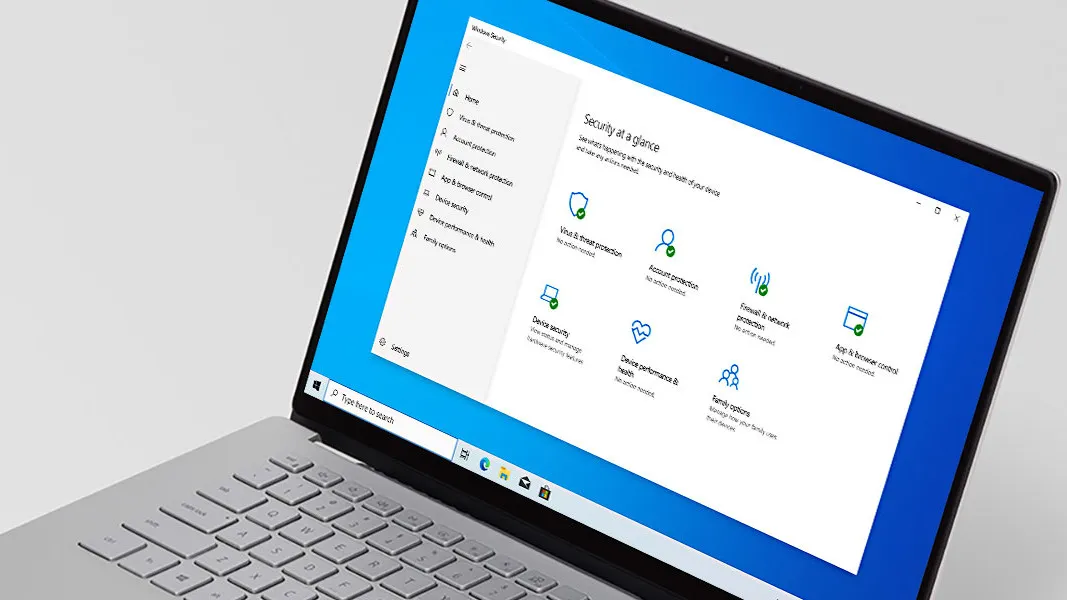
Microsoft’s security tools cover identity management, endpoint protection, and system-level diagnostics. The free tiers cover most of what small teams and individual developers actually need.
Microsoft Entra ID Free
The free tier of Entra ID (formerly Azure Active Directory) provides identity management for up to 500,000 objects, single sign-on for cloud applications, multi-factor authentication through Microsoft Authenticator, and self-service password reset. It’s included automatically with any Azure or Microsoft 365 subscription at no additional cost.
For small teams setting up Azure resources, Entra ID Free covers the identity and access fundamentals without a separate identity product. User management, group-based access control, and MFA for Azure resources are all included, which handles the security baseline for most early-stage projects without any extra configuration.
Microsoft Defender (built into Windows)
Windows Defender ships built into Windows 10 and 11 at no extra cost, providing real-time malware detection, ransomware protection, and phishing filters without a third-party subscription. It consistently performs well in independent endpoint security testing from organizations like AV-Test and SE Labs.
Its main advantage is that it’s already there and requires no configuration to provide a reasonable security baseline. For individual developers and small teams without a dedicated security function, Defender’s built-in capabilities cover the common threat vectors without adding software overhead or license costs to the machine.
Sysinternals Suite
The Sysinternals Suite is a free collection of more than 70 advanced Windows diagnostic utilities covering process monitoring, network activity tracking, file system auditing, and system behavior analysis at a level of detail unavailable through standard Windows tools. Process Monitor, Process Explorer, and Autoruns are the most widely used among security engineers and IT administrators diagnosing unusual system behavior.
Process Monitor in particular changes how you diagnose Windows problems once you’ve used it. Watching file system, registry, and network activity in real time at the per-process level makes it possible to trace exactly what an application is doing at any given moment, which is invaluable when something misbehaves in ways that standard logging doesn’t capture.
Microsoft Security Compliance Toolkit
The Microsoft Security Compliance Toolkit is a free collection of security configuration baselines and tools for hardening Windows and Microsoft 365 environments against Microsoft’s recommended settings, CIS benchmarks, and DISA STIG standards. IT administrators use it to assess current configuration states and apply consistent security policies across managed devices.
If your team deploys Windows environments for regulated industries or enterprise customers with security auditing requirements, the toolkit provides a documented, replicable baseline rather than a manually assembled policy set. The policy analysis tools show exactly which settings differ from the recommended baseline, so you can understand the gap before applying any changes.
Microsoft Authenticator
Microsoft Authenticator is a free mobile app for iOS and Android supporting multi-factor authentication for Microsoft accounts and any third-party service using TOTP-based verification codes. It also enables fully passwordless sign-in for Microsoft accounts through push notification approval, removing the password from the sign-in flow entirely.
The passwordless sign-in is worth enabling if you use Microsoft accounts regularly. Approving a push notification is faster than typing a password in practice, and removing the password from the flow eliminates the largest single credential vulnerability most accounts face. The app handles both Microsoft and non-Microsoft MFA codes in the same place, and setup takes only a few minutes.
IT administration

These tools are primarily for IT administrators, infrastructure engineers, and DevOps practitioners who maintain the environments developers work in. Most of them are free with no usage limits.
Windows Admin Center
Windows Admin Center is a free, browser-based management interface for Windows Server, Azure Arc-enabled servers, and Windows 11 client machines. It consolidates performance monitoring, event log review, storage configuration, and remote PowerShell access in a single web UI that deploys as a local gateway application without a separate management server.
The practical advantage over Server Manager and individual MMC snap-ins is that everything is accessible through a browser, meaning you can manage a server from any machine on the network without installing additional client software. Azure Arc integration means you can also bring on-premises Windows Servers into the same interface as your Azure resources.
Azure CLI
The Azure CLI is Microsoft’s free command-line tool for creating, managing, and automating Azure resources, available for Windows, macOS, and Linux. It covers virtually every Azure service through a consistent command structure and integrates with GitHub Actions and Azure DevOps pipelines as the standard administrative tool for Azure infrastructure work.
For developers used to managing infrastructure through cloud consoles, switching to CLI commands initially feels like extra work until you realize that commands are scriptable, repeatable, and version-controllable in ways that console clicks aren’t. Once you’re writing Azure CLI commands in scripts or pipelines, you have an auditable, reproducible record of every change made to your infrastructure.
Bicep
Bicep is Microsoft’s open-source language for declaring Azure infrastructure as code, using a cleaner syntax than raw ARM JSON templates while compiling to the same ARM format at deployment time. It’s natively supported in Azure DevOps, GitHub Actions, and Azure CLI, and is Microsoft’s recommended approach for infrastructure-as-code on Azure.
The main practical difference from ARM JSON is readability: Bicep templates are significantly shorter and easier to modify, which matters when you’re maintaining infrastructure definitions alongside application code. If you’re already using Terraform for multi-cloud deployments, Bicep occupies a similar conceptual space but sits closer to the Azure API surface.
SQL Server Management Studio (SSMS)
SSMS is a free, Windows-only application for administering SQL Server, Azure SQL Database, and Azure Synapse Analytics, providing a graphical environment for database configuration, query execution, index tuning, and performance monitoring. It’s updated regularly alongside new SQL Server and Azure SQL releases.
For developers doing complex database administration work on SQL Server, SSMS remains the most complete GUI available. Azure Data Studio handles day-to-day query work effectively, but SSMS has deeper tooling for tasks like execution plan analysis, index maintenance, and SQL Agent job management. Both tools are free and work well alongside each other.
Low-code automation

Microsoft’s low-code platform covers everything from desktop task automation to custom agent building. The free-tier options here are substantial enough to build real workflows before spending anything.
Power Automate Desktop
Power Automate Desktop comes free with Windows 11 and provides a visual designer for building automation flows that interact with web browsers, Windows applications, file systems, and system services. It handles attended automation, meaning flows that run while you’re logged in and present at the machine.
For developers building process automation tools for non-technical colleagues, Power Automate Desktop provides a way to automate repetitive desktop tasks without writing code against Windows APIs. Users can record an action sequence and edit the resulting flow visually, which lowers the handoff threshold between technical and non-technical team members working on automation together.
Power Apps Developer Plan
The Power Apps Developer Plan is a free plan for individual developers to build and test apps using Power Apps, Power Automate, and Microsoft Dataverse. It includes three developer environments, 2 GB of Dataverse database storage, and up to 750 automation flow runs per month.
The plan is scoped to learning and development, so apps built under it can’t be deployed to production users, so treat it as a sandbox rather than a starting point for a live application. It gives you full access to the low-code platform’s capabilities, including Dataverse schema design, canvas and model-driven apps, and Power Automate flow building.
Copilot Studio (free trial)
Copilot Studio, formerly known as Power Virtual Agents, is Microsoft’s platform for building AI agents through a visual no-code designer. Its 60-day free trial includes full access to the workflow designer, generative AI integration, knowledge source connections, and multi-channel agent deployment, with published agents remaining active for up to 90 days after the trial ends.
Copilot Studio is the path Microsoft has built for organizations that want to deploy AI agents without writing code against Azure AI Foundry or Semantic Kernel directly. The no-code design surface handles conversational flow, document grounding, and Teams integration through configuration rather than custom development. For teams evaluating what agent deployment looks like in the Microsoft 365 context, the trial period is more than enough time to build and test something real.
How has Microsoft evolved in the last 16 years of Build?
Microsoft Build launched in September 2011 in Anaheim, California, organized almost entirely around Windows 8 and the then-new WinRT platform for building touch-first Windows applications. The company under Steve Ballmer was still operating from the belief that Windows was the center of every developer’s world, a position already being challenged by iOS, Android, and the rapid growth of cloud-hosted web applications. Those early Build editions were focused on keeping developers inside the Windows ecosystem at a moment when the industry’s gravity was pulling in other directions.
Satya Nadella’s appointment as CEO in February 2014 coincided with a visible and deliberate shift in how Microsoft talked to developers. The company’s open-source commitments began to materialize concretely: TypeScript launched publicly in 2012 as an open-source project, the .NET compiler platform Roslyn was open-sourced at Build 2014, and Visual Studio Code arrived in 2015 under the MIT license. By Build 2018, the same year Microsoft acquired GitHub for $7.5 billion, it had become plausible to describe the company as one of the largest open-source contributors in the world.
The GitHub acquisition gave Build an important new dimension. With GitHub’s developer community growing toward 100 million accounts by 2023, Microsoft gained a direct relationship with developers who operated well outside the Windows and Azure context. That reach mattered when GitHub Copilot arrived: announced as a technical preview in June 2021, generally available in June 2022, and expanded into autonomous agent capabilities across Build 2023 and 2024. The Copilot product line emerged through GitHub rather than through traditional Microsoft channels, which says something about how significantly the company’s developer relationships had changed since 2011.
The pandemic-era editions of Build in 2020 and 2021, held entirely online, expanded the conference’s reach substantially. Free global streaming brought in audiences that would never have traveled to Seattle, and Microsoft found that recorded, asynchronous content worked at least as well for most developers as attending live sessions. That model persisted after the return to in-person events, with free keynote streaming and on-demand session recordings available worldwide.
Build 2025, held in Seattle under the banner “The Age of AI Agents,” launched more than 50 announcements covering Azure AI Foundry Agent Service reaching general availability, the unified Semantic Kernel and AutoGen SDK, and protocol support for agent-to-agent communication and MCP integrations. Build 2026 carries that forward with a different kind of argument: not that the agent era is beginning, but that it’s already underway, and that the real work now is shipping agent-powered systems reliably in production. That shift in framing reflects 16 years of Build evolving from a Windows developer conference into the venue where Microsoft sets the direction for its entire engineering ecosystem.
How to be prepared for Build 2026
Build 2026 runs on June 2 and 3 at Fort Mason Center on San Francisco’s northern waterfront, with in-person tickets priced at $1,099 and attendance capped at around 2,500 developers. If you can’t make it to San Francisco, keynotes and a large portion of the session catalog will stream free at build.microsoft.com, with on-demand recordings available afterward. The session catalog is already published on the Build site, so you can start identifying which tracks are most relevant to your work before the event starts, including AI agents, GitHub Copilot, Azure AI Foundry, Windows, and Responsible AI.
If your work involves the Microsoft developer stack, it’s worth treating Build 2026 as a planning input rather than a product announcement calendar. The sessions on agentic AI maturity, multi-model Copilot updates, and Azure AI Foundry will likely shape how your team approaches automation architecture, cloud infrastructure decisions, and developer tooling over the next 12 months. Following the Build sessions alongside Microsoft’s technical blog and the GitHub repositories for AutoGen, Semantic Kernel, and Prompt Flow will give you the clearest picture of what’s production-ready now versus what’s still on the roadmap.
The 50 tools in this article give you a head start on the topics that Build 2026 will cover. Setting up an Azure free account, running an AutoGen sample locally, or browsing the Azure AI Foundry model catalog are all things you can do before June 2. The more hands-on time you have with the platform beforehand, the easier it is to evaluate what you see in a demo against what your team actually needs to build.










































You must be logged in to post a comment Login