TL;DR
Apple’s iOS 27 Siri app will auto-delete chats after 30 days or one year. After a two-year delay, it may still ship as a beta.



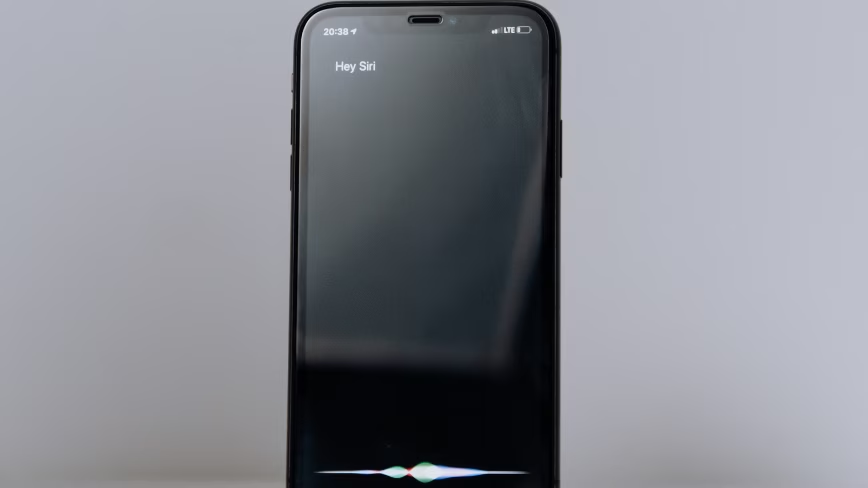
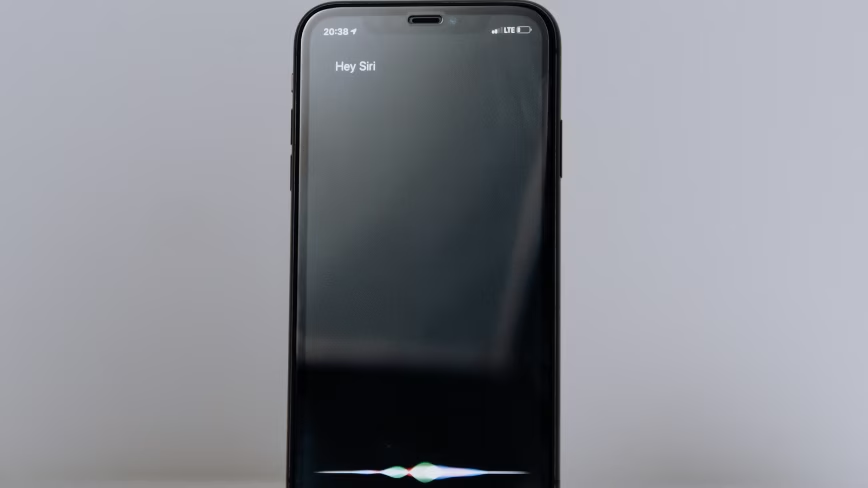
Apple’s iOS 27 Siri app will auto-delete chats after 30 days or one year. After a two-year delay, it may still ship as a beta.
Apple’s first standalone Siri app, coming in iOS 27, will include an auto-delete function for chat histories that borrows from the Messages app. Users will be able to configure the app to retain conversations for 30 days, one year, or indefinitely. The feature, reported by Bloomberg’s Mark Gurman in his Power On newsletter on Sunday, is designed to position Apple’s approach to AI privacy as structurally different from competitors that offer temporary or incognito chat modes as optional settings users must manually enable.
The Siri app will function as a chatbot akin to ChatGPT or Claude, serving as a repository for past conversations that users can search, continue, or delete. It can be accessed either through the standard Siri activation, via the side button or wake word, or through a new “Search or Ask” mode triggered by swiping down from the top centre of the screen. The app will support both voice and text input, file uploads, and web-sourced answers with images and bullet points. Users will be able to choose whether the app opens to a grid of prior conversations or a new chat each time.
The privacy architecture is Apple’s competitive differentiator, and also its excuse. Competing chatbots rely heavily on conversation histories and memory systems to personalise responses and improve over time. Apple is placing tighter limits on what information can persist and how long it is retained, building the restrictions into the system itself rather than offering them as optional modes. Meta launched a temporary chat feature just last week. Apple’s position is that such protections should not require users to opt in.
The strategic context makes the privacy framing more interesting than it appears on the surface. Apple has quietly replaced much of its own AI infrastructure with Google’s Gemini, paying roughly $1 billion annually for a custom 1.2-trillion-parameter model that will power the next-generation Siri. The company’s existing partnership with OpenAI is fraying, with OpenAI’s lawyers preparing possible legal action over a ChatGPT-Siri deal that failed to deliver the subscription revenue OpenAI expected. iOS 27 will introduce a system called Extensions that allows users to install rival AI chatbots and route Siri queries through whichever model they choose, including Claude and Gemini, effectively downgrading ChatGPT from a privileged partner to one option among several.
Gurman notes that Apple has been less specific about how the new Siri infrastructure will be hosted and operated at scale. The company has said the revamped Siri will use Private Cloud Compute, its extension of the iPhone’s security model into the cloud, but has not confirmed that it will rely on the same Apple-designed chips, data centres, and security architecture as the current system. The implication is that Google’s cloud infrastructure will handle some of the workload, something Apple does not want to emphasise given the tension with its privacy messaging.
The auto-delete feature is clever positioning regardless of whether the privacy argument is fully coherent. By defaulting to structured retention limits rather than permanent storage, Apple can claim its AI assistant is designed to forget, a contrast to systems that are designed to remember everything in order to improve. Whether users will value that distinction depends on whether they notice the trade-off: a Siri that forgets your preferences after 30 days is also a Siri that cannot learn from your history the way ChatGPT or Claude can.
Perhaps the most revealing detail in Gurman’s report is that the new Siri may launch as a beta, even after a two-year delay. The revamped assistant was originally scheduled for 2024. Test versions of iOS 27 within Apple currently use a beta label for the new Siri and include a toggle allowing users to opt out. Apple is simultaneously developing AI smart glasses for 2027 that will use the same Gemini-powered Siri as their primary interface, meaning the assistant needs to work reliably across multiple form factors by next year.
Gurman frames the stakes clearly: Tim Cook does not want his final launch as CEO to be a misstep. Apple got “some slack” with the original Apple Intelligence rollout in 2024, but the competitive and regulatory landscape has shifted. Google’s Gemini has grown its web traffic share from 5.7% to 21.5%. The EU is preparing to force both Apple and Google to open their AI assistants to rivals under the Digital Markets Act. Android 17, announced at Google I/O this week, will ship with a Gemini Intelligence system and a new Googlebook laptop platform. Apple is entering this environment with a Siri that is two years late, powered by a competitor’s model, and potentially still labelled as unfinished.
The Genmoji upgrade is the lightest piece of the iOS 27 picture but speaks to the same pattern. Apple’s AI-generated emoji feature was poorly received at launch: images looked nothing like the advertisements, and the models used so much power that phones would heat up and drain their batteries. iOS 27 will add “Suggested Genmoji,” automatically generated from a user’s photos and commonly typed phrases, in an attempt to increase adoption of a feature that was supposed to demonstrate Apple Intelligence’s consumer appeal.
Apple’s privacy argument arrives at a moment when the concept has never been more salient in consumer hardware. Meta is facing lawsuits and regulatory investigations over how its Ray-Ban smart glasses handle user footage. Google’s Android XR glasses will ship with cameras and Gemini AI. Snap is launching consumer AR specs with built-in AI. In this environment, an AI assistant that auto-deletes your conversations and does not train on your data is a genuine differentiator, provided the assistant itself is good enough that people want to use it. That is the question Apple has been unable to answer for 15 years. Whether Gemini, a beta label, and a privacy toggle change the answer will be clear by September.
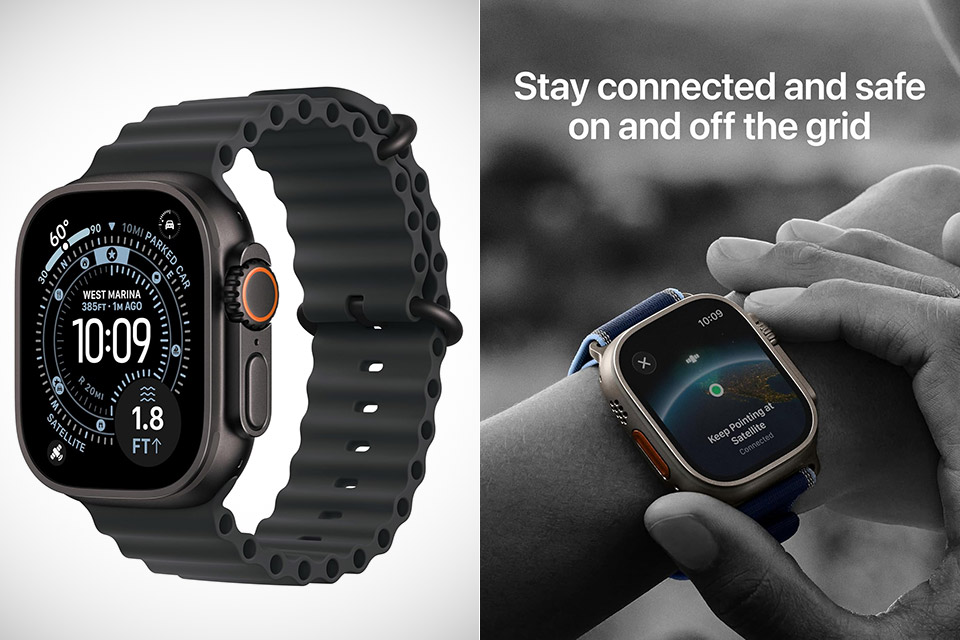
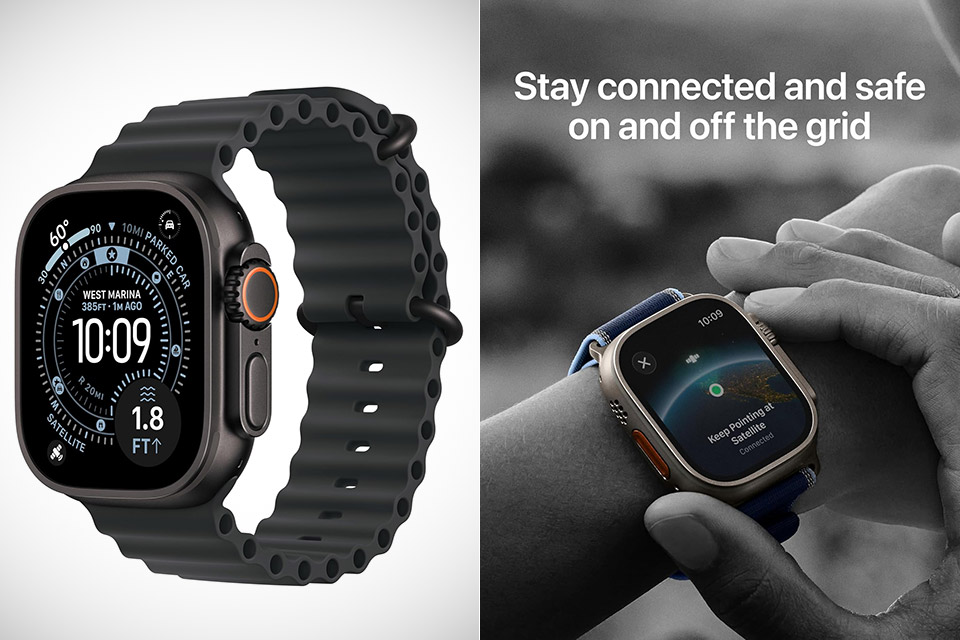
Summer stretches days longer and pulls people toward trails, water, and full days outside. A watch that handles knocks, stays readable in bright light, and runs for extended stretches without a charger becomes more than nice to have. The Apple Watch Ultra 3, priced at $699.99 (was $799), fills that role for many who want one device to cover serious activity and everyday tracking.
The casing is 49mm of solid titanium on the wrist, which feels right at home and like a little additional muscle, despite the fact that it still fits securely on your wrist for regular wear. The fact that Grade 5 titanium handles dents and scratches with easily, as opposed to other aluminum models that are just battered around, is a significant advantage. The true show-stopper is the flat sapphire crystal, which protects the screen from the inevitable bumps into rocks or equipment during a climb, surf session, or simply fooling around and bumping items into other gear. Water resistance extends to 100m, and it has a depth gauge and a water temperature sensor, making it ideal for pool laps, snorkeling, or even assessing diving conditions. If everything else fails and you’re in a remote location, a built-in siren will sound a reassuring 86 decibels to summon rescue. All of this adds up to a watch that feels like it can take on everything the season throws at it, rather than something delicate that needs to be handled with care.
Sale
![Apple Watch Ultra 3 [GPS + Cellular 49mm] Running & Multisport Smartwatch w/Rugged Titanium Case w/Black...](https://m.media-amazon.com/images/I/41H6S7vjc+L._SL160_.jpg)
The screen now has a larger active area, although the case size remains unchanged. It still packs a punch, with a peak brightness of 3000 nits, making it visible even in the midday light. So you can still read the time and examine your maps even in the most extreme situations. By moving to LTPO3 technology, battery efficiency has actually increased, allowing you to leave the screen on in the background without draining the battery. It’s a godsend whether you’re out on a walk or a bike ride because you don’t have to lift your wrist every few minutes to view the screen. Night mode and viewing angles have also been improved, reducing eye strain as light levels change.
Battery life has to be the number one reason this watch is worth considering right now; with normal use, it lasts roughly 42 hours, and with battery saver mode, you can extend it to 72 hours on a long journey. Real-world testing indicates that it’s not just talk; actual users have reported constant drain times even with GPS and other tracking equipment functioning in the background. If that’s not enough to put your mind at ease, the watch also charges quickly, reaching 80% in 45 minutes. So, if you have a long day ahead or a multi-day vacation planned, a fast charge in the morning or during a break will keep you going for another full day. For anyone who has experienced the stress of running out of power in the middle of nowhere, this is a game changer.
New capabilities such as satellite messaging let you to send a text or contact emergency services when you’re out of range of a cell tower, and dual-frequency GPS provides super-accurate position data no matter where your activities take you. If you find yourself in a region with 5G, the watch will connect quickly for calls, texts, and data. These features combine to make the Ultra 3 a more comprehensive off-grid companion without making it heavier or more difficult to use in everyday life.
Health insights have just become much more practical with the addition of hypertension notifications following a brief calibration time. Your watch already tracks your ECG, heart rate variability, temperature, blood oxygen, and sleep patterns; now recovery data is right alongside your training metrics, allowing you to understand how all that hard work is affecting your rest time. When it comes to striking the right balance between fitness and general wellness, your sleep scores and apnea alarms are all important factors to consider.
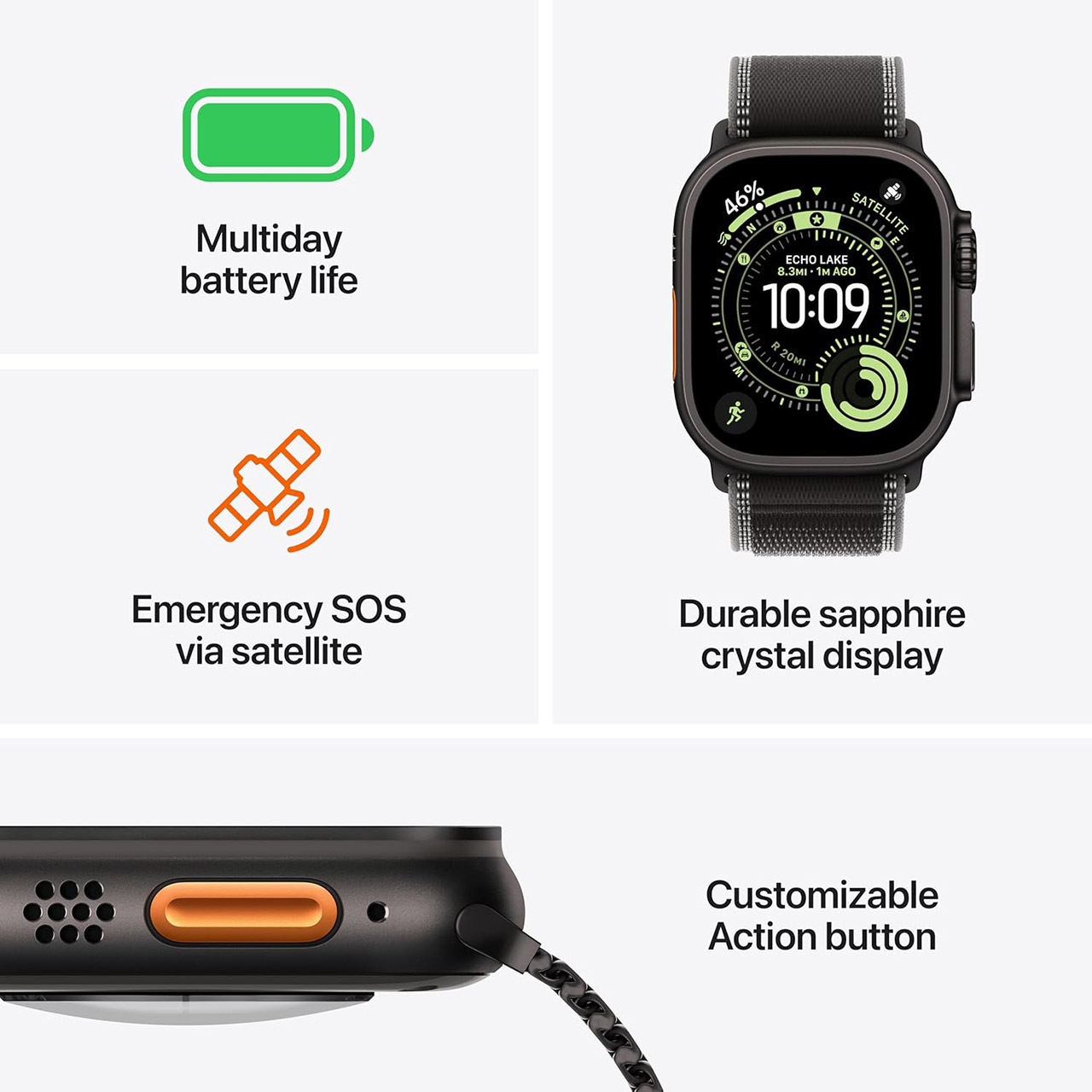
The watch stays spot on with fitness tracking whether you’re jogging through difficult terrain, swimming in open water, or participating in any other sport. Its dual-frequency GPS keeps locked in even when things get complicated, and the depth and water temperature sensors are useful for tracking your dives. Then there’s the workout guidance and stats, training load, heart rate zones, and anything else you need to organize your workouts without having to carry any additional gadgets. Whether you’re hitting the trails or sailing through the water at high speeds, this watch can handle it.

Running your watch’s software on a daily basis feels snappy thanks to the S10 chip’s power and 64GB of available storage. Complications update quickly, programs launch instantly, and on-board processing ensures that everyday tasks remain smooth and responsive. Like before, pairing it with an iPhone is simple, with notifications, music control, and data synchronization all operating as expected. And as new watch faces and tools are released, they simply slip in without requiring you to learn a completely new method of using the watch.
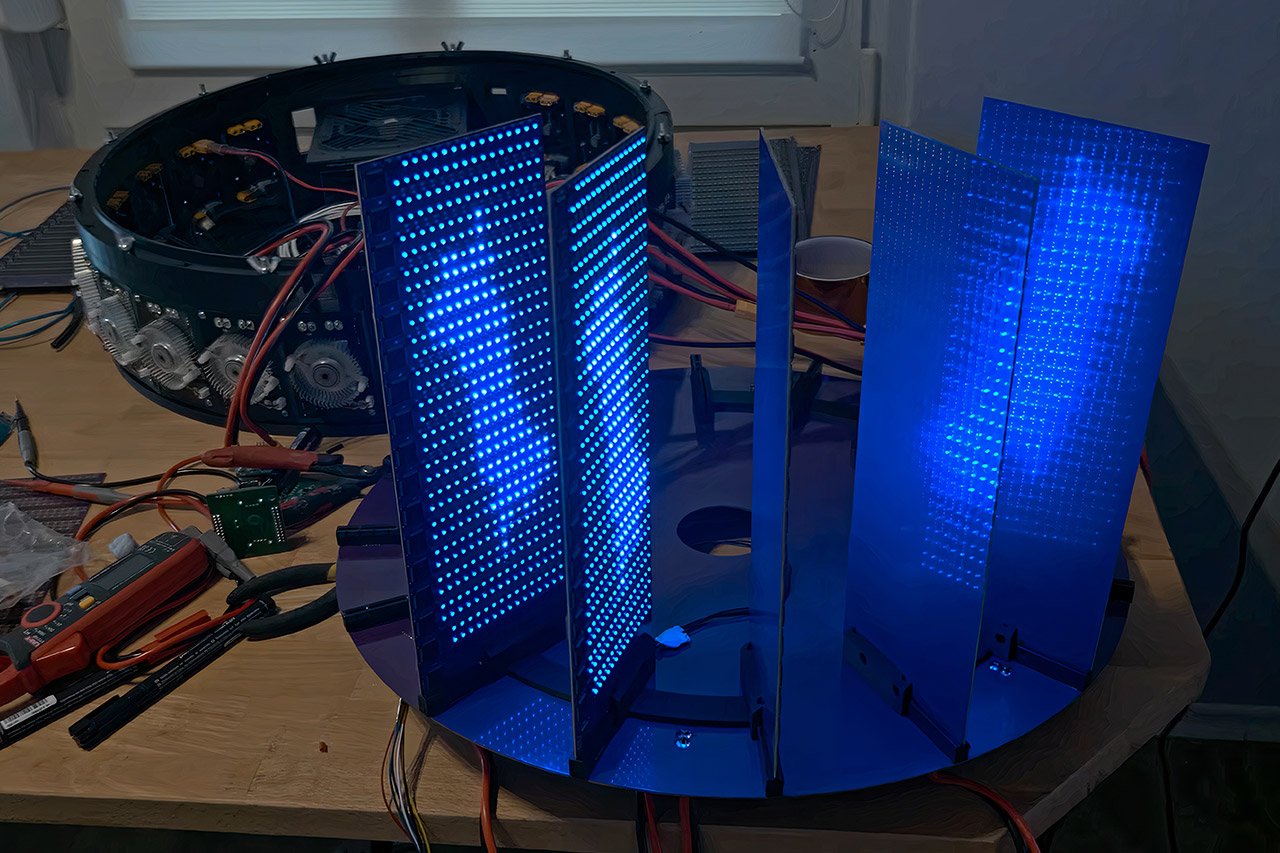
Bitluni has spent years pushing DIY electronics further than most people expect. His earlier clusters packed a few hundred small RISC-V chips onto compact boards and proved they could outperform a regular desktop processor on certain tasks while using almost no power. That success led him to ask what would happen if he kept scaling. The answer sits on his bench now: an ultra cluster built around 8,192 individual microcontrollers running at 100 MHz, managed by 256 larger controller chips.
The primary goal here wasn’t even to match a high-end graphics card for 4K gaming, as Bitluni preferred a much more minimalist approach. He reasoned that each cheap CPU was only required for one location on a display, allowing the individual chip to figure everything out on its own; merely connect them and you have a makeshift graphics system. It sounds strange, but in theory it is perfectly possible; simply take a lot of 13-cent chips and convert them into the foundation of a new graphics system. Bitluni chose the CH570 microcontroller because it fits the bill perfectly: it’s fast enough to perform the job, has 12 kilobytes of memory, and a hardware multiplier to boot, all for roughly 13 cents in bulk.
Building at this magnitude revealed some issues that are not typically encountered on smaller projects. One item that failed was using a shared clock signal, which became overwhelmed and stopped operating when there were thousands of chips on the board, so now each microcontroller has its own crystal oscillator. Packing all of those signals onto the board resulted in crosstalk, so they switched to six-layer boards with ground planes on the inner layers and staggered the traces so that signals from adjacent levels did not bleed over into each other. The physical shape, one large board, was simply too large to manufacture, so they divided it into modular blades. Each of these blades is simply a grid of CPUs and small RGB LEDs; simply slide them into the central circular backplane with edge connectors, and it resembles a modern art sculpture rather than normal computer hardware.

Getting power and keeping the thing cool turned into complete engineering projects on their own. With so many tiny chips running at 3.3v generating hundreds of amps, they need a 3kW power supply and efficient buck converters to keep everything going smoothly. The current version 1 still uses powerful fans rather than the immersion cooling tank that they had planned to employ. Programming the thing would have taken weeks if done by hand (which is insane, just think about it!), so they ended up modifying a 3D printer, installing some pogo pins on the gantry, and writing Python scripts that simply move the head across each board and flash the firmware through the exposed pads.

Right now, it’s running pretty well, as they have a decent light show going on with synchronized patterns spanning over a thousand processors, each driving its own 1mm x 1mm RGB LED, and it looks pretty cool when the blades light up in succession or in waves. They’ve even begun experimenting with distributed ray marching, which is the same method used in some of those fancy real-time rendering demos. Once they have a few more blades online, they will conduct some real testing.

The communication side of things is simply SPI buses, with each set of 32 worker chips sharing one bus, and the larger controllers handling the real coordination. The bandwidth is limited, so it will not be able to push high-resolution frames as quickly as a dedicated GPU – but that was never the goal of this project. It’s more about demonstrating how far you can push an idea when you have low-cost parts and open designs for others to follow along. Once the project moves on to the next step, the files and code will be made public.
[Source]

Microsoft will turn on Windows settings backup and restore by default for eligible Windows 11 business devices outside the EU, starting with Windows 11 26H2. The Register reports:
Now dubbed “Windows settings backup and restore,” the service backs up a device’s settings and a list of installed Microsoft Store apps, which can then be restored to a new device. Microsoft gave a use case for the technology: “Imagine a lost laptop, a hardware refresh, or an unexpected reset. These are some of the moments when your users need backup most. And that’s rarely when anyone wants to discover that backup was never turned on.”
However, some organizations might not want it on. Perhaps those with strict privacy or data sovereignty requirements, or those regulated by the EU Digital Markets Act (DMA), for whom the default-on behavior won’t apply. Windows 11 25H2 and earlier are also excluded, as is any device with a backup policy that explicitly disables the setting. Everything else running Windows 11 26H1 will get switched on after a feature update, and the same applies to 26H2, currently with Windows Insiders in the Experimental channel.
Administrators might reasonably be wary of this being opt-out rather than opt-in. Backups are useful, but Microsoft is clear that this is not a comprehensive backup solution, calling it only “one step in a broader Windows resiliency effort.” The implications still need consideration. An opt-out setting that quietly ships settings data off-device is exactly the sort of thing that adds to administrators’ workloads rather than lightening them.

OpenAI’s chief futurist, Joshua Achiam, notified colleagues on Tuesday that he is leaving the company later this month after nearly nine years, WIRED has learned. Achiam, who previously led a team tasked with upholding the organization’s nonprofit mission, told OpenAI staff that his departure was not motivated by any specific reason, but was something he’s been thinking about for a while.
“The world is in on the secret now and it feels possible to work on the mission from outside the walls of a frontier lab,” Achiam said in a note to staff obtained by WIRED. “I believe we can get to a world of peace, unprecedented prosperity, and unimaginable possibilities, social and scientific. Whatever I do next, I will continue to work with you on making this vision real.”
OpenAI has not yet announced if anyone will fill Achiam’s role, which sat at the intersection of the company’s AI safety and policy teams, and involved studying the potential harms and benefits caused by the rise of artificial intelligence. Achiam worked with senior company leaders, including global affairs chief Chris Lehane, to advocate for government regulations aligned with OpenAI’s mission: to ensure that AGI benefits all of humanity.
OpenAI has reorganized its safety, product, and research teams numerous times since ChatGPT launched in 2022, after which the company grew rapidly from a small research lab into a massive tech company. In 2024, OpenAI announced the formation of a “mission alignment team” led by Achiam that was tasked with upholding the company’s mission. OpenAI disbanded the group in February and announced that Achiam would be taking on a new role as chief futurist.
In the last year, OpenAI has worked to bridge the gap between its AI research and policy teams as part of an effort to develop rules and standards that anticipate where its technology is headed. As the two departments began collaborating more closely, several OpenAI researchers, including Boaz Barak, Noam Brown, and Adrien Ecoffet say they have become more involved in policy work.
Former White House AI adviser Dean Ball started at OpenAI this week as the company’s head of strategic futures, and he will briefly overlap with Achiam. Ball is also expected to work with researchers and policy leaders in his role.
Achiam is the latest safety-focused leader to depart OpenAI, joining a growing list of exits as the company prepares to go public. Jan Leike, who co-led OpenAI’s Superalignment team researching how to keep advanced AI models under human control, left to join Anthropic in 2024.
That same year, head of policy research Miles Brundage and Steven Adler, who led research on dangerous capabilities of AI models, both departed OpenAI to found nonprofits that advocate for AI labs to adhere to strong safety and security standards. Andrea Vallone, who led OpenAI’s research on how ChatGPT should respond to users experiencing mental or emotional distress, left to join Leike’s team at Anthropic at the end of 2025.
After joining OpenAI as an intern in 2017, Achiam went on to become a research scientist focused on AI safety. He was known internally as a stalwart defender of OpenAI’s safety-focused mission, but was also controversial for his occasional criticisms of the broader AI safety community.
Earlier this year, he testified in federal court that he interrupted Elon Musk’s parting speech when he left OpenAI in 2018, remarking that the then-billionaire’s plan to develop AGI at Tesla could come at the expense of safety. Musk allegedly responded by calling Achiam a “jackass,” a moment that Dario Amodei (now the CEO of Anthropic) and David Luan (who went on to become the head of Amazon’s AGI lab) commemorated by gifting Achiam a statue of a golden donkey’s rear end, inscribed with the words, “Never stop being a jackass for safety.”


IT services giant Accenture has confirmed it suffered a security breach after a threat actor claimed to have stolen 35 GB of source code and other data from the company.
“We are aware of this isolated matter, and we have remediated its source. There is no impact to Accenture operations and service delivery,” Accenture told BleepingComputer.
Accenture is a global professional services company that provides consulting, technology, cloud, engineering, and managed services to businesses and governments worldwide.
The statement comes after a threat actor known as “888” claimed to have stolen 35 GB of data from the company in July and began offering the data for sale on a cybercrime forum.
“Today I am selling the Accenture Data Breach, thanks for reading and enjoy!,” reads the forum post.
“In July 2026, Accenture suffered a data breach which resulted in just over 35gb of source codes getting stolen from the company.”
According to the threat actor, the data includes source code, RSA keys, SSH keys, Azure PAT (personal access tokens), Azure Storage access keys, and configuration files.
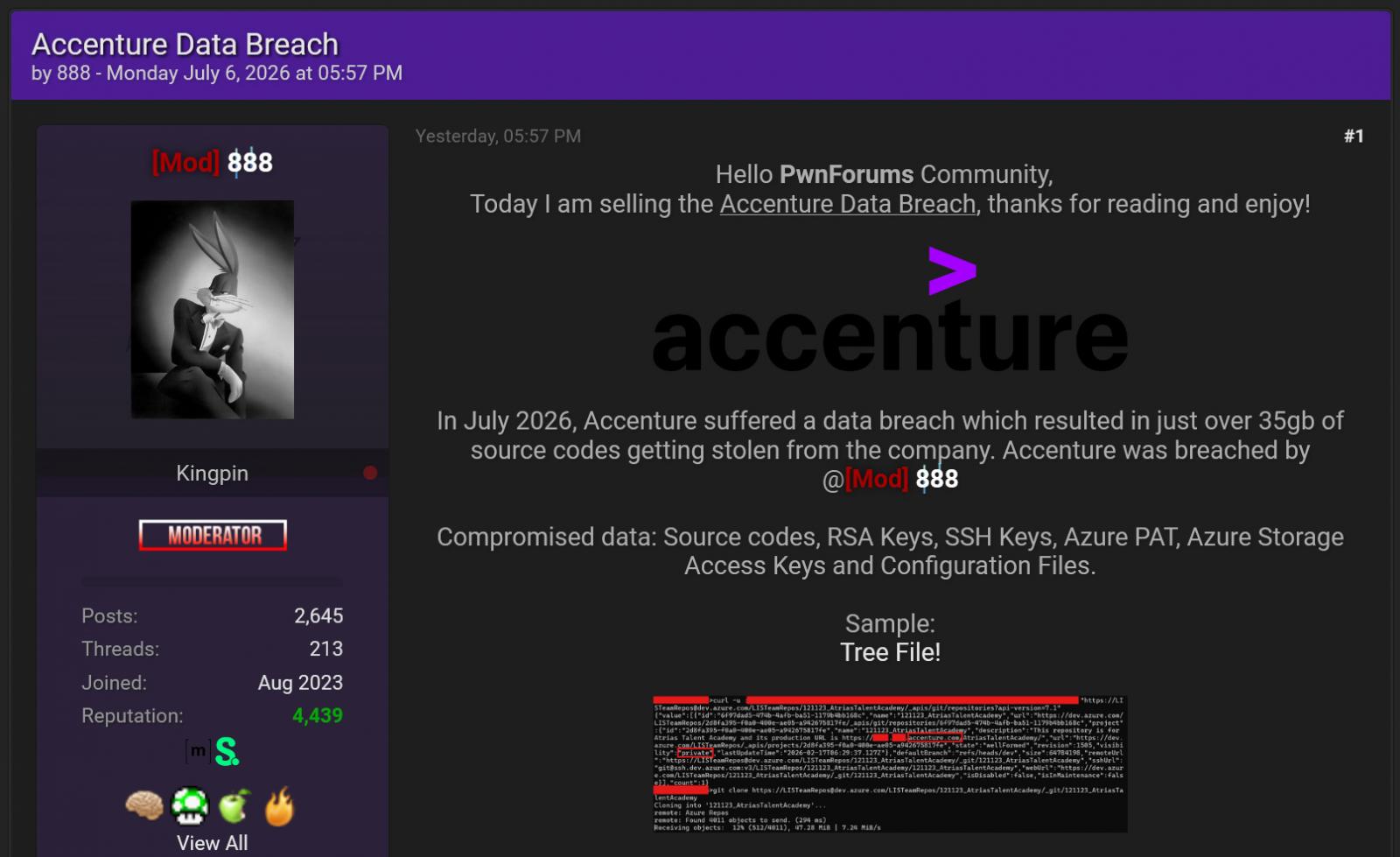
To support their claims, the threat actor shared a screenshot that appears to show them cloning an Azure DevOps repository named “121123_AtriasTalentAcademy” that was hosted under a redacted accenture.com hostname. BleepingComputer could not independently verify the full scope of the data being stolen.
While Accenture confirmed the breach, the company did not comment on the threat actor’s claims regarding the amount or type of data that may have been accessed or exfiltrated.
Accenture also did not disclose how attackers gained access or whether customer data was affected.
The same threat actor previously attempted to sell Accenture employee data following a third-party breach in 2024.
Accenture also suffered a data breach in 2021 after the LockBit ransomware gang stole data from its systems.
BleepingComputer has asked Accenture further questions about the breach and will update this story if additional information becomes available.
Security teams log 54% of successful attacks and alert on just 14%. The rest move through your environment unseen.
The Picus whitepaper shows how breach and attack simulation tests your SIEM and EDR rules so threats stop slipping by detection.
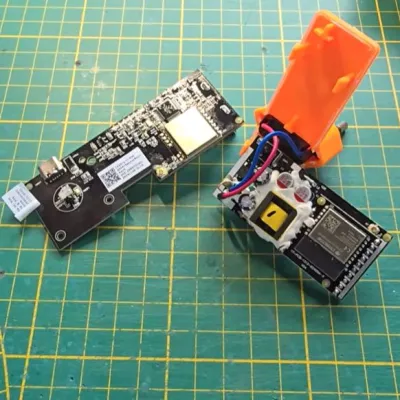
Sold by German DIY store OBI, the OBI Energy Tracker is a €15 set of two devices, one of which you essentially stick on top of your existing electricity meter. This then allows for electricity usage to be measured and tracked, with the data sent to the second, gateway device. This latter cloud-bound device is linked to an OBI account via the heyOBI app. This correspondingly called for the gateway device to be reverse-engineered and freed from its cloud-based shackles, a task that [Aaron Christophel] happily took upon himself.
The whole process is also covered in two videos, with the first providing all the essentials on reprovisioning the original firmware for a local MQTT server in English, while the second, German-language video focuses on custom firmware for the ESP32-C3 inside of the gateway device.
 Inside the reader device is a Cortex-M0+-based BAT32G135 MCU that communicates with the meter via its IR protocol. This is then communicated via 868 MHz LoRa to the gateway device that will be placed somewhere within Wi-Fi reach by the user. Inside this latter device is as mentioned the ESP32-C3, which by default runs firmware that communicates via secure MQTT with an AWS cloud instance for the typical cloud-based shenanigans.
The aforementioned reprovisioning option doesn’t require firmware flashing, just a handful of steps to follow. This involves fetching the 32-bit TEA key, generating your own PKI, running your own MQTTS-capable broker and having the provided Python script handle the rest from there.
Flashing custom firmware is the other option, with straightforward UART/JTAG reflashing sadly disabled by the manufacturer. With the effort required here you could perhaps argue that simply connecting the reader device to a custom gateway device might be a lot easier, especially if you already have a LoRa transceiver and associated hardware.


cyber-crime
Along with other telemetry, Windows GDID makes online activity more traceable
Your Windows is watching you. The US Justice Department’s complaint against Peter Stokes for alleged involvement in the Scattered Spider hacking group offers a reminder that it’s difficult to hide online activity from Microsoft’s operating system (or any other).
Scattered Spider, according to US authorities, targeted numerous companies in the US by compromising employee accounts in order to access more than 100 corporate networks and exfiltrate or encrypt data that would be ransomed for payment. The group is said to have obtained over $100 million in ransom payments.
The complaint, arrest, and extradition of Stokes relied in part on a Microsoft Windows Global Device Identifier (GDID), among other telemetry records, to link online activity to the suspect.
“According to a Microsoft representative, a Global Device Identifier in the Windows ecosystem is a persistent, device-level identifier designed to uniquely identify an installation of a Windows operating system on a device, either a physical device (e.g., a mobile phone or laptop) or virtual machine, across certain Microsoft services and scenarios,” explained FBI special agent Ali Sadiq in an affidavit accompanying the DOJ’s criminal complaint.
The court filing also notes that Microsoft made criminal referrals to the DOJ implicating Stokes. It points to an October 2024 referral that cites online service telemetry that company security researchers believe linked Stokes to other hacking group members. Social media posts relevant to Scattered Spider, supposedly sent and received by Stokes, look unlikely to help his defense.
The affidavit says that members of Scattered Spider used a web tunneling tool called ngrok to avoid network barriers and maintain access to compromised servers, as well as a VPN service called Tzulo.
Investigators obtained IP address records from ngrok and the VPN provider and then obtained records from Microsoft that matched the time when that ngrok account had been set up on a Windows machine through a specific GDID.
“According to Microsoft records, on or about May 12, 2025, at 19:21 UTC – when, according to ngrok records, the ngrok account was created – the device with the GDID accessed, among other ngrok pages, ‘https://dashboard.ngrok.com/signup,’ the ngrok page to set up an ngrok account,” the affidavit explains.
Microsoft’s GDID records also showed that the Windows device with that GDID accessed Tzulo servers assigned to the IP address identified by ngrok. And the GDID was subsequently linked to an IP address in Estonia where Stokes resided.
The Windows GDID, or at least the infrastructure for it, is said to date back to the release of Windows 10 in 2015. The GDID itself doesn’t show up much in online documentation until 2021 or thereabouts.
According to a developer writeup posted to GitHub, wlidsvc (Microsoft Account service) provisions the device with login.live.com and gets back a device PUID. The identifier is then stored in the registry. The Connected Devices Platform (cdp.dll / CDPSvc) reads it and registers it into the Device Directory Service (DDS) graph. And after that, Delivery Optimization reports it as the documented UCDOStatus.GlobalDeviceId.
Apple maintains similar identifiers, including a hardware UUID and a DSID (Destination Signaling Identifier) [PDF] tied to iCloud, among others. Linux also supports a machine-id. And when presented with a lawful demand for information, most service providers will cooperate and provide whatever information they store. ®


Presented by Box
Content access, governance, and platform flexibility are emerging as the dividing lines between AI leaders and laggards, according to the new State of AI in the enterprise report from Box, which surveyed 1,640 IT decision makers across the US, UK, France, and Japan. One of the report’s major findings is the speed of the shift: the combined share of organizations describing themselves as advanced or leading edge soared from 8% to 64% just over the past year, while the share calling themselves early stage or not yet started collapsed from 53% to just 9%. Eighty percent of organizations reported a notable return on their AI investment, defined in the survey as an improvement of at least 10%, and more than half saw measurable business impact within six months of getting a project approved.
The swing is largely due to how enterprises are now organizing their AI use rather than to any single technical breakthrough, says Olivia Nottebohm, COO of Box.
“We’ve moved from standalone experimentation that lived at the individual level into systematized, integrated agentic operations, agents that are in production and can be used in a repeatable manner,” Nottebohm says. “That’s where the impact is coming from.”
The divide between tiers is a matter of execution. Significantly, half of leading-edge companies reported AI-driven ROI above 25%, compared with just 11% of early-stage companies, with the advanced (33%) and developing (16%) tiers falling steadily in between. But Nottebohm says the real differentiator was not whether companies adopted AI, but how rigorously they integrated and managed it.
“What separates the leading edge is the operating muscle they’ve built: the right teams to deploy agents, formal governance to control them, and consistency in the content layer those agents work from,” she explains. “Earlier stage companies are approaching it in a much more ad hoc, experimental way, letting people play around with it without the same intent or structured design.”
Content, rather than model quality, is the defining bottleneck of 2026. Ninety-six percent of organizations say agents need access to company-specific content, yet only 36% have connected agents to trusted content across many use cases. It’s an issue of trust rather than raw capability.
“We started this journey assuming enterprise AI was about access to the latest model,” Nottebohm says. “But the question now is whether agents have access to the right content, and whether that content is protected, because those agents are only as good as the content they can reference, and only as safe as the security around it.”
Getting that content layer right has a second benefit beyond safety, since it’s also what finally lets agents work across departments that previously operated in isolation from one another. And while roughly a quarter of organizations point to data fragmented across systems, 24% cite difficulty integrating AI into existing systems, 21% say they lack adequate permissions and access controls, and 18% describe their content as too unorganized to make accessible at all. Among the most mature organizations, 63% now treat unstructured documents, contracts, and reports as a competitive advantage rather than dead weight sitting in a digital filing cabinet.
Nearly half of all organizations say they have already experienced an AI-related data exposure incident. That figure rises to 60% among leading-edge companies, which may face greater exposure from more agents and connected systems — but may also be better equipped to detect it.
The share of organizations reporting established or advanced governance frameworks rose from 24% in 2025 to 73% this year, but real gaps remain in instrumentation: only 39% have comprehensive visibility across sanctioned and unsanctioned AI use, 34% have formal standards for how agents access company data, and 27% still describe their governance as ad hoc. But those incidents function as a forcing mechanism rather than a setback, Nottebohm says.
“Governance used to be seen as something that slowed people down, but 93% of respondents told us better governance is actually what let them move faster,” she explains. “It makes scaling AI survivable. Once content is secured and highly permissioned, you can run multiple agents across multiple processes and get a real multiplier effect.”
One practical consequence of that shift is that permission structures built for human employees are now being revisited with agents in mind, a process most enterprises are only partway through.
“The permissions enterprises set up two years ago need to be reviewed,” she explains. “Until fairly recently, people weren’t setting permissions on a document with how an agent might use it in mind, but now they’re much more deliberate about that. It leaves them with a whole corpus of unstructured data to go back through and either clean up or repermission.”
That’s part of a broader move away from governance designed for people and toward governance designed for agents from the start.
“Enterprises need to make the transition from governance that’s retrofitted from human workflows to governance that’s built specifically for agents,” Nottebohm says. “That means tracking what an agent has touched, whose permissions were applied, and which sources were used, and all of that is now shaping how governance gets applied.”
“The days of token-maxing are already gone,” Nottebohm says. “It’s now about the responsibility of delivering efficient AI. Organizations want to use the cheapest model that meets the quality bar they need, not necessarily the most expensive one, because different model families keep leapfrogging each other and companies want to preserve that choice.”
That means enterprises are avoiding lock-in more than ever. Sixty-eight percent say they’re concerned about depending on a single AI provider, the average number of officially adopted AI tools has climbed to 3.3, and 79% now consider it important or critical that agents operate headlessly, connecting directly to systems and APIs without a human interface in between.
It’s a trend similar to the shift toward multi-cloud infrastructure, and driven by a similar reluctance to hand any one vendor outsized negotiating power.
“A flexible architecture is built on platform interoperability,” Nottebohm says. “It runs on multiple models, operates headlessly, and keeps every part of the AI stack swappable, so organizations don’t have to bet on which individual tool wins, and that’s part of the broader shift away from defaulting to the biggest, most expensive model available.”
Over the next three years, businesses should prioritize organizing, classifying, and cleaning up unstructured content, actively hiring and building teams around emerging roles, and adopting a hybrid token compute budget model, where IT owns the core infrastructure and token budget while business units own the application-level spend. And right now, it’s easy to get up to speed fast.
“You don’t have to start at early maturity and slowly work your way up,” Nottebohm says. “If you build in the governance, the content layer, and the multi-model system from the start, you can enter as a leading company and capture that same outsized impact.”
Sponsored articles are content produced by a company that is either paying for the post or has a business relationship with VentureBeat, and they’re always clearly marked. For more information, contact sales@venturebeat.com.


At the center of the device is Thunderbolt 5’s 120 Gbit/s bandwidth ceiling. That throughput is enough to support dual 8K displays or up to four 4K monitors from a single dock. While Thunderbolt 5 laptops are still relatively uncommon, more systems are beginning to ship with the standard, and…
Read Entire Article
Source link


Presented by Red Hat
At VentureBeat’s recent AI Impact event, where the discussion centered on what separates enterprises that scale agentic AI from those that stall in pilot mode, Brian Gracely, senior director of portfolio strategy at Red Hat, detailed what companies actually run into once agents reach production.
He dove into cost discipline, the security blind spots unique to autonomous systems, and the organizational friction that determines whether agent adoption spreads beyond early champions.
Many enterprise leaders, especially those following industry keynotes and AI announcements, worry that they’re already falling dangerously behind competitors deploying agents at scale. But according to Gracely, much of that anxiety reflects a misconception about how quickly organizations learn once they begin building. Teams often move up the learning curve far faster than they expect.
That rapid progress creates a different challenge, however. As agent usage expands, AI costs rise just as quickly, turning cost management from an engineering concern into a recurring boardroom discussion.
Agentic AI usage is orders of magnitude higher than during the chatbot era, making AI costs a growing concern for enterprises. At the same time, organizations are becoming increasingly aware of their dependence on a small number of model providers. According to Gracely, that combination is driving many enterprises to explore alternatives that give them greater control over costs and infrastructure.
“The two or three top providers are already telling the market that they’re losing money, and they’re trying to go public to make up those gaps,” he explained. “At some point, the dependency on that means you’re either going to buy at a very high-cost level, or you’re going to figure out alternatives to control what you’re doing.”
The biggest cost issue is that enterprises overspend by defaulting to the most capable model available regardless of task complexity.
“If I’m simply trying to resolve an insurance claim, I don’t need to know about the history of Western civilization in my model, I don’t need to know World Cup soccer scores,” Gracely said.
Semantic routing is the mechanism many companies use to make that judgment automatically, classifying requests and sending each to a model sized for the task without requiring users to choose, while infrastructure techniques like caching repetitive queries cut how often a request needs to reach GPU compute at all. Together, he said, these tools remove the assumption that efficiency and innovation pull in opposite directions.
“There’s a lot you can do at a GPU infrastructure level, and quite a bit you can do in terms of flexibility of models,” he explained. “Those give excellent choices in terms of the levers you’re trying to pull, whether you need efficiency or you need innovation. That shouldn’t be a binary choice.”
The financial discipline needed for token spend is similar to the FinOps practices that took years to mature in order to take control of cloud compute spending. Those underlying frameworks will transfer even as the vocabulary changes, Gracely said, especially as organizations push for internal education on model selection so teams stop defaulting to the most prominent option for tasks that don’t need it.
“The same way we first had to teach the financial people what an EC2 instance is and what an S3 bucket is, you’re going to have to start explaining tokens to them,” he said. “We don’t always need a Rolls-Royce. We don’t always need caviar, because we’re trying to do basic types of things.”
AI-powered vulnerability discovery is forcing enterprises to rethink how quickly they can identify, validate and deploy patches. Long-established patch management cycles may no longer be fast enough in an environment where AI can uncover — and attackers can exploit — new vulnerabilities much more quickly.
“Most companies are probably going to have a window of somewhere between seven and 14 days to stay ahead,” he said. “There are groups, Red Hat included, that are going to build patches for these, but the embargo window is going to be short.”
AI is also changing what defenders need to look for. Rather than simply uncovering isolated critical flaws, AI security tools can identify combinations of seemingly minor vulnerabilities that become dangerous only when chained together. As both software complexity and vulnerability discovery accelerate, Gracely argued that the ability to rapidly manage and update software is becoming a strategic capability rather than simply an operational one.
In the end, organizational adoption comes down to the need for deep, sustained involvement from the subject matter experts whose knowledge the agent is meant to encode, which makes earning their buy-in a prerequisite rather than an afterthought.
“You have to think about the incentives, what you do for people who participate in this work so they don’t feel threatened that it’s going to take away their job, and how you incentivize people in the long run to cooperate with that innovation,” he said.
Sponsored articles are content produced by a company that is either paying for the post or has a business relationship with VentureBeat, and they’re always clearly marked. For more information, contact sales@venturebeat.com.







Weekend Open Thread: High Hopes

Taylor Swift and Travis Kelce wedding staffer hilariously struggles to keep her cool while checking in megastars


Open Thread: What Great Books Have You Read Recently?

Airdrop Registration Becomes Key Focus For Remittix As RTX Launch Updates Approach


The House | “Reframing the debate from a binary discussion of winners and losers”: Yuan Yang reviews ‘We Are Not Machines’
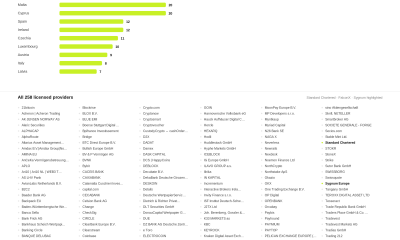

Standard Chartered Secures MiCA License as ESMA Adds 37 New Crypto Firms


AXT Shares Jump Nearly 14% as Semiconductor Materials Maker Rebounds on AI-Linked Indium Phosphide Demand


Broncos roster: OL Ben Powers (No. 74) entering final year of contract


Binance stock trading tops $1B in first month after launch
SK hynix (000660.KS) Stock Dips as $28B Nasdaq ADR Offering Drives AI Memory Expansion
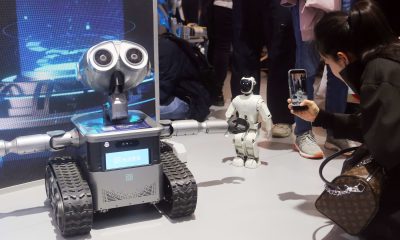

Alibaba-affiliate Ant Group enters the humanoid robot market with 12 deals


South Africa proposes crypto tax guidance under existing rules


Best Time to Enter Small Caps Right Now? Another Bull Run? | Financially Free
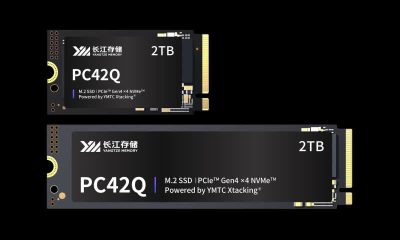

Lenovo laptops are now shipping with YMTC SSDs, a sign of Chinese NAND entering the mainstream


Whats Hidden Inside This Cash Register? #treasure #reselling #money

Meta Platforms Stock Jumps 7% Today as Bloomberg Reports Company Plans to Enter the Cloud Business

New exhibition reflects five decades of movement between island of Ireland and GB


What a 10 Percent Drop Means for Buyers, Sellers and Renters


Binance Re-Enters Philippines As EU MiCA Rules Restrict Access


Avoid entering in FOMO #bitcoin #cryptocurrency #trading #scalping

You must be logged in to post a comment Login