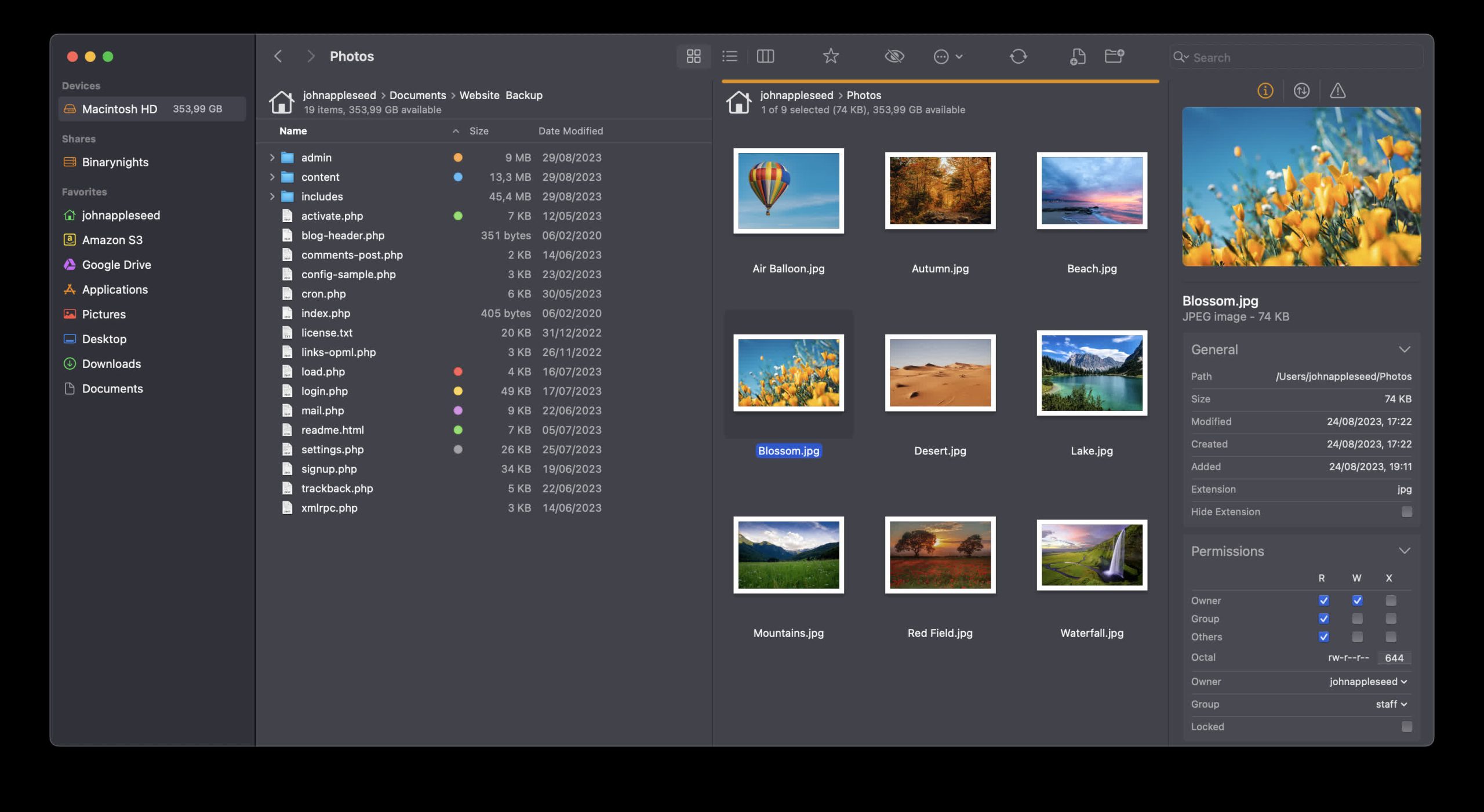
ForkLift combines the power of a robust file manager with versatile file transfer capabilities, seamlessly bridging the gap between your local and remote files. Whether you’re dealing with cloud services or more traditional FTP and SFTP servers, ForkLift streamlines your file management and transfers, making them smoother than ever.
ForkLift 4 is your all-in-one solution for efficient file management and seamless file transfers, across multiple platforms and services.
We understand that accessing, organizing, synchronizing, and sharing your files should be hassle-free, especially as the landscape of file sharing evolves with the increasing importance of cloud service providers such as Dropbox, Amazon S3, Google Drive, and OneDrive.
Is ForkLift worth it compared to alternatives like Finder or Nimble Commander?
Many users appreciate its dual-pane layout, batch operations, archives support, and advanced sync features. Compared to rivals, ForkLift offers better transfer management and preview behavior. Still, some feel the interface isn’t as lightweight or intuitive as others.
Advertisement
Is it easy to switch from Finder to ForkLift as the default file manager?
Yes. By running a simple defaults write -g NSFileViewer -string com.binarynights.ForkLift command in Terminal, you can set ForkLift as the system default for opening folders.
Which protocols can I connect to ForkLift?
ForkLift will connect to any remote server such as SFTP, FTP, WebDav, Amazon S3, Backblaze B2, Google Drive, OneDrive, Dropbox, Rackspace Cloudfiles, SMB, AFP, and NFS remote volumes. You can manage your files and connect to multiple servers at a time and even copy between them with drag and drop.
Is ForkLift free?
You can download a time limited trial of ForkLift, but you will need to buy a license in order to keep using it.
Features
Remote Connections
Advertisement
Connect to SFTP, FTP, WebDav, Amazon S3, Backblaze B2, Google Drive, OneDrive, Dropbox, Rackspace Cloudfiles, SMB, AFP, and NFS remote volumes. Manage your files efficiently across networks: connect to multiple servers simultaneously and even copy between them with drag and drop.
Sync
Compare local or remote source and target folders identifying matching, modified, new and deleted files. Synchronize them one or two-way with a single mouseclick, or save it as a favorite. Up to 20x faster analyzation than ForkLift 3.
Favorite Paths
Advertisement
Experience enhanced efficiency for remote destinations. Think of it like having favorites within favorites – an organized way to keep track of paths you frequently use and want quick access to.
Preview
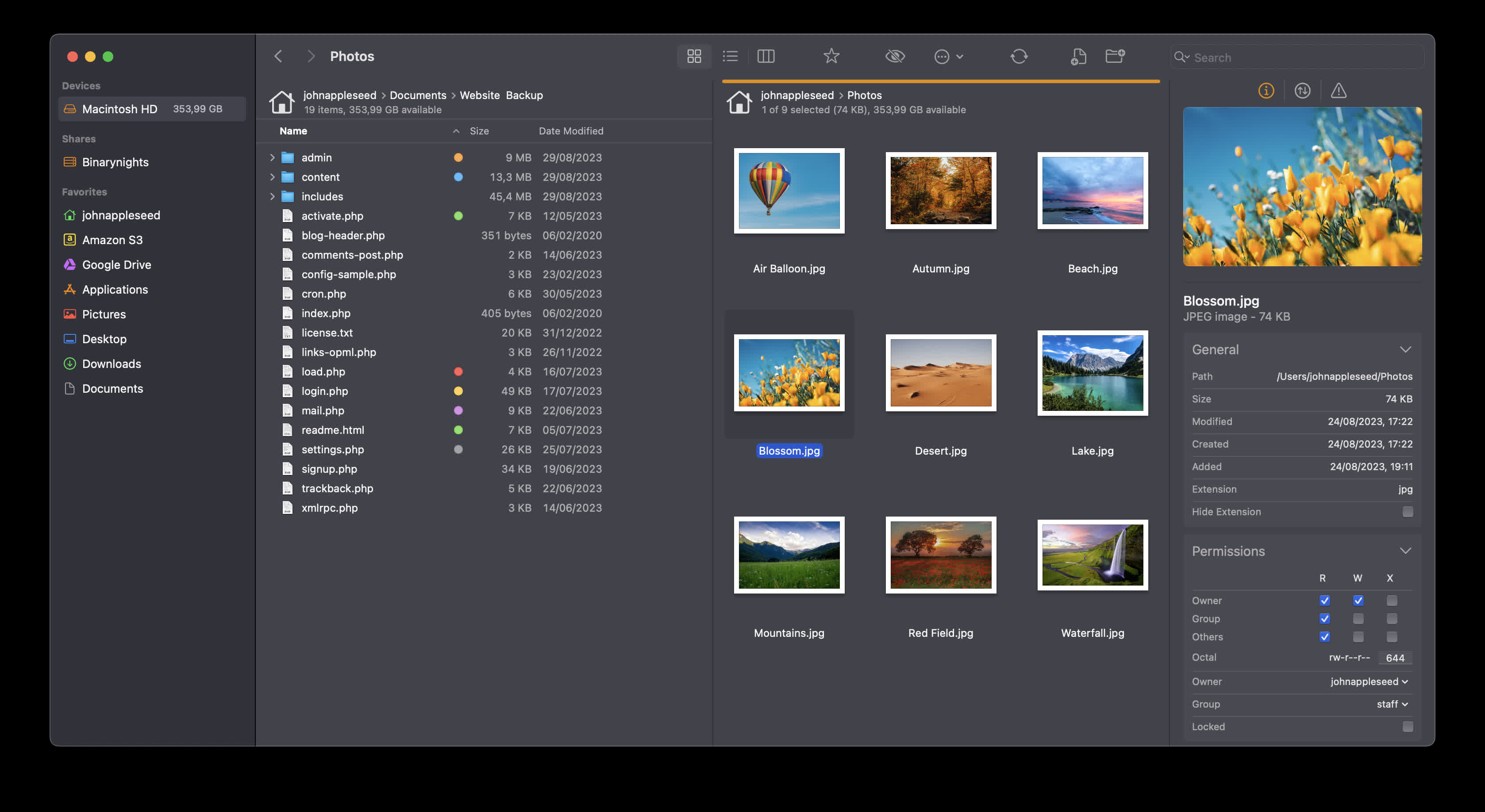
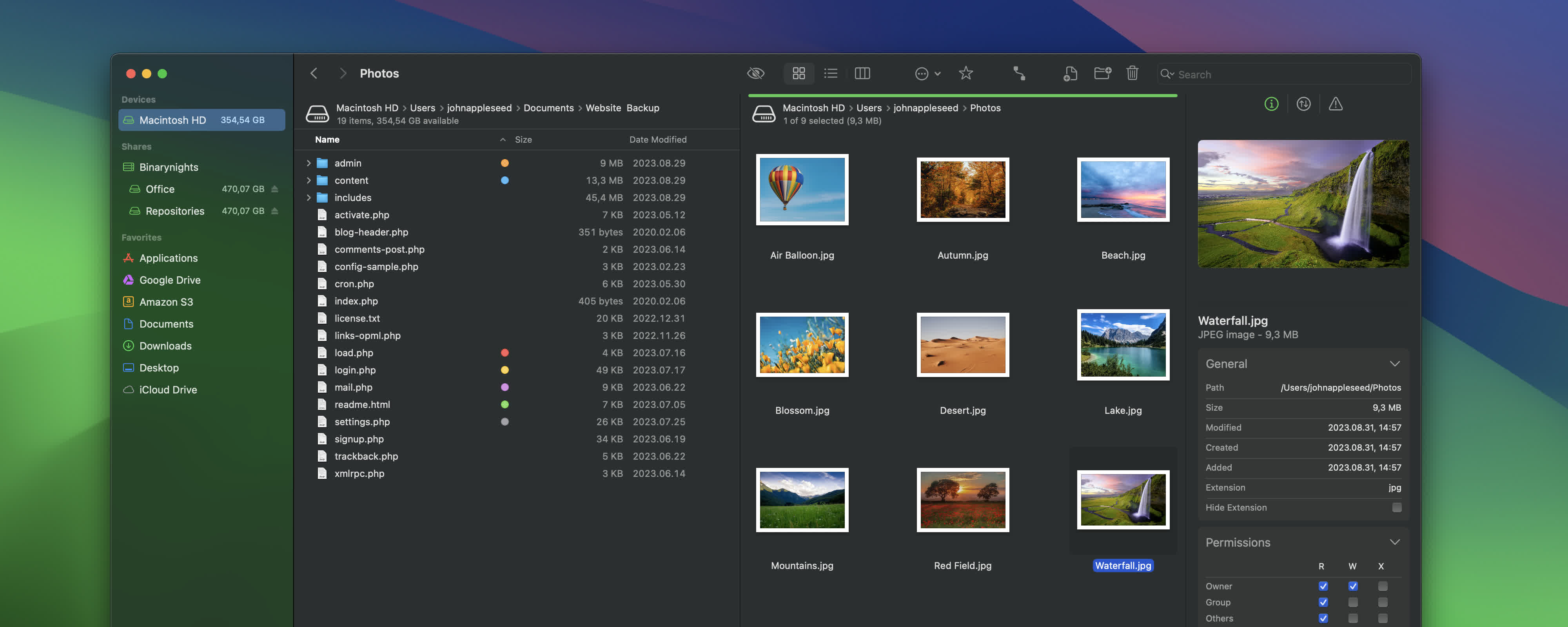
The preview panel shows you useful information about the selected file. Playback audio and video files, inspect images, PDFs and other popular document types. Quick edit text files in place, both on local drives and remote servers.
Activity View
Advertisement
Whether you’re copying, renaming, deleting, compressing, or handling other tasks, this feature lets you see exactly what’s going on. No more guesswork – watch your tasks progress in real-time and stay in control of your file management action.
Quick Open
Easily access your favorites, devices, menu commands, open a selected file with a preferred application, or apply a previously saved Multi Rename preset on selected files or folders.
Log View
Advertisement
Get valuable insights into your file management activities and their results, all in one easy-to-access place.
Favorite Sync
ForkLift will keep all your favorites synchronized across multiple computers via iCloud.
Dropbox Support
Advertisement
Copying Dropbox links to files located in your Dropbox directory is just a right-click away.
Transfers
Reorder transfers, set conflict management rules, error handling, limit download and upload bandwidth.
Tags
Advertisement
Organize your documents and files with tags: add, edit, remove, search, or filter them within ForkLift.
Sync Browsing
Given two identical folder structures. Browse in one pane and let ForkLift do the job for you in the other pane.
Tabs
Advertisement
Open different folders in the same pane, instead of separate windows.
Search
Search and filter by name, extension, kind, tags or content, even on remote servers.
Quick Select
Advertisement
Select files by typing a filename, an extension, or a tag and add them or exclude them from the selection.
Remote Editing
Set your preferred editor in ForkLift to edit remote files and we take care of uploading your changes as you save.
Command Line Tools
Advertisement
Extend ForkLift’s capabilities to the max by invoking command line tools and apply them by using shortcuts.
Themes
A seamless way to personalize your interface. Choose from predefined themes that suit your taste, or let your creativity shine by crafting your very own themes.
App Deleter
Advertisement
ForkLift comes with an application deleter to remove the last morsels of an application you want to uninstall.
iCloud Support
Seamlessly access and manage your iCloud files through ForkLift.
Archive Management
Advertisement
Browse local and remote archives as if they were ordinary folders. You can even Quick Look, search and filter.
Keyboard Control
Control every operation straight from the keyboard and customize it to your preferences.
Multilingual
Advertisement
ForkLift speaks English, German and Hungarian. More languages are coming soon!
Workspaces
Save different layouts with opened tabs and locations and load what you need at the moment.
Git Support
Advertisement
ForkLift knows git and will show you the status of individual files. You can add, commit, push, and pull.
Open in Terminal
An absolute must for powerusers. Open a Terminal, iTerm, Hyper, Kitty or Warp window at your current local path.
Hidden Files
Advertisement
Make hidden files and folders visible easily by using a shortcut or pressing a button in the toolbar.
Share
Share gives you an easy way to share all kinds of documents and other files instantly.
Default File Viewer
Advertisement
Set ForkLift as the default file viewer and almost every app will point to ForkLift instead of Finder.
File Compare
Compare two text or images files with Xcode’s FileMerge, Kaleiodoscope, Beyond Compare, or Araxis Merge.
What’s New
External Drive Tags, comments, and Checksum Improvements
Advertisement
We recently introduced the ability to calculate checksums for files, making it easier to verify that files have not been altered or corrupted during transfers and that two files are truly identical. Checksums can be calculated for multiple files at the same time, with the file names and checksums displayed in a dedicated window.
In ForkLift 4.6.2, we improved the usability of the Checksum Window by adding support for selecting multiple items at once. You can now easily copy selected items or use Command-A and Command-C to copy all entries. The copied content is exported in CSV format, making it easy to paste into spreadsheet applications such as Microsoft Excel or Apple Numbers.
Changes to the Preview API on macOS Sequoia and Tahoe
In version 4.6.1, we introduced a new Preview API to support the new style of folder icon previews. Unfortunately, this API currently has several limitations that cannot be addressed by us directly. We have reported these issues to Apple and hope they will be resolved in future macOS updates.
Advertisement
The new style folder icons are only available on macOS Tahoe, so in ForkLift 4.6.2 we have disabled the new Preview API for users on macOS Sequoia because it caused multiple issues with icon previews on that version of macOS. As a result, users on macOS Sequoia will no longer experience the negative side effects of the new API.
Users on macOS Tahoe will continue using the new API and will still be able to see colored folders and icons added to folders in Finder. However, the API currently does not correctly handle certain folder icon customizations made in System Settings, which means some custom folder appearances may not be represented accurately in ForkLift. Unfortunately, this limitation is outside of our control.
We have also fixed a possible crash introduced in the previous version, along with several other possible crashes and hangs, and some other fixes and improvements.
Full List of changes:
Advertisement
Improvements
Displays tags on external drives
Comments added in ForkLift now show up in Finder as well
Adds an option to select multiple items in the Checksum Window; the copied list is in CSV format, so it can be easily pasted into spreadsheet applications
Adds “Edit” and “Hide from Sidebar” options to the context menu of Sync favorites in the Sidebar
Fixes
Fixes an issue with the movement of favorites in the sidebar that pointed to the same server
Fixes a possible hang caused by recent items in the sidebar
Fixes a possible crash in List View
Displays a folder icon on remote locations when the folder name contains a dot
Displays the Kind of folders correctly when the folder name contains a dot
Fixes an issue that made it impossible to delete the last remaining digit from the Time Offset Correction field in the Sync Window
Fixes a possible hang after a tab or window was closed during an unfinished search operation
Fixes a possible hang after a tab or window was closed during an unfinished search operation
Removes the new Preview API on macOS Sequoia introduced in version 4.6.1 due to several issues with icon previews
Previous Release Notes:
ForkLift 4.6.1 is available – Tahoe folder colors, improved memory usage, and restored PDF preview
Folder icon support on macOS Tahoe and performance improvements
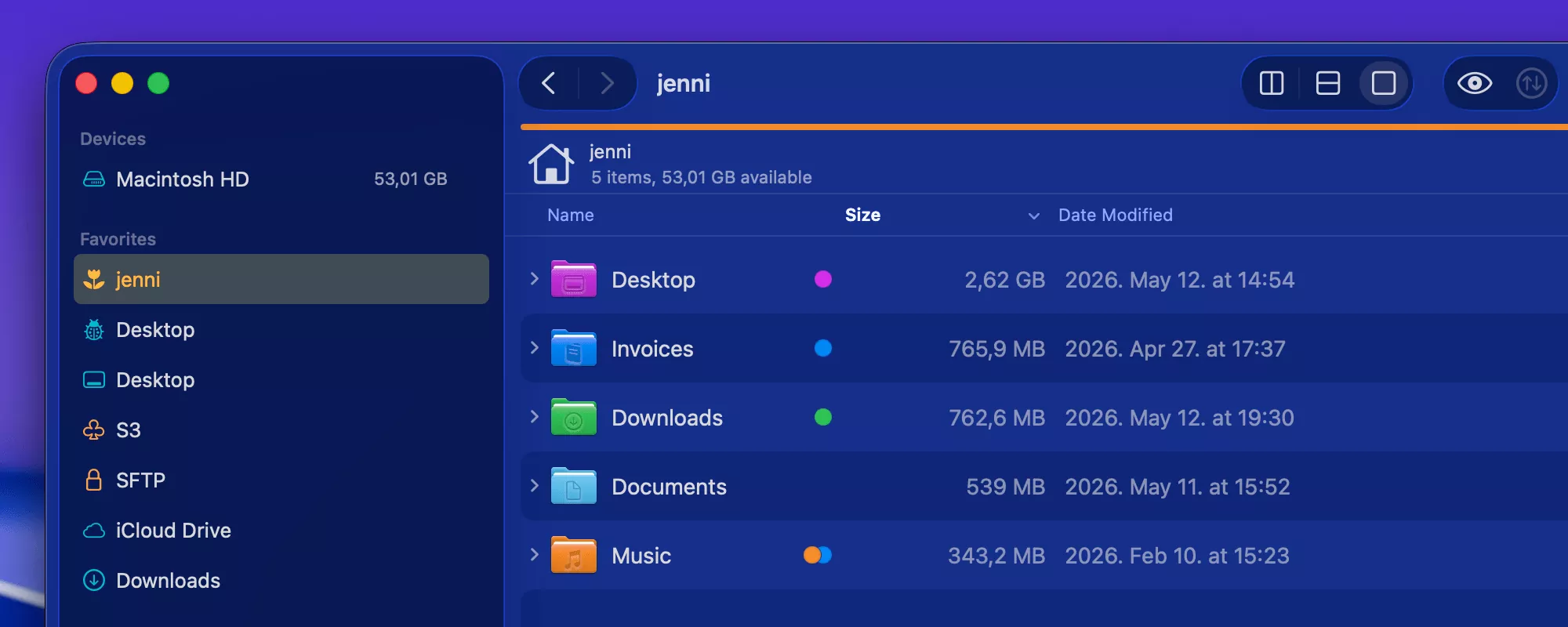
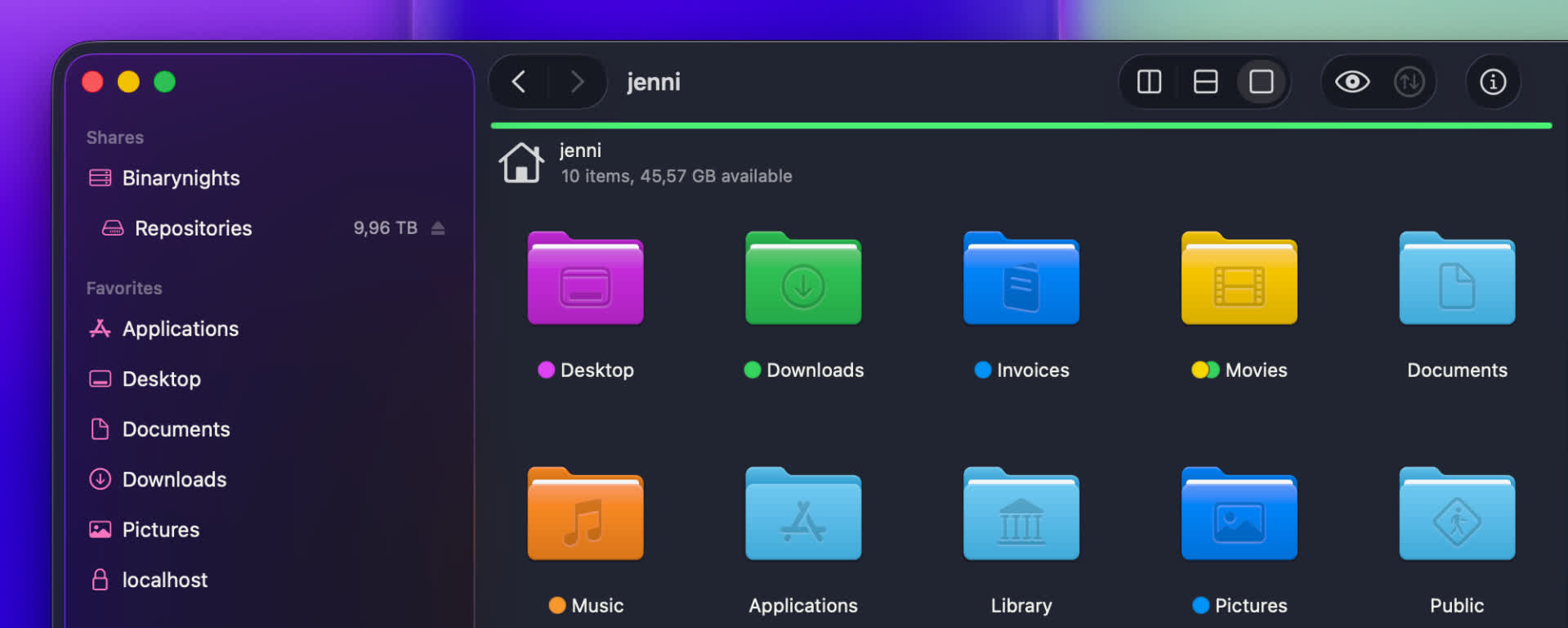
Finder on macOS Tahoe introduced a big change by allowing users to customize folder icons. The last applied color tag now determines the folder color, and it is also possible to add icons to folders to make them stand out.
Advertisement
With ForkLift 4.6.1, we have updated how folder icons are handled. ForkLift now inherits folder colors from Finder, and when you assign a color tag in ForkLift, the folder color updates accordingly. ForkLift also displays custom icons that were added in Finder. However, due to missing system APIs, adding custom folder icons directly in ForkLift is not possible at this time.
We have also fixed multiple possible memory leaks and improved overall memory usage. This results in a more stable and efficient experience.
PDF preview fixes and iCloud tag improvements
In addition, this version includes several smaller improvements. You can now edit file favorites directly from the sidebar, use the Tab key to autocomplete tags more reliably, and benefit from improved information display in the Status bar and in the Preview pane.
Advertisement
We were also able to restore the full functionality of the PDF viewer in the Preview pane. It is now again possible to customize preview options through the right-click context menu, and text selection inside PDF previews has been re-enabled.
It is now also possible to remove the last remaining tag on iCloud Drive, and we have resolved an issue where pressing the Tab key during tag autocompletion could cause the tag to disappear.
New
ForkLift now colorizes folder icons on macOS Tahoe the same way as Finder, inheriting and applying the assigned colors
ForkLift displays customized folder icons set in Finder, however, customizing folder icons directly in ForkLift is not supported
Improvements
Improves the display of aggregated date information in the Preview pane when multiple files are selected
Adds an alert when iCloud Drive is busy and interaction is not possible, to clarify why an action cannot be executed
Adds an option to edit file favorites from the context menu in the Sidebar
Improves memory usage
Fixes
Fixes an issue that made the file view jump in List View after renaming or deleting files when Group by was enabled
Fixes multiple possible memory leaks
Fixes an issue that didn’t show the lock icon on locked folders when icon preview is enabled (the lock icon doesn’t show up on files starting from this version)
Fixes an issue in the Status bar, which didn’t update the displayed info correctly after folders were expanded and collapsed
Fixes an issue of the preview of PDF file in the Preview Pane introduced in version 4.3.5, which made it impossible to select text inside the preview and to use the right-click context menu to customize the preview options. This version restores the previous functionality
Fixes an issue that made it impossible to remove the last tag on iCloud Drive when there was only one tag remaining
Fixes an issue where pressing the Tab key while autocompleting a tag made the tag disappear
Two powerful new features in ForkLift 4.6
Exciting news! ForkLift 4.6 introduces two major features that power users will love, especially those who rely heavily on tags and those who create custom tools.
Advertisement
Smarter tagging and autocompletion
The first major improvement in ForkLift 4.6 focuses on tags.
Working with tags in ForkLift has traditionally not been as seamless as in Finder, mainly due to macOS limitations for third-party developers. Unlike Finder, third-party apps cannot access and edit tag data in the same way, which means features like native tag autocompletion are not directly available.
In earlier versions, we introduced the Tags section in the Settings to allow users to add their own tags to the sidebar, making them easily accessible. With ForkLift 4.6, we are expanding this feature and making it more powerful.
Advertisement
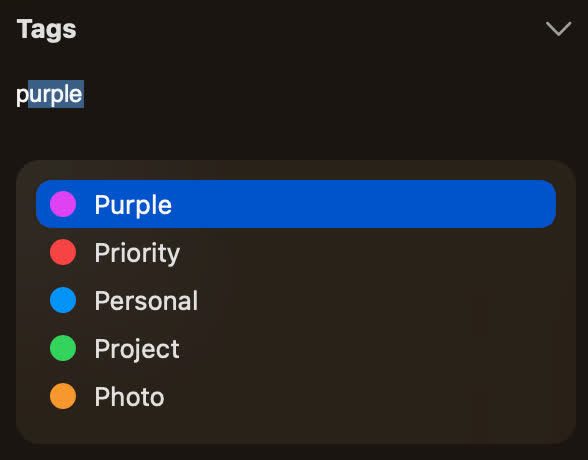
ForkLift now uses the tags listed in the Settings for autocompletion in the Tags section of the Preview Pane or in the info window. As you type, it suggests matching tags from your predefined list.
ForkLift tag autocomplete as you write To take full advantage of this feature, you should add the tags you use most frequently to the Settings. This ensures they are always available for quick and consistent tagging.
Better control over sidebar tags
Since you may not want to display every tag in the sidebar, we have made it easier to manage their visibility. To hide a tag, right-click it in the Settings and select “Hide from Sidebar”. To show it again, right-click and select “Show in Sidebar”
Advertisement
If you want to manage the visibility of multiple tags at once, it is easier to use the Sidebar Editor. Add the tags you want in the Settings, then close the Settings window. From the menu, select View > Show Sidebar Editor. When the Sidebar Editor appears, you can quickly hide tags by unchecking them. Once you are done, you can close the Sidebar Editor again from the View menu.
This gives you full control over which tags are visible without affecting their availability for autocompletion.
Assign tags directly from the sidebar
The sidebar is now more than just a way to filter files. You can still click a tag to view all associated items, but now you can also assign tags directly from the sidebar:
Advertisement
Select one or more files or folders
Drag them onto a tag in the sidebar
Drop them to assign that tag
This makes tagging faster and more intuitive, especially when working with multiple files.
Improved tag input field
We have also improved the tag input field in the sidebar. Not only does it now include a dropdown to suggest matching tags as you type, but it can also expand to display all assigned tags, making them easier to view and manage. Previously, this field had limited space and could not show all tags at once when working with a large number of tags.
Custom tools, now one click away
The second major improvement focuses on tools.
Advertisement
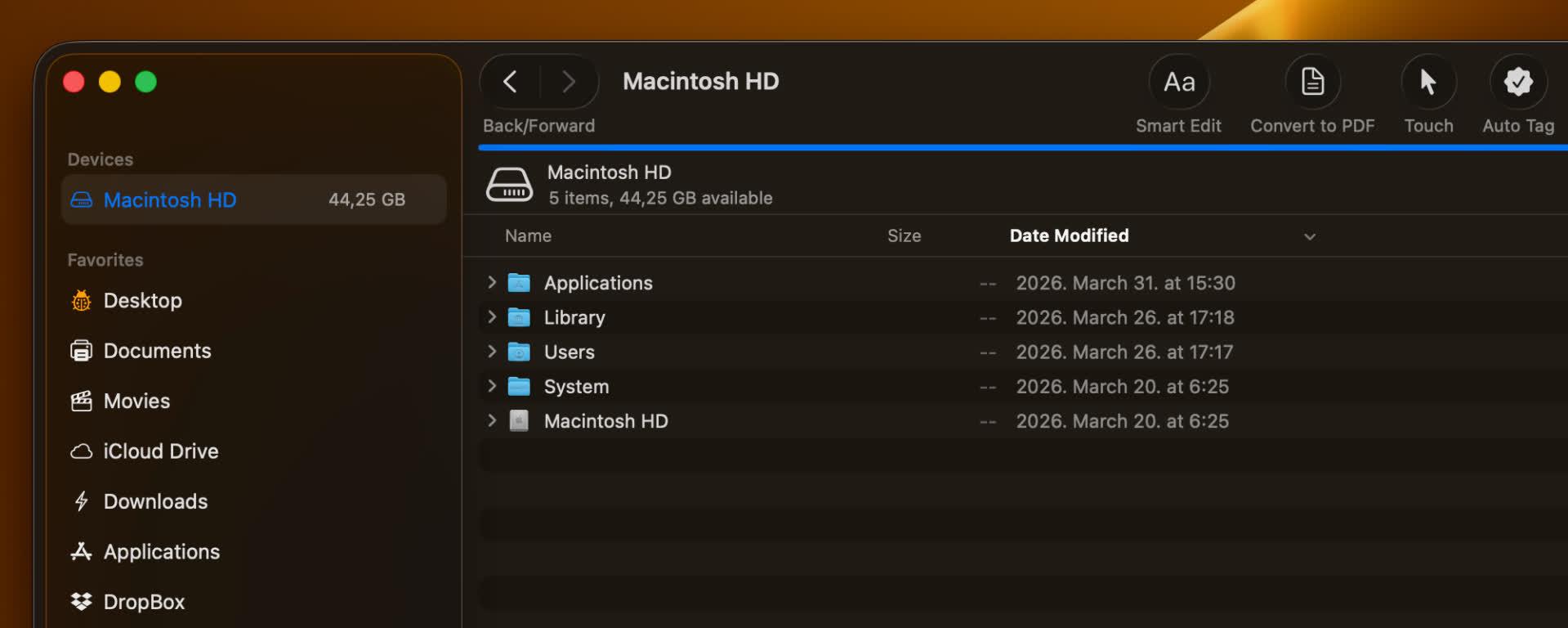
The Tools feature has always been one of the more powerful, yet somewhat hidden, features of ForkLift. It allows you to create your own tools in the settings using zsh scripts, so you can execute complex actions and workflows more easily.
Previously, these tools could only be executed from the Commands menu, and later they became available in the right-click context menu. Now, we are taking this a step further:
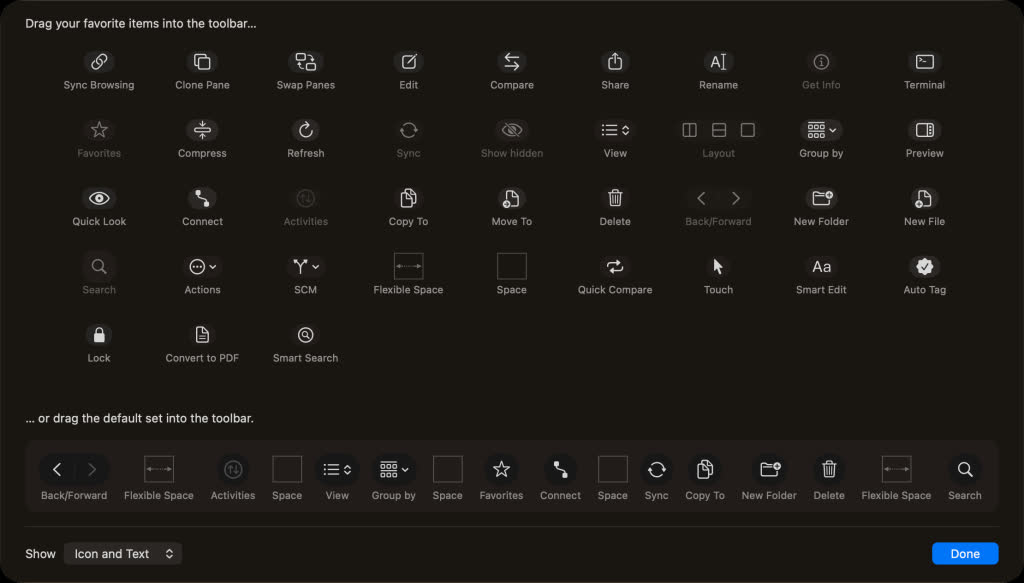
You can add your custom tools directly to the toolbar and execute them with a single click.
Customize your tool icons
Advertisement
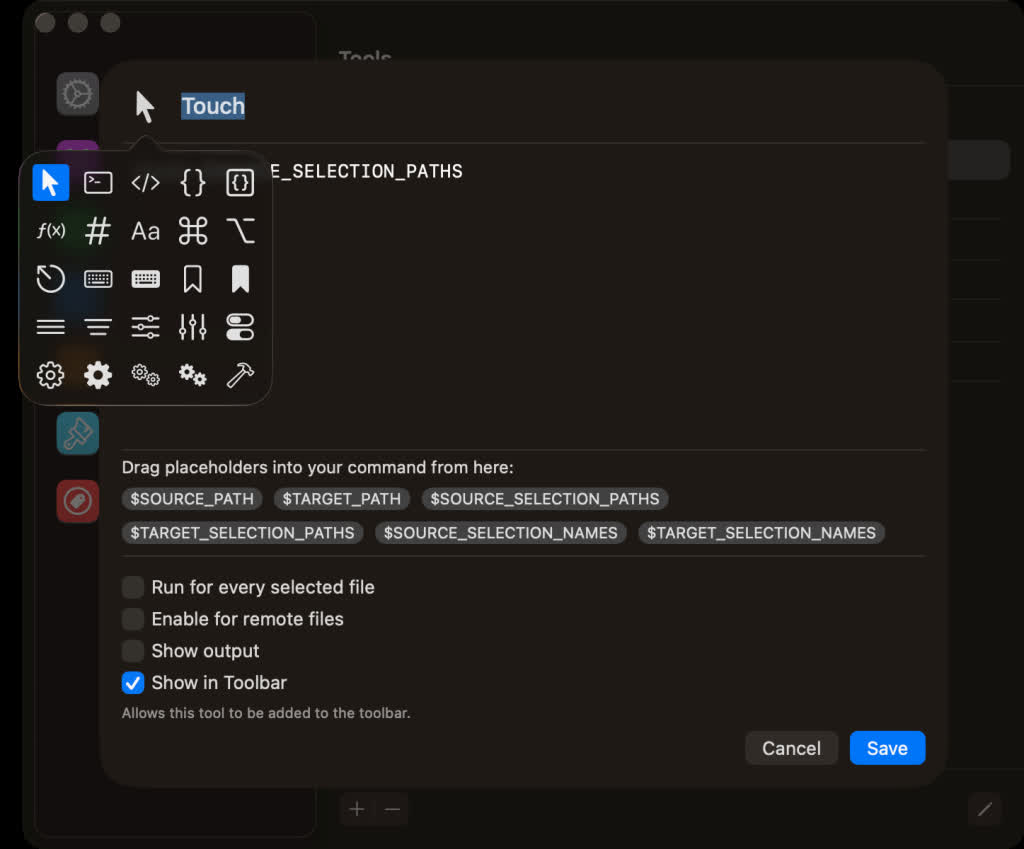
When creating or editing a tool, you can assign an icon to represent it both in the Tools section and in the toolbar. By default, new tools use a gear icon, and existing tools are also assigned this icon automatically.
You can easily change it:
Click the icon in the top-left corner while editing or creating a tool
Choose a new icon from the pop-up window
This makes it much easier to visually distinguish your tools at a glance.
How to add tools to the toolbar
Adding your tools to the toolbar is simple, but it happens in two steps:
Advertisement
1. Enable the option
Go to the Tools tab in the Settings
While creating or editing a tool, enable “Show in Toolbar”
2. Add it manually to the toolbar
Right-click the toolbar
Select “Customize Toolbar…”
Find your enabled tool in the customization tray
Drag it into the toolbar
Note: Enabling “Show in Toolbar” does not automatically add the tool, it only makes it available for selection.
Full List of changes
New
Tags autocompletion feature in the Preview Pane and Info Window based on the list of tags added under ForkLift > Settings > Tags
Option to assign a tag to a file by dropping a file onto a tag in the sidebar
Option to add custom tools created under ForkLift > Settings > Tools to the toolbar
Option to hide and display tags in the sidebar under ForkLift > Settings > Tags through the right-click context menu
Improvements
Improved expandable Tags field in the Preview Pane, now able to display all tags
Option to exit the Tags field using the Esc key
Option to select multiple tools in the Tools section of the Settings
Fixes
Fixes an issue that indicated it was possible to add remote files as favorites to the sidebar by drag and drop
Fixes an issue in Column View where, after disconnecting from a remote location, the location did not change back to the starting directory
Fixes an issue on macOS Tahoe where hitting Esc in the tool editor while adding a new item did not cancel the operation and instead added the new item
Walk through any Singapore mall today, and something about the atmosphere has quietly changed. The bubble tea shop is from Chengdu. The hotpot place is backed by a 700-outlet chain you’ve never heard of. The coffee queue is for Luckin, not Starbucks.
Chinese F&B brands are suddenly everywhere, and they are expanding rapidly. Molly Tea, for instance, arrived less than two months ago and has already opened its second store.
This isn’t a coincidence, but part of a larger phenomenon—and understanding why requires looking at what’s happening inside China first.
The cause wasn’t a single recession or policy shock, but something more structural: a market so competitive that it began consuming itself.
Economists call it involution (neijuan), a cycle of excessive internal competition where companies fight harder for the same or shrinking demand. Instead of expanding the market, everyone competes on price, driving margins down until survival, not growth, becomes the goal.
Image Credit: Lucky Cup
In F&B, this dynamic shows up most clearly in price undercutting. When Luckin already pushed coffee to RMB¥9.9 (S$2) lattes, newer entrants like Lucky Cup went even lower, selling RMB¥6.6 (S$0.90) coffees. The logic wasn’t to build premium positioning, but to win attention and volume in an overcrowded market where differentiation had collapsed into price.
The same dynamic shows up in electric vehicles. In China’s increasingly crowded EV market, BYD has been actively cutting prices to defend its share against intensifying competition. The result is a sector-wide squeeze on profitability: despite record sales volumes, BYD has faced sustained downward pressure on margins, culminating in its first annual profit decline in four years by March 2026.
Advertisement
Even BYD’s chairman Wang Chuanfu has acknowledged that the industry has reached a “boiling point,” where competition is no longer translating into proportional gains. In this environment, sales growth alone no longer guarantees sustainable profits—companies are effectively trading margin for volume just to maintain position in an oversupplied market.
And increasingly, Singapore emerged as a consistent destination.
Why Singapore?
Image Credit: Jack Hong via Shutterstock
Singapore is not just a market for Chinese brands but a legitimacy stamp for these businesses. If they can make their businesses work in Singapore, they can succeed anywhere in Asia.
A brand that earns its place here is perceived as having cleared a meaningful bar.
Traditionally a bridge between Eastern and Western cultures, Singapore has also become an attractive gateway for expansion, with its 6.1 million predominantly Chinese population.
As executives at several Chinese firms noted in interviews, the city-state is seen as “wealthy and fashionable”—a place where simply having a presence carries branding value, even beyond immediate sales potential.
The executives are not shy about revealing the larger ambitions Singapore has for their brands. ChaPanda’s Singapore manager told Inside Retail Asia: “If we can build up our brand in Singapore, the brand awareness can go to Malaysia and Vietnam, even Indonesia.”
Advertisement
This sentiment is echoed by Luckin’s CEO Guo Jinyi, who shared that Singapore serves as a “critical testing ground” for building the brand, refining operational systems, and understanding overseas business models. The city-state serves as Luckin’s launchpad into other Southeast Asian countries.
There are also precedents of Chinese brands using Singapore as a stepping stone toward more global expansion. Tea brand Tai Er, for instance, leveraged its Singapore operations as part of its regional push before eventually entering the US market by 2023.
The pattern is consistent across many Chinese brands that went global. Singapore is not the destination. It’s the launchpad, a stamp of legitimacy that makes the next ten markets easier to enter.
Losses that don’t matter
Image Credit: Sethlui.com
This reframes everything about how these brands operate here, including the rents they’re willing to pay.
Consider the scale some of these chains are operating at. Pang Pang, the claypot crab restaurant at Bugis, has over 600 outlets in China and sells 50 million pots a year. Xiao Yu Hao at Raffles Place—known for its suan cai yu—runs 800 outlets back home. Xita Lao Tai Tai at Bugis+, a charcoal clay stove BBQ chain, operates 600 outlets and is named China’s number one BBQ chain. Yeah Gelato in Tampines has 168 outlets in China.
Advertisement
These brands draw on lean business models honed in China’s intensely competitive market and apply them to operations in Singapore to withstand high costs. Many rely on vertically integrated supply chains, where companies control multiple stages of production in-house—a sharp contrast to many Western rivals, which tend to depend on outsourced suppliers.
Since 2021, Luckin has been building more of its production capabilities. Its low-value consumables, such as packaging materials and straws, cost the company just RMB¥210 million (S$39 million) across its entire 30,000-store network. This translates to roughly S$1,307.64 per store per year, or about S$3.58 per store per day.
Luckin’s newest US$440 million smart roasting centre in Qingdao, Shandong Province, China./ Image Credit: Luckin Coffee
When a brand of this scale opens in Singapore, the individual outlet’s profit-and-loss is almost beside the point. If you view the 81 stores here in proportion to the over 30,000 stores that Luckin Coffee has in China, the Singapore stores are a marketing expense—a flagship that generates press coverage, attracts franchise interest from regional partners, and signals to investors that the brand is global.
This is why they can outbid local tenants on rent without flinching.
Andy Hoon, chairman of Bosses Network, a local business networking group representing SME and retail operators, described the dynamic: if a Singaporean tenant offers S$36 to S$38 per square foot when the market expectation is S$30 to S$40, a Chinese brand might offer S$45—above what even the landlord anticipated.
Advertisement
Industry observers echo this shift. Ethan Hsu, head of retail at Knight Frank, noted that large-scale Chinese investment has contributed to rising rents in high-traffic locations, while TungLok Group CEO Andrew Tjioe added that some brands are less driven by immediate profitability than by securing overseas presence and building global brand visibility.
Luckin’s financials are a great example of this business strategy. In financial year 2024, Luckin’s Singapore operations reported losses of RMB¥47 million (S$8.8 million). But in the same year, Luckin generated over RMB¥34.5 billion (S$6.4 billion) in total revenue, with an operating profit of approximately RMB¥3.5 to 3.9 billion driven overwhelmingly by its China business.
Yet, it has been expanding by around 30 stores every year here since 2023.
The model has a vulnerability that doesn’t show up until later: it assumes the China business stays strong enough to keep subsidising overseas losses.
Haidilao is a key example. The hotpot chain opened its first Singapore outlet at Clarke Quay in 2012, making it its first international outlet outside mainland China. Following its success, Haidilao expanded to more than 20 outlets across Singapore at its peak.
Then the rationalisation began. The Clarke Quay flagship closed in August 2025, following earlier shutdowns at Downtown East and Bedok Mall.
A Haidilao spokesperson cited labour costs, outlet locations, and rental pressures as reasons for closing underperforming stores, as the chain moved to optimise operational efficiency. The closures highlight a familiar constraint: when overseas expansion is no longer easily justified to public markets, consolidation tends to follow.
Unlike Haidilao, most of the newer brands entering Singapore aren’t publicly listed—meaning they don’t yet have shareholders demanding quarterly results. Many are venture capital or private equity-backed, operating on deep pockets with capital that is explicitly patient. But patient capital still has expectations.
Advertisement
If a brand cannot demonstrate a credible path to profitability in Singapore within two to three years, investor expectations begin to shift. Sustaining prime locations while keeping prices low ultimately depends on continued financial backing—either from a strong parent company or successive funding rounds—that can support the broader supply chain and scale these brands rely
Image Credit: Daniel Food Diary
Knight Frank has described the environment as “a very Darwinian retail landscape,” noting that rising competition from Chinese entrants has intensified pressure on incumbents. Unlike many local players, these new entrants have largely been insulated from closures, underpinned by scale advantages that domestic operators struggle to match.
There’s no doubt that they will keep coming. The more pressing question is what happens when these brands have been in Singapore long enough to be judged on standalone performance, and whether the China-based ecosystems quietly subsidising their expansion can continue absorbing pressure of their own.
Read other articles we’ve written on Singaporean businesses here.
Featured Image Credit: Molly Tea, Strike Gundam via Google Reviews, Sentosa, Entree Kibbles
The world of open source — and in particular open source licenses — is something we cover regularly here at Hackaday with respect to hardware and software, but it’s not so often we find open source data stories. Today’s case of the open British address data then is a bit of an outlier, but it may have implications for open source data further than British counties.
UK government data is released under the Open Government Licence, which is why we Brits can peer into all sorts of datasets our taxes paid for. This includes data from local government, so English counties release data sets of local addresses as part of their auditing of council taxes under the licence.
This is a picture of Barbra Streisand, the patron saint of unintended consequences.
[Owen Boswarva] has been collating these databases in order to produce a national open source address database, but has found himself at the receiving end of a legal threat from the Ordnance Survey, the UK mapping agency. They claim the data is theirs, not open.
British address data is in a sense open to all, in that there’s nothing to stop anyone walking down Acacia Avenue and noting the position of Number 1, Number 2, Number 3, and so on. This is what happened with OpenStreetMap worldwide, as people with GPS devices contributed their data and mapped the UK and everywhere else. The Ordnance Survey used to have a nice little earner charging top dollar for UK geospatial data which has been slashed by the arrival of OpenStreetMap, and we’re guessing that the prospect of losing another income stream to an open source equivalent has them worried.
The question of whether the councils should have released the data is one which will no doubt be settled at some point by the courts, and [Owen] goes into some detail on the subject in his analysis. There’s a good case to be made that the mapping agency are pushing it a little, but whatever the outcome it could set a dangerous precedent for open source data. We’ll keep you posted if there’s more on this story.
Sony just dropped its newest top-tier phone, the Xperia 1 VIII, and it arrives at a moment when most people have forgotten the company even competes in this space. Announced today, the device brings a complete visual refresh after years of the same tall, narrow shape. At first glance the changes feel subtle, yet they add up to something that finally stands apart from the sea of glass slabs everyone else sells.
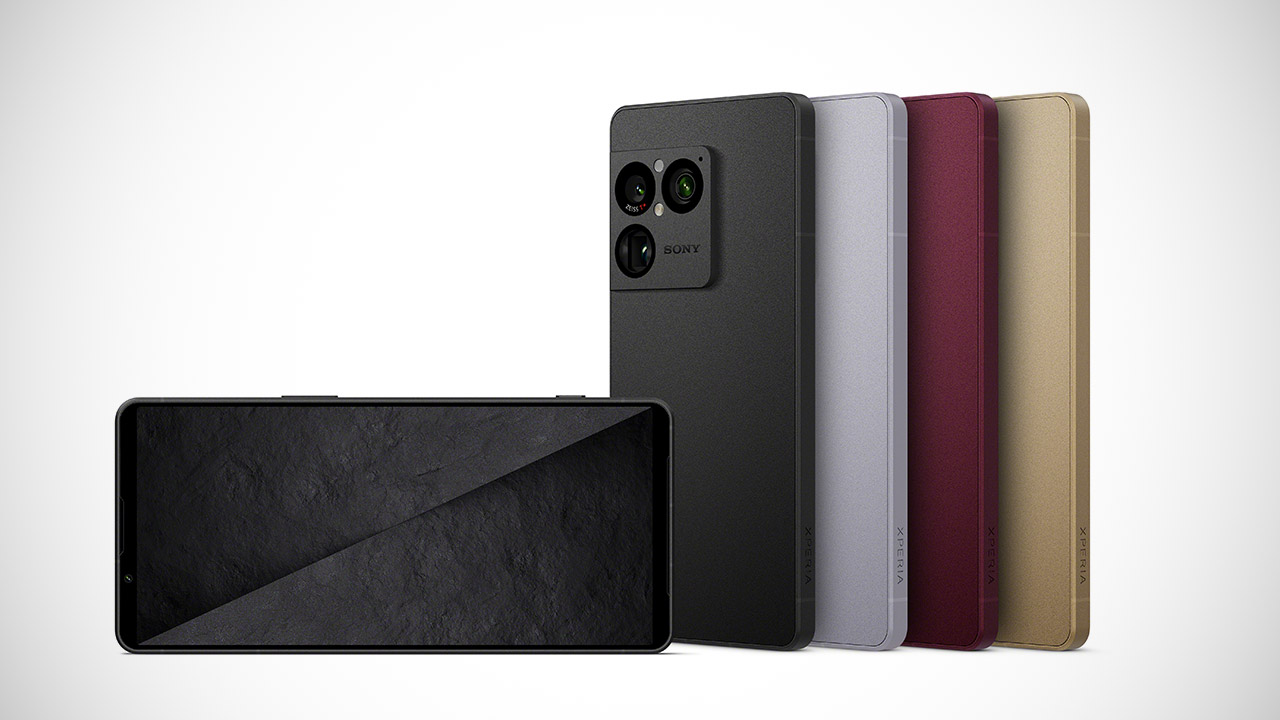
Start with the body, which Sony refers to as the ORE appearance, which is unsurprising given that it is inspired by the rough textures of raw gemstones and natural stone right from the ground. The rear of the phone has a frosted glass finish with a fine grain that makes it a pleasure to handle, as opposed to the typical slick sheen found on other phones. There are four new colors to pick from: graphite black, iolite silver, garnet red, and a gorgeous Native Gold that is exclusively available on the higher-capacity models. The rear features a redesigned elevated camera block wrapped in metal and housing the lenses in a flush layout along the left edge. We no longer see the former vertical strip. The phone appears to have undergone a growth spurt, as it now boldly displays its camera system for all to see.
TYPE IT IN. TRANSFORM IT FAST: Enhance any shot in seconds on your smartphone by using Photo Assist¹ with Galaxy AI.² Add objects, restore details…
MAKE IT. EDIT IT. SHARE IT: Turn everyday moments into something personal with creative tools built right into your mobile whether it’s a special…
FAST. POWERFUL. AI-READY: Power through your day with AI-accelerated performance from our fastest, smoothest and most powerful Galaxy processor yet…
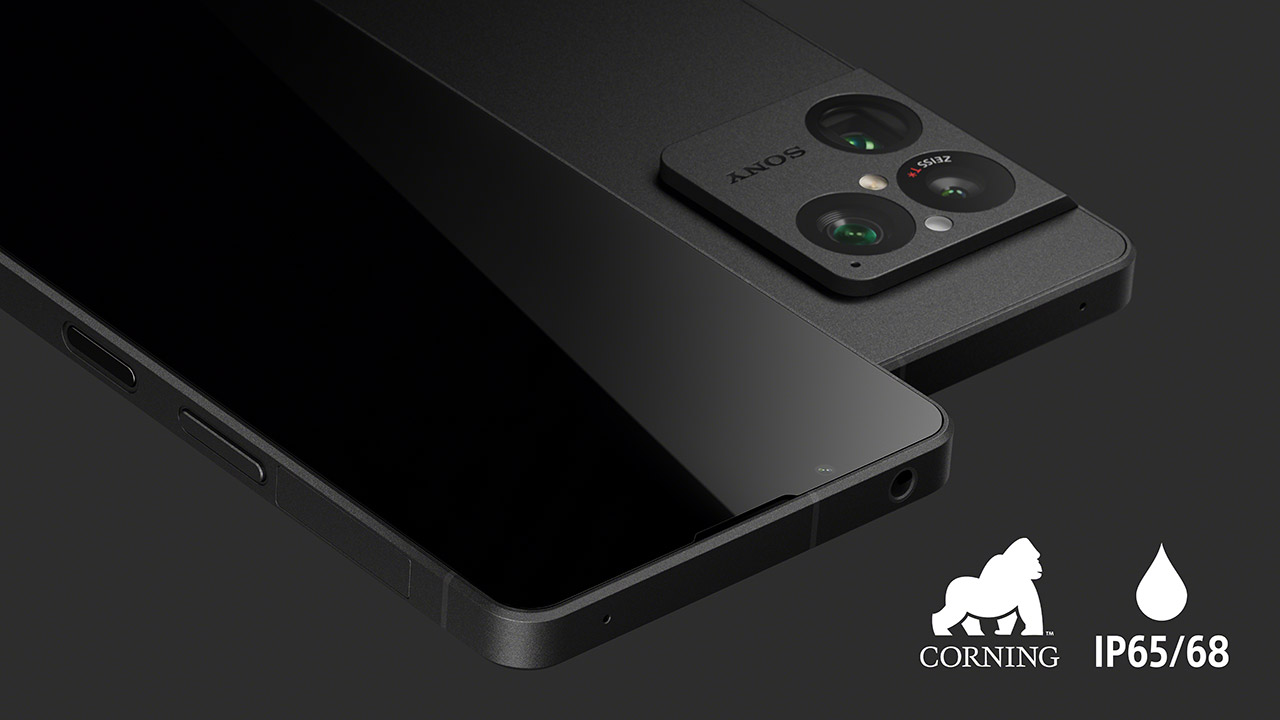
Flip it around, and the 6.5-inch screen is a stunning piece of OLED with a 120 hertz refresh rate and the same 1080 by 2340 quality we’ve come to expect. The thick borders above and below the display are a good touch, keeping the front of the phone looking clean and clutter-free, with no notch or hole-punch cutouts visible. Even with the larger screen, the phone fits neatly into a pocket and provides plenty viewing space. Qualcomm’s latest and best Snapdragon 8 Elite Gen 5 chip powers everything, and it comes with either 12GB of RAM and 256GB of storage or a more significant 16GB with a whole terabyte to play with. Both variants will accept a microSD card if you run out of space, which is a function that most other phones have long abandoned.
Advertisement
The real magic happens with the cameras, which includes three 48-megapixel sensors on the back: a regular lens, an ultrawide that can capture a vast 104-degree view, and a telephoto that can now extend to a useful 70 millimeters. The telephoto sensor is four times larger than the one in last year’s model, which makes a huge impact in low light circumstances, as detail is no longer compromised even when the sun drops below the horizon. Sony has also incorporated RAW multi-frame processing to all rear lenses, which discreetly but significantly increases dynamic range, reduces noise, and protects highlights and shadows without requiring users to actively switch settings.
Here’s the real kicker: an AI assistant named Xperia Intelligence monitors what you’re shooting and makes suggestions in real time. It’s also not some unpleasant automated feature, since you can aim the phone at a subject and it will offer a different lens, a touch of bokeh, or a color tone from Sony’s professional photographic pedigree, all with a simple tap. If none of that appeals to you, there is still a real shutter button on the side, just where committed camera enthusiasts want it to be. Selfies, meanwhile, are courtesy of a 12 megapixel front camera, which, let’s be honest, handles everyday photos with ease.
Sony claims that the battery capacity (5,000mAh) is enough for two full days of mixed use, including browsing, streaming, gaming, and the occasional phone call on a single charge. Of course, your mileage may vary, but the business has also implemented some intelligent power management, which should prevent things like high-drain apps from draining the battery when they are not needed. You get quick charging at 30 watts and wireless charging for good measure, as well as a projected battery life of 4 years with repeated use.
Sound, meantime, has received the same level of attention. A true old-fashioned 3.5mm headphone jack returns, which is fantastic news for people who still prefer to listen to music with wired headphones and recall Sony’s Walkman legacy. Stereo speakers now have matched drivers on each side, which should result in tighter bass, crisper highs, and a lot more immersive sound, as this is the type of thing that truly brings music and film to life. The phone ships with Android 16 out of the box and will receive four major updates and six years of security patches.
The pricing is a touch surprising, with the base 256GB model costing about £1,399 in the UK and €1,499 almost everywhere else in Europe. If you want the 1TB model, it will cost £1,849 or €1,999. Pre-orders are currently open, and if you place one, you will receive a free set of Sony’s good WH-1000XM6 headphones. They will begin shipping in the middle of June. Sorry, Xperia 1 VIII fans in the United States, but your region has been missed yet again, which must be disappointing for those who are expecting to get their hands on this phone.
We may receive a commission on purchases made from links.
The number of people who work from home has leveled off since the pandemic, but in 2026, it’s still high — 22% of the American workforce, or 34.3 million workers, according to data compiled by Remotive. For some, it’s a welcome change. You get to sleep in or hit the gym rather than commute, you don’t have to make awkward small talk with coworkers (no, Janet, I do not have a “case of the Mondays,” I simply have other things to do than talk to you), and then there’s the most underrated aspect of a home office: getting to use your own bathroom. But after you’ve adjusted to these newfound perks, you start to notice the downsides. Most notably, your employer isn’t going to furnish your home office space, so you’re left to fend for yourself when putting one together.
A full home office makeover is prohibitively expensive for most workers, so it’s often a smarter idea to focus on a few productivity-boosting gadgets and upgrades that make a noticeable difference to your workflow. There’s really no right or wrong here. Your needs are likely somewhat unique, so choose whichever upgrades make the most sense to you based on what slows you down the most. What I can offer are some of the most helpful upgrades I’ve made over my many years of working from home as a writer. From adding a monitor to expand your digital workspace to getting things organized in the physical world, I’ve rounded up five of the most impactful work-from-home upgrades that took me from unfocused and unproductive to… well, much better in both regards. So, here are some of the best ideas to consider if you’re looking to improve your home office but don’t want to upgrade everything in it.
Advertisement
A good monitor will transform your workflow
Nickylloyd/Getty Images
Among the most impactful additions you can make to your home office is a good monitor. Especially for those working from a laptop, a monitor will increase your productivity by giving you room to view multiple applications and switch between them with ease. It can also improve ergonomics, which is essential for long hours in front of a screen.
Which monitor to pick is a more personal quandary. If you’re trying to get some office work done, look for a high-resolution display that will render work documents in great detail to avoid straining your eyes. 1440p usually strikes a good balance between cheaper 1080p models and high-priced 4K displays. For panel technology, look for IPS, which is a type of LCD technology known for great viewing angles and low glare. A high refresh rate matters less on a work monitor, but a rate of 75Hz or greater will make most actions feel smoother. Some popular brands for work monitors include Dell, Asus, and HP, and there’s a cheap monitor we actually recommend.
Advertisement
If you’re a visual creative, such as a photographer or video editor, it’s worth shooting for a 4K resolution to ensure you’re able to see every detail of your work. Color accuracy is crucial, so pick a monitor with support for the Rec. 709 and DCI-P3 color spaces, preferably with factory calibration. Companies, including BenQ and Apple, have long catered to this segment.
Lastly, if you want to kick back and game after a hard day’s work, prioritize frame rate, resolution, and VRR features. 1440p is the sweet spot if your graphics card doesn’t handle 4K well, but you should ensure a refresh rate of at least 144Hz for modern games, and look for Nvidia G-Sync or AMD FreeSync capabilities to prevent tearing.
Advertisement
Desk storage keeps your work sprawl contained
Max Miller/SlashGear
Recently, I got fed up with the state of my desk. Documents had turned into a paper explosion, with various gadgets and knickknacks dotting the landscape like rubble. The mess was beginning to affect my productivity, my mind mirroring the disorganization of my environment. So I embarked on a mission to impose order on the chaos. In other words, I bought a bunch of desk storage on Amazon.
Your individual needs may vary, but here’s what I bought for my situation. First, a Westree monitor riser with drawers, which freed up space under the monitor and allowed me to put small items like staplers and USB-C dongles out of sight. Next, a Nordik by Design valet tray gives me easy access to my wallet, phone, and keys. Important documents I’m actively using go in the paper tray (pilfered from a family member, so I have no idea which brand it’s from), while older ones get filed in a Sooez accordion binder instead of cluttering up the desk.
These simple changes, which collectively cost me under $100, were the best upgrades I’ve made to my home office in years. When I need something, I know exactly where it is, so I never have to break out of my flow state to hunt down a USB drive or notepad. Rather than purchasing the same products I did, you’ll be better off identifying your own friction points and finding the best products to solve them. For instance, a filing cabinet may make more sense than an accordion binder for someone who works with a large number of physical documents.
Advertisement
A mechanical keyboard makes typing a pleasure
Max Miller/SlashGear
One item many remote workers consistently neglect in a home office setup is a good keyboard. Maybe you’re still pecking away at the oily, plastic keys on your laptop, or perhaps you picked up a keyboard at Best Buy or the Apple Store. Either way, you’re probably using a membrane keyboard, meaning it relies on a squishy silicone layer under the keys to accept inputs. For some workers, that might be fine, especially if their job doesn’t involve a large amount of typing. If it does, though, you should consider upgrading to an increasingly popular mechanical keyboard, which uses individual key switches to create a precise and consistent typing experience with tactile feedback.
The good news is that some of the best mechanical keyboards can be had for under $100 these days, whereas companies like Apple and Logitech routinely charge far more for membrane keyboards. Among my personal favorites is the Leobog Hi75, which I configured with Nimbus linear switches. It not only has a striking pastel color theme that spruces up a drab desk, but I find its comfort to be unparalleled for the price. Each keystroke bottoms out firmly but gently with a creamy clack, and the deck has an admirable amount of flex considering the rock-solid aluminum chassis.
A close runner-up has been the Leobog A75, an Alice-style ergonomic keyboard with a split layout. Though made of plastic, it feels almost every bit as sturdy as the Hi75 and comes with some extra features compared to that model, including wireless Bluetooth and 2.4 GHz modes as well as a nub in the center that acts as a D-pad for quick editing. Lastly, I’ve been a big fan of my NuPhy Air75 V2, a low-profile keyboard that slips easily into a backpack.
Advertisement
A mighty mouse makes mincemeat of mundane tasks
Max Miller/SlashGear
If your job isn’t keyboard-centric, it’s probably mouse-dependent. If you’re still clicking and scrolling with a built-in laptop trackpad, or with the cheapest mouse you could find at a big-box store, you may not even realize how much productivity you’re leaving on the table. The best productivity mice reduce friction in your workflow and save you time by making computer navigation less tedious. Even when I’m working from a cafe or airplane, I make sure to have a mouse on me. That means I have two mice, one for use at home and one for travel.
My main mouse is the Logitech G502 Hero, which is a gaming mouse. If you don’t game, you should instead consider the Logitech MX Master 4, which I tested late last year. Either way, the main benefit I find in these mice is their programmability. One of the thumb buttons is assigned to copy, the other to paste, since a large portion of my newswriting work involves in-line sourcing for articles such as this one. Yet another button is assigned to minimize all windows on my desktop, allowing me to quickly perform other tasks without cluttering up my desktop. Other features of this mouse are gaming-related and not relevant here. If you opt for the MX Master 4, you’ll find that it has far more productivity features, including the ability to use programmable “swipe” gestures, haptic feedback, and pre-made macro modes for creative software, including Adobe Creative Cloud applications.
Advertisement
On the go, I pack a Logitech MX Anywhere 2S. Mouse-savvy readers may note that the Logitech MX Anywhere 3S has been out for some time, packing an upgrade from Micro-USB to USB-C. However, it loses the side-scroll feature, which I use frequently on the 2S.
Advertisement
Don’t neglect your charging setup
For longer than I care to admit, I only had a single USB-C fast charger hooked up near my workstation for device charging. That meant I had to rotate it between my phone, tablet, earbuds, and more, and often forgot to charge some of my devices. But thanks to some practical charging tech, those woes are in the rearview. I was even able to route my charging cables into my desk setup, creating a place for each of my most important gadgets to live while I work.
The most important piece of the power puzzle is your charging brick. I recommend a multi-port brick with at least 100W of total output, which will allow you to comfortably charge multiple devices quickly. If you own the latest iPhone, Galaxy, or Pixel smartphones, 100W will enable you to fast-charge a phone and tablet, as well as lower-power accessories like a watch or earbuds. A charger that uses gallium-nitride (GaN) technology is also a bonus, as GaN is more thermally efficient and more compact than traditional chargers.
The best bricks I’ve tested are the Anker GaN Prime 150W A2340 and Anker GaN 100W B121B. The former has more power output but lacks the built-in status display of the latter, which tells you how many devices are connected, how much power is being sent to each, and whether there are thermal issues. There are higher or lower priced variants of each, all with different wattages, but these hit my sweet spot thanks to their relative affordability and rock-solid performance. I notice significantly better charging times compared to the official chargers for my connected devices.
Buying a new set of tires first means choosing the brand you want, getting the right size, then having them installed. But some drivers prefer to buy oversized tires, due to a vehicle modification, or just because they like the look. For drivers shopping at Costco, where there are perks for buying tires, they may be out of luck. That’s because Costco tire centers will only install tires that match manufacturer specifications.
Costco cites safety concerns as the reason for this policy, which recommends that customers know what they need beforehand. Not only must the tires be the right size, but they must also have the same or greater Original Equipment (OE) Speed Rating, if existing tires carry a rating. The speed rating of a tire refers to the top speed a tire can safely maintain under specific conditions. Tires also need the same or greater OE Load Index as existing tires as well, which is the maximum amount of weight a tire can support when it’s properly inflated.
Some customers may prefer to install tires themselves, but Costco’s ordering system must still be used. When selecting tires online , users enter the make, model, and trim of their vehicle. Matching sizes offered by available brands are displayed and the purchase price typically includes installation. When tires are shipped to a local Costco Tire Center, a representative will verify that the tires match the vehicle. If there is a mismatch, Costco may not move forward with installation.
Advertisement
The drawbacks of using oversized tires
Allora Empire Art/Shutterstock
Using oversized tires can be a stylistic choice that some drivers want, but there are a number of problems that can occur. It begins with perhaps the most important factor: driver safety. Running the wrong size tire can prevent a vehicle from performing as it’s designed to do, which can make for a dangerous situation. This includes braking distance, steering response, and the overall stability of the vehicle.
Then there’s the issue of reduced fuel efficiency, as bigger tires affect MPG. They usually add weight and increase rolling resistance, causing the engine to work harder to keep the vehicle moving. That means more trips to the gas pump, which can get very expensive.
Advertisement
Using oversized tires can also cost drivers more money beyond the pump. That’s because some vehicles require a lift or leveling kit to create the necessary clearance. This can lead to alignment problems, which can cost even more money later on. Larger tires may also require new rims, along with adjustments to systems like the speedometer, or the existing tire pressure monitoring system. Insurance rates can be affected, and vehicle warranty coverage may be impacted if the tires contribute to any claims due to mechanical problems.
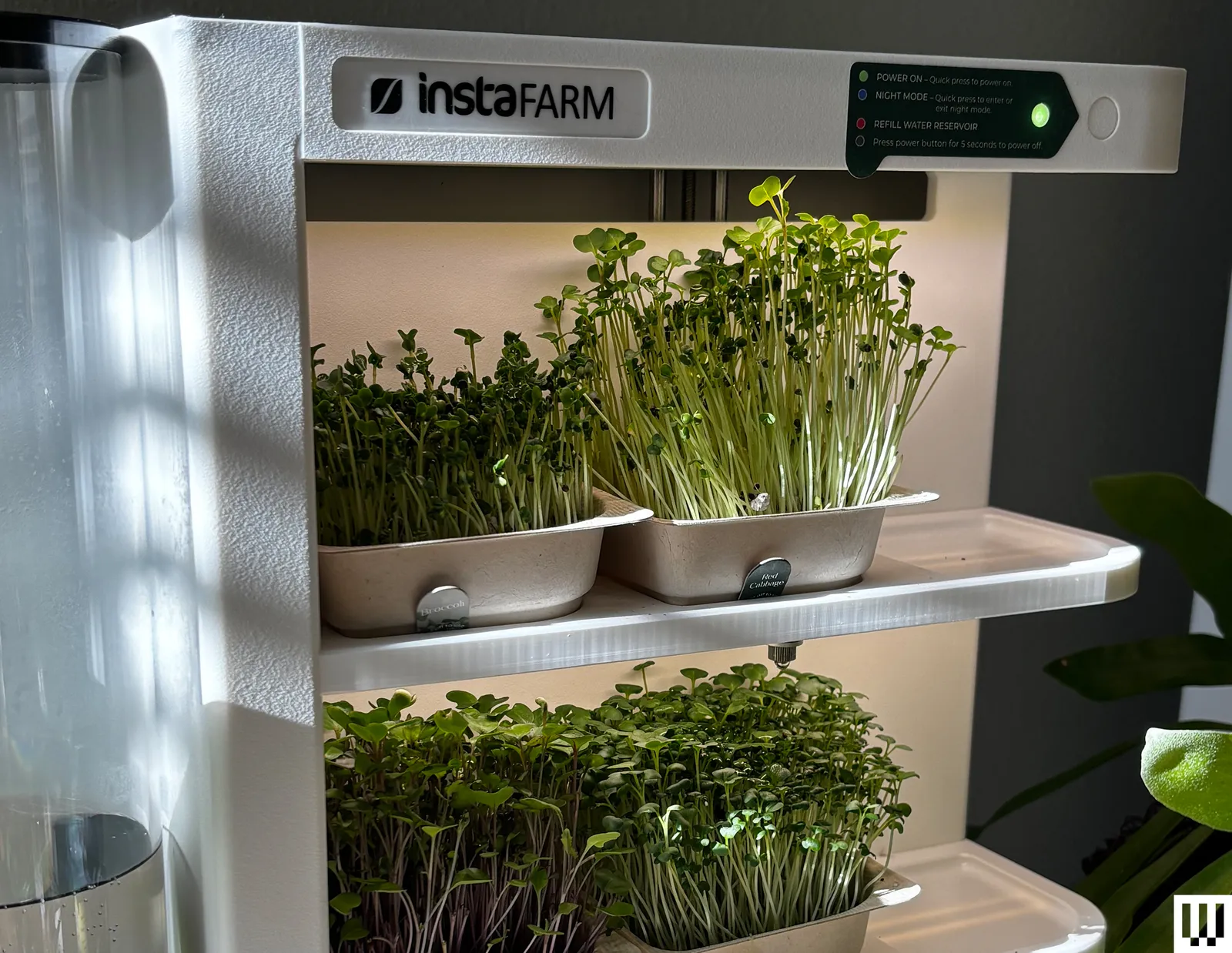
InstaFarm’s patented 4-by-4-inch compostable trays come pre-filled with about a half-inch of soil (“sourced from Amish Country in Pennsylvania,” according to InstaFarm) and organic, non-GMO seeds, with the nutritional info for the final-product microgreens listed on top. They come in over a dozen varieties of nine-packs for $23, including individual cultivars, smoothie- and salad-specific blends, and even plain trays for growing your own greens or garden starts. It is worth noting that the trays are easily saturated paperboard designed for one-time use.
InstaFarm has an app, but it doesn’t add much to the experience, other than the ability to activate night mode (which then turns off the light for up to 10 hours). More helpful is the button on the top of the unit that comes with a sticker describing how many presses are required for any function you’d need.
Advertisement
Every 90 minutes, a metal nozzle arm pops out and moves along each shelf, sensing each tray and its plants’ height, humidity, and temperature. Once the nozzle is done sensing, it dispenses an appropriate blast of water, much like the spray heads in the produce section of the grocery store. If you have cats, they may be very interested the first time they hear the nozzle whirring and moving slowly over the shelves. (The first quick, unexpected spray was an entertaining event in my house.) Sometimes, this sensing was more accurate in theory than in practice—for some reason, the sensor consistently overshot the watering volume for the red beet greens (but only the beet greens), causing the tray to overflow daily.
After a few weeks, I noticed the nozzle making a slight mechanical noise once it finished its rounds, as it slowly retracted back to its resting position. It wasn’t loud—it reminded me of the sound the bullwheel makes at the top of a ski lift—but because the InstaFarm was sitting on my dining room table, it was noticeable. And I should also note it was on my dining room table because, despite the website’s claims the unit can fit under most kitchen cabinets, it was just slightly too tall for mine. This made it difficult to site, as it does take up an approximate 6-by-18-inch footprint. Given how easy it is to clip the greens off for salads, smoothies, and other meals, its most natural habitat is probably the kitchen, so you may want to measure more than once to make sure it will fit your space.
Greens Aplenty
Photograph: Kat Merck
Just as the directions claimed would happen, I had lush, usable microgreens in about five days. For my first growing round (I’ve now been through four), I was overly excited and placed a tray on every slot. Unless you have a large family that eats microgreens for every meal, I don’t recommend this. I tried gamely to use them all, but after the traumatic experience of putting a tray’s worth of radish microgreens in a strawberry smoothie (so spicy, so radishy), I decided to share some of my first-grown trays with friends.
OPPO has officially confirmed that the Find X9S and Find X9 Ultra will launch in India on May 21. The new flagship smartphones are designed for users who prioritize photography and video creation, featuring upgraded Hasselblad camera setups. Alongside the camera upgrades, both smartphones also include large silicon-carbon batteries and dedicated cooling systems for stable performance.
OPPO Find X9 Ultra and X9S: Specs
OPPO has designed the Find X9S with a slim 7.99mm body while still offering premium camera and video capabilities. The device includes three 50MP cameras tuned with Hasselblad technology for consistent imaging results. It also supports Dolby Vision recording and AI features to enhance photos, videos, and everyday usability.
The Hasselblad Master Camera System is a key highlight of the Find X9 series. The purpose of the system is to ensure that the photos produced have balanced colors, good detail, and a consistent photography experience across all the camera sensors on the phone. Another technology OPPO uses to make their images even better is the LUMO Image Engine, which provides high dynamic range, improved clarity, and lower noise levels.
The OPPO Find X9 Ultra features some powerful video tools that are helpful for movie-makers and content creators. The device can capture videos at 8K/30fps and 4K/120fps speeds using all of its cameras. The company also includes features such as O-Log2 and ACES support for pro editing software, as well as a dedicated LUT.
Furthermore, OPPO is focusing on battery life and thermal management with the Find X9 Ultra. The mobile has a 7050mAh battery and an advanced cooling system designed to meet the rigorous demands of creative tasks.
Advertisement
India Launch Date and Expected Availability
OPPO will officially launch the Find X9S and Find X9 Ultra in India on May 21. The company is expected to reveal pricing and sale details during the event itself. The launch further shows OPPO’s strategy to expand its premium flagship portfolio in the Indian smartphone market.
There are playground politics, multiplication tables and learning to read.
Imagine dealing with all that in a new language — or even a whole new country.
That’s the added challenge for kids who are learning English at the same time they’re learning everything else as their peers.
Advertisement
It’s an issue that Sarah Walters and her colleagues were determined to tackle in Troy City Schools, a public school district made up of nine campuses roughly an hour north of Cincinnati. The area is home to an automotive manufacturer that brings some employees — and their families — over from Japan.
Roughly 3 percent of 4,000 students have primary languages like Spanish, Ukrainian and Japanese, a relatively small population compared to the most recent national average of 11 percent.
But that small group is making big gains. Looking to close the literacy gaps that have plagued schools since the pandemic, the district took a big swing to increase literacy among its English learners. It trained 116 staff members — including every elementary teacher, intervention specialist, paraprofessional and principal — in the Orton-Gillingham approach.
They say it’s paying off.
Advertisement
Walters, a literacy instructional support specialist, says that helping multilingual students master their grasp on English is vital. Like any other student, the foundation that they lay in reading and math will affect their learning from that point on.
“We want to help the students continue to thrive, and really everything that we’re thinking about with our student services is equitable learning opportunities,” Walters says.
Moving Toward Equity
Federal data shows that English learners’ achievement scores lag far behind their peers on average, and have made little improvement over the past two decades.
Troy City Schools was eager to close widening literacy gaps that surfaced after the onset of the pandemic, Walters says, which was particularly hard on English learners like those at Concord Elementary. A big hurdle was phonics, the letter sounds that make up words.
Advertisement
“We were seeing a lot of student frustration and wanting to give up,” Walters recalls. “Students being very withdrawn, those social-emotional impacts.”
Back in 2020, English-language instruction was inconsistent and fragmented across classrooms.
Yet, even with the desire to boost English learner scores, the program took some time.
Following the pandemic, Troy City Schools mulled over the changes for three years before it had enough funding to deliver on it, according to Danielle Romine, director of Elementary Teaching and Learning for the district. The effort was funded through post-COVID relief grants and budget allocations made by the district’s leaders.
Advertisement
As a literacy specialist, Walters became certified in the Orton-Gillingham method through the Institute for Multi-Sensory Education. It’s an approach that folds movement and touch into learning reading and spelling. She’s now responsible for supporting and training staff to successfully use the techniques.
Fourth-grade students at Concord Elementary participate in the auditory-kinesthetic drill as part of the Orton-Gillingham literacy method. The teacher dictates sounds as students use sand to write the letters represented by the sound, an activity meant to help with long-term recall of what they learn. Photo courtesy of Troy Public Schools.
Walters says teachers and staff were trained to utilize drills that connect literacy concepts through visuals, sound and movement. Students might use flash cards as a visual element or tap their fingers to each letter as they spell out a word. Students also learn the origin and history of words to strengthen their ability to decode them. For example, a “red word” is one that does not follow phonics rules.
“Our multilingual learners love it because no longer are they being told, ‘That’s just the way it is,” Walters says.
After an initial summer training on the Orton-Gillingham approach, teachers spoke so highly of the method that requests for training grew among staff.
Initial Promise
“In a school district, if you want to get something out, just tell a teacher, because it [will] spread like wildfire,” Romine says.
Advertisement
And the data are showing promising results, Walter says. The district-wide third grade reading proficiency had plummeted to 56 percent in 2021-22 but had risen to 81 percent by 2023-24 — slightly higher than its pre-COVID achievement rate. The most recent state data shows Concord Elementary far surpassed its target goal for English proficiency among multilingual students.
A reading teacher demonstrates the sand tray activity as part of the Orton-Gillingham literacy approach.
Walters has heard from teachers who say that the approach has helped some English learner students make lightning-fast gains in reading. One educator told her that two students from Japan who joined the elementary school in the fall were conversing in English by December. Another student’s phonics diagnostic score shot up by 38 points in the same timeframe.
Now, the district is working to spread the method beyond its own campuses.
“Eventually, our goal is to support the entire community, or the entire county because Sarah having that training [enables her] to support teachers from other districts, as well,” Romine says.
Advertisement
But for English learners, ensuring they’re on grade level in reading goes beyond measuring their success in the classroom.
Walters says that the district is thinking about long-term learning for children who, for example, may be in the U.S. for a few years before returning to Japan.
Now, the district is working to spread the method beyond its own campuses.
“Eventually, our goal is to support the entire community, or the entire county because Sarah having that training [enables her] to support teachers from other districts, as well,” Romine says.
Advertisement
But for English learners, ensuring they’re on grade level in reading goes beyond measuring their success in the classroom.
Walters says that the district is thinking about long-term learning for children who, for example, may be in the U.S. for a few years before returning to Japan.
“We want students to have success across math, science, everything,” Walters says. “So it’s important that we get them up to speed as quickly as possible, because those long-term impacts could really be harmful for them. That early literacy is key.”
BrianFagioli writes: SOLAI has launched the Solode Neo, a $399 Linux-based mini PC designed for always-on AI agents, browser automation, and persistent developer workflows. The compact system ships with an Intel N150 processor, 12GB LPDDR5 memory, 128GB SSD storage, Gigabit Ethernet, WiFi, Bluetooth, and a Linux-based operating system called Solode AI OS. The company says the device supports frameworks and tools including Claude Code, OpenAI Codex, Gemini CLI, and Hermes, while emphasizing local control, automation, and privacy-focused workflows running directly from a home network.
While SOLAI markets the Solode Neo as an “AI computer,” the hardware itself appears aimed more at lightweight automation and cloud-assisted agent tasks than heavy local inference. The low-power Intel N150 should be sufficient for browser automation, scheduling, monitoring, containers, and smaller AI workloads, but the system is unlikely to compete with higher-end local AI hardware designed for running larger models offline. Even so, the idea of a dedicated low-power Linux appliance for persistent AI and automation tasks may appeal to homelab users and self-hosting enthusiasts looking for a simpler alternative to building their own always-on workflow box from scratch.
Disclaimer: Unless otherwise stated, any opinions expressed below belong solely to the author.
Whenever record HDB resale prices hit local news headlines, the response seems to be a mix of disappointment and disbelief.
Why is public housing getting more expensive? And who in their right mind pays S$1.5 million for an old apartment with less than half of its original lease left?
Aren’t they throwing money away?
Advertisement
Certain loss
The beauty of the free market is that willing sellers meet willing buyers, and if we can observe a pattern in their behaviour, it likely doesn’t mean they’re insane, but that they understand something that others don’t.
Let’s look at the latest example: the four-room HDB in Bukit Merah, which has just set a record for the most expensive HDB flat of its size. It was sold for a whopping S$1.53 million, despite having just 45 years left on its lease.
Image Credit: Google
Yes, it’s a jumbo flat, spanning 1615 sqft—considerably larger than what you can find among newer public apartments—in a cosy, four-storey building in Tiong Bahru.
But surely, you might think, it’s a certain loss. After all, the lease is about to reach levels so low that few people would be interested in buying it from the new owner, right? Who’s going to pay decent money when it has 30 or 20 years left?
But that’s where the point is hiding—it’s not about resale value anymore.
Advertisement
Still a steal
While newer homes are considered a store of value, old apartments are not fetching high prices because they are a good investment, but because, as the lease runs out, they effectively become a front-loaded rental. And while their price may seem high, it is actually a huge discount compared to regular market rates.
S$1.53 million across 45 years works out to just about S$2,800 per month. Meanwhile, alternative HDB apartments over 1500 sqft in size, available in comparably attractive locations, close to central Singapore, are currently listed for rent at S$4500 to over S$5000.
It means that the record Bukit Merah jumbo flat offers a 40 to 50% discount in comparison. Plus, let’s bear in mind that prices creep up over time, while the buyer is pre-paying the whole thing in today’s money. So, in the long run, it’s an even bigger saving.
In addition, unlike a rental, you actually own the place so you can remodel it in any way you like, bringing it up to modern standards, effectively creating condo-like conditions for half the price (an equivalent private home would likely set you back around S$3 million or more).
Advertisement
Image Credit: PropertyGuru
Buyers accept the few compromises—like having to climb a few floors up without a lift, older construction standards and fewer facilities—for the enormous, comfortable space in a central location in one of the most densely populated cities in the world.
More investment-oriented owners may try to convert the space into rental housing for several people, likely multiplying their ROI over time.
And what’s the worst that can happen? That in nearly half a century, they are going to have to vacate it. But there’s also a good chance that these properties qualify for a redevelopment scheme or receive a chance at a lease extension, especially in Tiong Bahru, given the unique character of these small buildings.
What if you needed to sell?
Of course, it’s hard to be sure if you’re going to want to live in the same place for 45 years. What if you wanted to move somewhere else? Would you be able to sell without having to accept mere pennies for it?
I don’t see why not. Now, obviously, given that Singapore itself is only 60 years old, we have no examples of flats with 10 or 20 years left on their lease. At under 30 years, prospective buyers would struggle to get financing, and below 20, not even HDB would provide a loan. You’re also unable to use CPF to finance such a purchase, so the buyer pool shrinks quickly.
Advertisement
On the other hand, just like right now, the value is going to be linked to the prevailing rental rates, and they tend to go up over time. So, the resale price will remain a multiple of what you could pay if you rented, with a discount. There’s no point at which the resale value falls off a cliff—it just gradually declines to $0.
By then, however, the owner will have already extracted plenty of value from his record purchase.
Read other articles we’ve written on Singapore’s current affairs here.
















%2520SOURCE%2520Kat%2520Merck.jpg)










































You must be logged in to post a comment Login