We spend hours testing every product or service we review, so you can be sure you’re buying the best. Find out more about how we test.
Suri Core 1.0: One minute review
I’ve tested numerous electric brushes with far too many settings and features, from 12+ brushing modes to apps that provide real-time guidance. Yet I inevitably end up using them in the same way: pick up the brush, press the button once, brush my teeth, then put it back in the cupboard until the next time. I’ve never used an app outside of a review period, and I rarely bother with any extra settings either. Battery life is also important to me, as I don’t have a compatible plug socket in my bathroom. And I’d also rather not throw out too many plastic brush-heads that will ultimately end up in landfill.
Suri brushes are designed to be no-fuss, no-frills sonic toothbrushes with minimal settings to avoid a simple tool from becoming unnecessarily complicated, alongside recyclable elements. The Suri Core 1.0 sticks closely to this brief, offering a more affordable alternative to its successful, pricier Pro range.
Advertisement
Naturally, Suri has cut some corners with the Core 1.0 to keep the price down, notably replacing the metal body with a “bio-plastic” one made from renewable sources and recycled material, while the motor is slightly weaker, offering 28,000 movements a minute instead of the Pro 2.0’s 30,000. It doesn’t come with a clean-and-charge case as the Pro does, either. Instead, you simply get a brush cap for travel. It lasts six days fewer than the Pro on a full charge, with a battery that lasts 28 days compared to the Pro’s 34 days.
Latest Videos FromTechRadar
These efficiency savings are minor, and do nothing to impact the toothbrush’s overall quality. The simple design makes it eminently easy to use, while the built-in timer uses haptic feedback every 30 seconds to help you keep track of brushing time. It looks great, too, especially when stuck to the wall using the provided magnetic mirror-mount attachment. It doesn’t feel quite as pleasing in the hand as the metal model, but the pastel-coloured body has a stylish look that will happily fit the aesthetics of a variety of bathrooms. Whichever colour you choose, the brush head is white.
Advertisement
Speaking of brush heads, in the US and UK, Suri operates prepaid mailing programs that enable you to send used heads back to the company, which it then recycles and makes into new products such as soap dishes. The toothbrush is also covered by a warranty, during which Suri will repair and return it at no cost. In addition, across the brush’s construction, Suri has introduced measures to reduce the environmental impact of the plastics it uses, from recycled to recyclable materials to more responsible production and disposal .
(Image credit: Future)
I tested this toothbrush for 21 days straight, and in that time didn’t have to charge it. The two-minute timer is automatic, with no option to adjust it manually: the brush pulses every 30 seconds to signal that you move to the next quadrant of your mouth then shuts off automatically when the two minutes are up.
There are a couple of niggles. The first is that the brush is almost too simple: alongside its Clean and Polish settings, I’d like to see a gentler mode “sensitive” setting for more delicate teeth and gums. The pressure sensor requires some force to activate it, which could result in over-brushing, and it’s quite loud in operation, registering 69db in my noise measuring app.
Sign up for breaking news, reviews, opinion, top tech deals, and more.
Advertisement
But I’m nitpicking. Overall, the Suri Core 1.0 is a simple, high-quality sonic toothbrush for a reasonable price, with some sustainability credentials to boot. It would certainly be my pick over some of the more expensive, feature-stuffed brushes that spring to mind.
Suri Core 1.0: Specifications
(Image credit: Future)
Swipe to scroll horizontally
Component
Suri Core 1.0
Advertisement
Battery life
28 days
Sonic vibrations
28,000/m
Advertisement
Charging stand
USB-C
Timer
30 seconds, haptic
Advertisement
Noise
69db
Settings
Two
Advertisement
Suri Core 1.0: Price and availability
$75 in the US
£65 in the UK
Not yet in the AU
The Suri Core 1.0 is priced at $75 / £65, cheaper than other brushes in the Suri range, which come in at $99 / £85, and offers good value. It’s more expensive than budget electric toothbrushes such as the Ordo Sonic Lite, which is similarly basic in terms of features, but the Core 1.0 feels like a worthwhile step up.
It’s reliable, looks great on your bathroom counter-top, and with Suri’s free brush-head recycling scheme, you can feel good about doing your bit for the environment, too.
Suri Core 1.0: Scorecard
(Image credit: Future)
Swipe to scroll horizontally
Category
Advertisement
Comment
Score
Value
Pricier than some budget toothbrushes, but good value overall.
Advertisement
4/5
Design
Great look, simple to use, recyclable and sustainable design elements.
5/5
Advertisement
Performance
Strong motor, great battery, simple to use.
4.5/5
Advertisement
Suri Core 1.0: Should I buy?
Buy it if…
You’re after something simple
The Suri Core 1.0 does one job, at two intensities, and does it well.
You want a toothbrush that looks good
Advertisement
The Suri Core 1.0’s pleasant design will look great on a bathroom shelf.
You want value
Suri made this toothbrush specifically to appeal to budget buyers.
Advertisement
Don’t buy it if…
You want an oscillating toothbrush
The sonic toothbrush is just a simple vibration model, whereas Oral-B models come with rotating heads.
You’ve got very sensitive teeth
You may prefer a brush with more settings and a lighter pressure sensor.
Advertisement
Also consider
How I tested
I used the Suri Core 1.0 sonic toothbrush for three weeks, brushing morning and night. I measured the decibel levels of the toothbrush using an app, and compared the specs to its contemporaries in the space.
We spend hours testing every product or service we review, so you can be sure you’re buying the best. Find out more about how we test.
MSI Claw 8 EX AI+ review: two-minute review
The MSI Claw 8 EX AI+ is a high-octane handheld games console that can run PC and Xbox games from a wide range of game stores. With the Intel Arc G3 Extreme chipset — featuring the Intel Arc B390 GPU and 32GB RAM — it’s easily the most powerful portable console I’ve ever (quite literally) gotten my hands on. But there’s a pretty huge catch to that performance: a price tag that would buy you two Steam Deck OLEDs or a mid-price gaming laptop.
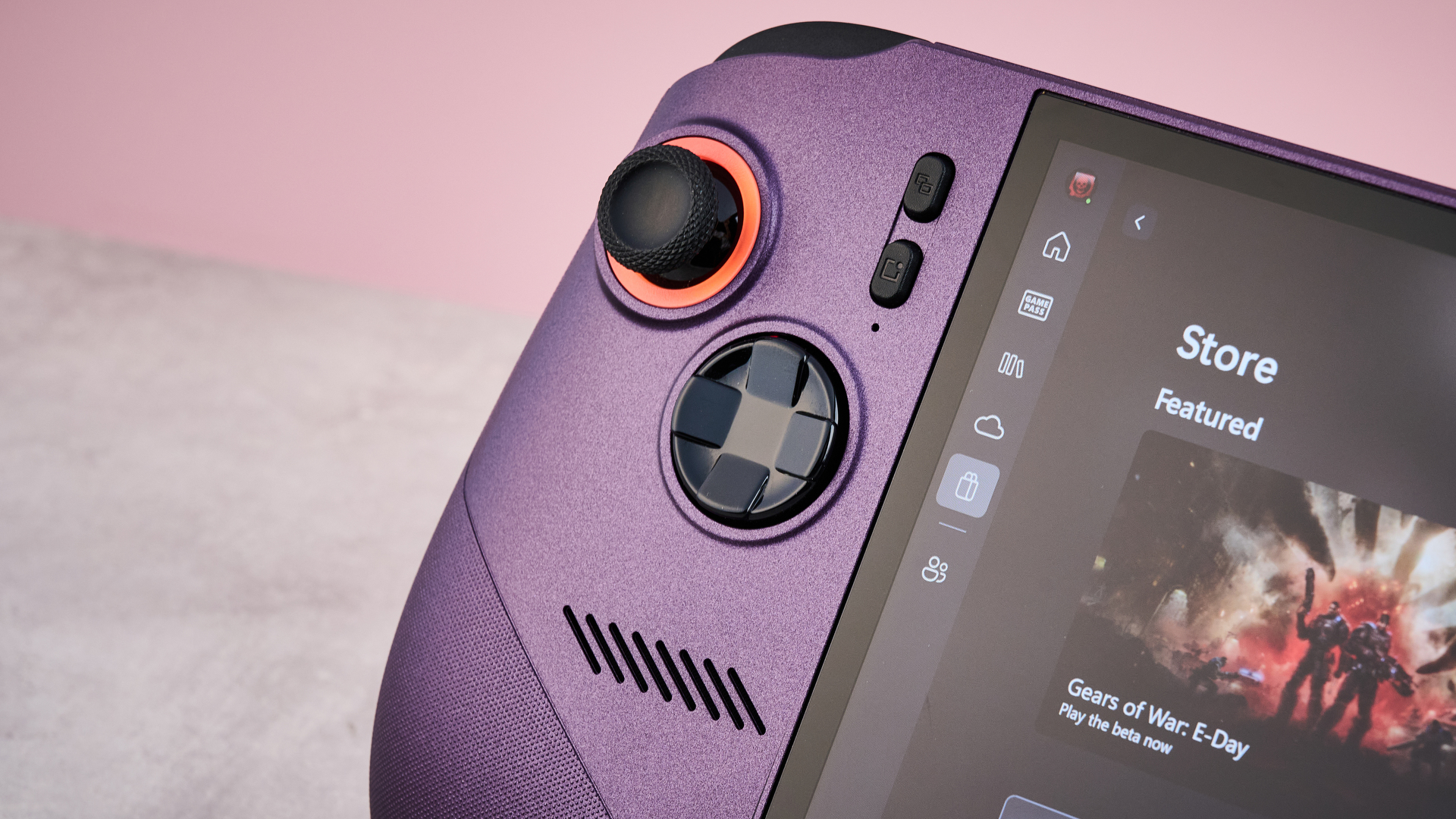
Let’s start with the superficial stuff: the MSI Claw 8 EX AI+ looks gorgeous. Its screen is an extensive eight inches across, offers wonderfully rich colors and a silky-smooth 120Hz refresh rate. Combined with its discreet RGB lighting around the asymmetrically placed thumbsticks and Void Purple colorway, it has a unique look that definitely helps it stand out from the crowd.
Advertisement
But its design goes far beyond aesthetics. Its Hall effect thumbsticks and triggers should not only offer greater longevity, but they felt really responsive, even if they’re not quite as sensitive as the TMR versions now offered by some controllers. Meanwhile, it felt perfectly ergonomic in my hands — I was genuinely surprised how light it felt for a 1.73 lb / 786g console — although its laser-etched grips sure made my hands feel sweaty, for some reason.
Latest Videos FromTechRadar
What cements the MSI Claw 8 EX AI+ as one of the best handheld games consoles out there, though, is its performance. It’s the first gaming handheld on the market with the Intel Arc G3 Extreme chipset and, boy, does that have a pronounced effect on how it plays. While benchmarks showed it offered similar CPU performance to the recent Asus ROG Xbox Ally X, thanks to its Intel Arc B390 GPU and 32GB RAM, it managed to smash its 3D Mark benchmarks by between 35% and 76% — that’s a significant performance upgrade.
Advertisement
Numbers only tell part of the story, though: what was the Claw actually like in action? Well, Baldur’s Gate 3 looked truly gorgeous on Ultra graphics settings and yet it hovered around a decent 38fps. Meanwhile, despite only being released in 2025, both Doom: The Dark Ages and Clair Obscur: Expedition 33 played at a rock-solid 60fps — whether I was punching demons to death or countering devastating attacks, there wasn’t a hint of latency or lag. Even the boss-level challenge of The Elder Scrolls 4: Oblivion Remasteredhit 60fps at points… before plunging to a stuttery mess in busier areas. Still that’s impressive stuff for a handheld console.
(Image credit: Future)
But the MSI Claw 8 EX AI+ has a pretty huge barrier to Fosbury flop over: its price. In return for its premium components, you’ll pay a seriously premium price tag of $1,799.99 / £1,399.99 / AU$2,849. Not only is that significantly higher than any other gaming handheld to date, it’s also as expensive as some mid-range gaming laptops.
And that presents an enormous problem for the Claw. Despite the fact that some of the best gaming laptops come in at a similar price, many of them offer superior performance in our benchmark tests. Now don’t get me wrong: no gaming laptop offers the kind of ergonomics or compact form factor you get here, but I do have doubts that the pro gamers that can afford this kind of device will be willing to trade performance simply for the sake of increased maneuverability.
Sign up for breaking news, reviews, opinion, top tech deals, and more.
Advertisement
That’s a real shame because in almost every respect, the MSI Claw 8 EX AI+ is a fantastic gaming handheld that has really stretched my expectations of what this kind of device is capable of. I want one. And you should too. But I’m not convinced either of us will be able to justify the spend.
(Image credit: Future)
MSI Claw 8 EX AI+ review: price & availability
Having launched on June 23, 2026, the MSI Claw 8 EX AI+ is available now. As you can see from the specs — or if you took sneaky peak at the benchmarks in the performance section — it’s seriously mighty for a gaming handheld.
It’s the first handheld console on the market that rocks the Intel Arc G3 Extreme chipset, which includes the 12-core Intel Arc B390 GPU and a hefty 32GB RAM. That puts it considerably ahead of most of its competitors, even if it can’t quite rival any of the best gaming laptops for sheer processing punch.
Advertisement
Unfortunately, like the hero in a Greek tragedy — or Oddyseus, apparently — it has a fatal flaw. The price. At $1,799.99 / £1,399.99 / AU$2,849, its cost is possibly the most eye-watering thing I’ve come across in a while and that includes all the people on social media that bragged about raw-dogging the solar eclipse in August. While the price tag here might not literally melt your retinas, it’s likely to give you second thoughts.
By comparison, we threw some shade on the Asus ROG Xbox Ally X for its price on its release — and that only retailed for $999.99 / £799.99 / AU$1,599. The Claw 8 EX AI+’s sticker price outstrips every other handheld console by quite some margin, sitting more up the gaming laptop end of the spectrum. For example, a mid-spec Alienware 16X Aurora, with Intel Core Ultra 9 275HX, Nvidia GeForce RTX 5070 and 32GB DDR5, goes for $1,999.99 / £1,799 (around AU$2,800). Ultimately, I think there aren’t going to be that many mainstream gamers able to pay this price and those that do are going to expect stellar performance in return.
I’ll be honest: when I first picked up the MSI Claw 8 EX AI+, I was pretty shocked by how light and manageable it felt. Fundamentally, this is not a small console — it’s as broad-shouldered as the Steam Deck OLED or the Lenovo Legion Go S and weighs in at 1.73 lbs / 786g, which is the heaviest gaming portable I’ve gotten my hands on to date. But despite this, it never felt at all bloated, sitting comfortably in my grasp.
I’d chalk this up to its ergonomic design. On top of feeling well balanced, it offers flared grips, unlike previous iterations of the MSI Claw. These sat really comfortably in my hands, although they aren’t quite as easy to wrap your hands around as the controller-mimicking forked grips of the Asus ROG Xbox Ally X.
This was also helped by the laser-etched texture of its grips, which enabled me to keep a decent grasp on the Claw. But I will say they aren’t quite as comfortable as those on some of the best Xbox controllers I’ve tested, feeling a little on the rough side and quickly getting sweaty as I tried to splat sakapatates in Clair Obscure: Expedition 33.
The MSI Claw 8 EX AI+ also left a pretty good impression on some of my other senses too. No, I didn’t lick it — I’m talking visual appeal here, rather than gustatory. Subtle RGB lighting around each of the thumbsticks is my personal highlight, although I’ll also give its gentle curves and Void Purple colorway honorable mentions as well. Honestly, I’m a little less jazzed about the way the screen juts out past the bottom of the device, but this does seem to be a more common look these days, with the jutting grips of the Asus ROG Xbox Ally X creating a similar effect.
Advertisement
Speaking of screens, despite it not quite rocking the richness of the Steam Deck’s OLED display, the Claw 8 EX AI+ has a beautiful looking screen. As a result of its expansive eight-inch breadth and 16:10 aspect ratio, it rocks a 1920 x 1200 resolution, not to mention a variable refresh rate of up to 120Hz. Every game I played always felt detailed and smoother than whipped cream under a heat lamp. Meanwhile, its 500 nit typical brightness felt plenty bright enough in most settings — on max brightness, I even found I was able to play it outside, although when I faced it directly toward the blazing August sun, it was quickly overpowered by the fiery onslaught.
(Image credit: Future)
Anyone familiar with previous incarnations of the MSI Claw will be pretty familiar with the layout here. The Claw 8 EX AI+ has the same combo of asymmetrical thumbsticks, Xbox-style face buttons and vertically aligned Menu, MSI Center M, View and Quick Setting buttons that you’ll have seen on previous iterations. There’s only two macro buttons on its rear, which honestly feels a bit stingy compared to the four offered by the Steam Deck and many Xbox controllers.
On the plus side, the Claw 8 EX AI+ is packing both Hall effect thumbsticks and triggers — as well as preventing the inexorable drift issues that plague potentiometer thumbsticks, Hall effect sticks and triggers also offer smaller deadzones and increased sensitivity. They’re not quite as sensitive as the marginally fancier TMR thumbsticks and triggers you see in a lot of premium controllers these days but I’m not aware of any portable consoles that offer those currently.
So for the most part, its control scheme is suitably versatile. The only area it falls a little short is the lack of built-in mouse control for games that require a cursor. Unlike the Steam Deck’s super flexible trackpadsor the quirky hybrid mouse-cons offered by the Nintendo Switch 2 and Lenovo Legion Go 2, the only way I could mimic a mouse input on the Claw 8 EX AI+ was by jabbing its touchscreen with my greasy hand-sausages. That ain’t gonna cut it for some Steam and Windows games. Now, in MSI’s defense, it has never pitched the Claw as a substitute for PC gaming, but it is a shame that some sections of my Steam library will lay tantalizingly just out of reach. Of course, I could connect a mouse via USB or Bluetooth, but that then prevents the MSI Claw 8 EX AI+ from being as portable.
Advertisement
Another criticism I have is the fingerprint scanner. While I appreciate that these narrow scanners are space-efficient, they’re not efficient in any other sense of the word. Every single time I tried to log in to the MSI Claw, I found I had to pop my pinky on the scanner three or four times just to access the home screen. Given my MacBooks’ Touch ID readers require just a single tap to unlock, I honestly wish MSI found a way to squeeze in a circular scanner here.
Total War Warhammer 31080p (Ultra) 81.3fps (Low) 142.5fps
Cyberpunk 2077: 1080p (Ultra) 43fps (Low) 75fps
Advertisement
Dirt 5: 1200p (Ultra) 48.3fps (Low) 95.7fps
PCMark 10 Battery Life (Gaming): 1:40 hours
While the MSI Claw 8 EX AI+’s looks are impressive, what makes it exceptional is what’s going on underneath the surface. While gaming handhelds have previously involved some performance tradeoffs in return for their diminutive size, that’s not the case here, thanks to the Herculean Intel Arc G3 Extreme chipset it’s packing. MSI claims that the Arc G3 Extreme should unlock 42% faster performance on average compared to the AMD Ryzen Z2 Extreme that the Asus ROG Xbox Ally X is rocking, although this requires a little unpacking.
Certainly, performance benchmarks alone don’t suggest the Arc G3 Extreme is leading the field. The Claw 8 EX AI+ hit 2,492 single-core performance and 12,550 multi-core performance in our GeekBench tests, compared to the 2,788 and 12,883 scores nabbed respectively by the ROG Xbox Ally X. So for raw processing power, there’s not a huge amount of light between the two chipsets, with the Ryzen Z2 Extreme taking a narrow lead.
Advertisement
But factor in graphical performance and Intel’s SoC absolutely spanks AMD’s. With the help of the Intel Arc GPU B390, the Claw 8 EX AI+ gets some seriously punchy 3D performance — in our 3DMark benchmarks, it scored 3,544 in Port Royal, 12,358 in Fire Strike and 6,534 in Time Spy, compared to the 2,006, 9,141 and 4,033 the ROG Xbox Ally X hit. Those are 76%, 35% and 62% increases respectively, gains which show the Claw’s graphics are seriously swole.
And that translates to some staggeringly smooth performance in-game. On Ultra settings, Total War: Warhammer 3 comfortably averaged out at 81.3fps, while on Low settings Dirt 5 ran smoother than a nitro cold brew at 95.7fps and still managed a very creditable 48.3fps on Ultra. But what blew me away most is how well it ran Cyberpunk 2077 on Ultra settings with ray-tracing disabled, netting a reasonably polished 43fps — that’s downright playable and throws some serious shade on the ROG Xbox Ally X, which only managed 8fps.
Unfortunately, while these benchmarks are impressive compared to other gaming handhelds, at this price those aren’t the Claw’s biggest competition. Several of our picks for the best gaming laptops have costs in the same region and yet offer significantly better performance.
For example, the Alienware 16X Aurora with Intel Core Ultra 9 275HX, Nvidia GeForce RTX 5070 and 32GB DDR5 we tested costs only a few hundred dollars / pounds more at $1,999.99 / £1,799. And yet its performance is leagues ahead of the Claw, hitting a 3DMark Time Spy score of 13,594 and Fire Strike score of 31,480 — that’s double and nearly triple the Claw’s scores respectively. Naturally, you’re not getting the same compact form factor but I wonder how much that truly matters for the kinds of gamers that are willing to drop almost one and a half grand on a pro gaming device.
Advertisement
Okay, enough nerding out over numbers. Time to focus on the thing you actually care about: how the MSI Claw 8 EX AI+ actually feels to play.
(Image credit: Future)
Honestly, what the MSI Claw 8 EX AI+ is capable of kinda blew me away. As those benchmarks would suggest, it can offer ludicrously smooth frame rates. Playing a 2D game like Hollow Knight: Silksong, it remained rock solid at 120Hz, with all the action as Hornet zipped around the rich, mysterious landscapes of Pharloom as slick as ice on a spring day.
Granted, that might not feel like much of a challenge, but this unflappable stability carried over when I transitioned to modern 3D games. Clair Obscur: Expedition 33 ran at a wonderfully smooth 60fps. Rather than having to strip it down to the basic visuals required to get it running on the Steam Deck, it actually looked pretty great and ran so stably I was able to crack out counter after counter on chromatic bosses. Being able to enjoy the game on the go felt like such a novelty that I’d honestly be happy to mop up the game’s remaining optional bosses purely on handheld.
Keen to push the MSI Claw 8 EX AI+ to breaking point, I even tried playing a bit of The Elder Scrolls 4: Oblivion Remastered on Xbox. I’ll admit my expectations were pretty low here, as I’ve heard plenty of people complaining about performance issues on their 5000 series Nvidia GPUs. And yet, amazingly, it was playable.
Advertisement
Well, kinda. With the graphics settings on Low while in the depths of Xedilian, performance plowed along steadily at 60fps, which is truly wild for a AAA Bethesda game. However, it didn’t take long for it to start exhibiting some pretty hinky behavior — sporadically I encountered some audio stuttering and, once I entered a more densely populated open area, the frame rate dropped so far it was more 19th century zoetrope than an RPG from 2025. But I feel like most gaming handhelds would spontaneously combust if you even had the cheek to try this, so Imma still put this one in the win column for MSI.
On top of this, the Claw 8 EX AI+ seems to be able to keep a cool head during all of this. In comparison to its predecessor, the Claw 8 AI+, MSI promises the EX AI+ can achieve an extra 5W cooling capacity, 25% higher static pressure for fans, and 9% higher airflow, thanks to fans that are 0.5mm taller. I can’t speak to how accurate such granular figures are but certainly even slamming out epic boss fights or pushing the CPU to its limit, I rarely noticed the EX AI+ getting unbearably warm, which speaks to the strength of its cooling.
What the MSI Claw 8 EX AI+ is capable of is honestly pretty staggering. The only criticisms I have come down to software and input issues.
The Claw’s MSI Center M launcher felt a little unreliable. Occasionally, I got locked out from being able to access it — hitting the MSI button did nothing, and switching between windows just returned me to the Xbox app. On top of this, sometimes switching out to this menu then returning to a game would lock the input, meaning I could no longer use controller settings till I’d switched out and back again. That’s not a total deal-breaker, but it is a shame, given how stable the Steam and Xbox OSes feel by comparison, and shows that even the mighty MSI Claw 8 EX AI+ isn’t immune to Windows 11‘s unsuitability for gaming handhelds.
Advertisement
(Image credit: Future)
MSI Claw 8 EX AI+ review: battery
Given its huge 80Whr battery capacity, I was expecting the MSI Claw 8 EX AI+ to have some serious endurance. Unlike the ephemeral life I get out of my 40Whr Steam Deck — where I’m lucky if I get 90 minutes out of many 3D games — the whopping battery in the Claw had me anticipating some pretty epic gaming sessions. Which is why I was a bit bemused by the actual results I eked out during our benchmarks.
Running our standard PC Mark 10 Gaming Battery benchmark with all the settings switched to balanced in both MSI Center M and Windows 11, I was shocked to see the battery discharged from 100% to 0% in just 1 hour 36 minutes. So sure was I that I must have made a mistake, I recalibrated the battery using the Claw’s built-in software, revisited all the settings and ran the benchmark two more times. Despite this, I was only able to squeeze out 1 hour 40 minutes and 2 hours 31 minutes on subsequent tests.
Certainly that’s not completely incompatible with my objective experience — on the console’s default AI Mode, I comfortably drained its full battery in a two-hour play session of The Elder Scrolls 4: Oblivion Remastered, for example. But that’s an incredibly demanding game, even for the MSI’s specs, and 2D games didn’t seem quite as thirsty in comparison.
Advertisement
So what’s going on here? Ruling out a fault with my review unit, I suspect that the capacious 80Whr battery the unit ships with is only part of the picture when it comes to the life you’ll squeeze out of it. The more important part? Its AI performance mode.
While our standard benchmarks set consoles and gaming laptops to balanced mode, the default performance mode for the MSI Claw 8 EX AI+ automatically adjusts its power consumption on the fly for the best efficiency in any given moment. That means the mode you’re most likely to play it on will stretch out the battery life without causing a noticeable dip in performance.
Even when the battery has run dry, it doesn’t take long to top it up again. With its 65W charging, you’d expect it to take about 90 minutes to juice up that 80Whr battery — and that’s bang in line with my experiences. When plugged into a cable capable of at least 65W, charging up the Claw only ever took around an hour and a half. However, I did occasionally experience some glitchy behavior here, with progress freezing at 98% or 99% full even when left for 20 minutes, suggesting the console’s battery monitoring software can occasionally be a touch off.
299 x 127.55 x 22.6mm / 11.77 x 5.02 x 0.88 inches
(Image credit: Future)
Advertisement
How I tested the MSI Claw 8 EX AI+
Tested it over two weeks
Tried playing a wide range of titles at different graphics settings
Conducted TechRadar’s full suite of testing benchmarks
I tested the MSI Claw 8 EX AI+ over the course of two weeks. I made sure to play a wide variety of games from multiple game stores, whether they were from TechRadar’s Steam library or Xbox Games Pass Ultimate. On top of this, I tried out a wide variety of games at different graphics settings, from relatively undemanding 2D games to AAA 3D titles.
When it comes to more detailed assessments of its performance, I conducted our usual suite of benchmarks. Not only did that entail getting detailed performance scores from 3DMark and GeekBench 6.5, but I also conducted a range of in-game fps benchmarks at both ultra and low graphics settings. To test the console’s battery life, I ran multiple PC Mark 10 Gaming Battery tests to see how rapidly it drained the battery from 100% and I also timed how long it took to charge the console from 0% to 100% using a cable that was rated more than its 65W max charging rate.
During my career, I’ve tested a wide variety of gaming gadgets and accessories, from wireless controllers to gaming handhelds. I’ve also invested a truly ludicrous amount of my four decades on this Earth playing computer games, whether they be RPGs, action adventure games or creative sandboxes. And while I’m a little hazy on the details, I’m told this investment will pay dividends any day now.
I filed a request with McDonald’s earlier this month to access all of the personal data the fast food company collected about me, and I received a stunning 515-page report a few days later that detailed my app interactions in granular detail and predicted I would never stop eating there.
Under the California Consumer Privacy Act, I have the legal right to request access to information from large companies that collect personal data. So I was curious what others might have on me, and I spent the next week filing more than 100 requests.
The CCPA went into effect in 2020, and three of its key provisions are the right to opt out of the selling of personal information, the right to delete that info, and the right to request a copy for yourself.
I focused solely on the latter—access requests—to better understand what data is being collected. Most companies must list two ways for you to file. These are often via a web form, phone number, or email address, as designated in their privacy policy. After you submit a request, companies can take 45 days to complete it.
Advertisement
My experience placing these data access requests was incredibly time-consuming, from finding the right filing methods to verifying my identity multiple times. Most exasperating during this process were the companies that either responded to my access requests with messages concerning the deletion of information, which I explicitly said not to do, or refused to process the request through a method listed in their privacy policy.
Consumer advocates I spoke with were upset with how these requests were handled. “That’s crazy,” said Ben Winters, director of AI and privacy at the Consumer Federation of America. “That’s not an acceptable status quo.” Winters sees these examples as exhibiting the weaknesses of policy frameworks that rely on companies to act responsibly and in good faith.
In accordance with WIRED’s policies, I am disclosing that I used generative AI to draft bureaucratic emails and update my tracking spreadsheet as part of this report. I wrote the body of this article mainly by hand in my scratch notebook.
One of the first errors came from Crunchbase, known for its database about tech startups. I emailed my access request to its privacy address on August 17. My message laid out the rights I wanted to exercise and included a direct request not to erase anything: “I am not requesting deletion at this time. Please do not treat this as a deletion request.” I received a reply two days later from a Crunchbase support representative.
Advertisement
“Thanks so much for your patience. Your account has been permanently deleted from Crunchbase. Please let me know if you need anything else!” the message read in full.
I followed up via email almost immediately, reiterating that I wanted data access, not data deletion. “Your Crunchbase user account was deleted. Other data located on Crunchbase was not deleted,” read the follow-up support response explaining what happened. If I wanted to have a Crunchbase account, I would have to reregister.
When I reached out to Crunchbase for comment, a spokesperson blamed the mistake on a “processing error” and said that the company would proceed with my original access request as filed. The spokesperson also claimed the misclassified response came from “a person on our customer success team” and not a generative AI tool.
My interactions with BeenVerified, a searchable database that gathers public records, also encapsulate my friction-filled experience placing these access requests.
Advertisement
I emailed BeenVerified’s dedicated CCPA compliance address on the morning of August 19. It laid out that I was a California resident placing an access request, not a deletion request. You’ll never guess what happened next.
Public Wi-Fi is safe enough for checking the weather or reading the news. It gets risky the moment you log into your bank, your email, or anything with a saved card number. A few minutes of setup, done before you connect rather than after, closes most of that gap.
Quick Take
Here is the short version, before the full walkthrough below. Do these five things every time you use a public network, in this order.
Confirm the exact network name with staff before you join it. A near-identical fake name is the easiest trap to fall for.
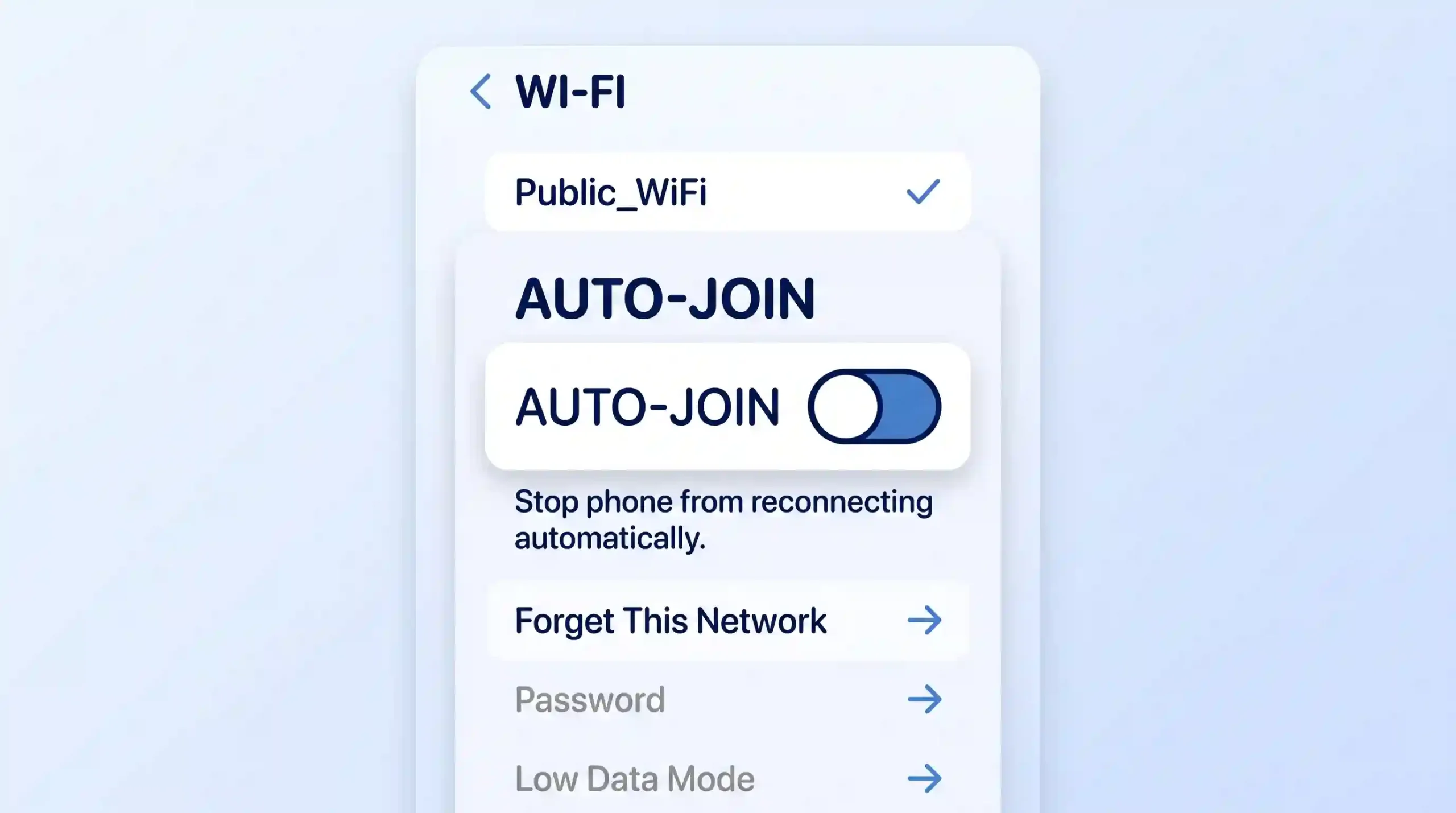
Turn off auto-join on your phone and laptop, so neither device reconnects to a network on its own.
Turn on your VPN before you open anything else, not after you start browsing.
Skip banking, shopping, and other sensitive logins unless your VPN is confirmed on and two-factor authentication is turned on.
Keep your operating system and security software updated before you travel, not during.
The rest of this guide walks through each step for phones, laptops, and the situations where these tips genuinely don’t apply.
Prerequisites
Do these things at home, on your own network, before you connect to public Wi-Fi anywhere. Setting them up at the airport or coffee shop, on the same connection you’re trying to protect, defeats the purpose.
Install a VPN app on every phone and laptop you travel with. Set it up now, so you’re not comparing options over an unsecured connection later. This list of VPN apps for Android is a reasonable starting point if you haven’t picked one for that platform.
Advertisement
Turn on automatic updates for your phone and your laptop. Most attacks that succeed on public Wi-Fi rely on a security hole that was patched months earlier. These basic cybersecurity habits cover this alongside a few others worth setting up once, not per trip.
Finally, turn on two-factor authentication for your email, banking, and any account you’d be upset to lose. If your bank or employer offers an authentication app instead of text-message codes, use that instead. Text codes can be redirected through a hijacked phone number; an app on your own device can’t be.
Know the Real Risks First
Danger✕This isn’t a hypothetical problem. A public Wi-Fi safety survey found that roughly one in four regular users have run into a security problem because of it, and nearly half admitted joining a network before without checking it was legitimate.
The steps in this guide make more sense once you know what they’re defending against. Three things go wrong on public Wi-Fi, and none of them require the attacker to be a skilled hacker.
Advertisement
Evil Twin Networks
An evil twin attack happens when someone sets up a fake Wi-Fi hotspot using the same name as a real one nearby. Your phone can’t tell the difference by name alone. Once you join the fake network, the attacker can show you a fake login page, or simply watch what you send.
This is why confirming the network name with staff is step one in the Quick Take above. A coffee shop’s real network has exactly one name. Two networks with nearly identical names is the warning sign.
Man-in-the-Middle Interception
This attack doesn’t need a fake network at all. On an open, unencrypted Wi-Fi network, someone else connected to the same hotspot can potentially read data traveling between your device and the internet. This is called packet sniffing, and free tools that do it are easy to find online.
A VPN exists to stop exactly this. It wraps your traffic in its own encryption before it touches the local network, so anyone sniffing that network sees scrambled data instead of your actual activity.
Advertisement
Malware Delivered Through the Connection
Some public networks push malicious software onto connected devices, often disguised as a required “network login” app or a fake update prompt. Android phones face their own version of this: OMACP malware spreads through network configuration messages rather than a normal app install.
None of these three risks require you to be targeted personally. They’re automated and cheap to run against anyone who connects.
Which Steps Apply to You
Not every step below matters equally in every situation. Answer these questions first, then use them to judge how carefully to follow what comes next.
What device are you using? Phones and laptops have different auto-join settings, covered separately in Step 2.
What are you about to do? Checking sports scores carries little risk. Logging into your bank, checking email, or entering a card number means every step below applies, not just the easy ones.
How long will you be on this network? A five-minute check-in at a departure gate is a different risk than working from a café for three hours, where a bad connection has more time to do damage.
If your answer to the second question involves money or a password, don’t skip the VPN or two-factor authentication steps, even if the rest feels like overkill for a quick visit.
Step-by-Step: Securing Your Connection
Step 1: Confirm the Network Name
Ask an employee for the exact Wi-Fi name before you connect, or check a printed sign. Don’t guess based on which network looks official. If you see two networks with almost the same name, such as “Airport_WiFi” and “Airport_WiFi_Free,” treat both as suspicious until staff confirm which one is real.
Expected outcome: you connect to a network you’ve manually verified, not just the strongest signal in the room.
Advertisement
Step 2: Turn Off Auto-Join
This step looks different by device. Find the version that matches what you’re using.
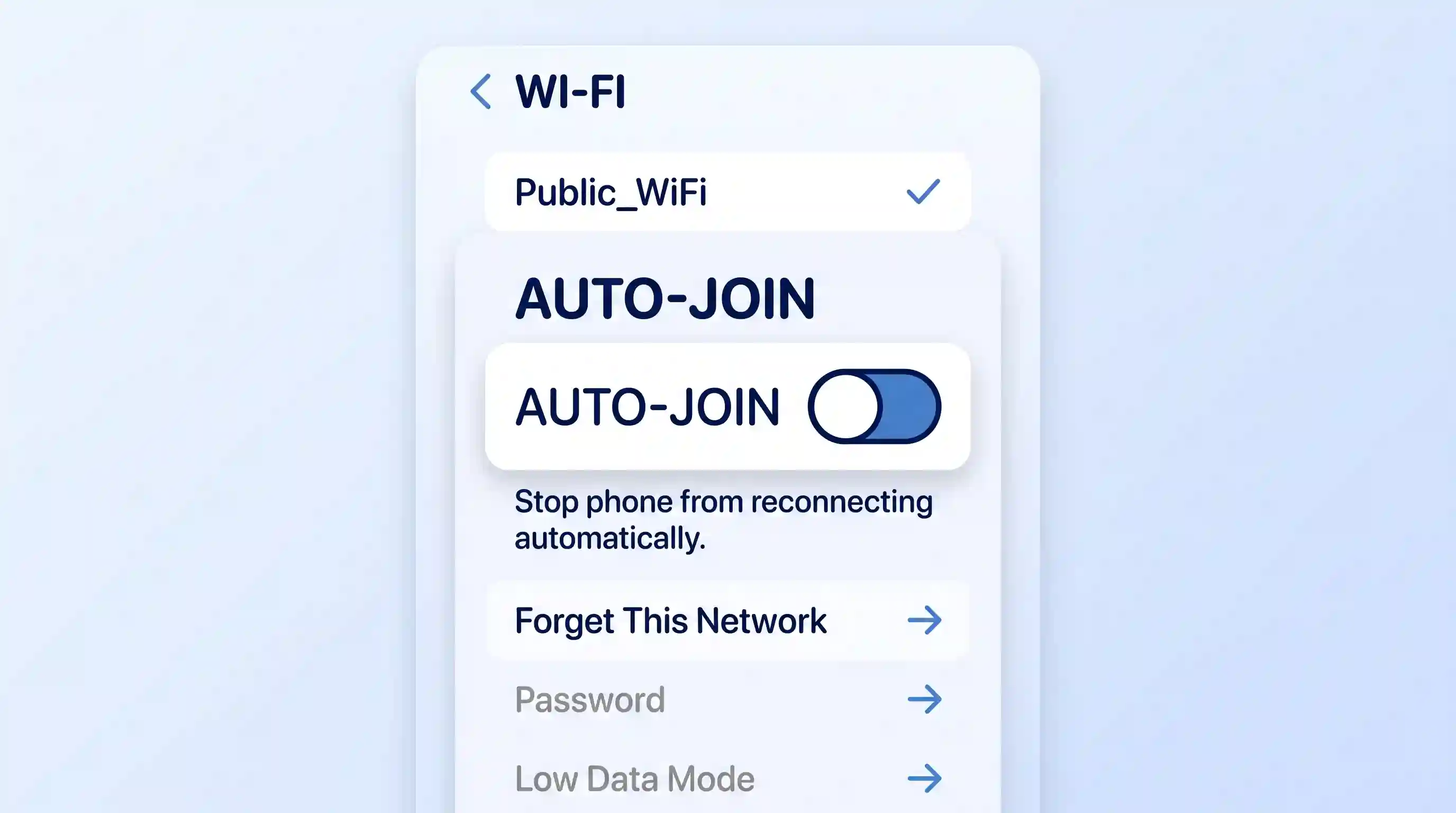
On iPhone: open Settings, tap Wi-Fi, tap the network name, and turn off Auto-Join. This keeps the password saved but stops your phone from reconnecting on its own. To remove the network entirely instead, tap Forget This Network.
On Android: open Wi-Fi settings, tap the gear icon next to the network, and look for a toggle labeled “Connect automatically” or similar. Exact wording varies by phone manufacturer, so search your settings app for “network suggestions” if you can’t find it under the network itself.
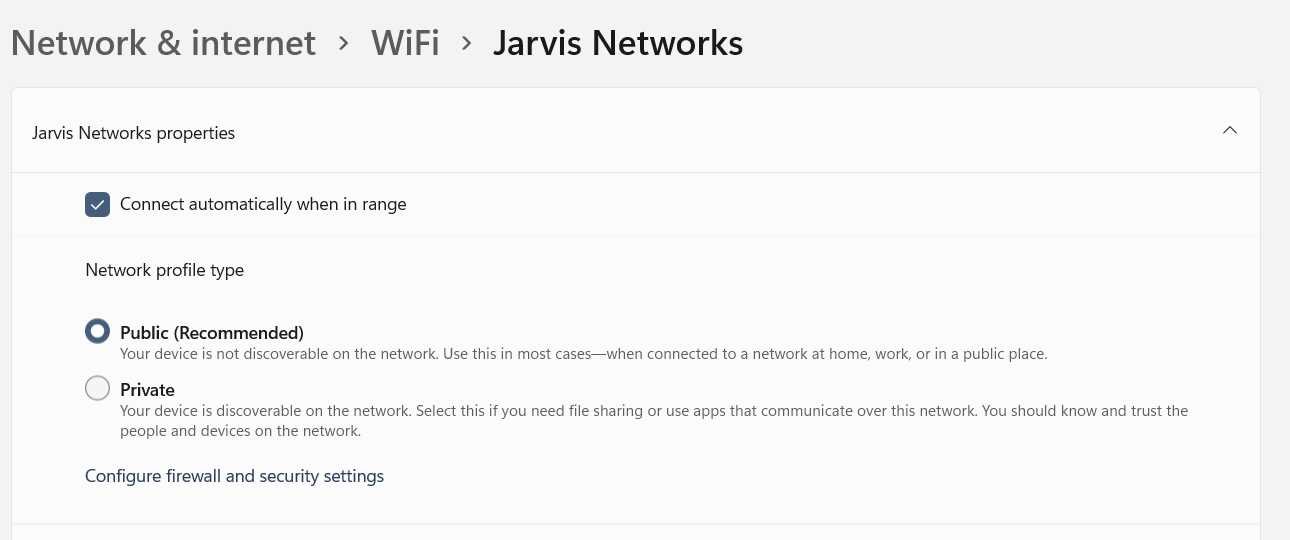
On Windows or Mac laptops: uncheck “Connect automatically” at the connection prompt when you first join. If you already connected once without noticing that box, open your Wi-Fi settings, select the network, and turn the option off there instead.
Expected outcome: your device asks before joining this network again, instead of doing it silently from inside your bag or pocket.
Advertisement
Step 3: Turn On Your VPN Before You Open Anything Else
Open your VPN app and confirm it shows as connected before you open a browser, email, or any other app. A VPN encrypts your traffic before it reaches the local network, so even a compromised hotspot only sees scrambled data.
If you don’t already have a VPN installed, do this at home first. Setting one up for the first time on an unfamiliar network is exactly the situation you’re trying to avoid. When choosing one, look for an app with a kill switch, a feature that blocks all internet traffic if the VPN connection drops unexpectedly, so you’re never accidentally exposed mid-session without knowing it.
Expected outcome: your VPN app shows an active, connected status before any other app touches the network.
Step 4: Turn Off File Sharing and Set the Network to Public
On a Windows laptop, choose “Public” rather than “Private” when prompted after connecting to a new network. This turns off network discovery, so other devices on the same Wi-Fi can’t see your laptop or browse its shared folders. If you missed that prompt, you can turn off file sharing manually afterward.
On a Mac, open System Settings, go to General, then Sharing, and make sure File Sharing and Screen Sharing are both switched off before connecting to public Wi-Fi.
Expected outcome: your laptop is invisible to other devices on the network, and no folder on it can be reached from outside.
Advertisement
Step 5: Check for HTTPS, But Don’t Trust It Completely
Look for a padlock icon and “https://” before the website address in your browser. This means the connection to that specific site is encrypted, even on an unsecured network.
Here’s the catch: scammers can put a padlock on a fake site too. The Federal Trade Commission points out that fraudulent sites are often encrypted as well, so a padlock alone proves the connection is private, not that the site itself is legitimate. Check that the web address is spelled correctly before you trust the padlock next to it.
Expected outcome: you catch a misspelled or fake web address instead of trusting the padlock icon on its own.
Step 6: Turn On Two-Factor Authentication
Before you travel, turn on two-factor authentication for your email, banking, and social media accounts if you haven’t already. A stolen password by itself then isn’t enough to get into your account, since the attacker would also need your phone or a code app.
Expected outcome: logging in from a new device or location triggers a code request, blocking access even if your password leaked.
Step 7: Confirm Your Security Software Is Current
Check that your antivirus or endpoint protection has updated within the last week before relying on public Wi-Fi. If you’re overdue for an update or don’t have one installed, a tool covered in this Bitdefender Total Security review is worth evaluating alongside whatever protection your device already includes.
Expected outcome: your device can recognize and block known malware, rather than relying on the network alone to keep it out.
Advertisement
Verify You’re Actually Protected
Success✓Before you check email or log into anything, run through this quick check.
Look at your VPN app and confirm it says connected, not connecting or disconnected. Look at your browser and confirm the site shows a padlock with the correct address spelling. On a laptop, confirm the network type is set to Public, not Private or Home. If you have another device handy, try browsing to your laptop from it; it shouldn’t be visible.
If any of these checks fail, disconnect, fix the setting, and reconnect before doing anything sensitive. This takes under a minute and catches the most common mistake: assuming a setting is on when it quietly reset itself after an update.
Troubleshooting
Your VPN won’t connect at all.
Many hotel and airport networks use a captive portal, a webpage that requires you to accept terms or enter a room number before granting internet access. Your VPN needs a working internet connection first, so turn the VPN off, complete that login page, then turn the VPN back on right away. Wi-Fi connected but no internet access covers this same captive portal problem in more depth on Windows.
Advertisement
Windows shows “no internet, secured.”
This usually means the captive portal login hasn’t been completed, or the portal page failed to load. Open a browser and try visiting any plain website; that should trigger the login page to appear.
Your browser shows a certificate warning.
This means the site’s encryption certificate doesn’t match what your browser expected, which can indicate a man-in-the-middle attack in progress. Close the tab and don’t click through the warning, even if the site looks familiar. Try again later on a different network.
You realize auto-join reconnected you to a network you never verified.
This happens when a device remembers a network name from a past visit, and a fake copy uses that same name somewhere else. Forget that network entirely, not just this once, and manually rejoin only after confirming the name with staff.
Your phone can’t find the network you were told to join.
Weak signal and interference from other devices are the usual causes on a crowded network. Move closer to a router or access point before assuming the network is down, and ask staff whether the network name changed recently.
Advertisement
A site asks for information it’s never asked for before.
An unexpected request for your password, card number, or a security code mid-session is a strong signal of a fake page inserted into your connection. Close the browser, reconnect on a trusted network, and change that account’s password from there.
Where This Approach Has Limits
A VPN and the steps above lower your risk significantly, but they don’t make public Wi-Fi risk-free. A few things are worth knowing honestly.
A VPN encrypts your connection, but it does nothing against phishing. If you type your password into a convincing fake login page, the VPN protected the connection perfectly while you handed over the password anyway. Encryption and deception are different problems, and a VPN only solves one of them.
A VPN also can’t remove malware already on your device. If something installed before you turned the VPN on, it keeps running underneath the encrypted tunnel.
A VPN can leak your DNS requests, the lookups your device makes to find a website’s address, outside its encrypted tunnel if it’s misconfigured. That can reveal which sites you visit even though the content stays hidden. Most reputable VPN apps turn on leak protection by default, but it’s worth confirming in your provider’s settings if you want to be sure.
Captive portals create a real gap of their own: they require an unencrypted connection to complete their login page before your VPN can even turn on. That short window, usually under a minute, is the least protected part of the whole process. Keep it brief and avoid opening anything sensitive during it.
If you ever suspect an account was compromised despite these precautions, use this data breach checklist and change passwords from a trusted connection, not the one you suspect.
Key Takeaways
Verify the exact network name with staff before connecting; a near-identical name is the most common trap.
Turn off auto-join on every device so nothing reconnects to a network without your knowledge.
Turn on your VPN before opening any other app, not after you’ve already started browsing.
A padlock icon means the connection is encrypted, not that the site itself is trustworthy.
Two-factor authentication is what stops a stolen password from becoming a stolen account.
A VPN doesn’t stop phishing, clean existing malware, or protect a captive portal login, so treat it as one layer, not a complete solution.
These habits cover Wi-Fi specifically. For broader habits like password managers and spotting phishing attempts, see this online safety guide.
FAQ
Is airport or hotel Wi-Fi riskier than a coffee shop network?
Not inherently. Risk comes from how a network is set up and secured, not from the type of venue. That said, busy places with lots of unfamiliar devices connecting and disconnecting all day give an attacker more cover to blend in unnoticed. Follow the same steps everywhere rather than assuming one location is automatically safer than another.
Does a VPN slow down my connection?
Usually, a little. Your data takes a slightly longer path because it’s encrypted and routed through the VPN provider’s server before reaching its destination. For browsing, email, and most everyday tasks, the difference is small enough not to notice. Video calls and large downloads are where you’re most likely to feel it.
Can someone see what I’m doing if I only browse and never log in?
Partially, yes. HTTPS hides the exact page you’re looking at and anything you type, but it doesn’t always hide which website you’re visiting in the first place, since your device still has to look up that site’s address before connecting. A VPN hides this last piece too, because it encrypts the entire connection, not just the page content.
Advertisement
Will using public Wi-Fi get my account flagged as a suspicious login?
It might, and that’s actually a good sign rather than a problem. Banks and email providers often flag a login from an unfamiliar location or network and ask you to confirm it’s really you. That’s the same two-factor authentication system doing its job, not evidence that something went wrong. Only confirm the login if you recognize it as yourself.
Consumables included: 4 x bottled ink (6,000 black or color pages)
Advertisement
Dimensions/Weight: 434 x 360 x 134 mm (WxDxH)/8.3lb/3.75kg
Meet the smallest and cheapest member of HP’s Smart Tank family, lowering the entry point for cartridge-free printing in the home or home office.
It’s a severely stripped-back print-only device with no auto-duplex mode, no ethernet port or paper drawer and a very basic display. but the print engine is the same as that of the more expensive HP Smart Tank 5100, so I’m hoping for decent prints with an unbeatable cost-per-page.
Advertisement
If you can live without the extras, this could be the lowest total cost of ownership of any home printer.
Latest Videos FromTechRadar
Advertisement
HP Smart Tank 210: Design and build
(Image credit: Future)
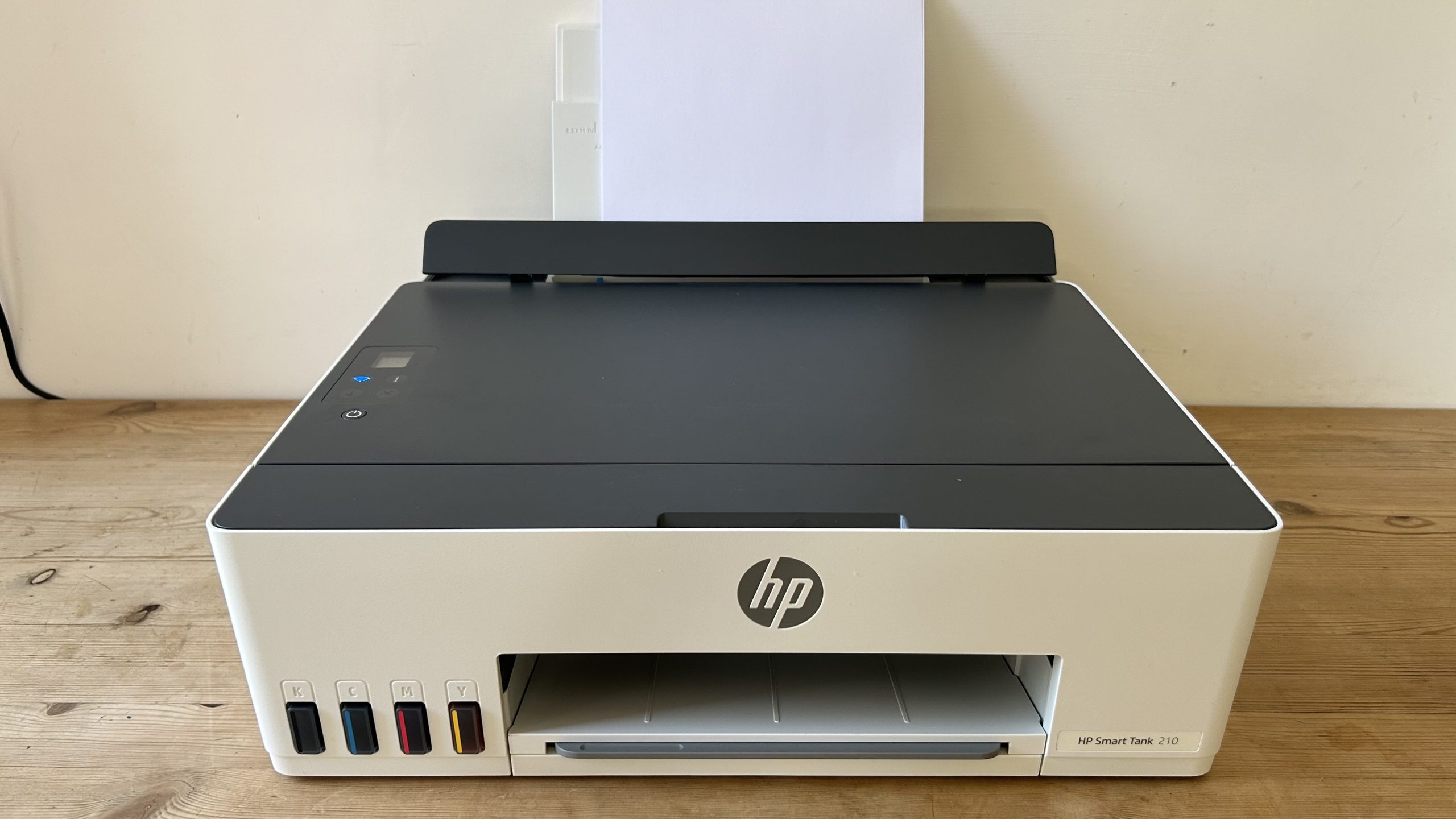
From its sustainable packaging and neat design, to its seamlessly integrated ink tanks, this is a very well-designed product. As well as being the cheapest ink tank printer I’ve tested, it’s also the smallest.
The footprint is the same as the average Letter/A4 printer, but the height is just 134cm, so no bigger than a cartridge inkjet, and I think it looks pretty smart in HP’s off-white livery.
With no integrated scanner, the lid is just a fixed steel panel, and with no front media tray either, your paper must be loaded via the rear input tray. This will hold up to 100 sheets, while the output tray will take up to 30. The display is a postage stamp-sized affair to let you know when it’s connected to the network and not much else.
The HP Smart Tank 210 weighs just eight pounds, but despite that, it feels well made and it’s using 45% recycled plastic. I’m glad to see the packaging is all cardboard too.
Advertisement
Sign up to the TechRadar Pro newsletter to get all the top news, opinion, features and guidance your business needs to succeed!
HP Smart Tank 210: Features & specifications
(Image credit: Future)
To keep costs down, the HP Smart Tank 210 dispenses with all unnecessary features. There’s no Ethernet port or USB Host port and the display is small and basic. There’s no scanner bed, which is available on the step-up HP Smart Tank 5100.
These are all features I can live without, but limiting it to manual duplex seriously slows down your workflow and encourages wasteful one-sided printing. So, think carefully before springing for this model. I think it’s a step too far.
Advertisement
Printing is for the most part slow at just 5ppm (pages per minute) for color pages and 12ppm for black, but thankfully, there is a draft mode for when speed is more important than quality and that cranks it up to 22ppm for black pages.
HP Smart Tank 210: Setup and operation
(Image credit: Future)
HPs printers tend to be the quickest to get up and running thanks to their integrated Bluetooth and I’m glad to see it’s included on this entry-level model. With the HP Smart app on your phone, you can quickly connect it to the printer via Bluetooth, so you can then let the app get your printer onto your local wi-fi network. Dual-band Wi-Fi, AirPrint and Chromebook ensure it’s quick to connect and the app makes it quite easy to print wirelessly.
Things get fiddlier when it comes to installing the two printhead cartridges that distribute the black and tri-color inks to the ink jets. Yes, there are still cartridges, but don’t worry, they’re not the kind that need replacing. The only way to get at them is through the front panel, so you need quite long fingers.
Advertisement
That done, you’re ready to pour in the ink, and that’s much easier. The individually shaped bottle necks means there’s no danger of getting the colors the wrong way around and for three of the tanks, the bottle capacity matches that of the reservoirs. The black bottle holds more, but the tank stops filling automatically when full. I did it quite hurriedly and didn’t spill a drop.
HP Smart Tank 210: Performance
(Image credit: Future)
The HP Smart Tank 210 turned out crisp and colorful test pages without any crashes or paper jams throughout the test. It prints slowly, especially in color, but the pages are worth waiting for. HP’s dye-based C/M/Y inks are bold and bright, so the colors are pleasingly vivid.
As with most business inkjet printers, the black ink is pigment based because that tends to give quick drying and robust prints that are good for handouts. Black text on plain paper looks sharp enough and it passed the finger smudge test. However, it began to lose clarity when printing characters as small as point 3 print size.
Advertisement
Print resolution is the standard 600x600dpi resolution, but this is enhanced when printing on photo paper at fine quality to 4800x1200dpi. It means the HP Smart Tank 210 makes a reasonable photo printer. and the results are on par with more expensive printers like the Brother DCP-T580DW.
HP Smart Tank 210: Consumables
(Image credit: Future)
The HP Smart Tank 210 ships with three years of ink according to HP. To be precise, that’s three 50ml bottles of colored ink and one 375ml bottle of black ink, which should yield up to 6,000 black or color pages.
Compared with cartridge printers like the HP Envy 6530e which comes with ink for 120 black pages and just 75 color, the advantage of bulk tank printing is clear. The difference in price between cartridge and bottled ink is equally dramatic, with cartridge ink costing around 36 times as much for what’s essentially the exact same stuff.
Advertisement
HP Smart Tank 210: Maintenance
(Image credit: Future)
Like any inkjet printer, the printheads are liable to clog if the ink is allowed to dry when left unused for a length of time. It’s easily solved by running a maintenance cycle.
There are three to choose from with the most thorough using the largest amount ink to flush the printheads. If this were a cartridge inkjet, you’d be reluctant to choose that option, but with bottled ink being relatively cheap, it’s not an issue.
If even this doesn’t solve the problem, you can replace the print head cartridges easily, but it’s unlikely you’ll need to do this in the printer’s lifetime.
Advertisement
HP Smart Tank 210: Final verdict
Image 1 of 3
(Image credit: Future)
(Image credit: Future)
(Image credit: Future)
I’m delighted to see the entry point for cartridge-free printing lowered by this innovative budget solution. Admittedly, a lot of features have been cut to get here – there’s no scanner, ethernet port, touchscreen, paper tray or auto-duplex.
However, the print quality is the same as the HP Smart Tank 5100 and comparable with HP’s more expensive HP Smart Tank 7001, which is very good news. Text pages look just as sharp while photos have vivid color and clarity.
It has the same crisp design and easy setup as HP’s other printers too, thanks to its inbuilt Bluetooth and seamlessly integrated ink tanks. There’s plenty of ink in the box and the low cost of HP’s bottled refills means you won’t find another printer with a lower cost of ownership.
Advertisement
For me, auto-duplex is a must-have feature, but if you can live with manual duplex this stripped back ink tank is a bargain.
Sometimes regarded as a less violent form of tennis, badminton is still a pretty challenging sport. One which suffers like so many sports from requiring at least two players since magically flying balls and shuttlecocks haven’t been invented yet. After years of tinkering on a shuttlecock serving robot, [Travis Mitchell] hit upon the idea to convert a small industrial robotic arm for the purpose.
The target of this conversion is a positively cute-sized Denso VS050 robotic arm, with Denso helpfully providing a 3D model of the arm as a solid jumping-off point in a CAD project. Here the task of the robotic arm is two-fold: one is to grab a fresh shuttlecock from a hopper with a pneumatic grabber, the other is to feed it into the spinning wheels that grip and launch it. Fortunately [Travis] has a pretty tricked-out workshop available, including the ability to 3D print metal parts, making building the prototype a snap.
After initially thinking of using a Raspberry Pi Pico, he ended up using an ATmega AVR due to the input-output requirements when communicating with the arm. Using a height-adjustable desk as the base, the whole assembly was put together for some testing on the badminton court.
Advertisement
With most of the testing having been done in the shop already, the remaining issue was to determine the best disc material, as the two high-speed discs that grip the shuttlecock must be well-balanced and not stretch too much. Ultimately a 3D printed plastic disc with a silicone strip as gripping surface was found to work pretty well, allowing for the robot to finally start serving its function.
The pair of built-in, three Watt JBL speakers are adequate here, but as you can imagine, there’s very little in the way of bass frequencies. Dialogue can also get lost if there’s a lot going on in a scene, and it all sounds very localized. As a Bluetooth speaker, it’s perfectly fine, but it can’t compete with our top picks.
Battery Woes
With the average movie now running to 114 minutes, the Vibe One’s maximum 1.2 hours of battery life is, well, terrible. To even achieve that figure you’ll need to set it to Eco mode, which limits brightness considerably. Otherwise you’ll need to plug it in to watch anything over an hour long.
It’s the biggest flaw in an otherwise great little projector, and sadly limits its practicality. You’re better off considering the Vibe One’s portability a bonus feature rather than a reason to buy. You’d need to spend at least $100 more to punch through the 2-hour battery ceiling, or invest in a projector like the Soundcore Nebula Mars 3 ($1,149), which has a 5-hour battery life and 1,000 ANSI lumens of brightness.
Should You Buy One?
Despite its technological limits, the XGIMI Vibe One is extremely easy to enjoy. No, it isn’t bright enough for daytime viewing, the speakers are only adequate, and the battery won’t get you through most films. But for $250, you’re still getting a Full HD projector with Google TV, autofocus, keystone correction, and plenty of customization, all squeezed into a stylish, practical design that doubles as a speaker and lamp.
Advertisement
Photograph: Chris Haslam
It’s not the best portable projector, and it’s no TV replacement, but it is a great extra screen for spare-room cinema nights, kids’ sleepovers, and garden-wall projectors well after dark. Just treat the battery as backup rather than the main event, and keep the curtains closed.
The takeaway: Private conversations with AI chatbots are increasingly being used in court cases, creating a new source of evidence for police, prosecutors, and civil litigants. These records can expose a user’s intentions, private thoughts, and sensitive disclosures, yet they generally receive none of the legal confidentiality protections afforded to conversations with lawyers, doctors, or therapists.
ChatGPT and similar tools are often used for personal questions, legal worries, health concerns, and emotional support. Those conversations can feel private, but they may be accessible through a phone search, a subpoena, discovery in a lawsuit, or a report by the AI company itself.
A review by The Washington Post found chatbot conversations cited in 12 public court cases over the past two years. The number is likely higher because much of the evidence collected during investigations and lawsuits never becomes public.
One case involved a teenager identified in court records as R.K.C., who sued Meta, Snap, TikTok, and YouTube in 2023. He alleged that their platforms contributed to social media addiction and mental health problems.
Advertisement
Defense lawyers obtained his ChatGPT history during the case. In one October 2024 conversation, R.K.C. asked the chatbot to explain a statement from his father about a possible settlement.
“My dad Said that I’m will get a settlement worth of 1million dollar,” he wrote. “He said that If that doesn’t make me happy what does. What does he mean.”
R.K.C.’s lawyers settled with Snap, TikTok, and YouTube by late July. They also dropped the case against Meta, saying they were concerned about putting the teenager through a long trial. The companies denied his claims. Mike Morgan, a partner at Morgan & Morgan, said the ChatGPT messages did not affect the outcome of the case.
Morgan said young people may share more with a chatbot than they would with family members, friends, or therapists. “A fifteen-year-old may type things into a chatbot that he may not say to a therapist, a parent, or a friend, and he does it without realizing that it could end up in a defense expert’s report,” he said in a statement.
Chatbot records have also become part of criminal cases.
In Palm Beach County, Florida, OpenAI contacted the FBI after a ChatGPT user repeatedly described plans to harm an ex-girlfriend, according to a police affidavit. The FBI passed the information to local police, who identified the woman and found that the user, Darren Zhou, had sent her anonymous messages after their relationship ended.
Police said the ChatGPT conversations supported the credibility of the threats. Zhou was arrested in May and charged with stalking and making electronic threats. He pleaded guilty this month and was sentenced to eight years of probation.
Advertisement
OpenAI has said it uses software to detect conversations that may involve dangerous behavior. Those conversations can be reviewed by staff. If reviewers determine there is “an imminent and credible risk of harm to others,” the company may contact law enforcement.
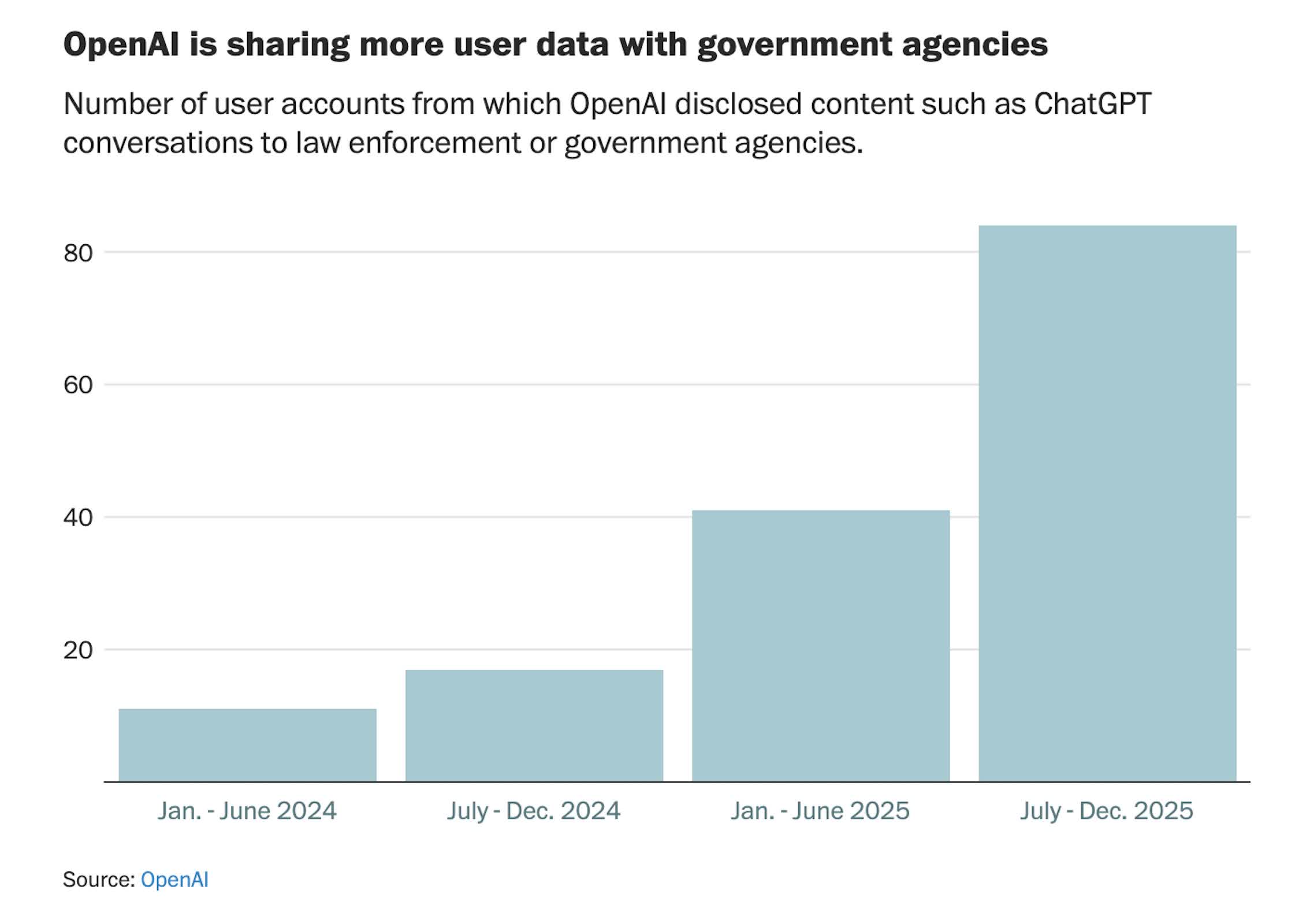
The company has not said how often it makes such reports. Its transparency data, however, shows a sharp increase in government and law-enforcement requests for user information. OpenAI disclosed data from more than 80 accounts during the second half of 2025, more than four times the total from the same period a year earlier.
In many cases, police do not need to obtain records from an AI company. They find the conversations on a person’s phone.
Michael Price, litigation director of the Fourth Amendment Center at the National Association of Criminal Defense Lawyers, said people often agree to let officers search their phones. In most situations, people have the right to refuse a search unless police have a warrant.
Advertisement
“The short answer is that most people consent,” Price told The Washington Post. “They shouldn’t, but they do.”
That happened in the case of Ryan Schaefer, a Missouri State University student accused of damaging 17 cars in a campus parking lot. According to police records, Schaefer agreed to let officers search his phone. They found ChatGPT messages he sent shortly after the alleged vandalism.
“How f—-d am i bro,” Schaefer wrote. “What if i smahsed the s— oitta mutlipls cars.”
He later wrote: “Is there any way they could know it was me.”
Advertisement
Schaefer later pleaded guilty to felony property damage and was sentenced in July to five years of probation.
AI chats can also be pulled into civil lawsuits through the discovery process. In a Michigan employment case, a tire salesman’s former employer alleged that he had taken customers after joining a rival company. The salesman had asked ChatGPT whether deleted Yahoo emails could still be retrieved, including through a court subpoena.
The employer argued that the messages showed he had tried to hide evidence. A judge later ordered him to pay an undetermined amount in attorneys’ fees and allowed the lawsuit to continue.
Chatbot exchanges do not have the legal protections that apply to conversations with lawyers, doctors, or therapists. OpenAI CEO Sam Altman has said AI conversations should have stronger privacy protections because people increasingly use chatbots for sensitive matters. Courts have not recognized that type of privilege.
Advertisement
A federal judge in New York made that clear in a case involving financial executive Bradley Heppner. Heppner argued that prosecutors should not be allowed to review his conversations with Anthropic’s Claude about potential fraud defenses. The judge ruled that the chats were not protected because Claude is not a lawyer and Heppner’s attorneys had not told him to consult the chatbot.
Heppner was convicted in May of securities fraud, wire fraud, and other charges.
The issue may grow as AI tools take on more tasks for users and gain access to more personal data. Andrew Ferguson, a law professor at George Washington University who studies digital surveillance, said chatbot records may be only the beginning.
“Your entire world is going to now be available for police,” Ferguson said.
Apple has a busy fall schedule ahead of it for 2026, beyond the usual iPhone launches. Here’s what to expect in September and October.
Historically, the fall is Apple’s biggest quarter when it comes to launches. Regular as clockwork, September is known as the time Apple brings out a new generation of iPhones and a bunch of other major products.
From Apple’s perspective, it’s perfect timing. It all happens a short time ahead of the lucrative holiday shopping season, with the sales reflected in its quarterly results.
The period is a therefore a very busy one, anchored around iPhones. However, it’s never just Apple’s latest smartphone models, as it usually involves the launch of other products and accessories to go with them.
Advertisement
With launch season already well underway, here’s all of the products you can expect to see come out of Apple in September and October.
Why September and October?
We are all well aware of the September events, but Apple has held more than just one event in the fall. In 2020, it held three events, with one each in September, October, and November.
The October event is very much a possibility for Apple. In the last decade, five years saw an October event, which acted as a Mac-centric overflow to the September one.
That said, Apple’s last October event was in 2023, with 2024 and 2025 just having the September one.
Advertisement
There is no guarantee of an October event, but it’s very much a possibility.
iPhone 18 Pro Max: September
The September event has been the iPhone event for many years, and there’s no reason not to expect that to happen this time either.
There will be a difference though, in that it will just be the Pro models. Due to Apple’s decision to split the launches so the standard models arrive in early 2028, that leaves just the iPhone 18 Pro and iPhone 18 Pro Max.
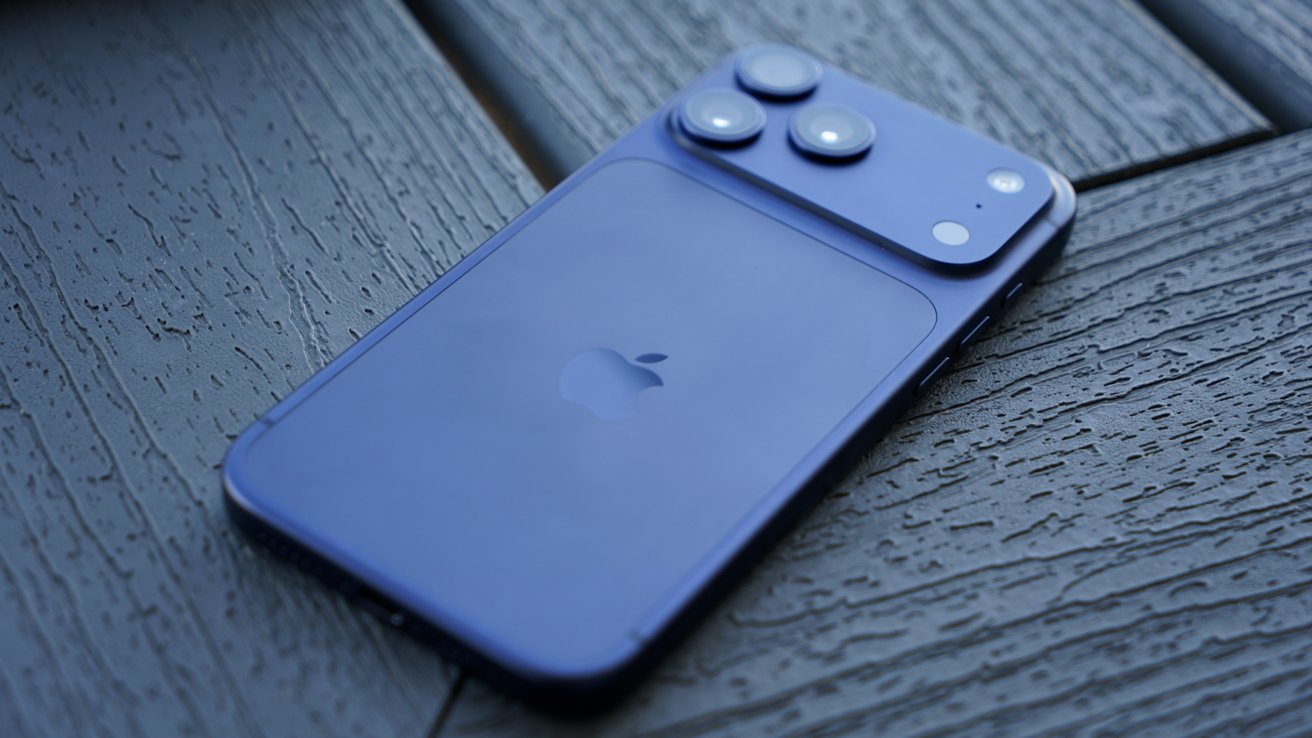
An iPhone 17 Pro Max. The iPhone 18 Pro Max should look quite similar.
Advertisement
Describable as a spec-bump update, the iPhone 18 Pro and Pro Max will move to the 2-nanometer A20 Pro chip. Thanks to some packaging changes, it should run cooler for longer, and therefore provide more performance.
You can also expect Apple to bring out the C2 modem, and there are hints of an under-displayFace ID this time around.
The rear cameras on the Pro Max model is expected to benefit from a change for one sensor. The inclusion of a variable-aperture camera can help users create a real “bokeh” effect for their shots by controlling the focal range.
There are two other changes you can count on, thanks to the rumor mill. There has been talk of a dark cherry colorway, as well as price rises.
Advertisement
That could result in an increase of $300 over the iPhone 17 Pro models.
Folding iPhone: September
While the Pro models won’t have their lower-tier counterparts accompanying them in September, they won’t be alone. Apple’s folding iPhone, referred to frequently as the iPhone Fold or iPhone Ultra, will also take to the digital stage.
It’s a device with two screens, including a folding 7.8-inch internal version with a possible under-display camera.
A render of what the iPhone Fold or iPhone Ultra could look like – Image Credit: AppleInsider
Advertisement
A second 5.3-inch display will be on the outside, complete with a punch-hole camera. Two other 48MP rear cameras are expected.
Inside, it should include things like the A20 Pro and 12GB of memory running the show, to match its premium external appearance.
As with everything in tech, you can also expect a high price for the model. Previously, it was rumored to cost between $2,000 and $2,500, but the ongoing memory crisis can push that even higher.
Apple Watch Series 12 and Apple Watch Ultra 4: September
A typical accompaniment to the iPhone, the Apple Watch Series 12 won’t necessarily make waves. It isn’t expected to have a major overhaul this year.
Advertisement
That said, it should still come with some changes. There’s talk of a new health sensor inside a band, which could change how it monitors your heart through the day.
There has also been a lot of talk about the return of premium ceramic models. If we’re lucky, we may even see two colors of ceramics being put on sale.
Advertisement
Other than that, there’s not much to really expect in terms of change for the standard Apple Watch.
The Apple Watch Ultra is also expected to get an update in 2026. However, it is entirely unclear what that update will entail.
AirPods 5: September
A periodic update to Apple’s personal audio accessories is usually a good bet for a September event. The rumor mill also agrees.
The AirPods 5 will reportedly arrive in standard and ANC versions in September, with the usual assurances of improved features.
Advertisement
One feature that has been heavily rumored and won’t make an appearance are AirPods Pro with cameras. As of one August 30 report, that model won’t be launching anytime soon, making them more likely to appear in 2027.
Operating Systems: September
Apple has long been testing the 27-generation operating systems. To go with Apple’s new hardware, you can also expect iOS 27, iPadOS 27, macOS 27 Golden Gate, watchOS 27, tvOS 27, and visionOS 27 to arrive at the same time.
The exact timings of their arrival will depend a lot on the supporting hardware. Usually, Apple releases its operating systems simultaneously as they ship, or in the days beforehand.
iPad mini 8: October
The iPad mini is long overdue an update, and it is rumored to get one in 2026. The eighth-generation is anticipated to turn up this fall, though on August 30, it was said to be coming in October, not September.
Advertisement
iPad mini 7 on an arm stand. No OLED yet.
When it does arrive, you can expect a big glow-up for the model. The usual spec-bump update to a new chip will occur, possibly to the A20.
The bigger change will be OLED, consisting of an 8.4-inch LTPS rear panel with a hybrid OLED treatment. It won’t have ProMotion with a refresh rate capped at 60Hz, but it will have a brighter and more vivid display.
Smart Home update: September/October
Apple has a lot to talk about for its smart home changes in 2026. So much so that it may not be easily squeezed into the iPhone event, and could be pushed into October.
For the HomePod mini, think a spec-bump update to add Siri AI support and a price of around $129. Similarly, the Apple TV should get a chip update for Siri AI, though a new Siri Remote is also a possibility.
HomePod mini should get smarter this fall
The real thing to watch for is what we refer to as the Home Hub, an all-new device to act as the center of the smart home. Bearing a seven-inch display on a half-dome base, it will manage your smart home devices, and deal with notifications and calendar schedules.
Advertisement
An included camera will also let it work as an in-home intercom and for FaceTime calls.
We would usually expect Apple to use the October event to handle Mac and MacBook updates. With the unexpected early updates to the Mac mini and Mac Studio, that reduces the number of Macs that Apple can potentially update.
There are rumors that Apple will be making a load of changes to its lineup in the coming six months, but whether that will be in late 2026 or early 2027 remains to be seen.
Don’t expect much here, aside from the chip change. The same miniLED screen with ProMotion support will be in play, as will the rest of the specifications.
While the fantasy of an OLED MacBook Pro is a good one, it’s also a very slim possibility. Even with rumors of it arriving in late 2026 or early 2027.
What works against it is how Apple likes to release the base MacBook Pro model of a chip generation, then wait a bit before bringing out the upper-tier versions. OLED would be a very premium feature, making it more likely to arrive later.
In an Amazon News blog post, their HR leader describes using AI to write 100,000 lines of code — 25 years after she last coded. “Do you know how empowering it is to realize that after 25 years away from coding, you can actually build again?” First she built a calendar app for her family, but then used Amazon’s AI-powered coding tool Kiro to write an app for Amazon’s internal “Everyone Can Build” event.
We opened the competition to every employee on our team, and within just a few weeks, more than 1,500 people were building. I couldn’t believe what they built. One employee built an app that turned a nearly four-hour manual process into a one-second automated check, saving tens of thousands of hours annually. Another made a desktop pet named Momo that keeps your tasks, reminders, and shortcuts a click away.
Since then, I’ve written over 100,000 lines of code with AI. What I’ve found is that the more you work with these tools, the more natural the process becomes, and the more you realize they’re expanding what you’re capable of, not replacing it. You don’t need perfection to start. You just need to dive in. When I decided to build the submission app for our team competition, I didn’t know how to begin, so I asked our internal AI workplace assistant, called Aza. It pointed me to the right tools and helped me take the first step. From there, I opened Kiro and started building. When you give employees the ability and tools to solve problems themselves, they will surprise you with what they create…
At Amazon, every employee has access to AI tools. Whether someone needs a quick answer, wants to move faster in their day-to-day, or is ready to try building something new, the resources are there. The more people use these tools, the more capable they become with them, and that experience carries forward in their careers… We also want to make it easy for people to build credentials that are recognized across industries. That’s why AI training is free for every Amazon employee. Amazon covers the full cost of one AWS AI certification exam per year, with options ranging from foundational AI concepts to professional-level generative AI. Employees can choose the path that fits where they are in their learning journey.
Advertisement
Long-time Slashdot reader theodp notes that 7 months ago Galetti also took to Amazon News to announce the elimination of 16,000 corporate jobs, a move which CNBC noted coincided “with a push to invest heavily in artificial intelligence.”
The job reductions come just a few months after October’s layoffs, when 14,000 employees were let go across Amazon’s corporate workforce. At the time, the company indicated the cuts would continue in 2026 as it found “additional places we can remove layers.”
Microsoft veteran recalls how a CPU errata, a mythical ICE, and a single sneaky NOP saved Clippy’s big debut
Veteran Microsoft engineer Raymond Chen shared another fireside tale – one to strike fear into the hearts of engineers everywhere: the bug that can’t be replicated in the debugger.
Advertisement
The story begins near the end of the Word 97 release cycle, when a defect surfaced in the test labs but vanished the moment engineers reached for a debugger.
It was maddening. A script could trigger the crash fairly reliably, yet the instant anyone tried to hunt it down, the bug ducked out of sight.
Chen recalled: “The development team was very anxious, because a bug that appears only sporadically in the lab is going to occur regularly in the wild. But how do you debug a problem that resists debugging?”
It is every developer’s nightmare, even for those smug types who lean back in their chairs and tell testers “works alright here, mate.” There is a special place reserved in the afterlife for these developers.
Advertisement
With the bug refusing to cooperate, talk turned to an ICE (an In-Circuit Emulator, not the immigration agency), which could stand in for the CPU and allow breakpoints inside the emulated chip itself.
“To most software developers,” said Chen, “in-circuit emulators existed only in myth, and the possibility of acquiring one and using it was met with the excitement of a five-year-old boy who learns that he might get to ride on a fire truck.”
Eventually the team traced the problem to a specific manufacturer, and from there to a CPU erratum. The compiler in use at the time had been updated to dodge the problematic code sequence. However, by then the toolset had already been locked. Swapping in a new compiler risked introducing fresh, unknown bugs, so that was off the table.
The solution? Scour the binaries to find instances of the code that might upset CPUs. One was found. “To avoid introducing any new problems as a side effect of the fix, the team opted to do a binary patch to the binary to insert a nop into the offending code sequence.”
Advertisement
Word 97 introduced plenty of headline features. There was the arrival of Clippit (aka Clippy) and Visual Basic for Applications (VBA). And then there was a binary patch produced by determined engineers, which received far less attention. But without it, Word 97 could have been distinctly wobbly. ®




























































You must be logged in to post a comment Login